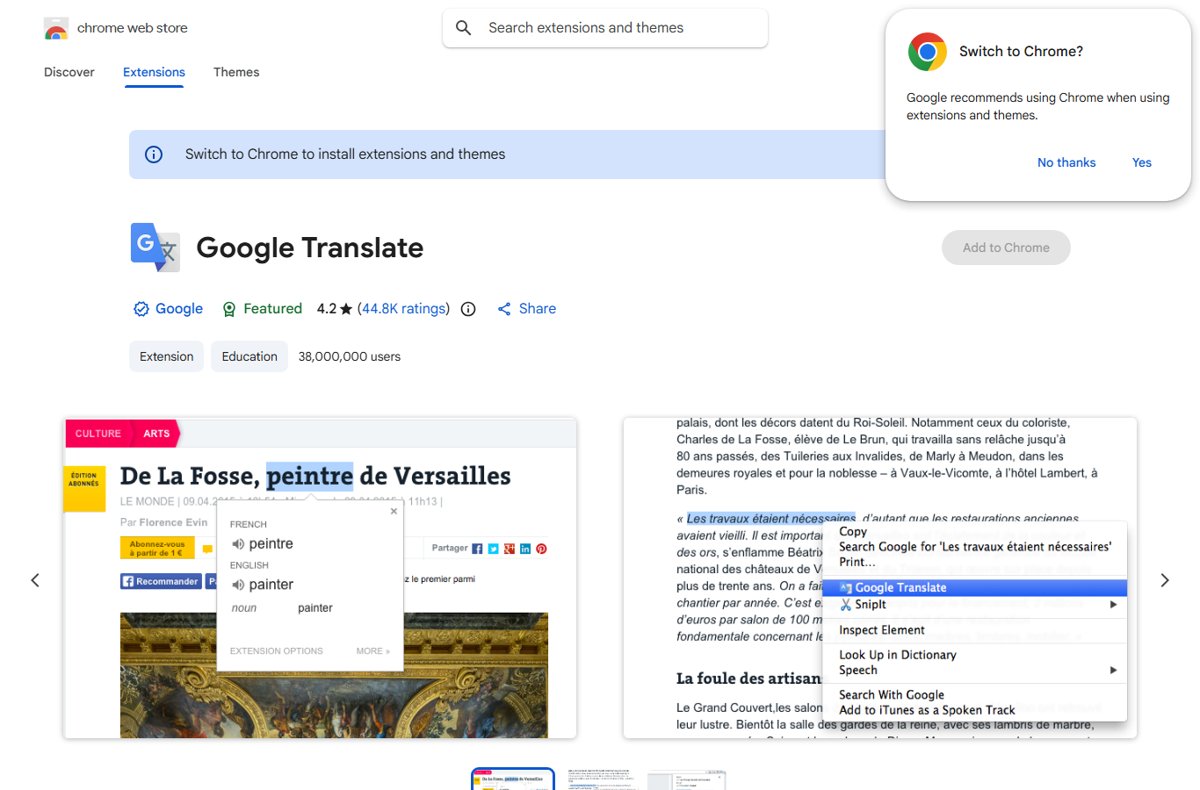
To install the Google Translate extension, open its Chrome Web Store listing in desktop Chrome, select Add to Chrome, then confirm with Add extension.
This guide covers the install, pinning and site access, translating highlighted text, the built-in page translator that replaced the extension's page feature, updates, removal and fixes for the common failures.
Step-by-step: How to install the Google Translate extension in Chrome
The install takes under a minute in a normal Chrome window on Windows, macOS, Linux or ChromeOS.
Check the publisher before you add it: the genuine listing is called Google Translate, is offered by Google, and lists Google Ireland, Ltd. as the developer.
- Open Chrome on your computer in a normal window, not Incognito or a guest profile.
- Go to the Chrome Web Store and search for Google Translate, or open the listing at chromewebstore.google.com/detail/google-translate/aapbdbdomjkkjkaonfhkkikfgjllcleb.
- Confirm the listing shows Google under the name and a Featured badge.
- Select Add to Chrome.
- Read the permissions dialog, then select Add extension.
- Select the Extensions (puzzle piece) button to the right of the address bar to find the new Google Translate icon.
Understanding the Google Translate extension for Chrome
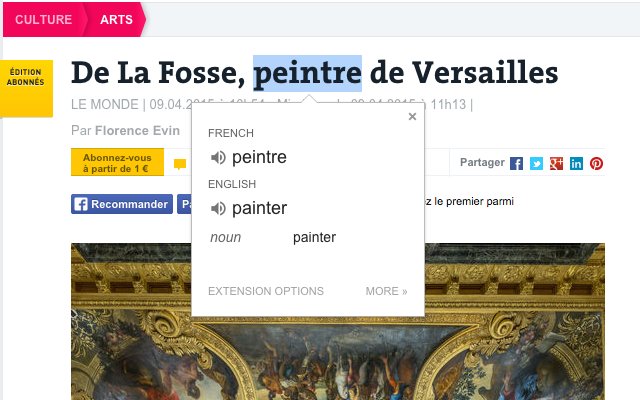
The extension translates text you select on any page. Whole-page translation moved out of the extension and into Chrome itself, which is the single biggest point of confusion with this add-on.
| Detail | Value on the Chrome Web Store listing |
|---|---|
| Name and publisher | Google Translate, by Google (Google Ireland, Ltd.) |
| What it does | Translates highlighted or right-clicked text through a Translate icon next to the selection |
| Full page translation | No longer part of the extension; Chrome translates pages natively |
| Version | 2.0.17, updated July 2, 2026 |
| Size | 1.09 MiB |
| Users and rating | 38,000,000 users; 4.2 out of 5 from 44.8K ratings |
| Listing languages | 53 languages |
| Data the developer says it handles | Location, user activity and website content; not sold to third parties |
| Category | Education |
Google Translate extension vs Chrome built-in translation
| What you want to translate | Use this | Why |
|---|---|---|
| A word, sentence or paragraph on a page | Google Translate extension | Highlight the text and select the Translate icon that appears beside it |
| A whole web page | Chrome's built-in Translate icon in the address bar | The extension stopped handling full pages; Chrome does it natively |
| Selected text without installing anything | Right-click the selection in Chrome | Chrome offers to translate a selection on its own |
| A Word, PDF, PowerPoint or Excel file | translate.google.com, Documents tab | Extensions do not translate files; the website takes files up to 10 MB |
| A page in Edge, Firefox or Safari | translate.google.com, Websites tab | Paste the page URL and the site returns a translated copy |
Prerequisites for installing the Google Translate extension
| Requirement | Detail |
|---|---|
| Desktop Chrome | Chrome Web Store extensions install in Chrome on a computer; the listing asks other browsers to switch to Chrome |
| A normal browsing window | Chrome blocks extension installs in Incognito mode and in a guest window |
| An unmanaged browser, or admin approval | On a work or school computer, the organisation can block extensions |
| A supported, current Chrome | Check the version under Help > About Google Chrome |
| A Google Account (optional) | Signing in to Chrome makes the extension follow you to other computers |
If Chrome itself is not installed yet or its setup file refuses to start, sort that out first; this fix covers a Chrome installer that does not run.
How to enable and customize the Google Translate extension
New extensions sit inside the Extensions menu. Pinning puts the Google Translate icon on the toolbar, and the Details page holds the on/off switch, Incognito access and site access.
- Select the Extensions button to the right of the address bar, then select Pin next to Google Translate to keep its icon on the toolbar.
- Drag the pinned icon left or right to change its position among other extensions.
- To change settings, select More (three dots) > Extensions > Manage extensions.
- Use the toggle on the Google Translate card to turn the extension on or off.
- Select Details, then turn on Allow in incognito if you want it in private windows.
- Under Allow this extension to read and change all your data on websites you visit, choose On select, On specific sites or On all sites.
- Open the extension's options to turn on showing the translation automatically every time you highlight text.
That automatic-on-highlight option arrived in version 2.0 of the extension, when Google added automatic translation for highlighted text.
Using the Google Translate extension effectively
The extension translates into your language by default. Selection works best on a sentence or paragraph rather than a single stray word without context.
- Open a page that has text in another language.
- Highlight the word, sentence or paragraph you want translated.
- Select the Translate icon that appears next to the selection to see the translation.
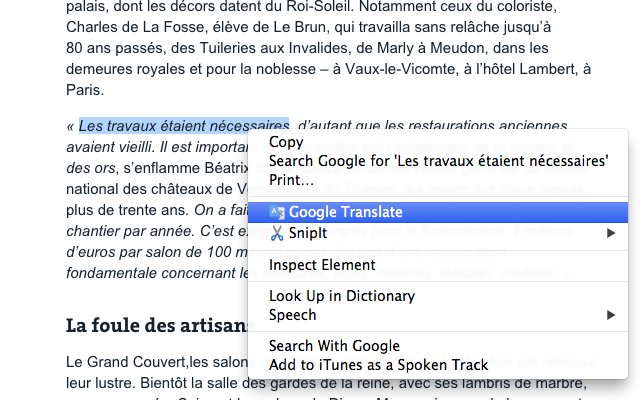
- Or right-click the highlighted text and choose the Google Translate option from the menu.
- Repeat on the next block of text; for the whole page, switch to Chrome's own Translate icon in the address bar.
Translate a full page in Chrome with built-in Google Translate
Chrome has Google Translate built in for whole pages, so this works with or without the extension.
- Open Chrome and go to the page you want to translate.
- Select Translate on the right of the address bar, or right-click the page and select Translate to [Language].
- Select your preferred language.
- To change defaults, select More > Settings > Languages.
- Under Google Translate, make sure Use Google Translate is on, and set Translate into this language to English or your own language.
- Add languages to Automatically translate these languages or Never offer to translate these languages as needed.
How to check the Google Translate extension is installed and working
- Select More > Extensions > Manage extensions and confirm the Google Translate card is listed with its toggle on.
- Select the Extensions button and confirm Google Translate appears in the list, pinned or not.
- Open a page in another language and highlight a sentence.
- Confirm the Translate icon appears beside the selection and returns a translation when selected.
Maintaining and updating the Google Translate extension
Chrome checks installed extensions for updates every few hours, so Web Store extensions stay current without a manual download. Keeping Chrome itself updated matters more, because Chrome disables extensions that fall short of new requirements.
- Select More > Help > About Google Chrome.
- If Relaunch appears, select it to finish a pending Chrome update; if it does not, you are on the latest version.
- Open More > Extensions > Manage extensions and look at the Google Translate card.
- If the card shows a corruption warning, select Repair, then confirm with Repair extension.
- Sign in to Chrome on each computer you use so the extension follows your profile.
Remove the Google Translate extension from Chrome
- Right-click the Google Translate icon to the right of the address bar.
- Select Remove from Chrome and confirm.
- If the icon is not visible, select More > Extensions > Manage extensions.
- On the Google Translate card, select Remove, then select Remove again to confirm.
Removing the extension does not affect Chrome's built-in page translation, which stays available from the address bar.
Troubleshooting common Google Translate extension issues
Unable to install Google Translate: Add to Chrome does nothing or is missing
Chrome does not install extensions in Incognito or guest windows, other browsers cannot install Web Store extensions, and work or school policies can block them.
- Close the Incognito or guest window and open a normal Chrome window.
- Open the listing in Chrome itself rather than Edge, Firefox or Safari.
- On a work or school computer, ask the administrator to allow the extension.
- Update Chrome from More > Help > About Google Chrome and try again.
The Google Translate icon is missing from the toolbar
Chrome places new extensions inside the Extensions menu instead of pinning them.
- Select the Extensions button to the right of the address bar.
- Select Pin next to Google Translate.
- If it is not in the list, open Manage extensions and turn its toggle on.
Highlighting text shows no Translate icon
Site access may be limited to On select or specific sites, or the window is Incognito without permission.
- Open Manage extensions and select Details on Google Translate.
- Set site access to On all sites, or add the site under Allowed sites.
- Turn on Allow in incognito if you are in a private window.
- Reload the page and highlight the text again.
The extension no longer translates the whole page
Page translation was removed from the extension and moved into Chrome.
- Select Translate on the right of the address bar.
- If no Translate icon shows, open Settings > Languages and turn on Use Google Translate.
- Refresh the page if the translation does not start.
The extension is disabled, corrupted or marked unsupported
Chrome disables extensions that are damaged or no longer meet its requirements.
- Open Manage extensions and select Repair on the card, then Repair extension.
- If it stays corrupted, run your existing antivirus scan, then repair again.
- If Chrome lists it as unsupported, remove it and reinstall from the Chrome Web Store, or use Find Alternatives from Details.
Google Translate extension alternatives and additional tips
| Option or tip | What it does | Where to find it |
|---|---|---|
| Chrome built-in translation | Translates whole pages and selected text with no extension | Translate icon in the address bar, or right-click |
| Google Translate website: Websites | Translates a page from its URL in any browser | translate.google.com > Websites |
| Google Translate website: Documents | Translates .docx, .pdf, .pptx and .xlsx files up to 10 MB (PDFs up to 300 pages) on larger screens | translate.google.com > Documents |
| Google Input Tools extension | Lets you type in a language your computer does not support | Chrome Web Store |
| Automatic translation list | Translates chosen languages without asking | Settings > Languages > Automatically translate these languages |
| Third-party translators | Many unofficial extensions use the Google Translate name | Check the publisher reads Google before you select Add to Chrome |
Google Translate Chrome extension FAQ
How do I install Google Translate in Chrome?
Open the Google Translate listing on the Chrome Web Store in desktop Chrome, select Add to Chrome, then select Add extension. The icon then appears under the Extensions button to the right of the address bar, where you can pin it.
How do I install Google Translate on a PC?
On a Windows PC, the simplest route is Chrome: install the Google Translate extension from the Chrome Web Store and use Chrome's built-in page translation. Without Chrome, open translate.google.com in any browser to translate text, web pages and documents.
Can I install Google Translate on Windows 11?
Yes, through Chrome. The Google Translate extension installs in Chrome on Windows 11 like any other Chrome Web Store extension, and Chrome's own page translator works the same way. The translate.google.com website also runs in any browser on Windows 11.
How do I add Google Translate to Chrome's toolbar?
Select the Extensions puzzle-piece button to the right of the address bar and select Pin next to Google Translate. The icon then stays on the toolbar, and you can drag it to a new position among your other extension icons.
Is the Google Translate extension free?
The Chrome Web Store listing installs it with Add to Chrome and no purchase step. It is published by Google, has about 38 million users, and is covered by the Google Terms of Service and Privacy Policy you accept when you install it.
How do I use Google Translate to translate into English?
Set English as the target in Chrome: open Settings, select Languages, and under Google Translate set Translate into this language to English. Then select the Translate icon in the address bar, or highlight text and use the extension's Translate icon.
How do I translate a whole page on Google Chrome?
Select Translate on the right of the address bar, or right-click the page and choose Translate to your language. The Google Translate extension no longer handles full pages, because Chrome now translates pages natively.
How does the Google Translate extension work?
It sends the text you highlight to Google Translate and shows the result beside the selection. The developer discloses that it handles location, user activity and website content, and states that this data is not sold to third parties.
Why can't I install the Google Translate extension?
The usual causes are an Incognito or guest window, a browser other than Chrome, or a work or school policy that blocks extensions. Open a normal Chrome window, try again, and ask your administrator if the computer is managed.
Does the Google Translate extension work in Incognito mode?
Only after you allow it. Open Manage extensions, select Details on Google Translate and turn on Allow in incognito. You still cannot install it from an Incognito window; install it in a normal window first.
Is Google Translate a good translation tool?
For quick reading of foreign-language text it is widely used: the Chrome extension has about 38 million users and a 4.2 rating from 44,800 reviews. For contracts, medical or legal text, have a qualified human translator check the result.
Bottom line: should you install the Google Translate extension in Chrome?
Install it if you often need a sentence or paragraph translated while you read, and rely on Chrome's built-in Translate icon for whole pages. The extension now only translates selected text, so readers who just want full pages translated already have that in Chrome without adding anything.


![How to remove Yahoo from your Chrome, Firefox, or Edge browser? [Easy steps]](https://techdows.com/wp-content/uploads/2026/10/How-to-remove-Yahoo-from-your-Chrome-Firefox-or-Edge-browser-Easy-steps-600x338.jpg)


How to install and uninstall Chrome extensions - Techdows
[…] same steps apply to any listing, for example when you add the Google Translate extension or a password […]