To install a Chrome extension, open its page in the Chrome Web Store and select Add to Chrome; to uninstall one, right-click its toolbar icon and select Remove from Chrome.
This guide covers both routes on a Windows or Mac computer, plus Incognito access, the Manage extensions page, Microsoft Edge and fixes for blocked or disabled extensions.
How to install a Chrome extension
Chrome extensions, also called Chrome add-ons, are small programs that add features to the Chrome browser on a computer.
The Chrome Web Store at chromewebstore.google.com is the official place to get them, and items there install at no charge.
- Open Chrome in a normal window, not Incognito or Guest mode.
- Go to the Chrome Web Store at chromewebstore.google.com.
- Search for the extension you want and select it to open its page.
- Select Add to Chrome.
- Read the permissions dialog, then select Add extension to approve it.
- Select the extension's icon to the right of the address bar to start using it.
Only approve extensions you trust, because the permissions dialog lists what the extension can read and change. You can review those extension permissions later.
The same steps apply to any listing, for example when you add the Google Translate extension or a password manager.
Ways to add or remove a Chrome extension
Most people only need the Web Store route above and the toolbar route for removal. The other rows cover the cases where those do not fit.
| Your situation | Use this | Why |
|---|---|---|
| You want a new extension on your computer | Chrome Web Store, then Add to Chrome | The official source, and Chrome reviews the permissions with you |
| You found the extension on your phone | Add to Desktop on the Web Store page | Chrome on your phone cannot run extensions, so it queues the install for your computer |
| A desktop app installed an extension for you | Enable it or remove it the next time Chrome opens | Chrome asks before it turns on an extension added by another program |
| You are building or testing your own extension | Developer mode, then Load unpacked | Loads a local folder that contains a manifest.json file |
| The extension's icon is on the toolbar | Right-click the icon, then Remove from Chrome | Two clicks, no menus |
| The icon is hidden or missing | Manage extensions, then Remove | Lists every installed extension, pinned or not |
Install a Chrome extension from your phone with Add to Desktop
Chrome extensions and themes only run on computers. You can still pick one on your phone and have it waiting on your desktop.
- Sign in to Chrome on your phone with the same Google Account you use on your computer.
- Open the extension's page in the Chrome Web Store on your phone.
- Tap Add to Desktop.
- Open Chrome on your computer.
- Approve the permissions the extension asks for when Chrome prompts you.
Load an unpacked Chrome extension in Developer mode
Developer mode is for extensions you build or test yourself from a local folder. Extensions for everyday use belong in the Chrome Web Store instead.
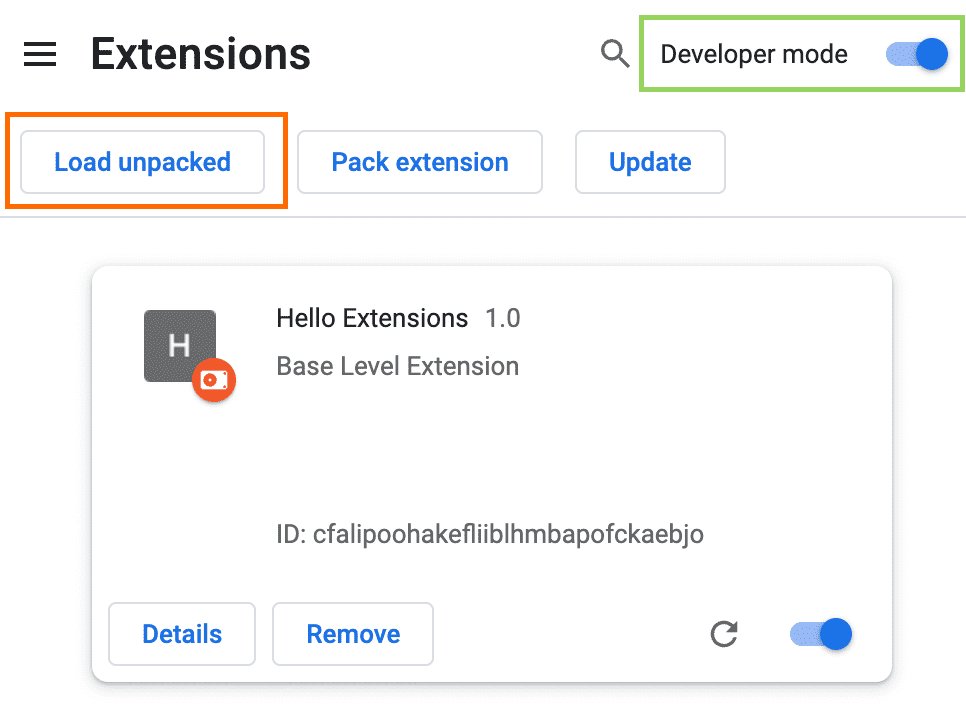
- Open a new tab, type
chrome://extensionsin the address bar and press Enter. - Turn on the Developer mode toggle.
- Select Load unpacked.
- Choose the extension's folder, the one that contains its
manifest.jsonfile. - Confirm the extension now appears in the list on the Extensions page.
Make Chrome extensions work in Incognito mode
Extensions stay off in Incognito windows until you allow each one. You also cannot install a new extension while browsing in Incognito or as a guest, so add it in a normal window first.
- Open Chrome in a normal window.
- At the top right, select More (the three dots), then Extensions, then Manage extensions.
- On the extension you want, select Details.
- Turn on Allow in incognito.
- Open a new Incognito window and check that the extension's icon appears.
Turn the same toggle off to keep that extension out of Incognito again.
How to uninstall a Chrome extension
Removing an extension deletes it from Chrome. If the extension changed your homepage, new tab page or search engine, those settings go back to how they were before you installed it.
- Look for the extension's icon to the right of the address bar.
- Right-click the icon and select Remove from Chrome.
- If the icon is not there, select More at the top right, then Extensions, then Manage extensions.
- On the extension you want to remove, select Remove.
- Select Remove again to confirm.
Disable a Chrome extension without uninstalling it
Turning an extension off keeps it installed with its settings, so you can switch it back on later. It is the quickest way to test whether an extension is breaking a site.
- Select More at the top right of Chrome.
- Select Extensions, then Manage extensions.
- Find the extension in the list.
- Turn off its toggle to disable it.
- Turn the toggle back on when you want the extension running again.
See which Chrome extensions you have installed
The Manage extensions page is where Chrome extensions are located in the browser. It lists every extension on your profile, including ones hidden from the toolbar.
- Type
chrome://extensionsin the address bar and press Enter, or select More, then Extensions, then Manage extensions. - Check that a newly installed extension appears in the list with its toggle on.
- Check that an extension you removed no longer appears.
- Select the Extensions button (the puzzle piece) on the toolbar to see the extensions available in the current tab.
Pin Chrome extensions and change their site access
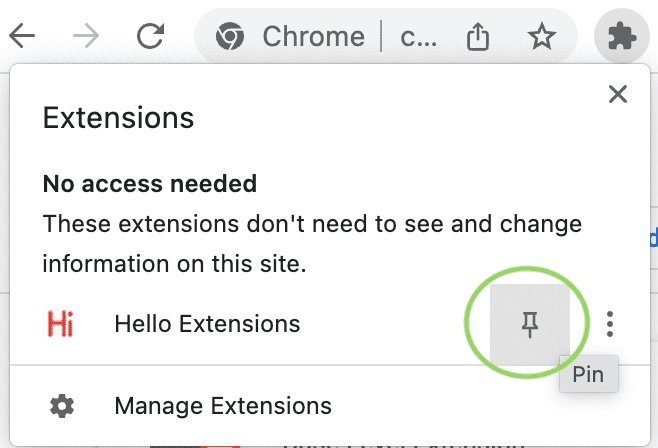
New extensions often sit inside the Extensions button rather than on the toolbar. Site access decides which websites an extension can read and change.
| What you want | Where to do it | What to select |
|---|---|---|
| Show an extension on the toolbar | Extensions button (puzzle piece) | The pin next to the extension; some extensions cannot be pinned |
| Hide an extension from the toolbar | Right-click the extension's icon | Unpin |
| Reorder toolbar icons | The toolbar | Drag an icon to a new spot |
| Limit an extension to the current site | Extensions button, then More next to the extension | "This can read and change site data", then When you select the extension or On [current site] |
| Allow an extension on every site | Same menu | On all sites |
| Add or remove a specific site | Manage extensions, then Details | Add next to "Allowed sites", or More then Remove next to a site |
| Find a setting an extension controls | More, then Settings | Look for "An extension, [extension name], is controlling this setting" |
What are Chrome extensions and how do they work
A Chrome extension is a small add-on that customizes the browser's interface or reacts to browser events, such as closing a tab. Developers build extensions with the same web technologies used for websites.
| Part | What it does |
|---|---|
| manifest.json | The only required file; it names the extension and declares what it needs |
| Web APIs and Chrome Extension APIs | Give the extension access to standard web features plus browser features such as tabs and bookmarks |
| Service worker | Runs in the background and handles browser events; it has no access to the page itself |
| Permissions | Shown in the Add extension dialog; site access can be changed after install |
| Chrome Web Store | The official catalog of extensions, apps and themes for Chrome |
Install Chrome extensions on Microsoft Edge
Yes, you can use Chrome extensions in Microsoft Edge. Edge installs them straight from the Chrome Web Store once you allow other stores.
- Open the Chrome Web Store in Microsoft Edge.
- Search for the extension and select its tile to open the details page.
- Select Get extension in the banner at the top, or Get on the page.
- If a dialog about other stores appears, select Allow extensions from other stores, then Allow.
- Review the permissions and select Add extension.
- To remove it later, right-click its icon and select Remove from Microsoft Edge, then Remove.
Chrome extensions blocked, disabled or not loading: fixes
Chrome extension is blocked or will not install
A work or school administrator blocks it, Chrome is out of date, or you are in Incognito, Guest mode or on a phone.
- Switch to a normal Chrome window on a computer; extensions cannot be installed on mobile, even in desktop mode.
- Update Chrome to the latest version, then try Add to Chrome again.
- On a managed device, ask your IT administrator, because the organization may block some extensions.
Chrome extension is disabled or not enabled
Chrome disables extensions that no longer meet Web Store requirements, or the toggle was switched off.
- Open Manage extensions and check that the extension's toggle is on.
- For an unsupported extension, select Details, then More, then Find Alternatives to pick a replacement.
- Use the toggle at the bottom right to re-enable it temporarily; this only works for a limited time after Chrome disables it.
- Remove the extension if no update arrives.
Chrome extension crashing or not loading
The extension's files are corrupted.
- Open Manage extensions.
- Find the corrupted extension and select Repair.
- Confirm by selecting Repair extension.
- If it stays corrupted, run your antivirus or anti-malware scan, then repair it again.
Chrome extension not visible on the toolbar
The extension is unpinned, so it sits inside the Extensions button.
- Select the Extensions button (puzzle piece) on the toolbar.
- Select the pin next to the extension.
- If it is missing from that menu too, check Manage extensions to confirm it is installed and turned on.
Extensions missing on another computer
Chrome and the Chrome Web Store are signed in to different accounts, or you are not signed in to Chrome.
- Sign in to Chrome on the other computer with the same Google Account.
- Open the Chrome Web Store, select your email address at the top right and sign in with that same account.
Chrome extensions install and uninstall FAQ
What are Chrome extensions?
Chrome extensions, also called Chrome add-ons, are small programs that add features to the Chrome browser, such as ad blocking, translation or password filling. You install them from the Chrome Web Store, and they run only in Chrome on a computer.
How do Chrome extensions work?
Chrome extensions are built with the same web technologies as websites and add access to Chrome Extension APIs. A manifest.json file declares what the extension needs, and a background service worker reacts to browser events such as closing a tab.
How do I remove or delete Chrome extensions?
Right-click the extension's icon next to the address bar and select Remove from Chrome. If the icon is hidden, open More, then Extensions, then Manage extensions, select Remove on the extension and confirm with Remove.
How do I disable Chrome extensions?
Open More, then Extensions, then Manage extensions, and turn off the toggle on the extension. A disabled extension stays installed with its settings, so you can turn it back on at any time from the same page.
What Chrome extensions do I have?
Type chrome://extensions in the address bar to see every Chrome extension on your profile. The list includes extensions hidden from the toolbar and shows whether each one is turned on or off.
Where are Chrome extensions located?
In the browser, Chrome extensions are located on the Manage extensions page, opened from More, then Extensions, then Manage extensions, or at chrome://extensions. The Extensions button, a puzzle piece on the toolbar, shows the ones available in the current tab.
Can I use Chrome extensions in Edge?
Yes. Microsoft Edge installs extensions from the Chrome Web Store. Open the extension's page in Edge, select Get extension, choose Allow extensions from other stores when asked, then select Add extension.
Why is a Chrome extension blocked?
A Chrome extension is usually blocked because a work or school organization manages the browser and restricts extensions. Extensions also cannot be installed in Incognito or Guest mode, on a phone, or sometimes in an out-of-date version of Chrome.
Why is a Chrome extension disabled?
Chrome disables extensions that do not meet current Chrome Web Store requirements, to protect privacy and security. You can find an alternative from the extension's Details page, remove it, or re-enable it temporarily for a limited time.
Are Chrome extensions safe?
Chrome extensions are as safe as the developer behind them. Install only extensions you trust, read the permissions dialog before selecting Add extension, and turn on Enhanced protection so Chrome warns you about extensions from developers it does not yet trust.
Can I install Chrome extensions on my phone?
No. Chrome extensions only run on computers, even if you request the desktop site on a phone. On your phone, you can tap Add to Desktop on a Web Store page, and Chrome on your computer installs it the next time it opens.