Get classic MS Paint back by installing Paint from the Microsoft Store, which is where Microsoft now ships and updates it.
This covers the Store route, Optional features, DISM and PowerShell, repairing a broken install, and what to do on a locked-down computer.
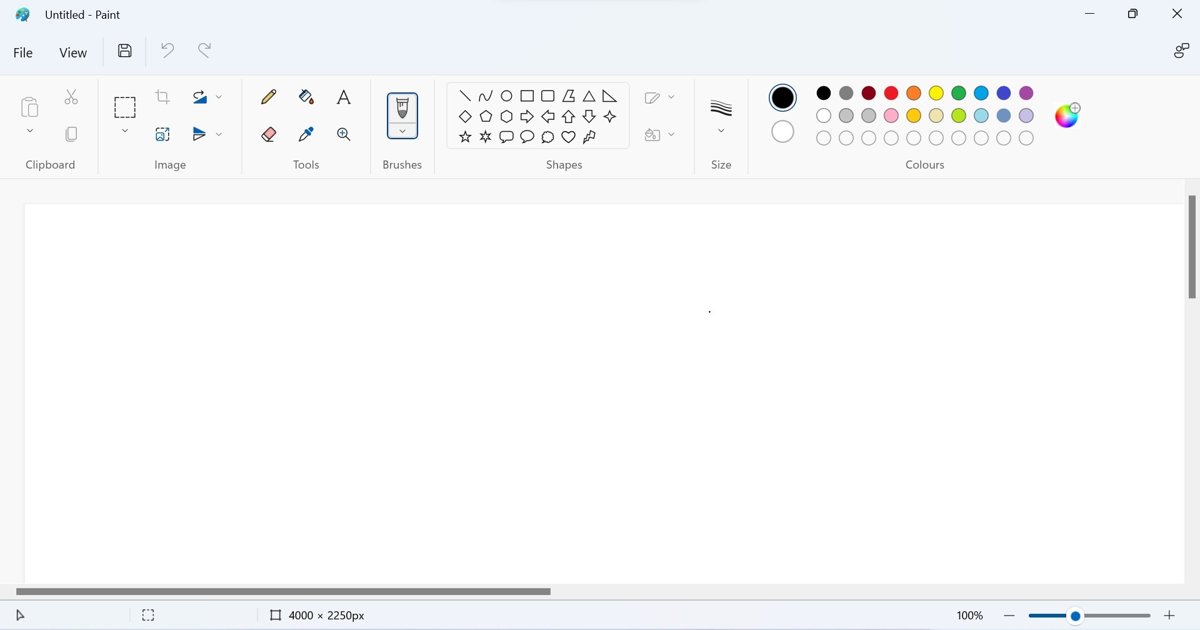
The fastest way to install Paint in Windows 11 and Windows 10
Paint is a Microsoft Store app on Windows 11 and on current Windows 10 builds.
Microsoft's own retirement notice for Paint 3D points readers at this same Paint listing for viewing and editing 2D images.
- Select Start, then select Microsoft Store.
- Type Paint in the Store search box and press Enter.
- Select the Paint entry published by Microsoft.
- Select Get and wait for the download to finish.
- Select Open to launch Paint, or find it under P in All apps.
The listing is at apps.microsoft.com/detail/9pcfs5b6t72h, the address Microsoft links from its own documentation.
Which method should you use?
| Your situation | Use this | Why |
|---|---|---|
| Windows 11, any build | Microsoft Store | Paint ships as a preinstalled Store app, and the Feature on Demand is not offered on those images |
| Windows 10 22H2 with the Store working | Microsoft Store | Same package, same update path as Windows 11 |
| Windows 10, version 2004, where Paint was never a Store app | Optional features, DISM or PowerShell | The Paint Feature on Demand is listed for that release |
| Microsoft Store blocked or removed | Microsoft's signed Paint installer | Published on the support page for uninstalling and reinstalling Paint |
| Paint is present but broken | Repair, then Reset | Repair keeps app data; a reinstall is only needed if both fail |
| Setting up many computers | DISM or PowerShell | One command per device, scriptable, no Settings navigation |
What “Classic MS Paint” Means in Modern Windows
“Classic MS Paint” means two different things on modern Windows releases, and the difference decides which install route works.
| Package | What it is | Current status |
|---|---|---|
| Paint (Microsoft Store app) | The 2D bitmap editor that ships with Windows and carries the Paint name | Preinstalled from Windows Insider Preview build 21354 onwards and updated through the Microsoft Store |
| Paint (Feature on Demand) | Microsoft describes this package as adding “the classic Microsoft Paint and OLE 2.0 functionality” | Capability name Microsoft.Windows.MSPaint~~~~0.0.1.0, listed for Windows 10, version 2004, and not offered where the Paint app is preinstalled |
| Paint 3D | A separate app for 3D models that also edited 2D images | Deprecated in August 2024 and removed from the Microsoft Store on 4 November 2024 |
| Windows 7 Paint | The mspaint program that shipped with Windows 7 | Microsoft publishes no download of it for Windows 10 or Windows 11 |
Paint and Paint 3D were always separate products. Paint 3D going away did not remove Paint, and Microsoft names Paint as its replacement for 2D editing.
First, Check Whether Paint Is Already Installed
Paint is preinstalled on Windows 11 and on current Windows 10 builds, so check before installing anything.
- Select Start, then select All apps.
- Scroll to P and look for Paint in the list.
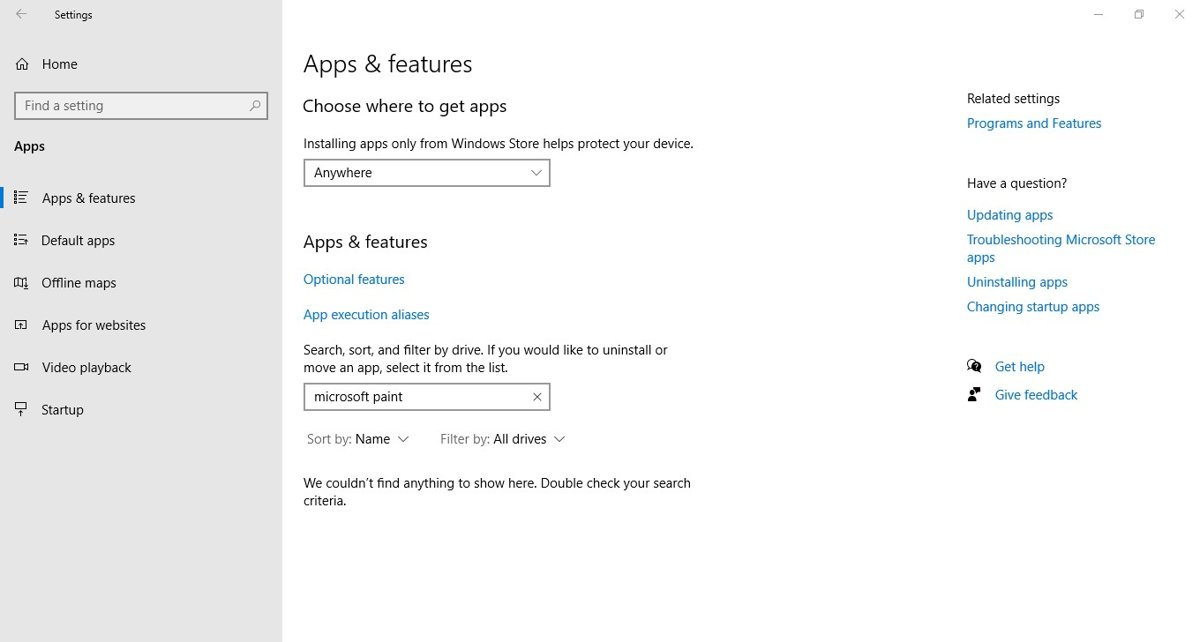
- If it is missing there, open Settings > Apps > Installed apps and search for Paint.
- To check the optional capability instead, open Windows PowerShell and run
Get-WindowsCapability -Online. - Look for a name beginning
Microsoft.Windows.MSPaintand read its State line. - A state of
Installedmeans the capability is present;NotPresentmeans it is available to add; no entry at all means this Windows image does not offer it.
Windows 11 images ship the Paint app, so no MSPaint entry appears in the capability list. That is expected, not a fault.
Method 1: Install Paint from Optional Features
This route applies to Windows 10 builds where Paint was a Feature on Demand rather than a Store app.
Windows Update supplies the files, so the computer has to stay online until the install finishes.
- Right-click Start and select Run.
- Next to Open:, enter
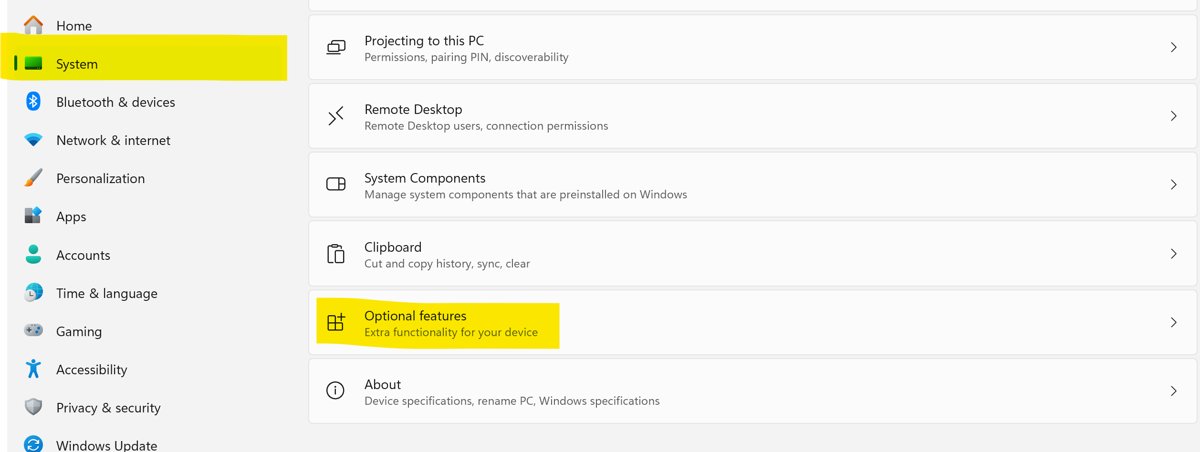
ms-settings:optionalfeaturesand select OK. - On Windows 11, the same page sits at Settings > System > Optional features; on some builds it is under Settings > Apps. On Windows 10, it is Settings > System > Optional features, or Settings > Apps > Apps & features on older builds.
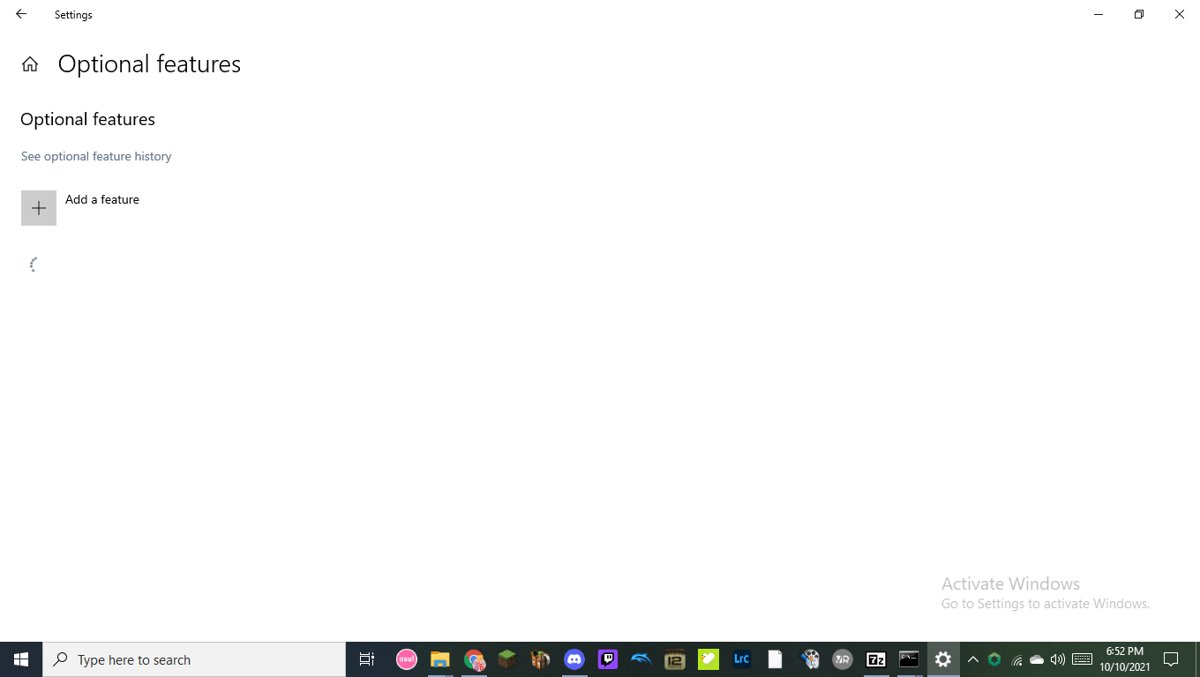
- On Windows 11, select View features next to Add an optional feature. On Windows 10, select the + button next to Add a feature.
- Find Paint and select the box next to it.
- On Windows 11, select Next, then select Add. On Windows 10, select Add.
If Paint does not appear in that list, the image already includes the Paint app and the Feature on Demand is not published for it. Install from the Microsoft Store instead.
Method 2: Install Paint from the Microsoft Store
A browser link reaches the same listing as the Store app, which helps when Store search returns nothing.
The Store also handles Paint updates, so new features arrive between Windows releases.
- Open the Paint listing in any browser.
- Select the install button on the page and allow the browser to open the Microsoft Store app.
- In the Store, select Get and wait for the install to finish.
- To update Paint later on Windows 11, select Start > Microsoft Store, then select Library > Get updates.
- To update Paint on Windows 10, select Start > Microsoft Store, then select See more > Downloads and updates > Get updates.
Windows 11's redesigned Paint gained its ribbon, dark mode and later its editing panels this way. Hands on Windows 11's redesigned Paint app shows what that first rebuilt version changed.
Method 3: Install Paint with Command Prompt Using DISM
Open Command Prompt as an administrator first, because servicing the running image needs elevation.
Run DISM /Online /Get-Capabilities first to confirm the package is published for this Windows build.
DISM.exe /Online /Add-Capability /CapabilityName:Microsoft.Windows.MSPaint~~~~0.0.1.0/Online targets the copy of Windows you are running rather than a mounted image. /CapabilityName names the Paint Feature on Demand exactly as Microsoft publishes it. With no /Source, DISM downloads the package from Windows Update.
You should see: The operation completed successfully. Running DISM /Online /Get-Capabilities afterwards shows the MSPaint entry with the state Installed.
To remove and reinstall in one pass, run DISM.exe /Online /Remove-Capability /CapabilityName:Microsoft.Windows.MSPaint~~~~0.0.1.0, restart the computer, then run the add command again.
On Windows 11 this command fails, because the capability is not published for images that already ship the Paint app.
Method 4: Install or Reinstall Paint with PowerShell
Open Windows PowerShell as an administrator. The DISM module ships with Windows, so nothing needs installing first.
Add-WindowsCapability -Online -Name "Microsoft.Windows.MSPaint~~~~0.0.1.0"-Online services the running operating system. -Name is the capability identity. Because no -Source is given, the Windows Update client downloads the package, which needs either an internet connection or a reachable WSUS server.
You should see: The command returns without an error, and Get-WindowsCapability -Online then lists the MSPaint capability with the state Installed.
The Paint Store app is a different package from this capability. List it with Get-AppxPackage | Where-Object Name -like "*Paint*".
If that returns nothing, the Store app is gone rather than unregistered, so reinstall it from the Microsoft Store instead of trying to re-register it.
How to check it worked
- Select Start, select All apps, and confirm Paint is listed under P.
- Open Paint and confirm the toolbar and a blank canvas load.
- Open Settings > Apps > Installed apps and search for Paint to confirm a version is listed.
- Right-click any
.pngfile in File Explorer, select Open with, and confirm Paint is offered.
Repair or Reset Paint If It Is Installed but Not Working
Repair leaves your app data alone. Reset clears it, so try Repair first.
- On Windows 11, select Start > Settings > Apps > Installed apps.
- Select the More icon next to Paint, then select Advanced options.
- Select Repair. If Paint still fails, return to the same page and select Reset.
- On Windows 10, select Start > Settings > Apps > Apps & features, select Paint, then select Advanced options.
- Select Repair, and use Reset only when Repair changes nothing.
Repair, change and modify options are not shown for every app, so a missing Repair button means Paint offers Reset only.
Create a Desktop Shortcut for Classic Paint
Store apps live in a protected folder you cannot browse to, so the Applications folder is the route to a shortcut.
- Press Windows key + R to open the Run dialog.
- Type
shell:AppsFolderand press Enter. - Find Paint in the Applications window that opens.
- Drag the Paint entry onto the desktop to place a shortcut there.
- Rename the shortcut if you want a different label under the icon.
Dragging copies a shortcut and leaves the app itself in the Applications folder, so nothing moves or breaks.
Set Paint as the Default App for Image Files
- Open the Settings app and select Apps > Default apps.
- In the search bar, type the file extension you want to change, such as
.png. - Select the corresponding result from the list that appears.
- Choose Paint from the apps offered to open files of that type.
- Repeat for every extension Paint should own, such as
.jpgand.bmp.
For one file only, right-click it in File Explorer and use Open with. That leaves the default for the whole file type unchanged.
How to Get a More Classic Paint Experience in Windows 11
Windows 11 has no supported path back to the old mspaint program, so the honest question is which parts of the classic behaviour still exist.
| What you want back | What Windows 11 gives you | Why |
|---|---|---|
| The old mspaint desktop program | Not available | The Paint Feature on Demand is listed for Windows 10, version 2004, and is not offered on images where the Paint app is preinstalled |
| Plain 2D bitmap editing with no 3D tools | The Paint app | Microsoft names Paint as the app to use for viewing and editing 2D images after Paint 3D's removal |
| A 3D viewer alongside Paint | Nothing built in | Microsoft points to the Babylon.js Sandbox for viewing 3D content |
| A Paint that never changes | Not possible while the app is installed | Paint updates arrive through the Microsoft Store rather than with Windows feature updates |
Can You Install the Windows 7 Version of Paint on Windows 10 or 11?
No. Microsoft publishes no download of the Windows 7 version of Paint for Windows 10 or Windows 11. The only Paint packages Microsoft distributes are the Microsoft Store app and the Paint Feature on Demand, capability name Microsoft.Windows.MSPaint~~~~0.0.1.0, which is listed for Windows 10, version 2004. Copying program files out of an old Windows 7 installation is not a supported install route and Microsoft offers no source for it.
Install Paint on an Offline or Restricted PC
Optional features come from Windows Update, so a computer with no path to it fails at the download step rather than at the command.
- Confirm the computer can reach Windows Update. From Windows 10, version 1809, Features on Demand and language packs can only be installed from Windows Update.
- On a WSUS-managed computer, ask the administrator to apply the Group Policy setting that tells clients to download Features on Demand directly from Windows Update.
- To review the local policy, type Edit Group Policy at Start and select Edit Group Policy.
- Select Computer Configuration > Administrative Templates > System, then open Specify settings for optional component installation and component repair.
- Choose the settings you want for Features on Demand and select OK.
- If the Microsoft Store itself is blocked, use the signed Paint installer Microsoft publishes on its uninstall and reinstall Paint support page, which needs Windows 10 22H2 19045.3758 or later.
Uninstall Paint If You Want to Reinstall It Cleanly
Uninstalling and reinstalling Paint this way needs Windows 10 22H2 19045.3758 or later.
- From the Start menu, search for the Settings app and open it.
- Select Apps, then select Installed apps.
- Find or search for Paint, select the three dots to the right-hand side, then select Uninstall.
- Select Uninstall again to confirm.
- Restart the computer so the removal finishes before you install again.
- Reinstall from the Microsoft Store, or run the signed installer from Microsoft's support page.
On a Windows 10 build that uses the Feature on Demand instead, remove it with DISM.exe /Online /Remove-Capability /CapabilityName:Microsoft.Windows.MSPaint~~~~0.0.1.0 and add it again afterwards.
Troubleshooting Paint Installation Problems
Paint does not appear in the Optional features list
The Paint Feature on Demand is not published for any image where the Paint app is already preinstalled, which covers Windows 11 and current Windows 10 builds.
- Open Settings > Apps > Installed apps and search for Paint.
- If it is listed there, nothing needs installing.
- If it is not listed, install Paint from the Microsoft Store instead of Optional features.
The Microsoft Store will not install Paint
The Store cache is stale, or a pending Windows update is still waiting for a restart.
- Press Windows key + R, enter
wsreset.exeand select OK. - Wait about ten seconds for the blank command window to close and the Store to open on its own.
- Search for Paint again.
- Restart the computer if Windows updates were installed recently.
- Sign in to the Store with your Microsoft account and try once more.
Paint is missing from the Store or the install button is unavailable
The Store hides or blocks apps by region, by family settings, or when they are incompatible with the device.
- Check whether family settings on the account are filtering apps by age rating.
- Confirm the account region matches where the app is offered, because not every app is available worldwide.
- Confirm the device meets the app's requirements, since the Store blocks the purchase button on incompatible devices.
- Open the Paint listing in a browser to confirm the app itself is still published.
DISM says the Paint capability cannot be found
The capability is listed for Windows 10, version 2004, and is not published for images that ship the Paint app.
- Run
DISM /Online /Get-Capabilitiesfrom an elevated Command Prompt. - If no entry begins
Microsoft.Windows.MSPaint, stop and use the Microsoft Store route. - If the entry exists but the install fails, confirm the computer can reach Windows Update, since that is where the package comes from.
Paint installs but closes immediately when opened
The app's stored data is damaged, which a reinstall alone does not always clear.
- Open Settings > Apps > Installed apps, select the More icon next to Paint, then select Advanced options.
- Select Repair and try Paint again.
- Select Reset if Repair changes nothing.
- Uninstall Paint, restart the computer, and install it again from the Microsoft Store.
Frequently Asked Questions
How do you install classic MS Paint?
Open the Microsoft Store, search for Paint, and select Get. On Windows 10 builds that offered Paint as a Feature on Demand instead, add it from Settings, System, Optional features, or run the DISM command with the capability name Microsoft.Windows.MSPaint~~~~0.0.1.0.
How do you get Microsoft Paint back after uninstalling it?
Reinstall it from the Microsoft Store listing, or run the signed installer Microsoft publishes on its support page for uninstalling and reinstalling Paint. That installer route needs Windows 10 22H2 19045.3758 or later.
How do you download Microsoft Paint?
Microsoft distributes Paint through its Microsoft Store listing at apps.microsoft.com, and through signed installers linked from its own support page. No other download source is published by Microsoft, so avoid third-party mirrors.
Is Paint still included in Windows 11?
Yes. Paint is a preinstalled app on Windows 11 and is updated through the Microsoft Store rather than with Windows feature updates. Because it is preinstalled, the separate Paint Feature on Demand is not offered on those images.
What happened to Paint 3D?
Paint 3D was deprecated in August 2024 and removed from the Microsoft Store on 4 November 2024. Microsoft points to Paint or Photos for 2D images, and to the Babylon.js Sandbox for viewing 3D content.
What is the difference between Paint and Paint 3D?
Paint is the 2D bitmap editor that still ships with Windows. Paint 3D was a separate app for 3D models that also handled 2D edits, and it is gone. Removing Paint 3D never removed Paint.
Can you install Paint without the Microsoft Store?
Yes, in two cases. On Windows 10 builds that publish the Paint Feature on Demand, use Optional features, DISM or PowerShell. Otherwise use the signed Paint installer linked from Microsoft's uninstall and reinstall support page.
Why is Paint missing from Optional features on Windows 11?
Because Windows 11 images already include the Paint app. Microsoft does not publish the Paint Feature on Demand on any image where the Paint app is preinstalled, so the entry never appears in that list.
What is the DISM capability name for Paint?
Microsoft.Windows.MSPaint~~~~0.0.1.0. Microsoft lists it under the Paint feature, which adds the classic Microsoft Paint and OLE 2.0 functionality, with an install size of about 6.81 MB and availability given as Windows 10, version 2004.
How do you make Paint the default image editor?
Open Settings, Apps, Default apps, type the file extension such as .png in the search bar, select the result, and choose Paint. Repeat for each extension. For one file only, right-click it and use Open with.
How do you update Paint?
On Windows 11, open the Microsoft Store and select Library, then Get updates. On Windows 10, open the Microsoft Store and select See more, then Downloads and updates, then Get updates. Updates install automatically when available.
Bottom line
Install Paint from the Microsoft Store on Windows 11 and on current Windows 10 builds. That is the package Microsoft ships, updates and points to in its own documentation, and the Paint Feature on Demand is not published for images that already include the app. Keep Optional features, DISM and PowerShell for Windows 10, version 2004, and use the signed installer when the Store is blocked.





How to make a classic T‑shirt on Roblox (2026) - Techdows
[…] editor that exports .png or .jpg works, even the classic MS Paint app; a classic T-shirt is a single flat […]