For help with Paint in Windows 11 or Windows 10, open it from Start, use the toolbar tools for drawing, text, cropping and resizing, and use Feedback Hub (Windows + F, category Apps > Paint) to report a problem to Microsoft.
This guide covers every everyday Paint task, the layers and AI tools in the current Windows 11 app, the Paint 3D situation on Windows 10, and fixes for a missing or broken Paint.
How to get help with Paint in Windows 11 and Windows 10
Paint has no built-in help manual, so official help comes from Microsoft Support articles, the Get Help app and Feedback Hub. Pick the route that matches what you need.
- For the AI tools, open Microsoft's Use Copilot+ PC features in Paint and Use Image Creator in Paint articles.
- For a tour of what changed in your copy of Paint, open Paint and select the megaphone icon in the top-right corner of the toolbar to reopen the welcome dialog.
- For a problem with Windows itself, select Start, type Get Help, and open the Get Help app.
- To report a Paint bug or request a feature, press Windows + F to open Feedback Hub and file it under Apps > Paint.
- For the tasks below, jump to the section that names your job: open, draw, text, crop, layers, AI, save, print or repair.
Problems that reach beyond Paint, such as Start or Settings failing, are easier to solve once you know how to get help in Windows 11 through its own support tools.
What is Microsoft Paint?
Microsoft Paint is the graphics editor included with Windows for drawing, cropping, resizing and adding shapes or text. On Windows 11 it is a Microsoft Store app that updates separately from Windows.
Paint 3D is a different app. Microsoft deprecated it in August 2024 and removed it from the Microsoft Store on November 4, 2024, and points 2D editing to Paint or Photos instead.
| App | Where it runs | Status | Best for |
|---|---|---|---|
| Paint (Windows 11) | Windows 11, preinstalled, updated through Microsoft Store | Actively developed: layers, transparency, background removal, AI tools | Drawing, quick edits, screenshots, simple graphics |
| Classic Paint (Windows 10) | Windows 10; a Feature on Demand from version 2004 | Basic tools, no layers or AI | Cropping, resizing, annotating |
| Paint 3D | Windows 10 and 11 where already installed | Removed from Microsoft Store on November 4, 2024 | Existing 3D projects only |
| Photos | Windows 11 and Windows 10 | Actively developed | Managing a photo library and simple photo adjustments |
4 methods to open and use Paint in Windows 11/10
All four routes open the same app. Pick the one that matches where you are when you need Paint.
| Where you are | What to do | Result |
|---|---|---|
| Desktop or any app | Select Start, type Paint, and press Enter | Paint opens with a blank canvas |
| You open Paint every day | Search for Paint in Start, right-click it, and pin it to the taskbar | One-click launch from the taskbar |
| File Explorer, looking at an image | Right-click the PNG, JPG, BMP or GIF file and select Open with > Paint | The image opens in Paint, ready to edit |
| Snipping Tool, after a screenshot | Select Edit > Edit with Paint (Windows 10 shows Edit with Paint 3D) | The capture opens in Paint for sizing, color and text |
On a PC where Paint is missing, none of these routes work until you reinstall it. The fix is in the missing-Paint section below.
How to update Paint to the latest version
On Windows 11, Paint is updated through Microsoft Store, so new tools such as layers and Image Creator arrive as app updates, not Windows updates.
- Open Microsoft Store from the Start menu.
- On Windows 11, select Library > Get updates.
- On Windows 10, select See more > Downloads and updates > Get updates.
- Wait for Paint to finish updating, then close and reopen Paint.
- Select the megaphone icon in the toolbar to see which new features arrived with the update.
- Confirm the update worked: the Layers and Remove background buttons should now appear in the toolbar.
Some features first appear for Windows Insiders and reach everyone later, so a fully updated PC can still lack the newest tool.
Understanding the new Paint interface
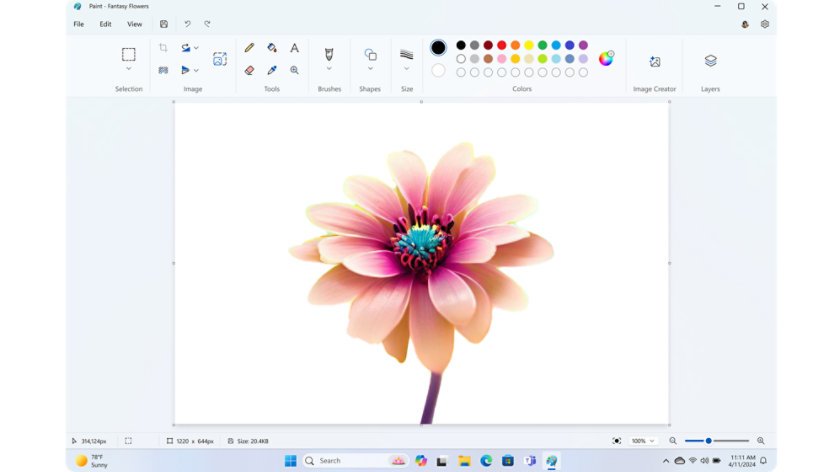
Windows 11 Paint replaced the old ribbon with one toolbar and a centered canvas, and it supports dark mode. The redesigned Paint app has kept that layout through later updates.
| Area | What it holds | Use it to |
|---|---|---|
| File menu | New, open, save, save as project, print | Start, save and output your work |
| Selection and image tools | Rectangle and free-form selection, crop, resize, rotate and flip | Change the size or shape of the picture |
| Drawing tools | Pencil, fill, text, eraser, color picker and magnifier | Draw, fill areas, add text and sample colors |
| Brushes, shapes and colors | Brush styles and sizes, shapes, custom colors by hex, RGB or HSV | Paint strokes and draw outlines |
| Copilot menu (where available) | Image Creator, Cocreator, Sticker generator, Restyle | Generate AI images and stickers |
| Layers panel | Pinned to the right side of the canvas | Stack, hide and merge image elements |
| Zoom and view options | Zoom, rulers, grids and thumbnail view | Work on detail without losing the whole picture |
How to create a new image in Paint
Every new image starts as one canvas. Set its size first so later resizing does not blur the result.
- Open Paint, select File, and select New.
- Select Resize in the toolbar, choose Pixels, and type the width and height you need for the canvas.
- To manage a busy canvas, open the Layers panel and give each element its own layer.
- To bring a picture in, select File > Open and pick the image file.
- To paste a screenshot instead, press Windows + Shift + S, capture a region, then press Ctrl + V in Paint.
Paint 3D is no longer available from Microsoft Store, so resize and manage the canvas in Paint instead; the same steps work in Windows 10's classic Paint from the Home tab.
How to draw and erase in Paint
Paint draws with the pencil, brushes and fill tool, and recent versions add opacity control for strokes. Erasing on a layered image now removes pixels instead of painting them white.
- Select Pencil for thin lines or open Brushes and choose a brush style.
- Pick a color from the palette, or define a custom one with a hex, RGB or HSV value.
- Set the stroke size, and drag the opacity slider on the left side of the canvas for semi-transparent strokes.
- Select Fill and click an area to flood it with the current color.
- Select Eraser and drag over anything you want removed; erased areas show a checkerboard where they turn transparent.
- Press Ctrl + Z to undo a stroke or Ctrl + Y to redo it.
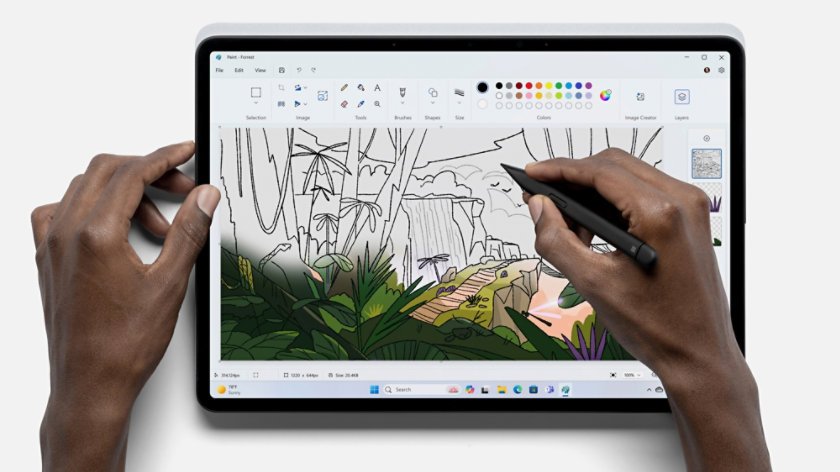
A Surface Pen or other stylus also works on touch-capable hardware, and pen pressure settings live under Pen & Windows Ink in Settings.
How to add text to an image in Paint
- Select the Text tool in the toolbar.
- Click the canvas where the text should start and drag out a text box.
- Type your text.
- Set the font, size, style and color in the text options before you click away.
- Click outside the box to place the text.
Placed text becomes part of the picture and can no longer be edited as text. Put text on its own layer so you can delete and retype it without touching the image below.
How to use shapes in Paint
- Open Shapes in the toolbar and choose a line, rectangle, oval, arrow or other outline.
- Choose an outline and fill style, then pick the outline and fill colors.
- Drag on the canvas to draw the shape.
- Drag the shape's handles to resize it before you click away.
- Combine a shape, the Fill tool and the Text tool to build a simple label or diagram.
How to select, move, copy, and paste in Paint
Selections drive most edits in Paint: copying images, deleting objects and the AI tools all start with one.
- Open Selection and choose Rectangle or Free-form.
- Drag around the area you want to work with.
- Drag inside the selection to move it, or press Ctrl + C to copy and Ctrl + X to cut it.
- Press Ctrl + V to paste an image from Paint or from another app, then drag it into place.
- Press Delete to remove the selected object; on a single-layer image the area becomes transparent.
- Press Ctrl + A to select the whole canvas.
On a Copilot+ PC, the Object select tool highlights an object with one click so you can copy, move or erase it without drawing the outline yourself.
How to crop, rotate and resize images in Paint
Crop removes the edges you do not want, resize changes the pixel dimensions, and rotate or flip turns the whole picture. In Windows 10's classic Paint the same buttons sit on the Home tab.
| Job | Steps | What to check |
|---|---|---|
| Crop an image | Use Select to mark the area to keep, then select Crop | Only the selected area remains on the canvas |
| Resize an image | Select Resize, choose Pixels or Percentage, keep the aspect ratio option on, and type the new size | The width and height change together without stretching |
| Rotate an image | Open Rotate and pick a 90-degree or 180-degree turn | The picture turns as one piece |
| Flip an image | Open Rotate and pick a vertical or horizontal flip | The picture mirrors along the chosen axis |
Enlarging a small picture adds pixels Paint has to guess, so text and edges soften. Resize down, not up, when sharpness matters.
How to use layers in Windows 11 Paint
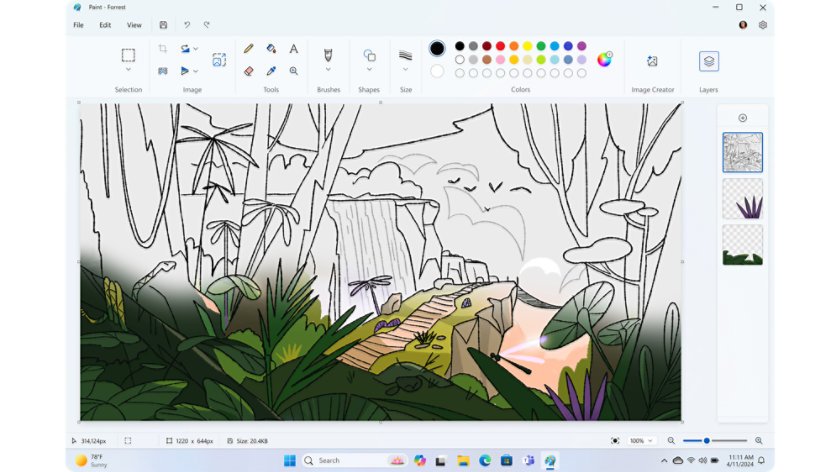
Layers arrived in Paint version 11.2308.18.0. They let you edit one element without disturbing the rest, then stack, merge or hide them.
- Select the Layers button in the toolbar to open the panel on the right side of the canvas.
- Add a new layer in the panel for each element, such as text, a shape or a pasted photo.
- Drag layers up or down in the panel to change which element sits on top.
- Show or hide a layer to compare versions, or duplicate a layer before a risky edit.
- Merge layers together when you are finished editing them.
- Save as a Paint project if you want to keep the layers for later editing.
Erasing on one layer reveals the layers underneath. Classic Paint in Windows 10 has no layers.
How to remove the background from an image
Background removal arrived in Paint version 11.2306.30.0 and works with one click. It also gives you the transparent background people ask Paint for.
- Open or paste the picture into Paint.
- Select the Remove background button in the toolbar to cut out the subject from the whole canvas.
- To limit it to one area, draw a rectangle with the selection tool first, then select Remove background.
- Check the result: transparent areas show as a checkerboard pattern.
- Select File > Save as and choose PNG to keep the transparent background.
JPG files do not store transparency, so the removed background turns solid again if you save as JPG. To make a transparent background by hand, erase the area or delete a selection instead; on a layered image the eraser now removes pixels rather than painting white.
How to use generative erase in Paint
Generative erase removes an object and fills the gap with matching surroundings. Microsoft lists it for all Windows 11 PCs, not only Copilot+ PCs.
- Select the Eraser tool.
- Select Generative erase on the left side of the canvas.
- Brush over the object you want gone; use Add area to erase or Reduce area to erase to adjust the mark.
- Select Apply to remove the object.
- Alternatively, draw a rectangle or free-form selection, right-click it, and select Generative erase.
Image Creator and Cocreator are different
Both tools turn words into pictures, but they ask for different hardware and work differently. Microsoft's own support page also notes that some Cocreator features were renamed Image Creator, so the label in your toolbar depends on your Paint version.
| Image Creator | Cocreator | |
|---|---|---|
| Input | A text prompt and a style | A text prompt plus your own sketch on the canvas |
| Hardware | Any supported Windows 11 PC where the feature is offered | Copilot+ PC (Snapdragon-powered at launch) |
| Account | Microsoft account required | Microsoft account and internet connection required |
| Cost | One credit per set of images; Microsoft 365 Personal and Family include 60 AI credits a month | Microsoft lists no generation limit |
| Output | Three variants to place on the canvas | Artwork that updates as you draw, with a Creativity slider |
How to use Image Creator in Paint
- Sign in to Windows with your Microsoft account.
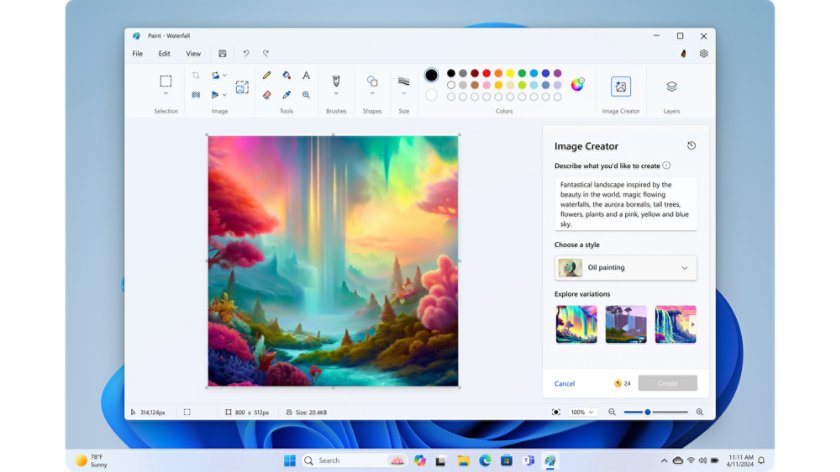
- Open Paint and select the Image Creator icon on the toolbar to open the side panel.
- Type a detailed prompt describing the picture you want.
- Pick a style and select Create.
- Click one of the three variants to place it on the canvas, then keep editing with the normal tools.
Image Creator is optimized for English prompts and its availability varies by market. Paint warns you when 5 credits remain and again when they run out.
How to use Cocreator in Paint
- On a Copilot+ PC, open Paint and select Cocreator from the Copilot menu.
- Describe what you want to create in the side panel.
- Draw on the canvas with your mouse or pen; the artwork generates as you draw.
- Move the Creativity slider down to stay close to your sketch or up for a looser result, and pick a style from Select style.
- Select Try again for a new version, then select Apply to put it on the canvas.
Image generation runs on the device, but safety filtering uses Microsoft's cloud, and Cocreator images carry C2PA content credentials that mark them as AI-generated.
Other AI features on Copilot+ PCs
These tools need a Copilot+ PC and a Microsoft account. Several reached Windows Insiders first, so a regular PC can lag behind the list.
| Feature | What it does | How to start it | Requirement |
|---|---|---|---|
| Generative fill | Adds AI-generated content inside a selection | Make a selection, select Generative fill, describe it, select Create, then Keep | Snapdragon-powered Copilot+ PC |
| Sticker generator | Creates stickers from a text description | Copilot menu > Sticker generator > Generate | Copilot+ PC, Microsoft account |
| Object select | Isolates one object with a click | Select Object select in the toolbar, then click the object | Copilot+ PC |
| Restyle | Redraws your image in a preset style | Copilot menu > Restyle, pick a style, Generate, Add to canvas | Snapdragon-powered Copilot+ PC, Microsoft account |
| Coloring book | Generates coloring pages from a prompt | Copilot menu > Coloring book > Generate | Copilot+ PC, Microsoft account; Insiders from January 2026 |
How to save an image in Paint
Paint saves to PNG, JPEG, BMP and GIF, among other formats. Since version 11.2508.361.0 it can also save an editable project that keeps your layers.
- Press Ctrl + S or select File > Save to save over the file you opened.
- To keep the original, select File > Save as and pick a format.
- Choose PNG for screenshots, text and transparency, or JPEG for photos where a smaller file matters.
- To keep layers and continue later, select File > Save as project, choose a folder, and save the .paint file.
- Reopen a project by opening the .paint file; it launches in Paint with the layers intact.
How to convert PNG to JPG or JPG to PNG using Paint
- Right-click the image in File Explorer and select Open with > Paint.
- Select File > Save as.
- Pick JPEG to convert a PNG to JPG, or PNG to convert a JPG to PNG.
- Choose a folder and file name, then select Save.
Converting a transparent PNG to JPG fills the transparent areas with a solid color. Converting JPG to PNG does not restore detail lost to JPEG compression.
How to print an image from Paint
- Open the image in Paint.
- Select File > Print.
- Pick your printer, orientation and number of copies in the print dialog.
- Select Print.
Check the preview before printing. A very large image prints across the page at its pixel size unless you resize it first.
How to send an image via email and as desktop background from Paint
Save the image first. Both jobs then run from File Explorer, which works the same whether the picture came from Paint or elsewhere.
| Goal | Windows 11 | Windows 10 |
|---|---|---|
| Send by email | In File Explorer, select the file, select Share, then Email a contact | In File Explorer, open the Share tab, select Share, then Email |
| Set as desktop background | Right-click the image file and select Set as desktop background | Right-click the image file and select Set as desktop background |
| Pick the background in Settings | Settings > Personalization > Background, set Picture, then Browse | Same path: Personalization > Background > Picture > Browse |
Email sharing from File Explorer needs a desktop mail app installed.
Windows Paint keyboard shortcuts
These standard Windows shortcuts work in Paint and cover the edits people repeat most.
| Shortcut | What it does in Paint |
|---|---|
| Ctrl + Z | Undo the last action |
| Ctrl + Y | Redo an action undone with Ctrl + Z |
| Ctrl + A | Select the whole canvas |
| Ctrl + C / Ctrl + X | Copy or cut the selection |
| Ctrl + V | Paste the last item from the clipboard |
| Delete | Remove the current selection |
| Windows + Shift + S | Capture part of the screen to the clipboard, ready to paste into Paint |
| Windows + F | Open Feedback Hub to report a Paint problem |
| Alt + F4 | Close Paint |
Paint is missing in Windows 11
Paint does not appear in Start search on Windows 11
The Paint app was uninstalled; on Windows 11 it is a Microsoft Store app.
- Open Microsoft Store and search for Paint.
- Select the Paint app published by Microsoft and select Get or Install.
- Open Paint from Start once the install completes.
Paint is missing on Windows 10
From Windows 10, version 2004, classic Paint is an optional Feature on Demand that can be removed.
- Open Microsoft's Uninstall and reinstall Paint and Snipping Tool page; it applies to Windows 10 22H2 build 19045.3758 or later.
- Pick the installer for your system type (64-bit, 32-bit or ARM64) and run it.
- Alternatively, open an elevated Command Prompt and add the Paint capability with DISM:
DISM /Online /Add-Capability /CapabilityName:Microsoft.Windows.MSPaint~~~~0.0.1.0.
New Paint features are missing
The app is out of date, the PC is not a Copilot+ PC, or the feature is still limited to Windows Insiders.
- Update Paint from Microsoft Store > Library > Get updates.
- Sign in with a Microsoft account; Image Creator, Cocreator, Sticker generator and Restyle need one.
- Check the AI features table above; Cocreator, Generative fill, Object select and Restyle need a Copilot+ PC.
A Microsoft-hosted copy of the app is also linked from the Microsoft Paint download page if Microsoft Store will not open even after you reset the Microsoft Store cache.
How to repair Paint if it isn’t working
Paint crashes, freezes or will not open on Windows 11
Damaged app files or settings.
- Select Start > Settings > Apps > Installed apps.
- Select the More icon next to Paint, then Advanced options.
- Select Repair and try Paint again.
- If it still fails, select Reset on the same page.
Paint will not work on Windows 10
Damaged app files or settings.
- Select Start > Settings > Apps > Apps & features.
- Select Paint, then Advanced options if the link is shown.
- Select Repair, then Reset if the problem continues.
- If no Advanced options link appears, uninstall and reinstall Paint using the steps above.
Repair and Reset do not fix Paint
The app install itself is corrupt.
- Open Settings > Apps > Installed apps, select the More icon next to Paint, and select Uninstall.
- Select Uninstall again to confirm.
- Reinstall Paint from Microsoft Store.
Tips for using Paint effectively in Windows 11/10
Most lost work in Paint comes from saving in the wrong format or editing the only copy of a picture.
| Tip | Why it matters |
|---|---|
| Use Save as before your first edit | The original file stays untouched if an edit goes wrong |
| Save layered work as a Paint project | PNG and JPG flatten layers; a .paint file keeps them editable |
| Use PNG for screenshots and transparency | PNG keeps sharp text and transparent areas; JPG does neither |
| Put text and shapes on their own layers | You can move or delete them later without repainting the image |
| Zoom in for detail work | Small corrections with the eraser or pencil are easier at higher zoom |
| Report bugs in Feedback Hub under Apps > Paint | Feedback reaches the team that builds Paint |
Microsoft Paint help FAQ
Is Microsoft Paint free on Windows 11 and Windows 10?
Yes. Paint is included with Windows 11 and Windows 10 at no cost and is free to reinstall from Microsoft Store. Only Image Creator uses credits, one per set of generated images, and Microsoft 365 Personal and Family subscribers get 60 AI credits each month.
Why can't I find Paint on my Windows 11 computer?
Paint was most likely uninstalled. On Windows 11 it is a Microsoft Store app, so search Microsoft Store for Paint and install it again. If it is installed but will not open, repair or reset it from Settings > Apps > Installed apps > Advanced options.
What's the difference between Paint and Paint 3D?
Paint is the 2D editor Microsoft still develops, with layers, transparency and AI tools. Paint 3D was a separate app for 3D models; Microsoft deprecated it in August 2024 and removed it from Microsoft Store on November 4, 2024.
Can I use Paint to edit screenshots directly?
Yes. Press Windows + Shift + S to capture part of the screen, then press Ctrl + V in Paint to paste it. From Snipping Tool on Windows 11, select Edit > Edit with Paint to open the capture in Paint for cropping, text and color.
Does Paint in Windows 11 support layers?
Yes. Paint version 11.2308.18.0 and later has a Layers panel on the right side of the canvas where you add, reorder, hide, duplicate and merge layers. Save as a Paint project to keep the layers editable. Classic Paint on Windows 10 has no layers.
Can Paint make a transparent background?
Yes. Select Remove background in the toolbar to cut out the subject, or erase areas by hand; transparent parts show as a checkerboard. Save the result as PNG, because JPG files cannot store transparency.
Is Paint 3D still available?
No, not for new installs. Microsoft removed Paint 3D from Microsoft Store on November 4, 2024, and recommends Paint or Photos for 2D editing. A copy already installed on a PC keeps working but receives no further development.
Do I need a Copilot+ PC for AI features in Paint?
Only for some. Generative erase works on all Windows 11 PCs and Image Creator needs only a Microsoft account. Cocreator, Generative fill, Object select, Sticker generator and Restyle require a Copilot+ PC, and some of those need a Snapdragon processor.
Is the new Windows 11 Paint worth using?
Yes for quick edits, screenshots, simple graphics and background removal; use a full editor only when you need masks, adjustment layers or RAW photo work. Windows 11 Paint now has layers, transparent PNG support, one-click background removal and generative erase on every PC, so most everyday image jobs no longer need a separate app. The AI generators depend on a Copilot+ PC or credits, so treat them as extras rather than the reason to use Paint.