To clean up a Windows 11 or Windows 10 PC, uninstall apps you no longer use, run Disk Cleanup, clear large folders and the Recycle Bin, optimize your drives, and switch off startup apps and browser extensions you do not need.
Each of the eight methods below uses a tool already built into Windows, so nothing extra has to be installed.
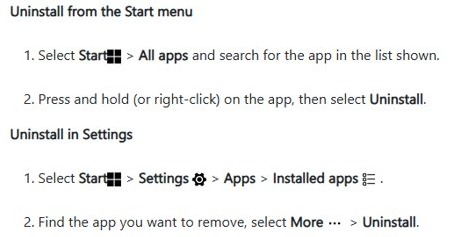
1. Remove unwanted apps to clean up your PC
Unused programs take up drive space, and many add background services and update tasks. Removing them is the quickest single cleanup.
- Press Windows + I to open Settings.
- On Windows 11, go to Apps > Installed apps. On Windows 10, go to Apps > Apps & features.
- Set Sort by to Size so the largest programs appear first.
- Select the … menu next to an app you no longer use, or select the app on Windows 10.
- Select Uninstall, then confirm with Uninstall again.
- Follow the program's own uninstaller if one opens, then restart the PC when it asks.
You can also type ms-settings:appsfeatures in the Run box (Windows + R) to jump straight to this page.
2. Use Disk Cleanup to clean up your Windows 10/11 PC
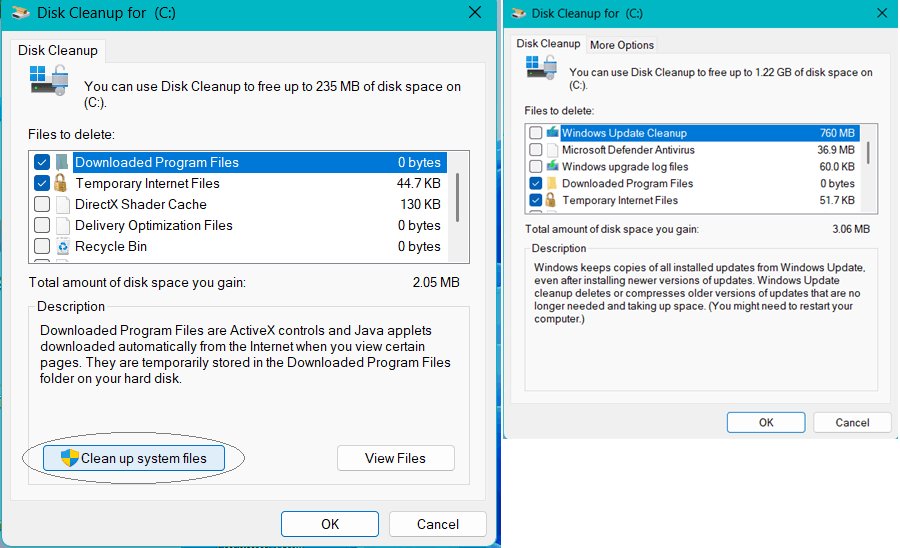
Disk Cleanup removes temporary setup files, temporary internet files, old Chkdsk fragments, Recycle Bin contents and, with the system option, files left behind by Windows upgrades.
- Press Windows + R, type
cleanmgrand press Enter. - Pick the C: drive and select OK.
- Select Clean up system files to include Windows Update and upgrade leftovers, then choose the drive again.
- Tick the categories you want removed, such as Temporary files and Recycle Bin.
- Select OK, then Delete Files to confirm.
Tick Previous Windows installation(s) only if you are sure you will not roll back to the earlier version of Windows. For a deeper pass on update leftovers, clean up Windows system files with the same tool.
3. Delete large folders to make space on your Windows PC
The Storage page in Settings breaks drive use into categories, so you can see which folders hold the most data before you delete anything.
- Open Settings > System > Storage, or type
ms-settings:storagesensein the Run box. - Select Show more categories to see every category on the drive.
- Open Other or Documents to list the largest folders, and select one to open it in File Explorer.
- Move old videos, installers and archives in the Downloads folder to an external drive or delete them.
- Turn on Storage Sense on the same page so Windows deletes temporary files and old Recycle Bin items automatically.
Storage Sense is on by default and runs when disk space is low; you can set it to run daily, weekly or monthly instead.
4. Uninstall built-in apps and make your PC bloatware-free
Many preinstalled apps and trial programs can be removed from the same Installed apps list. Core parts of Windows show the Uninstall option greyed out, and those should stay.
- Open Settings > Apps > Installed apps on Windows 11, or Apps > Apps & features on Windows 10.
- Scroll the list for games, trial antivirus and manufacturer extras you never open.
- Select … > Uninstall for each one and confirm.
- Open Settings > Apps > Optional features to remove Windows features you do not use.
- Restart the PC once you finish.
Avoid third-party debloat scripts and PC cleaners. They often remove components Windows Update or the Microsoft Store still need.
5. Empty the Recycle Bin
Deleted files stay on the drive until the Recycle Bin is emptied, and each drive keeps its own Recycle Bin.
- Double-click Recycle Bin on the desktop.
- Check the list for anything you still need and select Restore for it.
- Select Empty Recycle Bin on the toolbar (on Windows 10 it sits under Manage > Recycle Bin Tools).
- Select Yes to delete the items permanently.
To skip this job in future, set Storage Sense to delete Recycle Bin files after a set number of days.
6. Defrag your drives
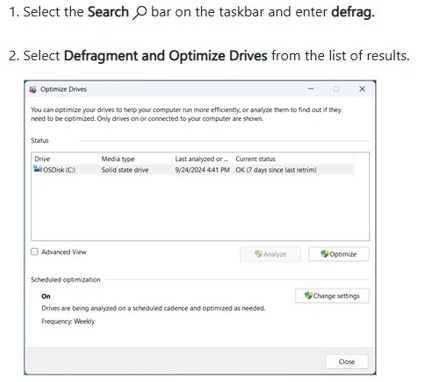
Windows calls this tool Optimize Drives. It defragments hard disks and sends retrim commands to SSDs, picking the right action for each drive type.
- Press Windows, type Defragment and Optimize Drives and open it.
- Select the drive you want to clean up.
- Select Analyze to see how fragmented a hard disk is.
- Select Optimize to run defragmentation on a hard disk or retrim on an SSD.
- Select Change settings to confirm scheduled optimization is turned on.
The scheduled task normally runs weekly, and SSDs get full optimization only once a month by design, so a Last run date up to a month old on an SSD is normal. From an elevated Command Prompt, defrag C: /o runs the proper optimization for that media type.
7. Disable startup apps to make your PC boot up faster
Apps that launch at sign-in slow down boot and keep running in the background. Turning them off does not uninstall them.
- Open Settings > Apps > Startup, or type
ms-settings:startupappsin the Run box. - Set Sort by to Startup impact.
- Turn off the toggle for each app you do not need right after sign-in.
- Alternatively, press Ctrl + Shift + Esc, open the Startup apps tab in Task Manager, select an app and select Disable.
- Restart the PC to see the change.
Keep your antivirus, touchpad and audio utilities enabled; they need to start with Windows.
8. Remove browser extensions and history
Extensions you forgot about use memory and can track browsing, and cached data can grow to several gigabytes.
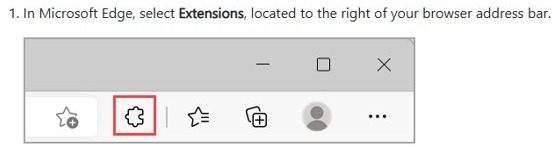
- In Microsoft Edge, type
edge://extensionsin the address bar; in Google Chrome, typechrome://extensions. - Select Remove under each extension you no longer use, then confirm.
- Press Ctrl + Shift + Delete to open the clear browsing data dialog.
- Choose a Time range such as All time.
- Tick Browsing history and Cached images and files, and leave passwords unticked if you want to keep them.
- Select Clear now in Edge or Delete data in Chrome.
How much space did the Windows cleanup free?
- Open File Explorer and select This PC to see the free space bar under each drive.
- Open Settings > System > Storage and compare the used space with what it showed before you started.
- Restart the PC and open Task Manager's Startup apps tab to confirm disabled apps show Disabled.

Built-in tools make it easier to clean up your Windows 10/11 PC
Use the tools Windows already includes: Installed apps, Disk Cleanup, Storage Sense, Optimize Drives and the Startup page. They cover every cleanup in this list, they cannot remove files Windows depends on, and Storage Sense keeps the drive tidy automatically once it is switched on.
Clean up Windows 11/10 PC FAQ
Is it safe to delete everything in Disk Cleanup?
Most categories are safe, including temporary files, thumbnails and the Recycle Bin. Leave Previous Windows installation(s) unticked if you might roll back an upgrade, and review the Downloads category, because it deletes your downloaded files.
Does Windows 11 still have Disk Cleanup?
Yes. Type cleanmgr in the Run box to open it. Windows 11 also offers the same cleanup through Settings > System > Storage, where Storage Sense and temporary file cleanup live.
Should I defrag an SSD?
No manual defrag is needed. Optimize Drives detects an SSD and sends a retrim instead of a traditional defrag, and it runs full SSD optimization once a month on its schedule.
Does disabling startup apps delete them?
No. Turning an app off in Settings > Apps > Startup or in Task Manager only stops it launching at sign-in. The app stays installed and you can open it normally.
What is Storage Sense in Windows?
Storage Sense is a built-in Windows feature that deletes temporary files, old Recycle Bin items and optionally old Downloads files. It is on by default and runs when disk space is low, or daily, weekly or monthly if you choose.
Do I need a PC cleaner app to clean up Windows?
No. Windows includes Disk Cleanup, Storage Sense, Optimize Drives and startup controls, which cover the same jobs. Third-party cleaners can remove files Windows still needs and often add their own startup entries.