Open Microsoft Store from Start, sign in with your Microsoft account, search for the app and select Get or Install; keep App updates on in Store Settings and Windows 11 updates Store apps for you.
This guide covers installing, updating, repairing and uninstalling Store apps, how desktop (Win32) apps differ, the admin and WinGet options, and fixes for when the Store or its updates fail.
Step-by-step: Open, sign in, browse and install
These four steps take a new Windows 11 PC from nothing to an installed app. The sections that follow break each step down.
- Select Start, type Microsoft Store and select the app.
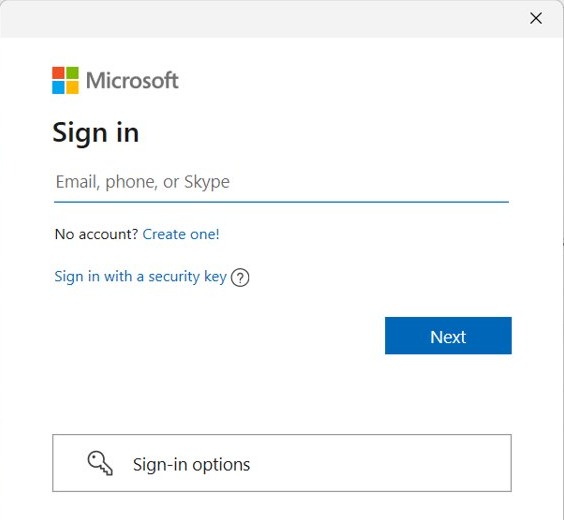
- Select the Profile icon at the top of the Store and sign in with your Microsoft account.
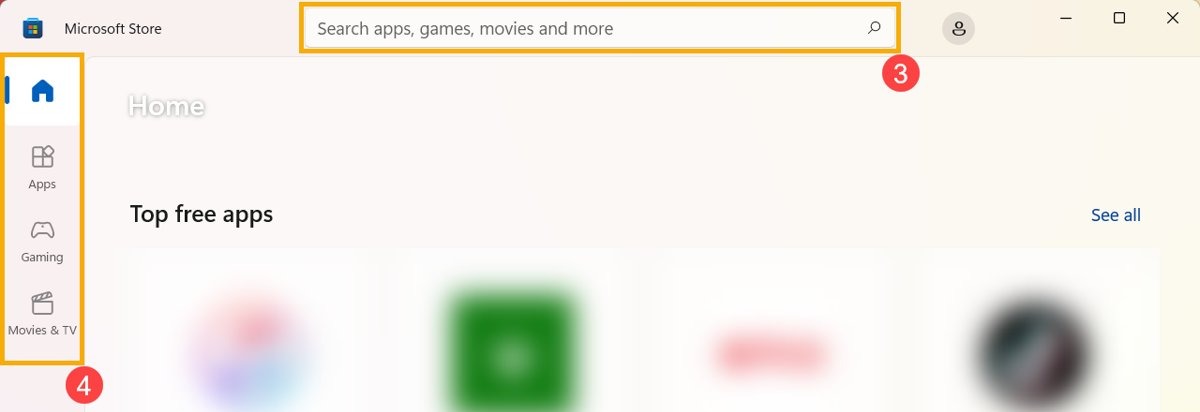
- Type the app name in the search box at the top of the Store and press Enter.
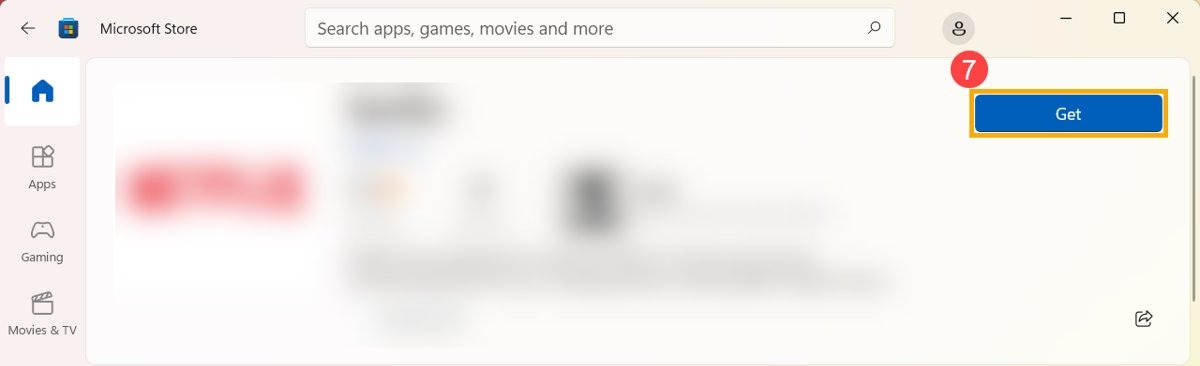
- Open the app's page and select Get (free), the price button (paid) or Install (already owned).
- Wait for the download to finish, then select Open or launch the app from Start.
Background / overview
Microsoft Store is the app catalogue built into Windows 11 and Windows 10. It installs apps and games, keeps them updated, and tracks everything your Microsoft account owns in Library.
| Item | What it means for you |
|---|---|
| Where it lives | Preinstalled in Windows 11; also browsable on the web at apps.microsoft.com |
| Account | A Microsoft account links purchases and lets you reinstall owned apps on another PC |
| App types | Packaged MSIX apps, traditional desktop installers (MSI/EXE) and progressive web apps |
| Updates | Packaged apps update in the background when App updates is on |
| Library | Lists every app your account owns, with a Download icon for ones not on this PC |
How the Microsoft Store works — at a glance
| Task | Where in the Store | Notes |
|---|---|---|
| Find an app | Search box at the top | Results show apps, games and movies together |
| Install | App page > Get / Install | Paid apps show a price instead of Get |
| See owned apps | Library | Owned apps not on this PC show a Download icon |
| Update apps | Library > Get updates | Also updates the Store itself |
| Automatic updates | Profile > Store Settings > App updates | Turned on by default |
| Order history | Order history on your Microsoft account | Product keys and reinstall links for purchases |
1. Open Microsoft Store
- Select Start on the taskbar.
- Type Microsoft Store in the search box.
- Select Microsoft Store in the results, or select its bag icon if it is pinned to the taskbar.
- If the Store is missing, reinstall it from its page at apps.microsoft.com/detail/9wzdncrfjbmp.
2. Sign in with your Microsoft account
Purchases, Library and reinstalling owned apps on a new PC all depend on the account you sign in with.
- Select the Profile icon at the top of the Store window.
- Select Sign in.
- Choose the Microsoft account you already use on Windows, or enter a different one.
- Confirm the account picture now appears on the Profile icon.
3. Browse or search for apps
- Select the search box at the top of the Store.
- Type the app or publisher name and press Enter.
- Check the publisher name on the app page so you install the official app, not a lookalike.
- Scroll the page for system requirements, ratings, age rating and the size of the download.
- To browse instead, open the categories in the left pane of the Store.
4. Install an app
- On the app page, select Get for a free app or the price button for a paid one.
- Complete the purchase prompt if the app is paid.
- Follow the installer if it is a desktop app that opens its own setup window.
- Select Open when the button changes, or find the app under Start > All apps.
- To reinstall an app you own on a new PC, open Library and select the Download icon next to it.
The same Store flow is one of several ways to install apps on a Windows PC, alongside vendor installers and WinGet.
Step-by-step: Update apps (manual and automatic)
| Your situation | Use this | Why |
|---|---|---|
| You never want to think about updates | Automatic app updates | The Store installs updates in the background |
| You need a fix right now | Manual update flow: Library > Get updates | Checks immediately instead of waiting |
| An app updates itself | The app's own update option | Some publishers handle updates in the app, not the Store |
| You manage many apps from a terminal | winget upgrade | Lists and installs pending upgrades in one command |
Enable automatic app updates
- Select Start, then search for and open Microsoft Store.
- Select Profile (your account picture) at the top.
- Select Store Settings.
- Make sure App updates is turned On.
Manual update flow
- Open Microsoft Store.
- Select Library in the lower-left corner.
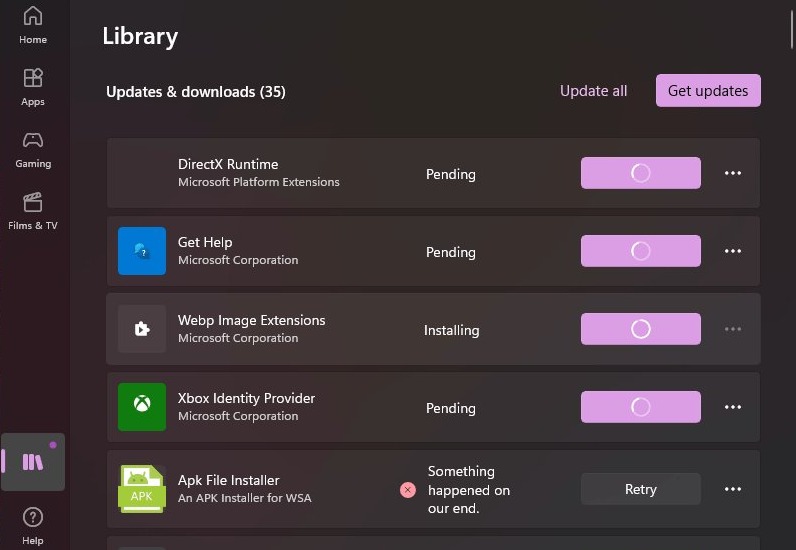
- Select Get updates.
- Wait while the Store checks, downloads and installs updates, including updates to the Store itself.
- Restart any app that was open during the update so the new version loads.
This is also the quickest way to update Microsoft Store apps manually when one app misbehaves after a release.
How the “pause/always-on” change affects you
Microsoft states that it is making Store app updates automatic to keep PCs secure, with the option to pause updates when you need to.
| Before | Now | What to do |
|---|---|---|
| App updates could be switched off for good | Updates are automatic; you can pause them | Pause before a deadline or presentation, then let updates resume |
| Unpatched apps could sit for months | Security fixes reach Store apps by default | Leave App updates on for everyday PCs |
| Apps with their own updater | Still update themselves | Use the app's own update option for those |
Microsoft does not publish a pause length on its support pages, so check the option in Store Settings on your build.
What’s new for Win32 (desktop) apps — why it matters
The Store now lists traditional desktop programs that ship as MSI or EXE installers, not only packaged apps. How they update depends on how the developer published them.
| App type in the Store | How it updates | Why it matters |
|---|---|---|
| Packaged app (MSIX) | The Store delivers updates in the background | Covered by App updates; reinstall and repair are clean |
| Desktop app (MSI/EXE installer) | The app or its installer handles updates; the Store does not push them | Check the app's own updater or run winget upgrade |
| Progressive web app (PWA) | Content comes from the web | Behaves like a website in its own window |
MSI/EXE installers listed in the Store must be signed with a certificate from a trusted certificate authority, and Microsoft reviews every app before it appears.
Check a Microsoft Store app installed and updated
- Open Microsoft Store and select Library.
- Find the app in the list; an installed app shows Open instead of a Download icon.
- Select Get updates and confirm no update is still pending for the app.
- Open Settings > Apps > Installed apps and confirm the app is listed.
Uninstall a Microsoft Store app in Windows 11
- Select Start, then select All apps.
- Find the app or type its name in the search box.
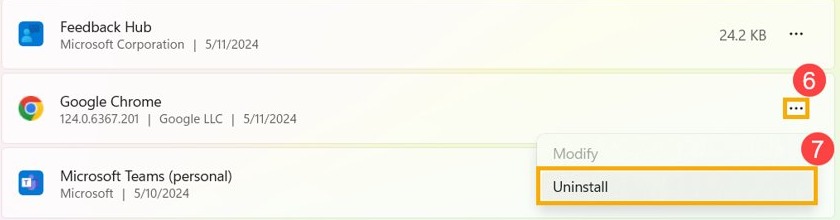
- Right-click the app and select Uninstall.
- Alternatively, open Settings > Apps > Installed apps, select the More (…) button next to the app and choose Uninstall.
- Reinstall it later from Library in the Store; owned apps stay on your account.
Apps built into Windows cannot be uninstalled.
Practical troubleshooting: if the Store or updates misbehave
Microsoft Store does not open
A corrupt Store cache or an out-of-date Windows build.
- Press Windows key + R, type
wsreset.exeand select OK. - Wait about ten seconds while a blank Command Prompt window opens and closes; the Store then opens.
- Open Settings > Windows Update and select Check for updates.
- Check that the date, time and region on the PC are correct.
An app will not install or update
The Store itself is out of date, or the account is not signed in.
- Sign in to the Store with your Microsoft account.
- Select Library > Get updates to update the Store and pending apps.
- Restart the PC if Windows installed an update recently.
- Check that the app supports Windows 11 on its Store page.
An installed Store app crashes or will not start
Damaged app files or settings.
- Open Settings > Apps > Installed apps.
- Select the More (…) button next to the app, then Advanced options.
- Select Repair.
- If that fails, select Reset, which clears the app's data.
- As a last step, uninstall the app and reinstall it from Library.
"Your PC isn't authorized to use Microsoft Store apps"
The device is not on your Microsoft account's device list for the Store.
- Sign in to your Microsoft account device management page.
- Review the devices listed for Microsoft Store.
- Remove devices you no longer use, then try the install again.
An app is missing from search or shows no Install button
The app is not offered in your region, not compatible with the PC, or hidden by family settings.
- Check the app's system requirements on its page.
- Ask the family organiser to allow the app if you use a child account.
- Confirm the country or region set in Windows Settings matches where you are.
Security and privacy analysis — benefits and risks
| Area | Benefit | Risk or limit |
|---|---|---|
| App review | Microsoft certifies every app before it is published | Review does not guarantee an app is useful or free of ads |
| Signing | Packaged apps are re-signed by Microsoft; desktop installers need a trusted certificate | A signed app can still collect data you did not expect |
| Updates | Security fixes arrive automatically for packaged apps | Desktop apps rely on their own updaters |
| Account link | Purchases follow you to a new PC | Store activity is tied to your Microsoft account |
| Lookalike apps | Publisher name shown on every page | Check the publisher before you select Get |
Power-user and admin tips
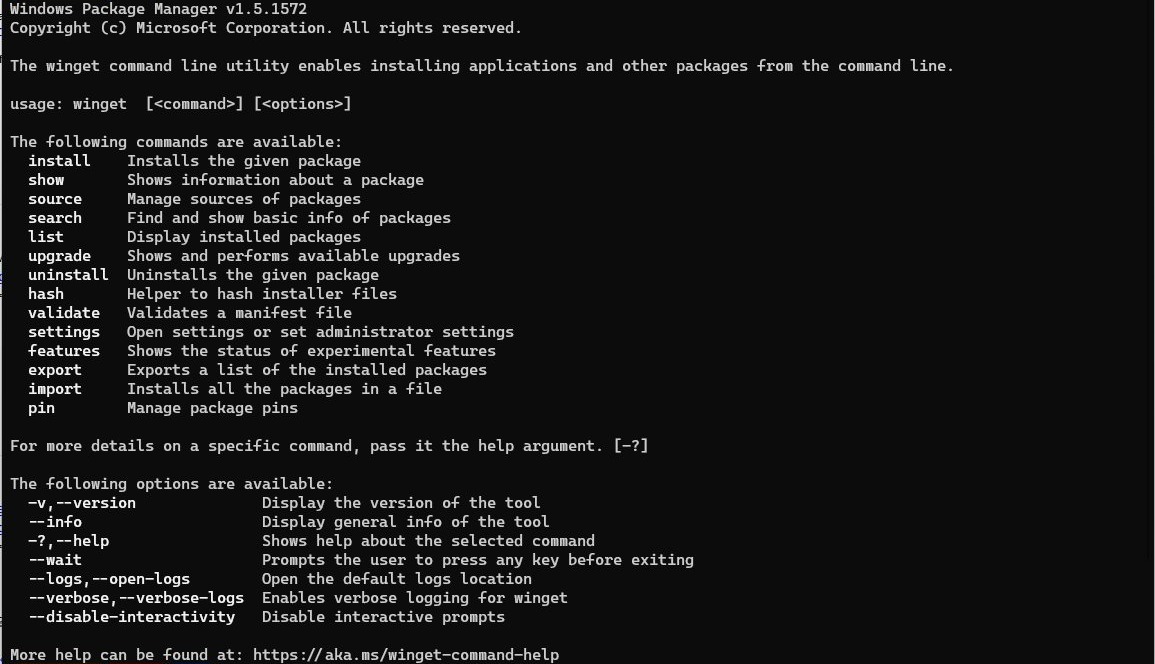
WinGet, the Windows Package Manager, ships inside App Installer, which the Microsoft Store delivers and updates. It works on Windows 11 and Windows 10 version 1809 or later.
winget upgrade --allRun winget upgrade first to list every app with an update available, then winget upgrade --all to install them. winget search <appname> and winget install <appname> find and install apps from the terminal.
You should see: WinGet lists each package as it downloads and installs, and a second winget upgrade shows no pending upgrades.
Admins can block the Store with the Group Policy Turn off the Store application under Computer Configuration\Administrative Templates\Windows Components\Store. The matching CSP works only on Enterprise and Education editions.
Blocking the Store app does not stop Store apps from updating, and users may still install apps with WinGet.
Microsoft Store quick reference for Windows 11
Keep this concise checklist of the Store tasks and where each one lives.
| Job | Fastest route |
|---|---|
| Install an app | Search > app page > Get |
| Turn on automatic updates | Profile > Store Settings > App updates On |
| Update now | Library > Get updates |
| Reinstall an owned app | Library > Download icon |
| Fix a broken app | Settings > Apps > Installed apps > … > Advanced options > Repair |
| Reset the Store | Windows key + R > wsreset.exe |
| Update everything from a terminal | winget upgrade –all |
A realistic view of the Store’s trajectory
Treat the Store as the default place to get Windows apps, but expect some desktop programs to keep their own updaters. Microsoft now recommends the Store as the main distribution path for developers and accepts MSIX, MSI/EXE and web apps, while updates for MSI/EXE listings still come from the app itself rather than the Store.
Microsoft Store on Windows 11 FAQ
Do I need a Microsoft account to use Microsoft Store?
You need a Microsoft account to buy apps, see your Library and reinstall owned apps on another PC. Sign in from the Profile icon at the top of the Store window, using the same account you use on Windows.
How do I turn on automatic app updates in Microsoft Store?
Open Microsoft Store, select your Profile picture, select Store Settings and make sure App updates is turned On. The Store then installs updates for packaged apps in the background, while some publishers still update their apps from inside the app.
Can I turn off Microsoft Store app updates permanently?
Microsoft is making Store app updates automatic to keep PCs secure, with an option to pause them when needed. Use the pause option in Store Settings for a short break rather than expecting a permanent off switch.
How do I update Microsoft Store apps manually?
Open Microsoft Store, select Library in the lower-left corner and select Get updates. The Store checks for, downloads and installs available updates, including updates to the Store app itself.
Does Microsoft Store update desktop (Win32) apps?
Not always. Packaged MSIX apps get updates from the Store, but desktop apps listed with an MSI or EXE installer update through their own updater. Use the app's update option or winget upgrade for those.
How do I reset Microsoft Store if it will not open?
Press Windows key + R, type wsreset.exe and select OK. A blank Command Prompt window opens and closes after about ten seconds, and the Store then opens with its cache cleared.
Where are my purchased Microsoft Store apps?
Open Microsoft Store and select Library. Every app your Microsoft account owns is listed there, and apps not installed on this PC show a Download icon you can select to install them.
Final assessment — strengths, limitations and risks
Install apps from Microsoft Store whenever the official publisher lists them there, and leave App updates on. Store apps are reviewed, signed and easy to reinstall from Library, and packaged apps patch themselves; the main limitation is that MSI/EXE desktop listings still depend on their own updaters, so check those apps or use winget upgrade.