To fix “Driver is unavailable,” remove the printer in Settings > Bluetooth & devices > Printers & scanners, restart the PC, and add the printer again so Windows installs a working driver.
If that fails, this guide covers the maker's driver, Windows Update, the generic driver, the print spooler, old driver cleanup, HP-specific tools and system file repair on Windows 11 and Windows 10.
Remove and reinstall the printer
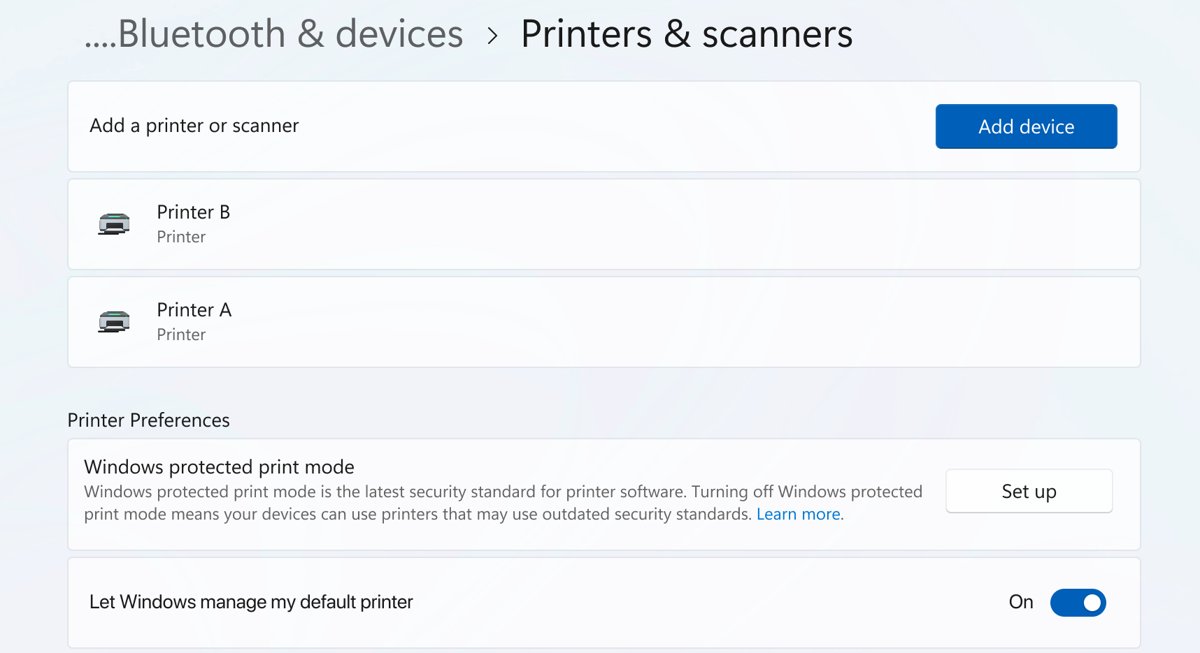
Removing the printer deletes the broken queue, and adding it back makes Windows pick a driver again. This is how Windows automatically reinstalls printer drivers, and it clears most cases of the error.
- Open Start > Settings > Bluetooth & devices > Printers & scanners. On Windows 10, open Settings > Devices > Printers & scanners.
- Select the printer that shows Driver is unavailable.
- Select Remove (on Windows 10, Remove device) and confirm with Yes.
- Restart the PC so Windows releases the old driver files.
- Turn the printer on and connect it by USB or to the same network as the PC.
- Go back to Printers & scanners and select Add device (Windows 10: Add a printer or scanner).
- Select Add device next to your printer when it appears, then wait for Windows to finish installing the driver.
- If the printer is not listed, select Add manually and follow the manual driver steps further down this page.
Start with the quick checks
These checks take two minutes and rule out a disconnected or half-awake printer before you touch any driver.
- Turn the printer off, unplug it, wait 30 seconds, plug it back in and turn it on.
- For a USB printer, reseat the cable at both ends and try a different USB port on the PC.
- For a wireless printer, confirm the printer's wireless light is on and run its wireless test from the printer menu.
- Make sure the PC and the printer are on the same network name (SSID), not a guest network or a separate extender band.
- Note your Windows edition and whether it is 64-bit or ARM in Settings > System > About. You need this to pick the right driver.
- Write down the exact printer model from the label on the printer.
Run the printer troubleshooter
On Windows 11, the printer troubleshooter runs in the Get Help app. It runs diagnostics and attempts to fix common printer faults, including driver problems.
- Open Settings > System > Troubleshoot > Other troubleshooters.
- Select Run next to Printer. Windows opens the printer troubleshooter in Get Help.
- Choose the affected printer when asked and let the diagnostics finish.
- Apply any fix it offers, then check whether the printer status in Printers & scanners has changed.
- On Windows 10, open Settings > Update & Security > Troubleshoot > Additional troubleshooters and run Printer.
Install the latest driver from the manufacturer
Microsoft's own advice is to install the latest driver for your printer model, because most printers need it to work well. Get it only from the printer maker's own support site, never a download portal.
- Find the model number on the printer or your receipt.
- Open the manufacturer's official website and go to its Support or Drivers section.
- Search for your model and select your exact Windows version and system type (64-bit or ARM64) if asked.
- Download the full driver package and open it from your Downloads folder.
- Follow the installer prompts. Connect the printer when the installer asks for it, not before.
- Restart the PC when the installer finishes.
- Avoid drivers built for older Windows versions unless the maker offers nothing newer.
On ARM PCs, Microsoft notes that some maker installers fail to add the printer. Use Settings > Bluetooth & devices > Printers & scanners > Add device instead, unless the maker gives ARM-specific steps.
Update printer drivers
Windows Update is Microsoft's recommended source for printer drivers, and Device Manager can also pull an updated driver. Use these when you do not want to run a maker installer.
- On Windows 11, open Settings > Windows Update > Advanced options > Optional updates.
- Expand Driver updates, tick any update for your printer, and select Download & install.
- On Windows 10, open Settings > Update & Security > Windows Update > View optional updates > Driver updates.
- For Device Manager, right-click Start, select Device Manager, and expand Print queues or Printers.
- Right-click your printer, select Update driver, then Search automatically for drivers.
- Restart the PC and check the printer status again.
From January 15, 2026, Microsoft stopped publishing new third-party printer drivers to Windows Update for Windows 11. Existing ones can still be installed, so an older model may still appear while a newer one may only have a maker package.
Manually reinstall printer drivers
If removing the printer alone did not help, delete the driver itself so Windows cannot reuse the damaged copy. The same steps remove and re-install drivers for an HP printer or any other brand.
- Remove the printer in Settings > Bluetooth & devices > Printers & scanners > your printer > Remove.
- Right-click Start and open Device Manager.
- Expand Print queues and Printers, right-click any entry for the printer, and select Uninstall device.
- Tick Attempt to remove the driver for this device (Windows 10: Delete the driver software for this device) and select Uninstall.
- If the maker's software is listed in Settings > Apps > Installed apps, uninstall it too.
- Restart the PC.
- Install the latest driver from the manufacturer, or add the printer again with Add device.
Manually choose a printer driver
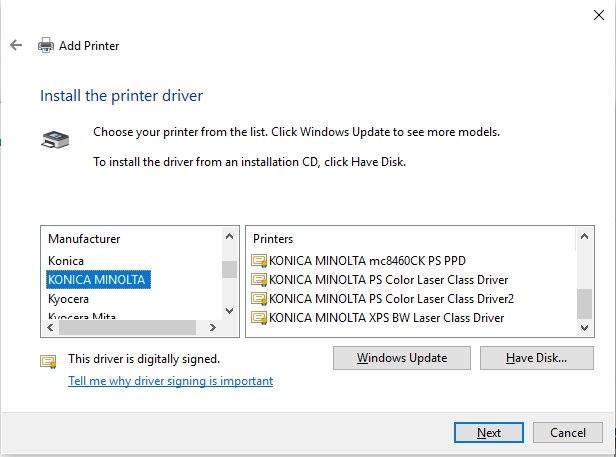
The legacy Add Printer wizard lets you pick the driver yourself, either from the Windows Update list or from a folder with the maker's .inf file.
- In Printers & scanners, select Add device, then Add manually next to The printer that I want isn't listed.
- Select Add a local printer or network printer with manual settings and select Next.
- Select Use an existing port, choose the port the printer uses (USB001 for USB), and select Next.
- Select Windows Update and wait while the list of manufacturers and models refreshes.
- Pick the manufacturer on the left and the model on the right, then select Next. If you have an extracted driver folder, select Have Disk and browse to its .inf file instead.
- If asked, select Replace the current driver.
- Name the printer, choose Do not share this printer, and select Next.
- Select Print a test page, then Finish.
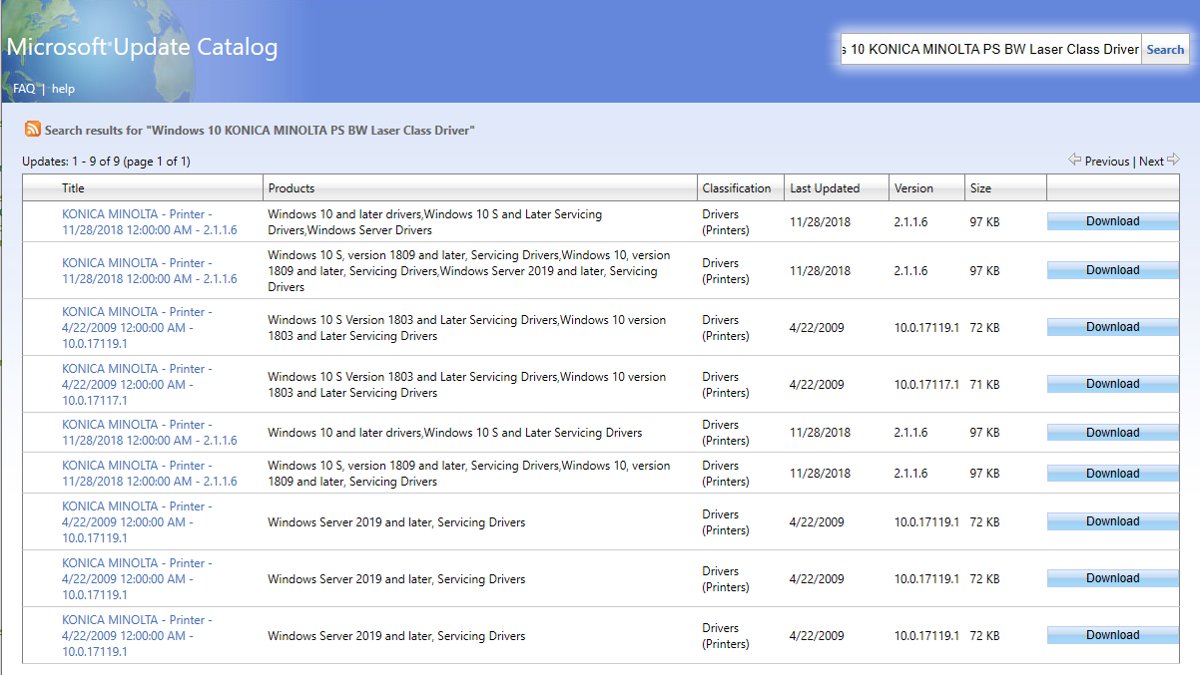
Microsoft notes that the Windows Update list in this wizard does not always show every published driver. Its documented workaround is to get the driver from the Microsoft Update Catalog, extract the .cab file, and load it with Have Disk.
Try a different installation method
If one route keeps producing the error, switch to another. Each one installs the driver through a different path.
| Installation method | When to use it | Where to start |
|---|---|---|
| Settings Add device | First attempt, or on ARM PCs | Printers & scanners > Add device |
| Maker's full installer | You need scanning, fax or tray options | Manufacturer's support page |
| Add manually with Windows Update | Automatic detection picks a broken driver | Add manually > Add a local printer or network printer with manual settings |
| Have Disk with an .inf file | You have an extracted driver folder or catalog .cab | Add manually > Have Disk |
| Add by IP address | Network printer is not detected | Add manually > Add a printer using an IP address or hostname |
| Command line | Scripting or remote PCs | rundll32 printui.dll,PrintUIEntry /il opens the Add Printer wizard |
Use generic printer drivers
A generic or class driver is built into Windows, so it is never “unavailable.” Switching to it gets basic printing back even when the maker's driver will not install, though you may lose tray, finishing or color options.
- Open Printers & scanners, select Add device, then Add manually.
- Select Add a local printer or network printer with manual settings and select Next.
- Choose the printer's port and select Next.
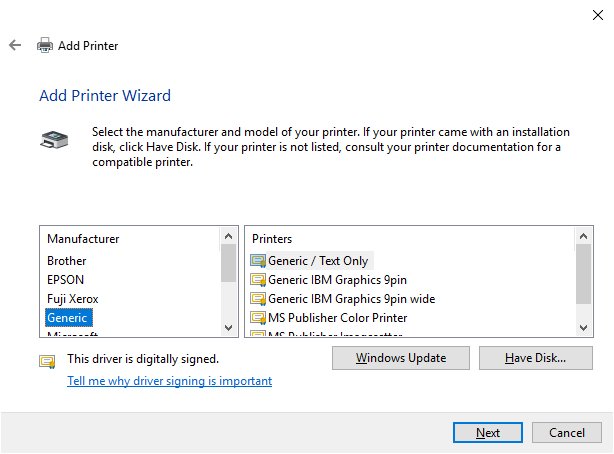
- For a Mopria-certified printer, pick Microsoft as the manufacturer and the Microsoft IPP Class Driver if it is listed.
- Otherwise pick Generic and Generic / Text Only to test the connection, or the maker's universal driver if it appears.
- Finish the wizard and print a test page.
To switch the generic printer driver on an existing printer, open the printer's Printer properties > Advanced tab and choose another driver from the Driver list.
Restart the print spooler and clear stuck print jobs
The Print Spooler service manages every print job. When it crashes or holds a damaged job, a driver can show as unavailable until the queue is cleared. You can also restart the print spooler from an admin Command Prompt.
- Open Printers & scanners, select your printer, choose Open print queue, and cancel every job.
- Press Windows + R, type
services.msc, and press Enter. - Double-click Print Spooler, select Stop, and leave the window open.
- Press Windows + R, type
%WINDIR%\system32\spool\PRINTERS, press Enter, and delete every file in that folder. - Back in Print Spooler properties, set Startup type to Automatic, select Start, then OK.
- Check the printer status in Printers & scanners.
Completely remove old printer drivers
Removing a printer leaves its driver package in the Windows driver store. Delete the package so the next install starts clean.
- Remove every printer that uses the driver from Printers & scanners.
- Scroll to Related settings and select Print server properties. You can also run
rundll32 printui.dll,PrintUIEntry /s. - Open the Drivers tab and select Change Driver Settings if the button is shown.
- Select the old driver and select Remove.
- Choose Remove driver and driver package, then OK, and confirm.
- If Windows says the driver is in use, restart the print spooler and try again.
- Restart the PC before installing a fresh driver.
Remove duplicate or ghost printer entries
Old copies of the same printer, often named “Copy 1,” can keep pointing at a deleted driver. Hidden entries in Device Manager do the same.
- In Printers & scanners, remove every duplicate of the printer, including entries ending in (Copy 1).
- Open Device Manager and select View > Show hidden devices.
- Expand Print queues and Printers and look for greyed-out entries for the printer.
- Right-click each greyed-out entry, select Uninstall device, and confirm.
- Restart the PC and add the printer once.
Fix network printer driver problems
Network printers fail differently: Windows may detect the printer through one protocol and attach a driver that does not match. Adding it by IP address gives you control of the port and driver. To get the address, find the printer on your network first.
- Print the printer's network configuration page from its control panel and note its IP address.
- Remove the existing network printer from Printers & scanners.
- Select Add device > Add manually > Add a printer using an IP address or hostname > Next.
- Set Device type (IPP Device for Mopria-certified printers), type the IP address in Hostname or IP address, and select Next.
- Pick the driver from the list or select Have Disk, then finish the wizard.
- If the printer's IP address keeps changing, reserve it in your router so the port stays valid.
Use the manufacturer’s app when appropriate
Many printers ship with a companion app that installs drivers and printer updates together. Use it when the printer needs features the generic driver lacks, or when the maker asks for a firmware update. On HP printers this is the HP Smart app; you can download HP Smart from the official source.
- Install the maker's app from its official site or the Microsoft Store.
- Open the app and add your printer from its device list.
- Accept any printer software or driver the app offers to install.
- To update your HP printer or another brand, check the app or the printer's control panel for a firmware or printer update option. Menu names vary by model.
- Leave the printer powered on until the update finishes and the printer restarts.
- Check Printers & scanners for the printer's status afterwards.
Run the HP Print and Scan Doctor app
HP Print and Scan Doctor is HP's own free diagnostic tool for HP printers on Windows. It checks the connection, driver and print queue in one pass.
- Download HP Print and Scan Doctor from HP's support website only.
- Open the downloaded file and let the tool start.
- Select your HP printer from the list. If it is missing, choose the option for a printer that is not listed and follow the prompts.
- Run the printing fix the tool offers and follow each on-screen step.
- Restart the PC when the tool finishes and check the printer status.
Update Windows 10 or Windows 11
Install new Windows updates, because a pending update can carry print platform fixes and the driver Windows Update holds for your printer.
- On Windows 11, open Settings > Windows Update and select Check for updates.
- On Windows 10, open Settings > Update & Security > Windows Update and select Check for updates.
- Install everything offered, including items under Optional updates > Driver updates.
- Restart the PC even if Windows does not ask.
- Remove and add the printer again if the error remains.
Windows 10 support ended on October 14, 2025, so it no longer receives free security or print fixes.
Check for Windows updates that caused the problem
If the error appeared right after an update, roll back that update or driver first. Then uninstall the problematic Windows update only if the rollback did not help.
- Open Device Manager, right-click the printer under Print queues or Printers, and select Properties.
- Open the Driver tab and select Roll Back Driver if it is available, then restart.
- If there is no rollback, open Settings > Windows Update > Update history and note the updates installed on the day the error began.
- Select Uninstall updates, pick the matching update, and select Uninstall.
- Restart the PC and test the printer.
Prevent a faulty driver update from installing
Once a working driver is back, stop Windows Update from replacing it. Windows Pro, Enterprise and Education have a policy for this.
- Press Windows + R, type
gpedit.msc, and press Enter. - Go to Computer Configuration > Administrative Templates > Windows Components > Windows Update > Manage updates offered from Windows Update.
- Double-click Do not include drivers with Windows Updates.
- Select Enabled, then OK.
- Install future printer drivers yourself from the maker's site.
- Set the policy back to Not Configured when you want Windows Update to supply drivers again.
This policy blocks all driver updates, not only the printer's. Windows Home has no Group Policy Editor, so roll back the driver there when a bad version arrives.
Check Windows security and policy settings
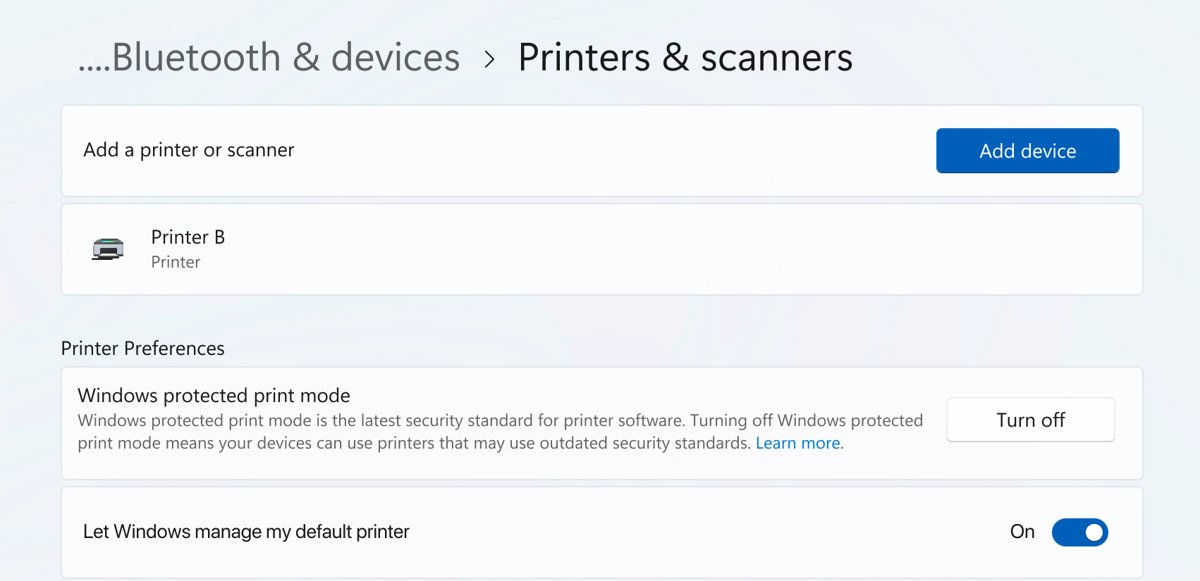
Windows protected print mode uninstalls printers that use third-party drivers and deletes those drivers from the driver store while it is on. A printer that is not compatible cannot be reinstalled until the mode is off, which can look like an unavailable driver.
- Open Settings > Bluetooth & devices > Printers & scanners.
- Scroll to Printer preferences and look at Windows protected print mode.
- If it is on and your printer is Mopria certified, reinstall the printer with Add device so it uses Windows Ready Print.
- If the printer is not compatible, Microsoft's documented option is Turn Off > Yes, then reinstall the printer manually.
- If the option is greyed out, the mode is set by group policy and only your administrator can change it.
- On work PCs, also ask IT whether a Point and Print or driver installation policy blocks new printer drivers.
Repair Windows system files
Fix corrupt Windows files when every printer driver fails, not just one. Run DISM first to repair the Windows image, then the System File Checker (SFC) to repair protected system files. Both need an administrator Command Prompt.
- Select Start, type
cmd, right-click Command Prompt, and select Run as administrator. - Type
DISM /Online /Cleanup-Image /RestoreHealthand press Enter. Wait for it to reach 100%. - Type
sfc /scannowand press Enter. - Wait until verification reaches 100% and read the result message.
- Restart the PC and reinstall the printer.
Special cases: shared printers, label printers, and very old printers
| Printer type | Why the driver goes missing | What to do |
|---|---|---|
| Shared printer on another PC | The client needs a matching driver from the host PC, and a 32-bit host may not hold a 64-bit driver | Install the maker's driver on your PC first, then connect to the share |
| Label printer (DYMO, Zebra, Brother QL) | Uses a dedicated driver that Windows Update often lacks | Install the label printer maker's own software package |
| Very old printer | No driver exists for current Windows or for ARM | Try the Generic / Text Only or a PCL or PostScript class driver, or the maker's universal driver |
| Printer on an ARM PC | x64-only maker installers fail | Use Add device in Settings or a Mopria class driver |
| Printer behind a print server | Server driver was updated or removed | Remove the connection and reconnect after the server admin fixes the driver |
A DYMO label printer needs the current DYMO drivers for Windows 11, not a class driver.
When to reset the printing system
Reset printing when several printers show the error at once, or every fix above fails. The reset clears all printers, drivers and queued jobs so you start from nothing.
- Write down the name and IP address of every printer you use.
- Remove every printer except built-in ones such as Microsoft Print to PDF.
- Open Print server properties > Drivers and remove each third-party driver with Remove driver and driver package.
- Stop the Print Spooler service, empty
%WINDIR%\system32\spool\PRINTERS, and start the service again. - Restart the PC.
- Add one printer at a time and print a test page after each.
How to confirm the fix worked
- Open Printers & scanners and check that the printer shows Idle or a normal status, not Driver is unavailable.
- Select the printer, open Printer properties, and select Print Test Page.
- Open Device Manager and check that the printer has no warning icon under Print queues.
- Restart the PC once more and confirm the status stays the same.
What if the error still will not go away?
The error returns after every restart or Windows update
Windows Update keeps reinstalling a faulty driver over the working one.
- Roll back the driver in Device Manager > printer Properties > Driver > Roll Back Driver.
- On Pro editions, enable Do not include drivers with Windows Updates.
- Reinstall the maker's driver and restart.
The maker's installer fails or finds no printer
The installer does not support the PC's architecture, often ARM, or the printer is unreachable.
- Check the system type in Settings > System > About.
- On ARM, add the printer with Printers & scanners > Add device instead.
- Connect the printer by USB to rule out a network fault, then try the installer again.
Your model is missing from the Windows Update driver list
The wizard does not show every driver Windows Update holds.
- Search the Microsoft Update Catalog for the model's driver name.
- Extract the downloaded .cab file to a folder.
- Add the printer manually and select Have Disk to load the extracted .inf file.
Only the network printer shows the error
Windows attached a driver through the wrong port or the printer's IP address changed.
- Remove the printer and add it again with Add a printer using an IP address or hostname.
- Reserve the printer's IP address in your router.
- Remove duplicate copies of the printer from Printers & scanners.
What “Driver is unavailable” means
The status means Windows has a printer entry but cannot load a usable driver for it. The table shows when the error happens and which fix above matches each cause.
| When the error happens | Likely cause | Fix to try first |
|---|---|---|
| Right after a Windows upgrade | Old driver is not compatible with the new build | Install the latest driver from the manufacturer |
| After a Windows or driver update | A faulty driver replaced a working one | Roll back the driver or uninstall the update |
| On a new or ARM PC | Driver is missing or built for another architecture | Add device in Settings or a class driver |
| After a crash or forced shutdown | Driver files or the spooler queue are damaged | Clear the spooler, then reinstall the driver |
| After turning on protected print mode | Third-party driver was removed | Reinstall with Windows Ready Print |
| On many printers at once | System files or the print system are damaged | Run DISM and SFC, then reset printing |
Tips to prevent the error from coming back
| Habit | Why it helps |
|---|---|
| Get drivers only from the maker or Windows Update | Portal and repackaged drivers are often the wrong version or unsigned |
| Pick the driver for your exact Windows version and system type | A 64-bit driver will not load on ARM, and an old driver may not load on new builds |
| Remove a printer before reinstalling it | Prevents duplicate copies that point at old drivers |
| Reserve the printer's IP address in the router | Keeps network printer ports valid after a router restart |
| Check the printer after each feature update | Upgrades are the most common time for drivers to break |
| Prefer Mopria or IPP class drivers where they cover your needs | They ship with Windows and survive updates |
Automatically reinstall printer drivers
Windows installs a printer driver on its own when you add the printer again, so you do not need to download anything first.
- Remove the printer in Settings > Bluetooth & devices > Printers & scanners, then restart the PC.
- Turn the printer on and connect it by USB or to the same network as the PC.
- Go back to Printers & scanners and select Add device (Windows 10: Add a printer or scanner).
- Select Add device next to your printer when it appears, then wait for Windows to finish installing the driver.
- If the printer is not listed, select Add manually and follow the manual driver steps on this page.
HP printer driver unavailable error fixed
The HP driver unavailable error is fixed the same way as for other brands, with HP's own tools as a backup.
- Remove the HP printer in Settings > Bluetooth & devices > Printers & scanners.
- In Device Manager, uninstall the printer under Print queues and tick Attempt to remove the driver for this device.
- Restart the PC.
- Install the latest driver from HP's support site.
- If the error returns, run HP Print and Scan Doctor or the HP Smart app to reinstall the software and check the connection.
Printer “Driver is unavailable” FAQs
What does “Driver is unavailable” mean on a printer?
It means Windows has the printer listed but cannot load a working driver for it. The driver may be missing, damaged, built for another Windows version or architecture, or removed by an update or by Windows protected print mode.
Why does my printer keep saying the driver is unavailable?
Usually Windows Update keeps replacing a working driver with a faulty one, or duplicate printer entries still point at an old driver. Roll back the driver, remove duplicate entries, and block driver updates through policy on Pro editions.
How do I fix the driver unavailable error on an HP printer?
Remove the HP printer, delete its driver in Device Manager, restart, and install the latest driver from HP's support site. HP Print and Scan Doctor and the HP Smart app can also reinstall the software and check the connection.
Can I use a generic printer driver instead?
Yes. Add the printer manually and pick the Microsoft IPP Class Driver for Mopria-certified printers or a generic driver. You get basic printing back, but some maker features such as finishing or tray options may disappear.
Does Windows 11 still get printer drivers from Windows Update?
Existing third-party printer drivers can still install from Windows Update. Since January 15, 2026, Microsoft no longer publishes new third-party printer drivers there for Windows 11, so newer models may need the maker's own package.
Will Windows protected print mode remove my printer?
It removes printers that use third-party drivers when you turn it on. Mopria-certified printers can be reinstalled with Windows Ready Print, while non-compatible printers stay unavailable until the mode is turned off.
Do I need to restart after reinstalling a printer driver?
Yes, restart the PC. A restart releases driver files that the print spooler still holds, so Windows loads the new driver cleanly instead of the damaged copy.
Does running SFC fix printer driver problems?
SFC repairs protected Windows system files, not the printer maker's driver. Run DISM and then SFC when every printer fails or the spooler keeps crashing, then reinstall the printer driver.
Making “unavailable” printer drivers available in a few easy ways
Remove and reinstall the printer first, then install the maker's latest driver; switch to a generic class driver if no compatible driver exists. Most cases come from a damaged or mismatched driver, and those three steps replace it. HP printer driver unavailable errors are fixed the same way, with HP Print and Scan Doctor as a backup when the reinstall does not stick.