To fix Windows Update “Error encountered” on Windows 11, note the error code in Update history, run the Windows Update troubleshooter, restart, and select Check for updates again.
This guide covers what each error code means, the 0x80d02002 download failure, clearing the update cache, repairing system files, reinstalling Windows through Windows Update, uninstalling a bad update and reading the logs.
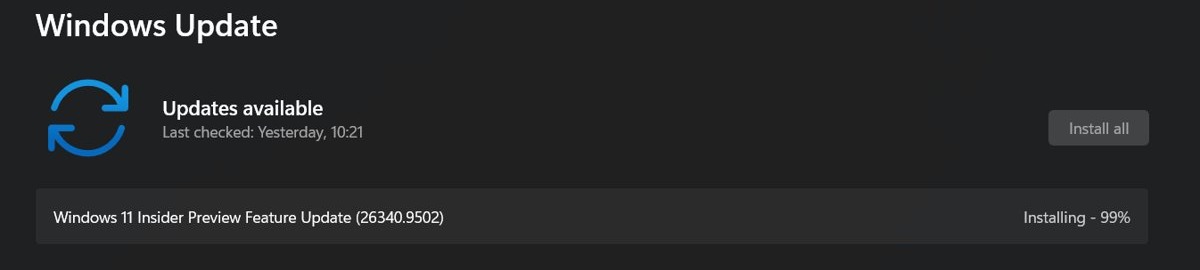
Fix Windows Update “Error encountered”
The phrase “Error encountered” does not name a cause. The code and update name listed with it do, so start by writing them down.
- Select Start > Settings > Windows Update > Update history and write down the code next to the failed update.
- Select Start > Settings > System > Troubleshoot > Other troubleshooters.
- Under Most frequent, select Run next to Windows Update, then follow the on-screen instructions.
- Restart your PC when the troubleshooter finishes.
- Select Start > Settings > Windows Update > Check for updates, then install what it offers.
The same troubleshooter is also available in the Get Help app. If the error returns, match your code in the next table.
Windows 11 update error codes and what they mean
These are the codes Microsoft documents for failed Windows Update installs. Any other code can be looked up in the full list of update error codes.
| Code shown | Likely cause | Start with |
|---|---|---|
| 0x80d02002 | A file download made no progress within the allowed time | The 0x80d02002 steps below |
| 0x8007000d | Corruption in the update files or update cache | Troubleshooter, then clear the update cache |
| 0x800705b4 | The update took too long or was interrupted | Check your connection, then restart |
| 0x80240034 | An incomplete update or a connection issue | Make sure the Windows Update service is running, then run the troubleshooter |
| 0x800f0922 | Too little disk space, or a .NET Framework or component problem | Free up disk space and disconnect any VPN |
| 0x80070057 or 0x80080005 | Corrupted files, permissions or incorrect configuration | Run sfc /scannow, then the troubleshooter |
| 0xC1900101 | An incompatible driver | Update network and graphics drivers in Device Manager |
| 0x80248014 | An update database problem, or the service is not running | Troubleshooter, then start the Windows Update service |
| 0x80070005 | Access denied or missing permissions | Install from an administrator account |
| 0x80070002 | The update failed to install | Restart, run the troubleshooter and check disk space |
Windows update problem on Windows 11: storage, clock and hardware
Microsoft lists these as general causes of failed updates. Back up your personal files before you go further.
| Look at | Where | What it should show |
|---|---|---|
| Power and internet | Settings > Network & Internet > Wi-Fi | The PC is plugged in and the network is connected |
| Account type | Settings > Accounts | Your account has administrator access, because some updates require it |
| External hardware | USB ports and docks | Only what the PC needs for basic use is plugged in |
| Date and time | Settings > Time & language > Date & time | Set time automatically and Set time zone automatically are on |
| Free space | Settings > System > Storage | At least 20 GB free on a 64-bit system when you upgrade |
| Third-party drivers | The hardware maker's website | Added hardware has its latest driver |
Fix 0x80d02002 Windows Update error code
Microsoft defines 0x80D02002 as a Delivery Optimization download that saw no progress within the defined period. Delivery Optimization is the downloader Windows uses for updates, so this code points to the download path rather than to your system files.
- Select Start > Settings > Network & Internet and reconnect if the PC shows as disconnected.
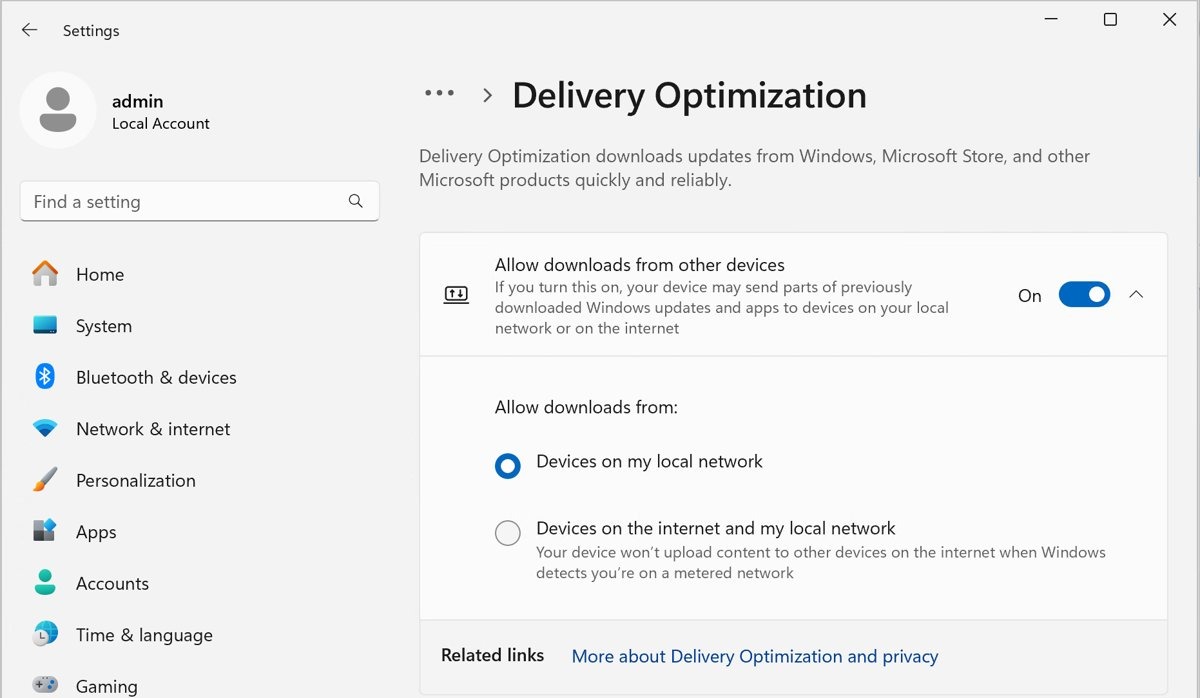
- Select Start > Settings > Windows Update > Advanced options > Delivery Optimization.
- Turn off Allow downloads from other devices. The PC then downloads updates directly from Microsoft.
- Search for disk cleanup on the taskbar and open Disk Cleanup.
- Select the Delivery Optimization Files check box, select OK, then select Delete Files.
- Restart your PC, then select Settings > Windows Update > Check for updates.
Behind a proxy, Windows Update uses the system-level WinHTTP setting, so a proxy set only at user level makes connections fail. On a work or school PC, the toggle can be grayed out and your IT administrator has to change it.
If the download still stalls, install the update manually from the Microsoft Update Catalog.
How to fix a Windows 11 install update error by clearing the cache
Corrupt files in the update cache can cause repeated install failures. Windows downloads the files again after you clear them, and you can also rebuild the SoftwareDistribution cache from Command Prompt.
- Press Win + R, type
services.mscand press Enter. - Right-click Windows Update and select Stop.
- Open
C:\Windows\SoftwareDistributionin File Explorer. - Delete all the files and folders inside it.
- Go back to Services, right-click Windows Update and select Start.
- Select Settings > Windows Update > Check for updates.
How to repair Windows 11 update errors with DISM and SFC
Damaged system files can block every update until they are repaired. Search for command prompt on the taskbar and select Run as administrator, then run these one at a time.
DISM.exe /Online /Cleanup-image /Restorehealth
sfc /scannow
DISM repairs the Windows image, and sfc /scannow then checks system files against it. Wait for the SFC scan to reach 100% before closing the window.
You should see: “The restore operation completed successfully” or “The operation completed successfully” after the DISM command.
If DISM reports an error of its own, you can repair Windows Update components with a repair source. To check the drive as well, run chkdsk /f C: from the same window and restart when asked.

How to reinstall Windows 11 with Fix problems using Windows Update
This repairs system files and components by reinstalling the same version of Windows. Your apps, files and settings stay in place. Keep the PC on power and online for the whole process.
- Select Start > Settings > System > Recovery.
- Under Fix problems using Windows Update, select Reinstall now.
- Choose whether the PC may restart automatically 15 minutes after the installation completes.
- Select OK to start. Windows opens the Windows Update page and downloads a repair version of your last installed update.
- Restart when the installation finishes, unless you allowed the automatic restart.
Windows Update can also suggest this itself with the message “Reinstall your current version of Windows to repair system files and components.”
Error updating to Windows 11 from Windows 10
An upgrade fails for different reasons than a monthly update. Microsoft says an error that begins with 0xC1900101 is usually a driver error, while 0xC1900200 and 0xC1900202 can mean the PC does not meet the minimum requirements.
- Use the PC Health Check app to find out if the PC supports Windows 11.
- Free at least 20 GB on a 64-bit system.
- Install every available update in Windows Update first.
- Unplug nonessential hardware and undock a laptop.
- Get updated third-party drivers from each hardware maker's website.
- Open Device Manager and update or uninstall any device with a yellow exclamation mark.
- Run the upgrade again.
How to uninstall Windows Updates in Windows 11
Use this when an update installed and the errors started afterward. Microsoft does not recommend removing updates unless necessary, and you should understand the risks before you remove a security update. You can also uninstall problematic Windows updates from the command line.
- Select Start > Settings > Windows Update.
- Under More options, select Update history.
- Under Related settings, select Uninstall updates.
- Select the update you want to remove, then select Uninstall.
Some updates cannot be uninstalled. If Windows will not start, open the Windows Recovery Environment and select Troubleshoot > Advanced options > Uninstall Updates.
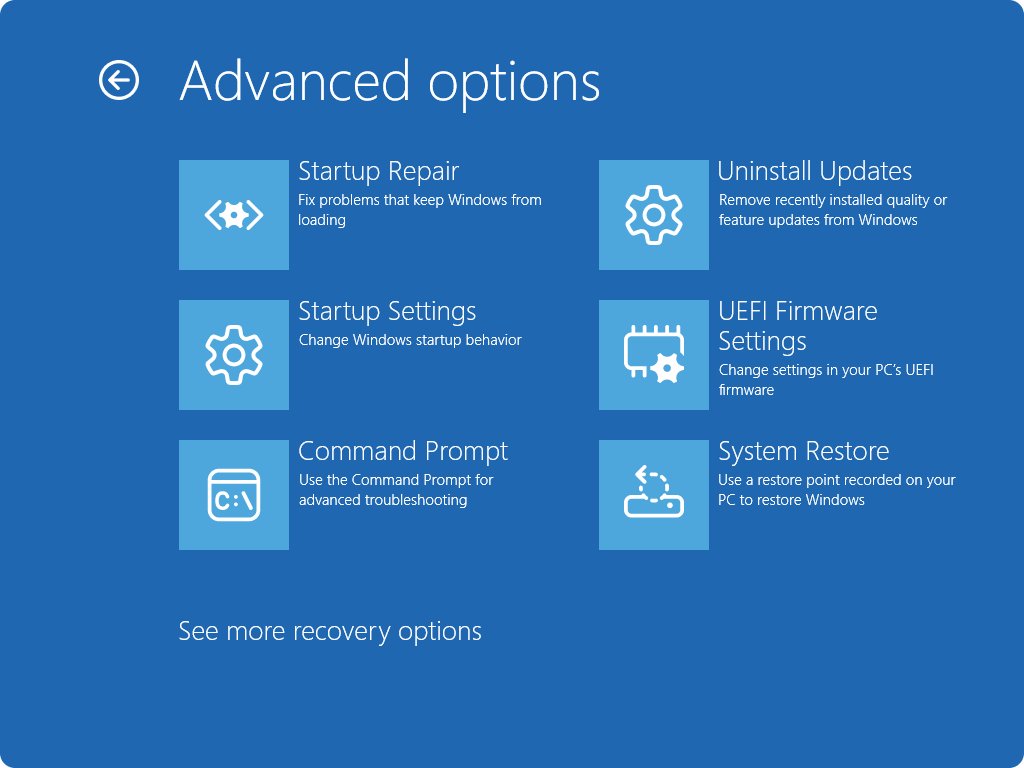
How to read Windows Update logs in Windows 11
Windows Update writes trace files that are not readable as written. This PowerShell command merges them into one text file you can search for your error code.
Get-WindowsUpdateLogThe command merges and converts the .etl files from C:\Windows\Logs\WindowsUpdate into WindowsUpdate.log on your desktop. The file is a static copy, so run the command again after a new failure.
You should see: A line that reads “WindowsUpdate.log written to” followed by the path to your Desktop folder.
Open the file and search for your error code. Each line has a time stamp, process and thread IDs and a component name, and DownloadManager lines cover downloads while Handler lines cover installers.

Where are Windows Update log files stored in Windows 11?
Each log answers a different question, so pick the one that matches where the update stopped.
| Log file | Location | Use it when |
|---|---|---|
WindowsUpdate.log |
C:\Windows\Logs\WindowsUpdate (as trace files) |
Windows Update shows an error message |
UpdateSessionOrchestration.etl |
C:\ProgramData\USOShared\Logs |
An update is available but will not download, install or restart |
NotificationUxBroker.etl |
C:\ProgramData\USOShared\Logs |
You want to know whether an update notification was triggered |
CBS.log |
%systemroot%\Logs\CBS |
The failure happened during installation |
How to tell if a Windows 11 update installed
A cleared error message is not proof that the update went on. Update history records what actually happened.
- Select Start > Settings > Windows Update > Update history.
- Find the update by name and read when it was installed.
- Go back to Windows Update and select Check for updates.
- If Start > Power shows Update and restart, select it to finish the install.

How to fix Windows 11 update problems?
If the code-specific fixes did not apply, match what your PC is doing to one of these.
Windows Update is stuck at 0% or 100%
Another app is blocking the process, or the connection or disk space ran out.
- Restart your PC.
- Select Settings > Network & Internet > Wi-Fi and reconnect if needed.
- Free up disk space, then select Check for updates.
Windows Update stops between 51% and 99%
Install time depends on your connection, network settings and the size of the update, but the same percentage for a long time signals a stall.
- Select Settings > Windows Update > Check for updates.
- Run the Windows Update troubleshooter again if nothing changes.
Windows 11 install update error keeps coming back
A startup program or driver may be in conflict with the update, or an update component is damaged.
- Perform a clean restart, which starts Windows with a minimal set of drivers and startup programs, and try the update.
- If it still fails, search for command prompt and select Run as administrator.
- Run
net stop bits, thennet stop wuauserv. - Run
ren %systemroot%\softwaredistribution softwaredistribution.bak. - Run
ren %systemroot%\system32\catroot2 catroot2.bak. - Run
net start bits, thennet start wuauserv. - Close Command Prompt, restart your PC and try the update again.
Fix problems using Windows Update is missing
The PC is managed by work or school, or it is running a version older than Windows 11 2022 with the February 2024 optional update.
- Select Settings > Windows Update and install the updates on offer.
- On a work or school PC, ask your IT administrator to run the repair.
Windows Update error encountered FAQ
What does error encountered mean in Windows Update?
It means Windows Update failed to download or install something. The phrase does not identify the cause, so look for the code beside it in Settings > Windows Update > Update history and match that code to its fix.
What causes a Windows 11 update error?
Common causes are corrupt files in the update cache, too little disk space, a poor connection, incompatible drivers and damaged system files. The error code narrows it down, and the Windows Update troubleshooter can fix many of these automatically.
How do I fix error 0x80d02002 on Windows 11?
The code means a download stopped making progress. Check your connection, turn off Allow downloads from other devices under Delivery Optimization, delete Delivery Optimization Files with Disk Cleanup, restart your PC and select Check for updates again.
Is TPM 2.0 required for Windows 11?
Yes. Microsoft lists Trusted Platform Module version 2.0 in the Windows 11 minimum system requirements. A PC running Windows 10 can use the free PC Health Check app to find out whether it supports Windows 11.
How much free space does a Windows 11 update need?
Microsoft says a device needs at least 16 GB free to upgrade a 32-bit OS, or 20 GB for a 64-bit OS. If your PC has a small drive, you may need to insert a USB drive to update it.
Will reinstalling Windows 11 through Windows Update delete my files?
No. The Fix problems using Windows Update option reinstalls the same version of Windows and preserves your apps, files and settings. Back up your personal files first anyway, because a failing PC can have other problems.
Can I stop Windows 11 updates to avoid the error?
You cannot stop them entirely. You can pause them from Settings > Windows Update, but once the pause limit is reached, you must install the latest updates before you can pause again. Fixing the error is the lasting answer.