Download anime wallpapers from a source that is entitled to hand them out: the studio’s or publisher’s own site, an official press kit, an artist’s own page on a platform where they have stated a licence, the Steam Workshop for Wallpaper Engine, Wikimedia Commons for freely licensed art, or an image you made yourself. Save the file at your monitor’s native resolution, then set it in Settings > Personalization > Background and pick Fill or Fit. Everything else on this page is the detail that makes that come out sharp instead of blurry.
The rest of this guide skips the wallpaper aggregator sites entirely. They are convenient and they are also, almost without exception, hosting someone else’s art without a licence. There is a better route for every case, and it is not much slower.
The copyright position, stated plainly
A frame from an anime episode is the studio’s work. So is a key visual, a character render, a poster crop and a promotional still. Nobody signs that away by uploading it to a wallpaper site.
What that means in practice is narrower than people assume, and worth separating into two halves:
- Putting a picture on your own desktop is a private act. Nobody is coming for a screenshot you cropped from an episode you paid to stream and set as your own background. It is not distribution, it is not public display, and it is not the thing copyright law is built to chase.
- Redistributing it is a different act. Uploading that same file to a wallpaper site, bundling it in a pack, selling it on a print, using it as the header of a monetised channel, or putting it behind an advertising-funded download button is distribution. That is where the studio’s rights actually bite, and that is what every large wallpaper aggregator is doing at scale.
The reason this article refuses to send you to those sites is not squeamishness. It is that they are unreliable in ways that hurt you directly. The files are re-encoded, often more than once, so a 4K claim turns out to be a 1080p JPEG upscaled and re-saved. Attribution is stripped, so if you later want to commission the same artist you cannot find them. The download buttons are frequently ad-wrapped, and several of these sites have shipped installers instead of images. A clean file from the person who drew it beats all of that.
The one thing worth internalising: the licence travels with the file, not with the site you got it from. A picture does not become free to redistribute because a site let you download it.
Where the files legitimately come from
These are the routes where somebody with the right to offer the file is the one offering it. Each has a different trade-off in resolution, cost and what you are allowed to do afterwards.
The studio’s or publisher’s own site
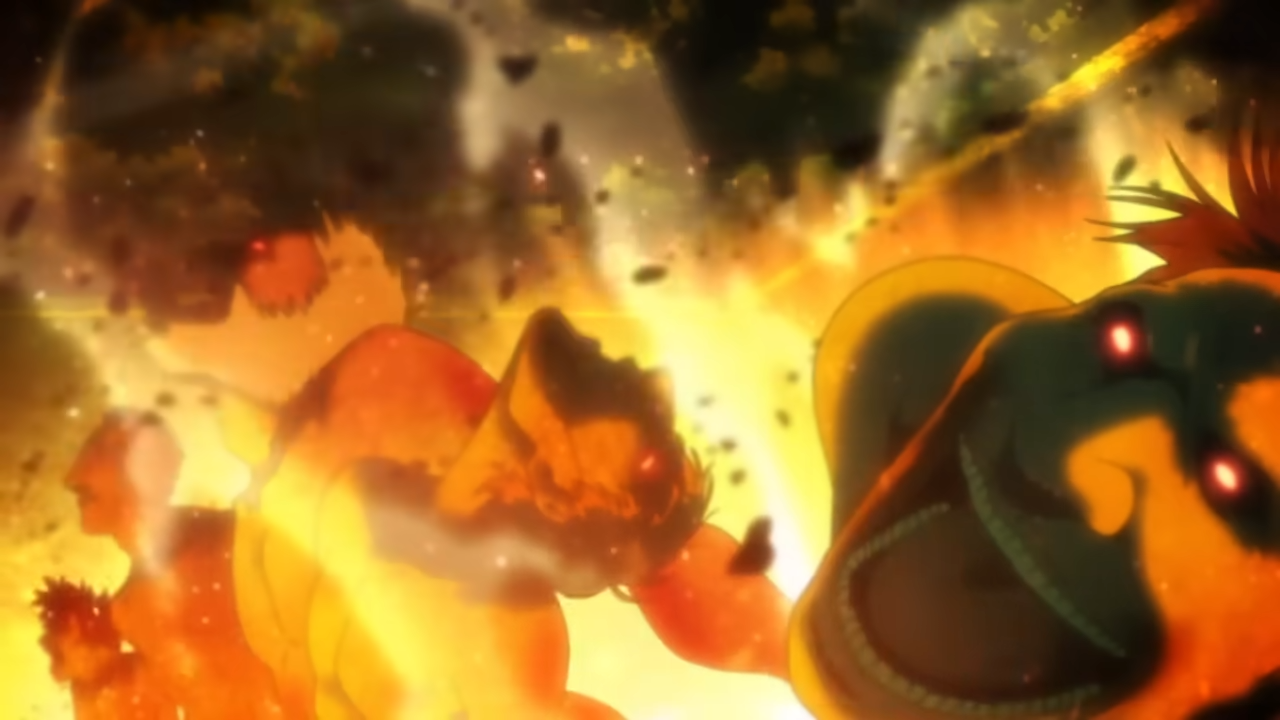
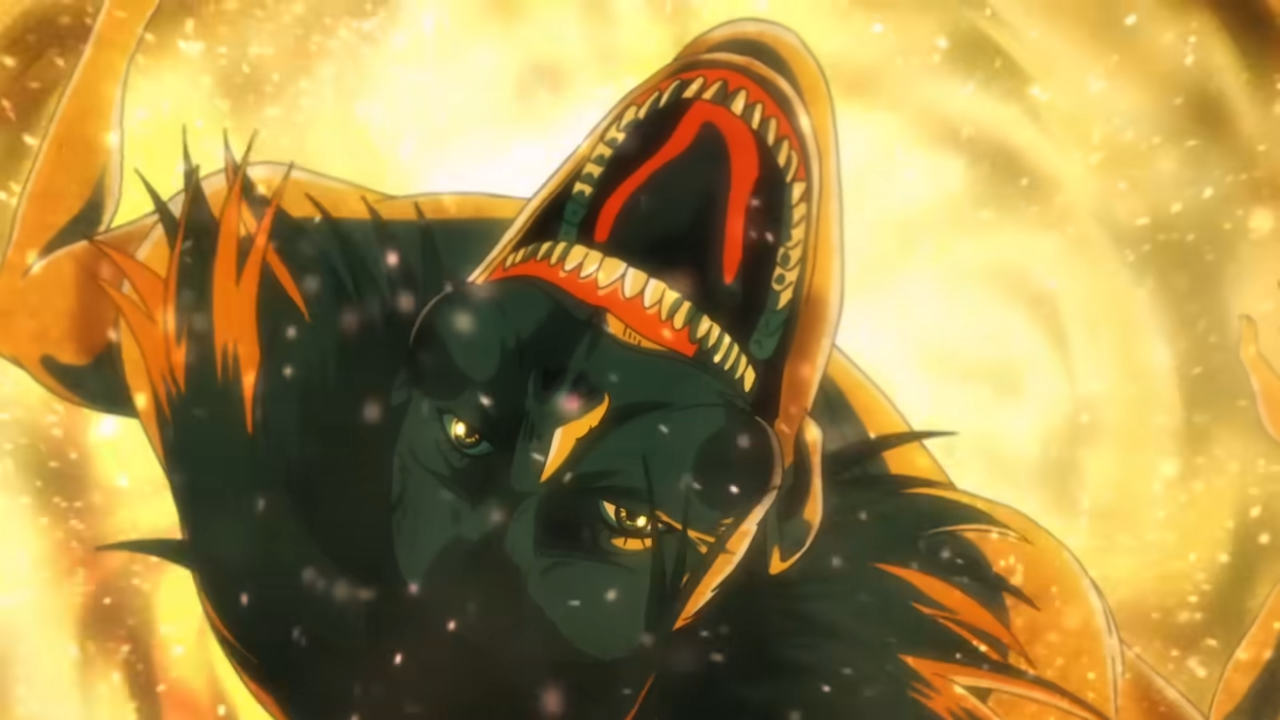
Anime studios, manga publishers and game publishers routinely publish wallpapers on their own domains, usually around a season premiere, a film release or an anniversary. These are the best files you will find anywhere: they come straight from the production materials, so they are the original art rather than a video frame, and they are normally offered in a set of ready-made sizes.
What you get is typically a 1920×1080 and a 3840×2160 desktop size plus phone sizes, as PNG or a high-quality JPEG, free of charge. The licence is almost always implicit and narrow: the page says something like “for personal use” or gives no terms at all, which means personal desktop use only. Do not treat a free download as permission to repost.
The practical problem is discovery. There is no index of these pages. The reliable method is to go to the official site for the specific series, find the news, special or download section, and look there. Sites for Japanese productions often keep wallpapers under a section that translates as “special” or “goods”, and the Japanese-language site frequently carries downloads that the English mirror does not.
Official streaming and service downloads
Streaming services that also act as publishers sometimes post wallpapers through their own news or blog channels, and those posts are legitimate because the service holds or has cleared the rights to the art it is publishing. Crunchyroll’s news section is the obvious place to check for this. Note honestly: that site does not render without JavaScript, so it was not possible to confirm a current wallpaper post while writing this, and no specific URL is claimed here. Go to the service’s own news section and look.
The same applies to platform-holder blogs for game adaptations and to publisher newsletters. If the download sits on the service’s own domain, it is the service’s to give.
Artist platforms where the artist posted the work themselves
This is the richest source for original anime-style art, as opposed to art of an existing series. Pixiv, ArtStation and DeviantArt are all places where illustrators post their own work, and many of them explicitly offer wallpaper-ratio versions.
The important distinction is who uploaded it. An illustrator posting their own painting can decide what you may do with it. A reposter uploading someone else’s painting cannot, and reposts are common on every one of these platforms. Check the account: an artist’s page has a consistent body of work, a bio, commission information and links out to their other profiles. A reposter’s page is a scrapbook of unrelated styles.
Resolution varies enormously. Illustrations are often posted at their working size, which can be far larger than 4K, but some artists deliberately upload a downscaled preview and offer the full-size file to supporters. Cost is usually nothing for the public post.
The terms of those three platforms could not be checked for this article — none of them is on the domain list this site’s research is allowed to fetch, and quoting their rules from memory would be guessing. So the honest instruction is: read the artist’s own statement on the post, and read the platform’s terms yourself before you do anything beyond setting the file as your own background.
Steam Workshop and Wallpaper Engine
Wallpaper Engine is a paid app on Steam, and its store page describes over a million free wallpapers shared through the Steam Workshop. The Workshop is a moderated, first-party distribution channel with a takedown process, which is a materially different situation from an anonymous file host. It is still worth checking that a given submission is by the artist, because it is a user-upload system and reposts exist there too.
What you get here is animation: the store page says the app supports “3D and 2D animations, websites, videos and even certain applications”. That is the main reason to pay for it rather than use a static file.
Official press kits
Anime distributors, film studios and game publishers maintain press or media sections with high-resolution key art for journalists. These files are the cleanest version of a piece of key art you will ever get, often print-resolution.
Read the terms on the press page before you assume anything. Press assets are licensed for editorial coverage, not for general redistribution, and some press kits require registration. For your own desktop, the same reasoning as above applies. For anything public, the press page’s own terms are the rule.
Wikimedia Commons
Commons is the one route on this list where the licence is stated explicitly and machine-readably on every file. Its licensing policy requires that everything hosted be free for any purpose, including commercial use and derivative works, and that the licence be perpetual and non-revocable.
Be realistic about what you will find. The Commons licensing policy states plainly that derivative works of copyrighted characters are prohibited — it gives the example that photographs of copyrighted items such as action figures cannot be published there without permission. So Commons is not a source of fan art of current series. What it does hold is public-domain and freely licensed art in Japanese traditions that read beautifully as wallpaper: ukiyo-e woodblock prints, Meiji-era illustration, historical manga-adjacent work whose copyright has expired. If your taste runs to that, the files are genuinely free and the resolutions are frequently enormous.
Microsoft’s own wallpapers and themes
Not anime, but worth one line because it costs nothing and it is already installed. Settings > Personalization > Themes has a Browse themes button that opens the Microsoft Store, where themes are packaged sets of desktop background pictures, window colours, sounds and other elements. The Bing Wallpaper app, which Microsoft’s own background documentation mentions, updates the desktop background with the Bing image of the day. Neither will scratch an anime itch, but both are licensed, clean and free.
Art you generated or made yourself
An image you drew, rendered or generated is unambiguously yours to use as a background. If you generate one, produce it directly at your screen’s resolution rather than generating small and enlarging — the upscaling problems described below apply just as hard to generated art as to downloaded art.
Route comparison
| Route | Typical resolution | Cost | What it allows |
|---|---|---|---|
| Studio or publisher site | 1080p and 4K sets, sometimes higher | Free | Personal desktop use; no redistribution |
| Official streaming or service post | Usually 1080p and 4K | Free, sometimes subscriber-only | Whatever that post states; personal use if silent |
| Artist platform, artist’s own post | Highly variable, often above 4K | Free; full size may be a supporter tier | Whatever the artist states — read it |
| Steam Workshop / Wallpaper Engine | Animated; many aspect ratios supported | Paid app, free Workshop items | Use inside the app |
| Official press kit | Print resolution | Free, sometimes registration | Usually editorial use; read the page |
| Wikimedia Commons | Often very large scans | Free | Any purpose, under the file’s stated licence |
| Self-made or generated | Whatever you render | Free or tool cost | Yours |
How to read a licence on an artist platform
Most people never look, which is why most people get this wrong. Reading a licence takes about fifteen seconds once you know the five things to look for.
All rights reserved
The default. If an artist has said nothing about a licence, this is the position: they hold every right, and you have been given none beyond looking at the page. Setting it as your own wallpaper is the private act described above. Reposting it, printing it, putting it on merchandise or feeding it into anything you publish is not covered, and “but it was free to download” does not change that. If you want more than a desktop background, ask the artist.
The Creative Commons family
Some artists attach a Creative Commons licence, which is a pre-written grant of specific permissions. The creativecommons.org site is not on the list of domains this article’s research is permitted to fetch, so the licence texts were not read directly and no clause is quoted here. What follows is only what Wikimedia Commons’ own licensing policy states about these licences, which is enough to sort them.
- CC0 — treated by Commons as equivalent to the public domain, with the creator releasing their rights. The most permissive thing you will encounter.
- CC BY — attribution. Commons accepts it, because it permits republication, derivative works and commercial use.
- CC BY-SA — attribution plus share-alike. Also accepted by Commons; the share-alike condition carries the licence onto anything you build from it.
- CC BY-NC — the NC element is a non-commercial restriction, and Commons explicitly does not accept it, because commercial use must be allowed there. For a personal desktop this restriction is irrelevant. For anything that makes money, directly or indirectly, it is the whole point.
- CC BY-ND — the ND element is a no-derivatives restriction, also rejected by Commons. If you were planning to recolour, crop hard, composite or extend an image to fit an ultrawide screen, ND is the licence that says no.
Two things follow. First, the restriction letters matter more than the base licence: NC and ND are the ones that will actually stop you doing something. Second, Commons is a useful shortcut — if a file is hosted there at all, it has already passed a test that rules out NC and ND.
What “personal use” actually means
“Free for personal use” is a phrase artists write themselves, not a defined legal term, so its edges are set by the artist. The safe reading is: on your own devices, seen by you and by whoever happens to be in the room. It does not cover a shop display, a streamed desktop, a video thumbnail, a printed poster you sell, or a repost that lets other people download it. When a post says “personal use” and you want to do something outside that, the artist has told you they are willing to talk — ask.
Why crediting matters even when it is not required
Under CC0 you owe nobody a credit. Credit anyway. The practical argument is self-interested: a wallpaper folder full of files named after the artist is a folder you can search when you want a commission, a print or more work in that style, and a folder of files named wallpaper_4k_final(2).jpg is a dead end. The social argument is that discovery is how illustrators get paid, and a credit costs nothing. Where a licence does require attribution, it is a condition of the grant, and ignoring it means you are using the work without a licence at all.
What a commission or a supporter tier changes
Money does not automatically transfer copyright. Commissioning a piece buys you what the artist’s terms say it buys you, which is usually a personal-use licence to the delivered file; the copyright normally stays with the artist unless the agreement says otherwise in writing. Paying for a Patreon or similar supporter tier is the same shape: it typically buys access to higher-resolution files or wallpaper-cropped variants, and sometimes a broader licence, but the tier description is what governs. Read the tier text and the artist’s terms before assuming a payment unlocked commercial rights. If you need commercial rights, say so up front and expect a different price.
Resolution and aspect ratio: get the number right before you download
The single biggest cause of an ugly wallpaper is a file whose pixel dimensions are smaller than the screen. Find your number first.
Check your display resolution and scaling
The path is the same on Windows 11 and Windows 10. Open Settings > System > Display.
- On Windows 11, look at the Display resolution row and the Scale & layout section. Microsoft’s documentation says it is usually best to stay on the option marked (Recommended), and warns that a lower resolution makes text look less sharp and can leave the picture small, centred, black-edged or stretched.
- On Windows 10, both controls sit under Scale and layout: the Display resolution list, and Change the size of text, apps, and other items for scaling. The same advice about (Recommended) applies.
- Note both numbers. The resolution is the one you match your wallpaper to. The scale percentage does not change it.
If you cannot find the page, there are several other ways to open Display settings in Windows 11.
The numbers worth memorising
| Name | Pixels | Aspect ratio |
|---|---|---|
| 1080p / Full HD | 1920 × 1080 | 16:9 |
| 1440p / QHD | 2560 × 1440 | 16:9 |
| 4K / UHD | 3840 × 2160 | 16:9 |
| Common laptop 16:10 | 1920 × 1200, 2560 × 1600, 3840 × 2400 | 16:10 |
| Ultrawide | 2560 × 1080, 3440 × 1440 | 21:9 |
| Super ultrawide | 5120 × 1440 | 32:9 |
Microsoft’s own guidance on background images explains the cropping behaviour: an image made at 16:9 scales properly onto other 16:9 resolutions, but on a different aspect ratio such as 4:3 or 16:10 the height scales correctly while the width is cropped, with the image staying centred. That is why a 16:9 wallpaper on a 16:10 laptop quietly loses a slice from each side, and why anything important near the edges disappears. Microsoft’s advice for images with critical content is to design at 16:9 and keep the important part inside the 4:3 region — the same trick works for wallpaper: pick images whose subject is near the centre.
Ultrawide is the hard case. A 21:9 screen is so much wider than the 16:9 art most anime wallpapers are produced at that Fill will crop away the top and bottom of the picture, often taking the character’s head with it. Either find art made for 21:9, or accept Fit with bars, or use two 16:9 images side by side across a dual-monitor setup.
Why upscaling looks bad
Enlarging a 1920×1080 file to fill a 3840×2160 screen means inventing three out of every four pixels. Two artefacts follow, and anime art shows both unusually clearly:
- Soft edges. Anime style is built on clean, high-contrast line art. Interpolation smears exactly those lines, so a 2× upscale turns crisp outlines into grey mush. Photographs hide this; line art cannot.
- Banding. Large flat areas — a gradient sky, a shaded cheek, a single-colour background — get stretched along with everything else, so the small steps between tones become wide visible stripes.
The rule is simple: download at or above your screen resolution. Downscaling is nearly free visually; upscaling never is.
DPI scaling and HiDPI laptop panels
Display scaling changes how large the interface is drawn, not how many pixels the panel has. A 3840×2400 laptop panel at 200% scale still needs a 3840×2400 wallpaper. A file sized for the “effective” 1920×1200 that the interface behaves like will be upscaled 2× and look exactly as bad as described above. Always match the physical resolution shown in Display resolution, not the scaled figure you might infer from how big things look.
On a mixed setup — a HiDPI laptop next to a 1080p external monitor — the two screens need differently sized files if you want both sharp. That is one of the good arguments for setting a different picture per monitor rather than one Span image.
File formats: what to download and what Windows takes
Flat anime art stresses image compression in a specific way, so the format choice matters more here than it does for photographs.
| Format | Behaviour on anime art | File size | Use when |
|---|---|---|---|
| PNG | Lossless. No banding, no halos around line art, colours exact. | Large — a 4K illustration can run to tens of megabytes | The artist offered it and you have the disk space |
| JPEG, high quality | Very good; artefacts mostly invisible at normal viewing distance | Moderate | The usual real-world choice |
| JPEG, low quality | Poor. Blocking in flat colour fields, ringing along outlines, visible banding in gradients | Small | Never, for wallpaper |
| WebP | Holds flat colour and sharp edges better than JPEG at the same size | Small | The source offers it |
| AVIF | Best size-to-quality of the common options, with good gradient handling | Smallest | The source offers it and your system opens it |
The reason low-quality JPEG fails so badly here is structural. JPEG discards detail in blocks and is tuned for photographic noise; anime art is the opposite — large uninterrupted areas of one colour next to hard black outlines. The flat areas develop faint blocky steps, and the outlines pick up a grey shimmer along their length. If a “4K anime wallpaper” download is only two or three megabytes, it has been compressed hard, and you will see it.
On what Windows itself accepts, two documented data points are worth separating:
- Microsoft’s Photos app documentation lists its supported photo formats as JPEG, PNG, GIF, BMP, TIFF. It does not list HEIF, HEIC, AVIF or WebP, and it does not say whether an extension is needed for them.
- Microsoft’s enterprise documentation for setting a desktop image by policy accepts a URL to a jpg, jpeg, or png file. That is the policy path, not the Settings app, but it is a good indication of the formats to trust.
The safe answer: keep your wallpapers as PNG or high-quality JPEG. If you are handed an AVIF or WebP file and it does not behave, convert it to PNG once and keep the PNG.
Set the wallpaper in Windows 11 and Windows 10
The path is effectively identical on both versions.
- Right-click an empty area of the desktop and select Personalize, or open Settings and select Personalization.
- Select Background.
- Under Personalize your background, choose Picture.
- Pick one of the supplied images, or select Browse and choose your own file.
- Choose how the picture fits the screen. The documented options are Fill, Fit, Stretch, Tile, Center and Span.
The fastest route for a single file is not the Settings app at all: right-click the image and select Set as desktop background. That applies it immediately using the current fit setting.
What each fit option does
| Option | Behaviour | Use for |
|---|---|---|
| Fill | Crops the image to cover the whole screen | Art whose subject sits near the centre; the usual default |
| Fit | Keeps the aspect ratio, so the whole image is visible | Art you refuse to crop; leaves bars on a mismatched ratio |
| Stretch | Forces the image to the screen shape, which may distort it | Almost nothing — distortion is instantly visible on faces |
| Tile | Repeats the image | Small seamless patterns, not illustrations |
| Center | Places the image without resizing it | A file already at exactly your resolution, or deliberate small art |
| Span | Stretches one image across multiple monitors | A single ultrawide-proportioned image on a dual setup |
Two practical notes. Stretch is the option that makes anime wallpapers look wrong most often, because distorted faces are far more noticeable than distorted landscapes — if your wallpaper looks subtly off, check whether this is selected. And Center on a file smaller than your screen leaves a border of the desktop colour, which is sometimes a deliberate and rather good look for a piece of small pixel art.
Other background modes
The same Personalize your background list offers Solid color, Slideshow and Windows spotlight. Spotlight shows a different image on the desktop and lock screen each day, drawn from Microsoft’s own collection. It is a decent fallback when you want variety without curating anything, and it is covered separately in our guide to Windows 11 Spotlight on the desktop background.
Multiple monitors
Microsoft’s documentation states that with multiple monitors you can set the same picture on every display or a different picture on each. The per-monitor choice is made from the same Background page after you have browsed to your images; with several images in the recent list, each display can be assigned its own.
For one image stretched across two screens, use Span. It works properly only when the source image is roughly as wide as the combined screens — spanning a 16:9 file across two 16:9 monitors means stretching a 1.78:1 image to 3.56:1, which distorts everything. Find or crop an image at the combined ratio instead.
Two limits are documented and catch people out. Windows lets you use different backgrounds on different virtual desktops, but that per-desktop choice does not extend to per-monitor configuration, and slideshow backgrounds are not supported with multiple desktops. If you need the hardware side of a dual setup first, see our guide to setting up multiple monitors on Windows 11.
Slideshow from a folder
Select Slideshow under Personalize your background and point it at an album folder. The documentation states you can adjust the interval and the shuffle setting; it does not publish the list of interval values, so check the dropdown on your own machine rather than trusting a number quoted elsewhere.
The thing that makes a slideshow good is the folder, not the settings. Put only images at or above your screen resolution in it, all in the same aspect ratio, and the rotation stays sharp. Mix a few phone-shaped images into the folder and every few minutes you get a cropped mess.
If Personalization is greyed out
Be careful with this one, because the usual explanation is repeated everywhere and is not documented where you would expect. Microsoft’s activation support pages do not state that personalization is disabled on an unactivated Windows — that page describes how to activate and how to check activation status, and does not list the feature restrictions. So this guide will not claim it as a verified fact. What can be verified is the other cause, below, and the place to check activation status is Settings > System > Activation.
The documented cause is policy. Microsoft’s configuration documentation describes a Group Policy setting at User Configuration\Administrative Templates\Desktop\Desktop called Desktop Wallpaper, which takes a fully qualified local or UNC path to an image file and also carries a wallpaper style such as Fit. When a policy like that applies, the image is downloaded and cached locally and the background is set to what the policy specifies. On a work or school device, that is your answer. Configuring the desktop background this way requires Pro, Pro Education, Enterprise, Education or IoT Enterprise.
Animated and live wallpapers
Windows has no built-in animated desktop background. The desktop background and the lock screen are separate settings, and neither plays video by itself.
Wallpaper Engine on Steam is the established answer. From its own store page: it is a paid app, priced in your region’s currency; it supports “3D and 2D animations, websites, videos and even certain applications”, with 3D, 2D and video wallpapers highlighted as the best performers, while websites and applications “will require more resources from your system”. It supports many aspect ratios and native resolutions including 16:9, 21:9, 16:10 and 4:3, and multi-monitor environments. Minimum requirements listed are Windows 10 or 11, a 1.66 GHz Intel i5, 1 GB RAM, HD Graphics 4000, DirectX 11 and 512 MB of storage; the recommended tier is a 2.0 GHz i7, 2 GB RAM and a GTX 660 or HD 7870 class GPU with 2 GB of VRAM. A free Android companion app exists and needs Android 10 or newer.
The performance question, answered honestly
An animated wallpaper is a program drawing frames continuously. That costs GPU time and therefore power, and there is no configuration that makes it free. What the app does about it is documented on the store page: you can choose to automatically pause or completely stop the wallpaper while using another application or playing fullscreen, including borderless windowed mode.
That setting is the whole ballgame. With pausing enabled, the cost lands only when you are actually looking at the desktop, which is exactly when you want the animation and exactly when nothing else needs the GPU. With it disabled, you are rendering an animation behind a full-screen game forever.
On a laptop the calculus is different and worth being blunt about: a continuously animating wallpaper keeps the GPU awake, which prevents the deep idle states that battery life depends on. Expect a real reduction in runtime on battery. The sensible configuration on a laptop is animated wallpaper on mains power, static wallpaper on battery.
The lock screen is a separate surface with separate settings under Personalization, and it does not inherit your desktop background. If you want both to match, set both.
Keeping a wallpaper library tidy
A hundred downloaded images with generated filenames is a folder you will never use. Ten minutes of structure fixes it permanently.
Folder structure
Sort by what determines whether a file is usable, which is its shape — not by series. A structure that works:
D:\Wallpapers\16-9-4K\D:\Wallpapers\16-9-1440p\D:\Wallpapers\16-10\D:\Wallpapers\21-9\D:\Wallpapers\Phone\D:\Wallpapers\_Unsorted\
This pays off immediately with slideshows, because a slideshow folder is only as good as its worst-shaped image. Point the slideshow at the folder matching your monitor and every image in the rotation fits.
Naming
Use a pattern that keeps the credit attached to the file: series-or-subject_artist_WIDTHxHEIGHT.png. For example ukiyoe-wave_hokusai_3840x2160.png. Three benefits: you can search by artist when you want more of their work, you can see the resolution without opening anything, and a file separated from its source page still carries its attribution.
Why not to park 4K files in a OneDrive-synced Pictures folder
OneDrive can back up the Desktop, Documents and Pictures folders, and on many Windows installs Pictures is already syncing. Drop fifty 4K PNGs in there and they are consuming your OneDrive quota, not just disk space.
That matters because Microsoft enforces the quota. Its storage documentation states that if you remain over your OneDrive storage limit for three months, the OneDrive account is frozen, and that exceeding the quota prevents uploading or syncing new files. A wallpaper collection is the kind of bulk, easily re-downloadable data that is worst suited to consuming a paid quota.
Two fixes:
- Keep wallpapers outside the synced tree — a folder such as
D:\Wallpapersthat OneDrive does not touch. This is the cleaner option. - Use Files On-Demand if you want them synced anyway. Right-click a file or folder and select Free up space to make it online-only, shown by a blue cloud icon, which does not take up space on the computer. Always keep on this device does the reverse. Note the trade: an online-only wallpaper still counts against your cloud quota — Files On-Demand saves disk, not quota.
If OneDrive is syncing folders you never asked it to, see how to disable or turn off OneDrive in Windows 11.
Backup
Wallpapers are replaceable in principle and annoying to replace in practice, because the studio page you got them from may be gone. Keep one copy on a second drive or an external disk. A plain copy of the folder is enough; this is not data that needs versioning.
Troubleshooting, by symptom
The wallpaper looks blurry, soft or compressed
- Check the file’s pixel dimensions against Settings > System > Display > Display resolution. If the file is smaller, it is being enlarged, and no setting will fix that. Get a bigger file.
- Check the fit option. Stretch distorts; Fill crops. On a mismatched aspect ratio, Fill is usually the better-looking of the two.
- Check the file size. A 4K image that is only a couple of megabytes has been compressed heavily, and that shows as banding in flat colour and shimmer along outlines. Re-download from the artist’s or publisher’s own page, where the original is.
- Confirm the display is running at its native resolution. Microsoft’s documentation warns that a non-native resolution makes text less sharp and can leave the picture small, centred, black-edged or stretched — the same applies to the wallpaper.
The wallpaper resets after a reboot
- Check whether a policy is setting it. On a managed device, the Desktop Wallpaper policy under User Configuration\Administrative Templates\Desktop\Desktop points the background at a specific file, and the image is cached locally and reapplied. Anything you set by hand is overwritten at the next policy refresh.
- On a domain-joined machine, run
gpupdate /force /target:userand see whether the background changes back immediately. That confirms policy is the cause. - Check that the image file still exists at the same path. Windows points the background at a file; move or delete it, and there is nothing to restore.
- If you set the background from an online-only OneDrive file, keep a local copy instead. Use Always keep on this device, or better, store wallpapers outside the synced folder entirely.
Background settings are greyed out
- Check for policy first, because that is the documented cause. The desktop background can be set by Group Policy or by the Personalization CSP through Intune, and configuring it that way requires Pro, Pro Education, Enterprise, Education or IoT Enterprise. On a work or school device, the setting is not yours to change.
- Check activation status at Settings > System > Activation. Activation being the cause of greyed-out personalization is widely repeated but is not stated on Microsoft’s activation support pages, so treat it as a thing to rule out rather than a confirmed explanation.
- If you own the machine and it is Pro or better, open the Local Group Policy Editor and check whether Desktop Wallpaper under User Configuration\Administrative Templates\Desktop\Desktop is Enabled.
The slideshow is not advancing
- Confirm the background type is actually Slideshow and not Picture under Personalize your background.
- Check the interval setting on the same page, and the shuffle setting. Both are documented as adjustable.
- Check the album folder still contains more than one usable image, and that the folder has not moved.
- If you are using multiple virtual desktops, stop: Microsoft’s documentation states that slideshow backgrounds are not supported with multiple desktops.
- If the folder is synced by OneDrive and the images are online-only, make them locally available with Always keep on this device, or move the album out of the synced tree.
The second monitor has the wrong wallpaper
- Identify which display is which first. On Windows 11, go to Settings > System > Display and use the identify displays option — a number appears on the screen it is assigned to. On Windows 10 the same page has Rearrange your displays and Identify.
- Go back to Personalization > Background and assign the image you want to that specific display. The documentation confirms you can set the same picture on all displays or a different picture on each.
- If you wanted one image across both, select Span — and make sure the source image is about as wide as the two screens combined, or it will be badly stretched.
- Remember the documented limits: per-virtual-desktop backgrounds do not give you per-monitor configuration, and slideshows do not work with multiple desktops.
Black screen instead of an image
- Check the file still exists at the path it was set from. A deleted, renamed or moved file leaves the background empty.
- Check the format. Microsoft’s Photos documentation lists JPEG, PNG, GIF, BMP and TIFF as supported photo formats, and the desktop image policy accepts jpg, jpeg and png. An AVIF, WebP or HEIC file may simply not render. Convert it to PNG and set that.
- If the file lives on a network share or a OneDrive online-only location, put a local copy on the machine and point the background at that.
- On a managed device, check whether a policy is pointing the background at a UNC path the machine cannot currently reach. The documentation notes the image is downloaded and cached, so an unreachable source on a fresh profile leaves nothing to display.
Frequently asked questions
Is it illegal to use an anime screenshot as my wallpaper?
Setting a picture as your own desktop background is a private act on your own machine, and it is not what copyright enforcement is aimed at. Redistributing that file — uploading, packaging, selling, or putting it behind a download button — is a different matter entirely, and that is where the studio’s rights apply.
Where do I find official anime wallpapers?
Start with the series’ own official site and look for a news, special or downloads section; Japanese-language sites often carry downloads the English pages do not. Then check the publisher’s or distributor’s press section, and the streaming service’s own news posts.
What resolution should an anime wallpaper be?
At least your screen’s native resolution. Check it at Settings > System > Display > Display resolution. 1920×1080 for 1080p, 2560×1440 for 1440p, 3840×2160 for 4K. Larger is fine; smaller is not.
Why does my 4K wallpaper still look blurry?
Usually one of three things: the file was upscaled from something smaller before you got it, it was saved as a heavily compressed JPEG, or the display is not running at its native resolution. Check the file size — a genuinely 4K illustration is not two megabytes.
PNG or JPEG for anime wallpaper?
PNG if it is offered and you can spare the disk space, because it is lossless and flat colour areas stay clean. A high-quality JPEG is fine in practice. A low-quality JPEG bands visibly across gradients and shimmers along outlines, which anime art shows more clearly than photographs do.
How do I set a different wallpaper on each monitor?
Open Personalization > Background, browse to your images so they appear in the list, then assign a picture to each display. Microsoft’s documentation confirms both the same-on-all and different-per-display options.
How do I stretch one wallpaper across two monitors?
Choose Span as the fit. Use an image whose width-to-height ratio matches the combined screens, or it will be stretched out of shape.
Can Windows use an animated or video wallpaper?
Not on its own. Wallpaper Engine on Steam is the established paid option; its store page describes support for 3D and 2D animations, websites, videos and certain applications, plus the ability to pause or stop the wallpaper while another application is running or a game is fullscreen.
Does a live wallpaper hurt battery life?
Yes. Continuous rendering keeps the GPU active and prevents the idle states battery life depends on. Enable the pause-on-other-application setting, and prefer a static image while on battery.
Why is the Background setting greyed out on my PC?
The documented cause is a policy: the desktop background can be enforced by Group Policy or by Intune through the Personalization CSP, which requires Pro, Pro Education, Enterprise, Education or IoT Enterprise. Also check Settings > System > Activation, though Microsoft’s activation pages do not document personalization restrictions.
Can I use a Creative Commons image for a YouTube thumbnail?
It depends which one. A CC BY-NC licence carries a non-commercial restriction, and a monetised channel is not non-commercial. CC BY-ND carries a no-derivatives restriction, so cropping and compositing it into a thumbnail is outside the licence. Read the specific licence attached to the specific file.
Do I have to credit the artist?
Under some licences it is a condition, and ignoring it means you have no licence. Under CC0 it is not required. Do it anyway — a file named with its artist is a file you can trace when you want a print, a commission, or more of the same.
The verdict
For most people the best route is the artist’s own page. Find illustrators whose work you like on the platform they post to, take the wallpaper-sized files they publish themselves, keep the filename pointing back at them, and pay for a supporter tier if you want the full-resolution versions. It costs little, the files are the originals rather than third-generation re-encodes, and the person who drew the thing benefits.
For art of a specific series, go to that series’ official site and its publisher’s press section first. Those pages are where the clean, correctly sized, production-quality files live, and they are free.
Buy Wallpaper Engine only if you actually want animation. It is well built, it has the pause-on-fullscreen behaviour that makes an animated wallpaper practical, and the Workshop is a moderated channel rather than an anonymous file dump — but a static image at the right resolution costs nothing and has zero performance impact, and on a laptop that is the better default.
Whatever you choose, do the boring part: check your resolution before you download, keep the files out of a synced OneDrive folder, and sort them by aspect ratio. That is the difference between a wallpaper collection you use and a folder you open once.