To format an SD card on a Windows computer, open File Explorer, right-click the card, select Format, pick a file system and select Start.
This guide covers File Explorer, Disk Management and DiskPart on Windows 11 and Windows 10, which file system to choose, and fixes for cards that will not format.
How to format SD Card on Windows PC
Formatting erases everything on the card, so copy any photos or files you want to keep first. Insert the card into the built-in reader or a USB card reader before you begin.
- Press Windows + E to open File Explorer.
- Select This PC in the left pane and find the SD card under Devices and drives.
- Right-click the card and select Format.
- Choose a File system: exFAT for most cards, FAT32 for older cameras and consoles.
- Leave Allocation unit size on the default and type a name in Volume label if you want one.
- Keep Quick Format ticked for a card that works normally, then select Start.
- Select OK on the warning that all data will be erased, then OK when formatting finishes.
If the card does not appear in File Explorer at all, open the SD card in Windows first and confirm it has a drive letter.
What is the best format for SD card for Windows?
The right file system depends on the device that will use the card next, not on Windows. Windows reads and writes all three.
| File system | Largest single file | Best for |
|---|---|---|
| exFAT | No practical limit for a card | Cameras, phones and dash cams that list exFAT, files over 4 GB, sharing with a Mac |
| FAT32 | 4 GB | Older cameras, game consoles, Raspberry Pi boot cards and devices that only list FAT32 |
| NTFS | No practical limit for a card | A card that stays in one Windows PC; many cameras and phones cannot read it |
When a device manual names a format, use that one. If you are unsure, format the card inside the camera or dash cam itself, which sets the layout that device expects.
What is formatting? Does it delete data?
Formatting builds a fresh file system on the card, so Windows and other devices can store files on it. Yes, it deletes the data you can see.
| Option | What it does | When to use it |
|---|---|---|
| Quick Format | Deletes the file table and root folder, skips the bad-sector scan | A card that worked fine and you just want empty |
| Full format (Quick Format unticked) | Also scans every sector for bad areas, so it takes much longer | A card that showed errors, corrupted files or a RAW file system |
| DiskPart clean | Removes every partition so you can rebuild the card from scratch | A card with odd partitions, the wrong size shown, or one that refuses to format |
You cannot format an SD card without erasing data. Copy the files to the PC first, format, then copy them back.
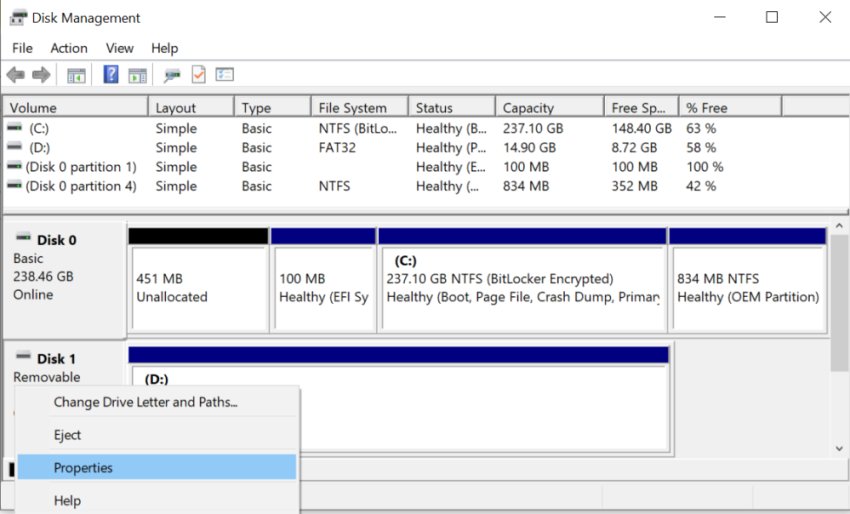
Format an SD card with Disk Management
Disk Management works when File Explorer hides the card because it has no drive letter or shows as RAW.
- Right-click Start and select Disk Management.
- Find the SD card in the lower pane by its size; it is usually listed as Removable.
- Right-click the card's volume and select Format. If the space shows as Unallocated, select New Simple Volume instead and follow the wizard.
- Type a Volume label, choose the File system and leave Allocation unit size on Default.
- Tick Perform a quick format and select OK.
- Select OK on the warning that formatting erases all data on the volume.
How do I format my SD card to FAT32 on my PC?
Use the format command in an administrator Terminal or Command Prompt in Windows 11 when you need FAT32 and want to set it directly. Replace E: with the card's drive letter from File Explorer; formatting the wrong letter erases that drive.
format E: /FS:FAT32 /Q /V:SDCARD/FS sets the file system (FAT32, exFAT or NTFS), /Q runs a quick format and /V sets the volume label.
You should see: The command ends with the total disk space and the space available on the card.
Swap FAT32 for exFAT in the same command to format to exFAT instead. If Windows refuses FAT32 for a large card, see the volume size error below.
Clean and format an SD card with DiskPart
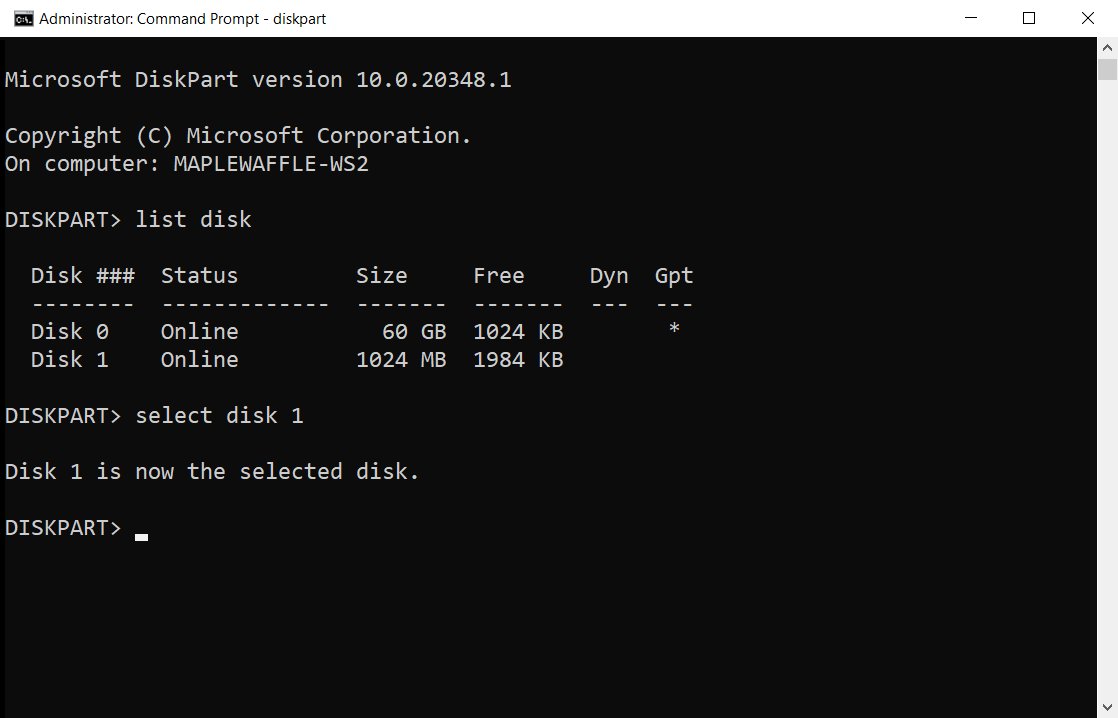
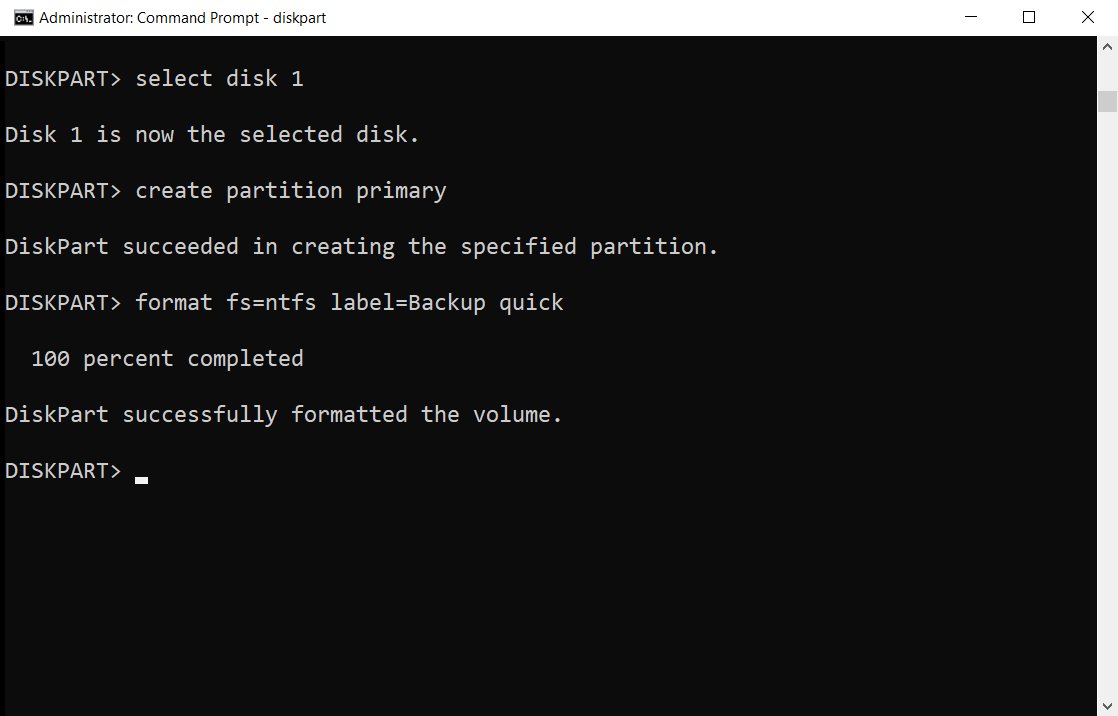
DiskPart commands wipe the whole card, including hidden partitions left by a Raspberry Pi image or a camera. Pick the disk number carefully, because clean erases the selected disk without asking.
- Right-click Start and select Terminal (Admin) or Windows PowerShell (Admin).
- Type
diskpartand press Enter. - Type
list diskand note the disk number that matches the card's size. - Type
select disk 2, replacing 2 with the card's number. - Type
cleanto remove every partition on the card. - Type
create partition primaryto make one partition across the card. - Type
format fs=exfat quick label=SDCARD, or usefs=fat32for devices that need FAT32. - Type
assignto give the card a drive letter, then typeexit.
The volume size is too small for the selected file system
Each file system needs a minimum number of clusters, and FAT32 also has a ceiling, so a very small or very large card can fail with one choice and work with another.
"The volume size is too small" or "too big" when choosing FAT32
FAT32 allows between 65,527 and 4,177,917 clusters, and the card or partition falls outside that range at the chosen cluster size.
- Set Allocation unit size back to Default and try again.
- If the error remains on a small card, choose FAT or exFAT instead.
- If the error appears on a large card, choose exFAT, which the device must also support.
- If the device only accepts FAT32, format the card inside that device.
The card shows less space than its label after formatting
An earlier image or device left extra partitions on the card.
- Follow the DiskPart steps above to run
cleanon the card. - Create one partition and format it again.
- Check the size in Disk Management matches the card's rated capacity.
How to disable or enable USB Read/Write Protection on Windows 11
Windows cannot format a write-protected card. Check the physical lock first, then the disk's read-only flag.
- Remove the card and slide the small lock switch on a full-size SD card or adapter away from Lock, then insert it again.
- Right-click Start, select Terminal (Admin), type
diskpartand press Enter. - Type
list diskandselect disk 2, replacing 2 with the card's number. - Type
attributes diskto show whether Current Read-only State is Yes. - Type
attributes disk clear readonlyto turn write protection off. - Type
attributes disk set readonlylater if you want to turn write protection back on. - Type
exitand format the card again.
If the read-only state returns to Yes after you clear it, the card's controller has locked itself, which usually means the card has failed.
Make your USB Drive or External Media perform faster in Windows 11
Windows 11 and Windows 10 version 1809 and later use Quick removal for external storage by default. Switching a card reader to Better performance lets Windows cache writes to it.
| Policy | What changes | Trade-off |
|---|---|---|
| Quick removal (default) | No write caching, so you can pull the card at any time | Slower copies to the card |
| Better performance | Windows caches write operations to the device | You must use Safely Remove Hardware before you pull the card, or you risk losing data |
To change it, right-click Start, select Disk Management, right-click the card's disk label in the lower pane and select Properties, then open Policies. If there is no Policies tab, open Hardware, select the card, select Properties and then Policies. With Better performance, also tick Enable write caching on the device.
Check the SD card formatted correctly
- Open File Explorer and select This PC.
- Right-click the SD card and select Properties.
- Confirm File system shows the format you picked and Used space is near zero.
- Copy a test file to the card, eject it with Safely Remove Hardware, and open the file on the device that will use the card.
What to do if your SD card won't format?
Windows says it was unable to complete the format
The card is write-protected, in use by another app, or has a damaged partition.
- Close any app that has files open on the card, such as a photo importer.
- Clear write protection with the steps above.
- Run DiskPart
clean, create a new partition and format again.
Why does my SD card say I need to format it?
Windows cannot read the file system, often after the card was pulled out mid-write or formatted by a device in a format Windows does not read.
- Select Cancel if the card holds files you need, and copy them off on the device that last used it.
- Open Disk Management and check whether the volume shows RAW.
- Format the card once the files are safe.
Why can't I format my micro SD card to FAT32?
The card is too large or too small for FAT32 at the chosen cluster size, so File Explorer hides or rejects the option.
- Use the
format E: /FS:FAT32 /Qcommand instead of File Explorer. - If it still fails, format to exFAT or format the card inside the target device.
The SD card does not show up to format
The reader is not detecting the card, or the card has no drive letter.
- Open Disk Management and look for the card without a letter.
- Try another USB port or card reader, connected directly to the PC rather than through a hub.
- If no tool lists the card, replace it.
Format SD card on Windows FAQ
How do I format an SD card in Windows 11?
Open File Explorer, right-click the SD card under This PC, select Format, choose exFAT or FAT32, keep Quick Format ticked and select Start. Select OK to confirm the erase.
How do I format an SD card in Windows 10?
The steps match Windows 11. Open File Explorer, right-click the card under This PC, select Format, pick a file system and select Start. Disk Management and DiskPart also work the same way on Windows 10.
How do I format an SD card to exFAT?
Select exFAT in the File system list of the File Explorer Format window, or run format E: /FS:exFAT /Q in an administrator Terminal, replacing E: with the card's letter. exFAT suits cards that hold files larger than 4 GB.
How do I format an SD card for a dash cam?
Use the dash cam's own format option in its settings menu when it has one, because it sets the layout the camera expects. Otherwise format the card on Windows to the file system the dash cam manual lists, usually FAT32 or exFAT.
How do I format an SD card for a Raspberry Pi?
A Raspberry Pi card is normally written by an imaging tool, which replaces any existing format. To reuse an old Pi card on Windows, run DiskPart clean, create one primary partition and format it to exFAT or FAT32.
Can I format an SD card without erasing data?
No. Formatting always removes the files you can see on the card. Copy everything you want to keep to the PC first, format the card, and then copy the files back.
Why format an SD card?
Formatting fixes a corrupted or RAW card, switches it to a file system a new device can read, and gives you a clean card before handing it on. Many cameras also work best on a card they formatted themselves.
How do I properly format an SD card?
Back up the files, choose the file system the device needs, and leave the allocation unit size on default. Use a full format, with Quick Format unticked, when the card has shown errors, then test it on the target device.
Why can't Windows format my SD card?
The usual causes are a locked write-protect switch, a read-only disk flag, a damaged partition, or a card that has failed. Clear the read-only flag and run DiskPart clean; if formatting still fails, the card needs replacing.
How do I format an SD card on a laptop without a card slot?
Connect the card through a USB card reader. The card then appears in File Explorer as a removable drive, and every method in this guide works the same way.
Which file system should you pick for your SD card?
Format the card to exFAT from File Explorer unless the device that will use it lists FAT32 only. exFAT has no 4 GB file limit and works with Windows, Mac and most current cameras, while DiskPart clean is the fallback when a card refuses to format.
Moving the card to a Mac later? You can also format an SD card on Mac with Disk Utility.