To open an SD card on Windows 10, insert it into the card slot or a USB card reader, press Windows + E to open File Explorer, select This PC, and double-click the card's drive.
This guide covers opening the card, what to do when it has no drive letter or does not appear at all, and how to avoid losing files on it.
Step-by-Step Guide to Open and Access SD Card on Windows 10
These steps work on a laptop with a built-in slot and on a desktop with a USB card reader. They are the same on Windows 11.
- Insert the SD card into the laptop's card slot, or into a card reader plugged into a USB port. A microSD card needs an adapter or a microSD reader.
- Wait a few seconds for Windows to detect the card.
- Press Windows + E to open File Explorer.
- Select This PC in the left pane.
- Double-click the new drive in the drives list; it has its own letter and the card's label or size.
- Open the folders inside; photos from a camera are usually in the DCIM folder.
When you are finished, eject the card before pulling it out (see the preventative measures below).
Which way should you open the card?
| Your situation | Use this | Why |
|---|---|---|
| Card shows under This PC | Double-click it in File Explorer | Fastest; no settings needed |
| Card is not in File Explorer | Disk Management (diskmgmt.msc) |
Shows cards that have no drive letter or no usable file system |
| Card appears in Disk Management without a letter | Change Drive Letter and Paths | A volume without a letter does not show in File Explorer |
| Card shows but files will not open | Run chkdsk on the card |
Checks and repairs file system errors |
| Card does not appear anywhere | Hardware checks and Device Manager | The reader, slot or driver is the problem, not the card's data |
Understanding SD Cards and Windows 10 Compatibility
Windows 10 reads SD cards through a built-in slot or any USB card reader and assigns each card a drive letter. Whether Windows can open the files depends on the card's file system.
| What Disk Management shows | What it means for opening the card |
|---|---|
| FAT32 or exFAT | Readable by Windows 10, and the usual format for camera and phone cards |
| NTFS | Readable by Windows 10; some cameras and other devices cannot use it |
| RAW | No usable file system; Windows cannot open the files until it is repaired or formatted |
| Unallocated | No partition on the card; nothing to open |
| Healthy, but no letter | The card works; it just needs a drive letter to appear in File Explorer |
A card formatted as exFAT moves between Windows and macOS. If you also use a Mac, you can format the SD card on a Mac in a format Windows reads.
Open the SD card from Disk Management when it is missing in File Explorer
Disk Management lists every drive Windows detects, including cards that File Explorer hides. You need an administrator account to change a drive letter.
- Right-click Start and select Disk Management, or press Windows + R, type
diskmgmt.mscand press Enter. - Find the SD card by its size; it is usually listed as a removable disk.
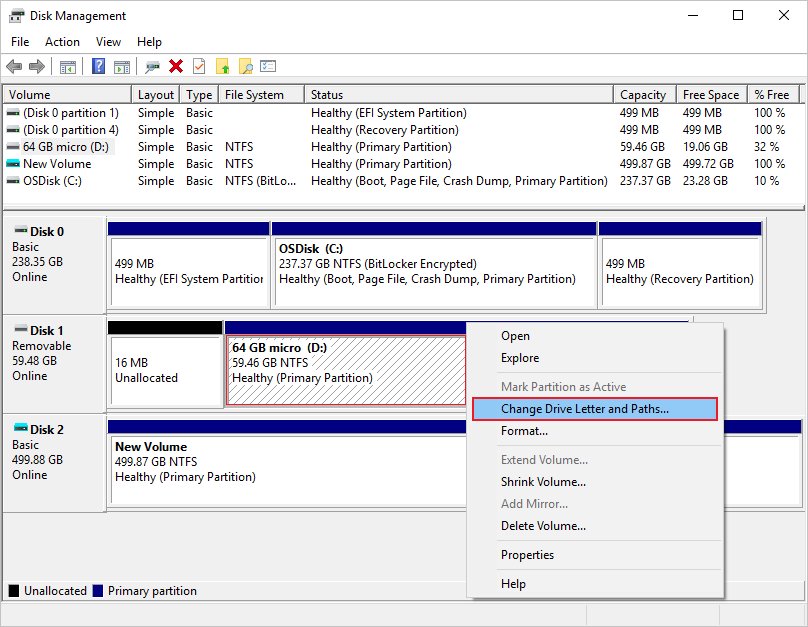
- Right-click its volume and select Change Drive Letter and Paths.
- Select Add (or Change if it already has a letter).
- Select Assign the following drive letter, pick a free letter and select OK.
- Select Yes in the confirmation dialog, then open the card in File Explorer.
If Change Drive Letter and Paths is greyed out, the volume is not ready, usually because it is unallocated or you lack administrator rights.
Check the SD card for errors with chkdsk
Use this when the card opens but folders show errors or files will not open. Run it in Command Prompt as administrator, and replace E: with your card's letter.
chkdsk E: /fWithout /f, chkdsk only reports problems. /f fixes file system errors and needs to lock the card, so close any open files on it first. Add /r to also locate bad sectors and recover readable data, which takes longer.
You should see: A report on the card's file system, ending with a summary of what was checked and any errors fixed.
How to check the card opened correctly
- Confirm the card appears under This PC with a drive letter.
- Right-click the drive, select Properties, and check that its capacity matches the size printed on the card.
- Open a photo or document from the card to confirm the files read correctly.
Common Reasons Why You Cannot Open SD Card on Windows 10
The SD card does not show up anywhere
A loose card, a faulty reader or slot, or a reader that is not getting enough power.
- Take the card out and push it back in firmly; for a microSD card, check it is seated in the adapter.
- Plug the card reader directly into a USB port on the PC, not a hub, and try another port.
- In Disk Management, select Action > Rescan Disks.
- Try the card in another reader or computer to tell a bad card from a bad reader.
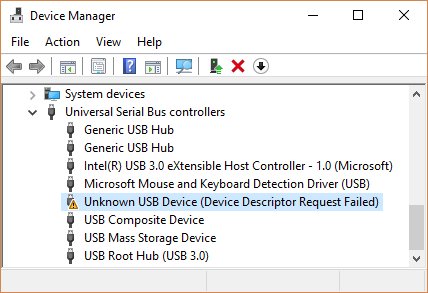
Device Manager shows the reader with a yellow exclamation point
A driver problem with the card reader.
- Right-click Start and select Device Manager.
- Open the reader, select Properties, and read the error under Device status.
- Right-click the reader, select Update driver, then Search automatically for updated driver software.
- If that fails, select Uninstall device, restart, and let Windows reinstall it.
Disk Management shows the card as RAW or Unallocated
The file system is damaged or missing.
- Copy off anything you can first; formatting erases the card.
- If you do not need the data, right-click the RAW volume and select Format, or right-click Unallocated space and select New Simple Volume.
- Choose exFAT or FAT32 so cameras and phones can read it, then finish the wizard.
You can open the card but cannot save or delete files
The card is write-protected, often by the lock switch on a full-size SD card or adapter.
- Remove the card and check the small switch on its side.
- Slide the switch to the unlocked position.
- Reinsert the card and try again.
Additional Troubleshooting Tips and Best Practices
| Tip | Why it helps |
|---|---|
| Clean the card's contacts and the slot gently | Dust or dirt stops the reader making contact |
| Shut down the PC, reconnect the reader, and start again | Resets a reader that stopped responding |
| Check Disk Management before formatting | A card with only a missing drive letter does not need formatting |
| Use the camera's own format option for camera cards | The camera sets up the folders and file system it expects |
| Copy files off before running repairs | Repairs and formats can lose data |
Preventative Measures to Avoid Future Issues
- Before removing the card, right-click the Safely Remove Hardware and Eject Media icon in the taskbar notification area.
- Select Eject followed by the card's name.
- Wait for the Safe To Remove Hardware notification before pulling the card out.
- Keep a second copy of important photos and files on the PC or in cloud storage.
- Avoid removing the card while files are copying or a camera is writing to it.
Frequently asked questions
How do I open an SD card on Windows 10?
Insert the card into the slot or a USB card reader, press Windows + E, select This PC, and double-click the card's drive. Camera photos are usually in the DCIM folder.
How do I open an SD card on Windows 11?
The same way as Windows 10. Insert the card, press Windows + E, select This PC and open the card's drive. Disk Management and chkdsk work identically if the card does not appear.
How do I open an SD card on a laptop?
Push the card into the laptop's SD slot until it seats. Then open File Explorer with Windows + E and select the card under This PC. Laptops without a slot need a USB card reader.
How do I open an SD card on a desktop PC?
Most desktops need a USB card reader. Plug the reader into a USB port, insert the card, and open it from This PC in File Explorer. Plug the reader straight into the PC rather than a hub if it is not detected.
Why can't I open my SD card on Windows 11 or 10?
The card may have no drive letter, a damaged or RAW file system, or a reader driver problem. Check Disk Management first. Assign a letter if it has none, run chkdsk if files fail to open, and test another reader if nothing appears.
How do I open a microSD card on a PC?
Put the microSD card into a full-size SD adapter or a microSD card reader, then insert that into the PC. It then opens from This PC in File Explorer like any other SD card.
Can I recover files from an SD card that shows as RAW?
Do not format it if you need the data, because formatting erases the card. Copy off anything readable first. Only format a RAW card once the files are saved or no longer needed.