Apple does not list error -68 among its documented iPhone update and restore errors, so fix it the way Apple handles any unlisted restore error: update the software on your computer, connect the iPhone directly, and restore in recovery mode to the current public version of iOS.
That last point matters if you hit the error while trying to go from a beta back to an older release, because Apple only lets you return to the latest publicly released iOS, not a version of your choice.
How to fix error -68 when restoring an iPhone
Work through these in order and try the restore again after each one. Restoring erases the iPhone, so back up anything you need first.
- Update your Mac, or install the latest Apple Devices app or iTunes on a Windows PC.
- Plug the iPhone straight into a USB port on the computer, not a keyboard or USB hub.
- Unlock the iPhone and tap Trust if it asks whether to trust the computer.
- Restart the computer and the iPhone.
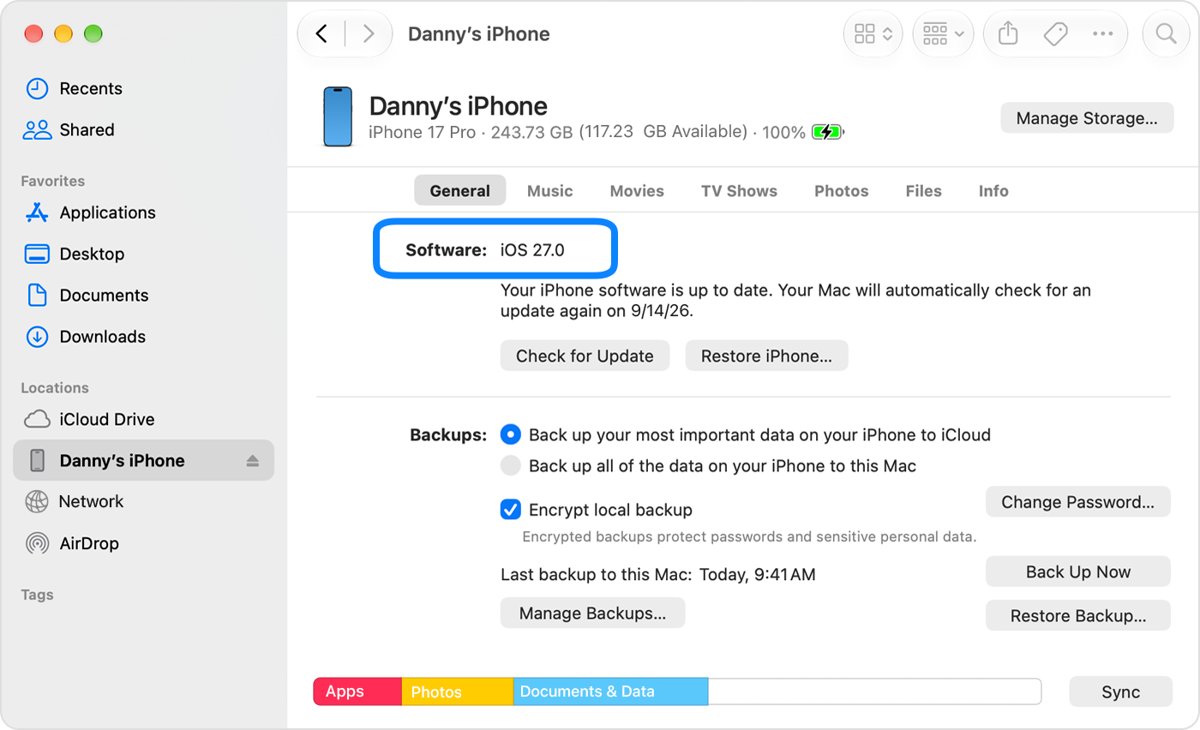
- Open the Finder on a Mac or the Apple Devices app on a PC.
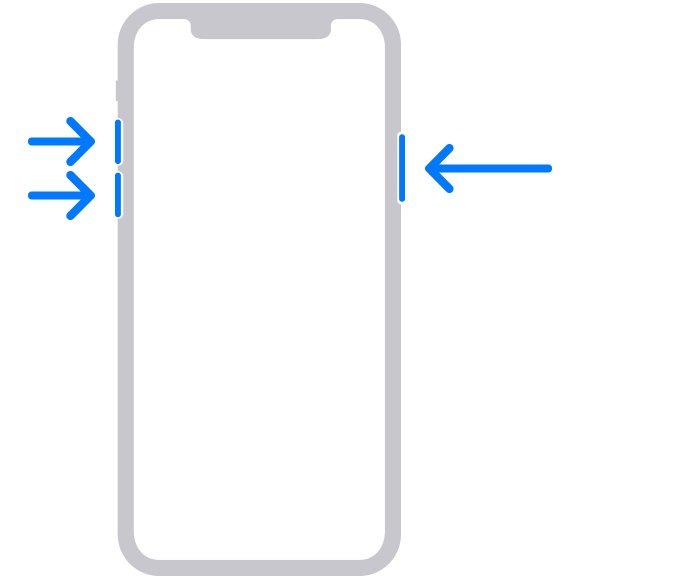
- Put the iPhone in recovery mode: press and release Volume Up, press and release Volume Down, then hold the side button until the Connect to computer screen appears.
- Choose Restore when the Update or Restore options appear.
- Wait for the download and restore to finish, then sign in with your Apple Account if asked.
The recovery mode buttons above are for iPhone 8 and later, including iPhone SE (2nd generation and later). Older models are covered further down.
What does error -68 mean on iPhone?
Apple publishes a list of numbered update and restore errors, and -68 is not on it. When a restore fails with "An unknown error occurred" and a number Apple does not list, Apple's general steps apply.
| What Apple documents | Errors it covers | What it points to |
|---|---|---|
| Computer cannot reach Apple's servers | 17, 1638, 3014, 3194, 3000-3020, 3200 | Network settings or security software blocking the connection |
| USB connection problems | 13, 1600-1604, 1611, 1643-1650, 2000-2009, 4005, 4013, 4014 | Cable, USB port or computer |
| Possible hardware issue | 1, 3, 11, 12, 13, 16, 20, 21, 23, 26-29, 34-37, 40, 56, 1002, 1004, 1011, 1012, 1014, 1667, 1669 | Hardware that may need service |
| Outdated or modified software | 1015, "The required resource can't be found" | Jailbreak changes, or an attempt to install an earlier iOS version |
| Software too new for the computer | 10 | macOS, iTunes or the Apple Devices app needs updating |
| Unlisted numbers, such as -68 | Not documented | Start with Apple's general fixes: update, connect directly, restart, check security software, try another computer |
Apple ties downgrade attempts to errors such as 1015. If you were trying to install a specific older iOS build, that request is the likely problem, not the iPhone.
Can you downgrade iPhone from an iOS beta to an older iOS version?
You can leave an iOS beta, but only by restoring to the latest publicly released version of iOS, not to an older release you pick. Apple's beta removal steps erase the iPhone and install the current non-beta version. Apple lists installing an earlier version of iOS (downgrading) among the causes of restore errors, so a restore aimed at an older build fails. The same rule explains why you cannot downgrade iOS 26 to iOS 18 on most iPhones.
Error 68 iTunes: update iTunes, the Apple Devices app or macOS
An out-of-date computer is the first thing Apple tells you to rule out. A Mac uses the Finder for restores, while a Windows PC uses the Apple Devices app or iTunes.
- On a Mac, install the latest macOS update.
- On a Windows PC, update the Apple Devices app, or iTunes if you still use it.
- Disconnect the iPhone, then connect it again.
- Unlock the iPhone if the computer does not recognize it.
- Click Install if the computer offers a software update it needs for the iPhone.
How to uninstall iOS beta software on iPhone
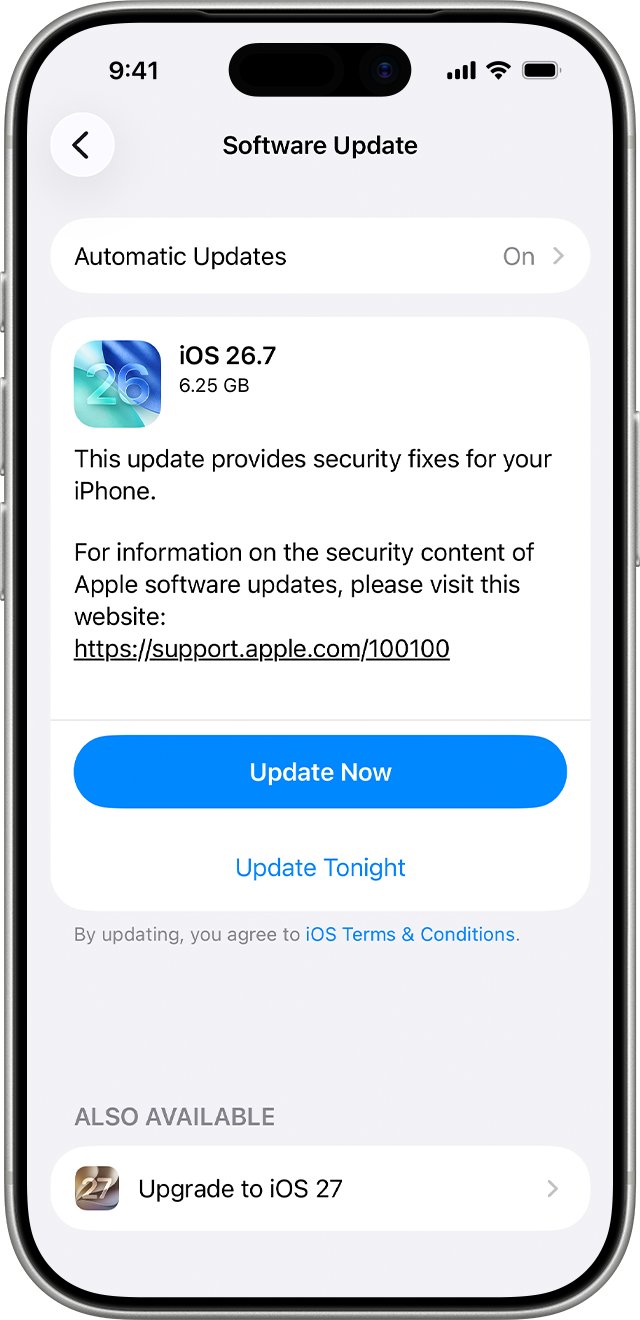
Turning off beta updates stops new betas from arriving. It does not remove the beta you are on, so you either wait for the next public release or restore with a computer.
- On iOS 16.4 or later, open Settings and tap General.
- Tap Software Update, then tap Beta Updates.
- Tap Off.
- On iOS 16.3.1 or earlier, go to Settings > General > VPN & Device Management instead.
- Tap the iOS Beta Software Profile, tap Remove Profile, enter your passcode and tap Remove.
- Install the next public release from Settings > General > Software Update when it appears.
If you installed the beta with a computer, Apple says you must restore iOS to remove it.
Restore iPhone from iOS beta in recovery mode
Restoring erases the iPhone and installs the current non-beta iOS. Use this when you want off the beta now, or when an update keeps failing.
- Update your Mac, or install the latest Apple Devices app on your PC.
- Connect the iPhone to the computer with a USB cable.
- Open the Finder on a Mac, or the Apple Devices app on a PC.
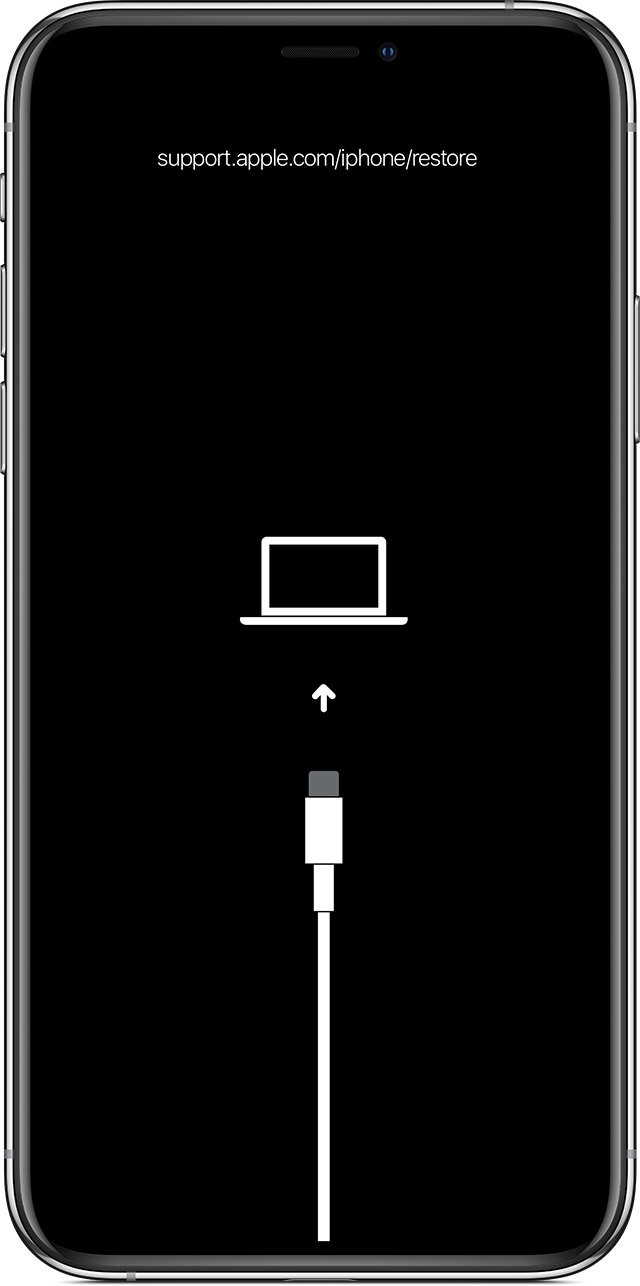
- Put the iPhone in recovery mode with the buttons for your model, listed below.
- Locate the iPhone on the computer and choose Restore.
- If the download takes more than 15 minutes and the iPhone leaves recovery mode, let the download finish, then enter recovery mode again.
- Sign in with your Apple Account when asked, which turns off Activation Lock.
- Set the iPhone up from a backup made before you installed the beta.
iPhone recovery mode buttons by model
| iPhone model | Buttons to press | Stop when you see |
|---|---|---|
| iPhone 8 or later, including iPhone SE (2nd generation and later) | Press and release Volume Up, press and release Volume Down, then hold the side button | The Connect to computer screen |
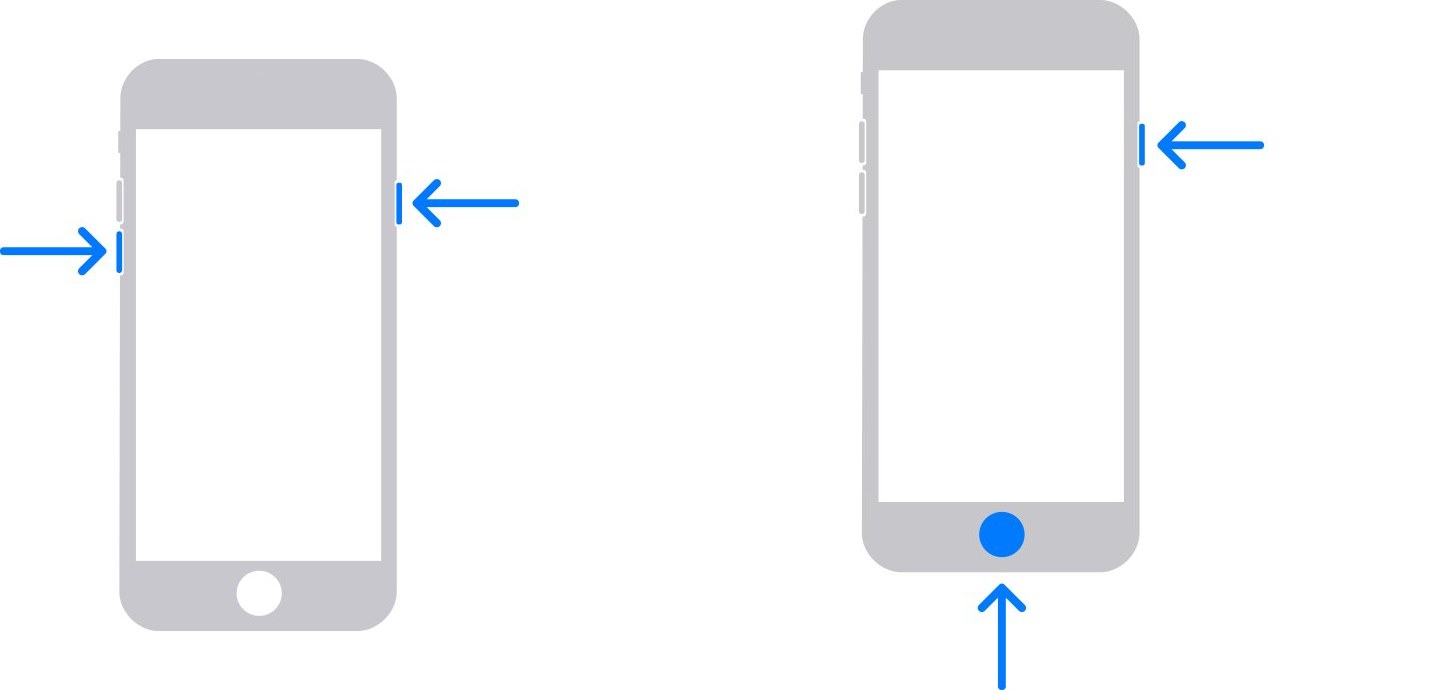
| iPhone 7 and iPhone 7 Plus | Hold the top (or side) and Volume Down buttons together | The Connect to computer screen |
| iPhone 6s or earlier, including iPhone SE (1st generation) | Hold the Home and top (or side) buttons together | The Connect to computer screen |
Keep the iPhone connected to the computer while you press the buttons. If recovery mode will not start because a button sticks, the iPhone needs service.
iPhone could not be restored error -68 keeps coming back
The same error appears after you update the computer
The USB connection can interrupt a restore.
- Use the USB cable that came with the iPhone, or another Apple-certified cable.
- Switch to a different USB port on the computer.
- Avoid USB ports on keyboards, which often lack enough power for a restore.
- Try a USB port on a different computer.
The computer cannot connect to Apple's software update servers
Network settings, proxies, firewalls or security software block the download.
- Check that the computer can reach Apple's software update servers.
- Update or change third-party security software that blocks the connection.
- Restore on another computer that uses a different network.
The iPhone leaves recovery mode before the restore starts
The download took more than 15 minutes, so the iPhone exited the Connect to computer screen.
- Leave the iPhone connected and let the download finish.
- Put the iPhone in recovery mode again.
- Choose Restore a second time.
"This device isn't eligible for the requested build"
Apple groups this message with errors that mean the computer can't connect to Apple's servers or to the iPhone.
- Stop trying to install a specific older iOS file.
- Check the computer's connection to Apple's servers and its security software.
- Restore normally so the computer downloads the current public iOS.
Your newest backup will not restore after leaving the beta
A backup made while running a beta does not work with earlier iOS versions.
- Choose a backup you made before you installed the beta.
- If you have none, set the iPhone up as new and sign in to iCloud to bring back synced data.
- Keep the beta backup in case you update to a newer iOS that can read it.
Recovery mode restore fails every time
Apple says the iPhone may need service when recovery mode cannot update or restore it.
- Try one more restore on a different computer and network.
- Contact Apple Support to arrange service if it still fails.
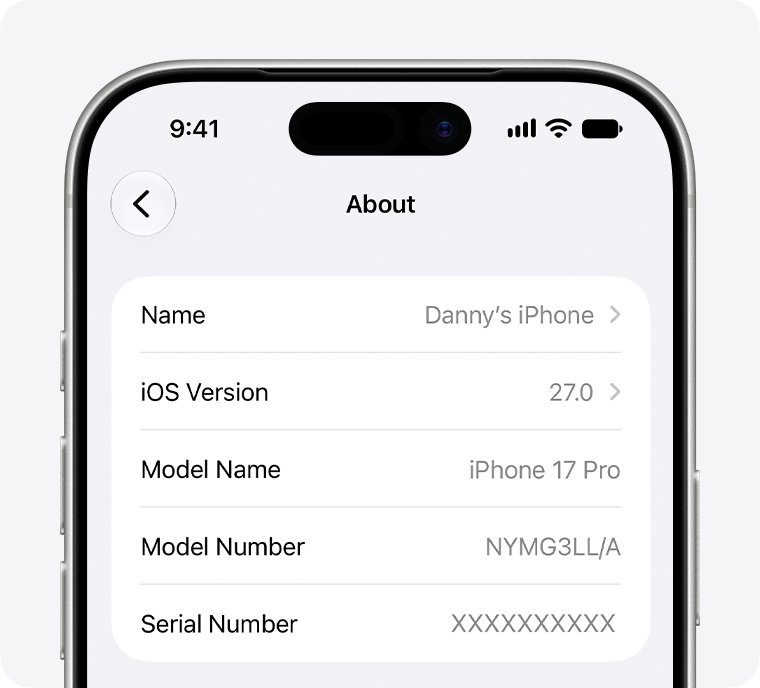
Where to find the iOS version on iPhone after a restore
- Open Settings on the iPhone.
- Tap General, then tap About.
- Read the value beside iOS Version.
- Check that it shows a public release, with no beta label.
- Go to Settings > General > Software Update > Beta Updates and confirm it reads Off.
Will restoring iPhone from an iOS beta delete my data?
Yes. Removing a beta with a computer erases the iPhone, and only a compatible backup brings your data back.
| What you have | What you get back | What to do |
|---|---|---|
| A backup made before the beta | Your apps, settings and data from that date | Restore from it after the restore finishes |
| Only a backup made on the beta | Nothing from that backup on the older public iOS | Set up as new, or wait and update to a later iOS that matches it |
| Data synced to iCloud, such as Photos or Contacts | The synced data after you sign in | Sign in with the same Apple Account during setup |
| No backup and no iCloud sync | Nothing from the device | Back up now, before you restore, if the iPhone still works |
If the iPhone still starts, you can back up and reset the iPhone before you remove the beta.
Error -68 iPhone restore FAQ
What is error 68 in iTunes?
Apple does not document error -68 in its list of iPhone update and restore errors. Treat it as an unknown restore error: update iTunes, the Apple Devices app or macOS, connect the iPhone directly, restart both devices and restore again in recovery mode.
Can I go back from an iOS beta to any older iOS version?
No. Apple lets you leave a beta only by restoring to the latest publicly released version of iOS. Apple lists installing an earlier version of iOS among the causes of restore errors, so a restore aimed at an older build fails.
Do I need a computer to leave the iOS beta?
Not always. Turn off Beta Updates in Settings > General > Software Update and install the next public release when it arrives. To remove the beta right away, or if you installed it with a computer, you must restore with a Mac or PC.
Why can't I restore my backup after leaving the beta?
A backup made while the iPhone ran a beta does not work with earlier iOS versions. Restore from a backup made before you installed the beta, or set the iPhone up as new and let iCloud bring back synced data.
Does restoring an iPhone in recovery mode erase it?
Yes. Restore reinstalls iOS and erases all your data, so Apple suggests trying Update first when that option appears. Back up the iPhone beforehand if it still turns on and works.
How long does an iPhone restore take?
The download time depends on your connection. If it runs longer than 15 minutes, the iPhone may leave the Connect to computer screen. Let the download finish, put the iPhone in recovery mode again and choose Restore.
Is Vanguard error VAN 68 the same as iPhone error -68?
No. VAN 68 comes from Riot's Vanguard software on a PC and has nothing to do with an iPhone restore. The fixes in this guide apply only to error -68 shown by the Finder, iTunes or the Apple Devices app.