The ProgramData folder, at C:\ProgramData, is where Windows 11 and Windows 10 apps store settings and data that apply to every user on the PC rather than to one account.
This article shows where the folder is and how to open it, what lives inside it, how it differs from AppData, and which parts you can safely clean or delete.
How to open the ProgramData folder in Windows 11
The quickest route skips the hidden-folder setting entirely, because Windows opens a hidden folder when you type its path.
- Press Windows logo key + R to open the Run box.
- Type
%ProgramData%and press Enter. - File Explorer opens C:\ProgramData, usually on your system drive.
- Open the subfolder named after the app or company whose data you need.
Typing C:\ProgramData into the File Explorer address bar works the same way on Windows 11 and Windows 10.
What is the ProgramData folder in Windows 11/10
Microsoft describes ProgramData as the directory that holds application data for all users. An app writes data there when the data is not tied to one person, such as a shared dictionary, a database or a log file.
| Fact | Detail |
|---|---|
| Default path | C:\ProgramData (the system drive followed by \ProgramData) |
| Environment variables | %ProgramData% and %ALLUSERSPROFILE% both point to it |
| Who uses the data | Every account on the PC, not one user |
| Roaming | The data does not roam to other PCs with your account |
| Introduced in | Windows Vista, replacing All Users\Application Data from Windows XP |
| Older name kept for apps | An All Users entry still exists for backward compatibility |
| Developer name | FOLDERID_ProgramData (older CSIDL_COMMON_APPDATA) |
Your own files never belong here. Documents, photos and downloads stay in your user profile, in folders such as your Documents folder.
Windows 11 ProgramData folder location
| Windows version | ProgramData location | Fastest way to open it |
|---|---|---|
| Windows 11 | C:\ProgramData | Win + R, type %ProgramData% |
| Windows 10 | C:\ProgramData | Win + R, type %ProgramData% |
| Windows 8.1, 7 and Vista | C:\ProgramData | Type %ProgramData% in the Start menu search box |
| Windows XP | C:\Documents and Settings\All Users\Application Data | Type %ALLUSERSPROFILE% in Run |
| Windows installed on another drive letter | <that drive>:\ProgramData | %ProgramData% resolves to the right drive |
ProgramData sits on the same drive as Windows, but installed program files live in a different folder, so open the Program Files folder when you need an app's .exe rather than its data.
How to access the ProgramData folder in File Explorer
- Press Windows logo key + E to open File Explorer.
- Select This PC in the left pane, then open Local Disk (C:).
- If ProgramData is not in the list, select View > Show > Hidden items.
- Double-click ProgramData to open it.
- Open the subfolder named after the app or company you are looking for.
Once you show hidden files and folders, they appear with a faded icon. Turn the option off again when you finish if you prefer a clean C: drive view.
How to open ProgramData in Command Prompt and PowerShell
Both shells expand the ProgramData variable, so you never need to type the drive letter.
explorer %ProgramData%In Command Prompt, this opens the ProgramData folder in File Explorer. Run cd /d %ProgramData% instead to switch the prompt into the folder, or echo %ProgramData% to print its path. In PowerShell, use $env:ProgramData for the path and Set-Location $env:ProgramData to move into it.
You should see: File Explorer opens on ProgramData, or the prompt shows C:\ProgramData as the current folder.
Why is ProgramData hidden?
ProgramData is a hidden folder, so File Explorer leaves it out of the C: drive listing until hidden items are shown. Typing the path still opens it.
| Reason | What it means for you |
|---|---|
| Apps manage the contents, not people | Nothing inside is a document you are meant to open or edit |
| Shared data affects every account | A wrong deletion breaks the app for all users at once |
| Windows components store data there | Start menu shortcuts, Defender and Search data live under ProgramData\Microsoft |
| Hidden is not locked | Any user can open it by path; deleting protected parts still needs admin approval |
How to restore hidden folder visibility
Use either route below to make ProgramData and other hidden folders appear in File Explorer.
- In Windows 11, open File Explorer, select View > Show, then select Hidden items.
- Or open Settings > System > Advanced, expand File Explorer, and turn on Show hidden and system files.
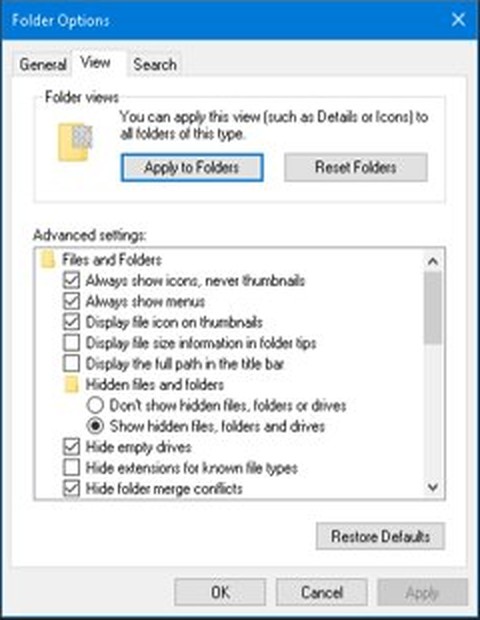
- In Windows 10, open Settings > Update & Security > For developers.
- Under File Explorer, select Show settings next to Change settings to show hidden and system files.
- Under Advanced settings, select Show hidden files, folders, or drives.
- Select Apply, then Apply to Folders, then OK.
Hiding the folder again uses the same switch. Turning hidden items off does not change any data inside ProgramData.
What types of files are stored in ProgramData?
| File type | Typical example | Who creates it |
|---|---|---|
| Shared app settings | Configuration files that apply to every account | Desktop apps and their services |
| Shared data files | Spell-check dictionaries, clip art databases | Apps that serve every user |
| Log files | Update and management logs | Windows services and installed apps |
| Databases and indexes | The Windows Search index database, windows.edb | Windows Search |
| Security data | Microsoft Defender platform and definition data | Microsoft Defender Antivirus |
| All-users shortcuts | Start menu and StartUp shortcuts for every account | Installers and Windows |
| Service configuration | OpenSSH server settings in the ssh folder | Optional Windows features |
Common ProgramData subfolders
Which subfolders you see depends on what is installed. These are the documented Microsoft ones.
| Subfolder | What it holds |
|---|---|
| Microsoft\Windows\Start Menu\Programs | Start menu shortcuts shown to every user |
| Microsoft\Windows\Start Menu\Programs\StartUp | Apps that start for every user at sign-in |
| Microsoft\Windows\Templates | Templates available to all users |
| Microsoft\Windows\DeviceMetadataStore | Device metadata Windows uses for hardware |
| Microsoft\Windows Defender | Microsoft Defender data; the Platform subfolder holds antimalware platform versions |
| Microsoft\Search\Data\Applications\Windows | The windows.edb Search index database |
| USOShared\Logs | Update Orchestrator .etl logs from Windows Update |
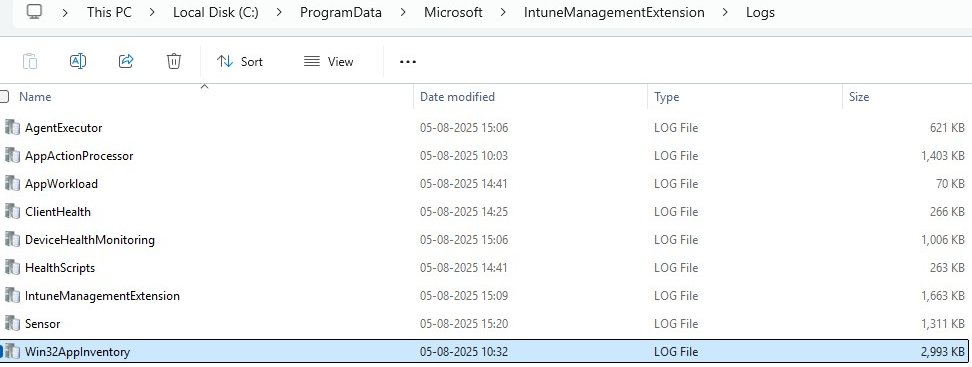
| Microsoft\IntuneManagementExtension\Logs | Intune Management Extension logs on work devices |
| ssh | OpenSSH Server files such as sshd_config, when OpenSSH Server is installed |
The all-users StartUp folder is one of two places that run a program at startup; the other sits in your own profile.
ProgramData vs AppData: Key differences
| ProgramData | AppData | |
|---|---|---|
| Path | C:\ProgramData | C:\Users\<name>\AppData |
| Scope | All users on the PC | One user account |
| Variable | %ProgramData% | %APPDATA% (Roaming) and %LOCALAPPDATA% (Local) |
| Roams with your account | No | The Roaming subfolder can; Local does not |
| Typical contents | Shared settings, logs, databases, all-users shortcuts | Your browser profile, app caches, personal app settings |
| Hidden by default | Yes | Yes |
If a setting changes for one account only, look in the AppData folder in your profile. If it changes for everyone on the PC, ProgramData is the likely home.
When ProgramData may use large amounts of space
| Cause | Where to look | What to do |
|---|---|---|
| Large Windows Search index | Microsoft\Search\Data\Applications\Windows | Leave the file alone; manage indexing from Windows Search settings |
| Defender platform and definition data | Microsoft\Windows Defender | Leave it; Defender manages these files itself |
| Leftovers from uninstalled apps | A folder named after an app you removed | Delete the leftover folder after a backup |
| Growing app logs or caches | The app's own subfolder | Use the app's cleanup option or reinstall it |
| Malware writing files | Unfamiliar folders with random names | Scan the folder with Microsoft Defender |
To measure a folder, right-click it, select Properties and read Size on disk on the General tab.
How to safely clean ProgramData
Clean ProgramData by removing apps, not by deleting folders at random. Windows tools remove the data their own components keep.
- Open Start > Settings > System > Storage > Cleanup recommendations and clean the suggested Temporary files.
- Open Start > Settings > Apps > Installed apps, select More next to apps you no longer use, then Uninstall.
- Open C:\ProgramData and look for folders named after apps you have already removed.
- Copy such a folder to another drive first, then delete the original.
- Restart the PC and open the apps you still use to check they start normally.
- Empty the Recycle Bin to free the space.
The steps to delete files and folders are the same here as anywhere else; only the stakes are higher.
Is it safe to delete the ProgramData folder?
Never delete the ProgramData folder itself, and delete a subfolder only when it belongs to an app you have already uninstalled. Windows keeps all-users Start menu shortcuts, Microsoft Defender data and the Search index there, and installed apps read their shared settings from it. Removing the whole folder breaks those components for every account on the PC.
Deleting the subfolder of an app that is still installed usually resets or breaks that app until you reinstall it.
Backup importance before changes
A deleted ProgramData folder has no undo inside the app that used it, so keep a copy first.
| Before you | Back up this | How |
|---|---|---|
| Delete a leftover app folder | That one folder | Copy it to a USB drive or another disk |
| Edit a shared config file | The original file | Copy it and rename the copy with .bak |
| Remove several folders at once | The whole system state | Create a restore point or a full system image |
| Change folder permissions | The current permissions | Note them, or skip the change entirely |
Can malware hide in ProgramData?
Yes. Malware can write to ProgramData like any other app, and a hidden folder shared by all users is an easy place to miss unfamiliar files.
| Warning sign | What to do |
|---|---|
| A folder with a random name you do not recognise | Right-click it, select Show more options > Scan with Microsoft Defender |
| An unknown shortcut in the all-users StartUp folder | Scan the shortcut target, then remove the shortcut if it is flagged |
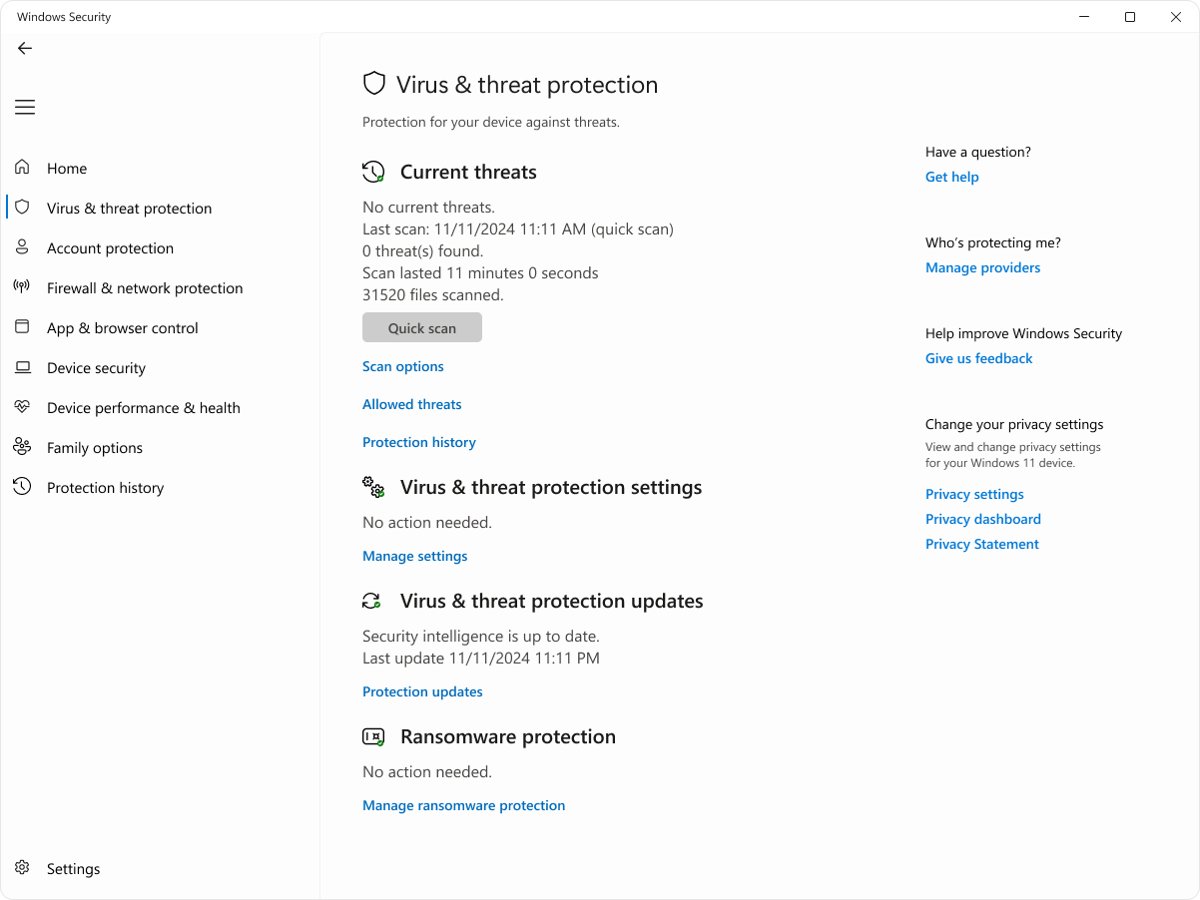
| ProgramData growing fast with no new apps | Run a Full scan from Scan options in Windows Security |
| Detected threats keep returning | Run a Microsoft Defender Antivirus (offline scan), which scans from the Windows Recovery Environment |
Startup entries that appear without your consent are also worth reviewing when you disable startup programs.
How developers use ProgramData
| Use | Why ProgramData fits |
|---|---|
| Machine-wide settings | Every account reads the same values |
| Shared content such as dictionaries or clip art | One copy serves all users instead of one per profile |
| Service and background task logs | Services run without a user profile to write into |
| Locating the folder in code | Look up the FOLDERID_ProgramData known folder rather than hard-coding C:\ProgramData |
| Paths in scripts and policies | Use %ProgramData% so the path follows the system drive |
Per-user data does not belong here; developers put it in %APPDATA% or %LOCALAPPDATA% so each account keeps its own copy.
ProgramData and Windows updates
Keep ProgramData on the system drive in its default location. Microsoft states that moving the ProgramData or user profile folders to another drive can stop security updates, monthly quality updates and in-place upgrades from installing correctly, because some servicing components expect these folders on the system drive.
Windows Update also writes its Update Orchestrator logs to C:\ProgramData\USOShared\Logs, which helps when an update fails.
Should advanced users modify ProgramData?
| Change | Advisable? | Why |
|---|---|---|
| Read logs and config files | Yes | Reading changes nothing |
| Delete leftovers of uninstalled apps | Yes, after a backup | No installed app depends on them |
| Edit a documented config file, such as sshd_config | Yes, if the vendor documents it | The app is designed to read that file |
| Change permissions or take ownership of Microsoft folders | No | Defender and other components rely on their default access |
| Move or rename ProgramData | No | Updates and apps expect the default path |
ProgramData in enterprise environments
| Scenario | ProgramData location |
|---|---|
| Intune-managed Windows devices | Intune Management Extension logs in Microsoft\IntuneManagementExtension\Logs |
| Microsoft Defender deployment tool | Log files in Microsoft\DefenderDeploymentTool |
| Shortcuts for every user | Microsoft\Windows\Start Menu\Programs |
| Defender exclusions written with variables | %ALLUSERSPROFILE% or %ProgramData% expand to C:\ProgramData |
| OpenSSH Server on Windows | sshd_config and administrators_authorized_keys in ssh |
Admins on managed PCs often collect these logs first, so a support desk may ask you to send files from these folders.
Common troubleshooting uses
| Problem | ProgramData folder to check |
|---|---|
| Windows Update fails or stalls | USOShared\Logs for Update Orchestrator .etl logs |
| An app's Start menu shortcut is missing for every user | Microsoft\Windows\Start Menu\Programs |
| An app starts for everyone at sign-in | Microsoft\Windows\Start Menu\Programs\StartUp |
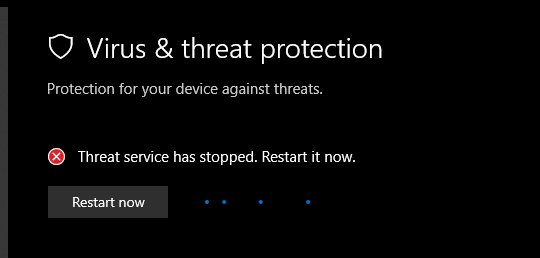
| Microsoft Defender service will not start | Microsoft\Windows Defender, the default ProductAppDataPath |
| A work app will not install from Intune | Microsoft\IntuneManagementExtension\Logs |
| OpenSSH Server rejects a key | ssh\administrators_authorized_keys |
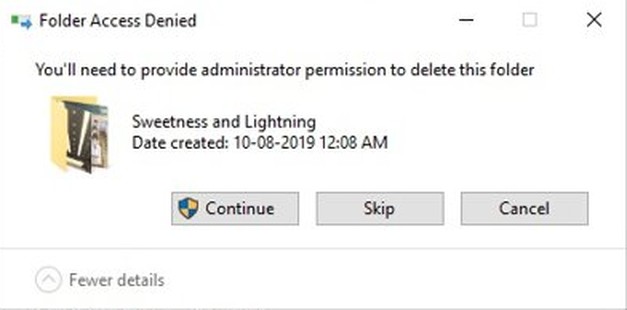
You’ll need to provide administrator permission to delete this folder
This prompt appears when you delete a ProgramData subfolder that a standard account cannot change.
The administrator permission prompt appears when you delete a folder
The folder was created by an installer or a Windows component with admin rights.
- Check the folder belongs to an app you have already uninstalled.
- Approve the prompt with an administrator account to delete it.
- If the folder belongs to Microsoft, leave it in place.
The folder is open in another program
A running app or service still has files in the folder open.
- Close the app that owns the folder.
- Restart the PC so its background service stops holding the files.
- Delete the folder again before you open that app.
Access is denied to the Windows Defender folder
Microsoft Defender protects its own data folder.
- Leave C:\ProgramData\Microsoft\Windows Defender as it is.
- Manage Defender scans and detected threats from the Windows Security app instead.
- Never change ownership of the folder to get in.
Can't see ProgramData folder in Windows 11
ProgramData is missing from the C: drive
Hidden items are switched off in File Explorer.
- Open File Explorer and select View > Show > Hidden items.
- Or type
%ProgramData%into the address bar and press Enter.
An app's folder is not inside ProgramData
The app stores its data per user, in AppData, or under Program Files.
- Press Windows logo key + R, type
%APPDATA%and press Enter. - Check %LOCALAPPDATA% the same way.
- Look in the app's install folder under Program Files last.
Cannot rename the ProgramData folder
Windows and installed apps use the folder by its fixed path.
- Leave the name as ProgramData.
- If you wanted to save space, clean it with the steps in the cleanup section instead of renaming or moving it.
ProgramData folder FAQ
Where is the ProgramData folder in Windows 11?
The ProgramData folder is at C:\ProgramData on the drive where Windows is installed. It is hidden, so press Windows logo key + R, type %ProgramData% and press Enter to open it directly.
What is the ProgramData folder used for?
ProgramData stores application data that applies to every user on the PC. Apps keep shared settings, logs, databases and all-users Start menu shortcuts there, and the data does not roam to other PCs.
Is the ProgramData folder hidden?
Yes. ProgramData is hidden by default in Windows 11 and Windows 10. Select View > Show > Hidden items in File Explorer to list it, or type its path to open it without changing any setting.
Why can't I see the ProgramData folder in Windows 11?
You cannot see ProgramData because File Explorer hides hidden folders by default. Turn on Hidden items from the View > Show menu, or turn on Show hidden and system files in Settings > System > Advanced.
How do I access the ProgramData folder?
Access ProgramData by typing %ProgramData% in the Run box, the File Explorer address bar or the Start menu search. In Command Prompt, run explorer %ProgramData%; in PowerShell, use $env:ProgramData for the path.
Can I delete the ProgramData folder?
No. Deleting the whole ProgramData folder breaks Microsoft Defender, Windows Search and installed apps for every user. Delete only the subfolder of an app you have already uninstalled, and copy it somewhere first.
Can I move ProgramData to another drive?
Microsoft recommends keeping ProgramData on the system drive in its default location. Moving it can stop security updates, quality updates and in-place upgrades from installing correctly.
Is ProgramData the same as AppData?
No. ProgramData holds data shared by all users at C:\ProgramData, while AppData holds data for one account inside that user's profile folder. Both folders are hidden by default.