Reset Windows Update on Windows 11 by running the Windows Update troubleshooter from Settings, then, if updates still fail, stopping the update services and renaming the SoftwareDistribution and catroot2 folders from an elevated Command Prompt.
The sections below also cover the full manual component reset, DISM and SFC repairs, installing an update by hand, and the Reinstall now option that keeps your apps and files.
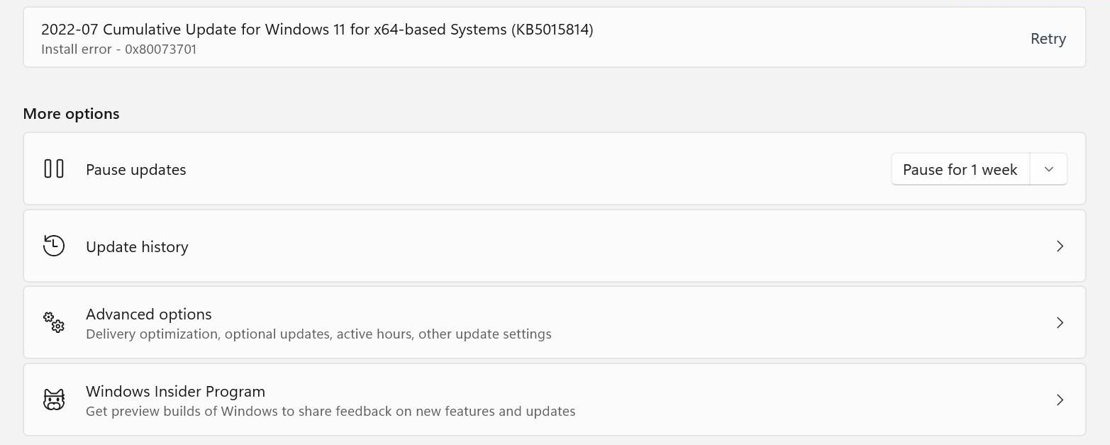
Reset Windows Update with Troubleshoot on Windows 11
Microsoft's first recommendation is the built-in troubleshooter, which analyzes the situation and resets any components that need it. It takes a few minutes and needs no commands.
- Select Start > Settings.
- Select System > Troubleshoot > Other troubleshooters.
- Under Most frequent, select Run next to Windows Update.
- Follow the prompts, then restart your PC when the troubleshooter finishes.
- Open Settings > Windows Update and select Check for updates.
Microsoft also offers the same tool in the Get Help app, so you can run the Windows Update troubleshooter from there if the Settings route fails.
What does resetting Windows Update do on Windows 11?
A reset clears the service data and cached files that Windows Update relies on, then lets it start again. None of the routes below remove your personal files, but they differ in how much they change, so try them in this order.
| Route | What it changes | Use it when |
|---|---|---|
| Troubleshooter | Analyzes Windows Update and resets components that need it | Updates fail for the first time |
| Command Prompt reset | Stops three services and renames SoftwareDistribution and catroot2 | The troubleshooter finds nothing or fails |
| Manual component reset | Clears BITS queue files, re-registers DLLs and resets Winsock | The folder rename did not help |
| DISM and SFC | Repairs the component store and system files | You see a corruption error such as 0x80073712 |
| Manual update install | Installs one update from the Microsoft Update Catalog | One update keeps failing in Settings |
| Reinstall now | Reinstalls your current Windows version, keeping apps, files and settings | Every other route has failed |
Reset Windows Update with Command Prompt on Windows 11
Open Start, type Command Prompt, right-click it and select Run as administrator. Then run these commands, pressing Enter after each line.
net stop wuauserv
net stop bits
net stop cryptSvc

ren %windir%\SoftwareDistribution SoftwareDistribution.old
ren %windir%\System32\catroot2 catroot2.old

net start cryptSvc
net start bits
net start wuauserv
The first block stops the Windows Update, BITS and Cryptographic services. The next two lines rename the folders those services use, and the last block starts the services again. The old folders stay on disk under their new names until you delete them.
You should see: Each service reports that it stopped or started, and both rename lines finish with no error. Restart your PC, then select Check for updates in Settings > Windows Update.
If a rename line reports an error, a service is probably still running. Run the three net stop lines again, then repeat the rename.
How to clear the SoftwareDistribution folder in Windows 11
Microsoft also gives a shorter reset of the Windows Update Agent. It deletes the whole folder rather than renaming it, so use it when you do not need a copy to fall back on.
net stop wuauserv
rd /s /q %systemroot%\SoftwareDistribution
net start wuauserv
This stops the Windows Update service, removes the folder with its downloaded update data, then starts the service again. Run it from an elevated Command Prompt.
You should see: The service starts again with no error. Your next update check has to download its files again.
Prefer a graphical route? Press Windows key + R, type services.msc, stop Windows Update, delete the contents of C:\Windows\SoftwareDistribution, then start the service again. That is the same way to rebuild the SoftwareDistribution cache without typing a command.
How to reset Windows Update components manually in Windows 11
This is Microsoft's full manual procedure, for when the shorter resets have not helped. It stops the services, deletes the BITS queue files, re-registers the update DLLs, resets Winsock and starts the services again.
Run the lines one at a time from an elevated Command Prompt. Each regsvr32.exe line opens a small dialog, so select OK before the next one. Microsoft's list dates back to much older Windows releases, so a load error on one file can appear; carry on with the next line.
net stop bits
net stop wuauserv
net stop cryptsvc

Del "%ALLUSERSPROFILE%\Application Data\Microsoft\Network\Downloader\qmgr*.dat"

cd /d %windir%\system32

regsvr32.exe atl.dll
regsvr32.exe urlmon.dll
regsvr32.exe mshtml.dll
regsvr32.exe shdocvw.dll
regsvr32.exe browseui.dll
regsvr32.exe jscript.dll
regsvr32.exe vbscript.dll
regsvr32.exe scrrun.dll
regsvr32.exe msxml.dll
regsvr32.exe msxml3.dll
regsvr32.exe msxml6.dll
regsvr32.exe actxprxy.dll
regsvr32.exe softpub.dll
regsvr32.exe wintrust.dll
regsvr32.exe dssenh.dll
regsvr32.exe rsaenh.dll
regsvr32.exe gpkcsp.dll
regsvr32.exe sccbase.dll
regsvr32.exe slbcsp.dll
regsvr32.exe cryptdlg.dll
regsvr32.exe oleaut32.dll
regsvr32.exe ole32.dll
regsvr32.exe shell32.dll
regsvr32.exe initpki.dll
regsvr32.exe wuapi.dll
regsvr32.exe wuaueng.dll
regsvr32.exe wuaueng1.dll
regsvr32.exe wucltui.dll
regsvr32.exe wups.dll
regsvr32.exe wups2.dll
regsvr32.exe wuweb.dll
regsvr32.exe qmgr.dll
regsvr32.exe qmgrprxy.dll
regsvr32.exe wucltux.dll
regsvr32.exe muweb.dll
regsvr32.exe wuwebv.dll

netsh winsock reset

net start bits
net start wuauserv
net start cryptsvc
The Del line clears the BITS transfer queue files. The regsvr32.exe lines re-register the files Windows Update and BITS depend on, and netsh winsock reset resets the network socket catalog.
You should see: All three services start again. Restart your PC, then check for updates.
How to reset BITS and Windows Update service permissions
Microsoft's manual procedure has one more optional step that resets both services to their default security descriptors. It overwrites the existing security ACLs on those services, so skip it unless every other reset has failed.
Stop the services first with the net stop lines, run these two commands from an elevated Command Prompt, then start the services again.
sc.exe sdset bits D:(A;CI;CCDCLCSWRPWPDTLOCRSDRCWDWO;;;SY)(A;;CCDCLCSWRPWPDTLOCRSDRCWDWO;;;BA)(A;;CCLCSWLOCRRC;;;IU)(A;;CCLCSWLOCRRC;;;SU)
sc.exe sdset wuauserv D:(A;;CCLCSWRPLORC;;;AU)(A;;CCDCLCSWRPWPDTLOCRSDRCWDWO;;;BA)(A;;CCDCLCSWRPWPDTLOCRSDRCWDWO;;;SY)
Copy each line exactly, because a typo in the descriptor string changes who can control the service.
You should see: Each command reports success. Restart your PC before you check for updates.
Fix Windows Update repairing corrupted files on Windows 11
Damaged system files stop updates from installing, and errors such as 0x80073712, 0x800f081f and 0x80070002 can point to this. Run DISM first because it repairs the component store, then SFC, from an elevated Command Prompt.
DISM.exe /Online /Cleanup-image /Restorehealth
sfc /scannow
DISM fetches replacement files from Windows Update, so stay online while it runs. SFC then checks system files and repairs what it can. Keep the window open until the verification reaches 100%.
You should see: DISM reports The restore operation completed successfully. SFC reports Windows Resource Protection did not find any integrity violations or found corrupt files and successfully repaired them.
Both tools write to %windir%\Logs\CBS\CBS.log. If SFC reports it could not fix some files, or could not perform the requested operation, Microsoft suggests running the scan again in Safe Mode.
Fix Windows Update manually installing updates on Windows 11
Installing the update yourself bypasses a broken download. Microsoft publishes standalone packages in the Microsoft Update Catalog, and you can install Windows updates manually from there.
- Open Settings > Windows Update > Update history and note the KB number of the update you need.
- Open catalog.update.microsoft.com and search for that KB number.
- Find the entry that matches your Windows version and processor type in the Title and Products columns.
- Select Download and save the
.msufile to a local folder. - Double-click the
.msufile and follow the prompts. - Restart your PC when asked.
Some recent cumulative updates need earlier checkpoint packages too. Microsoft's instruction is to copy the target .msu and all prior checkpoint .msu files into one folder with no other .msu files, then double-click the latest one. To install from Command Prompt, run wusa.exe followed by the full path to the file.
How to repair Windows 11 with Fix problems using Windows Update
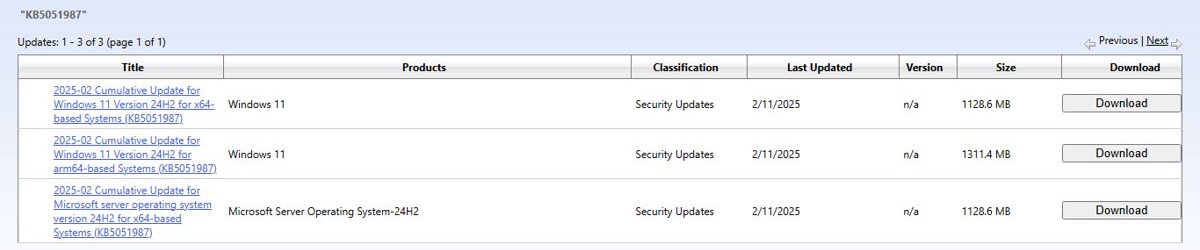
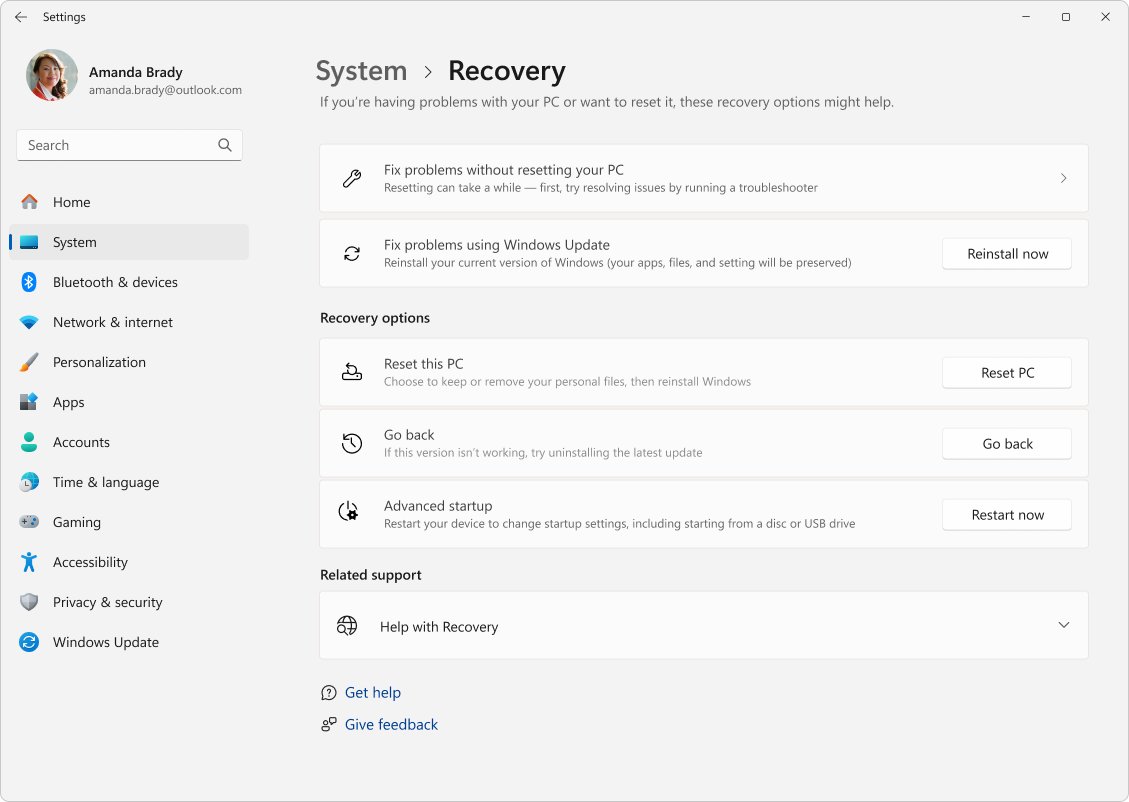
Reinstall now reinstalls the Windows version you already have and repairs system files and components. Your apps, files and settings stay in place, so it is a much smaller step than a clean install.
- Keep the PC plugged in and connected to the internet.
- Open Start > Settings > System > Recovery.
- Under Fix problems using Windows Update, select Reinstall now.
- Choose whether the PC should restart automatically 15 minutes after installation, then select OK.
- Wait while Windows Update downloads and installs the repair version.
- Restart your PC if you did not choose the automatic restart.
The option can be missing on PCs managed by work or school, or on those with certain Windows Update policies set. It also needs Windows 11 2022 update or later with the February 2024 optional update or a newer one.
How to tell if Windows Update is working after a reset
A working reset shows up as a clean scan and a successful install, so run one full cycle before you call it fixed.
- Open Settings > Windows Update and select Check for updates.
- Let any available update download and install, then restart if asked.
- Select Update history and confirm the update appears with its install date.
- For more detail, open PowerShell and run
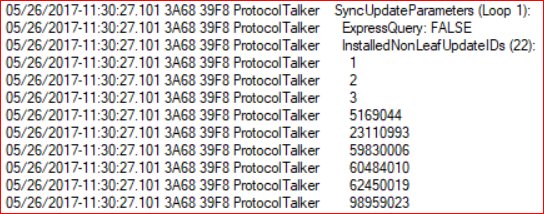
Get-WindowsUpdateLog, which creates a readable WindowsUpdate.log file.
You can force the update manually if nothing is offered yet.
Is it safe to delete the SoftwareDistribution folder?
Yes, as long as you stop the Windows Update service first, because Microsoft's own support pages include this step. The folder holds Windows Update's working data, including its download cache and local data store. Renaming it to SoftwareDistribution.old is the safer habit, since you keep a copy until updates work again. Expect the next scan to take longer while Windows downloads its data again.
Windows Update still not working after a reset on Windows 11
Windows Update stuck on scanning or checking for updates
The services behind the Settings page have stopped.
- Close Settings and reopen it.
- Press Windows key + R, type
services.mscand press Enter. - Confirm Update State Orchestrator and Windows Update are running.
- Select Check for updates again.
Windows Update error 0x80070005 access denied
The update process cannot access files, folders or registry entries it needs.
- Open an elevated Command Prompt.
- Run
icacls "%windir%\WinSxS" /reset /t /c /q. - Run
icacls "%windir%\SoftwareDistribution" /reset /t /c /q. - Restart the PC and try the update again.
- If it still fails, run the Command Prompt reset and then DISM and SFC.
Windows Update says not enough space
A major Windows upgrade needs at least 20 GB free on a 64-bit system.
- Open Settings > System > Storage and free up room.
- Delete any
SoftwareDistribution.oldandcatroot2.oldfolders left from an earlier reset. - Remove external drives, docks and other hardware you do not need, then retry.
Windows Update offers an older update or nothing at all on a work PC
A managed device may take updates from a WSUS server, or an admin may be slowing the rollout.
- Ask your IT admin which updates are approved for your device.
- Do not expect a reset to change the offer, because the policy still applies afterward.
Windows Update fails to download behind a proxy
A proxy set at user level but not in WinHTTP stops connections to Windows Update.
- Open an elevated Command Prompt.
- Run
netsh winhttp import proxy source=ieto copy the proxy setting across. - Select Check for updates again.
Windows Update fails right after the reset with connection errors
A wrong clock or a weak connection can stop the check from completing.
- Open Settings > Time & language > Date & time and correct the clock.
- Open Settings > Network & internet and confirm you are online.
- Plug the PC into power and select Check for updates again.
Reset Windows Update FAQ
How do I reset Windows Update in Windows 11?
Open Settings, then System, Troubleshoot and Other troubleshooters, and run Windows Update. If that does not help, stop the update services in an elevated Command Prompt, rename SoftwareDistribution and catroot2, start the services again and restart your PC.
Does resetting Windows Update delete my files?
No. The reset touches Windows Update's own services, cache folders and registered files, not your documents or apps. Reinstall now also keeps your apps, files and settings. Back up anything important first if you plan to go further than these steps.
What are the SoftwareDistribution and catroot2 folders?
SoftwareDistribution holds Windows Update's downloads and its local data store. The catroot2 folder sits under System32 and is one of the folders Microsoft has you rename during a reset. Renaming them while the services are stopped forces Windows to start them afresh.
Is it safe to reset Windows Update components?
Yes, Microsoft documents the procedure for Windows 11 and Windows 10. Follow it in order and leave the sc.exe security descriptor step until last, because Microsoft warns that it overwrites the existing permissions on the BITS and Windows Update services.
Do I need administrator rights to reset Windows Update?
Yes for the commands. Stopping services, renaming system folders and running DISM all require a Command Prompt opened with Run as administrator. The troubleshooter in Settings runs without any commands, so try it first if you are unsure about your account type.
Should I run DISM or SFC first for Windows Update errors?
Run DISM first, then SFC. DISM repairs the component store that SFC uses as its source, so this order gives SFC the best chance of replacing damaged files. Both can take several minutes, and DISM needs an internet connection by default.
Why do Windows updates keep failing after a reset?
The cause may sit outside the update components. Common reasons are damaged system files, too little storage, a wrong clock, third-party security tools locking update files, or a work policy. Run DISM and SFC, check free space, then try installing the update from the Microsoft Update Catalog.
How do I check my Windows 11 update history?
Select Start, then Settings, Windows Update and Update history. The page lists which updates were installed and when, and it is where you find the KB number you need for a manual install from the Microsoft Update Catalog.