To force shut down an iPhone, press and hold the side button and either volume button until the sliders appear, then drag Power Off; if the iPhone is frozen, force restart it with volume up, volume down, then a long press of the side button.
This covers the button combination for each model from iPhone 6 to iPhone 17, shutting down without the slider, the Settings and Control Center routes, unexpected shutdowns and what to do when nothing responds.
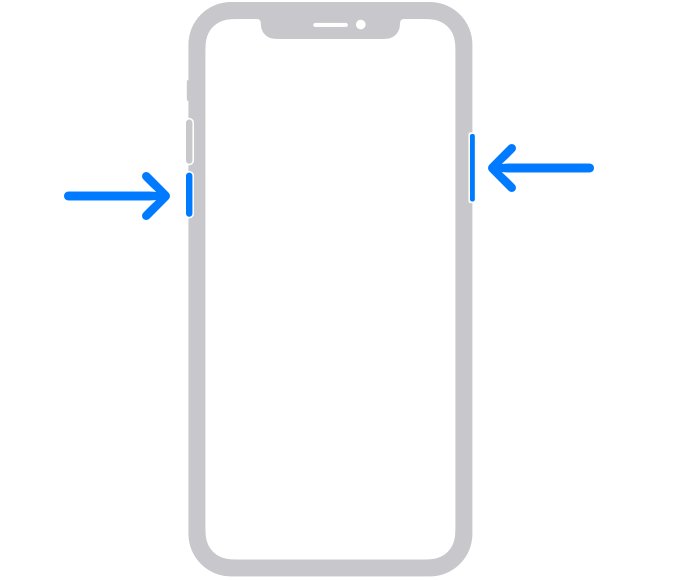
How to force shut down iPhone step by step tutorial
These steps apply to iPhone X, iPhone XR and every later model with Face ID, including iPhone 11 to iPhone 17 and iPhone Air.
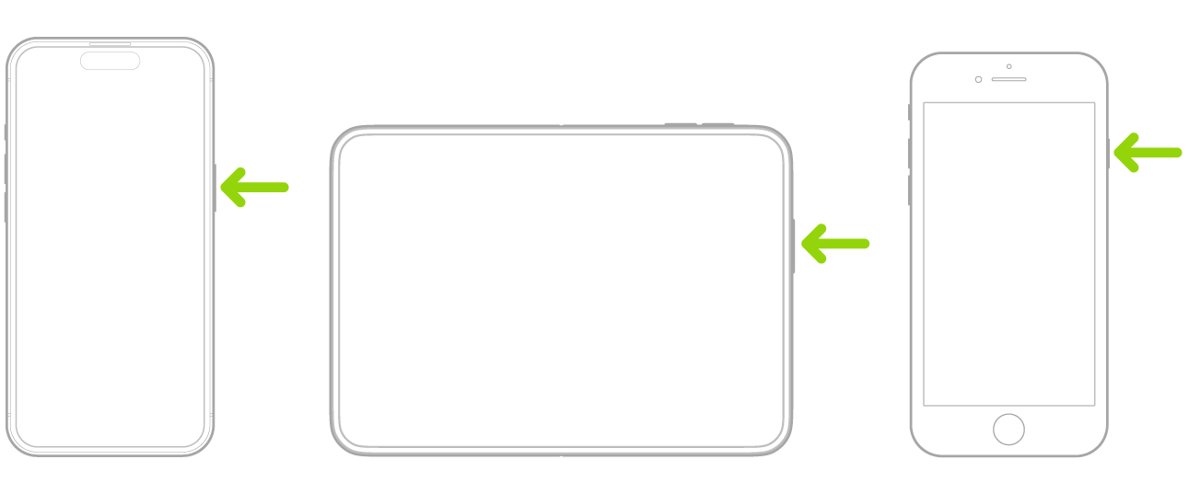
- Press and hold the side button and either volume button at the same time.
- Release both buttons as soon as the sliders appear.
- Drag the Power Off slider to the right.
- Wait 30 seconds for the iPhone to turn off completely.
Release the buttons when the sliders show. If you keep holding, the Emergency SOS countdown runs and the iPhone calls emergency services when it ends.
Apple iPhone force shutdown vs force restart
Apple has no separate force shutdown command. When the screen responds, the Power Off slider turns the iPhone off; when it does not, a force restart is the way to cut power to a frozen iPhone.
| Action | What it does | Use it when |
|---|---|---|
| Power Off slider (buttons) | Turns the iPhone off until you press and hold the side button again | The touch screen still responds |
| Settings > General > Shut Down | Shows the same slider without using the buttons | A button is broken or hard to press |
| Control Center power control | Touch and hold the power control in the top-right corner to get the slider | You are already in Control Center |
| Force restart | Forces the iPhone to turn off and start again, ending at the Apple logo | The iPhone is frozen or the slider will not move |
How to force shut down iPhone 17, 16, 15, 14, 13, 12, 11 and XR
The buttons depend on whether your iPhone has Face ID or a Home button. Find your model, then use the matching row.
| iPhone model | Turn off with the slider | Force restart when frozen |
|---|---|---|
| iPhone X, XR, XS, iPhone 11, 12, 13, 14, 15, 16, 17, iPhone Air (including Pro and Pro Max) | Hold the side button and either volume button, then drag the slider | Press volume up, press volume down, then hold the side button until the Apple logo |
| iPhone SE (2nd or 3rd generation), iPhone 8 | Hold the side button, then drag the slider | Press volume up, press volume down, then hold the side button until the Apple logo |
| iPhone 7, iPhone 7 Plus | Hold the side button, then drag the slider | Hold the side button and volume down together until the Apple logo |
| iPhone 6s and earlier, iPhone SE (1st generation) | Hold the side button (top button on SE 1st generation and iPhone 5 or earlier), then drag the slider | Hold the Home button and the side or top button together until the Apple logo |
To turn any of these models back on, press and hold the side button (or top button) until the Apple logo appears.
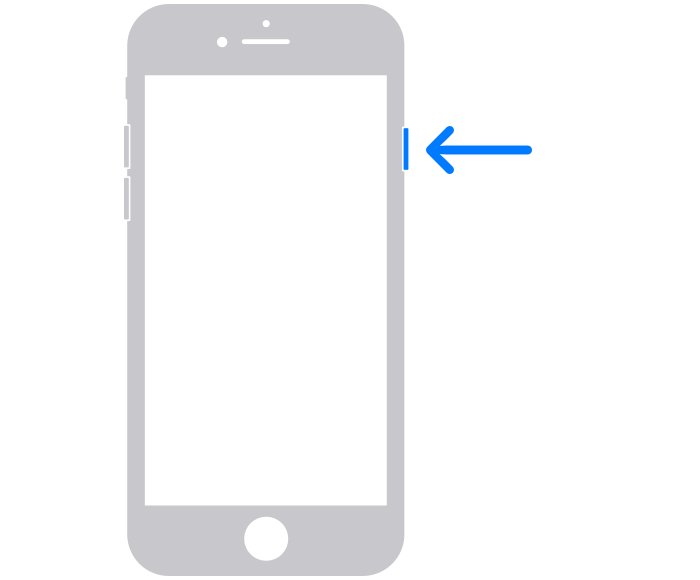
How to force shut down iPhone without slider
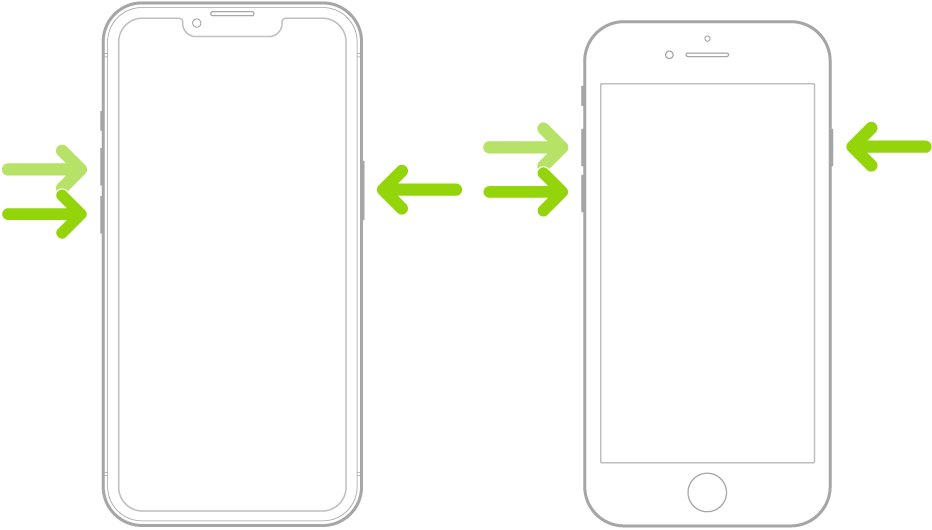
The Power Off slider is the only way to leave an iPhone switched off. When the slider is stuck or the screen ignores touch, force restart the iPhone to clear the freeze, then turn it off once it responds. If touch never comes back after the restart, fix the unresponsive touch screen before trying again.
- Press and quickly release the volume up button.
- Press and quickly release the volume down button.
- Press and hold the side button. This can take longer than 10 seconds.
- Release the side button when the Apple logo appears.
- Once the Lock Screen responds, hold the side button and either volume button, then drag Power Off if you still want it off.
These steps are for Face ID models, iPhone 8 and iPhone SE (2nd generation and later). Older models use their own combination, so force restart an older iPhone with the buttons listed for iPhone 7 or iPhone 6s.
How to shut down iPhone from Settings
Use Settings when a volume or side button does not work but the screen does. With a broken display it is the other way round, and you can turn off the iPhone without the screen using the buttons alone.
- Open the Settings app.
- Tap General.
- Scroll down and tap Shut Down.
- Drag the slider to turn off the iPhone.
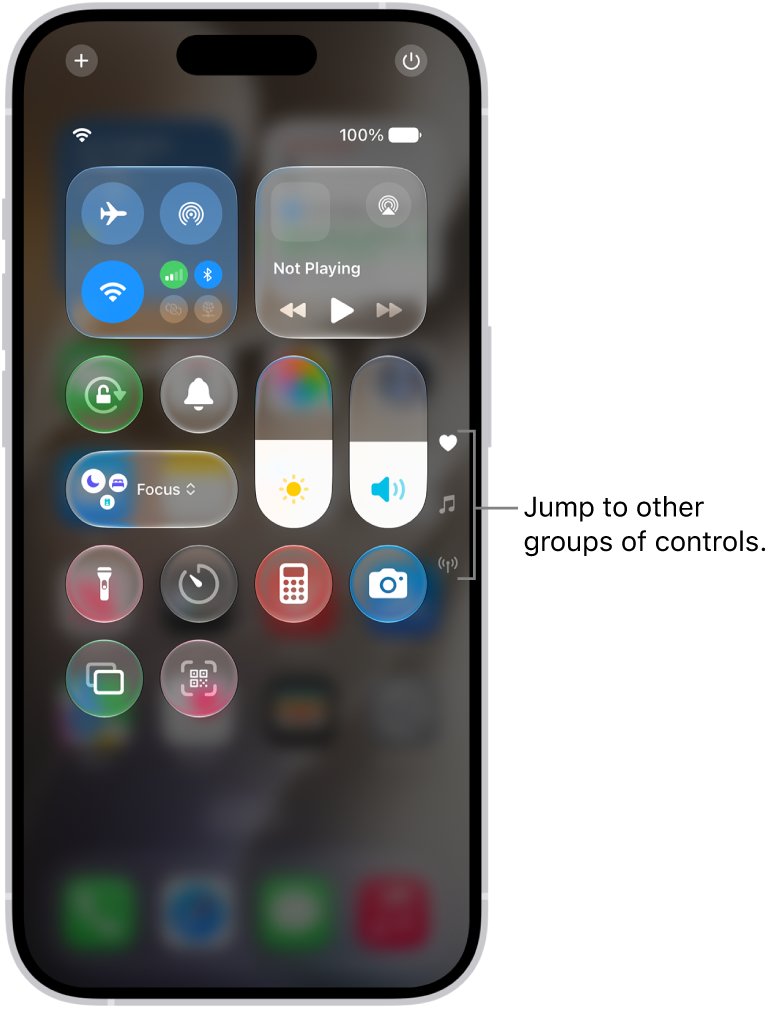
How to turn off iPhone in Control Center
- Open Control Center.
- Touch and hold the power control in the top-right corner.
- Drag the slider to turn off the iPhone.
What to do if iPhone won't force shut down
The sliders never appear and the screen is frozen
The iPhone is not responding to touch, so the slider cannot be dragged.
- Force restart with the steps for your model from the table above.
- Keep holding the side button for longer than 10 seconds; the Apple logo can take a while.
- Release only when the Apple logo appears.
Force restart does nothing
The button sequence was too slow, or a deeper software fault needs recovery mode or a full iPhone restore.
- Press volume up and volume down quickly, one after the other, before holding the side button.
- Work through the fixes for a failed force restart if the logo still does not appear.
iPhone will not turn back on after shutting down
The battery may be too low to start, or the screen is black but the phone is on.
- Charge the iPhone for one hour, then press and hold the side button.
- If a low-charge battery icon appears, check your iPhone hardware, then charge for 30 minutes or until it starts.
- Force restart the iPhone in case it was on with a black screen.
- If it still will not turn on, contact Apple Support for service.
Holding the buttons started an Emergency SOS countdown
Holding the side and volume buttons past the sliders starts Emergency SOS.
- Release the buttons right away to stop before the countdown ends.
- If a call to emergency services connects, stay on the line and tell the responder you do not need help.
- Next time, let go as soon as the sliders appear.
Why iPhone shut down by itself
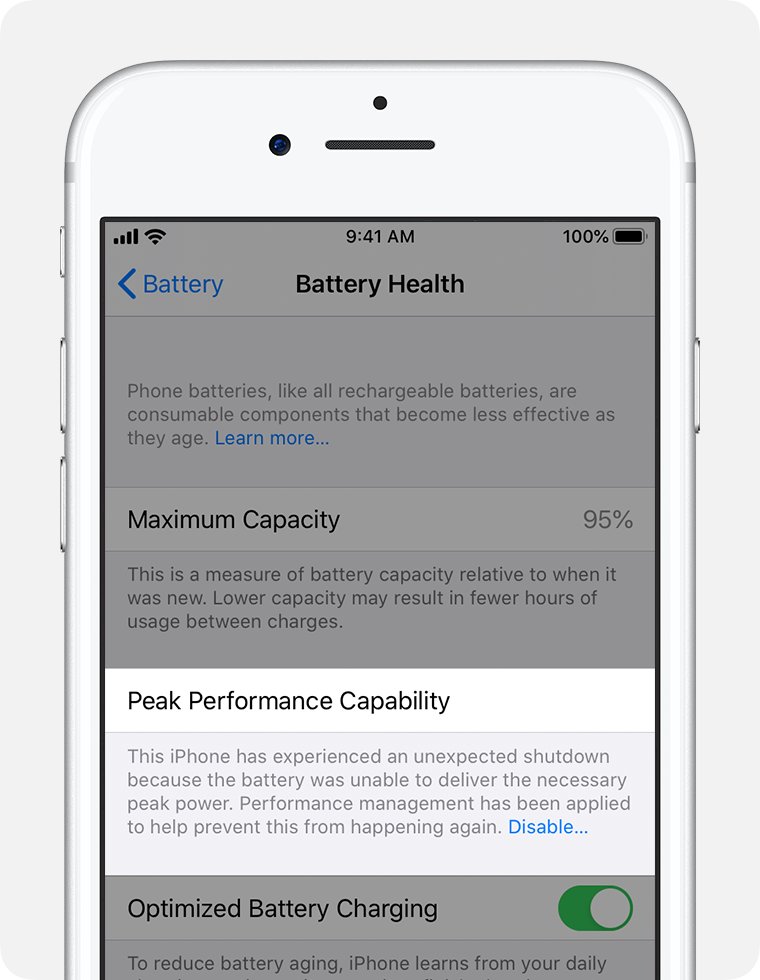
An iPhone can turn off on its own when the battery cannot supply the peak power the phone needs. Apple says the power management system shuts down to protect internal parts.
| Cause | What to check |
|---|---|
| Low state of charge | Charge the iPhone; shutdowns are more likely near an empty battery. |
| Aged battery | Open Settings > Battery > Battery Health and look at Maximum Capacity and Peak Performance Capability. |
| Cold temperatures | Cold raises battery impedance only for a while, so shutdowns ease once the iPhone is back at normal temperatures. |
| Unexpected shutdown message | Battery Health shows a note when performance management was applied after an unexpected shutdown. |
| Significantly degraded battery | Battery Health suggests service; a battery replacement restores full performance and capacity. |
Tips for force shut down iPhone
| Tip | Why it helps |
|---|---|
| Try a normal restart first | Apple suggests turning the iPhone off and back on before a force restart. |
| Release the buttons at the sliders | Holding longer starts the Emergency SOS countdown. |
| Wait 30 seconds before turning it back on | Gives the iPhone time to finish turning off. |
| Hold the side button longer than 10 seconds when forcing a restart | The Apple logo can take more than 10 seconds to appear. |
| Use Settings > General > Shut Down if a button fails | Turns the iPhone off without the side or volume buttons. |
| Plug in before updating iOS | Apple's update steps start with connecting to power, which avoids a shutdown mid-update. |
Force shut down iPhone FAQ
How can I force my iPhone to shut down?
Press and hold the side button and either volume button until the sliders appear, then drag Power Off. If the screen is frozen and the slider will not move, force restart: press volume up, press volume down, then hold the side button until the Apple logo appears.
How do I force shut down iPhone 16 or iPhone 15?
Hold the side button and either volume button, release at the sliders and drag Power Off. iPhone 16 and iPhone 15 models, including Pro Max, use the same buttons as every Face ID iPhone. A frozen one needs volume up, volume down, then a long side-button hold.
How do I force shut down iPhone XR?
iPhone XR uses the Face ID button layout. Hold the side button and either volume button until the sliders appear, then drag Power Off. If it is frozen, press volume up, press volume down, then hold the side button until the Apple logo appears.
What do I do if my iPhone won't force shut down?
Force restart it with the button sequence for your model and keep holding the side button past 10 seconds. If nothing happens, charge it for an hour and try again. If it still does not respond, the iPhone may need service from Apple.
Can forcing a shutdown harm my iPhone?
Apple lists force restart as the step to take when an iPhone is not responding and cannot be turned off and on normally. Use the Power Off slider whenever the screen responds, and keep force restart for a frozen iPhone.
Will I lose my data if I force shut down my iPhone?
No. Turning an iPhone off or forcing it to restart does not erase it. Removing your data takes the separate Erase All Content and Settings option, which a shutdown or restart never triggers.
How often should I force shut down my iPhone?
Only when you need to. Apple suggests a normal restart when an iPhone is not working as expected, and a force restart only if turning it off and on does not fix the problem or the phone is frozen.
Can I force shut down my iPhone if it's updating?
Avoid it while an update is installing. Apple's update steps have you plug the iPhone into power and connect to Wi-Fi first, so leave it connected until it finishes. Force restart only if the iPhone is frozen and not responding.
Why did my iPhone shut down by itself?
Apple says unexpected shutdowns are more likely with a low charge, an aged battery or cold temperatures, because the battery cannot deliver peak power. Check Settings > Battery > Battery Health for a message about an unexpected shutdown or degraded battery.