A Lenovo laptop that is plugged in but not charging is usually holding its battery at a limit set by Conservation mode or Smart charge, so turn that off in Lenovo Vantage first.
If the charge limit is not the cause, this guide walks through the adapter and wattage checks, a power cycle and battery reset, the battery driver, a firmware update and the battery health report, in the order Lenovo recommends.
Fastest fix: turn off the Lenovo battery charge limit
Lenovo laptops can stop charging on purpose to protect the battery. Windows then reports the laptop as plugged in but not charging, even though nothing is broken.
- Hover over the battery icon on the taskbar and read the status. A heart on the icon or Fully Smart charged means a charge limit is active.
- Open Lenovo Vantage from the Start menu.
- Go to Device > Power and find the battery settings.
- Turn off Conservation Mode, or switch the charging mode to Normal or Rapid Charge. On ThinkPad, turn off the Smart charge switch under BATTERY SETTINGS.
- Leave the adapter connected for 10 minutes and check whether the percentage rises.
If Vantage is not installed, get Lenovo Vantage from the Microsoft Store. If the battery still does not charge with the limit off, work through the checks below.
Lenovo laptop not charging: match the symptom to the fix
| What you see | Likely cause | Fix to try first |
|---|---|---|
| Charge stops at the same level every time (for example 59%, 60% or 80%) | Conservation mode or Smart charge | Turn off the charge limit in Lenovo Vantage |
| "PC is charging slowly or discharging" message | Adapter or cable below the laptop's wattage | Use the Lenovo adapter supplied with the laptop |
| No charging light at all | Dead outlet, loose plug or failed adapter | Try another outlet and reseat both ends of the cable |
| Battery icon missing or battery not detected | Battery controller needs a reset | Power off, then use the emergency reset hole or hold the power button |
| Shows 100% but runs down fast | Battery gauge out of calibration or worn cells | Reset the battery gauge in Vantage and run a battery report |
| Started after a driver or Windows update | Battery driver problem | Roll back or reinstall the battery driver |
![[Solved] Lenovo laptop plugged in but not charging](https://techdows.com/wp-content/uploads/2026/10/Solved-Lenovo-laptop-plugged-in-but-not-charging.jpg)
Why is my Lenovo laptop not charging?
Understanding the cause narrows the fix. Lenovo groups the issue into a few causes, from settings that stop charging on purpose to hardware faults.
| Cause | Signs | What to do |
|---|---|---|
| Battery charge limit (Conservation mode or Smart charge) | Charging stops at the same level, often 60 to 80% | Turn off the charge limit in Lenovo Vantage |
| Bad power supply: faulty adapter, damaged cable or dead outlet | No charging light or no change on the battery icon | Try another outlet and a known-good Lenovo charger |
| Charging port fault | Dust, damage or a loose plug in the port | Clean the port gently; a port that still fails is a hardware fault |
| Outdated operating system or software issues | Charging stopped after an update, or the battery driver or BIOS is old | Reinstall the battery driver and update the UEFI BIOS |
| Heavy load or overheating | Charges when turned off but not while in use | Close background apps, let the laptop cool and check the adapter wattage |
| Faulty battery | Old battery, short runtime, or the battery is not detected in the BIOS | Run a battery report or Lenovo Diagnostics |
| Motherboard damage or another fault inside the laptop | Nothing changes with a known-good adapter and battery | Contact Lenovo support for repair |
Lose the battery only as a test, and only if it is removable: take it out, connect the adapter alone and start the laptop. If it runs normally, the battery is likely defective. If the battery is built in, leave it to Lenovo service.
Before you begin: check the Lenovo charger, outlet and cable
Lenovo's own troubleshooting starts with the physical connection, because a loose plug or failed outlet looks exactly like a battery fault.
Start with the basics: make sure the laptop is actually plugged in at both ends and that the cable sits in the right port.
- Confirm the adapter is pushed fully into the wall outlet and into the laptop's charging port.
- Plug the adapter into a different wall outlet, not a power strip.
- Inspect the cable, the adapter brick and the connector tip for bends, burns or frayed sections.
- Clean dust from the laptop's power connector and port.
- Use a Lenovo-certified adapter and cord, and confirm the brick's wattage matches what your model needs.
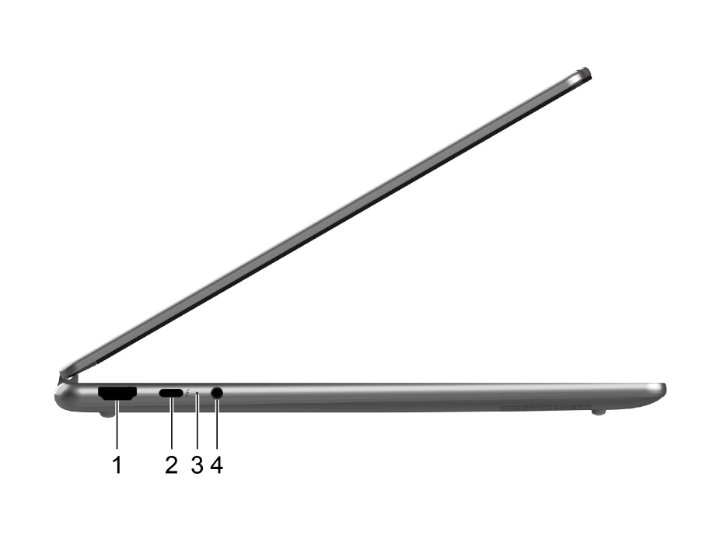
- Watch the charging light after you reconnect; on many Yoga models it turns amber while charging and white near full.
Power cycle the Lenovo laptop
A full power cycle clears a stuck charging state that a normal restart can leave in place.
- Save your work and shut down the laptop from Start > Power > Shut down.
- Disconnect the AC adapter and any docks or USB devices.
- Wait a few minutes with everything unplugged.
- Reconnect the adapter directly to the laptop.
- Press the power button and let Windows load.
- Check the battery icon for Plugged in, charging.
Reset the battery on a Lenovo laptop
Lenovo describes two different resets. A hardware reset clears the battery controller when the battery is not recognized, and a battery gauge reset fixes a wrong percentage reading.
- Shut down the laptop and disconnect the AC adapter.
- If your model has an emergency reset hole on the bottom, insert a straightened paper clip into it and press gently.
- If there is no reset hole, press and hold the power button for about seven seconds.
- Reconnect the adapter and turn the laptop on.
- To recalibrate the gauge, open Lenovo Vantage > Device > Power and run the battery gauge reset.
- If the laptop is almost always plugged in, unplug it, use it until the charge drops below 20%, then charge it to 100%.
The Novo button hole on IdeaPad and Yoga models is not a reset hole. It opens the Novo menu for firmware setup and boot options.
Disable Conservation mode in Lenovo Vantage
Conservation mode suits a laptop that stays on the desk. It holds the charge below full to slow battery wear, so the laptop stops charging partway and Windows shows it as plugged in, not charging.
- Open Lenovo Vantage.
- Select Device, then Power.
- Find Battery Settings and switch off Conservation Mode.
- Optionally turn on Rapid Charge if you need a full battery quickly.
- Keep the adapter connected and confirm the percentage climbs past the old stopping point.
On the current Yoga 7i, Lenovo states that Conservation mode keeps the charge at roughly 75 to 80%. The exact cap differs by model, so check your model's user guide if yours stops at a different number.
Overnight charge optimization is a related option. It learns when you usually unplug and finishes charging to 100% shortly before then, so the battery may not be full if you unplug early.
Check recommended power for your system
A charger with too little wattage can run the laptop but leave nothing over for the battery, especially under load.
| Check | What to look for | What to do |
|---|---|---|
| Adapter label | Output wattage printed on the brick (for example 65 W) | Match or exceed the wattage of the adapter shipped with your model |
| USB-C charger | USB Power Delivery support | Use a USB PD charger; the Yoga 7i needs at least 45 W to run and charge |
| Cable | USB-C cable rated for the charger's power | Swap in the cable that came with the laptop |
| Port | Charging-capable port | Plug into the port marked for power, not a data-only port |
| Heavy load | High CPU or GPU use in Task Manager | Close demanding apps so the adapter can charge the battery |
| Temperature | Laptop hot to the touch or in a cold room | Charge between 10 and 35 degrees C in a ventilated spot |
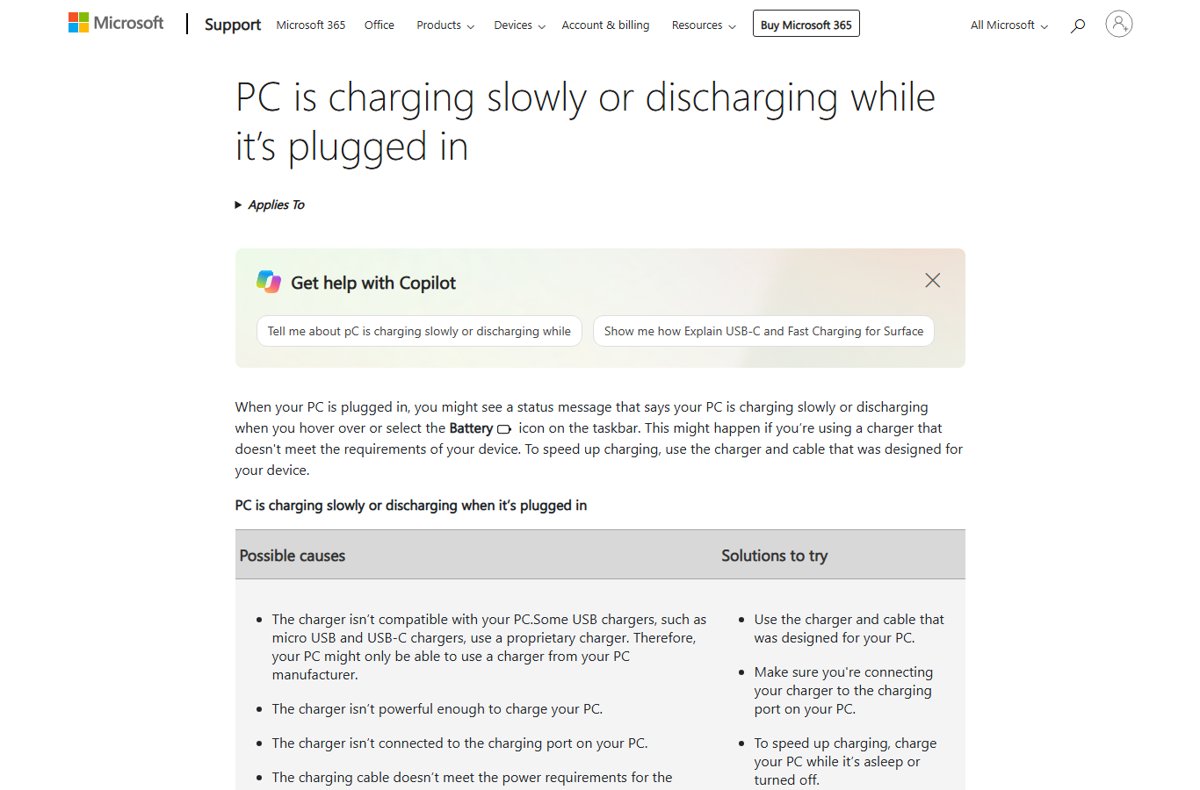
Windows warns PC is charging slowly or discharging when a charger does not meet the laptop's requirements. Use a safety-certified charger, such as one that is UL Listed in the US.
Run power troubleshooter alternatives on Windows 11
Microsoft's current list of Get Help troubleshooters does not include a Power or Battery troubleshooter. Use the built-in energy report and Lenovo Diagnostics instead, which test the same areas.
- Close all apps so the laptop is idle.
- Right-click Start and select Terminal (Admin).
- Type
powercfg /energyand press Enter; it watches the system for 60 seconds. - Open the HTML report it saves in the current folder and look for battery and power problems it flags.
- For a hardware test, restart, open the UEFI BIOS (F1 on ThinkPad, F2 on IdeaPad and Yoga) and run the battery test in Lenovo Diagnostics.
Check battery status with a Windows battery report
The battery report shows design capacity against full charge capacity, which tells you whether the battery itself is worn out. You can also show the battery percentage on the taskbar to track charging.
powercfg /batteryreport /output "C:\battery-report.html"Generates an HTML report of battery usage and capacity over the life of the laptop and saves it to C:\battery-report.html. Run it from Terminal (Admin).
You should see: Windows prints the path of the saved report. Open it and compare DESIGN CAPACITY with FULL CHARGE CAPACITY under Installed batteries; a large gap means the battery has lost capacity.
If the report shows no battery installed, the battery is not being detected. Use the hardware reset above, then contact Lenovo support.
Reinstall or update the battery driver
- Right-click Start and select Device Manager.
- Expand Batteries.
- Right-click Microsoft ACPI-Compliant Control Method Battery and select Properties.
- On the Driver tab, select Roll Back Driver if it is available and the problem began after an update.
- If rollback is unavailable, right-click the same device and select Uninstall device, then confirm.
- Restart the laptop so Windows reinstalls the battery driver automatically.
- Open Lenovo Vantage > Device > System Update and install any battery, power or chipset updates offered.
Update the Lenovo UEFI BIOS to fix charging
Lenovo lists a UEFI BIOS update as a fix for batteries that will not charge, will not charge fully or are not recognized, because the firmware controls charging.
- Connect the AC adapter and keep it connected for the whole update.
- Open Lenovo Vantage and go to Device > System Update.
- Select CHECK FOR UPDATES.
- Install any update in the BIOS/UEFI category and let the laptop restart on its own.
- Do not press the power button if the screen stays blank for a while; the firmware may be retraining memory.
Lenovo System Update on ThinkPad and the Drivers & Software page at support.lenovo.com offer the same firmware packages.
How to check your Lenovo laptop is charging again
- Hover over the battery icon and confirm it reads Plugged in, charging with a rising percentage.
- Check the charging light: on many Yoga models amber means charging below about 90% and white means nearly full.
- Leave the laptop plugged in for 30 minutes and confirm the percentage has increased.
- If you turned off a charge limit, confirm the charge now passes its old stopping point.
Additional tips and precautions for Lenovo laptop batteries
| Tip | Why it helps |
|---|---|
| Charge between 10 and 35 degrees C in a ventilated spot | Heat can pause charging to protect internal components, so beat the heat before you plug in |
| Turn on Conservation mode when the laptop stays on a desk | Holding the battery below full slows wear; turn it off before you travel |
| Use a Lenovo-certified, safety-certified adapter of the right wattage | An underpowered or uncertified charger may not charge the battery under load |
| Recalibrate if the laptop is almost always plugged in | Run it below 20%, then charge to 100% so the percentage stays accurate |
| Keep the power connector and port free of dust | Debris can stop the plug from making full contact |
| Call Lenovo tech support for problems inside the laptop | A failed battery, charging port or motherboard needs a technician, not a software fix |
Lenovo laptop still not charging when plugged in
Lenovo laptop not charging to 100% or stuck at 59% or 60%
Conservation mode, Smart charge or Windows Smart charging is holding the battery at a lower level.
- Open Lenovo Vantage > Device > Power.
- Turn off Conservation Mode, or turn off Smart charge on ThinkPad.
- Check whether Overnight charge optimization is on, and turn it off if you need 100% now.
- Reset the battery gauge if the percentage still looks wrong.
Lenovo laptop not charging, no light
No power is reaching the laptop: dead outlet, damaged cable or failed adapter.
- Plug the adapter into another wall outlet.
- Reseat both ends of the cable and inspect it for damage.
- Try a Lenovo adapter of the same wattage if you have one.
- Contact Lenovo support if a known-good adapter also gives no light.
Lenovo laptop not charging over USB-C
The charger lacks USB Power Delivery or enough wattage, or it is in a port that does not take power.
- Use the charger and cable supplied with the laptop.
- Confirm the charger supports USB Power Delivery at the wattage your model needs.
- Move the cable to the laptop's power-capable USB-C port.
- Watch for the PC is charging slowly or discharging warning on the battery icon.
Lenovo Yoga laptop not charging
Yoga models use the same Vantage charging modes and USB-C power rules as other Lenovo laptops.
- Switch the charging mode from Conservation Mode to Normal in Vantage.
- Confirm the charger delivers at least the minimum power your Yoga needs (45 W on the Yoga 7i).
- Roll back or reinstall the battery driver in Device Manager.
- Update the UEFI BIOS through Vantage System Update.
Lenovo laptop battery not charging after the laptop gets hot
Charging slows or pauses outside the safe temperature range.
- Move the laptop to a hard surface with clear vents.
- Close heavy apps in Task Manager.
- Let it cool, then reconnect the adapter.
Lenovo laptop not charging FAQ
Why is my Lenovo laptop plugged in but not charging?
The most common reason is a charge limit such as Conservation mode or Smart charge in Lenovo Vantage, which stops charging on purpose. Other causes are a low-wattage or faulty adapter, a stuck battery controller, a battery driver problem or outdated UEFI BIOS.
How do I fix my Lenovo laptop not charging?
Turn off Conservation mode in Lenovo Vantage, check the outlet, cable and adapter wattage, then power cycle the laptop. If it still will not charge, reinstall the battery driver in Device Manager and update the UEFI BIOS through Vantage System Update.
Why is my Lenovo laptop not charging to 100%?
A battery-saving feature is limiting the charge. Conservation mode holds the battery below full, Smart charge on ThinkPad does the same, and Overnight charge optimization delays the last part of charging until shortly before you usually unplug.
Why is my Lenovo laptop not charging past 59%?
A charge that stops at the same level every time points to Conservation mode. Open Lenovo Vantage, go to Device and Power, and turn Conservation Mode off. The exact stopping level depends on the model.
Why is my Lenovo laptop battery not charging at all?
If the percentage never rises and the charging light stays off, power is not reaching the laptop. Try another outlet, reseat the cable, and use a Lenovo adapter with the right wattage. If the battery is not detected, do a hardware reset.
Why is my Lenovo Yoga laptop not charging?
Yoga laptops usually stop charging because Conservation mode is on or the USB-C charger is too weak. Lenovo lists 45 W as the minimum for the Yoga 7i to run and charge, and the charging mode is set in Lenovo Vantage.
Is it bad to keep a Lenovo laptop plugged in all the time?
Keeping a lithium-ion battery at 100% for long periods wears it faster. That is why Conservation mode exists: turn it on when the laptop stays on a desk, and off before you travel.
How do I reset a Lenovo laptop battery?
Shut down, unplug the adapter, then press the emergency reset hole with a straightened paper clip or hold the power button for about seven seconds. To fix a wrong percentage instead, run the battery gauge reset in Lenovo Vantage.
How do I check my Lenovo battery health?
Run powercfg /batteryreport in Terminal (Admin) and compare design capacity with full charge capacity in the report. Lenovo Diagnostics in the UEFI BIOS also has a battery test.
Is a Lenovo battery replacement covered by warranty?
Coverage depends on your warranty plan and its dates. Check your Lenovo warranty status with the serial number before you pay for a replacement battery.