To close the PC app store, which on Windows 11 and Windows 10 is the Microsoft Store app, select the Close (X) button in its top-right corner or press Alt + F4; if the Store has frozen, end it from Task Manager instead.
This guide covers every way to shut the Store window, how to stop it working in the background on app updates, and what happens to your apps, licenses and balance if you close the Microsoft account behind the Store.
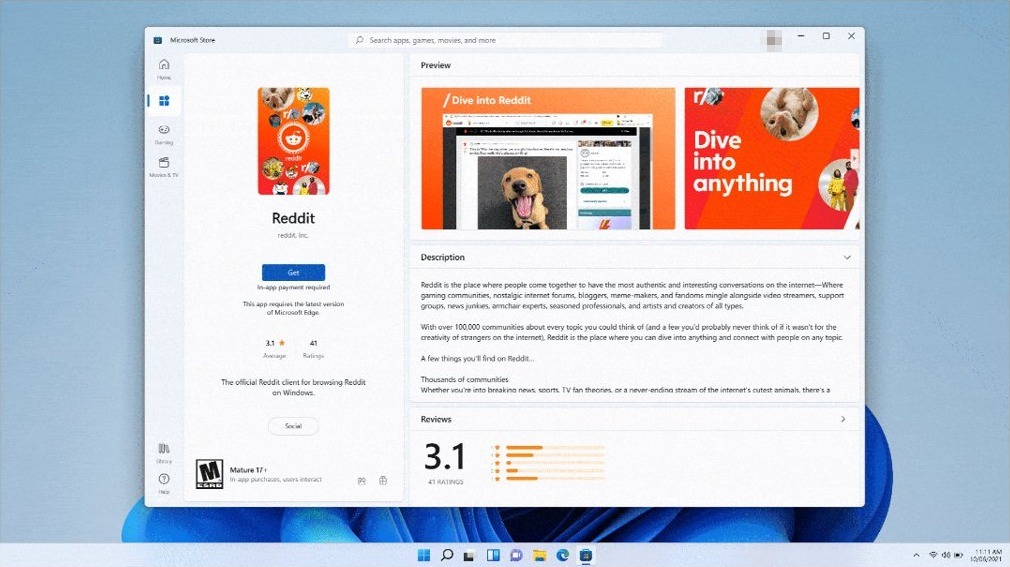
How to close PC app store
These steps close Microsoft Store when it is responding normally. Nothing you bought or installed is affected.
- Click anywhere inside the Microsoft Store window so it is the active window.
- Select the Close (X) button in the upper-right corner of the window.
- If the mouse is not handy, press Alt + F4 instead; it closes the active window.
- Reopen the Store later from Start by searching for Microsoft Store.
Understanding the need to close a PC app store
Closing the Store window and closing the Store account are very different jobs. Match your reason to a row before you go further.
| Why you want to close it | What to do | Is anything lost? |
|---|---|---|
| The Store is open and you are done with it | Close the window with the Close (X) button or Alt + F4 | No |
| The Store has frozen or shows a blank page | End it in Task Manager, then reopen it | No |
| A Store app misbehaves every time you open it | Close and reopen the app, then use Repair or Reset in Settings | Reset clears that app's data |
| You do not want the Store updating apps in the background | Pause App updates in Store Settings for one to five weeks | No |
| You are selling or giving away the PC | Remove and unlink the PC from your Microsoft account | The PC stops counting toward your device limit |
| You never want to use the Store account again | Close the Microsoft account | Purchases, data and balance tied to the account |
Preliminary considerations and backup procedures
Closing the Store window is safe at any time, but a few checks stop you losing work or a half-finished download.
| Check | Why it matters | Where to look |
|---|---|---|
| Save work in apps you opened from the Store | Ending a frozen app in Task Manager discards anything unsaved in it | Each app's own Save command |
| Let downloads and updates finish | Closing the window in the middle of a download means starting it again later | Downloads in Microsoft Store |
| Know which account the Store uses | Purchases, licenses and the device limit belong to that Microsoft account | Profile next to the search box in Microsoft Store |
| Back up files before any account closure | Microsoft cannot retrieve your content once the account is closed | Windows Backup, or copies on another drive |
| Make sure you can sign in | You must be able to sign in to close or reopen a Microsoft account | account.microsoft.com |
Step-by-step guide to closing your PC app store
Follow this full sequence when you want the Store completely shut, not just minimised.
- Save your work and close active applications you started from the Store that you no longer need.
- Locate the app store icon: the Microsoft Store button on the taskbar, or the open Store window.
- Close via the close button: select the Close (X) button in the upper-right corner of the Store window.
- Sign out or exit if necessary: switch the Store account in the Xbox app or sign out of your Microsoft account everywhere, as covered below.
- Use Task Manager for complete closure: press Ctrl + Shift + Esc, select Processes, and end Microsoft Store if it is still listed under Apps.
- Confirm closure: check that Microsoft Store no longer appears under Apps in Task Manager, then close Task Manager.
Method 1: Use the close button
The close button is the normal way to quit Microsoft Store, and Microsoft's own app troubleshooting starts with it.
- Bring the Microsoft Store window to the front by selecting it on the taskbar.
- Select the Close (X) button in the upper-right corner of the app window.
- Wait a few seconds for the window to disappear.
- Reopen the Store from Start if you were closing it to clear a problem.
Minimize (the dash next to the X) only hides the window. The Store keeps running and stays on the taskbar.
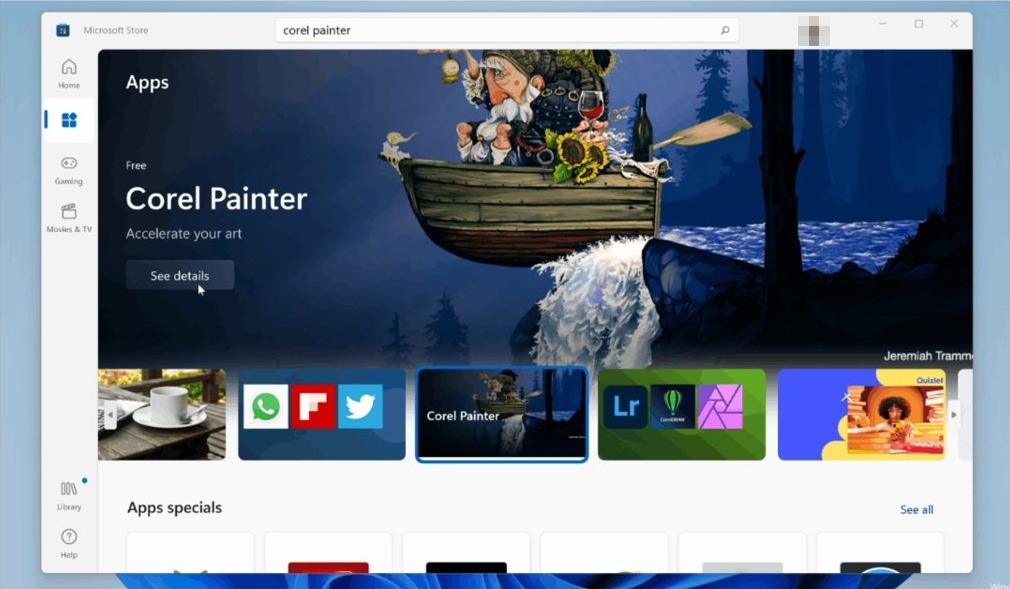
Method 2: Use Task Manager (for unresponsive apps)
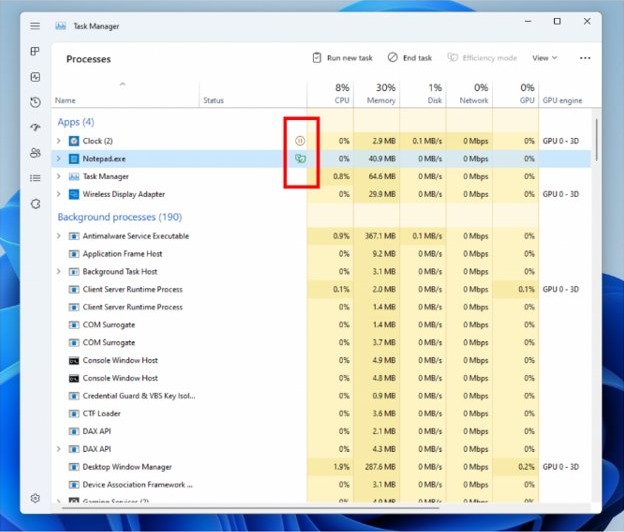
When the Store stops responding, the close button often does nothing. Task Manager ends it regardless, and several shortcuts open Task Manager even when the desktop seems stuck.
- Press Ctrl + Shift + Esc, or right-click Start and select Task Manager.
- Select Processes in the left menu.
- Under the Apps section, find Microsoft Store.
- Right-click Microsoft Store and select End task.
- Check that the Store window has closed, then close Task Manager.
End task does not save anything. Any download in progress in the Store stops and has to start again the next time you open it.
Method 3: use Command Prompt
tasklist and taskkill are built into Windows 11 and Windows 10. The first finds the Store's process ID (PID) from its window title; the second ends that process.
tasklist /v /fi "WINDOWTITLE eq Microsoft Store"
taskkill /pid <PID>
taskkill /pid <PID> /f
Open Command Prompt from Start and run the first line. Read the Image Name and PID columns for the Microsoft Store row, then run the second line with that number in place of <PID>. If the Store still does not close, run the third line: /f forcefully ends the process. You can also end a frozen process by its image name with taskkill /im <imagename> /f.
You should see: taskkill prints a SUCCESS line for the PID, and the Microsoft Store window disappears. Running the tasklist line again returns no Microsoft Store row.
If tasklist shows no row, the Store window is already closed, or its title is different. Run tasklist /fi "STATUS eq NOT RESPONDING" to list every process Windows has marked as frozen.
How to terminate Microsoft Store in Settings
Settings has a Terminate button that immediately ends an app and its related processes. Use it when Task Manager will not open.
- Select Start > Settings > Apps > Installed apps.
- Find Microsoft Store in the list.
- Select the More (…) icon next to it, then select Advanced options.
- Scroll down and select Terminate.
- Open the Store again from Start if you need it.
The same page has Repair and Reset. Try Repair first if the Store freezes every time you open it; Reset removes the app's data.
How to end task Microsoft Store from the taskbar in Windows 11
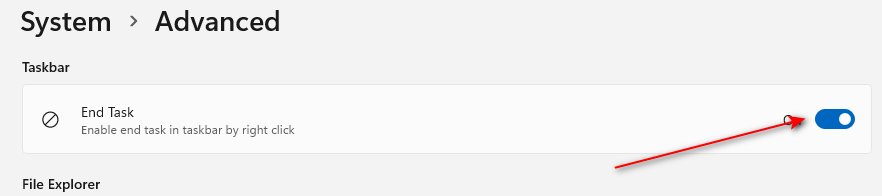
Windows 11 can add an End task option to the taskbar's right-click menu. Once it is on, you can force the Store closed without opening Task Manager.
- Open Settings > System > Advanced (called For developers before Windows 11, version 25H2).
- Turn on End Task under Taskbar.
- Right-click the Microsoft Store button on the taskbar.
- Select End task.
If the End Task toggle is missing or greyed out, your organisation may manage the setting by policy, or the PC needs a newer Windows 11 update.
How to tell if Microsoft Store is still running in Task Manager
A closed Store window does not always mean the app has stopped. Task Manager shows what is still running.
- Press Ctrl + Shift + Esc to open Task Manager.
- Select Processes.
- Look under Apps for Microsoft Store.
- If it is listed, right-click it and select End task; if it is not listed, the Store is fully closed.
Store updates can still install while the Store window is closed, because automatic app updates run in the background. Pause them in Store Settings if that is what you want to stop.
How to stop Microsoft Store from updating apps automatically
Microsoft has replaced the Off switch for Store app updates with a pause. You can pause updates for one to five weeks, and they resume on their own when the pause ends.
- Open Microsoft Store.
- Select your profile picture, then select Store Settings.
- Under App updates, select the pause option.
- Choose a pause length from one to five weeks.
- To update Store apps by hand while paused, open Downloads or Library in the Store and select Get updates.
If the pause option is missing, your IT admin manages app updates on the PC. Some publishers update their apps themselves, so those apps are not affected by the Store setting.
Managing purchased applications and licenses
Microsoft Store purchases are licenses attached to your Microsoft account, not to the PC, and the Store's Library is where you manage those apps and games. Closing the Store window never touches them; closing the account can.
| What you want | Where to do it |
|---|---|
| See every app and game the account owns | Library in Microsoft Store |
| Reinstall an app you removed | Library, find the app, select Install |
| Update all Store apps now | Library > Get updates |
| Free a download slot (limit is 10 devices) | account.microsoft.com/devices/content > Unlink |
| Check your account balance | account.microsoft.com/billing/payments |
| Change which account the Xbox app uses for the Store | Xbox app > your gamerpic > Settings > Change my Microsoft Store account |
Sign out of your account in Microsoft Store
On a PC signed in to Windows with a Microsoft account, the Store normally uses that same account. Select Profile next to the Store's search box to see which account is active.
To move the Store to a different account for PC games, the Xbox app has its own switch. To end every session of your account at once, use Sign out everywhere.
- Open the Xbox app and select your gamerpic, then Settings.
- Under Account, select Change my Microsoft Store account and follow the onscreen instructions.
- To sign out of all devices, sign in to the Additional security options page of your Microsoft account security dashboard.
- Scroll down to Sign out everywhere and select Sign out.
- Allow up to 24 hours for apps and browsers to sign out; Xbox consoles are not included.
Back up your applications and licenses
Store apps cannot be exported as installers, and they do not need to be. The license lives in your Microsoft account, so what you back up is your files and a record of what you own.
- Open Microsoft Store and select Library to see every app and game the account owns.
- Note any paid apps or games you rely on, so you can reinstall them later from the same account.
- Save the files you created in those apps to OneDrive, another drive or Windows Backup.
- Check your order history and balance at account.microsoft.com before any account change.
- On a new or reset PC, sign in with the same account, open Library and select Install next to each app.
Deactivate licenses if necessary
You can download Microsoft Store apps and content to only 10 devices on one account. Unlinking a PC you no longer use deactivates it for Store downloads and frees a slot.
- Sign in with your Microsoft account at account.microsoft.com/devices/content.
- Find the device you want to remove and select Unlink.
- Review the device details and select Unlink again.
- To remove a PC you have sold or given away, go to account.microsoft.com/devices, find it and select Remove device.
- Tick the box to confirm removal, then select Remove.
An unlinked device stops counting toward the limit. If you download a Store app on it again later, it counts again.
Close or delete your app store account
There is no separate Microsoft Store account to delete. The Store uses your Microsoft account, so closing the Microsoft account also closes Outlook.com, OneDrive, Xbox and every other service on that account too.
- Sign in to the Close account page from Microsoft's "How to close your Microsoft account" support article.
- Verify your identity if you are asked to, check the page shows the correct account, and select Next.
- Read the list and tick each checkbox to acknowledge it.
- Choose a reopen window of 30 or 60 days.
- Pick an explanation in the Select a reason drop-down list.
- Select Mark account for closure.
If you removed any sign-in verification details recently, Microsoft makes you wait 30 days before you can close the account. You must be able to sign in to close it; the Microsoft account sign-in helper covers accounts you cannot reach.
Legal and financial implications of closing a PC app store
Close the Microsoft account only when you are sure you will never need its purchases, files, subscriptions or balance again; to stop using the Store, close the app or unlink the PC instead. Under the Microsoft Services Agreement, a closed account loses access to the services straight away, its data is deleted once the reopen window passes, and you may lose access to products you acquired with it.
Legal considerations when closing a Microsoft account
| Term | What it means for you |
|---|---|
| Right to use the account | Stops immediately when the account is closed, by you or by Microsoft |
| Your data and content | Deleted or disassociated from you after closure, unless law requires Microsoft to keep it |
| Products you acquired | You may lose access to them |
| Reopen window | 30 or 60 days, chosen by you; after that the account is permanently deleted |
| Removed security info | Closing is blocked for 30 days after you remove sign-in verification details |
| Inactivity closure | Microsoft can close an account not signed in to for two years, unless an exception applies, such as an active subscription or unspent balance |
Financial considerations before closing a Microsoft account
| Money item | What to do before closing |
|---|---|
| Microsoft account balance (gift cards, credit) | Check it at account.microsoft.com/billing/payments and spend it first |
| Paid subscriptions | Cancel or let them run out; a reopened account gets back only the time left, not the time spent pending closure |
| Refunds | Request any refund you are entitled to from the Microsoft account management website; cancellation alone may not bring one |
| Store apps and games you paid for | Licenses belong to the account being closed, so plan to lose them with it |
| Charges already billed | You may still owe charges made before the cancellation date |
Post-closure tasks and data management
Run through these tasks after you close the account, or before you hand the PC to someone else.
- Back up critical data with Windows Backup before you reset or give away the PC.
- Remove sensitive data by resetting the PC: open Settings > System > Recovery, then select Reset PC and follow the options.
- Remove the PC from your Microsoft account at account.microsoft.com/devices, then unlink it so it leaves your Store device limit.
- To change your mind about a closure, sign in at account.microsoft.com within the 30- or 60-day window and enter the security code.
- After the window passes, expect the account and its data to be gone for good.
A reopened account gets back its subscriptions, profiles, Xbox gamertag, rewards points and purchased content.
Additional tips for closing Microsoft Store
| Tip | Detail |
|---|---|
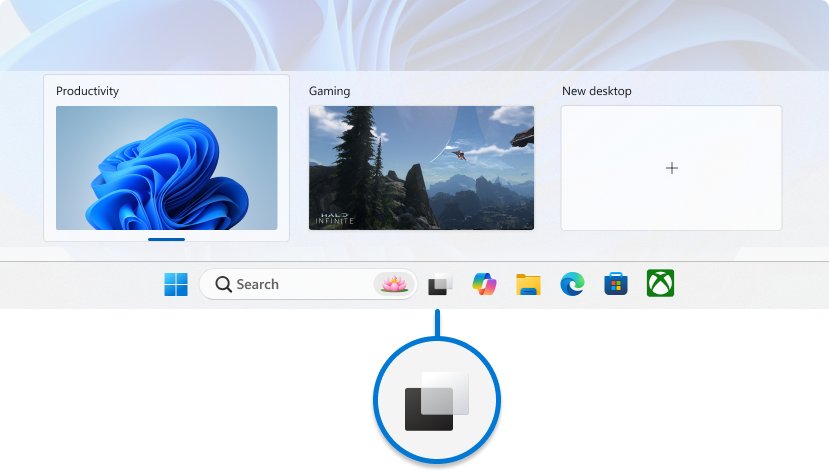
| Close several windows at once | Task view on the taskbar lets you switch between tasks or close unnecessary windows |
| Store keeps freezing | Select Library > Get updates to update Microsoft Store itself, then try Repair in Advanced options |
| Store window closed but apps still update | Automatic updates run in the background; pause them in Store Settings |
| Store will not open after you closed it | Restart the PC, then check Windows Update for pending updates |
| Removed an app by mistake | Reinstall it free from Library, because the license stays on your account |
Alternative options and recommendations
Most people who want to close the Store only need a lighter option. Pick the row that matches your goal.
| Goal | Alternative to closing the account | Why it is better |
|---|---|---|
| Install apps without opening the Store | WinGet: run winget search <appname>, then winget install <appname> in Command Prompt |
Command-line installs, upgrades and removals on Windows 11 and Windows 10 version 1809 or later |
| Stop background updates | Pause App updates for up to five weeks | Keeps every purchase and resumes on its own |
| Fix a broken Store | Repair or Reset in Advanced options | Leaves your account untouched |
| Stop a PC using your purchases | Unlink or Remove device in your Microsoft account | Only that PC loses access |
| Get the Store back after removing it | Download the Microsoft Store app again | Restores the Store without a new account |
Close PC app store FAQ
How do I close the Microsoft Store on my PC?
Select the Close (X) button in the upper-right corner of the Microsoft Store window, or press Alt + F4 while the Store is the active window. Your apps, purchases and downloads stay on your account.
How do I force close Microsoft Store when it is not responding?
Press Ctrl + Shift + Esc to open Task Manager, select Processes, right-click Microsoft Store under Apps and select End task. Anything the Store was downloading has to start again.
How do I stop Microsoft Store from updating apps?
Open Microsoft Store, select your profile picture, then Store Settings, and pause App updates for one to five weeks. Microsoft replaced the old Off switch with this pause, and updates resume when it ends.
How many PCs can download Microsoft Store apps on one account?
Ten. You can download Microsoft Store apps and content to 10 devices on one Microsoft account. Unlink old devices at account.microsoft.com/devices/content to free a slot.
What happens to my Microsoft Store purchases if I close my Microsoft account?
You may lose access to them. The Microsoft Services Agreement says a closed account loses access to the services, its content is deleted, and products you acquired with it may no longer be available.
Can I reopen a closed Microsoft account?
Yes, within the 30-day or 60-day window you chose when closing it. Sign in at account.microsoft.com and enter the security code; subscriptions, profiles and purchased content come back with the account.
Where can I check my Microsoft account balance before closing it?
Go to account.microsoft.com/billing/payments and sign in with your Microsoft account. Spend or use the balance before closing, because it is tied to the account you are closing.
How do I reinstall apps after closing Microsoft Store?
Open Microsoft Store, select Library, find the app and select Install. Closing the Store window never removes apps or licenses, so anything you own on the account can be installed again.