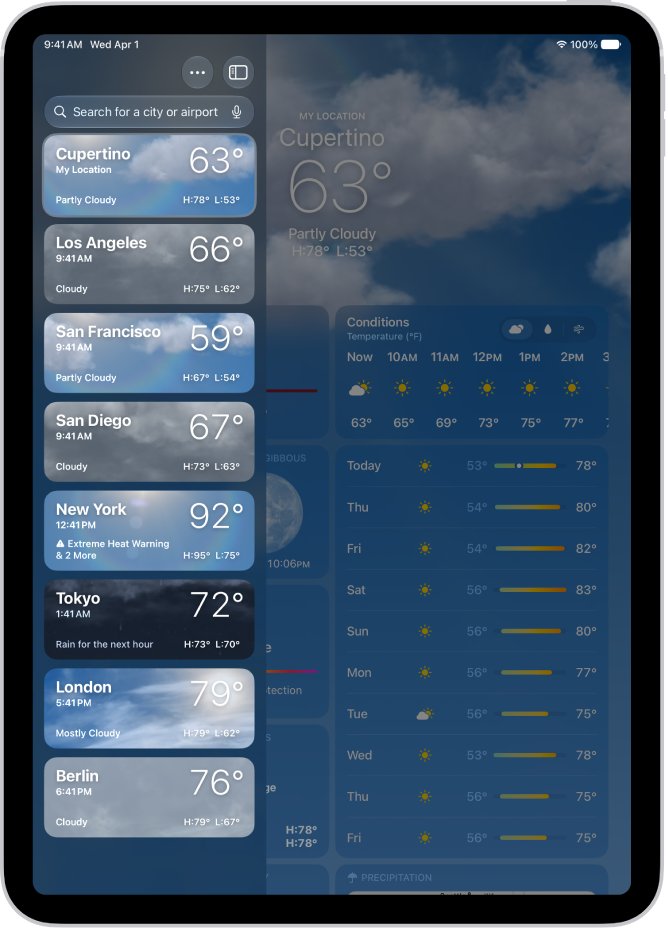
Yes: the Weather app on iPad Pro is configured from the more button at the top of its sidebar, where Units and Notifications live, plus Settings > Apps > Weather and Location Services in Settings.
The sections below cover temperature and wind units, saved cities, Home and Work, alerts, forecast accuracy, the hourly view, weather maps and widgets, and what to check when a feature is missing.
Where are the Weather app settings on iPad
The same options apply on every iPad Pro, iPad Air, iPad and iPad mini that runs the Weather app. Most of them sit inside the app, and the location options sit in Settings.
| What you want to change | Where it is | Options |
|---|---|---|
| Temperature, wind, precipitation, pressure and distance units | Weather app: sidebar > more button > Units | Fahrenheit, Celsius or Use system setting; wind in mph, km/h, knots or Beaufort |
| Severe weather and rain alerts | Weather app: sidebar > more button > Notifications | Severe Weather and Next-Hour Precipitation per location |
| Saved cities and their order | Weather app sidebar | Search to add, touch and hold to move, swipe left to remove |
| Home and Work in search results | Settings > Apps > Weather | Home and Work switch |
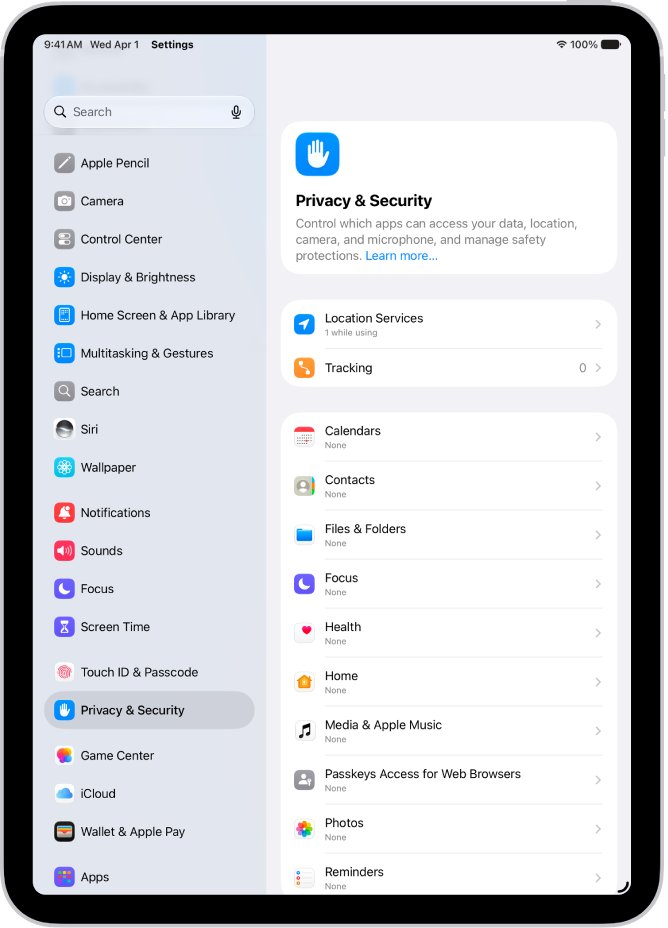
| Forecast accuracy for where you are | Settings > Privacy & Security > Location Services > Weather | Precise Location, and Always for alerts |
| The city a Home Screen widget shows | Touch and hold the Weather widget > Edit "Weather" | My Location or any city |
If the sidebar is hidden, tap the sidebar button in the upper-left corner of the Weather app to show it. The Weather app first came to iPad with iPadOS 16.
How to change Weather from Fahrenheit to Celsius on iPad
These units apply inside the Weather app. They cover temperature, wind, precipitation, pressure and distance.
- Open the Weather app on your iPad.
- Tap the sidebar button to show the sidebar if it is hidden.
- Tap the more button at the top of the sidebar, then tap Units.
- Tap Fahrenheit, Celsius or Use system setting for temperature.
- Tap the menu next to the wind, precipitation, pressure or distance unit and choose a new one.
- Close the menu to return to the forecast in the new units.
How to change the temperature unit on iPad for all apps
When Weather is set to Use system setting, it follows the unit chosen for the whole iPad. Change it once in Language & Region and other apps that show temperature follow it too.
- Open the Settings app on your iPad.
- Tap General, then tap Language & Region.
- Tap the temperature unit and choose Celsius or Fahrenheit.
- Set the measurement system to metric, US or UK if you also want distances to change.
- Open Weather and check that Units reads Use system setting.
How to add a city to the Weather app on iPad
Saved cities appear in the sidebar, and you can swipe between them on the forecast screen. The list stays up to date across devices that use iCloud with the same Apple Account.
- Open Weather and tap the search field at the top of the sidebar.
- Enter the name of the city, neighborhood or place.
- Tap the place in the search results to see its forecast.
- Tap the add button to save it to your list.
- To reorder the list, touch and hold a city in the sidebar and move it up or down.
- To remove a city, swipe left on it in the sidebar and tap the delete button.
You can also add a place from the weather map: move the map, touch and hold the spot, then tap the add button. Neighborhood search results are not available in all locations.
How to show Home and Work in the Weather app on iPad
Weather can label your Home and Work addresses in search results so you can save them quickly. It needs Location Services for Weather to be on.
- Open Settings on your iPad.
- Tap Apps, then tap Weather.
- Turn on Home and Work.
- Go to Settings > Privacy & Security > Location Services and make sure Location Services is on for Weather.
- Open Weather and search; Home and Work appear in the results.
How to turn on weather alerts on iPad
Weather can notify you about severe weather and rain in the next hour, for your current location and for saved cities. These notifications are not available in all countries or regions.
- Open Settings > Privacy & Security > Location Services > Weather and tap Always.
- Turn on Precise Location on the same screen.
- Open Weather, tap the more button in the sidebar, then tap Notifications.
- Allow notifications from Weather if you are asked.
- Below Current Location, turn on Severe Weather and Next-Hour Precipitation.
- Below Your Locations, tap a saved city, turn on the same alerts, then tap the done button.
How to make the Weather app more accurate on iPad
Weather uses Location Services to find your current location. With Precise Location off, the forecast is based on an approximate area.
- Open the Settings app.
- Tap Privacy & Security, then tap Location Services.
- Tap Weather.
- Allow location access for Weather; choose Always if you also want weather alerts.
- Turn on Precise Location.
If the forecast still does not match the sky outside, tap the more button at the top of the Weather sidebar, tap Report an Issue, choose the conditions you see and tap Submit. The report is not associated with your Apple Account.
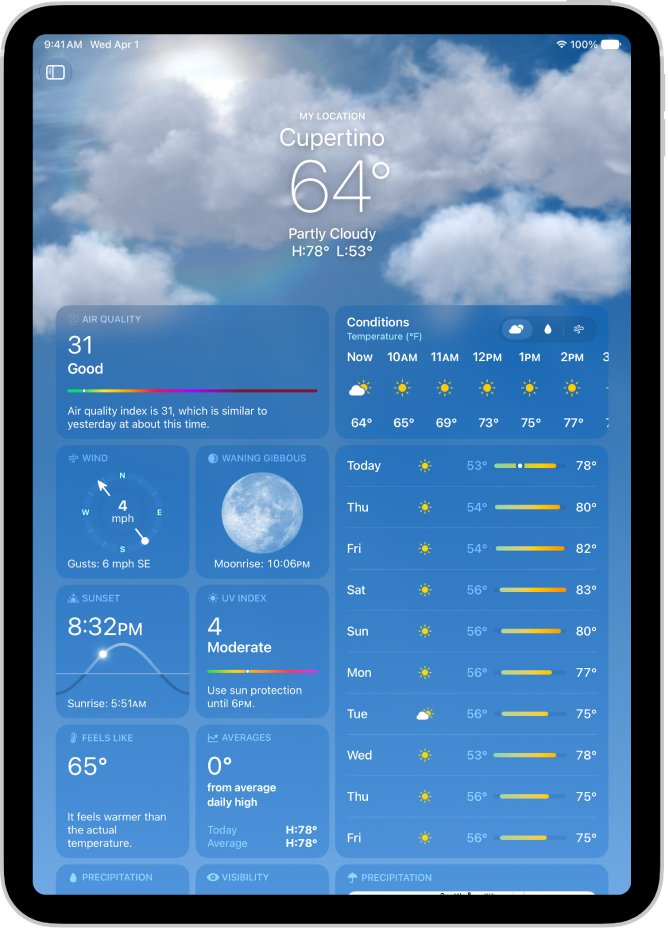
How to change the hourly forecast view in Weather on iPad
The hourly and 10-day forecasts can show conditions, rain or wind instead of just temperature.
- Open Weather and select a city.
- Swipe the hourly forecast left or right to see later hours.
- Tap a symbol above the hourly forecast to switch between Conditions, Precipitation and Wind.
- Tap the hourly forecast to open the detailed view.
- Tap the condition menu in that view to show a different weather condition.
- Scroll down the city's page for severe weather alerts, air quality, UV index, wind, visibility and moon phases.
Tap the Averages detail to see how today's temperature or precipitation compares with the historical average.
How to use the weather map on iPad
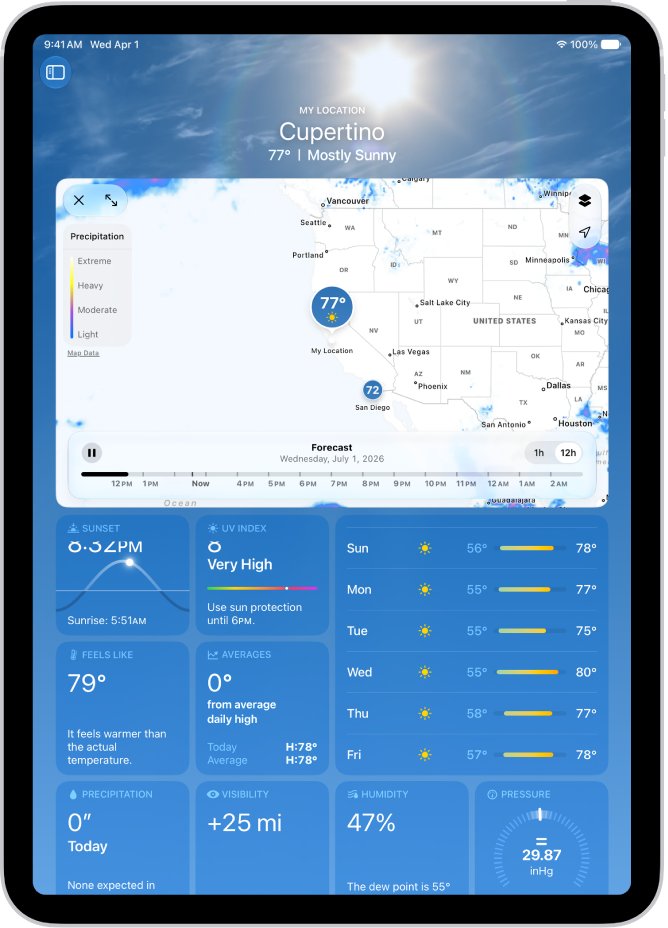
The iPad Pro display has room for a full-screen map of precipitation, temperature, air quality or wind.
- Open Weather, select a city, scroll down and tap the weather map.
- Tap the expand button to make the map full screen.
- Tap the map-type button in the upper right to switch between precipitation, temperature, air quality and wind.
- On a precipitation or wind map, tap near the bottom to show the timeline.
- Switch between 12-Hour Forecast and Next-Hour Forecast to change the timeline length.
- Drag to move the map, pinch to zoom, and touch and hold a place to Add, View or Open in Maps.
The map type can change on its own to match the weather at the selected city. Next-hour precipitation maps exist only in some countries.
How to add a Weather widget to the iPad Home Screen
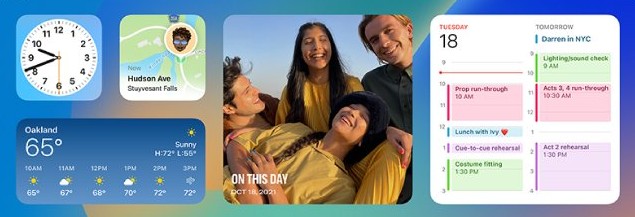
A widget shows the forecast without opening the app. You can add several Weather widgets, each set to a different city.
- Touch and hold the Home Screen background until the apps jiggle.
- Tap the edit button at the top of the screen, then tap Add Widget.
- Search for Weather and tap it.
- Swipe left or right through the sizes and styles, then tap Add Widget.
- Move the widget where you want it, then tap the done button.
- To change its city, touch and hold the widget, tap Edit "Weather", tap My Location, then choose a city.
To resize it later, touch and hold the widget and choose another size. Weather widgets can also go on the iPad Lock Screen, and swiping right on the Home Screen opens Today View with your widgets.
Weather app features not available in every country on iPad
A missing panel is often a regional limit rather than a setting. Apple lists where each feature works.
| Feature | Where it is available | Data provider |
|---|---|---|
| 10-day forecast | Most countries and regions | Apple Weather |
| Severe weather information | Australia, Brazil, Canada, Hong Kong, India, Japan, Mexico, New Zealand, Thailand, the United States and most of Europe; China mainland via QWeather | National weather services |
| Next-hour precipitation and rain notifications | Australia, Ireland, Japan, the United Kingdom and the United States | Apple, using national weather service data |
| Air quality | The United States, Canada, the United Kingdom, much of Europe, India, Japan, Mexico, Singapore and South Korea; China mainland via QWeather | BreezoMeter or QWeather |
| Temperature, wind and 12-hour precipitation maps | Most countries and regions | Apple Weather |
| Next-hour precipitation maps | Australia, Ireland, Japan, the United Kingdom and the United States | Apple Weather |
The full overview of Apple Weather features also covers the Mac and Apple Watch versions.
Weather app on iPad not showing my location or alerts
Find the line that matches what you see.
My Location is missing or shows the wrong town
Location Services is off for Weather, or Precise Location is off.
- Open Settings > Privacy & Security > Location Services.
- Tap Weather and allow location access, choosing Always if you use alerts.
- Turn on Precise Location.
- Open Weather and tap My Location in the sidebar.
Severe weather or rain notifications never arrive
Alerts need Always location access and are not offered in every country.
- Set Location Services for Weather to Always and turn on Precise Location.
- In Weather, tap the more button > Notifications and turn on Severe Weather and Next-Hour Precipitation.
- Check the country table above; next-hour rain alerts exist only in five countries.
Home and Work do not appear in search
The Home and Work switch is off, or Weather has no location access.
- Open Settings > Apps > Weather and turn on Home and Work.
- Turn on Location Services for Weather.
Cities added on iPhone are missing on iPad
The list syncs only between devices signed in to the same Apple Account.
- Open Settings on both devices and tap your name at the top.
- Confirm both show the same Apple Account.
- Add the city again on the iPad if the accounts differ.
The widget shows a different city from the app
Each Weather widget keeps its own location setting.
- Touch and hold the widget.
- Tap Edit "Weather" or Edit Stack.
- Tap My Location and pick the city you want.
If the forecast still shows the old city or units after a change, close the Weather app on iPad and open it again. If it still sticks, force restart the iPad Pro and check again.
iPad Pro Weather app settings FAQ
Is there a Weather app on iPad Pro?
Yes. Apple's Weather app is built into iPad Pro and other iPad models running iPadOS 16 or later. It shows hourly and 10-day forecasts, weather maps, severe weather information and air quality where those are available.
How do I change the Weather app to Celsius on iPad?
Open Weather, show the sidebar, tap the more button at the top and tap Units. Choose Celsius, or choose Use system setting and set Celsius in Settings > General > Language & Region so the whole iPad uses it.
Where is Weather in iPad Settings?
Go to Settings > Apps > Weather for the Home and Work switch, and Settings > Privacy & Security > Location Services > Weather for location access. Units and notifications are inside the Weather app itself, under the more button in its sidebar.
Can I put the weather on the iPad Lock Screen?
Yes. Weather widgets can go on the iPad Lock Screen as well as the Home Screen. On the Home Screen, touch and hold the background, tap the edit button, tap Add Widget, choose Weather and pick a size.
Do Weather locations sync between iPhone and iPad?
Yes. Your list of saved cities stays up to date across devices that are signed in to the same Apple Account. A city you add on iPhone appears in the iPad sidebar, and removals sync the same way.
Why is there no rain-in-the-next-hour alert on my iPad?
Next-hour precipitation forecasts and notifications are available only in Australia, Ireland, Japan, the United Kingdom and the United States. Where they are offered, they also need Location Services for Weather set to Always and the alert turned on in Notifications.
How do I change the location on the iPad Weather widget?
Touch and hold the Weather widget, tap Edit "Weather" or Edit Stack, then tap My Location and search for a city or pick one from your list. Tap outside the widget to return to the Home Screen.