To find your Windows product key with Command Prompt, run slmgr /dli; in PowerShell, query the SoftwareLicensingProduct class for PartialProductKey, and both show the last five characters of the installed key.
This guide covers both commands, what a partial key tells you, why the full 25-character key is often not on the PC at all, and where to find it instead.
How to find Windows 11/10 product key using Command Prompt
The built-in slmgr licensing script reads the key Windows is using right now. It works on Windows 11 and Windows 10 and does not need administrator rights.
- Select Start, type
cmdand select Command Prompt. - Type
slmgr /dliand press Enter. - Wait for the Windows Script Host window to open.
- Read the line Partial Product Key: these are the last five characters of the installed key.
- Read Name and Description to see the edition and the key channel, such as RETAIL or OEM.
- Select OK to close the window.
To print the same details inside the console instead of a pop-up, run cscript %windir%\system32\slmgr.vbs /dli.
Windows does not display the full 25-character key through any Microsoft-documented command. The partial key is enough to match the installed key against a sticker, card or email.
What kind of Windows license do you have?
Windows 10 and Windows 11 activate with either a 25-character product key or a digital license. Which one you have decides where the key can be found.
| How you got Windows | License type | Where the key is |
|---|---|---|
| New PC with Windows preinstalled | Product key, usually in firmware | Packaging, Certificate of Authenticity (COA) label, or the PC maker |
| Boxed copy from a retailer | Product key | Label or card inside the box |
| Digital copy from a retailer | Product key | Confirmation email or the retailer's digital locker |
| Digital copy from the Microsoft online store | Product key | Confirmation email and your Microsoft account Order history |
| Free upgrade from Windows 7, 8.1 or 10 | Digital license | No key; the license is tied to the hardware |
| Pro upgrade bought in the Microsoft Store app | Digital license | No key; confirmation email names the account that holds the license |
| Volume Licensing or MSDN subscription | Product key | Your program's web portal |
Accessing Command Prompt and PowerShell
Every command in this guide runs in a normal window. Only the registry clean-up option slmgr /cpky needs an elevated window. You can also open Command Prompt in Windows 11 from File Explorer or Run.
| Tool | How to open it | Run as administrator |
|---|---|---|
| Command Prompt | Select Start, type cmd, select Command Prompt |
Right-click Command Prompt and select Run as administrator |
| Windows PowerShell | Select Start, type powershell, select Windows PowerShell |
Right-click it and select Run as administrator |
| Terminal | Right-click Start and select Terminal | Right-click Start and select Terminal (Admin) |
| Run box | Press Win + R, type cmd or powershell, press Enter |
Press Ctrl + Shift + Enter instead of Enter |
Get Windows 11/10 license key using PowerShell
PowerShell reads the same licensing data through the SoftwareLicensingProduct WMI class. Its PartialProductKey property holds the last five characters of the key and is empty when no key is installed.
- Right-click Start and select Terminal or Windows PowerShell.
- Type
Get-CimInstance -ClassName SoftwareLicensingProduct -Filter "PartialProductKey IS NOT NULL" | Select-Object Name, Description, PartialProductKey, LicenseStatusand press Enter. - Find the row whose Name starts with Windows.
- Read PartialProductKey for the last five characters of the installed key.
- Read LicenseStatus:
1means Licensed,0means Unlicensed.
Other LicenseStatus values are 2 (OOBGrace), 3 (OOTGrace), 4 (NonGenuineGrace), 5 (Notification) and 6 (ExtendedGrace).
Older scripts call wmic for the same job. WMIC is deprecated, and since August 2026 Windows 11, versions 24H2 and 25H2 no longer include it, so use the PowerShell command instead.
Find the last five characters of the installed product key
Use this when you need to confirm which of several keys a PC is actually using, for example after a reinstall or an edition change.
slmgr /dlvDisplays detailed license information for the installed Windows edition, including Partial Product Key, Activation ID, Product Key Channel and License Status. Add all to list every installed license.
You should see: A Windows Script Host window lists your edition with a Partial Product Key of five characters and License Status: Licensed.
Understanding Windows product keys
A product key is a 25-character code in the format XXXXX-XXXXX-XXXXX-XXXXX-XXXXX. The key type changes what the commands above can show you.
| Key type | Who uses it | What the commands show |
|---|---|---|
| Retail | Boxed or digital copies bought from a retailer or Microsoft | Partial key and the RETAIL channel |
| OEM (firmware key) | PCs sold with Windows preinstalled | Partial key; the full key sits in the firmware's MSDM table |
| MAK (Multiple Activation Key) | Volume Licensing customers | Partial key; the key is not kept in the registry |
| KMS client key (GVLK) | Organisations with a KMS host | Partial key of a public generic key, not a personal one |
| Digital license | Free upgrades and Microsoft Store purchases | Often a default key, because the license is tied to the hardware |
Why you may need to find your product key
| Situation | Do you need the key? | What to do |
|---|---|---|
| Reinstalling the same edition on the same PC | Usually not | Select I don't have a product key during setup; Windows reactivates from its digital license or firmware key |
| Moving a retail copy to a new PC | Yes | Use the key from the box, card or confirmation email |
| Replacing the motherboard | Often | Use the Activation troubleshooter with a linked Microsoft account, or a new key |
| Upgrading Home to Pro | Yes, a Pro key | Enter it under Settings > System > Activation > Change product key |
| Auditing which key a PC uses | Partial key is enough | Run slmgr /dli and compare the last five characters |
Check your Windows activation status
Check activation before you go looking for a key. If Windows is activated with a digital license linked to your Microsoft account, you may never need the key.
- Select Start > Settings.
- On Windows 11, select System > Activation. On Windows 10, select Update & Security > Activation.
- Read the message next to Activation status.
- If it says Windows is activated with a digital license linked to your Microsoft account, your license is safe for reinstalls and hardware changes.
- If the account is not linked, select Add an account and sign in with your Microsoft account.
From the command line, slmgr /xpr shows whether the installed edition is permanently activated. You can also check whether Windows is activated and enter a new key from the same page.
Check whether Windows has a product key in the registry
Some installations keep a copy of the product key in the registry so servicing tasks can read it during setup. Microsoft documents slmgr /cpky as the way to remove it, so malicious code cannot steal it.
- Run
slmgr /dliand note the Product Key Channel. - If the channel is MAK or the PC is a KMS host, the key is already cleared from the registry by default.
- For a retail key you deployed yourself, open Command Prompt as administrator.
- Type
slmgr /cpkyand press Enter to remove the stored copy. - Run
slmgr /dliagain; activation is unaffected and the partial key still shows.
Reading the registry directly does not reveal a usable key on most PCs, so keep the original card, sticker or email as your record.
Understand generic Windows product keys
A generic key installs a specific edition but does not activate it on its own. If slmgr /dli shows a partial key you do not recognise, it is often one of these.
| Generic key | Purpose | Activates Windows? |
|---|---|---|
| Default product key | Tells Windows to look for the OEM key injected in the firmware | Yes, through the firmware key or digital license |
| Generic Volume License Key (GVLK) | KMS client key published by Microsoft for each edition | Only against your organisation's KMS host |
| Edition key used on a digital-license PC | Installs the right edition after a free upgrade | Yes, through the digital license tied to the hardware |
This is why the partial key on an upgraded PC rarely matches an old Windows 7 or 8.1 sticker.
How to find your product key from purchase records
- For a new PC, check the packaging and the Certificate of Authenticity (COA) label on the PC or its box.
- For a boxed copy, look on the label or card inside the box.
- For a digital copy from a retailer, search your email for the order confirmation or open the retailer's digital locker.
- For a copy bought from the Microsoft online store, sign in to your Microsoft account and open Order history.
- For Volume Licensing or MSDN, sign in to your program's web portal.
- Match the last five characters against
slmgr /dlito confirm you have the right key.
Microsoft keeps a record of product keys only for purchases from its online store. Office keys are stored differently, so find an installed Office product key with its own steps.
How to reinstall Windows when you do not have a product key
- Confirm under Settings > System > Activation that Windows is activated and your Microsoft account is linked.
- Create installation media for the same edition you have now.
- Start setup and, at the product key screen, select I don't have a product key.
- Choose the same edition that was activated, such as Home or Pro.
- Finish setup, connect to the internet and sign in with your Microsoft account.
- Open Settings > System > Activation to confirm Windows activated automatically.
On an OEM PC, setup reads the key from the firmware, so the same steps apply even without a linked account.
Best commands to use: quick reference
| Command | Shell | What it shows | Admin needed? |
|---|---|---|---|
slmgr /dli |
Command Prompt or PowerShell | Edition, partial key, license status | No |
slmgr /dlv |
Command Prompt or PowerShell | Detailed license data with Activation ID | No |
slmgr /xpr |
Command Prompt or PowerShell | Activation expiry, or permanent activation | No |
cscript %windir%\system32\slmgr.vbs /dli |
Command Prompt | Same as /dli, printed in the console |
No |
Get-CimInstance -ClassName SoftwareLicensingProduct ... |
PowerShell | Name, PartialProductKey, LicenseStatus | No |
slmgr /cpky |
Command Prompt (admin) | Removes the stored key from the registry | Yes |
For other everyday commands, keep a list of Command Prompt commands handy.
Confirm the key you found is the one Windows uses
- Run
slmgr /dliand write down the five characters after Partial Product Key. - Compare them with the last block of the key on your sticker, card or email.
- If they match, that key is the one installed on this PC.
- If they differ, Windows is using a different key, often a default key backed by a digital license.
- Open Settings > System > Activation and confirm the status starts with Windows is activated.
What to do if the product key is not found
The PowerShell command returns no Windows row
No product key is installed, so PartialProductKey is empty and the filter hides the row.
- Open Settings > System > Activation and read the status.
- If it says Windows is not activated, select Change product key and enter your key, or buy a license from the Microsoft Store link on the same page.
Error 0xC004F213: Windows reported that no product key was found on your device
A significant hardware change, such as a new motherboard, stopped Windows from finding a matching license.
- Sign in with the Microsoft account linked to your digital license.
- Open Settings > System > Activation and select Troubleshoot.
- If no linked license exists, enter a new product key.
Error 0xC004C003 in Windows 11
The key you entered is not valid, often because it was used on more than one device.
- Enter a different, unused key under Change product key.
- If the key came from a reseller, contact that reseller.
- If the PC came with Windows 11 and showed this error on first start, contact the PC maker.
The partial key does not match your sticker
Windows is activated by a digital license or the firmware key and installed a default key.
- Confirm activation under Settings > System > Activation.
- Keep the sticker as proof of purchase; no action is needed while Windows shows as activated.
Troubleshooting common command errors
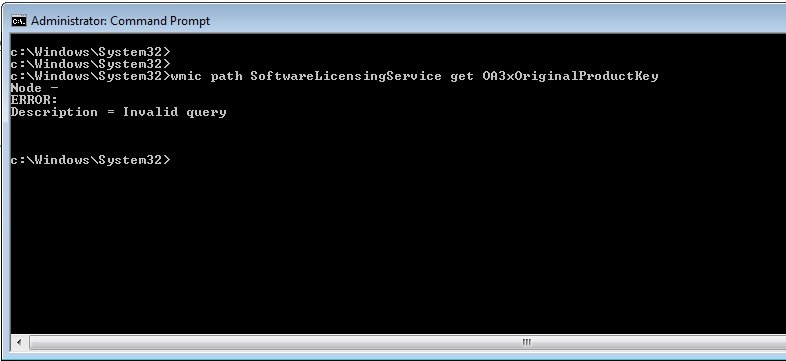
'wmic' is not recognized as an internal or external command
WMIC is deprecated and removed from Windows 11, versions 24H2 and 25H2.
- Use the
Get-CimInstance -ClassName SoftwareLicensingProductcommand in PowerShell instead. - Or run
slmgr /dliin Command Prompt.
slmgr /cpky fails with an access error
The option must run in an elevated window.
- Close the window.
- Right-click Command Prompt and select Run as administrator.
- Run
slmgr /cpkyagain.
Nothing prints in the console after slmgr
slmgr shows its results in a separate Windows Script Host window by default.
- Check the taskbar for the Windows Script Host window.
- To print in the console, run
cscript %windir%\system32\slmgr.vbs /dli.
How to save your product key safely
Additional tips for managing your product key come down to keeping one trusted record and limiting who can read it.
- Link your Microsoft account under Settings > System > Activation > Add an account.
- Photograph the COA label or key card and store the image in a password manager or encrypted vault.
- Keep the order confirmation email in a labelled folder.
- Note the edition with the key, because a Pro key will not activate Home.
- Never post the full key in a screenshot, forum or support chat.
- After deploying a retail key, run
slmgr /cpkyas administrator to clear the stored copy.
Using third-party tools to retrieve your product key
Key-finder programs read the same licensing data and registry entries as the built-in commands. On digital-license PCs they typically return a default key that cannot be reused elsewhere.
Security and legal notes: a product key is licensed for one device, keys sold cheaply by unauthorised sellers are often blocked, and a shared key can be marked invalid with error 0xC004C003.
Use slmgr /dli or the PowerShell query instead of a third-party key finder. The built-in commands come with Windows, need no download, and give the partial key needed to match your purchase record, while the full key is safest kept on the original card or email.
Windows product key command FAQ
How do I find my Windows product key with CMD?
Open Command Prompt, type slmgr /dli and press Enter. The Windows Script Host window shows the edition and the last five characters of the installed key under Partial Product Key. No administrator rights are needed.
How do I find my Windows product key with PowerShell?
Run Get-CimInstance -ClassName SoftwareLicensingProduct -Filter "PartialProductKey IS NOT NULL" and select Name and PartialProductKey. The Windows row shows the last five characters of the installed key and its LicenseStatus.
Can I find my full Windows product key on my PC?
Usually not through a Microsoft-documented command. Windows shows only the last five characters. The full key is on the COA label, the key card, your confirmation email or, on OEM PCs, in the firmware where setup reads it automatically.
Can I find the Windows product key in the BIOS?
On PCs sold with Windows preinstalled, the maker injects the key into the firmware's MSDM table. Windows setup reads it automatically during a reinstall, so you do not need to type it in.
Where do I find my Windows product key on Windows 11?
Check the packaging, the COA label or the order confirmation email. If you upgraded free from Windows 10 or bought from the Microsoft Store app, you have a digital license instead of a product key.
Where do I find my Windows product key on Windows 10?
The same places as Windows 11: the box or card for retail copies, the COA label for preinstalled PCs, and the confirmation email for digital purchases. Free upgrades from Windows 7 or 8.1 use a digital license.
Can I find my Windows product key on my Microsoft account?
Only if you bought Windows from the Microsoft online store. Sign in and open Order history. Digital licenses from upgrades are linked to the account, but no key is shown.
Can I find the Windows product key in the registry?
Not in a usable form on most PCs. Some retail installations keep a stored copy for setup, which slmgr /cpky removes. MAK and KMS host keys are cleared from the registry by default.
How do I know if my Windows product key is genuine?
Open Settings > System > Activation. A status starting with Windows is activated means the installed key or digital license is valid. Keys sold by unauthorised sellers often fail with error 0xC004C003.
What if I can't find my Windows product key?
If Windows is activated with a digital license, you do not need it to reinstall. Otherwise, contact the PC maker for preinstalled copies, the retailer for retail copies, or buy a new license from Settings > System > Activation.
Should you use Command Prompt or PowerShell to find the key?
Run slmgr /dli for a quick check and use the PowerShell query when you need the result in a script or console. Both read the same licensing data and show the same five characters, and neither depends on WMIC, which newer Windows 11 versions no longer include.