To find the model of your computer in Windows, open Settings > System > About: the model name appears just below the device name at the top of the page.
This guide covers that route and eight others, from System Information and PowerShell to the sticker on the case and the BIOS, plus how to tell a model name from a model number and serial number.
Find your computer model from the Settings menu
The About page works the same on Windows 11 and Windows 10, and it needs no admin rights.
- Right-click Start and select Settings, or press Windows key + I.
- Select System, then scroll down and select About.
- Read the model name shown directly under the device name at the top of the page.
- Look under Device specifications for the processor, installed RAM and system type if you need them too.
You can also open the page directly: press Windows key + R, type ms-settings:about and press Enter. The device name shown here is the name Windows uses on the network, which you can find and change separately from the model.
To find your laptop model, use the same About page: Windows 11 and Windows 10 laptops show the model name there just as desktops do.
Which way to find your PC model should you use?
Every method in this guide answers what kind of computer you have; pick the one that fits your situation.
| Your situation | Use this | Why |
|---|---|---|
| Windows starts normally | Settings > System > About | Model name in one screen |
| You need maker, model and SKU together | System Information (msinfo32) |
Shows System Manufacturer, System Model and System SKU |
| You are writing a script or checking a remote PC | PowerShell Get-CimInstance |
Returns the model as text you can copy |
| Windows will not start | The product label, or the BIOS/UEFI screen | Neither needs Windows |
| You need warranty or driver downloads | The maker's support app or website | They use the serial number or service tag |
| You have a Surface | The Surface app > Device information | Shows the exact Surface model name |
Use the System Information tool
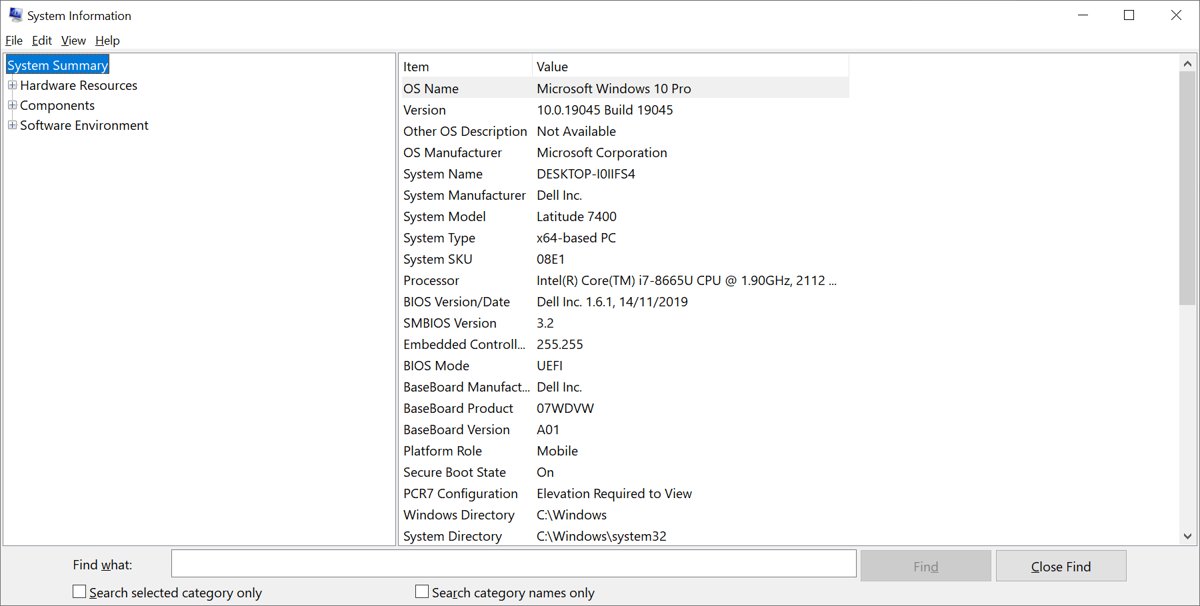
System Information (msinfo32) lists the manufacturer, model and SKU in one table, which helps when the About page shows only a short name.
- Select Start and type msinfo32 or System Information.
- Select System Information in the results.
- Make sure System Summary is selected in the left pane.
- In the right pane, read System Manufacturer for the brand and System Model for the model.
- Note System SKU if you need the exact configuration, for example when ordering parts.
The same table lists the BIOS version and the motherboard maker. On a custom-built desktop, System Model may show placeholder text instead of a real name, so find the motherboard model instead.
Use the DirectX Diagnostic Tool
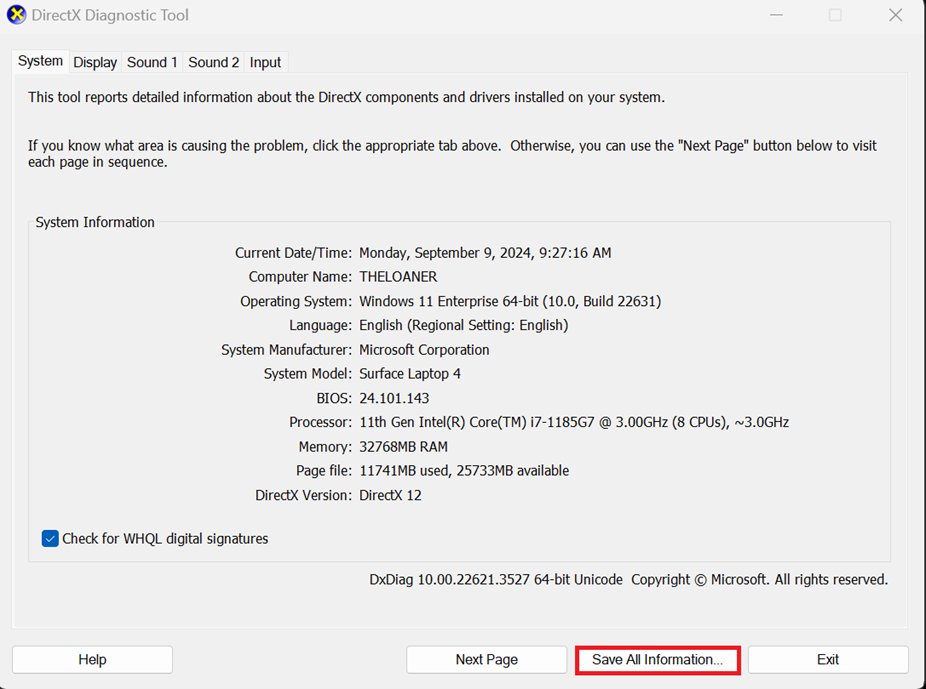
DxDiag is aimed at graphics and sound troubleshooting, but its first tab also summarises the system, including the computer's maker and model on most PCs.
- Select Search on the taskbar, type dxdiag and select dxdiag in the results.
- Select Yes if a message asks whether to check that your drivers are digitally signed.
- Stay on the System tab and read the System Information list.
- Select Save All Information if you want a text report to share with a support agent.
The first run can take up to a minute to collect data. If the search result does not appear, you can open DxDiag from the Run box instead.
Find computer model using PowerShell
PowerShell reads the model straight from the firmware's system information table through the Win32_ComputerSystem class.
Get-CimInstance -ClassName Win32_ComputerSystem | Select-Object Manufacturer, Model, SystemFamily, SystemSKUNumberRight-click Start, select Terminal (Windows 11) or Windows PowerShell (Windows 10), paste the command and press Enter. Manufacturer is the PC maker, Model is the product name the maker gave the computer, SystemFamily is the product line, and SystemSKUNumber identifies the exact configuration sold.
You should see: PowerShell prints a small table with the maker and model on one line, for example the brand in the first column and the model name in the second.
Run Get-CimInstance -ClassName Win32_BIOS | Select-Object SerialNumber, SMBIOSBIOSVersion to get the serial number and BIOS version as well. Many makers use that serial number, or a service tag, to look up the exact model on their support site.
Find computer model using Command Prompt
The old wmic csproduct and wmic computersystem commands no longer work on current Windows 11. Microsoft removed WMIC from Windows 11, versions 24H2 and 25H2, in August 2026, and it cannot be added back as an optional feature.
- Select Start, type cmd and select Command Prompt.
- Type
powershell -NoProfile -Command "Get-CimInstance -ClassName Win32_ComputerSystem | Select-Object Manufacturer, Model"and press Enter. - Read the maker under Manufacturer and the model under Model.
- Alternatively, type
systeminfoand press Enter to list the full system configuration, including the hardware details, then scroll to the system lines near the top.
The first command runs PowerShell inside Command Prompt and returns to the prompt when it finishes, so it also works in batch files.
Check the product label or packaging
The sticker works even when the PC will not turn on. It usually carries the model name, the model or product number, and the serial number or service tag.
- Shut down the computer and unplug it.
- On a laptop, turn it over and check the bottom cover.
- On a desktop, check the back panel, the side panel or the top of the case.
- On a tablet or 2-in-1, check the back or the bottom edge.
- If the label is worn off, check the original box or the purchase receipt, which normally list the full model.
Dell, for example, prints the Service Tag on the bottom cover of laptops and the back panel of desktops.
Photograph the physical label once, so the model number and serial number are on hand if the sticker wears off later.
Visit the manufacturer's website
PC makers can identify the exact model from a serial number or service tag, which settles any doubt about similar-looking models.
- Get the serial number or service tag from the label or with the PowerShell
Win32_BIOScommand above. - Open the PC maker's support site in a browser.
- Enter the serial number or service tag in the product search box, or use the site's option to detect your product if it offers one.
- Read the full model name on the product page that opens, along with drivers and warranty details.
Lenovo owners can use the Lenovo serial number lookup to match the serial to a machine type and model.
Use your computer's device management app
Most PC makers preinstall a support app that shows the model, serial number and warranty status on its home screen.
| PC brand | App | Where the model appears |
|---|---|---|
| Microsoft Surface | Surface app | Expand Device information and read Surface model |
| Dell | SupportAssist | The app shows the Service Tag, which identifies the exact model on Dell's site |
| Other brands | The maker's support app, found by searching Start for the brand name | Usually on the home or device information screen |
Surface owners without the app can install it from the Microsoft Store, or sign in to the Microsoft account devices page and select Info & support next to the registered device.
Find computer model in BIOS settings
The firmware setup screen, called BIOS or UEFI, shows the model on most PCs and works even if Windows is damaged. Its layout depends on the PC maker.
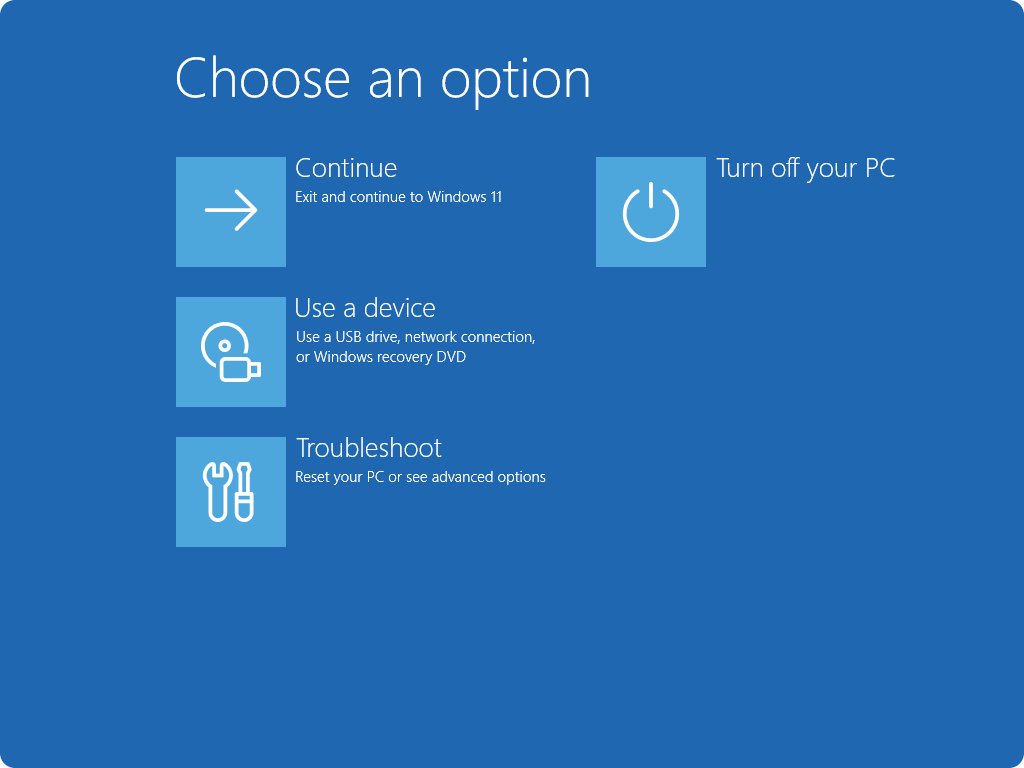
- Save your work, then open Settings > System > Recovery (Windows 10: Update & Security > Recovery).
- Next to Advanced startup, select Restart now.
- Select Troubleshoot > Advanced options > UEFI Settings > Restart.
- On the first firmware screen, usually called Main, Information or System Information, read the product or model name.
- Exit without saving changes to return to Windows.
How to find your computer type on Windows 11 and Windows 10
The model name rarely says whether the PC is a laptop, desktop or convertible. Windows reads that from the chassis type the maker stored in the firmware, and PowerShell can show it.
Get-CimInstance -ClassName Win32_SystemEnclosure | Select-Object Manufacturer, ChassisTypesRight-click Start, select Terminal (Windows 11) or Windows PowerShell (Windows 10), paste the command and press Enter. ChassisTypes returns a number in braces that stands for the physical form of the computer, as listed in the next section.
You should see: PowerShell prints the maker and a value such as {10}, which means Notebook, or {3}, which means Desktop.
For a broader answer, run (Get-CimInstance -ClassName Win32_ComputerSystem).PCSystemType. It returns 1 for a desktop, 2 for a mobile PC such as a laptop, and 3 for a workstation.
What computer type means: desktop, laptop, tablet or convertible
Computer type describes the physical form of the PC, not its brand or model. The codes below come from the SMBIOS chassis field that Windows exposes through ChassisTypes.
| ChassisTypes value | Computer type | What it usually looks like |
|---|---|---|
| 3, 4, 6, 7 | Desktop, low profile desktop, mini tower, tower | A separate case with its own monitor, keyboard and mouse |
| 8, 9, 10, 14 | Portable, laptop, notebook, sub notebook | A clamshell with a built-in screen, keyboard and battery |
| 13 | All in one | The PC is built into the back of the monitor |
| 30 | Tablet | A touchscreen device with no attached keyboard |
| 31 | Convertible | A 2-in-1 whose screen folds back over the keyboard |
| 32 | Detachable | A 2-in-1 whose keyboard comes off |
| 1 or 2 | Other or unknown | The maker did not set the field; check the label or the maker's site |
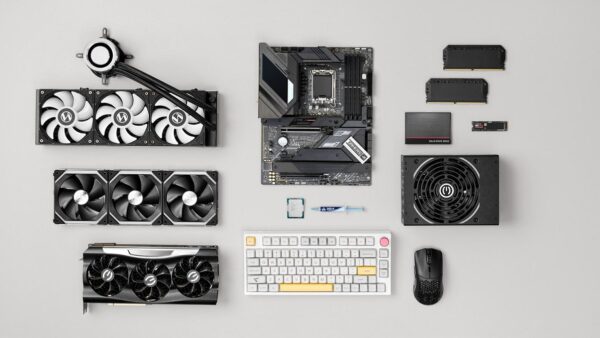
A custom-built desktop often reports a generic value, because the case maker or motherboard maker fills in the chassis field rather than a PC brand.
Key computer specs and how to check them on Windows
Once you know the model, the specs tell you what the computer can run. Apps, games and upgrade parts are all matched against these details, so they are worth writing down and keeping with the model and serial number.
| Spec | Where to check it in Windows | Why it matters |
|---|---|---|
| Processor (CPU) | Settings > System > About > Device specifications; live speed in Task Manager > Performance > CPU | Software and game requirements list a minimum processor |
| Installed RAM | Settings > System > About; Task Manager > Performance > Memory | Decides how many apps run smoothly at once and what an upgrade needs |
| Storage (SSD or HDD) | Task Manager > Performance > Disk | An SSD loads Windows and apps far faster than a spinning hard drive |
| Graphics card (GPU) | Task Manager > Performance > GPU; the DirectX Diagnostic Tool (dxdiag) |
Games and video editors list a minimum GPU and driver |
| System type (32-bit or 64-bit) | Settings > System > About | Decides which version of an app to install |
| Windows edition and version | Settings > System > About > Windows specifications | Support agents and app requirements ask for it |
| BIOS version and motherboard | System Information (msinfo32) > System Summary |
Needed for firmware updates and parts compatibility |
To get details about specific PC components, open System Information (msinfo32), which lists the BIOS version, motherboard model, graphics, drivers and whether virtualization is enabled. The Performance tab in Task Manager (Ctrl + Shift + Esc) also shows the Wi-Fi adapter and live usage graphs.
To check the specs with Task Manager, press Ctrl + Shift + Esc, select Performance, then select CPU, Memory, Disk or GPU in the left column to see that component's name and current usage.
For more detail than Windows shows, the free CPU-Z tool from CPUID lists the processor name, codename and cache levels, the motherboard and chipset, and the memory type, size and timings. It is fully supported on Windows 11; get it only from the official cpuid.com page.
Model name vs model number vs serial number
Support sites ask for different identifiers, and mixing them up is the most common reason a search returns the wrong product.
| Identifier | What it is | Where Windows shows it |
|---|---|---|
| Model name | The product name the maker gave the computer | Settings > System > About; System Model in msinfo32 |
| Product line or family | The range the model belongs to | SystemFamily in PowerShell |
| SKU or product number | The exact configuration that was sold | System SKU in msinfo32; SystemSKUNumber in PowerShell |
| Serial number or service tag | Unique to your single unit, used for warranty | SerialNumber from Win32_BIOS; the product label |
| Device name | The name Windows uses on the network, which you can change | Top of the About page |
A hardware ID is something else again: it identifies one component, not the whole PC, and you can find the HWID through Device Manager.
Why your computer model number matters
The model number is the key that unlocks the right drivers, parts and support for your exact PC, so it pays to find it before you need it.
| What you want to do | What to look up | Identifier to use |
|---|---|---|
| Download drivers or a BIOS update | The maker's support page for your model | Model name, or the serial number or service tag |
| Check or claim warranty | The maker's warranty lookup | Serial number or service tag |
| Buy a battery, charger, RAM or SSD | Parts listed as compatible with your model | Model number or SKU |
| Check whether an app or game will run | Its minimum requirements against your specs | Processor, RAM, GPU and system type |
| Sell, trade in or get a repair quote | Listings and quotes for the same model | Model name and SKU |
PC makers refresh their ranges regularly, and a model name can be reused for a newer generation or sold in several configurations. That is why support sites prefer the SKU, serial number or service tag: each points to one exact machine, not just the family.
Computer model shows OEM, blank or the wrong name in Windows
System Model says "To be filled by O.E.M.", "System Product Name" or is blank
Windows reads the model from the firmware, and the maker of a custom-built PC or a replacement motherboard left that field empty.
- Open System Information (
msinfo32) and read the motherboard maker and model in System Summary instead. - Use that motherboard model on the motherboard maker's support site for drivers and BIOS updates.
- For a branded PC that shows placeholder text after a repair, check the label and contact the maker, because only it can restore the original firmware data.
wmic is not recognized as an internal or external command
Microsoft removed WMIC from Windows 11, versions 24H2 and 25H2.
- Open Terminal or Windows PowerShell.
- Run
Get-CimInstance -ClassName Win32_ComputerSystem | Select-Object Manufacturer, Modelinstead. - Update any old batch files that call
wmic csproductto use the PowerShell command.
Windows shows only a short family name, not the exact model
Some makers put the product line in the model field and the exact configuration in the SKU.
- Open System Information and note System SKU.
- Or run the PowerShell command from earlier and read SystemSKUNumber.
- Enter the SKU or the serial number on the maker's support site to see the full model.
The label is worn off and the PC will not start
Without Windows, the model can only come from the case, the firmware or the maker's records.
- Check the original box, the receipt or the order confirmation email.
- Try the BIOS or UEFI screen, which opens with the maker's startup key before Windows loads.
- If you registered the PC, sign in to the maker's support site, or for a Surface, the Microsoft account devices page, and select the device to see its details.
What type of computer do I have? FAQ
Short answers to frequently asked questions about identifying a Windows PC by brand.
What type of computer do I have?
Open Settings > System > About to see your computer's model name under the device name. For the brand as well, open System Information by typing msinfo32 in Start and read System Manufacturer and System Model. Both work on Windows 11 and Windows 10.
What type of computer do I have in Windows 11?
In Windows 11, press Windows key + I, select System, then About. The model name appears directly below the device name at the top. The Device specifications section underneath lists the processor, installed RAM and whether Windows is 64-bit.
What type of computer do I have in Windows 10?
In Windows 10, open Settings > System > About and read the model name under the device name. You can also type msinfo32 in the search box and read System Model in the System Summary, or check the label on the bottom or back of the PC.
What type of HP computer do I have?
Open System Information with msinfo32 and read System Model, which shows the HP model name. The label on the bottom of an HP laptop or the back of a desktop also lists the model and serial number, which HP's support site uses to find drivers.
What type of Dell computer do I have?
Check Settings > System > About or System Information for the Dell model name. For the exact configuration, find the Service Tag on the bottom cover of a laptop or the back panel of a desktop, or in SupportAssist, and enter it on Dell's support site.
What type of Lenovo computer do I have?
Read System Model in System Information, which shows the Lenovo machine type and model. The label on the underside of the laptop lists the same details plus the serial number, which Lenovo's support site matches to your exact product.
What type of Microsoft computer do I have?
On a Surface, open the Surface app and expand Device information to see the Surface model. You can also open System Information and read System Model or System SKU, or check the Microsoft account devices page if the Surface is registered.
What kind of computer do I have if the model says System Product Name?
A placeholder like that means the PC was custom built or the maker left the field empty. Look up the motherboard model instead, because on a custom-built PC the motherboard maker's support site is where drivers and BIOS updates come from.
Where do I find what type of computer I have without turning it on?
Check the product label on the bottom of a laptop or the back or side of a desktop case. The original box and purchase receipt also list the model. Neither needs the computer to start.
Where is My Computer in Windows 11?
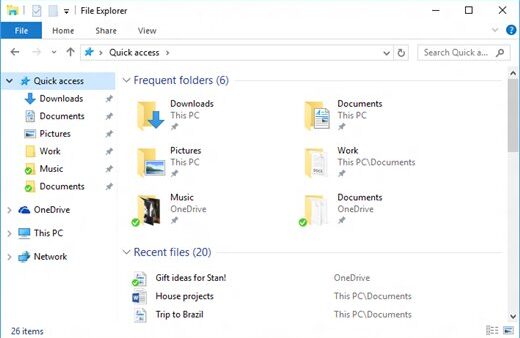
My Computer is called This PC in Windows 11 and Windows 10, and it opens in File Explorer. It shows your drives, not the model; for the model, use Settings > System > About. You can also find This PC quickly for quick access.
Bottom line: the quickest way to find your computer model
Use Settings > System > About for a quick answer, and System Information (msinfo32) when you need the maker, model and SKU for drivers or parts. Both are built into Windows 11 and Windows 10 and need no commands, while the label and the BIOS screen remain the fallback when Windows will not start.