To cancel a print job on any printer, press the printer's Stop or Cancel button while it is printing, or open the Windows print queue and select Cancel on the job.
This guide gives the exact button for HP, Brother, Epson, Canon, Xerox and Samsung printers, the computer and phone routes, and what to do when a job refuses to cancel.
How to cancel print job on Windows 11
This works for every brand, because Windows holds the job until the printer accepts it.
- Select Start > Settings > Bluetooth & devices > Printers & scanners.
- Select your printer, then select Open print queue.
- Right-click the job and select Cancel.
- To clear every waiting job at once, select the … (ellipsis) menu and choose Cancel all.
- Wait for the list to empty. A job marked Deleting clears once the printer stops receiving it.
If the printer keeps printing after the queue is empty, the job is already in the printer's memory. Use the printer's own button, listed by brand below.
Can I cancel a print job on my printer?
Yes. Most printers have a Stop or Cancel control that ends the page in progress. Find your brand and button type in the table.
| Printer | Button to press | Cancel all jobs |
|---|---|---|
| Brother HL-L2300 series | Hold Go for about two seconds | Use the Windows queue |
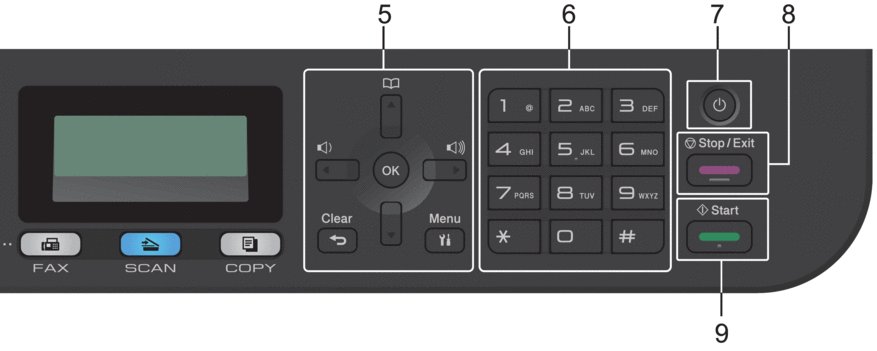
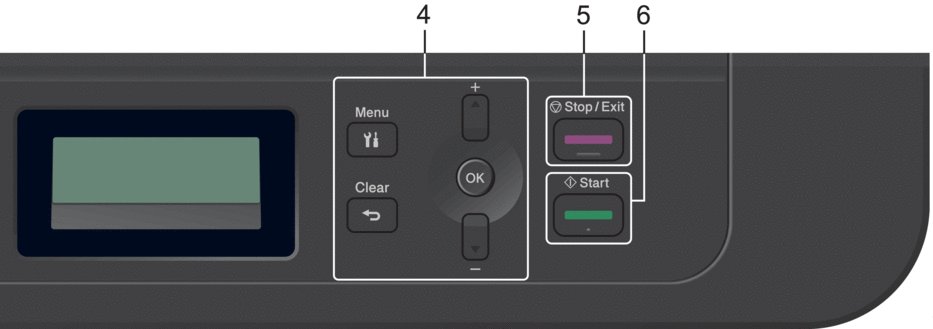
| Brother HL-L2390DW, MFC-L2710DW, HL-L3290CDW | Stop/Exit | Hold Stop/Exit for four seconds |
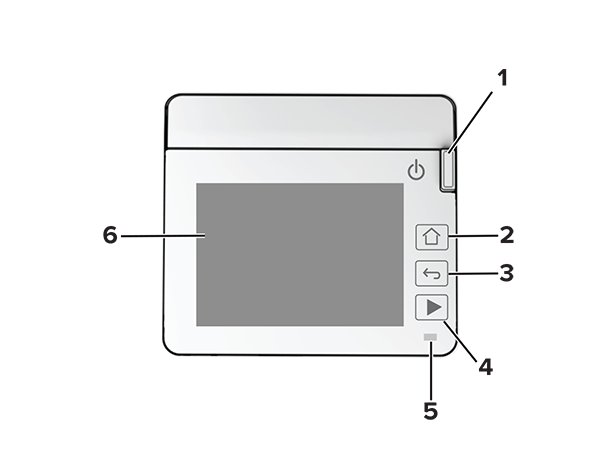
| Brother touchscreen (MFC-L2750DW, MFC-L3770CDW) | The stop icon on the screen | Hold the stop icon for about four seconds |
| Brother with a Job Cancel key (HL-5380DN) | Job Cancel | Hold Job Cancel for about four seconds |
| Epson EcoTank and WorkForce | The stop, cancel or Stop/Reset button | Use the Windows queue |
| Canon PIXMA | Stop (never ON) | Use the Windows queue |
| Xerox VersaLink | Home > Jobs > job > Delete | Delete each job in Jobs |
| Xerox C240, C2432, C300 | Job Queue > Print > job, or Cancel job | Delete each job in Job Queue |
| HP and Samsung | Use the Windows print queue | Cancel all in the queue |
How to cancel print job on HP printers
HP control panels differ by model, so the print queue on the computer is the route that works on every HP DeskJet, ENVY, OfficeJet and LaserJet. A stuck job blocks everything behind it, so clear it before you print again.
- Open Settings > Bluetooth & devices > Printers & scanners.
- Select your HP printer, then select Open print queue.
- Right-click each document and select Cancel.
- If a job will not leave the list, press Windows + R, type
services.mscand press Enter. - Right-click Print Spooler and select Restart.
- Turn the HP printer off, wait 30 seconds, turn it back on, then restart the computer.
If the HP printer shows as offline after this, fix the HP printer offline status before you send the next job.
How to cancel print job on Brother printers
Brother uses three different controls. Check which one your printer has, then press it while the job is printing.
- On HL-L2300D, HL-L2305W, HL-L2315DW, HL-L2320D, HL-L2340DW and HL-L2360DW, press and hold Go for about two seconds.
- On HL-L2390DW, DCP-L2550DW, MFC-L2690DW, MFC-L2710DW, MFC-L2717DW, HL-L3290CDW and DCP-L3551CDW, press Stop/Exit.
- To cancel several jobs on those models, press and hold Stop/Exit for four seconds.
- On touchscreen models such as HL-L2395DW, MFC-L2730DW, MFC-L2750DW, MFC-L3710CW, MFC-L3750CDW and MFC-L3770CDW, press the stop icon, or hold it for about four seconds to cancel multiple jobs.
- On models with a Job Cancel key, press it once. The screen shows CANCEL PRINTING until the job ends.
- To delete every job on a Job Cancel model, hold the key for about four seconds until the screen shows CANCEL ALL JOBS, then READY.
If the screen shows No Data!!!, the printer is not receiving or printing anything, so there is nothing to cancel on the printer. Clear the job from the computer's queue instead.
How to cancel print job on Epson printers
Epson names the button differently across its range. Press it once while the page is printing, then clear the computer's queue if the job is still listed there.
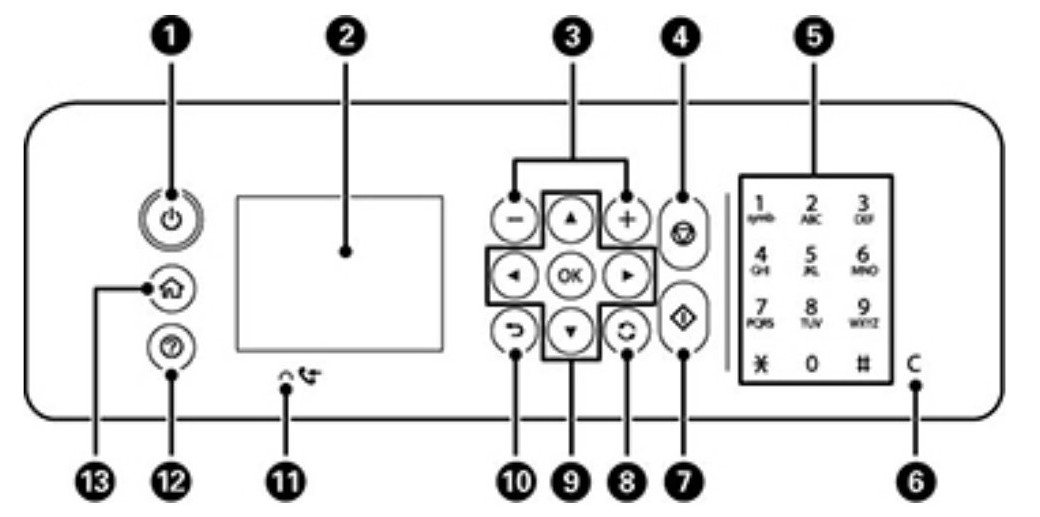
- On EcoTank models such as the L3150, press the stop button on the printer.
- On WorkForce models such as the WF-2830 and WF-2850, press the cancel button.
- On WorkForce Pro models such as the WP-4020 and WP-4540, press Stop/Reset.
- On a PC, open Control Panel > Hardware and Sound > Devices and Printers.
- Right-click your Epson printer and select See what's printing.
- Right-click the stalled job, select Cancel, then select Yes.
Epson ET-2800 and ET-2400 owners can use the same Windows queue steps; the job disappears from the list once it is cancelled. If the Epson printer is new on this PC, set up the Epson printer so its queue appears in Windows.
How to cancel print job on Canon printers
Canon PIXMA printers cancel with the Stop button. The ON button is the one to avoid.
- Press Stop on the printer while it is printing.
- Do not press ON during printing. The print data then queues inside the printer, and you may not be able to continue printing.
- If more Canon jobs are waiting, open the print queue on the Windows PC or Mac and delete them there.
How to cancel print job on Xerox printers
Xerox office printers keep a job list on the touchscreen, so you can delete a specific job instead of stopping everything.
- On a VersaLink printer, press the Home button on the control panel.
- Touch Jobs, then touch the name of the print job.
- Touch Delete, then touch Delete again at the prompt. Touch Pause instead if you only want to hold it.
- Make a choice within 60 seconds, or the paused job resumes automatically.
- On a Xerox C240, C2432 or C300, select Job Queue, select Print, then select the job to cancel.
- If the document is already printing on those models, select Cancel job in the lower-right corner of the display.
A system administrator can block job deletion. In that case you can view jobs but not delete them, and only the sender or the administrator can delete a Secure Print job.
How to cancel print job on Samsung printers
Samsung no longer makes printers, and HP handles all support for Samsung-brand printers. Cancel a Samsung job from the computer that sent it.
- Open Settings > Bluetooth & devices > Printers & scanners.
- Select the Samsung printer, then select Open print queue.
- Right-click the job and select Cancel, or use … > Cancel all.
- If the Samsung printer keeps printing, turn it off, unplug it for 30 seconds, then turn it back on.
How to cancel print job on computer with Control Panel
Control Panel still opens the classic queue window on Windows 11 and Windows 10. It suits Lenovo, Dell and HP laptops alike, and works for DYMO label printers too.
- Select Start, type
Control Paneland open it. - Select Hardware and Sound > Devices and Printers.
- Right-click the printer and select See what's printing.
- Right-click each job and select Cancel, then select Yes.
- On Windows 10 you can also open Settings > Devices > Printers & scanners, select the printer and select Open queue.
Cancel all print jobs in queue with PowerShell
PowerShell clears a queue in one line, which helps when the queue window freezes. Removing a print job does not need administrator rights.
Get-PrintJob -PrinterName "Your printer name" | Remove-PrintJobGet-PrintJob lists every job on the named printer, and Remove-PrintJob deletes each one it receives. Run Get-Printer first to see the exact printer names. To delete a single job, use Remove-PrintJob -PrinterName "Your printer name" -ID 1 with the job's ID.
You should see: Running Get-PrintJob -PrinterName "Your printer name" again returns nothing.
How to cancel print job on Mac
- Choose the Apple menu > System Settings, then click Printers & Scanners.
- Double-click your printer to open its print queue.
- Select the pending job, then click the delete button next to it.
Cancel print job on iPhone
- Open the App Switcher while the job is printing.
- Tap Print Center. The badge on its icon shows how many documents are in the queue.
- Select the print job.
- Tap Cancel Printing.
How to tell if a print job is cancelled
- Open Settings > Bluetooth & devices > Printers & scanners > your printer > Open print queue.
- Check that the list is empty. An empty list means no jobs are waiting for that printer.
- Use the Printers drop-down in the queue window to make sure you are looking at the right printer.
- On a Brother printer with a screen, look for READY after the cancel message clears.
- On iPhone, open Print Center from the App Switcher and check that the job is no longer listed.
Why won't my print job cancel?
A job that will not cancel is usually stuck in the Windows spooler or already sitting in the printer's memory. Match what you see to a fix below.
Why can't I cancel a print job in queue? (stays on "Deleting")
The Print Spooler service is holding the job file open.
- Press Windows + R, type
services.mscand press Enter. - Right-click Print Spooler and select Stop.
- Open File Explorer and go to
C:\Windows\System32\spool\PRINTERS. - Delete all files in that folder.
- Right-click Print Spooler and select Start.
Why won't my printer cancel the print job after the queue is empty?
The whole job has already been sent to the printer, so Windows can no longer stop it.
- Press the printer's own Stop, Cancel, Stop/Exit or Job Cancel button.
- If the printer has no such button or it does not respond, turn the printer off.
- Wait at least 60 seconds, then turn it back on.
Cancelled print job comes back after a restart
The job file is still in the spool folder, so the spooler sends it again.
- Stop the Print Spooler service and empty
C:\Windows\System32\spool\PRINTERSas above. - Turn off the printer, wait at least 60 seconds and turn it back on.
- Select Start > Power > Restart on the PC.
- If the job still returns, delete the stuck print job with the full spooler reset.
Canon printer stops printing after the ON button was pressed
Pressing ON mid-job leaves the print data queued inside the printer.
- Press Stop on the printer.
- Cancel the job in the computer's print queue.
- Send the document again.
Printer only prints one page then stops on PC
When a printer starts a job and then stops, it is usually holding the job for a fault, or the driver and spooler are not passing the rest of the pages.
Printer pauses after the first page with a warning light or message
The printer holds a job when it needs attention, paper or supplies.
- Check the printer for low paper or ink, an open cover or a paper jam.
- Fix the condition. Many printers, including Xerox models, resume the held job automatically.
- On a Xerox printer, open Jobs, touch the held job and touch Resume if it does not restart.
- On a Brother printer in pause mode, press Go to print the data still in memory.
Every multi-page document stops after one page
A damaged spool file or an outdated printer driver.
- Cancel all jobs in the print queue.
- Clear and reset the print spooler, then set its Startup Type to Automatic.
- Install the latest driver for your printer from the manufacturer's website.
- On Windows 11, run the printer troubleshooter in the Get Help app.
- Print a two-page test document.
The problem started after a driver or Windows update
The printer entry is using a broken driver package.
- Open Settings > Bluetooth & devices > Printers & scanners.
- Select the printer, select Remove, then select Yes.
- Select Add device and add the printer again.
- Print a test page to confirm the printer works.
Printer not working with Hyper-V virtual machine
A Hyper-V virtual machine can print to the host's printer only through Virtual Machine Connection (VMConnect) in an enhanced session. The host needs Enhanced session mode policy and Enhanced session mode turned on. The PC running VMConnect and the virtual machine both need Windows 10 or Windows Server 2016 or later, and the VM needs Remote Desktop Services enabled.
- Open VMConnect and select the virtual machine.
- Select Show options.
- Select Local resources and include printers among the local devices to share.
- Select Save my settings for future connections to this virtual machine.
- Select Connect, then print from the VM to the shared host printer.
- To change these settings later, run
VMConnect.exe <ServerName> <VMName> /editfrom an elevated prompt.
How to rename a Printer in Windows 11
A printer's name is only for your own reference, so a clearer name makes the right queue easier to find. Open Terminal (Admin), because renaming needs administrator rights.
Rename-Printer -Name "Old printer name" -NewName "New printer name"Run Get-Printer first to copy the exact current name. Rename-Printer does not accept wildcards, so type the full name in quotes.
You should see: Get-Printer lists the printer under its new name, and the new name appears in Printers & scanners.
You can also name a printer when you add it manually: the wizard asks you to Type a name for your printer before you choose sharing options.
Cancel print job FAQ
How do I cancel a print job on an HP printer?
Open Settings > Bluetooth & devices > Printers & scanners, select the HP printer, select Open print queue, then right-click the job and select Cancel. If it will not clear, restart the Print Spooler service and power cycle the printer for 30 seconds.
How do I cancel a print job on a Brother printer?
Press Stop/Exit on most current Brother laser printers, or hold it for four seconds to cancel several jobs. Older HL-L2300 models use a two-second hold on Go, and models with a Job Cancel key cancel all jobs with a four-second hold.
How do I cancel a print job on a Canon printer?
Press the Stop button on the Canon printer while it prints. Never press ON during a job, because the print data then queues inside the printer and printing may not continue. Delete any remaining jobs in the computer's print queue.
How do I cancel a print job on an Epson EcoTank printer?
Press the stop or cancel button on the Epson printer, then open the Windows print queue and cancel the job if it is still listed. This applies to EcoTank models such as the ET-2800 and ET-2400 as well as WorkForce printers.
How do I cancel a print job on a DYMO label printer?
Cancel it in the Windows print queue like any other printer: open Printers & scanners, select the DYMO printer, select Open print queue, right-click the label job and select Cancel. Use Cancel all from the ellipsis menu to clear several labels.
How do I cancel all print jobs at once?
Open the printer's print queue in Windows 11 Settings, select the ellipsis menu and choose Cancel all. In PowerShell, Get-PrintJob -PrinterName with your printer name piped to Remove-PrintJob deletes every job on that printer.
How do I cancel a print job on a Lenovo laptop?
Lenovo laptops use the standard Windows print queue. Select Start > Settings > Bluetooth & devices > Printers & scanners, select the printer, select Open print queue, right-click the job and select Cancel.
Can I cancel a print job on my printer instead of the computer?
Yes, on most printers. Press Stop, Cancel, Stop/Exit or Job Cancel on the control panel while the page prints, or delete the job in the Jobs list on Xerox touchscreens. The printer button stops only what the printer has received.
Why won't a print job cancel?
The Print Spooler service is usually holding the job file. Stop the Print Spooler in services.msc, delete everything in C:\Windows\System32\spool\PRINTERS, then start the service again. If the printer still prints, the job is already in its memory, so use the printer's button.
How do I cancel a print job on iPhone?
Open the App Switcher, tap Print Center, select the job and tap Cancel Printing. The badge on the Print Center icon shows how many documents are still in the queue.