To factory reset a Lenovo laptop, open Settings > System > Recovery, select Reset PC, choose Remove everything, and follow the prompts.
This guide covers that route plus resetting from the Windows Recovery Environment when the laptop will not start, using a USB recovery drive, what replaced OneKey Recovery, and what to do afterwards.
How to factory reset a Lenovo laptop
This works on any Lenovo laptop running Windows 11, including IdeaPad, Yoga, Legion, ThinkPad and ThinkBook models. Plug in the charger first, because the reset can take a while.
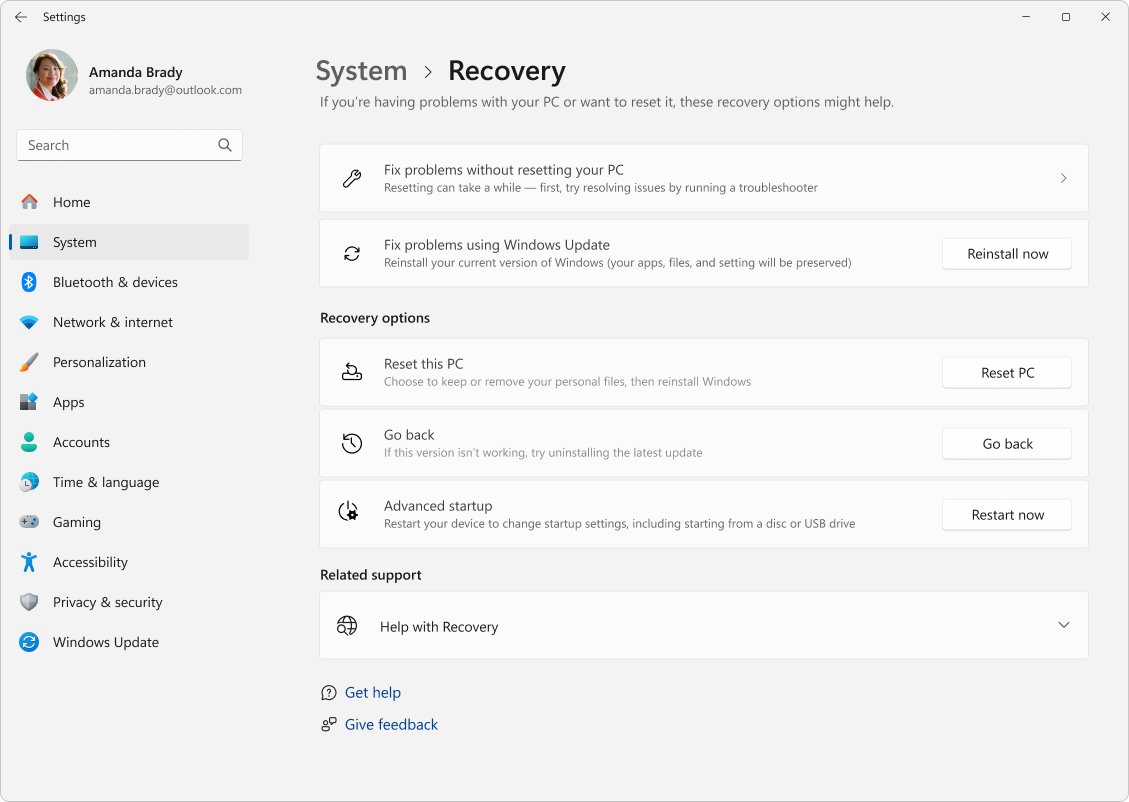
- Open Settings and select System > Recovery.
- Under Recovery options, select Reset PC.
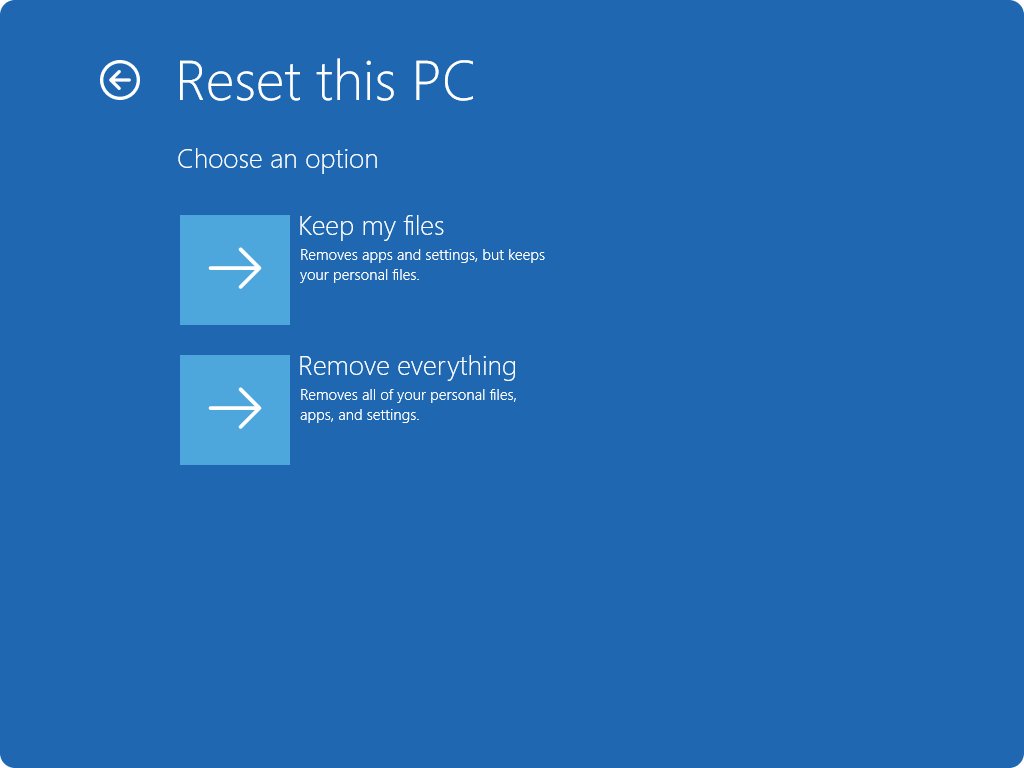
- Select Remove everything for a full factory reset, or Keep my files to keep your documents.
- Choose Cloud download for a fresh copy of Windows or Local reinstall to use the files already on the laptop.
- Under the additional settings, turn on Clean data if you are selling or giving the laptop away.
- Follow the on-screen instructions to start the reset, then leave the laptop alone until it finishes.
The screen can stay black for 15 minutes or longer, and the laptop may restart by itself. Do not restart it manually, because that can make the reset fail. Older Lenovo laptops still on Windows 10 use a different menu path to reset Windows 10 to factory settings.
Understanding factory reset
A factory reset reinstalls Windows and returns the laptop to the condition it left the factory in. Lenovo puts most resets at 30 minutes to an hour, depending on drive size and processor speed.
| Option | What it keeps | What it removes | Use it when |
|---|---|---|---|
| Keep my files | Personal files, user accounts and important settings | Apps you installed and changed settings | Windows is slow or broken but you want your data |
| Keep my files with Restore preinstalled apps | Your files plus Lenovo's preinstalled customizations | Apps you installed | You want Lenovo's original apps back too |
| Remove everything | Nothing personal; Lenovo's preinstalled apps return | All accounts, files, apps and settings | You want a clean start or are passing the laptop on |
| Remove everything with Clean data | Nothing | Everything, and the drive is cleaned so files are harder to recover | Selling, donating or recycling the laptop |
| Cloud download | Same as the option above it | Same as the option above it | Local Windows files are damaged or you want the latest version |
| Local reinstall | Same as the option above it | Same as the option above it | Your internet connection is slow |
Microsoft notes that Clean data is aimed at consumers and does not meet government or industry data erasure standards.
Back up your Lenovo laptop before you begin a factory reset
A factory reset cannot be undone, so anything not backed up is gone. Spend ten minutes on these items first, especially if you are preparing a laptop to return or sell.
| What to prepare | Why | How |
|---|---|---|
| Back up personal files | Remove everything deletes them, and recovery media does not include them | Copy them to an external drive or cloud storage |
| BitLocker recovery key | An encrypted laptop asks for it during a reset from the recovery environment | Look it up with Microsoft's Find your BitLocker recovery key help before you start |
| Account passwords | You sign in to Windows, email and apps again afterwards | Write down or export passwords you do not remember |
| Product keys and installers | Apps you installed are removed even with Keep my files | Note which apps you need to reinstall |
| Charger | A reset that loses power can fail | Keep the laptop plugged in the whole time |
| Empty USB drive (optional) | Needed only for the USB recovery drive route | Lenovo recommends at least 32 GB |
Lenovo laptop reset options: Settings, recovery environment or USB drive
| Your situation | Use this | Why |
|---|---|---|
| Windows starts and you can sign in | Settings > System > Recovery > Reset PC | Fastest route, and Windows repairs damaged system files first |
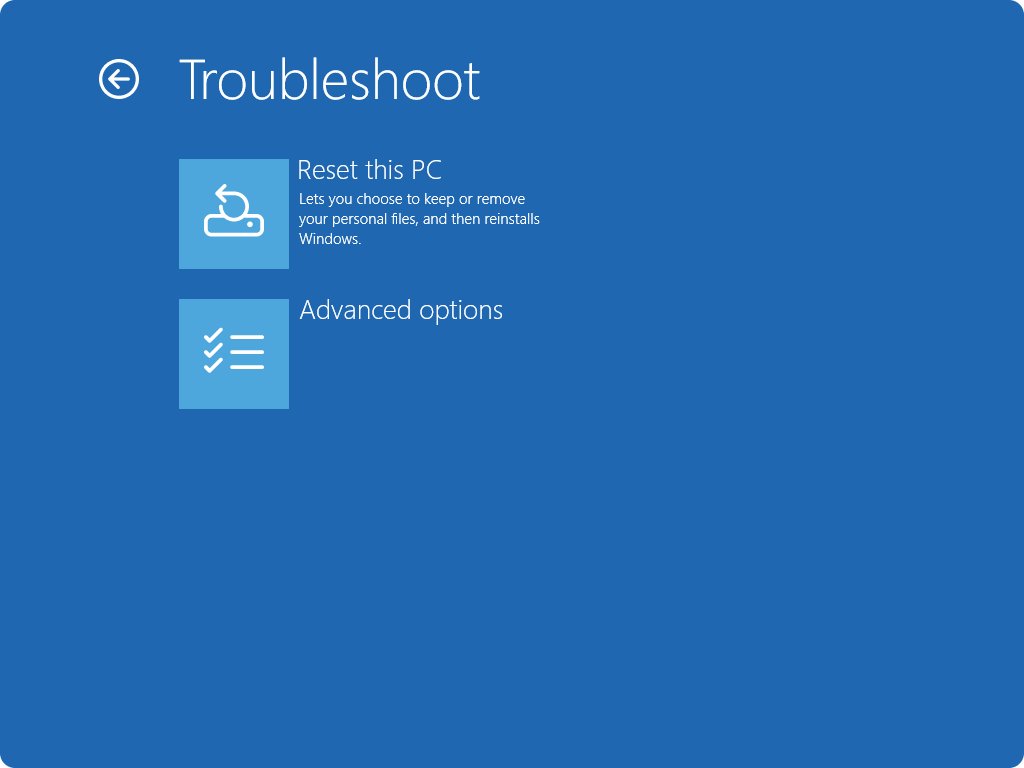
| You are stuck at the sign-in screen or forgot the password | Hold Shift and select Restart, then Troubleshoot > Reset this PC | Works without signing in |
| Windows fails to start twice in a row | The Windows Recovery Environment opens by itself | Reset from Troubleshoot > Reset this PC |
| The drive was replaced or the recovery environment is broken | USB recovery drive, chosen with F12 | Reinstalls Windows and Lenovo's customizations from the USB drive |
| Older Lenovo laptop with OneKey Recovery | See the OneKey Recovery section below | Current models reset through Windows instead |
Factory reset a Lenovo laptop from the Windows Recovery Environment
Use this when you cannot get into Windows. If you only forgot your sign-in details, you can reset your Windows password instead and keep everything.
- On the sign-in screen, select the Power icon.
- Hold Shift while you select Restart.
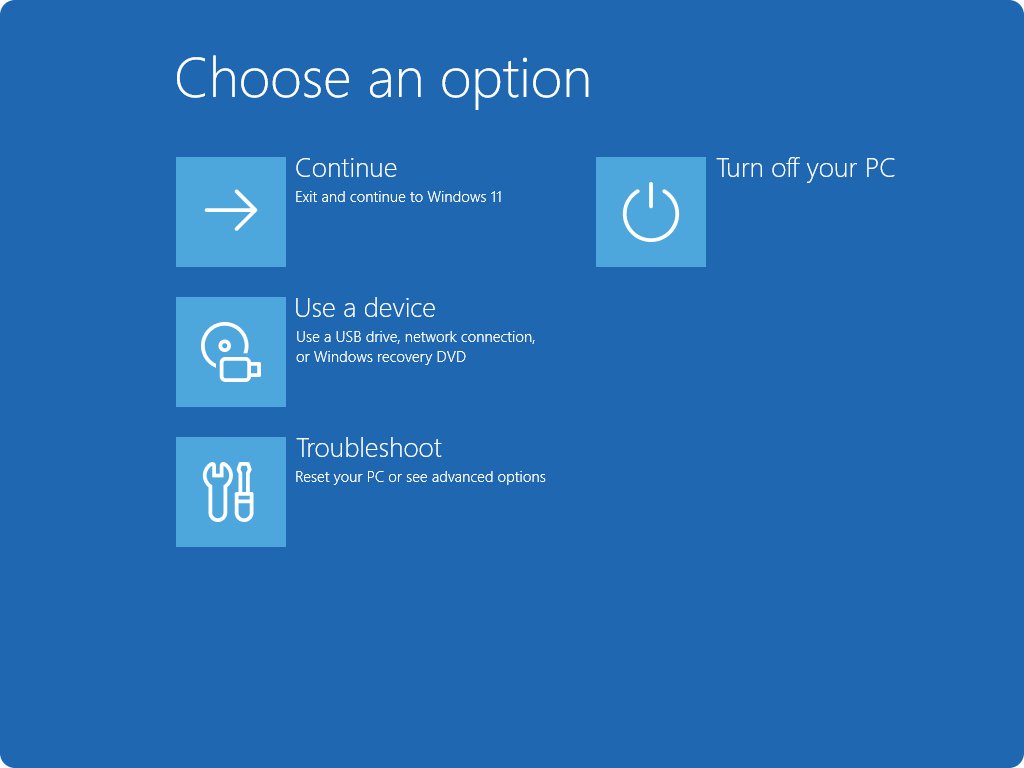
- When the blue menu appears, select Troubleshoot > Reset this PC.
- Choose Keep my files or Remove everything.
- Enter your BitLocker recovery key if the laptop asks for it.
- Pick Cloud download or Local reinstall and follow the on-screen prompts to start the reset.
If Windows will not load at all, the Windows Recovery Environment starts automatically after two failed start attempts in a row.
Factory reset a Lenovo laptop from a USB recovery drive
A recovery drive restores Windows and Lenovo's factory customizations even after the internal drive was replaced or wiped. Create it on a working PC of the same model, ideally the laptop itself before problems start.
- On a working laptop, search the Start menu for Recovery Drive and open it.
- Make sure Back up system files to the recovery drive is selected, then select Next.
- Connect an empty USB drive, select it, select Next, then Create.
- Connect the finished drive to the Lenovo laptop and turn it on.
- Press F12 at the Lenovo logo and select the USB drive from the boot device menu.
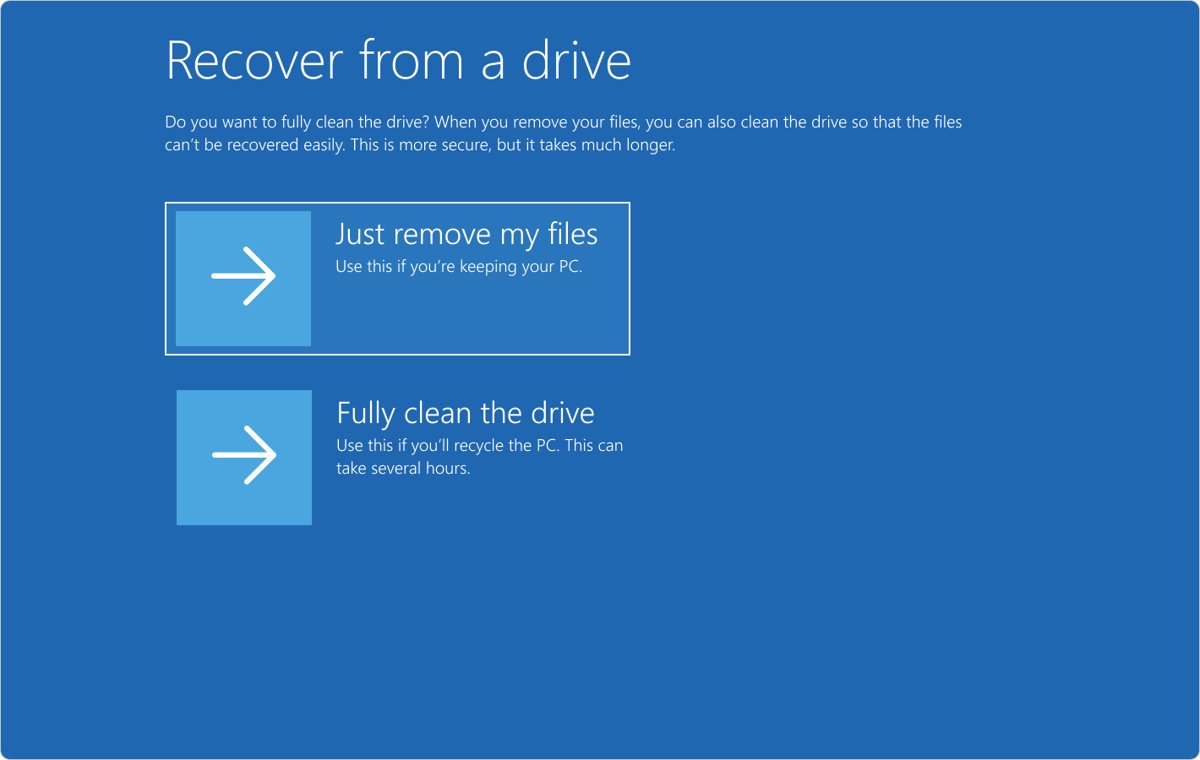
- In the recovery environment, select Recover from a drive.
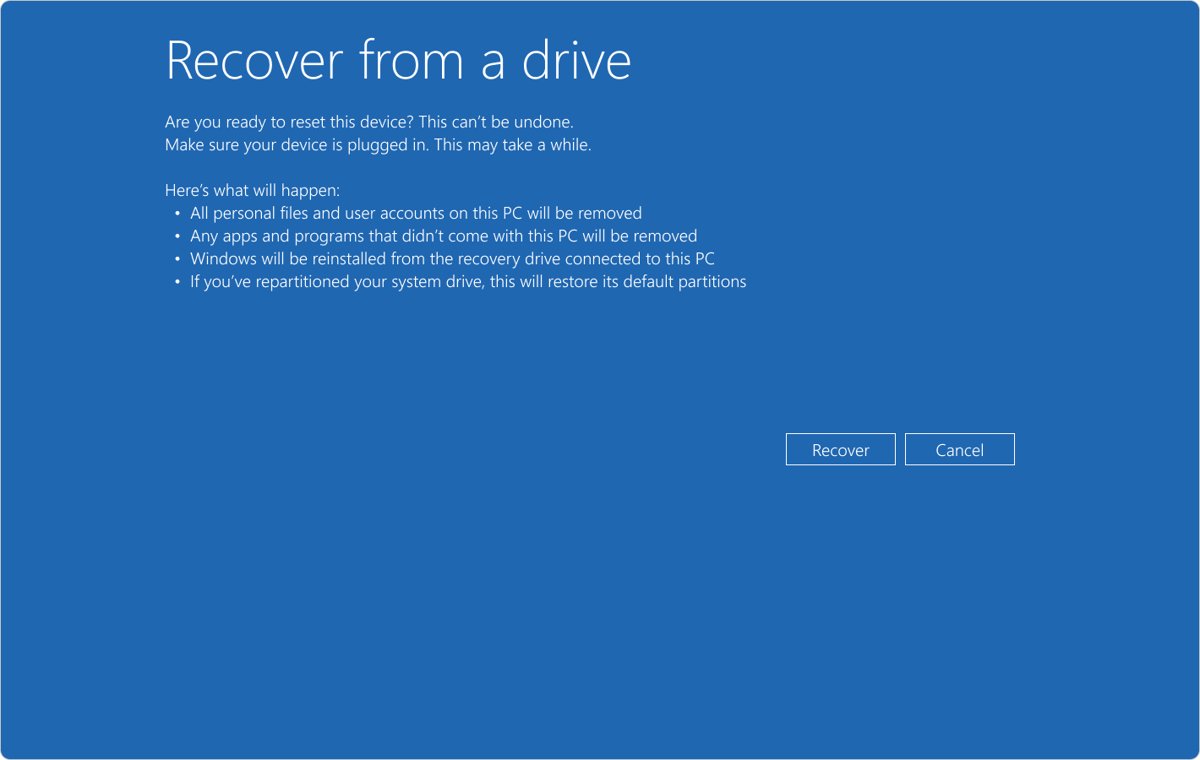
- Choose Just remove my files or Fully clean the drive, then select Recover.
Creating the drive erases everything on the USB stick. Microsoft recommends making a new one every year so it includes recent updates. Lenovo's user guides also link to its own recovery media page at support.lenovo.com/HowToCreateLenovoRecovery.
Using Lenovo OneKey Recovery on older laptops
OneKey Recovery is a name you may still see on older Lenovo laptops. Lenovo's current user guides do not mention it: they send recovery through Windows Reset this PC, the Windows recovery drive and Lenovo's recovery media page.
| What you find on your laptop | What it means | What to do |
|---|---|---|
| Reset PC under Settings > System > Recovery | Standard Windows reset, which also restores Lenovo's preinstalled apps | Use the steps at the top of this page |
| OneKey Recovery listed in the Start menu | A legacy Lenovo recovery tool is still installed | Back up first, then follow the tool's on-screen prompts, or use Reset PC |
| A Novo Button menu at startup | Lenovo's startup menu on models such as Yoga 7 | Use it to open UEFI/BIOS Setup or start other tools listed on your model |
| No reset option works | Damaged recovery environment or replaced drive | Use a USB recovery drive or Lenovo's recovery media |
Lenovo laptop factory reset not working
Screen stays black during the reset
The reset is still running; this can last more than 15 minutes.
- Leave the laptop plugged in and untouched.
- Wait at least 15 minutes before assuming anything is wrong.
- Do not press the power button, because a forced restart can make the reset fail.
Laptop asks for a BitLocker recovery key
The drive is encrypted and the recovery environment needs the key to unlock it.
- On another device, open Microsoft's Find your BitLocker recovery key help and follow it to locate your key.
- Type the key and continue the reset.
Keep my files and Remove everything are missing
You started from a USB recovery drive, which only offers bare metal recovery.
- Select Recover from a drive to reinstall from the USB drive.
- Or remove the USB drive, restart, and reset from Settings or the recovery environment instead.
Lenovo laptop does not see the USB recovery drive
The USB connector, boot order or drive format is wrong.
- Plug the drive into another USB connector.
- Restart and press F2 (IdeaPad, Yoga) or F1 (ThinkPad, ThinkBook) at the logo to open UEFI BIOS.
- Check that USB HDD or USB Boot is in the boot order, then press F10 to save and exit.
- For UEFI boot mode, make sure the drive is formatted FAT32.
Laptop stops responding during setup after the reset
The system hung and needs a hard restart.
- Press and hold the power button until the laptop turns off.
- Turn it back on and let Windows continue setup.
Considerations after factory reset
The reset brings back Windows, current drivers and Lenovo's preinstalled apps. The rest is up to you. If only a few settings misbehaved before, you can reset Windows 11 settings next time instead of the whole laptop.
- Work through Windows setup and sign in with your Microsoft account.
- Open Settings > Windows Update and select Check for updates; install updates only through Windows Update.
- Open Lenovo Vantage or Lenovo PC Manager to get the latest drivers and UEFI/BIOS for your model.
- Reinstall the apps you use from their official sources.
- Copy your backed-up files back to the laptop.
- Create a fresh USB recovery drive now that Windows is clean and up to date.
Lenovo laptop factory reset FAQ
How long does it take to factory reset a Lenovo laptop?
Most factory resets take between 30 minutes and an hour. Drive size, processor speed and whether you chose Cloud download or Clean data all change the time, and Clean data adds noticeably more.
Can I factory reset a Lenovo laptop without the password?
Yes. On the sign-in screen, select the Power icon, hold Shift and select Restart, then choose Troubleshoot > Reset this PC > Remove everything. Your files are deleted, so this is a last resort.
Does a factory reset remove viruses?
A Remove everything reset deletes your files and apps, which removes most malware with them. Lenovo warns that malware hiding in firmware can survive a reset, so it is not a guaranteed cure.
Does factory resetting void my Lenovo warranty?
No. Lenovo treats a factory reset as standard maintenance, so it should not void the warranty. Check with Lenovo first if you have specific concerns about your coverage.
Can I undo a factory reset?
No. Once the reset finishes, there is no way to roll it back. Anything you did not back up before starting is gone, which is why backing up comes first.
Do I need the internet to factory reset a Lenovo laptop?
No, not with Local reinstall, which uses files already on the laptop. Cloud download needs an internet connection because it downloads a fresh copy of Windows.
Will a factory reset delete the apps Lenovo preinstalled?
No. Remove everything restores the manufacturer's preinstalled customizations to their factory state, and Keep my files can restore them too. Only apps you installed yourself are removed.
Is Clean data enough before selling my Lenovo laptop?
For most people, yes. Clean data makes removed files harder to recover, but Microsoft says it does not meet government or industry data erasure standards.