Run reagentc /enable in an elevated Command Prompt to turn on the Windows Recovery Environment (WinRE), then run reagentc /info to confirm it reports Enabled.
This guide covers Windows 11 and Windows 10: how to boot into WinRE, what its tools do, and how to repair or recreate WinRE when Windows says it could not find the recovery environment.
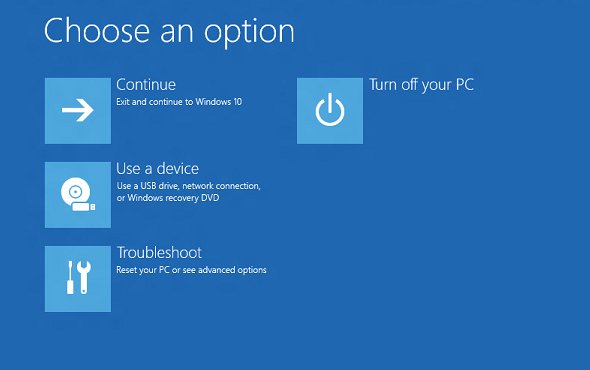
How to enable or disable Windows Recovery Environment (WinRE)
REAgentC.exe ships with Windows and controls the WinRE boot image. You need an administrator account for every command below.
- Open Start, type
cmd, right-click Command Prompt and select Run as administrator. - Type
reagentc /infoand press Enter to see the current Windows RE status. - If the status reads Disabled, type
reagentc /enableand press Enter. - Run
reagentc /infoagain and confirm the status now reads Enabled with a Windows RE location path. - To turn WinRE off instead, run
reagentc /disable. This only works on the running copy of Windows.
When no custom image is registered, reagentc /enable uses the default Winre.wim file from the \Windows\System32\Recovery folder.
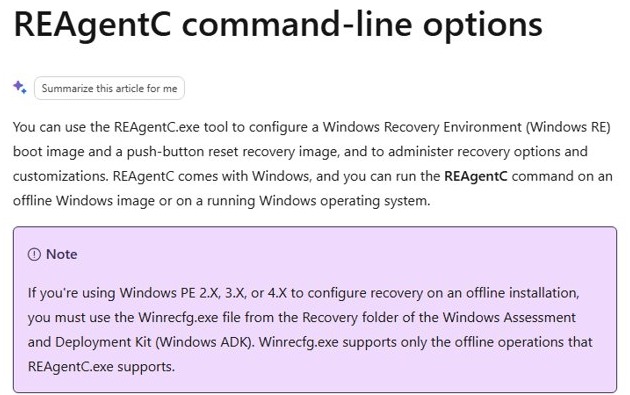
How to boot into the Windows Recovery Environment
Every route below opens the same Choose an option screen. Pick the one that matches whether Windows still starts.
| Your situation | Route into WinRE | What to do |
|---|---|---|
| Windows 11 starts normally | Settings | Open Settings > System > Recovery and select Restart now next to Advanced startup. |
| Windows 10 starts normally | Settings | Open Settings > Update & Security > Recovery and select Restart now under Advanced startup. |
| You are at the sign-in screen or desktop | Shift + Restart | Hold Shift while you select Power > Restart. |
| Windows will not finish loading | Automatic Repair | Hold the power button as the Windows logo appears to force a shutdown, repeat once, then start the PC a third time and select Advanced options. |
| You want WinRE on the very next restart | Command | Run reagentc /boottore as administrator, then restart. |
| The on-disk WinRE is broken | Recovery drive or installation media | Boot from a USB recovery drive, or from Windows installation media and select Repair my PC. |
| Your PC has a recovery button | Hardware button | Press the button or key combination your device maker configured. |
WinRE also starts on its own after two failed starts in a row, or two unexpected shutdowns within two minutes of boot.
Windows recovery tools in WinRE
Most tools sit under Troubleshoot > Advanced options. If BitLocker protects the drive, keep your BitLocker recovery key ready, because several tools ask for it.
| Tool | What it does | Keeps your files? |
|---|---|---|
| Startup Repair | Diagnoses and fixes common problems that stop Windows from starting | Yes |
| Point-in-time restore | Rolls the whole PC back to a recent automatic restore point (Windows 11, version 24H2 or later) | No, changes after the restore point are lost |
| System Restore | Rolls back system files and settings to an older restore point | Yes |
| Uninstall Updates | Removes a recently installed quality or feature update | Yes |
| Startup Settings | Changes startup options such as booting into Safe Mode | Yes |
| Command Prompt | Opens cmd.exe for chkdsk, regedit, bcdedit and diskpart | Yes |
| UEFI Firmware Settings | Restarts into firmware setup for boot order and enabling Secure Boot | Yes |
| System Image Recovery | Restores the whole PC from a system image backup | No, the image replaces everything |
| Reset this PC | Reinstalls Windows, with a choice to keep or remove personal files | Your choice |
| Cloud rebuild | Reinstalls Windows and drivers from Windows Update (Windows 11) | No |
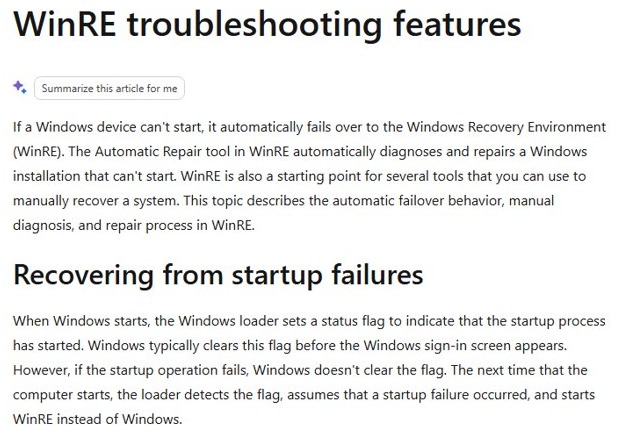
Check WinRE status with reagentc /info
reagentc /infoShows whether WinRE is enabled, which disk and partition hold it, and its BCD identifier. Run it from an elevated Command Prompt.
You should see: Windows RE status reads Enabled, and Windows RE location shows a path such as \\?\GLOBALROOT\device\harddisk0\partition4\Recovery\WindowsRE. The numbers after harddisk and partition are the disk and partition index.
A blank Windows RE location with the status Disabled means Windows has no working WinRE image registered. Continue with the repair steps below.
Could not find the recovery environment on Windows
Reset this PC and Advanced startup show this message when WinRE is disabled or its image is missing.
"Could not find the recovery environment" and reagentc /info shows Disabled
WinRE was turned off, often after disk cloning, partition changes or a failed update.
- Open Command Prompt as administrator.
- Run
reagentc /enable. - Run
reagentc /infoand confirm the status reads Enabled. - Restart through Advanced startup to test it.
reagentc /enable fails or returns an error
Winre.wim is missing from C:\Windows\System32\Recovery and from the recovery partition, so there is no image to register.
- Follow the recreate steps in the next section to restore Winre.wim from Windows installation media.
- Register it with
reagentc /setreimage, then runreagentc /enable.
WinRE update fails with event ID 4502
The recovery partition is too small for the new WinRE image. The System log shows "Windows Recovery Environment servicing failed" with ErrorPhase 2.
- Follow the partition steps in Repairing the Windows Recovery Environment (WinRE) to add 250 MB.
- Run Windows Update again after
reagentc /infoshows WinRE enabled.

Repairing the Windows Recovery Environment (WinRE)
Microsoft's KB5028997 procedure rebuilds a recovery partition that is too small. It needs the recovery partition to sit directly after the Windows partition. Back up your files first, because a wrong partition number deletes data.
- Open Command Prompt as administrator and run
reagentc /info. Note the disk and partition numbers in Windows RE location. - Run
reagentc /disable. - Run
diskpart, thenlist disk, and select the Windows disk withsel disk <number>. - Run
list part, select the Windows partition withsel part <number>, then runshrink desired=250 minimum=250. - Select the old recovery partition with
sel part <number>and rundelete partition override. - On a GPT disk (an asterisk in the Gpt column of
list disk), runcreate partition primary id=de94bba4-06d1-4d40-a16a-bfd50179d6acand thengpt attributes=0x8000000000000001. On an MBR disk, runcreate partition primary id=27. - Run
format quick fs=ntfs label="Windows RE tools". On an MBR disk, also runset id=27. - Run
list volto confirm the new partition, thenexit. - Run
reagentc /enable, thenreagentc /infoto confirm WinRE lives on the new partition.
If any step fails, run reagentc /enable to switch WinRE back on with its current image.
Recreate the recovery environment on Windows
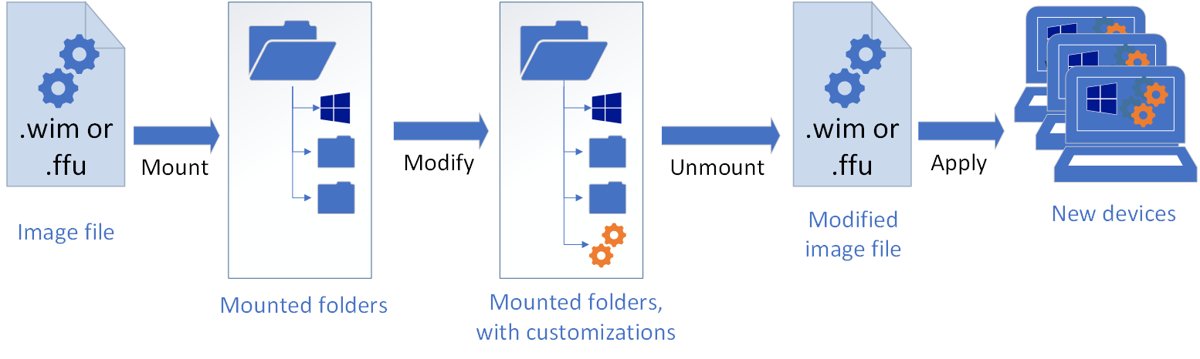
When Winre.wim is gone, copy a fresh one out of Windows installation media for the same Windows version. This route needs media that contains sources\install.wim. In the commands, D: is the mounted installation media and C:\mount is an empty folder you create first.
- Open Command Prompt as administrator and run
mkdir C:\mount. - Mount the image read-only with
Dism /Mount-Image /ImageFile:D:\sources\install.wim /Index:1 /MountDir:C:\mount /ReadOnly. - Copy the recovery image with
xcopy /h C:\mount\Windows\System32\Recovery\Winre.wim C:\Windows\System32\Recovery. - Unmount with
Dism /Unmount-Image /MountDir:C:\mount /Discard. - Register the image with
reagentc /setreimage /path C:\Windows\System32\Recovery. - Run
reagentc /enable, thenreagentc /infoto confirm the status reads Enabled.
Use an index that matches your installed edition if the media holds several editions.
Windows recovery environment FAQ
What is the Windows Recovery Environment?
WinRE is a recovery system based on Windows PE that ships with Windows 10 and Windows 11. It can repair common causes of a PC that will not start, and it hosts tools such as Startup Repair, System Restore and Reset this PC.
How do I know if WinRE is enabled?
Run reagentc /info in an elevated Command Prompt. The Windows RE status line reads Enabled or Disabled, and an enabled WinRE also shows a Windows RE location path with the disk and partition index.
Where is winre.wim stored?
Windows Setup first places winre.wim in the \Windows\System32\Recovery folder. During setup it is copied to a separate recovery tools partition, so WinRE still boots when the Windows partition has a problem or is BitLocker-encrypted.
Is it safe to disable WinRE?
Disabling WinRE does not harm Windows, but Automatic Repair, Advanced startup and Reset this PC from the recovery menu stop working. Turn it back on with reagentc /enable when you need those tools.
How do I boot into WinRE from Command Prompt?
Run reagentc /boottore as administrator and restart the PC. Windows starts straight into the Windows Recovery Environment on the next boot, then returns to normal startup afterwards.
Can I delete the recovery partition?
Only if you accept losing the on-disk WinRE. Windows updates WinRE through the monthly cumulative update and expects a recovery partition. Without one, you need a recovery drive or installation media to reach the recovery tools.
Do I need my BitLocker key to use WinRE?
Yes, for most tools on an encrypted drive. Encrypted files stay unreadable in WinRE unless you enter the BitLocker recovery key, so find the key before you start a repair.