To disable touch input in Windows 11 or Windows 10, disable HID-compliant touch screen in Device Manager, or turn on the Turn off Tablet PC touch input policy; reverse either change to enable touch again.
This guide covers Device Manager, Group Policy, Registry Editor, tablet mode, the touch indicator circles and fixes when touch will not switch back on.
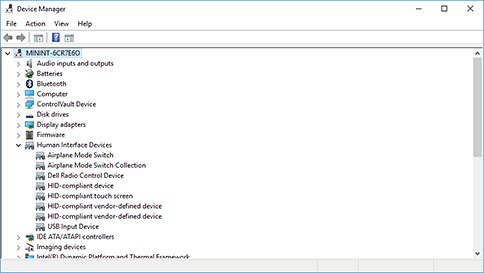
Disable touch screen in Windows 11 and 10 with Device Manager
This works on every edition, including Windows 11 Home, and the change applies immediately.
- Right-click the Start button and select Device Manager.
- Select the arrow beside Human Interface Devices to expand it.
- Right-click HID-compliant touch screen and select Disable device.
- Confirm the prompt with Yes.
- Repeat for every other HID-compliant touch screen entry in the list.
- To enable touch again, right-click the same entry and select Enable device.
Disabling the touch screen this way also stops the pen and the touch keyboard from responding to touch on many devices, Surface models included.
On a laptop, the touch screen and the touchpad are separate devices, so you can disable the touchpad on its own from Settings.
Device Manager vs Group Policy vs Registry for touch input
| Your situation | Use this | Why |
|---|---|---|
| Any edition, quick on/off | Device Manager | Instant, no sign-out, easy to reverse |
| Windows 11/10 Pro, Enterprise or Education | Group Policy: Turn off Tablet PC touch input | Blocks touch and gestures per user or for the whole PC |
| Windows 11/10 Home | Registry Editor: TurnOffTouchInput | Home has no Group Policy Editor by default; the registry sets the same policy |
| Only want to stop scrolling by touch | Turn off Touch Panning policy | Leaves taps working but stops panning |
Enable or disable Tablet PC touch input in Windows 11/10
The Turn off Tablet PC touch input policy lives in the Local Group Policy Editor on Pro, Enterprise and Education editions. It exists under both User Configuration and Computer Configuration.
- Press Win + R, type
gpedit.mscand press Enter. - Go to User Configuration > Administrative Templates > Windows Components > Tablet PC > Touch Input. Use Computer Configuration instead to apply it to every user.
- Double-click Turn off Tablet PC touch input.
- Select Enabled to turn touch input off, or Disabled or Not Configured to turn it back on.
- Select Apply, then OK.
- Sign out and sign back in, because the change does not apply until you log off.
The same folder holds Turn off Touch Panning, which stops scrolling inside windows by dragging while leaving taps active.
Turn off Tablet PC touch input using Registry Editor
On Windows 11 Home and Windows 10 Home, set the policy value directly, or enable gpedit.msc on Home first and use the policy. Back up the key first with File > Export.
- Press Win + R, type
regeditand press Enter, then select Yes. - Go to
HKEY_CURRENT_USER\SOFTWARE\Policies\Microsoft. - Right-click Microsoft, select New > Key and name it
TabletPCif it does not exist. - Right-click TabletPC, select New > DWORD (32-bit) Value and name it
TurnOffTouchInput. - Double-click TurnOffTouchInput, set Value data to
1and select OK. - Sign out and back in to turn touch input off.
- To enable touch input again, delete TurnOffTouchInput or set it to
0, then sign out.
Use HKEY_LOCAL_MACHINE\SOFTWARE\Policies\Microsoft\TabletPC instead to apply it to all users of the PC.
How to disable tablet mode on Windows 11 and Windows 10
Tablet mode is a layout change, not touch input, so turning it off leaves the touch screen working.
| Windows version | How tablet mode turns on or off |
|---|---|
| Windows 11 | No manual switch. It turns on when the keyboard is detached or the device folds into a tablet, and off when the keyboard is attached. |
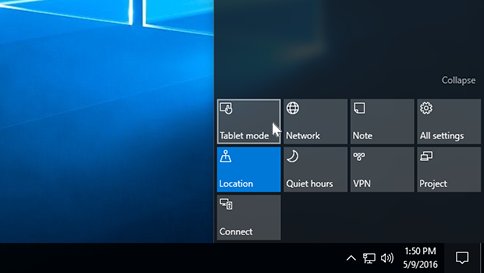
| Windows 10 | Select the action center icon next to the clock, then select the Tablet mode tile (select Expand if it is hidden). |
| Windows 10, tile missing | Settings > System > Notifications & actions > Edit your quick actions > Add > Tablet mode. |
How to remove Ghost Touch bubbles from Windows 11
The circles that appear under your finger are the touch indicator, and you can switch them off.
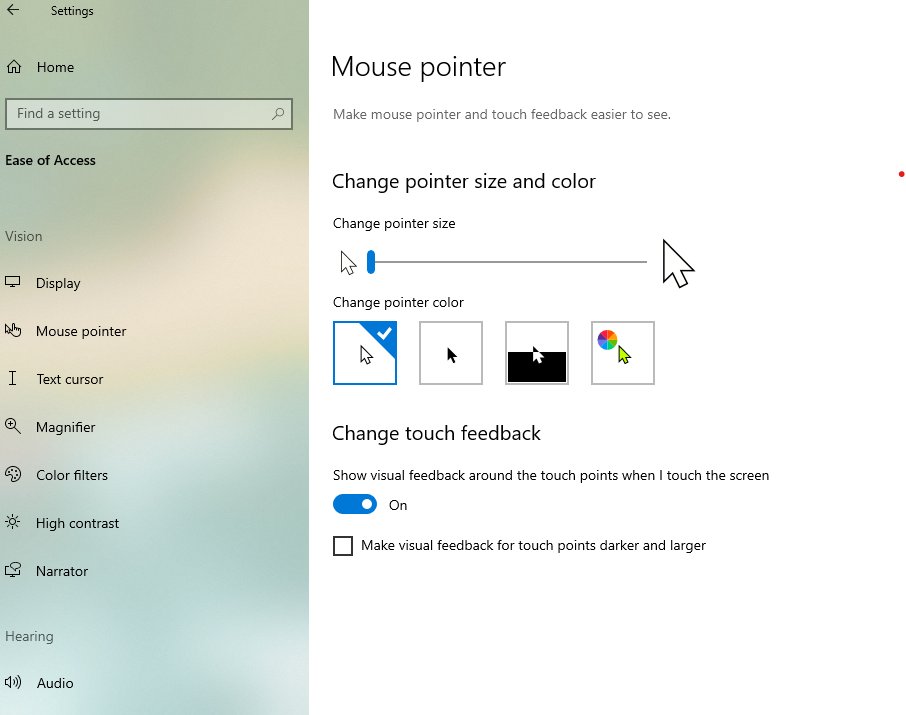
- Open Start > Settings > Accessibility > Mouse pointer and touch.
- Turn off Touch indicator to remove the circles.
- On Windows 10, open Settings > Ease of Access > Mouse pointer and turn off Show visual feedback around the touch points when I touch the screen.
If touches register when nobody is touching the screen, move the device away from nearby electronics, which Microsoft lists as a cause of phantom touches.
Check if touch input is disabled in Windows
- Tap a desktop icon or the Start button; nothing should happen while touch is off.
- In Device Manager, a disabled HID-compliant touch screen shows a down-arrow on its icon.
- After enabling touch again, tap Start and confirm the menu opens.
Fix touch screen not turning back on in Windows
Touch still does not work after Enable device
A policy or registry value is still blocking touch input.
- Set Turn off Tablet PC touch input to Not Configured in both User and Computer Configuration, then force a Group Policy update.
- Delete the
TurnOffTouchInputvalue under both TabletPC registry keys. - Sign out and back in.
HID-compliant touch screen is missing from Device Manager
The touch driver is not loaded.
- Select Action > Scan for hardware changes in Device Manager.
- Restart the PC while connected to the internet so Windows can reinstall the driver.
- Install the latest updates from Settings > Windows Update.
Touch screen behaves erratically
A faulty driver install or interference.
- Right-click HID-compliant touch screen and select Uninstall device, then Uninstall.
- Select Action > Scan for hardware changes.
- Move the device away from other electronics and test again.
Tablet PC touch input FAQ
How do I disable tablet mode on a PC?
On Windows 10, select the Tablet mode tile in action center so it reads Off. Windows 11 has no manual tablet mode switch; it turns tablet mode off automatically when a keyboard is attached or the device is folded back into a laptop.
How do I enable tablet mode?
On Windows 10, select the Tablet mode tile in action center. On Windows 11, detach the keyboard or fold a 2-in-1 into tablet position, and Windows switches to the touch-friendly layout automatically.
How do I disable tablet mode on a laptop with Windows 11?
Attach the keyboard or fold the screen back into laptop position. Windows 11 offers no setting to turn tablet mode off manually, so the device posture decides the layout.
How do I disable tablet mode permanently?
Windows 11 has no permanent off switch for tablet mode. If the real goal is to stop touch entirely, disable HID-compliant touch screen in Device Manager or enable the Turn off Tablet PC touch input policy.
Does turning off tablet mode disable the touch screen?
No. Tablet mode only changes the layout. The touch screen keeps working until you disable it in Device Manager or with the Tablet PC touch input policy.
Why do I need to sign out after changing the policy?
Microsoft states that changes to Turn off Tablet PC touch input do not take effect until the user logs off. Device Manager changes apply immediately.
Can I disable touch on Windows 11 Home?
Yes. Use Device Manager, or create the TurnOffTouchInput DWORD set to 1 under HKEY_CURRENT_USER\SOFTWARE\Policies\Microsoft\TabletPC, because Home has no Group Policy Editor.
Does disabling the touch screen also disable the pen?
On many devices, yes. Microsoft notes that disabling the touch screen on Surface also disables the pen, Surface Dial and touch keyboard input.