To run Docker on Windows without Docker Desktop, install WSL 2 with an Ubuntu distribution, then install Docker Engine inside Ubuntu from Docker's own apt repository.
The steps below cover the WSL 2 setup, the Docker Engine install, running Docker without sudo, starting it with systemd, reaching containers from Windows, GPU access, custom images and removal.
How to install Docker Engine in WSL2 without Docker Desktop
This is the whole route in six moves. Each step has its own section below with the exact commands.
- Right-click Start, open Terminal (Admin) or Windows PowerShell (Admin), run
wsl --installand restart the PC. - Open Ubuntu from the Start menu and create your Linux user name and password.
- In Ubuntu, add Docker's GPG key and apt repository, then run
sudo apt install docker-ce docker-ce-cli containerd.io docker-buildx-plugin docker-compose-plugin. - Run
sudo usermod -aG docker $USERso you can usedockerwithoutsudo, then close and reopen Ubuntu. - Check that systemd is on with
systemctl status, so the Docker service starts with the distribution. - Run
docker run hello-world. A confirmation message means Docker Engine works.
Docker on WSL2 requirements for Windows 10 and Windows 11
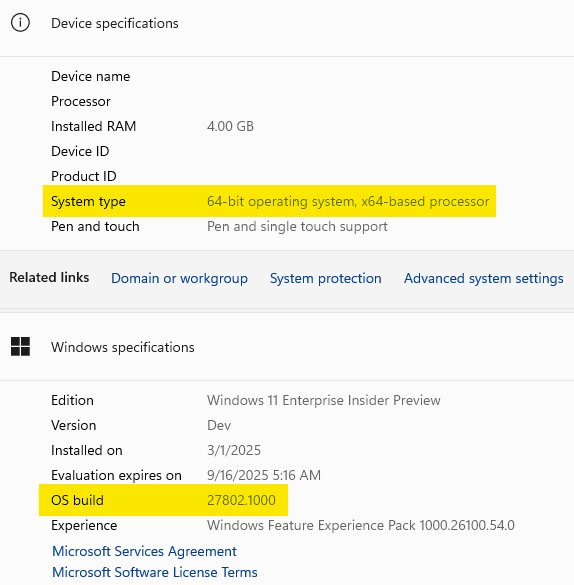
Docker Engine in WSL 2 runs on Windows 10 and Windows 11, including Home editions, because WSL 2 uses the Virtual Machine Platform feature rather than the full Hyper-V role.
Upgrading to Windows 11 is not required. Hardware matters more than the Windows version: WSL 2 needs a CPU with Second Level Address Translation (SLAT), so older processors such as the Intel Core 2 Duo are unsupported hardware for WSL 2 even when the Virtual Machine Platform installs.
| Requirement | What you need | How to check |
|---|---|---|
| Windows version | Windows 11, or Windows 10 version 2004 (build 19041) or later for wsl --install |
Press Win + R, type winver, press Enter |
| Older Windows 10 builds | Version 1903 or 1909 with build 18362.1049 or later (x64) can run WSL 2 through the manual install | winver shows the minor build number |
| CPU | 64-bit CPU with SLAT and virtualization turned on in the firmware (BIOS/UEFI) | Error 0x80370102 during install means virtualization is off or unsupported |
| Windows features | Windows Subsystem for Linux and Virtual Machine Platform | wsl --install turns both on for you |
| Ubuntu release | 64-bit Ubuntu 26.04 LTS, 24.04 LTS or 22.04 LTS (or 26.10) | Run lsb_release -a in Ubuntu |
| GPU containers (optional) | Windows 11 or Windows 10 21H2 or later, plus the NVIDIA Windows driver | nvidia-smi inside Ubuntu |
If Windows itself runs in a Hyper-V virtual machine, the host must expose virtualization to it with Set-VMProcessor -VMName <VMName> -ExposeVirtualizationExtensions $true, run in an elevated PowerShell on the host.
Install WSL2 and Ubuntu with wsl –install
One command enables the Windows features and installs Ubuntu as the default distribution. New installs use WSL 2 on Windows 10 and 11 by default, and an existing WSL 1 distribution can be switched over with the last step below.
- Select Start, type PowerShell, right-click Windows PowerShell and select Run as administrator.
- Run
wsl --installand restart Windows when it finishes. - Open Ubuntu from the Start menu and wait while the files decompress on first launch.
- Type a Linux user name and password when prompted. This account is separate from your Windows account.
- Back in PowerShell, run
wsl --list --verboseand confirm the VERSION column shows 2 for Ubuntu. - If it shows 1, run
wsl --set-version Ubuntu 2.
If wsl --install only prints help text, WSL is already present. Run wsl --list --online to see available distributions and wsl --install -d Ubuntu to add Ubuntu. If the install hangs at 0.0%, use wsl --install --web-download -d Ubuntu.

Enable Hyper-V on Windows 10/11 Pro and Home editions
Docker Engine in WSL 2 does not need the Hyper-V role. It needs the Virtual Machine Platform feature, which Windows 10 Home and Windows 11 Home both include, so Home users can skip this section.
The Hyper-V role can't be installed on Windows 10 Home or Windows 11 Home. You need Hyper-V on Windows 10/11 Pro or Enterprise only if you also want Hyper-V virtual machines, or Windows containers with Hyper-V isolation. It requires a 64-bit CPU with SLAT and at least 4 GB of memory.
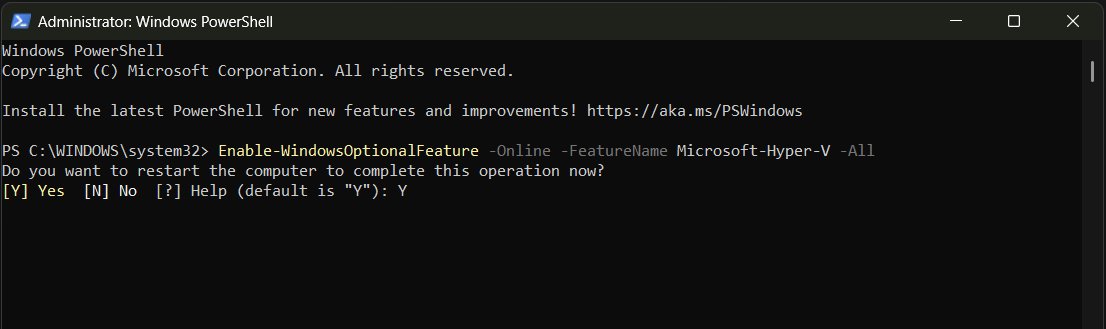
- Select Start, type PowerShell, right-click Windows PowerShell and select Run as Administrator.
- Run
Enable-WindowsOptionalFeature -Online -FeatureName Microsoft-Hyper-V -All. - Enter Y when asked to restart the computer.
- As an alternative to step 2, run
DISM /Online /Enable-Feature /All /FeatureName:Microsoft-Hyper-Vand wait for The operation completed successfully. - To turn on only the WSL 2 requirement on any edition, run
dism.exe /online /enable-feature /featurename:VirtualMachinePlatform /all /norestartand restart.
Install Docker Engine on Ubuntu in WSL2 from Docker's apt repository
Docker publishes its own packages, which are newer than the docker.io package in Ubuntu's archive. First remove any unofficial packages with sudo apt remove $(dpkg --get-selections docker.io docker-compose docker-compose-v2 docker-doc docker-buildx podman-docker containerd runc | cut -f1); apt may report that none are installed.
Then run this block in Ubuntu to add Docker's GPG key and repository and install the engine, CLI, containerd, Buildx and the Compose plugin.
sudo apt update
sudo apt install ca-certificates curl
sudo install -m 0755 -d /etc/apt/keyrings
sudo curl -fsSL https://download.docker.com/linux/ubuntu/gpg -o /etc/apt/keyrings/docker.asc
sudo chmod a+r /etc/apt/keyrings/docker.asc

sudo tee /etc/apt/sources.list.d/docker.sources <<EOF
Types: deb
URIs: https://download.docker.com/linux/ubuntu
Suites: $(. /etc/os-release && echo "${UBUNTU_CODENAME:-$VERSION_CODENAME}")
Components: stable
Architectures: $(dpkg --print-architecture)
Signed-By: /etc/apt/keyrings/docker.asc
EOF

sudo apt update
sudo apt install docker-ce docker-ce-cli containerd.io docker-buildx-plugin docker-compose-plugin
The first five lines install the tools and Docker's signing key. The tee block writes the repository definition for your Ubuntu release and CPU architecture. The last line installs Docker Engine (docker-ce), the docker CLI, containerd, Buildx and Docker Compose.
You should see: sudo systemctl status docker reports active (running). If it does not, run sudo systemctl start docker.
Docker also offers a convenience script at get.docker.com. Docker recommends it only for test and development machines, and it is not designed to upgrade an existing install, so the repository method above is the better default.
Run Docker without sudo in WSL
Right after install, the docker group exists but has no members, so every Docker command has to run with sudo. Adding your user to the group removes that.
Membership of the docker group grants root-level privileges on the distribution, so add only your own account.
sudo groupadd docker
sudo usermod -aG docker $USER
newgrp docker
groupadd creates the group if the package did not. usermod -aG appends your user to it. newgrp docker applies the new group in the current shell; closing Ubuntu and running wsl --shutdown from PowerShell also works.
You should see: docker run hello-world runs without sudo and prints its confirmation message.
Start the Docker service automatically in WSL with systemd
Systemd is the default for current Ubuntu installed with wsl --install, and on Ubuntu the Docker service starts on boot by default. Other distributions, or older Ubuntu installs, may still use the WSL init, so turn systemd on in wsl.conf.
- In PowerShell, run
wsl --version. If you see Invalid command line option: –version, runwsl --updatefirst; systemd needs WSL 0.67.6 or newer. - In Ubuntu, run
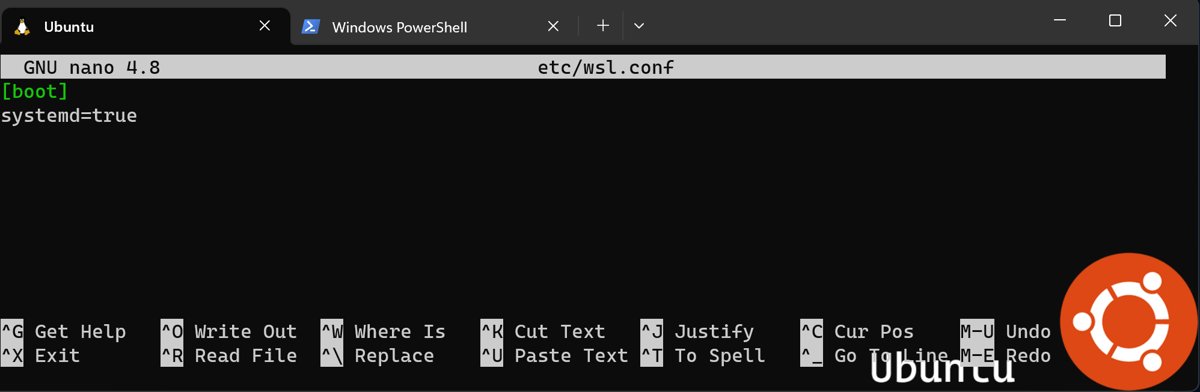
sudo nano /etc/wsl.conf. - Add the line
[boot]and under itsystemd=true. - Press Ctrl + X, type Y and press Enter to save.
- In PowerShell, run
wsl --shutdown, then open Ubuntu again. - Run
systemctl statusto see the running state, thensudo systemctl enable docker.serviceandsudo systemctl enable containerd.serviceif Docker does not start by itself.
On Debian or Ubuntu, also make sure systemd and systemd-sysv are installed with sudo apt-get install systemd systemd-sysv -y.
Test Docker in WSL2 with docker run hello-world
docker run hello-world
docker version
docker compose version
hello-world pulls a tiny test image, runs it in a container, prints a message and exits. docker version shows both the Client and Server (Engine) sections, which proves the CLI can reach the daemon. docker compose version confirms the Compose plugin.
You should see: The hello-world message, a Server section in docker version, and a Compose version line.
Access a Docker container from Windows on localhost
WSL 2 forwards Linux ports to Windows, so a browser on Windows can reach a container published inside Ubuntu at localhost.
- In Ubuntu, run
docker run -d -p 8080:80 --name web nginxto start an nginx web server and publish container port 80 on port 8080. - Open a browser on Windows and go to
http://localhost:8080. - If
localhostdoes not answer, runwsl hostname -Iin PowerShell and browse to that IP address with:8080on the end. - On Windows 11 22H2 or later, you can add
networkingMode=mirroredunder[wsl2]in%UserProfile%\.wslconfig, then runwsl --shutdown, so Windows and WSL reach each other on127.0.0.1. - Stop and remove the test container with
docker rm -f web.
Other devices on your network can't reach a WSL 2 container by default, because WSL 2 runs behind its own virtual network adapter. Microsoft documents a netsh interface portproxy add v4tov4 rule for that case.
Run Docker commands from PowerShell or Command Prompt with wsl docker
You don't need a Windows Docker CLI. The wsl command runs any Linux command in your default distribution and prints the result in the Windows console.
- Open Windows PowerShell or Command Prompt.
- Run
wsl docker psto list running containers. - Run
wsl docker imagesto list local images. - If Docker lives in a distribution that is not your default, run
wsl --distribution Ubuntu docker ps. - To make Ubuntu the default for
wslcommands, runwsl --set-default Ubuntu.
Keep project files inside the Linux file system, for example ~/projects, rather than under /mnt/c. Microsoft recommends this for speed when you work from a Linux command line. Run explorer.exe . in Ubuntu to open the current Linux folder in File Explorer, or type \\wsl$ in the File Explorer address bar.
How to assign (passthrough) a physical GPU to a Docker container in WSL2
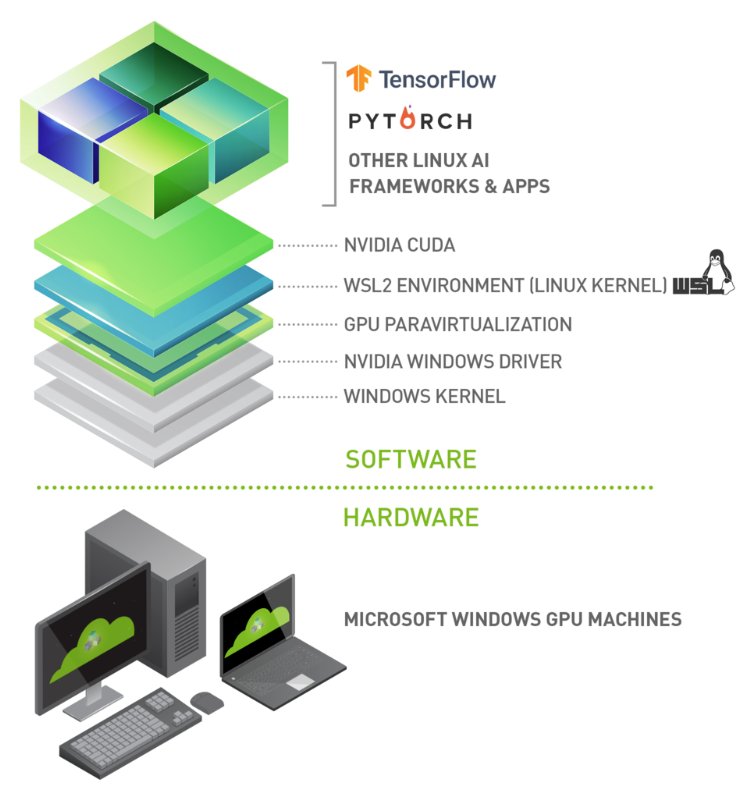
With an NVIDIA graphics card, WSL 2 passes the Windows GPU driver through to Linux, and the NVIDIA Container Toolkit hands that GPU to containers started with --gpus all. Use Windows 11 or Windows 10 version 21H2 or later.
Install only the Windows driver. NVIDIA states that you must not install any NVIDIA Linux display driver inside WSL, including the cuda-drivers or nvidia-open packages, because that overwrites the driver mapped in from Windows.
- On Windows, install the latest NVIDIA Windows driver (GeForce or RTX) for your card from nvidia.com/drivers.
- In PowerShell, run
wsl --updateto keep the WSL kernel current. - In Ubuntu, add the NVIDIA Container Toolkit repository and install the
nvidia-container-toolkitpackage as described in NVIDIA's install guide for apt. - Run
sudo nvidia-ctk runtime configure --runtime=docker. This updates/etc/docker/daemon.jsonso Docker can use the NVIDIA runtime. - Run
sudo systemctl restart docker. - Run
sudo docker run --rm --runtime=nvidia --gpus all ubuntu nvidia-smiand look for your GPU in the output table.
nvidia-smi has a limited feature set on WSL, so some queries return nothing even when CUDA works. AMD and Intel GPUs reach WSL through DirectML instead of the NVIDIA toolkit.
Docker Desktop vs Docker Engine in WSL2
Both run Linux containers on the same WSL 2 virtual machine technology. The difference is licensing, the graphical tools and Windows container support.
| Your situation | Use this | Why |
|---|---|---|
| Company with 250 or more employees or $10 million or more in annual revenue, no paid Docker plan | Docker Engine in WSL2 | Docker Desktop needs a paid Pro, Team or Business subscription for professional use in larger organizations; Docker Engine is licensed under Apache 2.0 |
| Personal use, education, small business or non-commercial open source | Either | Docker Desktop is free for these uses |
| You want a GUI, automatic updates and one installer | Docker Desktop for Windows | It bundles the engine, Compose, a dashboard and the Windows-side CLI |
| You need Windows containers on Windows 10/11 | Docker Desktop | Docker Engine in WSL runs Linux containers only; Microsoft's Windows 10/11 route for Windows containers is Docker Desktop |
| You work in a terminal and want the same setup as a Linux server | Docker Engine in WSL2 | Same packages, same systemctl service and same apt upgrades as Ubuntu on a server |
Build a custom Docker image in WSL with a Dockerfile
A Dockerfile is a text file with no extension that lists a base image and the commands that build your image. docker build turns it into an image you can run as often as you like.
- In Ubuntu, run
mkdir ~/mytoolsand thencd ~/mytools. - Run
nano Dockerfileto create the file. - Type
FROM ubuntu:24.04on the first line andRUN apt-get update && apt-get install -y curlon the second, then save with Ctrl + X, Y, Enter. - Run
docker build -t mytools .to build an image namedmytools. - Run
docker run --rm mytools curl --versionto start a container from it and print the curl version. - Run
docker imagesto seemytoolsin your local image list.
Create a custom Windows image with pre-installed apps
Windows container images need a Windows host running Docker in Windows container mode, not the Docker Engine inside WSL. On Windows Server, Microsoft's install-docker-ce.ps1 script installs Docker CE (Moby); on Windows 10/11 Pro or Enterprise, Microsoft's documented route is Docker Desktop switched to Windows containers, with Hyper-V enabled.
The Dockerfile works the same way as on Linux. This example from Microsoft builds a Windows Server Core image with IIS pre-installed and a test page.
- Create a folder, for example
C:\iisimage, and create a file named Dockerfile with no extension. In Notepad, type the name in quotes,"Dockerfile", in the Save as box. - Add
FROM mcr.microsoft.com/windows/servercore:ltsc2019as the first line to use the Windows Server Core base image. - Add
RUN dism.exe /online /enable-feature /all /featurename:iis-webserver /NoRestartto install IIS into the image. - Add
RUN echo "Hello World - Dockerfile" > c:\inetpub\wwwroot\index.htmlto create the start page. - Add
CMD [ "cmd" ]as the last line. - In PowerShell, run
docker build -t iis-sample C:\iisimageto build the image. - For an app installer, use
RUN powershell.exe -Command Start-Process c:\setup.exe -ArgumentList '/quiet' -Wait, so the build waits for the silent install to finish.
In COPY and ADD destinations on Windows, use forward slashes (c:/temp/); backslash destinations fail. The base image tag must match a Windows version your host can run.
Docker in WSL2 not working: errors and fixes
Error 0x80370102: the virtual machine could not be started because a required feature is not installed
The Virtual Machine Platform feature is off, or virtualization is disabled in the firmware.
- Run
dism.exe /online /enable-feature /featurename:VirtualMachinePlatform /all /norestartin an elevated PowerShell. - Restart the PC and enter the BIOS/UEFI setup using the key your PC maker documents.
- Turn on the CPU virtualization option in the firmware settings and save.
- Run
wsl --installagain.
Docker is not running after you reopen Ubuntu
The distribution is not using systemd, so no service starts with it.
- Add
[boot]andsystemd=trueto/etc/wsl.conf. - Run
wsl --shutdownin PowerShell and reopen Ubuntu. - Run
sudo systemctl enable docker.serviceandsudo systemctl start docker.
WARNING: Error loading config file: /home/user/.docker/config.json – permission denied
You ran Docker with sudo before joining the docker group, so root owns ~/.docker.
- Run
sudo chown "$USER":"$USER" /home/"$USER"/.docker -R. - Run
sudo chmod g+rwx "$HOME/.docker" -R. - Run
docker run hello-worldagain withoutsudo.
Docker commands only work with sudo
Your user is not in the docker group yet, or the shell predates the change.
- Run
sudo usermod -aG docker $USER. - Run
newgrp docker, or runwsl --shutdownin PowerShell and reopen Ubuntu. - Run
id -nGand check that docker is in the list.
nvidia-container-cli: initialization error: driver error: failed to process request
The Windows build, WSL, the NVIDIA Windows driver or the NVIDIA Container Toolkit is missing or outdated.
- Install the latest NVIDIA Windows driver.
- Run
wsl --updateand check the kernel withwsl cat /proc/version. - Reinstall the latest NVIDIA Container Toolkit, run
sudo nvidia-ctk runtime configure --runtime=dockerand restart Docker.
wsl –install shows help text instead of installing
WSL is already installed, so the command does not add a distribution.
- Run
wsl --list --online. - Run
wsl --install -d Ubuntu.
Uninstall Docker Engine from WSL
sudo apt purge docker-ce docker-ce-cli containerd.io docker-buildx-plugin docker-compose-plugin docker-ce-rootless-extras
sudo rm -rf /var/lib/docker
sudo rm -rf /var/lib/containerd
sudo rm /etc/apt/sources.list.d/docker.sources
sudo rm /etc/apt/keyrings/docker.asc
The first line removes the packages. Images, containers and volumes stay in /var/lib/docker until you delete it, so the two rm -rf lines erase all Docker data. The last two lines remove Docker's repository and signing key. To remove the whole Linux environment instead, run wsl --unregister Ubuntu in PowerShell, which deletes the distribution and everything in it.
You should see: docker returns command not found in Ubuntu.
Docker on WSL2 without Docker Desktop FAQ
Can you run Docker on Windows without Docker Desktop?
Yes. Install WSL 2 with Ubuntu, then install Docker Engine inside Ubuntu from Docker's apt repository. Linux containers then run in WSL 2 and you manage them with the docker command in Ubuntu or with wsl docker from PowerShell.
Is Docker Desktop free?
Docker Desktop is free for personal use, education, non-commercial open source projects and small businesses with fewer than 250 employees and less than $10 million in annual revenue. Professional use in larger organizations and government entities needs a paid Pro, Team or Business subscription.
Does Docker in WSL2 need Hyper-V?
No. WSL 2 needs the Virtual Machine Platform optional feature and CPU virtualization, not the Hyper-V role. That is why Docker Engine in WSL 2 runs on Windows 10 Home and Windows 11 Home, where Hyper-V can't be installed.
Can Windows 11 Home run Docker?
Yes, for Linux containers. Windows 11 Home supports WSL 2, and Docker Engine runs inside a WSL 2 distribution such as Ubuntu. Windows containers are different: Microsoft lists Professional or Enterprise edition with Hyper-V for those on Windows 10 and Windows 11.
Can Docker Engine in WSL run Windows containers?
No. Docker Engine inside WSL is a Linux build and runs Linux containers only. Windows containers need a Windows Docker daemon, such as Docker CE on Windows Server or Docker Desktop in Windows container mode on Windows 10/11 Pro or Enterprise.
Does Docker start automatically in WSL?
It does when the distribution runs systemd, which is the default for current Ubuntu installed with wsl --install. On Ubuntu the Docker service starts on boot. For other distributions, add systemd=true under [boot] in /etc/wsl.conf and run sudo systemctl enable docker.service.
How do I open a Docker container in a Windows browser?
Publish the port with -p, for example docker run -d -p 8080:80 nginx, then open http://localhost:8080 on Windows. WSL 2 forwards the port to Windows. If localhost fails, use the address that wsl hostname -I prints.
Where does Docker store images in WSL?
Docker Engine keeps images, containers, volumes and networks in /var/lib/docker inside the Linux distribution. That folder lives in the WSL virtual disk, not on drive C:, and it is not removed when you uninstall the Docker packages.
Is Docker Compose included without Docker Desktop?
Yes, as a plugin. Install docker-compose-plugin from Docker's apt repository along with Docker Engine, then run docker compose version to check it. The command is docker compose with a space, not the older docker-compose.
Should I use the get.docker.com script in WSL?
Only for a throwaway test setup. Docker recommends its convenience script for testing and development, not production, and the script is not designed to upgrade an existing install. The apt repository method keeps Docker on normal apt upgrades.