Discord not downloading or installing on Windows 11 or 10 nearly always has one of four causes: the wrong build for your processor, a leftover install in your user folder, a network that blocks Discord’s download host, or a version of Windows Discord no longer supports.
The official file is DiscordSetup.exe from discord.com. The x64 build is 139 MB and holds the whole client, so a 200 KB “Discord installer” from anywhere else is not the real thing.
This guide covers the build your PC needs, a failed download, and a broken install.
Which Discord download do you need?
Press Windows + I, open System > About and read the System type line. Then match it to a row below.
| System type says | What to download | Size |
|---|---|---|
| 64-bit operating system, x64-based processor | DiscordSetup.exe, x64 | 139 MB |
| 64-bit operating system, ARM-based processor | DiscordSetup.exe, ARM64 | 138 MB |
| 32-bit operating system | No desktop app. Open Discord in a browser | None |
| Windows 7, Windows 8 or Windows 8.1 | Upgrade Windows first, then install | None |
| macOS 12 Monterey or later | Discord.dmg, universal | 205 MB |
Discord dropped 32-bit Windows on 15 June 2024, and Windows 7, 8 and 8.1 on 15 March 2024. An Arm PC runs the x64 build under emulation, so take the ARM64 file there.
Download Discord from the official Windows source
Every link below is Discord’s own or Microsoft’s. Nothing else hosts the real installer.
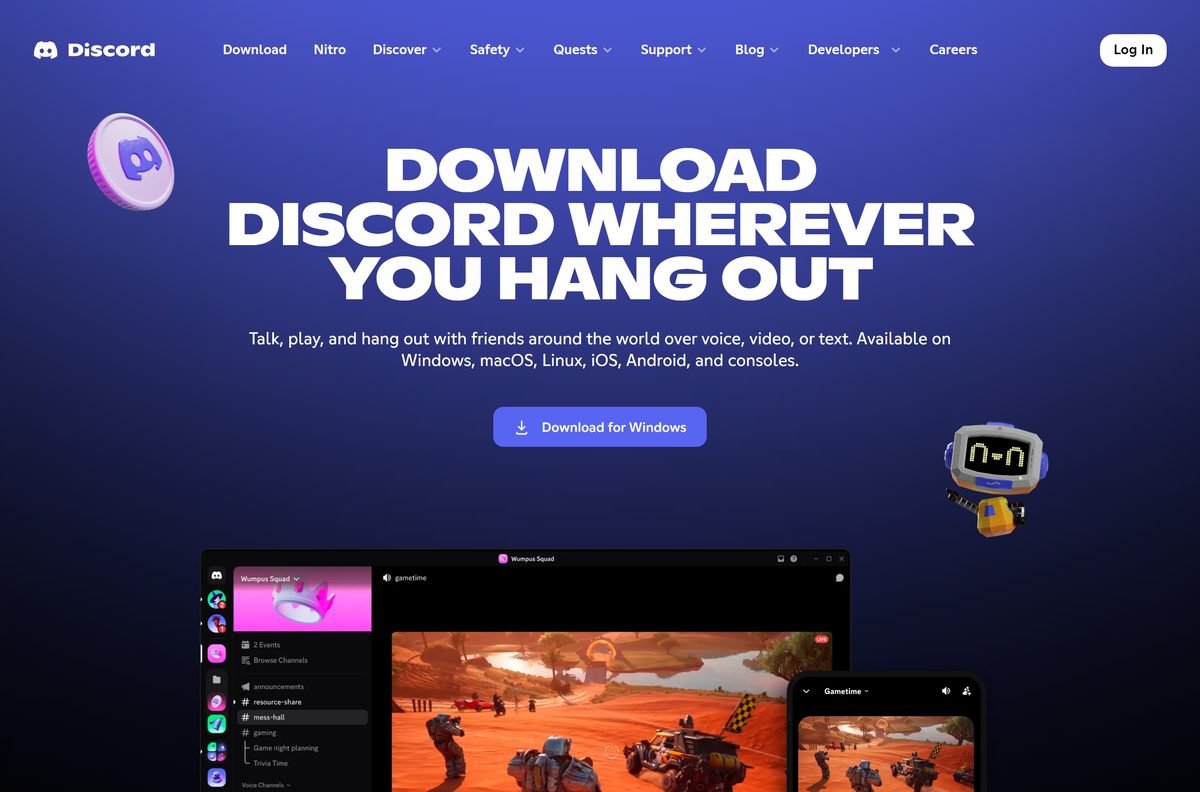
- Discord download page — the page Discord’s own installation guide sends you to
- DiscordSetup.exe for Windows x64 — 139 MB · always resolves to the current build
- DiscordSetup.exe for Windows ARM64 — 138 MB · for Snapdragon and other Arm PCs
- Microsoft Store listing, product XPDC2RH70K22MN — published by Discord, Inc.; x86 and x64 only, no ARM64
- Discord in a browser — no install, no admin rights
Both Windows links hand the transfer to Discord’s network at stable.dl2.discordapp.net . That hop is normal, and a download that ends on any other domain is somebody else’s file.
The setup is signed. Right-click it, open Properties > Digital Signatures, and the signer reads Discord Inc.
Fix Discord not downloading on Windows 11 and 10
The download starts, then fails part way
The button on discord.com hands the file to Discord’s network at stable.dl2.discordapp.net. School and office filters often block that host while leaving discord.com open.
- Open the browser download list with Ctrl + J and read the address of the failed file.
- Select Resume if the browser offers it.
- Start again from discord.com/download rather than retrying an old link.
- Switch to another network, or ask the administrator to allow discordapp.net on a managed PC.
The page gives you the wrong file for your PC
The page detects your operating system and shows one large button. On a Windows on Arm PC that button still points at the x64 build.
- Open discord.com/download and scroll to Download for desktop.
- Select the Windows tab, then x64 or ARM64.
- Confirm the saved file is named DiscordSetup.exe.
The file arrives at a few hundred KB
The genuine x64 setup is 145,809,848 bytes. Anything near 200 KB is an error page saved as an EXE, or a repackaged stub from a download portal.
- Delete the file.
- Download again from discord.com/download.
- Compare the finished size against 139 MB before you run it.
discord.com will not open at all
Either the service is degraded or DNS on the PC is stale.
- Check Discord’s status page for a live incident.
- Open Command Prompt and run ipconfig /flushdns .
- Turn off any VPN or proxy, then load the page again.
How to install Discord on Windows 11 and 10
Discord installs for the current user only, into %LocalAppData%\Discord . Nothing goes into Program Files.
- Open discord.com/download in your browser.
- Under Windows, select x64, or ARM64 on an Arm PC.
- Save DiscordSetup.exe and wait for the full 139 MB.
- Double-click the file. A small progress window appears while it unpacks.
- Leave the PC online while Discord fetches its modules on first launch.
- Select Log in, or Register to create an account.
- If the window stays blank, quit Discord from the system tray and open it again.
Each version takes about 445 MB on disk, and the previous version stays beside it until the next update replaces it. Budget 1 GB of free space rather than 150 MB.
Fix Discord not installing on Windows 11 and 10
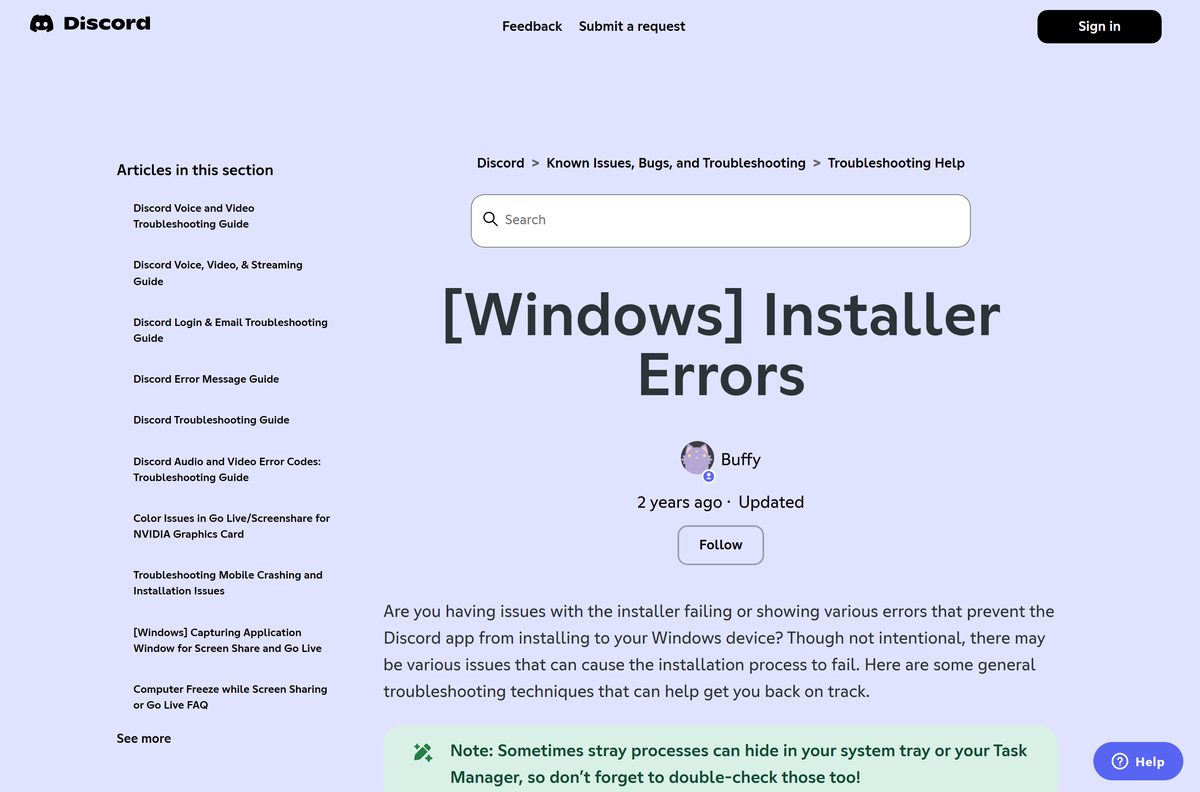
Almost every install failure on Windows is a leftover from the last one. Discord’s own fix is to remove both of its folders and start clean.
The installer runs and nothing happens, or Discord opens to a JavaScript error
A previous install is still in your user folders, so the new copy cannot replace it. Discord answers both symptoms with the same clean reinstall.
- Right-click the Discord icon in the system tray and select Quit Discord.
- Open Task Manager with Ctrl + Shift + Esc and end every Discord entry, including ones on the Startup apps tab.
- Press Windows + R, type %appdata% and delete the Discord folder.
- Press Windows + R, type %localappdata% and delete the Discord folder there too.
- Restart the PC, then run DiscordSetup.exe again.
- Contact Discord support if the error survives a clean reinstall.
Windows says the app cannot run on your PC
The download is a 64-bit build and Windows is 32-bit. Discord ended 32-bit support on 15 June 2024, and the last 32-bit build stopped at 1.0.9059.
- Open Settings > System > About and read System type.
- Use Discord in a browser if it reads 32-bit operating system.
- Move to 64-bit Windows for the desktop app.
The install stops part way or the disk fills up
The setup unpacks about 445 MB, and the old version stays on disk until the update completes.
- Open Settings > System > Storage and free space on the system drive.
- Delete the Discord folder under %localappdata% to clear old versions and the download cache.
- Run the setup again.
Discord installs but never gets past Updating
The updater cannot reach Discord’s servers, so it retries the same download forever.
- End every Discord process in Task Manager.
- Turn off a VPN or proxy while the update runs.
- Confirm the firewall allows Update.exe from %LocalAppData%\Discord .
- Right-click Discord and select Run as administrator once, which is Discord’s documented step for a stuck client.
- Delete both Discord folders and reinstall if it still loops.
Leave your security software switched on while you do this. The setup carries a valid Discord Inc. signature, so the folder cleanup is the fix, not an exception to make.
How to check that the Discord installer is genuine
Two checks settle whether the file came from Discord.
- Right-click DiscordSetup.exe and select Properties.
- Open the Digital Signatures tab and select the entry, then Details.
- Confirm the signer name reads Discord Inc. and the issuer is DigiCert.
- For the file itself, open Terminal and run Get-FileHash .\DiscordSetup.exe -Algorithm SHA256 .
- Run winget show Discord.Discord and compare the Installer SHA256 line with your hash.
The x64 1.0.9257 setup hashes to adc0b6b9ff805252fe55166eaee95355a0ad1d2a4368d8960f701945dbff1513 , the same value Discord publishes through the Windows Package Manager. No Digital Signatures tab at all means the file is not Discord’s.
Install Discord from the Microsoft Store or with winget
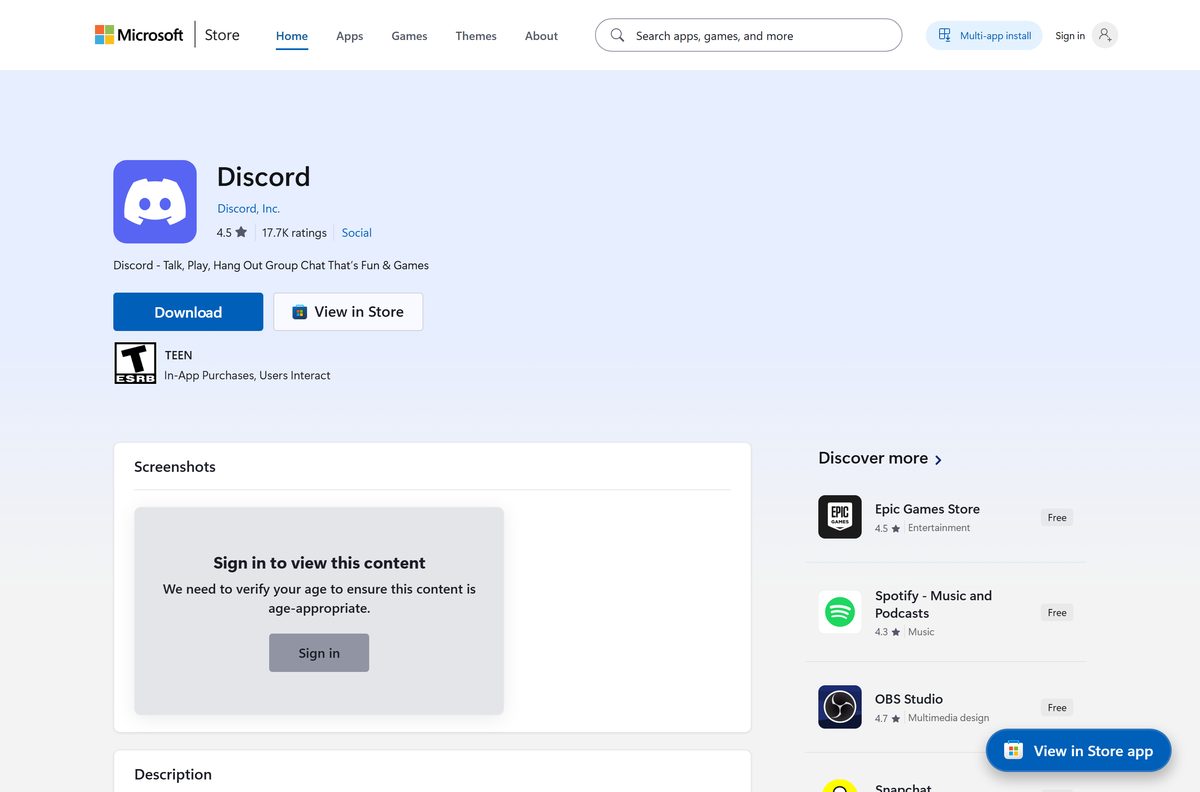
Both routes install the same desktop client into the same folder. Use one when the browser download keeps failing.
- Open Microsoft Store and search for Discord, or open product XPDC2RH70K22MN directly.
- Check the publisher line reads Discord, Inc.
- Select Get, then Install.
- For the command line, open Terminal and run winget install –id Discord.Discord –source winget .
- On an Arm PC run winget install –id Discord.Discord.arm64 –source winget instead.
The Store listing covers x86 and x64 only, so Arm PCs need the ARM64 download or the winget package.
How to check your Discord version and update it
Discord updates itself through Update.exe in your user folder. The version is not printed on the download page, so read it from the PC.
- Press Windows + R, type %localappdata%\Discord and select OK.
- Read the app- folder names. The highest number is the version you are running.
- Right-click the Discord icon in the notification area and select Check for Updates…
- Or run winget upgrade –id Discord.Discord in Terminal.
- Close Discord from the tray and reopen it to finish the swap.
A PC on the current x64 build shows app-1.0.9257. Windows on Arm runs a separate line that sits at 1.0.49, and the numbers never match across the two.
Check the Discord system requirements
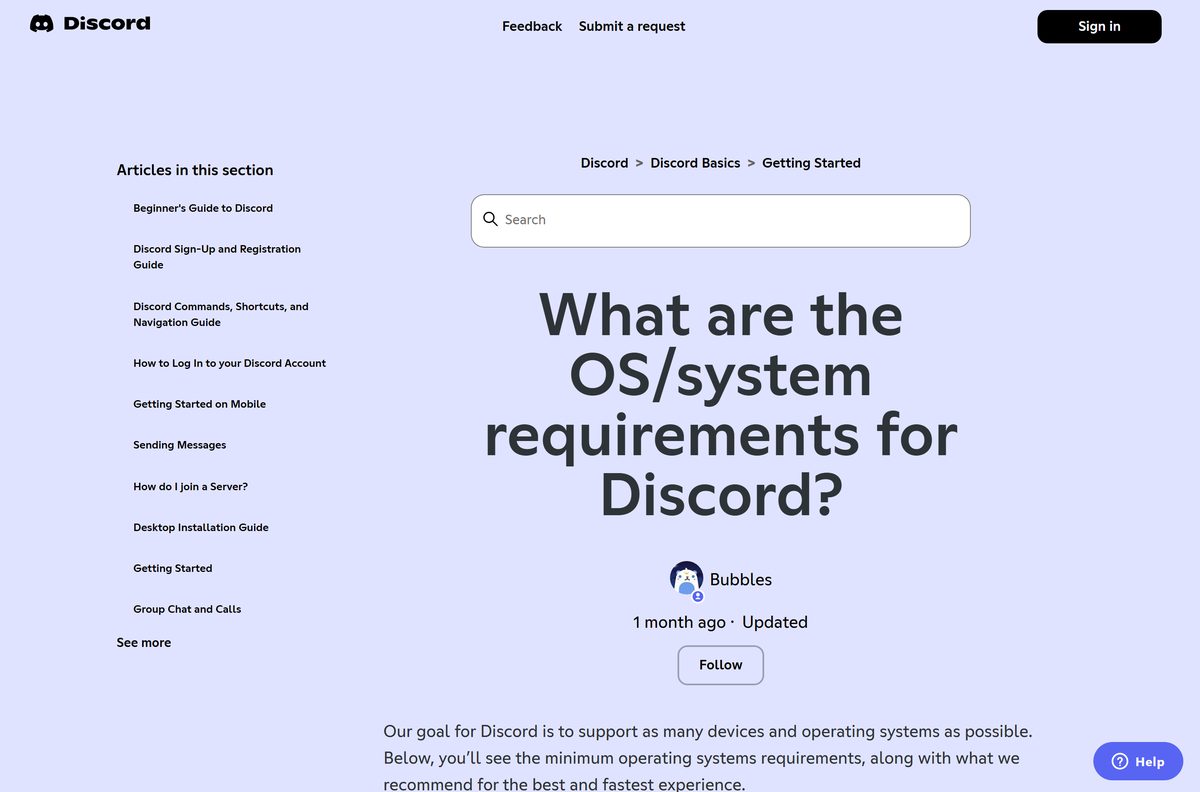
Discord publishes a short minimum list. The install footprint matters more than the CPU on most PCs.
| Field | Value |
|---|---|
| Developer | Discord Inc. |
| Latest version | 1.0.9257 for Windows x64, 1.0.49 for ARM64 |
| License | Free. Nitro Basic $2.99 a month, Nitro $9.99 a month |
| Setup file size | 139 MB x64, 138 MB ARM64 |
| Installed size | About 445 MB per version, plus the previous version until it is replaced |
| Supported OS | Windows 10 and later, macOS 12 Monterey or later |
| Architecture | x64 and ARM64. No 32-bit build since 15 June 2024 |
| Minimum memory | 2 GB on the Store listing, 4 GB recommended by Discord support |
| Install location | %LocalAppData%\Discord, current user only |
| Offline installer | Yes, the setup holds the client. First launch still downloads the modules |
| Official source | discord.com |
| Last verified | 2026-09-10 |
Windows 10 reached end of support on 14 October 2025. Discord still installs there, but the operating system underneath no longer gets security updates.
How to uninstall Discord completely before a clean reinstall
Removing Discord from Settings leaves two folders behind, and those folders are what break the next install.
- Right-click the tray icon and select Quit Discord.
- Open Settings > Apps > Installed apps.
- Select the three dots beside Discord, then Uninstall.
- Press Windows + R, type %appdata% and delete the Discord folder.
- Press Windows + R, type %localappdata% and delete the Discord folder.
- Open Task Manager > Startup apps and remove any leftover Discord entry.
- Restart the PC before installing again.
Your servers, messages and settings live on Discord’s account, not on the PC. Deleting both folders costs you nothing except a fresh login.
Is Discord free?
Yes. The installer, the account and the desktop app cost nothing. Nitro is the only paid part: Nitro Basic is $2.99 a month and Nitro is $9.99 a month, and both are optional extras on a free account. The Microsoft Store listing shows the same price of Free. Any page charging for a Discord setup file, a licence key or a “premium installer” is selling something Discord gives away.
Should you install Discord Stable, PTB or Canary?
Install Stable unless you are testing features on purpose. Stable is the build the download page serves and the one every support article is written against. PTB and Canary are Discord’s public test builds, they install into their own folders alongside Stable, and they carry the bugs a test build exists to find. Reaching for one to dodge an install failure leaves you with two broken copies.
Other PC games and game launchers include VRChat and Overwolf.
Frequently asked questions
Why is Discord not installing on Windows 11?
In most cases an old install is still on the PC. Quit Discord from the tray, end its processes in Task Manager, delete the Discord folders under %appdata% and %localappdata%, restart, then run DiscordSetup.exe again.
What is the official Discord download page?
discord.com/download. It offers x64 and ARM64 files for Windows, a universal DMG for macOS and Linux packages. The transfer itself comes from Discord’s own network at stable.dl2.discordapp.net.
Is there a Discord offline installer?
The Windows setup is a full installer rather than a stub, and the x64 file carries the whole client inside it. First launch still downloads Discord’s feature modules, so the PC needs a connection once.
How big is the Discord installer?
The Windows x64 setup is 139 MB and the ARM64 setup is 138 MB. Installed, each Discord version takes about 445 MB in your user folder.
Does Discord still work on 32-bit Windows, Windows 7 or Windows 8?
No. Discord ended 32-bit support on 15 June 2024, and Windows 7, 8 and 8.1 on 15 March 2024. Windows 10 is the minimum, and older PCs are limited to Discord in a browser.
Is Discord free to download?
Yes. The app, the account and the installer cost nothing. Nitro Basic at $2.99 a month and Nitro at $9.99 a month are optional add-ons, not a requirement for using Discord.
Is there a Discord ARM64 build for Windows on Arm?
Yes. The download page lists ARM64 beside x64 under Windows, and that file is 138 MB. Take it on a Snapdragon PC, because the x64 build runs under emulation.
Which Discord version is current on Windows?
The stable x64 client is 1.0.9257 and the ARM64 client is 1.0.49. Check yours by opening %localappdata%\Discord and reading the app- folder name.
Can you install Discord from the Microsoft Store?
Yes. The listing is product XPDC2RH70K22MN, published by Discord, Inc., and it is free. It covers x86 and x64 only, so Arm PCs need the ARM64 download or the winget package.
Is it safe to download Discord from other sites?
Those files are repackaged copies, often years behind. The genuine x64 setup is 145,809,848 bytes and carries a Discord Inc. signature under Properties, Digital Signatures.
Is there a Discord app for Mac?
Yes. One universal DMG covers Apple silicon and Intel Macs and needs macOS 12 Monterey or later. On macOS 11 or 10.15, use Discord in a browser instead.