Microsoft Graph Explorer is a free, browser-based developer tool from Microsoft for trying Microsoft Graph API requests, and you open it at https://developer.microsoft.com/en-us/graph/graph-explorer.
This guide explains what the tool does, how to access it with or without signing in, how to run your first query, and how to fix permission and sandbox problems.
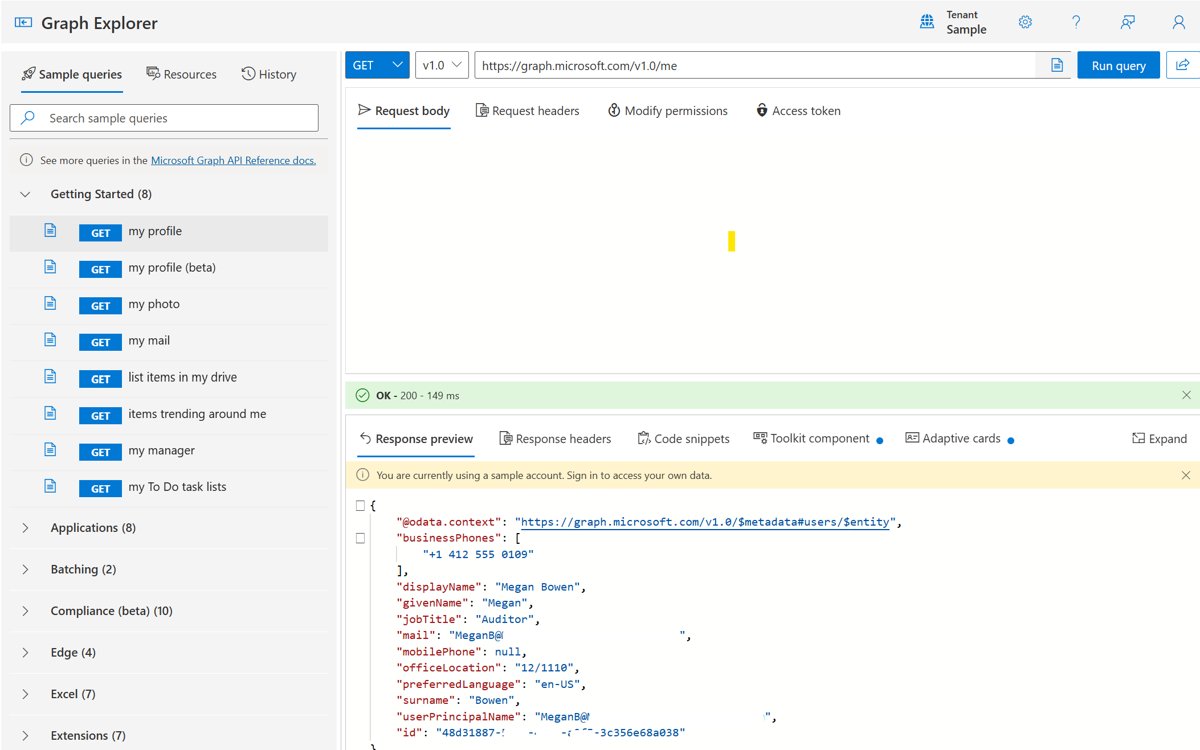
How to access Microsoft Graph Explorer
Graph Explorer runs in any modern browser, so there is nothing to download or install.
- Open your browser and go to
https://developer.microsoft.com/en-us/graph/graph-explorer. - Wait for the Sample queries list to load in the left pane.
- Select a sample query such as Get my profile to fill the query box.
- Select Run query to see the request and response against the sample tenant.
- Select the profile avatar at the top right and sign in when you want to query your own tenant.
On Microsoft Learn, the Open Graph Explorer link at the top of any Microsoft Graph documentation page goes to the same tool.
What is Microsoft Graph Explorer?
Microsoft Graph is the single API endpoint for data in Microsoft 365, including users, mail, calendars, files, Teams and Microsoft Entra ID.
Graph Explorer is the developer tool Microsoft provides for learning and testing those APIs before you write code.
| What you can do | Details |
|---|---|
| Test APIs on a sample tenant | Run prebuilt queries without signing in to see real request and response shapes |
| Prototype against your own tenant | Sign in with a Microsoft 365 work, school or personal account to query your own data |
| Learn required permissions | The Modify permissions tab lists the permissions a query needs |
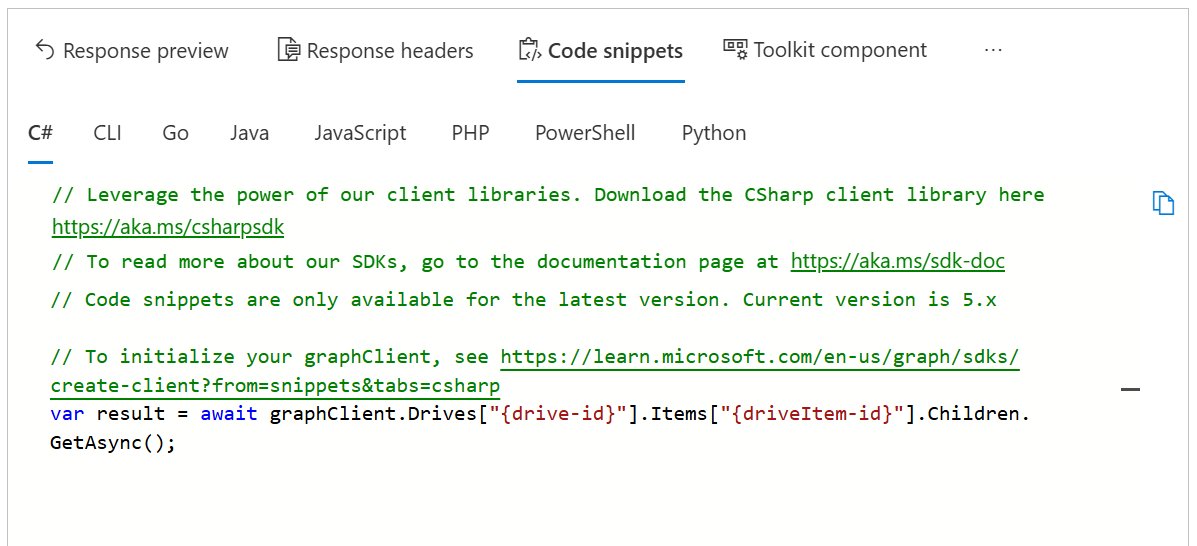
| Get code snippets | The Code snippets tab shows the same call in C#, JavaScript, Java, Go and PowerShell |
| Preview UI components | The Toolkit component and Adaptive cards tabs show matching components where available |
Microsoft Graph Explorer login: signed in vs signed out
You can use Graph Explorer without an account, but signing in unlocks write requests and your own data.
| Mode | What works | Data used |
|---|---|---|
| Signed out | GET requests and sample queries | The default sample tenant |
| Signed in to a developer sandbox | GET, POST, PUT, PATCH and DELETE | Test data in your sandbox tenant |
| Signed in to a work account | All methods your consented permissions allow | Your organization's live tenant |
Microsoft recommends signing in to a Microsoft 365 Developer sandbox rather than a production tenant, because any write request can change real data in that tenant.
How to use Microsoft Graph Explorer?
The query area holds the HTTP method, the API version, the query box, the request body and the request headers.
- Choose the HTTP method, such as GET or POST, from the method drop-down list.
- Choose v1.0 for production APIs or beta for preview APIs from the version drop-down list.
- Type a request URL in the query box, or select a query from Sample queries.
- Add JSON to Request body and key-value pairs to Request headers if the request needs them.
- Select Run query.
- Read the status code and returned data under Response preview, and check Response headers if you need them.
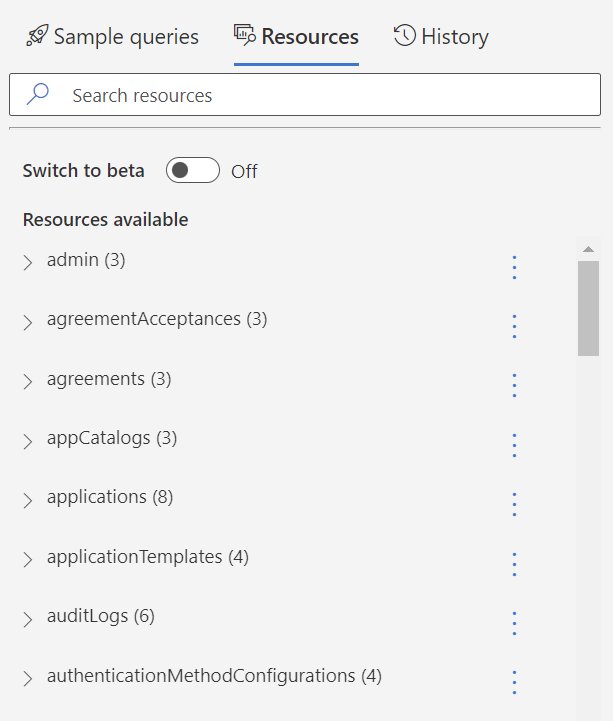
Some requests invoked using Microsoft Graph Explorer
These common v1.0 requests are good first tests once you sign in.
| Request | Method | Returns |
|---|---|---|
https://graph.microsoft.com/v1.0/me |
GET | Your profile |
https://graph.microsoft.com/v1.0/me/messages |
GET | Messages in your mailbox |
https://graph.microsoft.com/v1.0/me/events |
GET | Events on your calendar |
https://graph.microsoft.com/v1.0/me/drive/root/children |
GET | Files and folders at the root of your OneDrive |
https://graph.microsoft.com/v1.0/users |
GET | Users in the tenant (needs a directory read permission) |
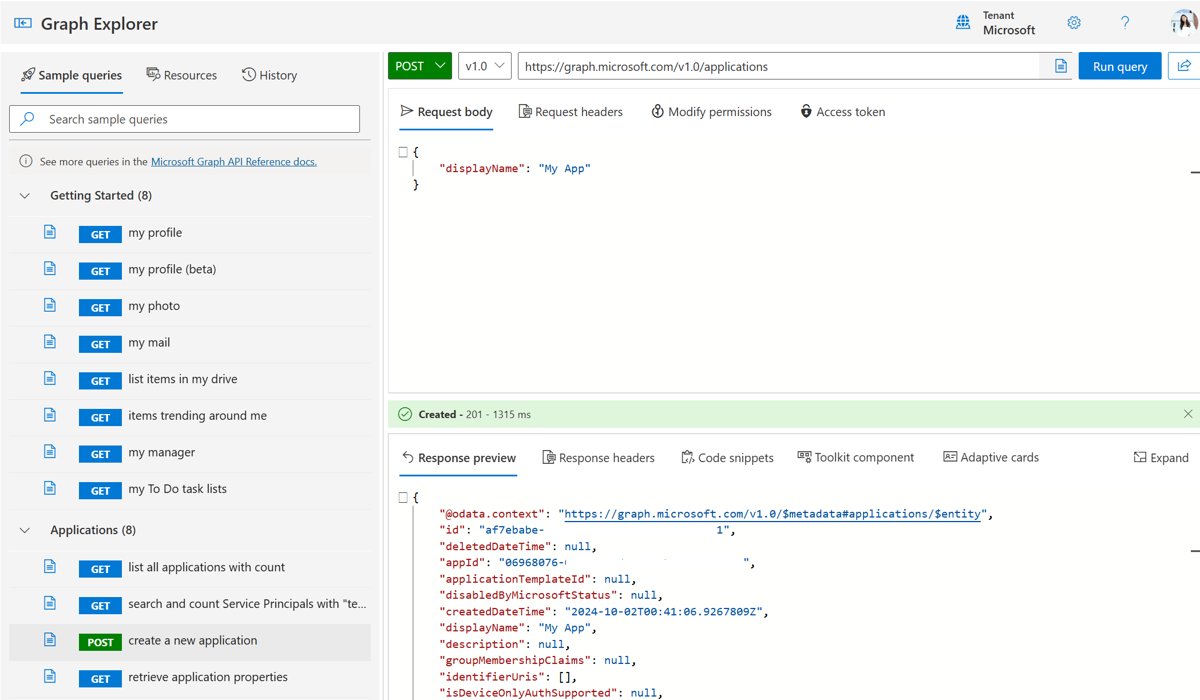
How to consent to permissions in Graph Explorer
A query that lacks a permission fails with an error, and you or an administrator must grant consent first.
- Sign in and run the query you want to use.
- Select the Modify permissions tab under the query box.
- Review the list of permissions the query needs, and pick the least privileged one.
- Select Consent next to that permission and accept the prompt.
- Run the query again.
To see every available permission instead, select the profile avatar and choose Consent to permissions. Microsoft notes the Modify permissions feature is in preview, so some queries may show an incomplete list.
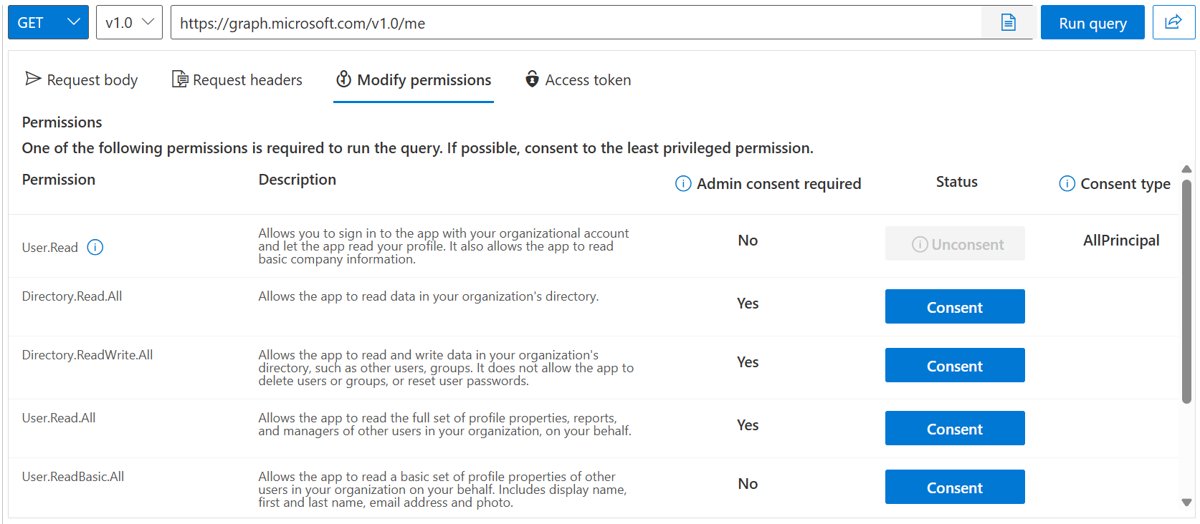
Graph Explorer tool features and where to find them
| You want to | Go to | Result |
|---|---|---|
| Re-run or export an old query | History in the left pane | Queries from the last 30 days, exportable in .har format |
| Browse every API resource | Resources in the left pane | v1.0 and beta resources with a search bar |
| Build a Postman collection | Resources > Add to collection > Preview collection | A downloadable Postman collection |
| Share a query | Share next to Run query | A link others can open in Graph Explorer |
| Copy your access token | Access token tab | The token for use in another REST client |
| Change the theme or get a sandbox | Settings icon at the top right | Theme options and a free instant sandbox with sample data |
| Read the API reference | Documentation on a query | The Microsoft Learn page for that endpoint |
Check that a Microsoft Graph Explorer query worked
- Look at the status line in Response preview and confirm it shows a 2xx code, such as 200 OK.
- Confirm the JSON response contains your own account details when you ran
/mewhile signed in. - Check the Tenant name in the header to confirm which tenant the request ran against.
Microsoft 365 Developer Program stuck at Loading your information
Many readers try Graph Explorer with a free developer sandbox, and the Developer Program dashboard can hang while it checks your profile and eligibility.
The dashboard keeps showing Loading your information
The browser is signed in to several Microsoft accounts, or the profile and eligibility checks have not finished.
- Sign out of all Microsoft accounts in the browser.
- Close every browser window.
- Open the browser again and sign in to the Developer Program dashboard with your member ID, the account you used to join.
- Complete any missing profile fields and identity verification the dashboard asks for.
The portal says you do not qualify for a sandbox
Only eligible members, such as Visual Studio Professional or Enterprise subscribers and qualifying partners, receive an E5 developer subscription.
- Confirm your Visual Studio subscription is active and assigned to your account.
- Sign in again and retry the validation process.
- Use Graph Explorer signed out with the sample tenant if you have no eligible path.
Once the sandbox is ready, sign in to the Microsoft 365 admin center with the sandbox administrator ID shown on the subscription tile to manage its test users.
Graph Explorer query fails with a permission error
403 Forbidden or insufficient privileges
Graph Explorer has not been granted the permission the request needs, or your organization requires admin consent.
- Open Modify permissions and consent to the listed permission.
- Ask a tenant administrator to grant consent if the permission requires it.
- Run the query again.
POST, PATCH or DELETE does nothing while signed out
Write requests need a signed-in account.
- Select the profile avatar and sign in.
- Run the write request again, ideally in a sandbox tenant.
Microsoft Graph Explorer FAQ
What is Graph Explorer?
Graph Explorer is a free Microsoft developer tool that runs in a browser and sends test requests to Microsoft Graph APIs. It shows the response, required permissions and matching code snippets, so you can learn an API before building it into an app.
How do I access Microsoft Graph Explorer?
Go to developer.microsoft.com/en-us/graph/graph-explorer in any browser. The tool opens with sample queries ready to run against a sample tenant, and you can sign in from the profile avatar to work with your own tenant.
How do I get to Microsoft Graph Explorer from the documentation?
Select Open Graph Explorer at the top of any Microsoft Graph page on Microsoft Learn. Each query in Graph Explorer also has a Documentation link that goes back to the matching API reference page.
Is there a Microsoft Graph Explorer download or app?
No download is needed. Graph Explorer is a web tool that runs in the browser. You can export history as .har files and resources as a Postman collection if you want to continue in another client.
Do I need to sign in to use Microsoft Graph Explorer?
No. Signed out, you can run GET requests against a sample tenant. Sign in with a Microsoft 365 account to query your own data and to run POST, PUT, PATCH and DELETE requests.
Is it safe to use Graph Explorer with a work account?
It works, but write requests change real data in that tenant. Microsoft recommends signing in to a Microsoft 365 Developer sandbox tenant for testing instead of a production tenant.
What languages do Graph Explorer code snippets support?
After you run a query, the Code snippets tab shows the same call in C#, JavaScript, Java, Go and PowerShell, which you can copy into your own project.