To connect a Canon printer to a laptop, plug it in with a USB A-B cable, or join it to the same Wi-Fi network as the laptop and add it under Printers & scanners in Windows.
This guide covers USB, Wi-Fi, wired LAN and Wireless Direct connections, adding the printer in Windows 11, Windows 10, macOS and ChromeOS, Canon's driver package, and fixes when the laptop cannot find the printer. If your questions are about Windows rather than the Canon itself, such as printer preferences or scanning, the Windows printer guide has the answers.
Connect through a USB A-B cable
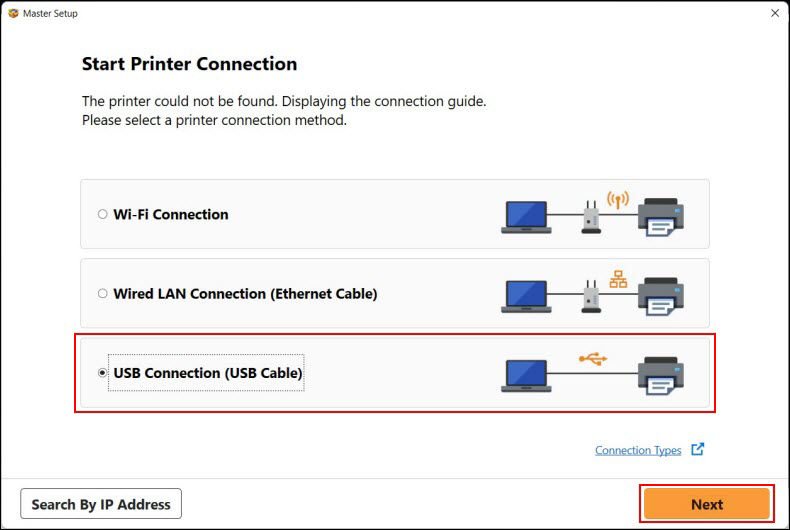
USB is the quickest route because Windows usually installs a USB printer on its own as soon as it is plugged in and turned on. Most Canon printers have a square USB Type-B port, so you need an A-B printer cable, or a USB-C to B cable for a laptop with only USB-C ports.
- Turn on the Canon printer and load paper.
- Plug the square USB-B end into the printer and the other end into the laptop.
- Wait a minute while Windows installs the printer.
- Open Settings > Bluetooth & devices > Printers & scanners (Windows 11) and confirm the Canon printer is listed.
- If it is missing, select Add device next to Add a printer or scanner, then select Add device beside the Canon printer.
- Install Canon's driver package for your model to get the full set of print and scan features.
What type of connection methods are available for Canon printers?
Canon PIXMA and MAXIFY models support some or all of these routes. Check the ports and buttons on your model before you choose.
| Your situation | Connection to use | Why |
|---|---|---|
| One laptop, printer on the desk next to it | USB A-B cable | No network setup and usually no driver hunt |
| Several devices share the printer at home | Wi-Fi (wireless LAN) | Any laptop or phone on the network can print |
| Printer has an Ethernet port next to the router | Wired LAN | Steady connection with no Wi-Fi signal problems |
| No router, or a guest needs to print once | Wireless Direct (Wi-Fi Direct) | The laptop joins the printer's own network |
| MacBook | USB or Wi-Fi, added in System Settings | Add it from the Printers & Scanners list |
| Chromebook | Wi-Fi or USB, added in Settings | ChromeOS cannot print over Bluetooth |
What you need before you connect a Canon printer to a laptop
| You need | Details |
|---|---|
| Printer model name | Printed on the front or top, for example PIXMA TS3720; needed for Canon's drivers |
| Wi-Fi network name and password | For a wireless setup; the printer and laptop must use the same network |
| A USB A-B cable | For a USB connection, or to fall back on when Wi-Fi setup fails |
| Admin rights on the laptop | To install Canon's driver package |
| Processor type on Windows | On an ARM PC, add the printer through Windows Settings instead of the maker's installer |
To check for an ARM PC, open Settings > System > About and read System type under Device specifications.
Connect your Canon printer to Wi-Fi
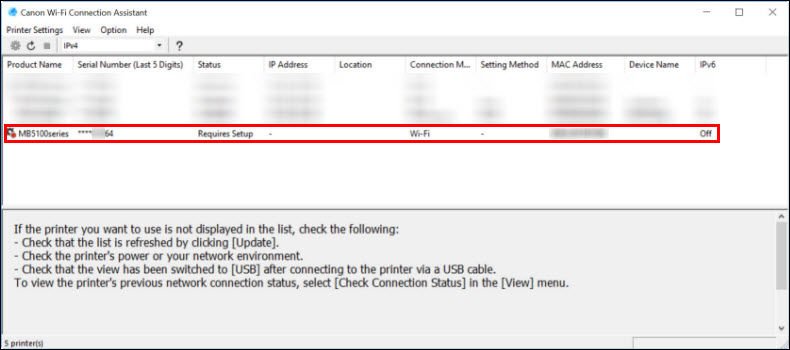
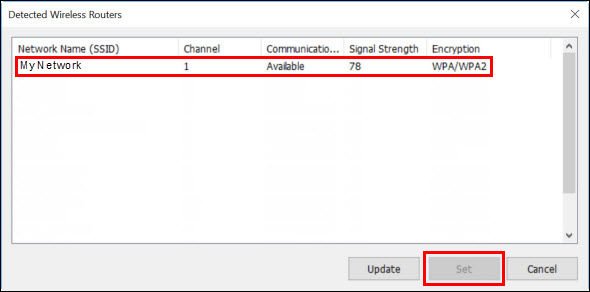
Canon's Wi-Fi Connection Assistant for Windows joins the printer to your wireless network from the laptop. The printer must first be in Easy Wireless Connect mode, also called Cableless Setup; the button sequence for that differs by model and is listed in Canon's support pages for your printer.
- Put the printer in Easy Wireless Connect (Cableless Setup) mode.
- On the laptop, open Wi-Fi Connection Assistant and select Printer Network Setup.
- Select the printer that shows Requires Setup under Status.
- Open the Printer Settings menu and select Network Settings….
- Select Search…, choose your Wi-Fi network and select Set.
- Select Set again, then OK at the confirmation message.
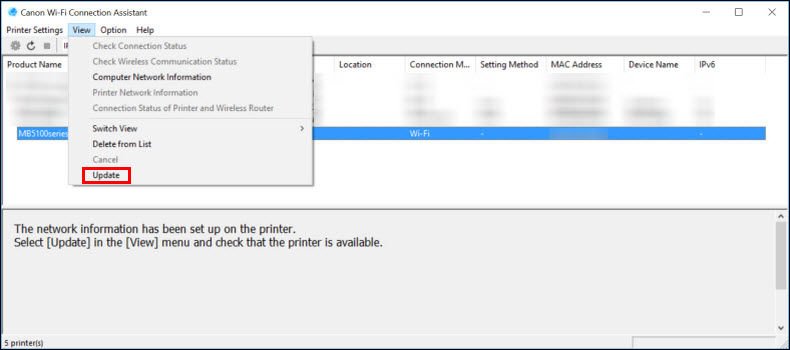
- Select View > Update and confirm the printer now shows as connected.
Models with a touch screen can also join Wi-Fi from the printer itself by picking the network and typing its password, and some support WPS. Canon calls these Manual Connect and the WPS method.
Add the printer in Windows 11
Once the printer is on Wi-Fi, add it in Windows. The laptop must be on the same network name as the printer. On Windows 10 the path is Settings > Devices > Printers & scanners > Add a printer or scanner.
- Select Start > Settings > Bluetooth & devices > Printers & scanners.
- Next to Add a printer or scanner, select Add device.
- Wait for the list to fill; it can take a few minutes.
- Select Add device beside your Canon printer.
- If it does not appear, select Add a new device manually next to The printer that I want isn't listed.
- Choose Add a printer using an IP address or hostname and enter the printer's IP address from its network settings.
- After it installs, run Windows Update to pick up newer drivers.
The same Settings routine works for any brand, so you can connect a wireless printer to Windows the same way, and Windows 11 can also add local and Bluetooth printers from this page.
Connecting via wired LAN
Canon models with an Ethernet port can join the network by cable. The laptop can then be on Wi-Fi or Ethernet, as long as both connect to the same router.
- Turn off the printer.
- Connect an Ethernet cable from the printer's LAN port to a free port on the router.
- Turn the printer on and wait a minute for it to get a network address.
- On the laptop, open Printers & scanners and select Add device.
- Select the Canon printer and then Add device.
Connect without a router using Wireless Direct
Wireless Direct, Canon's take on Wi-Fi Direct, makes the printer broadcast its own network so a laptop can connect without a router. Canon publishes model-specific steps for turning it on, and the printer shows its network name (SSID) and password once it is enabled.
- Turn on Wireless Direct from the printer's network settings, using the steps for your model.
- Note the network name (SSID) and password the printer displays.
- On the laptop, select the Wi-Fi icon on the taskbar and connect to the printer's network name.
- Enter the password from the printer.
- Open Printers & scanners, select Add device, then add the Canon printer.
Switch the laptop back to your normal Wi-Fi network after printing.
Add your Canon printer on a Mac
- Make sure the printer is on and connected to the same Wi-Fi network as the Mac, or plug it in by USB.
- Open the Apple menu > System Settings and select Printers & Scanners in the sidebar.
- Select Add Printer, Scanner, or Fax.
- Select the Canon printer and select Add.
- If it is not listed, select the IP button, enter the printer's IP address in Address, choose AirPrint under Protocol, then select Add.
A Mac with only USB-C ports needs an adapter or a USB-C to B cable for a wired connection.
Set up printing on a Chromebook
The Chromebook must be signed in and on the same network as the printer. ChromeOS does not print over Bluetooth.
- Select the time in the bottom-right corner, then the Settings gear.
- Under Device, open Printers and scanners, then select Print.
- Under Other available printers, find the Canon printer and select Save.
- If it is missing, select Add printer manually.
- Enter a Name, the printer's IP address under Address, Internet Printing Protocol (IPP) as the protocol and
ipp/printas the Queue. - Select Add.
Do I need to install any software to use my Canon printer?
Windows and macOS print to most Canon models with built-in drivers, but scanning tools and full print settings come from Canon's driver package.
| Software | What it adds | Where to get it |
|---|---|---|
| Windows built-in driver | Basic printing | Installs when you add the printer; updates through Windows Update |
| Print Driver and Scan Utility Installer or Driver Setup Package | Full print settings and IJ Scan Utility | Canon USA Support > your model > Software & Drivers |
| Wi-Fi Connection Assistant | Joins the printer to Wi-Fi from a Windows PC | Canon support pages for your model |
| Canon PRINT app | Printing and scanning from phones and tablets | App Store or Google Play |
To install the package, search your model on Canon USA Support, select Software & Drivers, pick your Windows version, download the installer, run it and connect the printer by USB if the setup asks. Canon printer drivers for Windows and Mac are also listed by series.
Check the Canon printer works from your laptop
- Open Printers & scanners and confirm the Canon printer is listed.
- Select it and check that it does not show Offline.
- Open Notepad, type a line, press Ctrl + P, choose the Canon printer and select Print.
- For a Wi-Fi setup, Canon's Wi-Fi Connection Assistant also offers a Test Print button after connecting.
Find a missing wireless printer
Canon printer not showing in Add device
The printer and laptop are on different networks, often because of an extender or a second router.
- Connect the laptop to the same Wi-Fi network name as the printer.
- Turn the printer off, unplug it for 30 seconds, then plug it in and turn it on.
- Run Add device again.
Printer dropped off Wi-Fi after a router change
The printer still holds the old network name or password.
- Put the printer in Easy Wireless Connect mode.
- Run Wi-Fi Connection Assistant on the laptop and set the new network.
Printer is on Wi-Fi but Windows still cannot see it
Automatic discovery is not reaching it, a common reason a computer cannot find a wireless printer.
- Select Add a new device manually.
- Add it with Add a printer using an IP address or hostname.
Wi-Fi setup keeps failing: use a USB cable instead
Weak signal or a network the printer cannot join.
- Connect the printer to the laptop with a USB A-B cable.
- Let Windows install it, or run Canon's driver package and choose the USB connection when asked.
Troubleshooting common Canon printer connection issues
Canon installer fails on a Copilot+ or other ARM laptop
Some manufacturer installers do not work on ARM PCs.
- Close the Canon installer.
- Add the printer through Settings > Bluetooth & devices > Printers & scanners > Add device.
Printer added but jobs do not print
A stuck job or a stale printer entry.
- Select the printer in Printers & scanners and select Remove.
- Restart the laptop and add the printer again.
- If jobs stay stuck, restart the Print Spooler service and clear the spool folder.
Printer shows a Find drivers button or missing features
Windows installed a basic driver.
- Run Windows Update.
- Install Canon's Driver Setup Package for your model.
Canon printer and laptop connection FAQ
What are the system requirements for connecting my Canon printer to my computer?
You need a supported Windows, macOS or ChromeOS version, a USB port or the same network as the printer, and admin rights to install drivers. Canon lists supported systems on each model's Software & Drivers page.
How do I connect my Canon printer to my computer using a USB cable?
Turn on the printer, connect it to the computer with a USB A-B cable and wait for Windows to install it. If it does not appear, add it in Printers & scanners, then install Canon's driver package.
How do I connect my Canon printer to my computer wirelessly?
Put the printer in Easy Wireless Connect mode, use Canon's Wi-Fi Connection Assistant to join it to your network, then add it in Printers & scanners with Add device on the same network.
What if I encounter issues during the connection process?
Check that the printer and laptop are on the same network, power-cycle the printer for 30 seconds, and add it by IP address if discovery fails. A USB cable is the fallback when Wi-Fi setup keeps failing.
How do I update the software for my Canon printer?
Download the latest driver package for your model from Canon USA Support under Software & Drivers and run it. Windows Update also delivers driver updates for many Canon printers.
Can I connect a Canon printer to a laptop without Wi-Fi?
Yes. Use a USB A-B cable, or turn on Wireless Direct so the laptop connects straight to the printer's own network without a router.
Why does my laptop say the Canon printer is offline?
The printer has usually lost its network connection or is switched off. Turn it on, confirm it is on the same Wi-Fi network as the laptop, and re-run Wi-Fi Connection Assistant if the network changed.