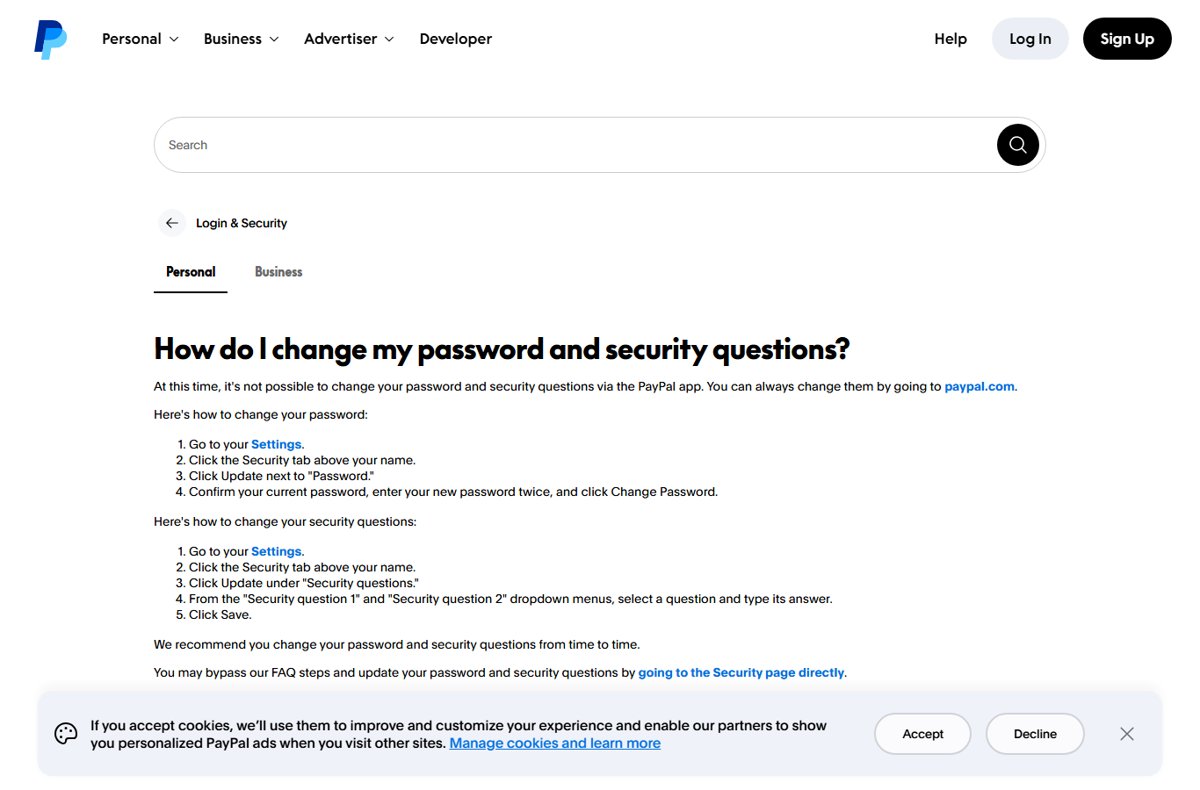
To change your PayPal password, log in at paypal.com, open Settings, select the Security tab and click Update next to Password.
If you forgot the password, reset it from the PayPal login page instead; this guide covers both routes, security questions, 2-step verification, passkeys and the fixes for common sign-in problems.
How to change your PayPal password
Use this route when you still know your current password. PayPal does not let you change the password inside the PayPal app, so use a web browser on a phone or computer.
- Open a browser, type paypal.com into the address bar yourself and log in.
- Go to your Settings.
- Click the Security tab above your name.
- Click Update next to Password.
- Enter your current password to confirm it is you.
- Type your new password twice.
- Click Change Password.
Once you are signed in, the address paypal.com/myaccount/settings/security opens the same Security page directly and skips the first three steps.
Change or reset: which PayPal password route fits you?
| Your situation | What to do | Why |
|---|---|---|
| You know your password and want a new one | Change it under Settings > Security on paypal.com | Requires your current password, takes under a minute |
| You forgot your password | Reset it from the paypal.com login page | PayPal confirms your identity before it lets you set a new password |
| You forgot the email address on the account too | Use PayPal's forgotten-email recovery in the Help Center | A password reset needs the account email or phone first |
| You only use the PayPal app | Open paypal.com in your phone's browser | Password and security question changes are not available in the app |
| You got an email or text telling you to reset | Ignore the link and type paypal.com yourself | Reset requests can be phishing |
| You see activity you do not recognize | Change the password immediately, then review recent activity | PayPal advises an immediate change after unauthorized activity |
How to reset your PayPal password
Use a reset when you cannot remember the current password. Start from a page you typed yourself, never from a link in an email or text, because fake reset messages are a common phishing trick.
- Open a new browser window and type paypal.com into the address bar.
- Go to the login page and choose the forgotten-password option under the password field.
- Enter the email address or phone number linked to your PayPal account.
- Complete the identity check PayPal shows, such as entering a reset code PayPal sends you.
- Type the code on the paypal.com page only; never read it out or send it to anyone.
- Create a new password that you have not used for PayPal or any other account.
- Log in with the new password to confirm it works.
PayPal never asks for a reset code over the phone, by email or by text. Anyone who asks for it is trying to take over the account.
How to change your PayPal security questions
Security questions sit on the same Security page as the password, and PayPal recommends changing both from time to time. Like the password, they can only be changed on paypal.com, not in the app.
- Log in at paypal.com and go to your Settings.
- Click the Security tab above your name.
- Click Update under Security questions.
- Pick a question from the Security question 1 dropdown menu and type its answer.
- Pick a question from the Security question 2 dropdown menu and type its answer.
- Click Save.
Choose answers a stranger cannot find online. Your mother's maiden name, birthday and address are details fraudsters use to guess passwords and impersonate you.
Enabling two-factor authentication on PayPal
With 2-step verification on, every login needs your password plus a separate one-time code. A stolen password alone is then not enough to get into the account.
- Log in to PayPal in a web browser.
- Click the Settings icon, then select Security.
- Select Set Up under 2-step verification.
- Choose an authenticator app, or choose Text me a code to get the code by SMS.
- Follow the on-screen instructions to finish turning on 2-step verification.
An authenticator app keeps working when your phone has no signal and is not exposed to SIM-swap fraud, which makes it the stronger of the two choices.
How to check your new PayPal password works
- Log out of PayPal on the browser you used.
- Type paypal.com again and log in with the new password.
- If 2-step verification is on, confirm that PayPal now asks for your one-time code after the password.
- Open Settings > Security and check that the password and security question entries show no pending prompts.
- Update the saved entry in your password manager so autofill does not offer the old password.
- Sign in on the PayPal app on your phone with the new password, or with your passkey or biometrics if you set them up.
Understanding the importance of PayPal password security
Your password is the key to your PayPal account, which holds linked bank accounts and cards. PayPal will never ask you for your password, so any message that does is not from PayPal.
| When to change your PayPal password | Why it matters |
|---|---|
| You notice unauthorized activity on the account | Someone else may already know the password |
| PayPal sends a notice about unusual activity | PayPal has flagged a risk on the account |
| A site where you reused the password was breached | Attackers try leaked passwords on other services |
| You are a victim of identity theft | Your personal details may let someone answer recovery checks |
| An account detail changed without your action | PayPal advises changing the password and checking activity for unauthorized transactions |
| Routine upkeep | PayPal recommends changing the password and security questions from time to time |
Creating a strong PayPal password
PayPal's own advice puts length ahead of complexity. A long phrase you can remember beats a short string of symbols you will end up writing down.
| Rule | What to do | Example of what to avoid |
|---|---|---|
| Length | Use at least 12 characters | An eight-character password |
| Passphrase | Combine 3 or more words that mean something only to you | A single dictionary word |
| Unique | Use a password you have never used on another account | Your email or Netflix password |
| Nothing personal | Leave out names, birthdays, pets and addresses | Your child's name plus a year |
| No common phrases | Avoid common words and well-known phrases | Password123 or a song lyric |
| Storage | Keep it in a password manager behind one strong master password | A note on your phone or a sticky note |
Additional PayPal security tips
A strong password is one layer. These PayPal-recommended habits cover the other ways accounts get taken over.
| Tip | What to do |
|---|---|
| Use a passkey | Create a passkey so you log in with your device's face, fingerprint or PIN instead of typing a password |
| Turn on biometrics | Enable fingerprint or Face ID sign-in wherever the app offers it |
| Spot fake emails | Real PayPal emails use your full name or business name exactly as on the account; "Dear user" is a warning sign |
| Type the address yourself | Reach PayPal by typing paypal.com or opening the app, not through links in messages |
| Distrust caller ID | Scammers fake caller ID; PayPal customer service is 1-888-221-1161 |
| Avoid public Wi-Fi for money | Do not log in to financial accounts on coffee shop, hotel or airport Wi-Fi without a VPN or mobile data |
| Keep devices updated | Install security updates on every phone, tablet and computer you use for PayPal |
| Change reused passwords elsewhere | If your old PayPal password also protected your Windows account password or your Apple Account password, change those too |
Fix PayPal password and login problems
There is no option to change the password in the PayPal app
PayPal does not support password or security question changes in the app.
- Open your phone's browser instead of the app.
- Type paypal.com and log in.
- Go to Settings > Security and click Update next to Password.
An email or text asks you to reset your PayPal password
Unsolicited reset messages are a common phishing tactic.
- Do not click any link or open any attachment in the message.
- Check the greeting: a real PayPal email uses your full account name, not "Dear user".
- Open a new browser window, type paypal.com and log in to check for real alerts.
- If the message was fake, report it through the PayPal Security Center.
PayPal still asks for a password after you created a passkey
The passkey is saved to a password manager that this device or browser cannot reach, or the browser is not yet supported.
- Check that the device is signed in to the same password manager account where the passkey was saved, such as the same iCloud account.
- Check that your browser meets PayPal's minimum version, for example Chrome or Edge 108 or later on Windows 10 or later.
- On the password entry page, pick the passkey from the browser's autofill suggestions.
- If the device is new, create another passkey on it from the Passkey Creation page.
Browser autofill shows a passkey error
The passkey was deleted from your PayPal account but is still stored in your password manager.
- Open your password manager, such as iCloud Keychain or Google Password Manager.
- Delete the old PayPal passkey there.
- Log in with your password or a one-time passcode, then create a new passkey if you want one.
You lost the phone that holds your PayPal passkey
The passkey lives on the device, but it cannot be used without your face, fingerprint or PIN.
- Log in to PayPal on another device with your password or a one-time passcode.
- Open the Passkey Management page.
- Select the passkey for the lost device and click Remove This Passkey.
- Change your PayPal password as an extra precaution.
PayPal password FAQ
Can I change my PayPal password in the PayPal app?
No. PayPal does not let you change your password or security questions in the app. Open paypal.com in any browser, including your phone's, go to Settings, select the Security tab and click Update next to Password.
How often should I change my PayPal password?
PayPal recommends changing your password and security questions from time to time. Change it immediately if you see unauthorized activity, get a PayPal notice about unusual activity, or learn that a reused password was exposed in a data breach.
How long should a PayPal password be?
PayPal advises at least 12 characters. A passphrase made of three or more unrelated words is longer, easier to remember and harder to crack than a short password packed with symbols. Never reuse it on another site.
Will PayPal ever ask for my password or reset code?
No. PayPal never asks for your password, PIN or one-time verification code by phone, email or text. Anyone requesting one, even a caller showing PayPal on caller ID, is attempting fraud, so hang up or delete the message.
Can I change my PayPal security questions?
Yes. On paypal.com, open Settings, select the Security tab and click Update under Security questions. Choose new questions from the two dropdown menus, type the answers and click Save. This option is not available in the app.
Does PayPal 2-step verification work with an authenticator app?
Yes. When you select Set Up under 2-step verification in Settings > Security, you can link an authenticator app or choose Text me a code for SMS. An authenticator app works without a cellular signal.
What is a PayPal passkey?
A passkey lets you log in to PayPal with the same face, fingerprint, PIN or password you use to unlock your device. It exists only on your devices, cannot be written down or handed to a scammer, and PayPal never receives your biometric data.
What happens if I lose the device with my PayPal passkey?
You can still log in with your password or a one-time passcode. The saved passkey cannot be used without your face, fingerprint or PIN, and you can remove it from the Passkey Management page as a precaution.
Bottom line: change your PayPal password on paypal.com
Change your PayPal password on paypal.com under Settings > Security, use a reset only when you have forgotten it, and turn on 2-step verification straight after. The app cannot change passwords, reset links in messages may be phishing, and 2-step verification means a leaked password alone no longer opens the account.