To fix the Generic Bluetooth driver missing error in Windows 11, uninstall the Bluetooth adapter in Device Manager, shut the PC down fully, and let Windows reinstall the driver when it starts again.
If that does not bring it back, this guide shows how to force the built-in Generic Bluetooth Adapter driver, get the right driver from Windows Update or your PC maker, and fix the Device Manager error codes that come with it.
Generic Bluetooth driver missing error in Windows 11/10
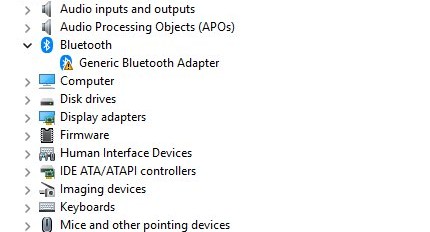
A missing or broken Bluetooth driver shows up as a yellow warning on the adapter in Device Manager, or as an unknown device under Other devices. Removing the device and letting Windows detect it again reinstalls the driver it has on file.
- Right-click Start and select Device Manager.
- Expand Bluetooth. If no adapter is listed there, expand Other devices instead.
- Right-click the Bluetooth adapter, whose name may include the word Radio or Generic Bluetooth Adapter, and select Uninstall device.
- Select Uninstall to confirm.
- Select Start > Power > Shut down, not Restart, so the Bluetooth hardware powers off completely.
- Wait a few seconds, then turn the PC back on. Windows tries to reinstall the driver during startup.
- If the adapter does not return, open Device Manager and select Action > Scan for hardware changes.
If the first shutdown does not help, hold Shift while you select Shut down, wait one minute, then start the PC. Microsoft recommends this full power-off when Bluetooth hardware stops responding.
Why is the Generic Bluetooth driver missing on my computer?
Windows ships its own Bluetooth driver (Bth.inf), and Device Manager names the radio Generic Bluetooth Adapter when that driver is in use. The error appears when Windows cannot match or load a driver for the radio.
| Cause | What you see | Fix that matches |
|---|---|---|
| The radio's hardware ID is not in the Windows Bluetooth INF | An unknown device under Other devices, no Bluetooth section | Install the Generic Bluetooth Adapter driver manually, or the PC maker's driver |
| Driver built for an older Windows version after an upgrade | Code 10, 31 or 43 on the adapter | Update the driver, or install the PC maker's Windows 11 driver |
| Driver files damaged or removed | Code 28: the drivers for this device are not installed | Uninstall the device, then scan for hardware changes |
| A recent driver update that does not suit the radio | Bluetooth stopped working right after an update | Roll back the Bluetooth driver |
| Bluetooth radio switched off by a key, switch or airplane mode | Adapter missing or the Bluetooth toggle absent | Turn off airplane mode and turn on the hardware switch |
| Firmware or BIOS problem from the PC maker | Adapter vanishes until a full shutdown | Install optional firmware updates or the maker's BIOS update |
Most Bluetooth hardware errors trace back to drivers or firmware supplied by the PC manufacturer, so the maker's support page is the fallback for every fix below.
Generic Bluetooth Adapter error codes in Device Manager
Open the adapter's Properties in Device Manager and read the Device status box. The code there tells you which fix to use.
| Code | Message | What to do |
|---|---|---|
| Code 10 | This device cannot start | Update the driver from the Driver tab |
| Code 22 | This device is disabled | Select the adapter, then Action > Enable Device |
| Code 28 | The drivers for this device are not installed | Uninstall the device, then select Action > Scan for hardware changes |
| Code 31 | Windows cannot load the drivers required for this device | Right-click the device and select Update driver |
| Code 43 | Windows has stopped this device because it has reported problems | Uninstall and rescan, then contact the PC maker if it returns |
| Code 45 | This hardware device is not connected to the computer | Reconnect the USB Bluetooth dongle; no fix needed otherwise |
| Code 52 | Windows cannot verify the digital signature for the drivers | Download the latest driver from the PC maker's website |
Code 45 only marks a dongle that was unplugged. It clears by itself when the USB adapter goes back in.
How do I reinstall Bluetooth driver in Windows 11?
Use this when the adapter is listed under Bluetooth but shows a warning or will not turn on. Windows puts the driver back automatically after the restart.
- Select Start, type Device Manager, and select it from the results.
- Expand Bluetooth.
- Right-click your Bluetooth adapter and select Uninstall device, then confirm.
- Restart the PC.
- Open Device Manager again and check that the adapter is back under Bluetooth.
- If it is missing, select Action > Scan for hardware changes.
The same steps let you reinstall the Bluetooth driver for a USB Bluetooth dongle, as long as it stays plugged in during the scan.
Install the Generic Bluetooth Adapter driver manually in Device Manager
When the radio sits under Other devices with no driver, you can point it at the Bluetooth driver built into Windows. Microsoft documents this as the way to force the in-box driver onto a radio Windows did not match.
- Right-click Start and select Device Manager.
- Expand Other devices and find the unknown Bluetooth device. On some laptops you must turn the radio on with its function key first.
- Right-click the device and select Update driver.
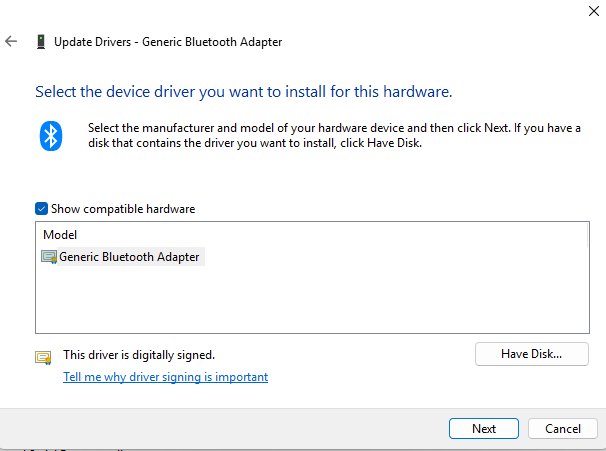
- Select Browse my computer for drivers, then Let me pick from a list of available drivers on my computer.
- If Windows shows a list of device types first, select the Bluetooth entry and select Next.
- Select Generic Adapter as the manufacturer and Generic Bluetooth Adapter as the model, then select Next.
- Confirm the installation. The radio should now appear as Generic Bluetooth Adapter under Bluetooth.
Microsoft describes the generic driver as a fallback for testing. If Bluetooth works with it but devices drop or audio stutters, replace it with your PC maker's driver.
If the driver will not start on that device, the entry is probably not a Bluetooth radio. Undo the change by uninstalling the device and scanning for hardware changes.
Update Bluetooth driver in Windows 11 from Windows Update optional updates
Windows Update holds many Bluetooth drivers and firmware updates as optional updates, which Windows does not install on its own.
- Select Start > Settings > Windows Update.
- Select Check for updates and install anything waiting.
- Select Advanced options > Optional updates.
- Tick any Bluetooth, wireless or firmware driver listed for your PC, then select Download & install.
- Select Restart now when the install finishes.
- Open Device Manager and check the adapter under Bluetooth for a warning icon.
You can also update the Bluetooth driver from Device Manager: right-click the adapter and choose Update driver > Search automatically for drivers.
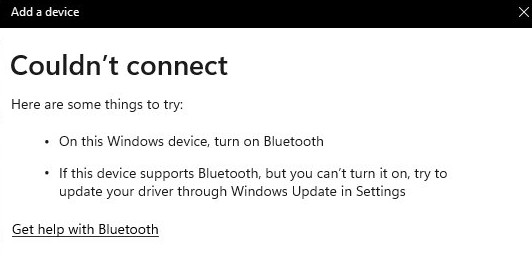
Download the Bluetooth driver for Windows 11 from your PC manufacturer
When Windows reports that the best driver is already installed, the PC maker may still have a newer one. Get it from the maker's own support site, using your exact model number.
- Go to your PC or motherboard manufacturer's support website and search for your model number.
- Download the latest Bluetooth driver listed for Windows 11.
- If the download is an installer (.exe), run it and follow the prompts.
- If it is a set of files with an .inf and a .sys file, open Device Manager, right-click the Bluetooth adapter (or the device under Other devices) and select Update driver.
- Select Browse my computer for drivers, then Browse, pick the folder with the driver files, and select OK.
- Select Next, finish the install, and restart the PC if prompted.
PCs with an Intel wireless card can also use the Intel Wireless Bluetooth driver from Intel's own site. Avoid driver updater tools and download portals.
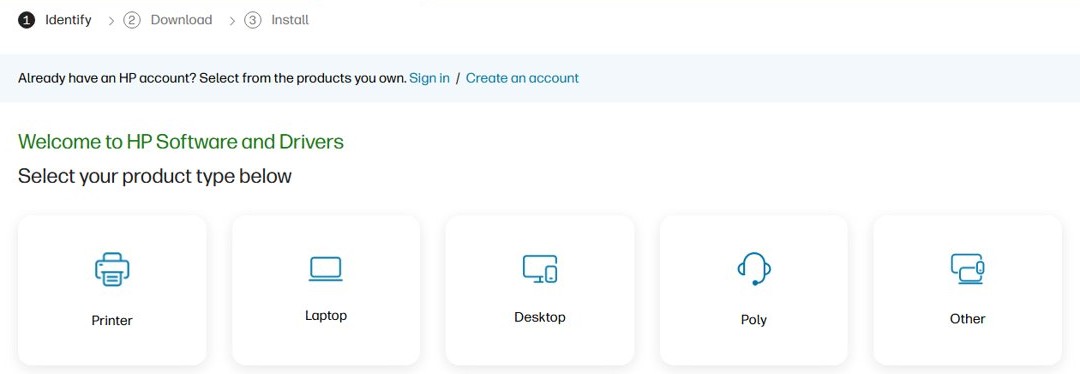
Roll back the Bluetooth driver in Windows 11
If Bluetooth worked until a driver or Windows update, the previous driver is often still stored on the PC.
- Open Device Manager and expand Bluetooth.
- Right-click your Bluetooth adapter and select Properties.
- Select the Driver tab.
- Select Roll Back Driver and follow the on-screen prompts.
- Restart the PC.
Roll Back Driver is greyed out when no earlier driver is stored. In that case, install the PC maker's driver instead.
Run the Bluetooth troubleshooter in Windows 11
The troubleshooter runs Microsoft's automated diagnostics and can reset Bluetooth settings that a driver reinstall leaves behind.
- Select Start > Settings > System > Troubleshoot.
- Select Other troubleshooters.
- Next to Bluetooth, select Run.
- Follow the instructions in the Get Help app.
- Restart the PC if the troubleshooter changes anything.
Restart Bluetooth Support Service in Windows 11
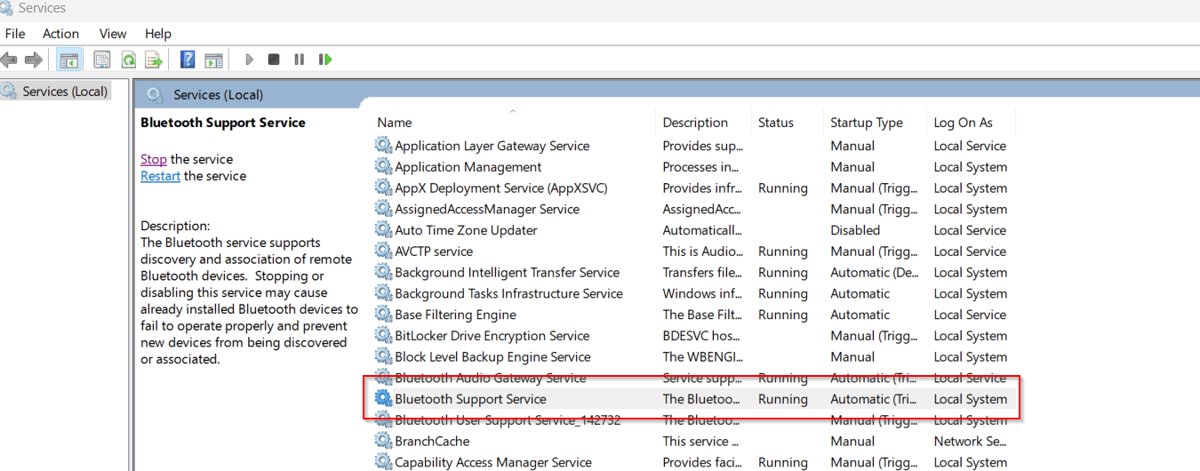
The Bluetooth Support Service (bthserv) handles discovery and pairing. If it is stopped or disabled, installed Bluetooth devices can fail even with a working driver.
- Select the search box on the taskbar, type services, and select Services from the results.
- Find Bluetooth Support Service in the list.
- Right-click it and select Restart, or Start if it is not running.
- If Start is unavailable, right-click it, select Properties, and change Startup type from Disabled to Manual, its default.
- Select OK, start the service, and restart the PC.
How to tell if the Generic Bluetooth Adapter driver is installed
A working driver shows up in two places: Device Manager and the Bluetooth switch in Settings.
- Open Device Manager and expand Bluetooth. The adapter should be listed with no yellow warning icon.
- Right-click it, select Properties, and read Device status. No error code should appear there.
- Select Start > Settings > Bluetooth & devices and check that the Bluetooth toggle is present and turns on.
- When Bluetooth is on, Settings shows Discoverable as followed by your PC name.
- Pair one device, such as a mouse or headphones, to confirm the radio connects.
How do I fix my generic Bluetooth adapter in Windows 11?
If the driver installs but the adapter still fails, match what you see to one of these cases.
Generic Bluetooth Adapter shows Code 43
The driver reported that the radio failed, which often points to firmware or a power state the radio is stuck in.
- Hold Shift, select Start > Power > Shut down, and wait one minute before turning the PC on.
- Uninstall the adapter in Device Manager and select Action > Scan for hardware changes.
- Install optional firmware updates from Settings > Windows Update > Advanced options > Optional updates.
- If the code returns, contact the PC maker, as the radio itself may be faulty.
Bluetooth is missing from Device Manager entirely
The radio is switched off, in airplane mode, or not reported by the firmware.
- Press Windows + A and make sure Airplane mode is off.
- Turn on the physical Bluetooth switch or function key if your laptop has one.
- Check the PC's specifications to confirm it has Bluetooth at all.
- Do a full shutdown with Shift held, then check Device Manager again.
- Install the latest BIOS or UEFI update from the PC maker's support site.
Bluetooth toggle missing in Settings after reinstalling the driver
Windows sees the adapter but the driver or Bluetooth service did not start.
- Restart Bluetooth Support Service from the Services app.
- Run the Bluetooth troubleshooter from Settings > System > Troubleshoot > Other troubleshooters.
- Install the PC maker's Bluetooth driver for Windows 11.
Generic Bluetooth Adapter works but devices will not appear
Windows hides some device types from the default discovery list.
- Select Start > Settings > Bluetooth & devices > Devices.
- Under Device settings, set Bluetooth devices discovery to Advanced.
- Put the device into pairing mode and search again.
- Move the device away from USB 3.0 ports and unshielded USB devices, which can interfere with Bluetooth.
Roll Back Driver is greyed out
No previous driver version is stored for the adapter.
- Download the Windows 11 Bluetooth driver from your PC maker's support site.
- Install it, then restart the PC.
A missing Bluetooth toggle with a healthy adapter in Device Manager has its own set of fixes.
Generic Bluetooth driver FAQ
What is the Generic Bluetooth Adapter in Device Manager?
Generic Bluetooth Adapter is the name Device Manager gives a Bluetooth radio that runs on the Bluetooth driver built into Windows. It appears under Generic Adapter as the manufacturer when you pick the driver manually, and it supports the standard Bluetooth profiles that Windows provides.
Why is the Generic Bluetooth driver missing on my computer?
Windows could not match the radio to its built-in Bluetooth driver, or the installed driver is damaged, outdated or disabled. A Windows upgrade, a bad driver update, airplane mode, a hardware switch or a firmware problem can all cause it. Reinstalling the adapter in Device Manager fixes most cases.
How do I reinstall Bluetooth driver?
Open Device Manager, expand Bluetooth, right-click the adapter and select Uninstall device. Restart the PC and Windows reinstalls the driver. If the adapter does not return, select Action > Scan for hardware changes, or install the driver from your PC maker's support site.
How do I fix my generic Bluetooth adapter in Windows 11?
Shut the PC down fully, then uninstall and rescan the adapter in Device Manager. If it still fails, install optional driver and firmware updates from Windows Update, run the Bluetooth troubleshooter, restart Bluetooth Support Service, and finally install the Windows 11 driver from your PC maker.
Does Windows 11 have a built-in Bluetooth driver?
Yes. Windows includes an in-box Bluetooth driver that loads for radios whose hardware IDs it recognises. New radios that are not listed need the PC maker's driver, or you can force the Generic Bluetooth Adapter driver through Update driver > Browse my computer for drivers.
Is it safe to use the Generic Bluetooth Adapter driver?
Yes, it is Microsoft's own driver that ships with Windows. Microsoft suggests it for testing when you are unsure which driver to use, so switch to your PC maker's Bluetooth driver if you see drops, missing features or poor audio.
What does Code 28 mean on a Bluetooth adapter?
Code 28 means the drivers for this device are not installed. Uninstall the device in Device Manager, then select Action > Scan for hardware changes so Windows installs the driver again. If Windows asks for driver files, download them from your PC maker's support site.
Where do I download the Bluetooth driver for Windows 11?
Check Windows Update first, including Advanced options > Optional updates. If nothing is listed, go to your PC or motherboard manufacturer's support website, search for your model number, and download the Bluetooth driver for Windows 11. Avoid driver download portals and driver updater tools.