To cancel a meeting in Teams, open your Teams calendar, right-click the meeting you organized and select Cancel, and every attendee gets a cancellation.
This guide covers canceling from Teams, classic Outlook and Outlook on the web, single occurrences versus whole series, town halls, what non-organizers can do, and fixes when the Cancel option is missing.
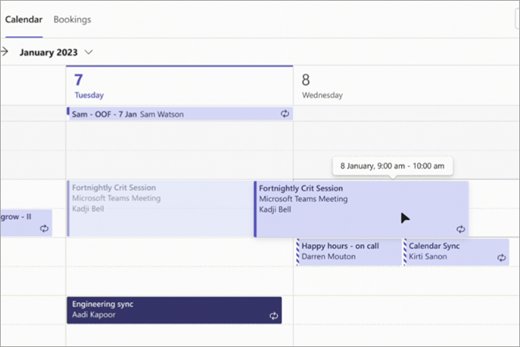
How to cancel a meeting in the Teams calendar
Only the organizer can cancel a Teams meeting for everyone. Meetings you schedule in Teams also appear in your Outlook calendar, so canceling in either place cancels the same meeting.
- Select Calendar in Teams.
- Find the meeting on the date it is scheduled.
- Right-click the meeting and select Cancel.
- If it is a recurring meeting, choose whether to cancel this occurrence or the series.
- Add a short message for attendees if you want, then send the cancellation.
Attendees receive the cancellation by email and the meeting leaves their calendars. You can also post a note in Teams chat so the meeting thread explains the change.
Before you cancel: check that you are the organizer
Outlook sends a cancellation to all attendees only from the organizer, the person who sent the meeting request. Other roles see Delete instead of Cancel.
| Your role | Can cancel for everyone? | What you see |
|---|---|---|
| Organizer | Yes | Cancel, with Occurrence or Series for recurring meetings |
| Co-organizer | No; co-organizers can't change a meeting before it starts or send updated invites | Meeting options, but no cancel for attendees |
| Presenter | No | Delete, which removes it from your calendar only |
| Attendee | No | Delete, or RSVP > Decline |
| Delegate with edit rights | Yes, on the organizer's behalf | Cancel on the organizer's calendar |
To check, open the meeting. If the ribbon shows an Organizer Meeting tab and a Cancel button, you are the organizer.
Which Teams cancel option should you use?
| What you want | Use this | Why |
|---|---|---|
| Call off one meeting | Cancel > Send Cancellation | Removes it from every attendee calendar |
| Skip one date of a series | Cancel the Occurrence or This event | The rest of the series stays |
| Stop a series from a date onward | This and all following events in Outlook on the web | Earlier meetings stay on calendars |
| End a series and keep its history, classic Outlook | Change the recurrence End by date | Microsoft's recommended way |
| Remove the whole series | Cancel the Series or All events in the series | Every occurrence goes |
| Cancel a town hall | Event details > Cancel event | Town halls have their own cancel flow |
| You are not the organizer | Delete, or RSVP > Decline | Only clears your own calendar |
Cancel a single Teams meeting in classic Outlook for Windows
A Teams meeting scheduled from Teams or Outlook is a normal Outlook meeting with a Teams link, so classic Outlook cancels it the same way.
- Click Calendar in the navigation bar.
- Double-click the meeting to open it.
- On the Organizer Meeting or Meeting tab, click Cancel.
- Type a message to the invitees if you want one.
- Click Send Cancellation.
Do not select Delete instead. As the organizer, right-clicking the meeting shows Cancel, and that is the command that notifies attendees.
Cancel a Teams meeting in Outlook on the web
Outlook on the web uses Cancel for meetings and Delete for appointments you created only for yourself.
- Open Outlook on the web and select the calendar icon at the bottom of the page.
- Select the meeting in your calendar.
- Select Cancel.
- Add a message if you want.
- Select Send.
In classic Outlook on the web, select Calendar, select the meeting, then select Cancel.
Cancel one occurrence of a recurring Teams meeting
Canceling one date leaves every other meeting in the series unchanged.
- Open the calendar and select the date you want to skip.
- In classic Outlook, open the meeting and click Cancel > Occurrence.
- In Outlook on the web, select Cancel, then This event.
- In Teams, right-click the meeting, select Cancel and choose the single occurrence.
- Add a message such as the reason for skipping, then send the cancellation.
If you are skipping dates because you will be away, set an out of office reply in Outlook as well, and block time in your Teams calendar so colleagues can see you are unavailable.
Cancel this and all future occurrences
Outlook on the web can cancel a series from a chosen date forward in one step.
- In Outlook on the web, select the calendar icon.
- Select the first occurrence you want to cancel.
- Select Cancel.
- Choose This and all following events.
- Add a message and select Send.
Meetings before the selected date stay on everyone's calendar.
Cancel the complete recurring series
Canceling the full series removes every occurrence, including past ones, from attendee calendars.
- Open any meeting in the series.
- In classic Outlook, click Cancel > Series.
- In Outlook on the web, select Cancel > All events in the series.
- In classic Outlook on the web, choose Delete series.
- Add a message and send the cancellation.
Preferred method for ending a recurring series early in classic Outlook
Microsoft's recommended way to stop the remaining meetings is to send an update with a new end date. Agenda, notes and attachments added to earlier instances are deleted when you click OK.
- Click Calendar in the navigation bar.
- Double-click any meeting in the series.
- Choose The entire series, then click OK.
- Click Recurrence.
- Under Range of recurrence, click End by and enter a date before the next meeting.
- Click OK, type a message that future meetings are canceled, then click Send Update.
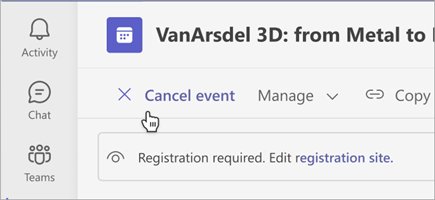
Cancel a Teams town hall
Town halls and webinars are events with their own cancel button. Attendees are emailed automatically, and the cancellation can't be undone.
- Select Calendar in Teams.
- Select the town hall you want to cancel.
- Open the event details.
- Select Cancel event and confirm.
For a webinar, right-click the event in the Teams calendar and select Cancel, or select Cancel event on its event page.
What non-organizers can do
If someone else organized the meeting, you can only manage your own calendar or ask the organizer to act.
| Goal | Do this | Effect |
|---|---|---|
| Tell the organizer you won't attend | Teams Calendar > meeting > RSVP > Decline | Organizer is notified by email |
| Explain why | View event > RSVP with note | Your note goes with the response |
| Remove one meeting from your calendar | Right-click > Delete > occurrence | Only your calendar changes |
| Remove a series you don't need | Right-click > Delete > series | Also removes past occurrences |
| Remove future meetings, keep past ones | Delete each future instance individually | The only way for non-organizers |
| Take over the meeting | Ask the organizer to cancel and reschedule with you as organizer | Change organizer isn't available for online meetings yet |
How to check the Teams meeting was canceled
A sent cancellation leaves a clear trail in your calendar and mailbox.
- Open your Teams calendar and confirm the meeting no longer appears on that date.
- Check your Outlook calendar, which shows the same meetings as Teams.
- Open Sent Items in Outlook and look for the cancellation message.
- For a series, check a later date to confirm the right occurrences are gone.
How attendees should process a cancellation
A cancellation removes the meeting from attendee calendars. If a copy remains, attendees can clear it themselves.
- Open the cancellation email to read any note from the organizer.
- Check the calendar date to confirm the meeting is gone.
- If it still shows, right-click it and select Delete.
- For a recurring meeting, choose the occurrence or the series.
- On Outlook Mobile, if a canceled occurrence won't clear, remove it in Outlook on the web or Outlook for Windows.
Common cancellation problems
There is no Cancel option, only Delete
You are not the organizer, so Outlook and Teams offer Delete, which affects only your calendar.
- Open the meeting and check who sent the invite.
- Message the organizer and ask them to cancel it.
- Use RSVP > Decline so the organizer knows you won't attend.
Can't cancel a Teams meeting in Outlook that a co-organizer scheduled
Co-organizers can't change a meeting before it starts or send updated invites; only the organizer can.
- Find the organizer listed on the invite.
- Ask them to cancel, or to send you edit access as a delegate on their calendar.
Outlook Mobile still shows a canceled occurrence
A known issue for on-premises Cloud Cache accounts stops Outlook Mobile from deleting canceled occurrences, and the rest of the series may show as Tentative.
- Open Outlook on the web or Outlook for Windows.
- Right-click the leftover occurrence and select Delete.
Notes from past meetings disappeared after ending a series
Changing the recurrence end date deletes agenda, notes and attachments added to earlier instances.
- Before you change the end date, save copies of the notes and attachments.
- Use Cancel > Occurrence for single future dates if you need the history kept.
Cancel Teams meeting FAQ
Can I cancel a Teams meeting if I am not the organizer?
No. Only the organizer can send a cancellation to all attendees. Co-organizers can't change a meeting before it starts. As a non-organizer, decline with RSVP or delete the meeting from your own calendar, and ask the organizer to cancel it.
Does deleting a Teams meeting cancel it for everyone?
No, not for a meeting someone else organized. Delete removes it only from your calendar. As the organizer, Outlook shows Cancel instead, and sending the cancellation removes the meeting from every attendee's calendar.
How do I cancel a meeting in Teams for one day?
Open the recurring meeting on that date and cancel only that occurrence. In classic Outlook choose Cancel > Occurrence; in Outlook on the web choose This event. The other meetings in the series stay scheduled.
How do I cancel a meeting in a series?
Choose the occurrence for one date, This and all following events to stop from a date onward, or Series to remove all of it. In classic Outlook, changing the recurrence End by date is Microsoft's recommended way to end a series early.
How do I cancel a meeting invite in Outlook?
Double-click the meeting you organized, click Cancel on the Organizer Meeting or Meeting tab, add a message if you want, and click Send Cancellation. In Outlook on the web, select the meeting, select Cancel, then Send.
How do I cancel a meeting in Outlook with notes?
Type your note in the message window that opens after you click Cancel, then click Send Cancellation. Attendees see the note in the cancellation email, so use it for the reason and any new date.
Why can't I cancel a Teams meeting in Outlook?
You are most likely not the organizer, so Outlook shows Delete rather than Cancel. Only the organizer, or a delegate with edit rights on the organizer's calendar, can cancel a meeting for everyone.
How do I cancel a meeting scheduled by others?
You can't cancel it for other attendees. Decline it with RSVP so the organizer is notified, or delete it from your calendar. Ask the organizer to cancel it if the meeting should not take place.
How do I cancel a Teams town hall?
Select Calendar in Teams, select the town hall, open its event details and select Cancel event, then confirm. Attendees are emailed automatically, and the cancellation can't be undone.
How do I cancel a meeting professionally?
Cancel as early as possible and put a short reason and next step in the cancellation note, such as a new date or a document that replaces the meeting. Keep it to two or three sentences.
The bottom line on canceling a Teams meeting
Cancel from your Teams or Outlook calendar with Cancel and Send Cancellation, never Delete, and use the recurrence end date when a series should stop but keep its history. Cancel is the only command that notifies attendees and clears their calendars, and only the organizer has it.