Groove Music no longer exists as its own app: Microsoft replaced it with Media Player, a single app for music and video, and the update moved your Groove library and playlists across automatically.
This guide explains what happened to Groove, what the new Media Player does differently, its limits, and how to get the older Windows Media Player Legacy back if you need it.
What happened to Groove Music?
Groove Music was retired in two stages. The streaming service went first, and the app itself was later replaced by Media Player.
| Date | What changed |
|---|---|
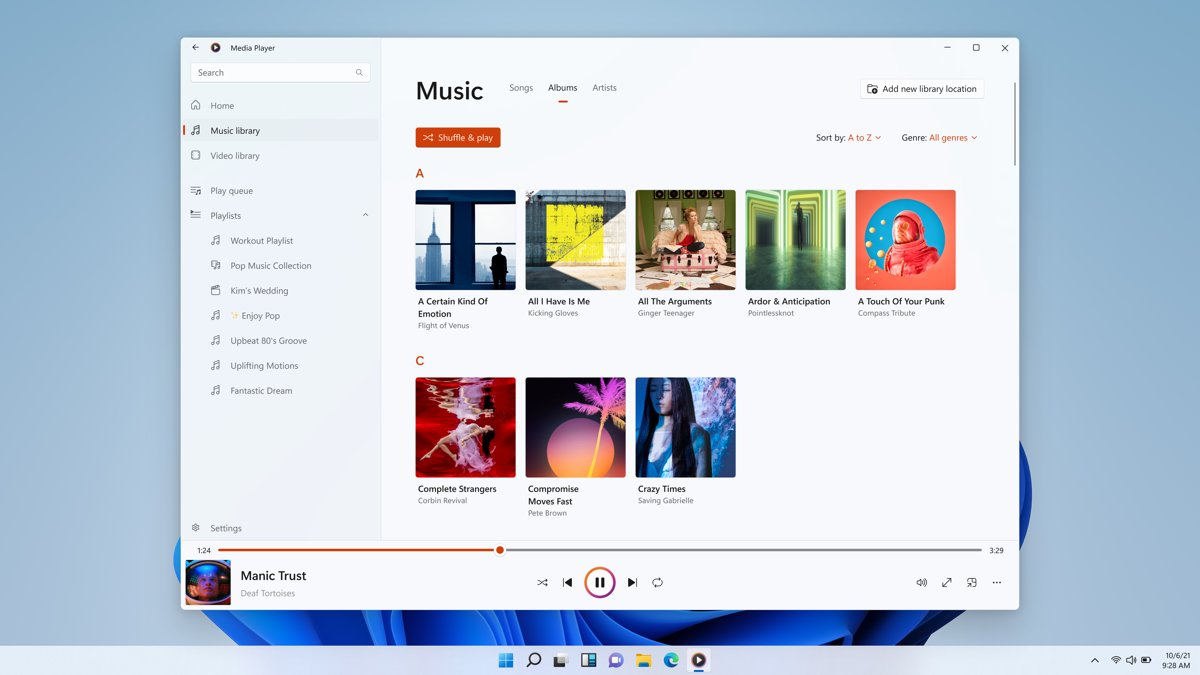
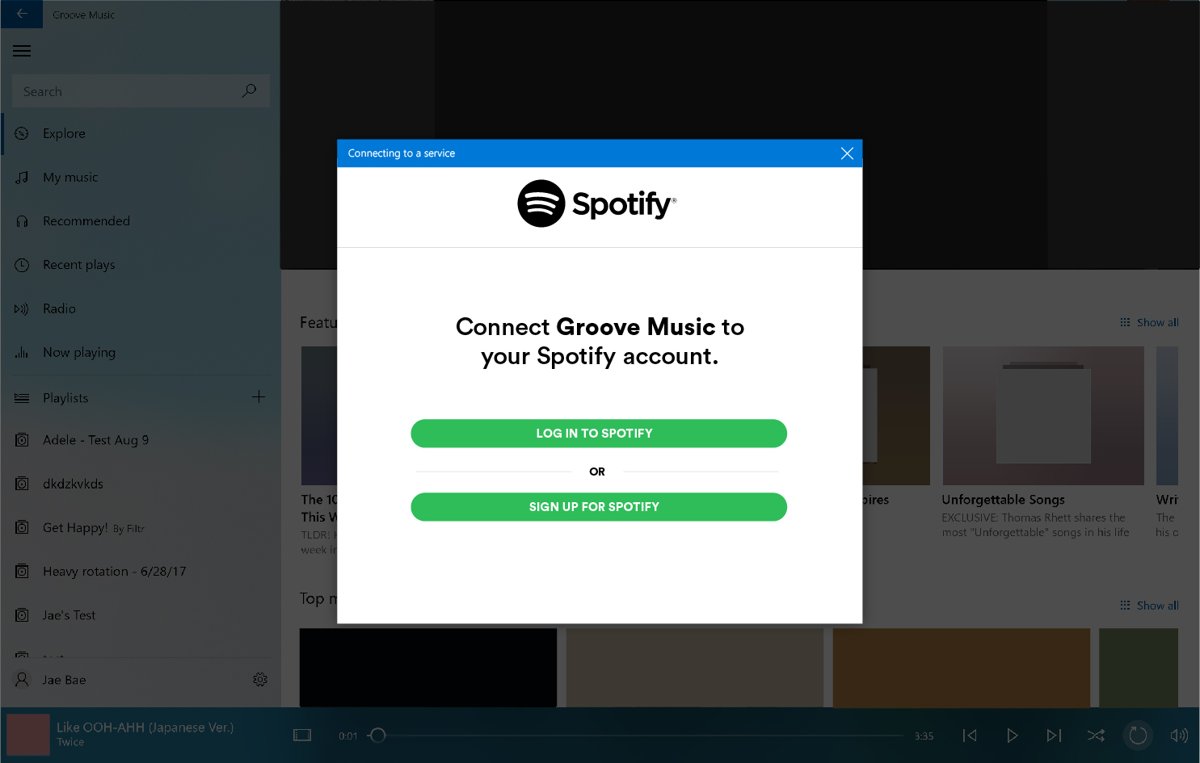
| October 2, 2017 | Microsoft announced that Groove Music Pass would end and that subscribers could move their collections and playlists to Spotify. |
| After December 31, 2017 | The Groove Music app stopped offering music streaming, purchases and downloads. Music sales in the Windows Store ended too. |
| 2018 to 2021 | Groove stayed on Windows as a player for music you own, which Microsoft said it would keep updating. |
| November 16, 2021 | The new Media Player began rolling out to Windows 11 Insiders. Microsoft stated that the update to the new Media Player replaces the Groove Music app. |
| Today | The Microsoft Store lists the app as Windows Media Player. The older desktop player is now called Windows Media Player Legacy. |
So Groove Music was discontinued as a brand, not as a feature. Local music playback carried on inside Media Player.
What is the new Media Player in Windows 11?
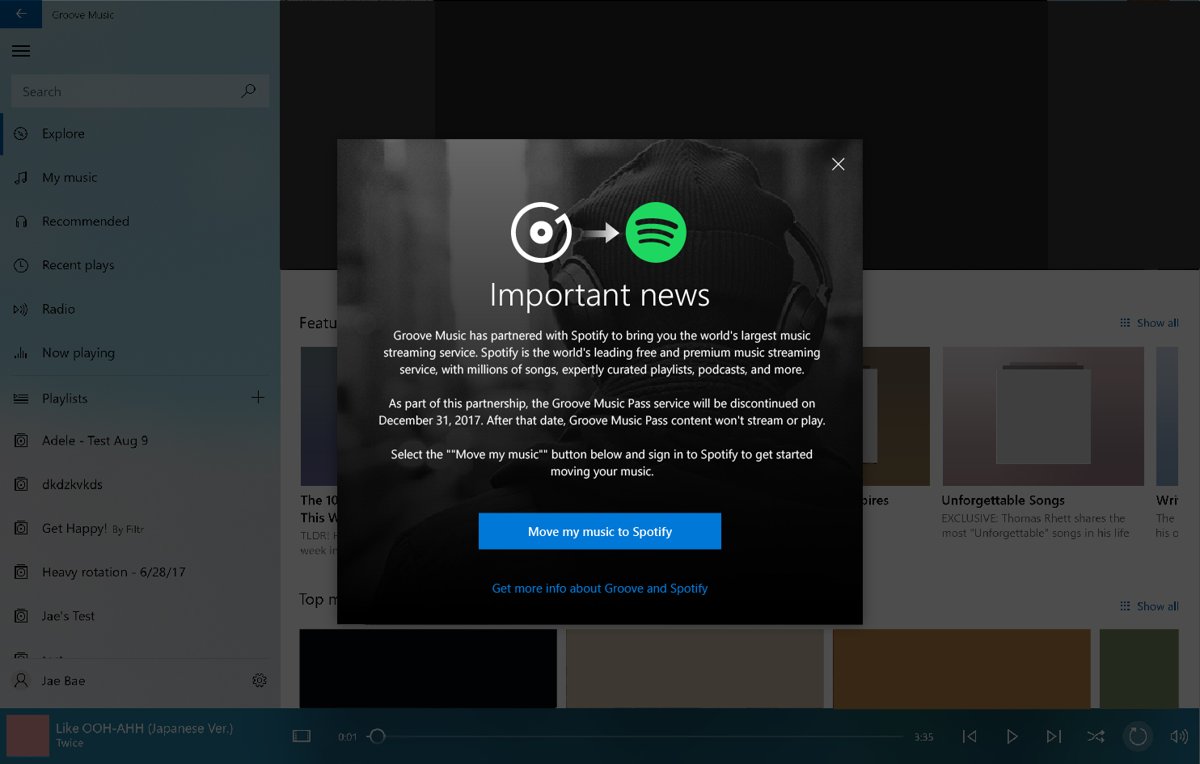
Media Player is Microsoft's modern music and video app for Windows 11, built to match the Windows 11 design. It plays files stored on your PC, and Microsoft recommends it over the legacy player for modern video features like 4K. Its notable features at a glance:
| Feature | What Media Player does |
|---|---|
| Music library | Browse and play your music collection, and create and manage playlists |
| Video library | Browse, manage and watch local videos in the same app |
| Automatic library | Files in your Music and Videos folders appear on their own; you can add other folders in the app's settings |
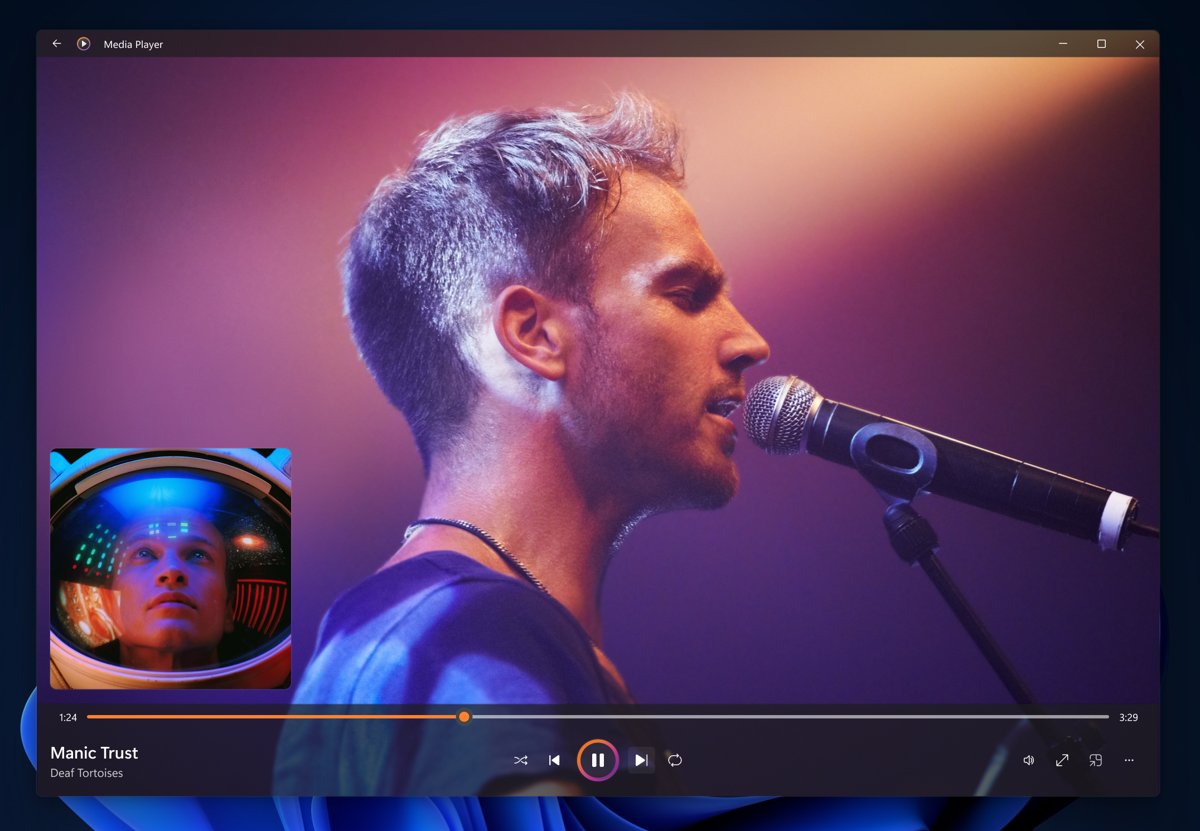
| Playback view | Album art and artist imagery, also shown in full-screen and mini player modes |
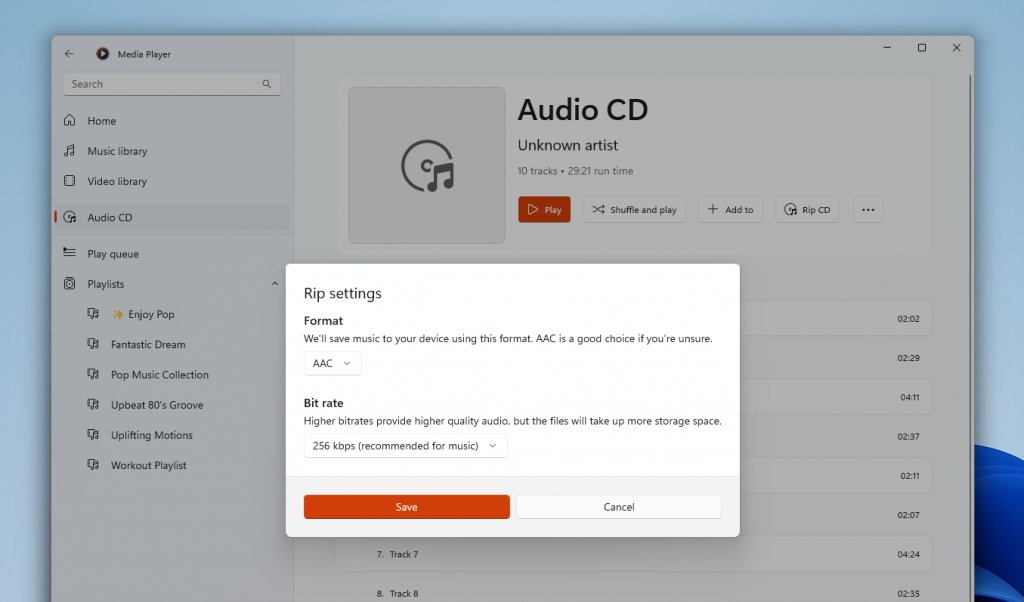
| Audio CDs | CD playback (from March 2022) and CD ripping to AAC, WMA, FLAC or ALAC (version 11.2206.30.0) |
| Accessibility | Keyboard shortcuts, access keys and support for assistive technologies |
| Price | Free, listed in the Microsoft Store as Windows Media Player |
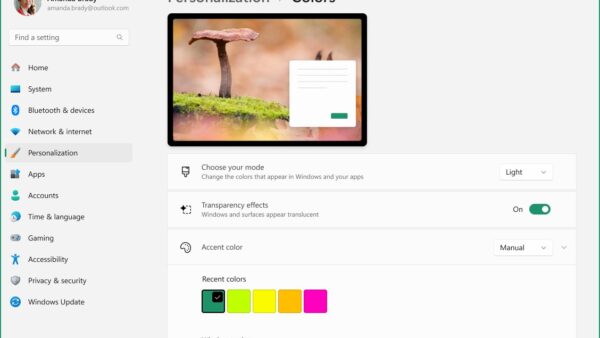
If you change Media Player's colors, you can also set the Media Player accent color to match Windows.
What’s new and different in Media Player vs Groove Music
| Area | Groove Music | Media Player |
|---|---|---|
| Content type | Music only | Music and video in one app |
| Streaming and store | Groove Music Pass streaming and music purchases until December 31, 2017 | None; it plays files you already have |
| Your library and playlists | Stored in Groove | Moved across automatically when the app updates |
| Audio CDs | No CD ripping | CD playback and ripping to AAC, WMA, FLAC and ALAC |
| Design | Windows 10 design | Windows 11 design with full-screen and mini player views |
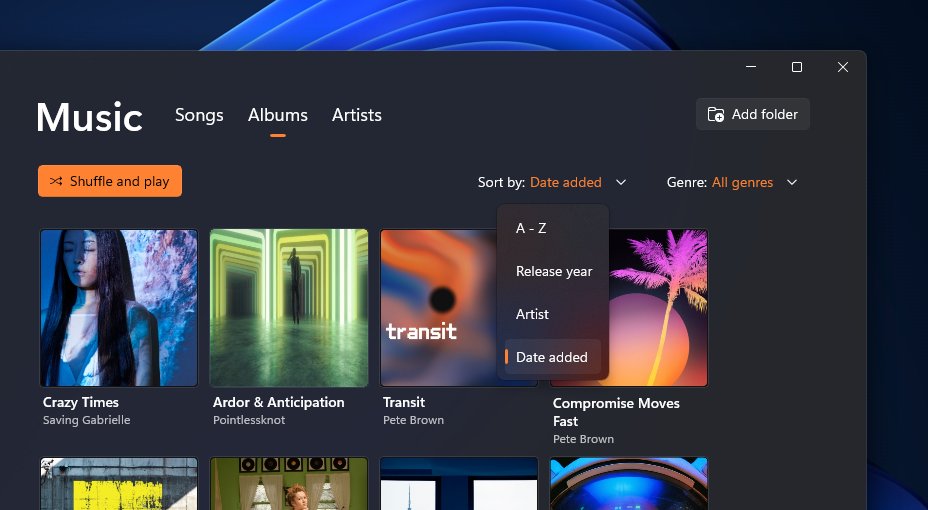
| Large collections | No specific changes | Sorting by date added and performance work for large collections (version 11.2205) |
How Media Player works in real use: library, playlists and video
Media Player builds its library from folders, so the main job is getting your files into the right place. Groove users do not need to rebuild anything, because the library and playlists migrate.
- Open Start, type Media Player and open the app.
- Move or copy your songs into your Music folder and your videos into your Videos folder, and the app lists them automatically.
- For music kept elsewhere, such as a second drive, open Media Player's Settings and add that folder to the library locations.
- Select Music library to browse songs, albums and artists, or Video library to browse local videos.
- Open the menu on a song or album and add it to a new or existing playlist.
- Start playback, then switch to the full-screen view or the mini player to keep controls on screen while you work.
Adding songs to Groove Music worked the same way, by adding folders. The difference is that the folder list now feeds a single library for music and video.
Why Microsoft made this change
Microsoft has not published one official reason for retiring the Groove name. The record shows the business and product changes that led to it.
| Change | Effect on Groove |
|---|---|
| Groove Music Pass ended after December 31, 2017, with subscribers moved to Spotify | Groove lost its streaming catalog and became a local music player |
| Music purchases in the Windows Store ended at the same time | There was no Microsoft music store left for Groove to front |
| Windows 11 introduced a new app design | Media Player was built to that design, with album art, full-screen and mini player views |
| Music and video playback moved into one app | One player now covers local songs, local videos and audio CDs |
Real-world usage: is it actually better?
For most local music libraries, Media Player is the better app: it keeps everything Groove did with owned music and adds video and CDs. The right choice still depends on what you play.
| What you do | Best app | Why |
|---|---|---|
| Play a local music collection and playlists | Media Player | Same library and playlists as Groove, with a newer interface |
| Watch local video files, including 4K | Media Player | Microsoft recommends it for modern video features like 4K |
| Rip CDs to FLAC or ALAC | Media Player | Legacy Windows Media Player rips only to WMA, WAV or MP3 |
| Burn audio CDs or use Windows Media Player skins | Windows Media Player Legacy | Its CD burning and skin support is the older desktop feature set |
| Stream music | A streaming service's own app | Neither Groove nor Media Player has offered streaming since 2017 |
| Play formats Windows lacks | Media Player plus a codec extension, or a player such as VLC media player | Some formats need an add-on from the Microsoft Store |
Limitations you should know
| Limitation | Detail |
|---|---|
| No streaming or music store | Media Player plays only files you have; Groove's streaming ended after December 31, 2017 |
| Some video formats need extensions | MPEG-2, HEVC (H.265), VP9, AV1 and OGG support come from separate Microsoft Store extensions |
| Dolby Digital (AC-3) on new installs | Clean installs of Windows 11, version 24H2 leave out the AC-3 codec; upgraded PCs and many manufacturer images keep it |
| Windows N editions | Windows 11 N and Windows 10 N ship without Windows Media Player, Groove Music and core media codecs until you add the Media Feature Pack |
| Early network playback issues | Playing from network locations was a known issue in the first Insider release in 2021 |
| DVD playback | Windows Media Player Legacy does not include DVD playback |
How to install Windows Media Player Legacy in Windows 11
The old desktop player is still available as an optional Windows 11 feature. Install it alongside Media Player if you need CD burning or the classic library view.
- Open Start > Settings > System > Optional features.
- Select View features next to Add an optional feature.
- Search for Windows Media Player Legacy and select its check box.
- Select Next, then Add.
- Open Start and type Windows Media Player Legacy to launch it.
On Windows 10, the same feature is under Settings > Apps > Apps & features > Manage optional features > Add a feature > Windows Media Player. A Windows Media Player download page lists both versions.
Add the Media Feature Pack on Windows 11 N and Windows 10 N
N editions of Windows leave out Windows Media Player, Groove Music, Movies & TV and core codecs such as AAC, FLAC, H.264 and H.265. The Media Feature Pack adds them back.
- Select Start > Settings > Apps > Optional features.
- Select View features next to Add an optional feature.
- Select Media Feature Pack from the list and install it.
- Restart the PC manually, because Windows does not prompt you and the install is not complete until you restart.
On Windows 10 N, open Settings > Apps > Apps and Features > Optional features > Add a feature, then select Media Feature Pack.
The bigger picture: Windows Media Player names explained
The naming changed more than once, which is why searches for Groove Music, Media Player and Windows Media Player can all lead to the same app.
| Name you see | What it is | Status |
|---|---|---|
| Groove Music | The Windows 10 music app, earlier tied to the Groove Music Pass streaming service | Replaced by Media Player through an app update |
| Media Player | The modern music and video app introduced for Windows 11 | Current app |
| Windows Media Player | The name the Microsoft Store now uses for the modern app | Current app |
| Windows Media Player Legacy | The classic desktop player (Windows Media Player 12) | Optional feature on Windows 11 and Windows 10 |
| Movies & TV | The older video app listed with Groove among the media apps missing from N editions | Video playback now also in Media Player |
How to check that Media Player replaced Groove Music on your PC
- Open Start > Settings > Apps > Installed apps.
- Type Media Player in the search box.
- Confirm that Media Player or Windows Media Player appears, and type Groove to confirm it no longer has its own entry.
- Open the app and select Music library; your old Groove songs and playlists should be listed.
- If Windows Media Player Legacy also appears, both players are installed side by side, which is normal.
Fix Groove Music and Media Player problems
Groove Music is missing from the Start menu
The app was updated to Media Player, which took over the Groove library.
- Open Start and type Media Player instead of Groove.
- Open the app and check Music library for your songs and playlists.
- If neither app is installed, open the Microsoft Store, search for Windows Media Player and select Get.
Songs do not show up in the music library
The files sit in a folder the library does not watch.
- Move the files into your Music folder, or add their folder in Media Player's Settings.
- Wait a moment for the library to scan, then reopen Music library.
- If an external drive holds the files, connect it before you open the app.
A song or video will not play
The format needs a codec Windows does not include, or the app data is damaged.
- Check the file type: MPEG-2, HEVC, VP9, AV1 and OGG files need an extension from the Microsoft Store.
- On a Windows N edition, install the Media Feature Pack and restart.
- Open Settings > Apps > Installed apps, select the app's Advanced options, and select Repair.
- If repair does not help, select Reset; it clears app settings but keeps your media files and library.
- For more fixes, troubleshoot Windows Media Player errors one by one.
Groove Music and Windows 11 Media Player FAQs
What is Groove Music?
Groove Music was Microsoft's music app for Windows 10. It played your own music files and, until the end of 2017, streamed music through the Groove Music Pass subscription. Media Player has since replaced it.
Why was Groove Music discontinued?
Microsoft ended Groove Music Pass streaming and music sales after December 31, 2017 and moved subscribers to Spotify. The app later gave way to Media Player, a single Windows 11 app for music and video that took over the Groove library.
Is Groove Music discontinued?
Yes. Its streaming service ended after December 31, 2017, and Microsoft stated that the update to the new Media Player replaces the Groove Music app. Your Groove library and playlists move to Media Player automatically.
Does Groove Music still work?
An older copy that has not updated can still play local files, but it cannot stream, buy or download music. Updating through the Microsoft Store replaces it with Media Player, which plays the same library.
Does Groove Music still exist?
Not as a separate app. The Microsoft Store now lists Windows Media Player in its place, and the older Windows Media Player Legacy remains an optional feature in Windows 11 and Windows 10.
Is Groove Music free?
The app was free, while Groove Music Pass streaming was a paid subscription that ended in 2017. Its replacement, Media Player, is also free in the Microsoft Store.
Where is Groove Music on Windows 10?
Open Start and type Groove. If Windows shows Media Player instead, the app has already updated and your Groove library lives there. On Windows 10 N editions, install the Media Feature Pack first.
How do I add songs to Groove Music?
Copy the songs into your Music folder, or add the folder that holds them in the app's settings. Media Player, which replaced Groove, uses the same folder-based library and lists the songs automatically.
Does the new Media Player support video?
Yes. Media Player browses, manages and plays local video files from your Videos folder and any other folders you add, and Microsoft recommends it for modern video features like 4K.
Bottom line: should you switch from Groove Music to Media Player?
Use Media Player for your local music and videos, and add Windows Media Player Legacy only if you need CD burning or the classic library. Media Player keeps your Groove library and playlists, adds video and lossless CD ripping, and is the app Microsoft now updates. Groove's streaming side has been gone since 2017, so nothing is lost by moving on.