Microsoft no longer manufactures HoloLens 2, and its own release notes say security updates continue only through December 2027, so HoloLens 2 app development in 2026 means building on a frozen platform.
You can still build and ship apps for devices already in the field, but only with the last Unity and OpenXR versions that support the headset.
This guide covers the current support status, the versions to pin, the Unity setup, deployment over USB, Wi-Fi and the emulator, fast iteration, and fixes for common deployment errors.
Is HoloLens 2 app development still worth starting in 2026?
Start with the status, because it decides everything else. Microsoft's HoloLens purchase page states that HoloLens 2 is no longer being manufactured and is out of stock in all geographies.
The November 2024 update was the final feature release. The device still gets monthly security updates, and the current build is the September 2026 Update (build 22621.1560) of Windows Holographic, version 24H1.
| Your situation | What to do | Why |
|---|---|---|
| Your organisation already owns HoloLens 2 headsets | Start development now on the pinned toolchain below | Security servicing runs through December 2027, so deployed devices stay patched for about 14 more months |
| You need to buy new headsets for a rollout | Confirm you can source devices before writing code | Microsoft lists HoloLens 2 as out of stock in every market it served |
| You plan to rely on Dynamics 365 Guides or Remote Assist | Plan a replacement now | Microsoft states both apps are no longer available after December 31, 2026 |
| You want skills that outlast the headset | Build with Unity, OpenXR and MRTK3 | MRTK3 and OpenXR also target other headsets, so the code is not tied to one device |
| You run HoloLens 2 on an old Windows 10-based build | Update to Windows Holographic 24H1 first | Windows 10-based HoloLens builds received their final servicing update in December 2024 |
For devices sold in the UK, Microsoft sets the minimum security update period at February 28, 2028, for units bought until February 28, 2025. After that date the devices are no longer compliant with security standards.
Which HoloLens 2 development stack should you choose?
There is no separate HoloLens SDK. Every route uses Visual Studio with the Windows 10 or Windows 11 SDK, plus an engine.
| Your situation | Use this stack | Why |
|---|---|---|
| New to mixed reality, C# background | Unity + Mixed Reality OpenXR plugin + MRTK3 | Microsoft documents this path end to end and recommends MRTK3 for all new HoloLens apps |
| You want the smallest dependency list in Unity | Unity + Mixed Reality OpenXR plugin, no MRTK | You build input and UI yourself on Unity's XR stack |
| C++ team or Blueprints users | Unreal Engine | Microsoft lists HoloLens support as production-ready from Unreal Engine 4.25 |
| You maintain your own 3D renderer | Custom engine on OpenXR (C/C++) | OpenXR is Khronos' royalty-free standard and runs on HoloLens 2 directly |
| Web developer, simple AR content | WebXR (JavaScript) | Free, but eye input, scene understanding and QR code detection are not available |
What hardware and software do you need?
Unity development needs a Windows PC, Visual Studio 2022 with the right workloads, and either a headset or the HoloLens 2 Emulator. The emulator has stricter PC requirements than Unity itself.
| Item | Requirement | Notes |
|---|---|---|
| Development PC | Current Windows 10 or Windows 11 with Developer Mode turned on | Use Windows Update in Settings to get the latest release |
| Unity and UWP Build Support | Unity 2022.3 LTS with the Universal Windows Platform Build Support and Windows Build Support (IL2CPP) modules | Add missing modules later through Add Modules in Unity Hub |
| Visual Studio 2022 | Workloads: .NET desktop development, Desktop development with C++, Universal Windows Platform development, Game development with Unity | Inside the UWP workload, select a Windows 10 SDK (10.0.19041.0 or 10.0.18362.0) or the Windows 11 SDK, USB Device Connectivity and C++ (v142) Universal Windows Platform tools |
| Physical device or emulator | A HoloLens 2, or the HoloLens 2 Emulator (build 10.0.22621.1390) | The emulator needs Hyper-V, so Windows 10 Home cannot run it |
| Emulator PC specs | 64-bit Windows 10 Pro, Enterprise or Education; four CPU cores; 8 GB RAM or more | In the BIOS, enable hardware-assisted virtualization, SLAT and hardware-based DEP |
| Emulator GPU | DirectX 11.0 or later with a WDDM 2.5 graphics driver | An unsupported GPU still works, but the emulator runs slower |
Which versions should you pin before creating a project?
Unity changed HoloLens 2 support on June 23, 2025. Unity editor and Unity OpenXR Plugin releases after that date cannot build HoloLens 2 apps, and the last supported versions receive no further fixes from Unity.
Pin these exact versions before you create a project, and never accept an editor or package upgrade prompt without checking this list.
| Component | Version to pin | Notes |
|---|---|---|
| Unity 2022.3 LTS (recommended) | 2022.3.62f1 | Last 2022.3 patch with HoloLens 2 support; Microsoft's recommended editor |
| Unity 6 | 6000.0.49f1 | Last Unity 6 release with HoloLens 2 support |
| Unity OpenXR Plugin (com.unity.xr.openxr) | 1.14.3 | Set it in Unity's Package Manager; this is a different package from the Mixed Reality OpenXR Plugin |
| Mixed Reality OpenXR Plugin | Latest version in the Mixed Reality Feature Tool | Microsoft recommends the latest plugin together with the last supported Unity patch |
| Visual Studio | Visual Studio 2022 | The version Microsoft's install checklist documents for HoloLens 2 |
| HoloLens 2 OS | Windows Holographic 24H1, September 2026 Update (build 22621.1560) | Check it on the headset at Settings > System > About |
Projects that use the Universal Render Pipeline render slower in Unity 2022 with the default URP Lit material. Microsoft suggests Unity 2021 or Unity 6 for URP apps.
How do you install a pinned HoloLens 2 development environment?
Install Visual Studio first, then Unity, so you can confirm every workload is present before Unity adds its own.
- On the PC, open Settings, go to the For developers page and turn on Developer Mode.
- Install Visual Studio 2022 with the .NET desktop development, Desktop development with C++, Universal Windows Platform development and Game development with Unity workloads.
- In the UWP workload, tick a Windows 10 or Windows 11 SDK, USB Device Connectivity and C++ (v142) Universal Windows Platform tools.
- Install Unity Hub, open the Installs tab and select Add, then pick the 2022.3.62f1 editor from Unity's archive of older versions.
- Under Platforms, tick Universal Windows Platform Build Support and Windows Build Support (IL2CPP), then finish the install.
- Download the Mixed Reality Feature Tool from the Microsoft Download Center; you use it to import Microsoft's packages into each project.
- Optional: enable Hyper-V under Turn Windows features on or off, then install the HoloLens 2 Emulator from Microsoft's install-the-tools page.
How do you create and configure a Unity HoloLens 2 project?
Keep the project folder close to the drive root. Windows limits file paths to 255 characters, and Unity fails to compile when a path exceeds it.
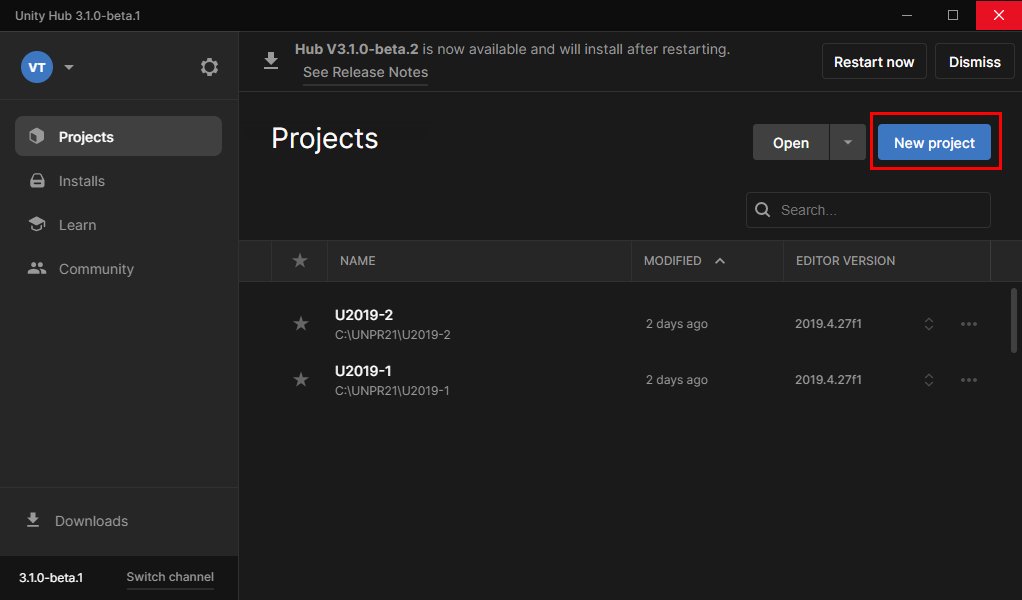
- Create the project: in Unity Hub, open Projects, select New Project, choose the 2022.3.62f1 editor and the 3D Core template, then select Create Project.
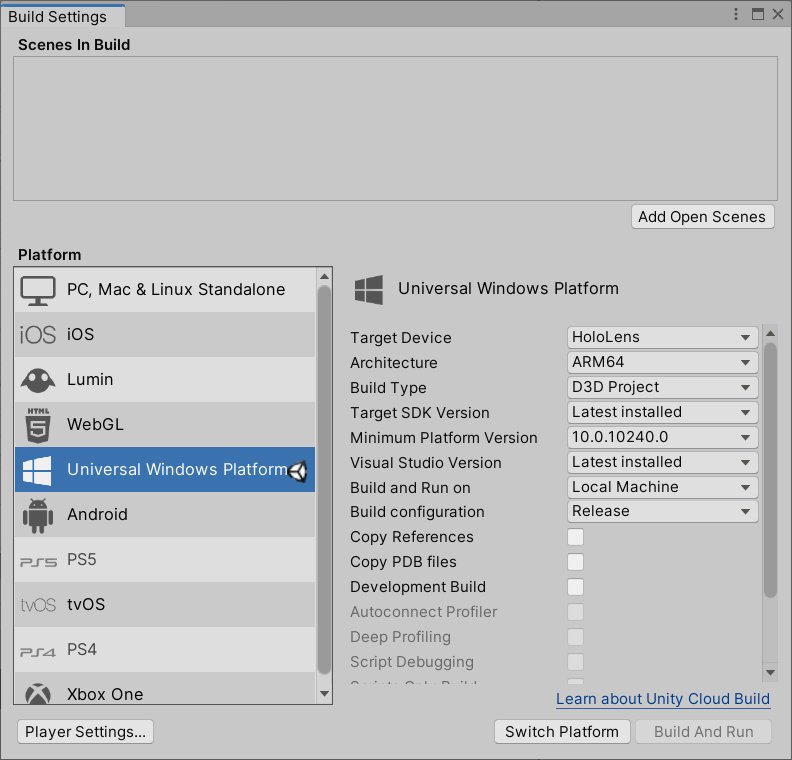
- Switch to Universal Windows Platform: go to File > Build Settings, select Universal Windows Platform, set Build Type to D3D Project, Target SDK Version to Latest installed, Minimum Platform Version to 10.0.10240.0, then select Switch Platform.
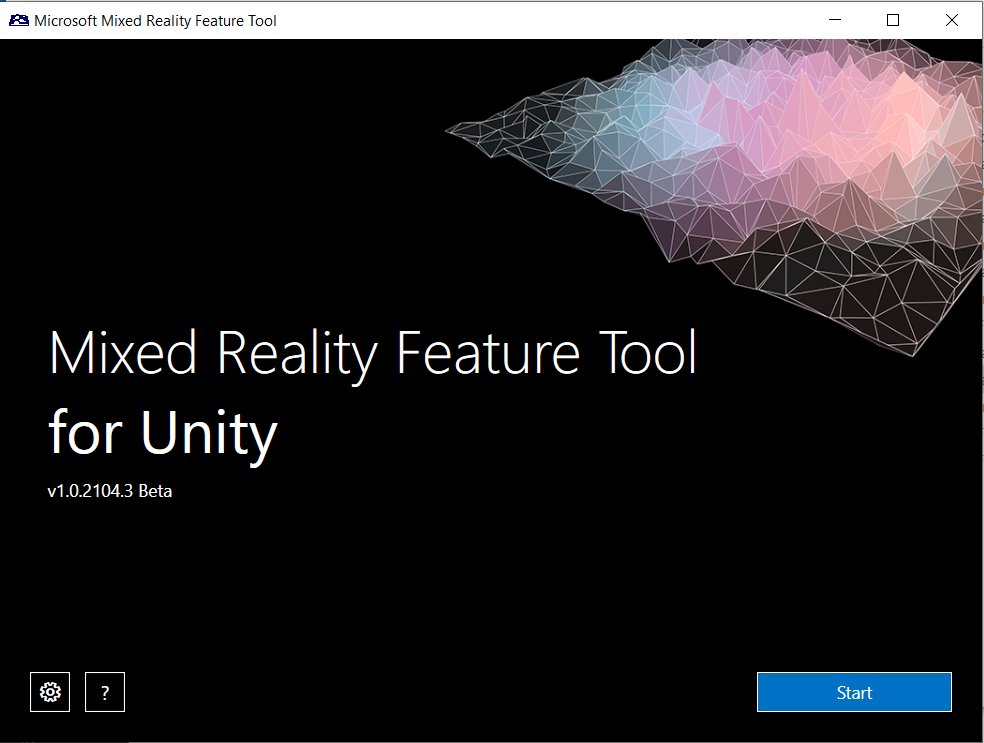
- Enable OpenXR: in the Mixed Reality Feature Tool, select Start, browse to the project, select Discover Features, expand Platform Support and tick the latest Mixed Reality OpenXR Plugin. Add the MRTK3 packages here too if you use MRTK3.
- Select Get Features, Validate, Import and Approve, then return to Unity and select Yes when it asks to restart for the new input backends.
- In Unity, go to Mixed Reality > Project Validation Settings > HoloLens 2 Application (UWP), open the UWP tab and select Fix all; repeat once if issues remain.
- Configure capabilities carefully: in Edit > Project Settings > XR Plug-in Management, confirm Initialize XR on Startup, OpenXR and the Microsoft HoloLens feature group are selected, and add the Eye Gaze Interaction Profile, Microsoft Hand Interaction Profile and Microsoft Motion Controller Profile.
- Set depth submission: set Depth Submission Mode to Depth 16 Bit and leave Render Mode on Single Pass Instanced.
- Under Player > Publishing Settings, give the app a unique Package name so a new build does not overwrite an older app.
What should the first HoloLens 2 test scene contain?
Keep the first scene small. Its only job is to prove that the toolchain, the OpenXR settings and the deployment path work before you add real content.
| Element | What to add | What it proves |
|---|---|---|
| One visible hologram | A simple 3D object placed in front of the starting camera position | Rendering and head tracking work on the device |
| Hand interaction | An object the user can grab or press, using the Microsoft Hand Interaction Profile or an MRTK3 button | Hand tracking input reaches the app |
| Spatial mapping mesh (emulator only) | Render the spatial mapping mesh if you test in the emulator | The emulator shows only holograms you render, not the simulated room behind them |
| Easy-to-find app name | Prefix the Product Name with an underscore | The app sorts to the top of the HoloLens Start menu |
| Scene in the build list | Select Add Open Scenes in Build Settings | The scene is the one Unity actually packages |
How do you build and deploy a Unity project to HoloLens 2?
Unity exports a Visual Studio solution, and Visual Studio does the actual deployment. Turn on developer access on the headset before the first deploy.
- Enable developer access on HoloLens 2: open Settings > Update > For developers, turn on Use developer features, then Device discovery and, if you want browser access, Device Portal.
- Export the Visual Studio solution: in Unity, select File > Build Settings > Build, choose an empty folder such as Builds, and select Select Folder.
- Open the generated .sln file in Visual Studio 2022.
- Set the configuration to Release or Master and the platform to ARM64.
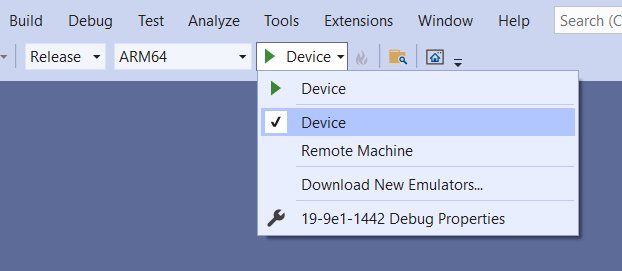
- Pick the deployment target: Device for USB, or Remote Machine for Wi-Fi.
- Select Debug > Start debugging, or Build > Deploy Solution to install without debugging.
- When Visual Studio asks for a PIN, open Settings > Update > For developers on the headset, select Pair, and type the PIN shown into Visual Studio.
Rebuild from Unity after any change to a script, an asset, an Inspector value, the Hierarchy or project settings. Visual Studio alone does not pick up those changes.
HoloLens 2 deployment over USB, Wi-Fi or the emulator
| Deploy target | Visual Studio settings | When to use it |
|---|---|---|
| Deploy through USB | Platform ARM64, target Device; connect the headset with a USB-C cable | Most reliable first deploy; needs the USB Device Connectivity component |
| Deploy over Wi-Fi | Platform ARM64, target Remote Machine; under Project > Properties > Configuration Properties > Debugging, enter the headset IP in Machine Name and set Authentication Mode to Universal (Unencrypted protocol) | No cable; find the IP on the headset at Settings > Network & Internet > Advanced Options |
| Deploy to the emulator | Platform x86 or x64, target HoloLens 2 Emulator, then press F5 | No headset; keep the emulator open between deploys because the first boot takes a minute or more |
Microsoft recommends typing the IP address by hand rather than relying on the Auto Detected option.
What is the fastest way to iterate during development?
Holographic Remoting for Play Mode runs the app in the Unity editor on your PC and streams frames to the headset. Gaze, gestures, voice and spatial mapping go back to the PC, so you skip a full build for every change.
It needs a fast PC, a good Wi-Fi connection and the Holographic Remoting Player version 2.4 or later for OpenXR.
- On the HoloLens 2, install Holographic Remoting Player from the Microsoft Store.
- Launch it from the Holographic Remoting tile and press Play; note the IP address it shows.
- In Unity, go to Mixed Reality > Remoting > Holographic remoting for play mode.
- Enter the headset IP in Remote Host Name.
- Select Enable Holographic Remoting for Play Mode.
- Press Unity's Play button and view the app in the headset; attach Visual Studio to Unity to debug C# scripts.
Remoting uses the PC's GPU, so performance in Play Mode says nothing about on-device frame rate. Deploy a Release build to the headset before judging performance.
How to confirm your app is running on HoloLens 2
- Open the HoloLens Start menu and look for your app tile; an underscore prefix puts it near the top.
- Launch it and check that your hologram appears in the room, not inside a flat window.
- Reach out and grab or press the test object to confirm hand input works.
- On the PC, open a browser to https:// followed by the headset IP to reach Device Portal, accept the test-certificate warning, and confirm the app appears among installed apps.
- In Visual Studio, the debugger should attach without errors when you used Start debugging.
How do you troubleshoot common HoloLens 2 deployment problems?
The project runs in Unity but not on HoloLens 2
The Visual Studio solution is stale or built for the wrong platform.
- Rebuild from Unity with File > Build Settings > Build after every scene, script or settings change.
- In Visual Studio, set the platform to ARM64 and the configuration to Release.
- If Unable to start debugging or error 0x80070057 appears, change the Package name or uninstall the old app from the headset, then deploy again.
The application appears as a flat 2D panel
XR is not starting, so the app launches as an ordinary UWP window.
- Open Edit > Project Settings > XR Plug-in Management and select the Universal Windows Platform tab.
- Tick Initialize XR on Startup and select OpenXR with the Microsoft HoloLens feature group.
- Run Mixed Reality > Project Validation Settings > HoloLens 2 Application (UWP), select Fix all, then rebuild.
Visual Studio has no HoloLens deployment target
The wrong startup project or platform is selected.
- In Solution Explorer, right-click the UWP project (not the IL2CPP project) and select Set as StartUp Project.
- For the emulator, set the platform to x86 or x64; the HoloLens 2 Emulator target does not appear for ARM64.
- If the target list is still empty, delete the ConfigurationCache folder in %localappdata%\Microsoft\VisualStudio\<installation id>\CoreCon and restart Visual Studio.
The emulator will not start
Hyper-V is missing, the Windows edition is Home, or the GPU driver conflicts with hardware acceleration.
- Confirm the PC runs Windows 10 or 11 Pro, Enterprise or Education and that Hyper-V is ticked in Turn Windows features on or off.
- Run Visual Studio as administrator and try again.
- If an Invalid Byte Encoding error appears, delete the files in %localappdata%\Microsoft\XDE\HCS.
- If apps crash or the PC hangs on AMD or Intel graphics, turn off hardware graphics acceleration in the emulator's Tools window.
- If the emulator ignores keyboard and mouse input, disconnect your VPN.
The project broke after a Unity or package update
Unity editor and Unity OpenXR Plugin releases after June 23, 2025, no longer support HoloLens 2.
- Reopen the project in Unity 2022.3.62f1 or Unity 6 6000.0.49f1 from Unity Hub.
- In Package Manager, set com.unity.xr.openxr back to version 1.14.3.
- Restore the project from source control if the upgrade rewrote settings, then rebuild.
Developer Mode is greyed out on the headset
You are not the device owner; on a multi-user HoloLens only the first user can change it.
- Ask the device owner to turn on Developer Mode before handing the device over.
- On a managed device, ask IT to enable the ApplicationManagement/AllowDeveloperUnlock policy through MDM or a provisioning package.
The application performs poorly
A debug build, the wrong render path or a heavy depth format.
- Deploy a Release build to measure performance, or Master for Store submission; Debug turns off all optimisations.
- Keep Render Mode on Single Pass Instanced and set Depth Submission Mode to Depth 16 Bit.
- Use Debug > Start Diagnostic Tools Without Debugging in Visual Studio to profile CPU, memory and GPU use; reboot the headset if the first run returns access denied.
What should you test before shipping?
Holographic apps fail in ways PC apps never do: a glass wall, a dark floor or a crowded room changes how they behave. Test on a real headset before release, because the emulator does not reproduce on-device performance. Plain, shiny or dark surfaces cause the same tracking drift that any augmented reality app on a phone runs into.
| Test area | What to check |
|---|---|
| Spaces | Large and small rooms, hallways, stairs, curved walls and moving between rooms |
| Lighting and surfaces | Bright and dim light, black surfaces, mirrors and glass |
| Angles and distance | Walking behind world-locked holograms, viewing from above and below, reading UI from far away |
| Voice | Custom commands in quiet and noisy rooms; no clashes with system commands such as Select |
| Comfort | No camera motion the user did not cause; content spread horizontally to avoid neck strain |
| Battery and power | Battery drain unplugged; state kept after standby, which starts after 3 minutes idle, and after resume |
| Multi-app use | Behaviour when the user switches apps and returns |
| Store readiness | Run the Windows App Certification Kit; for holographic apps it runs only static tests on the PC |
Should you choose MRTK3 or build directly on OpenXR?
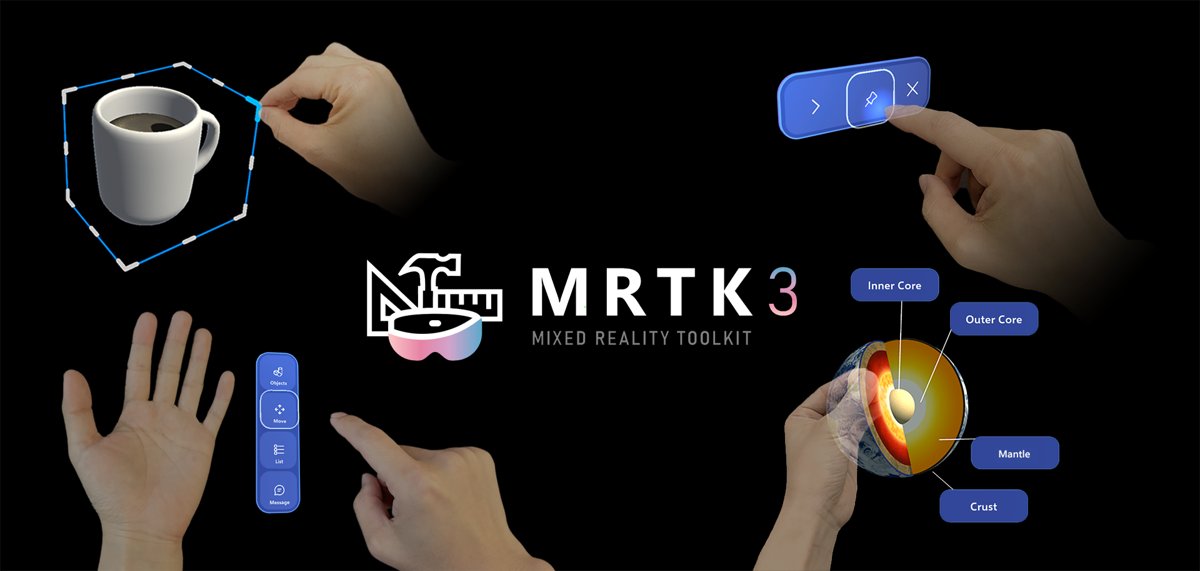
MRTK3 is not required, but Microsoft recommends it for all new HoloLens applications. The Mixed Reality Toolkit Organization now maintains it, and it has reached general availability.
| Factor | MRTK3 | OpenXR without MRTK |
|---|---|---|
| What you get | Ready-made buttons, bounds control, object manipulation, gaze-pinch interaction and auto-layout UI | Head tracking, hand and eye input through Unity's OpenXR stack; you build UI and interactions yourself |
| Built on | Unity XR Interaction Toolkit and the Unity Input System | Mixed Reality OpenXR Plugin and Unity OpenXR Plugin |
| Minimum Unity | Unity 2021.3 LTS or 2022.3 LTS | The pinned 2022.3.62f1 or 6000.0.49f1 editor |
| Versioning | Each package versioned separately; check them at Mixed Reality > MRTK3 > About MRTK | One Microsoft plugin plus Unity's package |
| Other devices | Meta Quest, SteamVR and Windows Mixed Reality as experimental targets | Any OpenXR runtime your code supports |
| Best for | First projects and teams that want consistent HoloLens UX quickly | Small apps, custom interaction models or teams avoiding extra dependencies |
What is the realistic commercial commitment in 2026?
Treat any new HoloLens 2 app as a fixed-term project that ends with the device's security servicing in December 2027, and budget for a port to another OpenXR headset after that. Microsoft has stopped manufacturing HoloLens 2, shipped its final feature update in November 2024, and ends Dynamics 365 Guides and Remote Assist after December 31, 2026. Unity no longer patches the last editor and OpenXR versions that support the headset, so toolchain bugs stay unfixed. Building on OpenXR and MRTK3 keeps most of the code reusable on other headsets.
The supported editions were HoloLens 2, HoloLens 2 Industrial Edition with a 2-year warranty, Trimble XR10 with HoloLens 2, and HoloLens 2 Development Edition. Any new purchase now depends on remaining stock, not on Microsoft supply.
What is the best beginner workflow?
This order catches setup problems early, when they are cheap to fix.
- Install the pinned Unity 2022.3.62f1 editor and Visual Studio 2022 with the listed workloads.
- Create a 3D Core project, switch it to Universal Windows Platform and import the Mixed Reality OpenXR Plugin and MRTK3.
- Run Project Validation Settings for HoloLens 2 Application (UWP) and fix every issue.
- Build the one-hologram test scene and deploy it over USB to prove the toolchain.
- Switch to Holographic Remoting for Play Mode for day-to-day changes.
- Deploy a Release build to the headset at least once a week to check real performance.
- Commit the project to source control before any Unity or package change.
HoloLens 2 app development: frequently asked questions
What is HoloLens 2?
HoloLens 2 is Microsoft's self-contained mixed reality headset that overlays holograms on the real world. It runs Windows Holographic on a Qualcomm Snapdragon 850 with 4 GB of RAM and 64 GB of storage, weighs 566 grams and lasts 2 to 3 hours of active use.
Can you still develop apps for HoloLens 2 in 2026?
Yes. You can build and deploy HoloLens 2 apps with Unity 2022.3.62f1 or Unity 6 6000.0.49f1 and Unity OpenXR Plugin 1.14.3. Newer Unity releases dropped HoloLens 2 support after June 23, 2025, and the device gets security updates only through December 2027.
What Unity version should I use for HoloLens 2?
Use Unity 2022.3.62f1, the last 2022.3 LTS patch with HoloLens 2 support, together with the latest Mixed Reality OpenXR plugin. Unity 6 6000.0.49f1 also works. Install the Universal Windows Platform Build Support and Windows Build Support (IL2CPP) modules.
Is MRTK3 required for HoloLens 2 development?
No. You can build directly on the Mixed Reality OpenXR plugin without MRTK. Microsoft still recommends MRTK3 for new HoloLens apps because it provides tested buttons, manipulation and gaze-pinch interaction, and it needs Unity 2021.3 or 2022.3 LTS.
Can the HoloLens 2 Emulator replace a physical device?
No. The emulator is good for fast iteration and testing in simulated rooms, but Microsoft advises testing on a physical HoloLens before release. It also needs Hyper-V on Windows 10 or 11 Pro, Enterprise or Education, which rules out Home editions.
How do you turn on HoloLens 2?
Press the Power button; the LEDs below it show the battery level. The first time after unboxing, press and hold it for at least 4 seconds. To turn it off, hold the button for 5 seconds; to force a restart when it freezes, hold it for 10 seconds.
How do you connect HoloLens 2 to a computer?
Connect it with a USB-C cable, or join both to the same Wi-Fi network. Turn on Developer Mode and Device Portal under Settings > Update > For developers, then open https:// plus the headset IP in a browser. Over USB, use the Ethernet IP shown on that same page.
How do you reset HoloLens 2?
On the headset, open Settings > Update & Security > Reset & recovery and select Reset this device. This removes every user account and erases all data. If the headset only freezes, hold Power for 15 seconds until the LEDs go off, then press it again to restart.
How do you factory reset HoloLens 2 if it will not start?
Reflash it with the Advanced Recovery Companion app from the Microsoft Store. Download the current HoloLens 2 image first, because automatic download is no longer supported. If the app cannot detect the headset, hold Power for 15 seconds, then hold Volume up while pressing Power to enter recovery mode.
How much is the Microsoft HoloLens 2?
Microsoft no longer sells new HoloLens 2 units. Its purchase page states the device is no longer being manufactured and is out of stock in all geographies, so any price now comes from resellers with remaining stock, not from Microsoft.
Can Microsoft still repair HoloLens 2 devices?
Microsoft still accepts HoloLens 2 hardware warranty claims through its Warranty and Service claim form. Standard units carried a 1-year warranty and Industrial Edition units a 2-year warranty with rapid replacement. Microsoft does not publish an out-of-warranty repair end date.
The bottom line on HoloLens 2 app development
Start HoloLens 2 development in 2026 only if you already have headsets in use, and pin Unity 2022.3.62f1 with Unity OpenXR Plugin 1.14.3 before you write any code. The device is out of production, security servicing ends in December 2027, and newer Unity releases cannot build for it. A short, well-scoped project on OpenXR and MRTK3 still pays off for existing fleets and leaves code you can move to other headsets.