To troubleshoot a slow app in Windows 11/10, restart it, check its CPU and memory use in Task Manager, update the app and Windows, then repair or reset the app if it is still slow.
This guide covers the causes behind slow apps, twelve fixes in the order that saves the most time, extra tuning tips and symptom-based troubleshooting.
How to fix a slow app in Windows 11 and 10
These five steps clear most slow-app problems in under ten minutes. Run them in order and test the app after each one.
- Close the app, then restart the PC from Start > Power > Restart.
- Press Ctrl + Shift + Esc to open Task Manager and check whether the app or another process is using most of the CPU, memory or disk.
- Select Start > Settings > Windows Update > Check for updates and install what is offered. On Windows 10, the path is Settings > Update & Security > Windows Update.
- Update the app itself from Microsoft Store > Library > Get updates, or from the publisher's own update option.
- If the app is still slow, open Settings > Apps > Installed apps, select More next to the app, then Advanced options > Repair.
Windows 10 reached end of support on October 14, 2025, so a Windows 10 PC no longer gets the fixes that Windows Update delivers to Windows 11.
Causes that create performance issues for an app on a Windows device
Match what you see to a row, then go straight to the fix in the last column.
| Cause | What you typically see | Fix to try first |
|---|---|---|
| Outdated application version | Slowdowns that started after a Windows update, or known bugs the publisher has fixed | Update the app |
| Insufficient system memory | Memory in Task Manager near 100% and the app pauses when you switch windows | Close other apps and browser tabs |
| High CPU usage | Fans run loud and the app lags on every click | Find the busy process in Task Manager |
| Limited storage space | System drive almost full and apps load slowly | Storage Sense or Disk Cleanup |
| Corrupted application files | One app is slow or crashes while others run fine | Repair, then Reset the app |
| Background applications | Many tray icons and startup apps loading at sign-in | Disable startup apps and close background apps |
| Outdated graphics drivers | Games, video and design apps stutter or render slowly | Update the display driver |
| Malware or unwanted software | Unknown processes using CPU or disk, pop-ups, new browser extensions | Windows Security scan |
| Windows system problems | Several apps and Windows tools are slow or fail together | DISM and sfc /scannow |
Slow app fixes compared by symptom
| Your situation | Fix to try | Why |
|---|---|---|
| The app was fine until today | Restart, then install Windows and app updates | Clears temporary state and pulls in bug fixes |
| Task Manager shows CPU or memory near 100% | End or close the heavy process, disable startup apps | Frees resources the app needs |
| Only one app is slow | Repair, Reset, then reinstall the app | The problem is in that app's files or data |
| Games and video apps stutter | Update the graphics driver | The display driver handles rendering |
| Disk usage is high and the drive is nearly full | Storage Sense, Temporary files, Disk Cleanup | Windows and apps need free space for caches and the page file |
| Unknown processes appear in Task Manager | Windows Security scan | Malware uses CPU and disk |
| Many apps are slow and Windows tools misbehave | DISM, then sfc /scannow |
Repairs damaged system files |
| Slowness starts only after other software loads | Clean boot | Finds the conflicting service or startup app |
How to troubleshoot app performance issues in Windows 11/10?
Work through these first five steps before any repair. They are quick, safe and fix the most common causes.
- Step 1: Restart your computer. Select Start > Power > Restart, then open only the apps you need.
- Step 2: Close unnecessary background applications. Close apps you are not using with Close (X), and quit tray apps from their icon in the notification area.
- Step 3: Check for application updates. Open Microsoft Store > Library > Get updates for Store apps. For desktop programs, use the program's own update option.
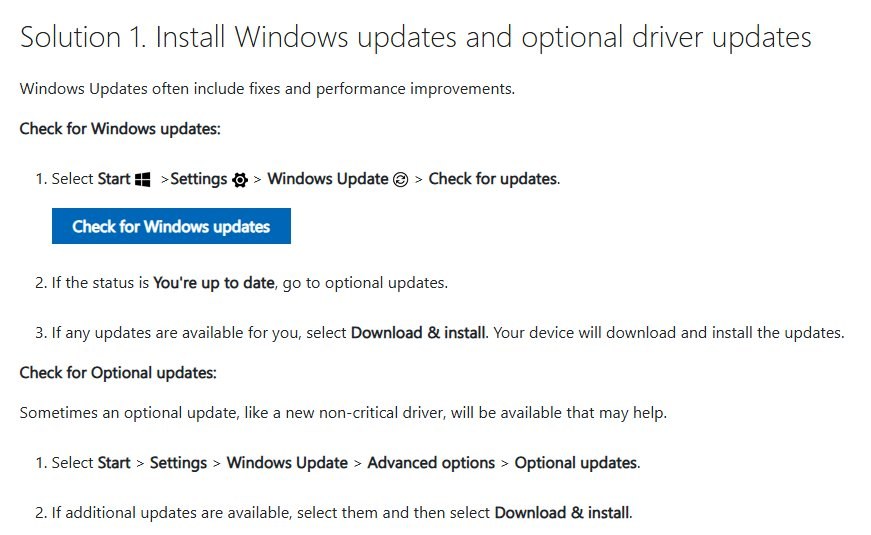
- Step 4: Install the latest Windows updates. Select Start > Settings > Windows Update > Check for updates. Also look under Advanced options > Optional updates.
- Step 5: Free up storage space. Open Settings > System > Storage, select Temporary files, tick what to remove and select Remove files.
On Windows 11, Storage Sense under Settings > System > Storage can also delete temporary files and empty the Recycle Bin on a schedule. Select Run Storage Sense now for an immediate cleanup.
Step 6: Repair or reset the application
Repair keeps the app's data. Reset returns the app to a fresh state, and Microsoft warns it can delete the app's data.
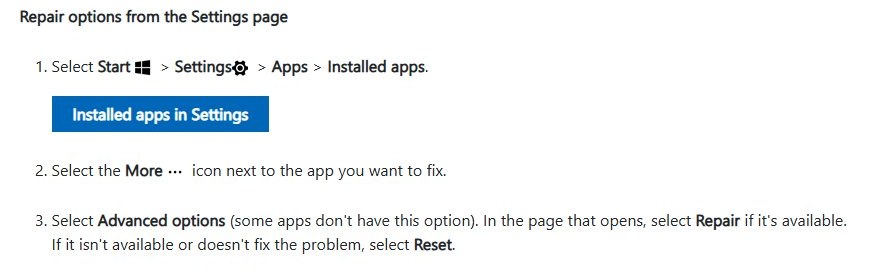
- Select Start > Settings > Apps > Installed apps. On Windows 10, select Apps & features.
- Select More (three dots) next to the app, then Advanced options. On Windows 10, select the app, then Advanced options.
- Select Repair and test the app.
- If it is still slow, return to the same page and select Reset.
- For a desktop program without Advanced options, open Control Panel > Programs > Programs and Features, right-click the program and select Repair or Change.
Not every app offers a repair option. Office apps have their own Quick Repair and Online Repair, and you can repair broken apps and programs of every type the same way.
Step 7: Update your graphics driver
Windows Update delivers display drivers, and Microsoft describes those drivers as normally recent. Optional driver updates are not installed automatically.
- On Windows 11, select Settings > Windows Update > Advanced options > Optional updates.
- Expand the driver updates, tick the display driver if listed and select Download & install.
- Or right-click Start, select Device Manager and expand Display adapters.
- Right-click the graphics card, select Update driver and choose the automatic search option.
- Restart the PC and test the app again.
Download drivers only from the PC or graphics card maker's official site. If Windows Update offers nothing new, you can update the graphics driver from the maker's support page instead.
Step 8: Scan for malware
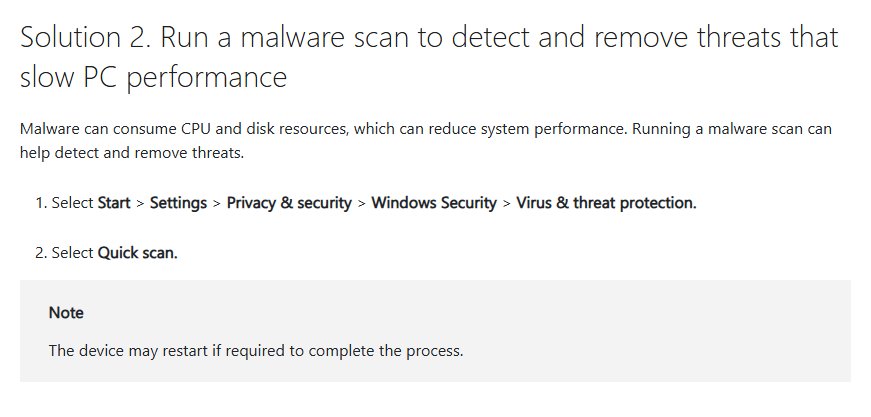
Microsoft notes that malware can consume CPU and disk resources, which slows every app on the PC.
- On Windows 11, select Start > Settings > Privacy & security > Windows Security > Virus & threat protection.
- On Windows 10, select Start > Settings > Update & security > Windows Security > Virus & threat protection.
- Select Quick scan and wait for it to finish.
- If the PC is still slow, select Scan options, choose Full scan or Microsoft Defender Antivirus (offline scan), then Scan now.
- Remove anything Windows Security finds, then restart.
Step 9: Reinstall the problematic application
Reinstall only after Repair and Reset fail. A reinstall replaces every app file, so back up any local projects or settings the app stores first.
- Select Start > Settings > Apps > Installed apps.
- Select More next to the app, then Uninstall, and confirm.
- Restart the PC.
- For a Store app, open Microsoft Store > Library and select Install next to the app.
- For a desktop program, download the installer from the publisher's official site and run it.
Step 10: Check system resource usage
Task Manager shows which process is taking the CPU, memory or disk the slow app needs.
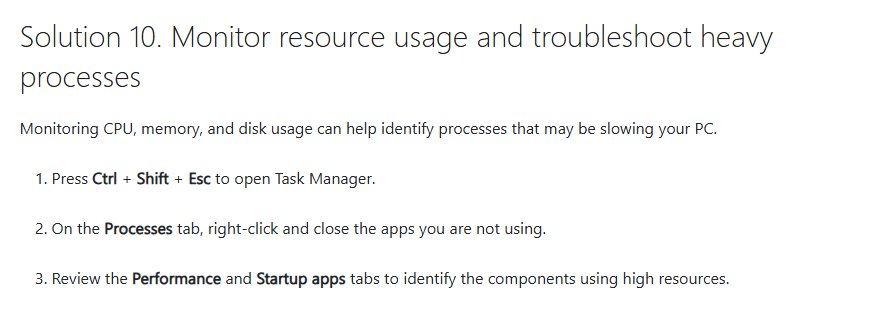
- Press Ctrl + Shift + Esc to open Task Manager.
- Select Processes, then click the CPU, Memory and Disk column headers in turn to sort by usage.
- If an app you do not need sits at the top, select it and choose End task.
- Select Performance to see overall CPU, memory and disk use.
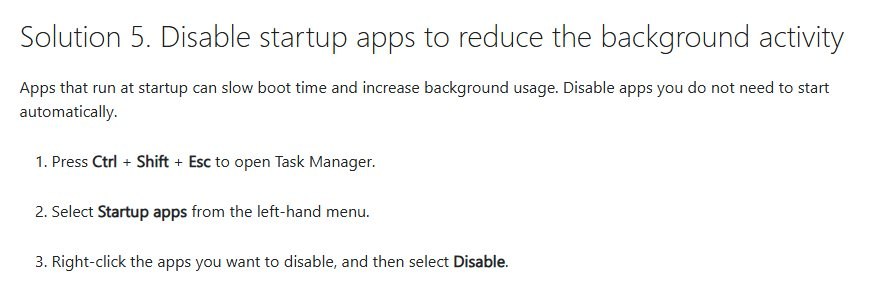
- Select Startup apps, right-click apps you do not need at sign-in and select Disable.
If memory stays near its limit with only the slow app open, the PC has too little RAM for that workload. Microsoft notes that older PCs may not improve much from software fixes alone. These Task Manager shortcuts open it from any screen.
Step 11: Run the System File Checker
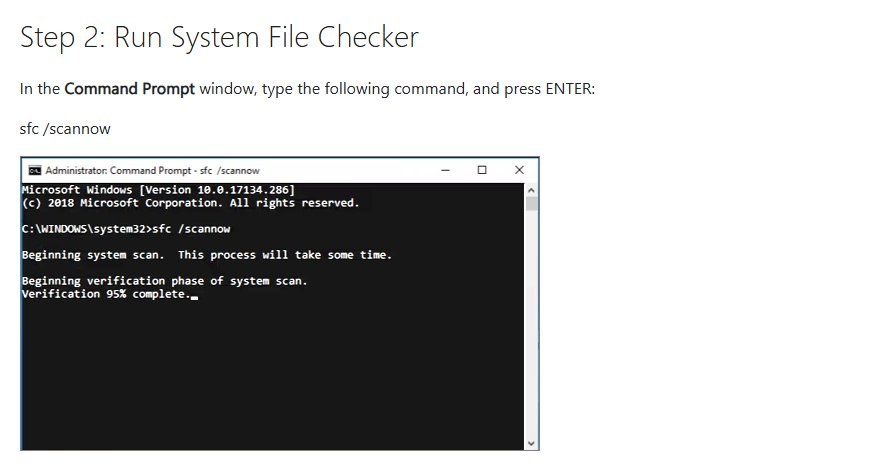
Run DISM first so SFC has a healthy component store to repair from. Both need an administrator Command Prompt.
- Type command prompt in the taskbar search box, select Run as administrator and select Yes.
- Run
DISM.exe /Online /Cleanup-image /Restorehealthand wait for it to finish. - Run
sfc /scannow. - Wait until verification reaches 100%.
- Restart the PC and test the app.
Each result message has a different meaning, and this sfc /scannow guide explains them.
Step 12: Perform a clean boot
A clean boot starts Windows with only Microsoft services. If the app runs well afterwards, a third-party service or startup app is slowing it down.
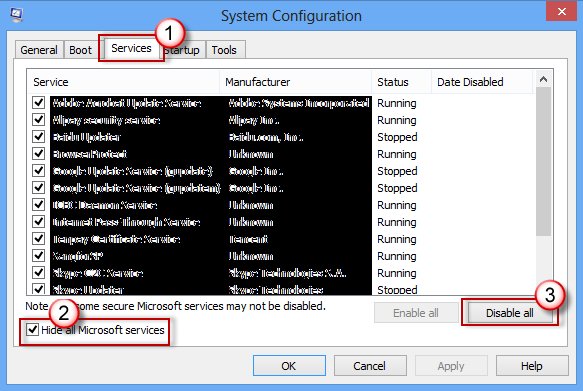
- Search for msconfig and open System Configuration.
- On the Services tab, tick Hide all Microsoft services, select Disable all and select Apply.
- On the Startup tab, select Open Task Manager.
- In Startup apps, select each Enabled item and select Disable. Note which ones you disabled.
- Close Task Manager, select OK in System Configuration and restart.
- Test the app, then re-enable services in small groups to find the one that slows it.
To return to normal, open System Configuration, select Normal startup on the General tab, select Enable all on the Services tab and re-enable your startup apps.
Additional tips
These settings speed up the whole PC, which helps apps that are only slightly slow.
| Tip | Windows 11 | Windows 10 |
|---|---|---|
| Stop an app running in the background | Settings > Apps > Installed apps > More > Advanced options > Let this app run in the background > Never | Settings > Privacy > Background apps |
| Use a faster power mode | Settings > System > Power & battery > Power mode > Best performance | Settings > System > Power & sleep > Additional power settings > High performance |
| Turn down visual effects | Search Adjust the appearance and performance of Windows > Visual Effects > Adjust for best performance | Same search and option |
| Turn off startup apps | Settings > Apps > Startup | Task Manager > Startup |
| Optimize the drive | Search Defragment and Optimize Drives > select the drive > Optimize | Same search and option |
Best performance uses more power, so a laptop runs warmer and its battery drains faster.
Confirm the app runs faster in Task Manager
- Restart the PC and open the app.
- Press Ctrl + Shift + Esc and select Processes.
- Confirm the app's CPU and memory figures stay stable while you use it, instead of climbing to the top of the list.
- Select Performance and confirm overall memory and disk use are well below 100%.
- Repeat the task that was slow before and compare how long it takes.
App performance issues troubleshooting by symptom
Only one application is running slowly
That app's files or settings are damaged, or the app is out of date.
- Update the app from Microsoft Store > Library > Get updates or the publisher's updater.
- Select Repair in the app's Advanced options, then Reset.
- Uninstall and reinstall the app.
App slow with high CPU usage
Another process, a scan or an update is using the processor at the same time.
- Sort Task Manager's Processes tab by CPU.
- End any app you do not need with End task.
- Run a Quick scan in Windows Security if you do not recognise the process.
App slow because of insufficient system memory
Too many apps and browser tabs are open for the installed RAM.
- Close other apps and browser tabs.
- Disable startup apps you do not need under Startup apps in Task Manager.
- Restart the PC to clear memory.
Apps slow when storage space is limited
A nearly full system drive leaves little room for app caches and the page file.
- Open Settings > System > Storage > Temporary files and select Remove files.
- Run Storage Sense.
- Uninstall apps you no longer use.
Games and graphics apps slow after a driver change
An outdated or unsuitable display driver.
- Update the driver from Optional updates or Device Manager.
- If the problem started after a driver update, open Device Manager > Display adapters, right-click the card, select Properties > Driver > Roll Back Driver.
- Restart the PC.
FAQs
Why is only one application running slowly?
When one app is slow and others are fine, the cause is usually in that app: outdated code, damaged files or corrupt settings. Update the app first, then use Repair and Reset in its Advanced options, and reinstall it if neither helps.
Can low storage space slow down applications?
Yes. Apps and Windows need free space for caches, temporary files and the page file. When the system drive is nearly full, apps load and save more slowly. Remove temporary files and run Storage Sense to recover space.
Is restarting my PC really helpful?
Yes. A restart closes background apps, clears memory and finishes pending updates. Microsoft lists it as the first step for a slow PC. Select Start > Power > Restart, then open only the apps you need.
Should I reinstall the application immediately?
No. Try updating the app, then Repair and Reset, before a reinstall. Repair keeps your data, while a reinstall removes all app files. Reinstall only when those steps fail, and back up local app data first.
Can outdated graphics drivers slow down apps?
Yes, especially games, video players and design apps, because the display driver handles rendering. Install display drivers from Windows Update optional updates, Device Manager or the PC or graphics card maker's official site.
Can malware slow down applications?
Yes. Microsoft notes that malware can consume CPU and disk resources and reduce system performance. Run a Quick scan in Windows Security, then a Full scan or Microsoft Defender Antivirus offline scan if the PC stays slow.
Do background apps slow down Windows 11?
They can. Some apps keep running background processes even when not in use, and startup apps add load at sign-in. Set Let this app run in the background to Never and disable startup apps you do not need.