The DCOM Event ID 10016 error on Windows 11 and Windows 10 needs no fix: Microsoft says these DistributedCOM events are logged by design and can be safely ignored.
This guide explains what the event means, how to hide it from Windows Event Viewer with a custom view, how to confirm it is harmless, and why changing DCOM permissions is the wrong fix.
Fix DCOM Event ID 10016 error in Windows
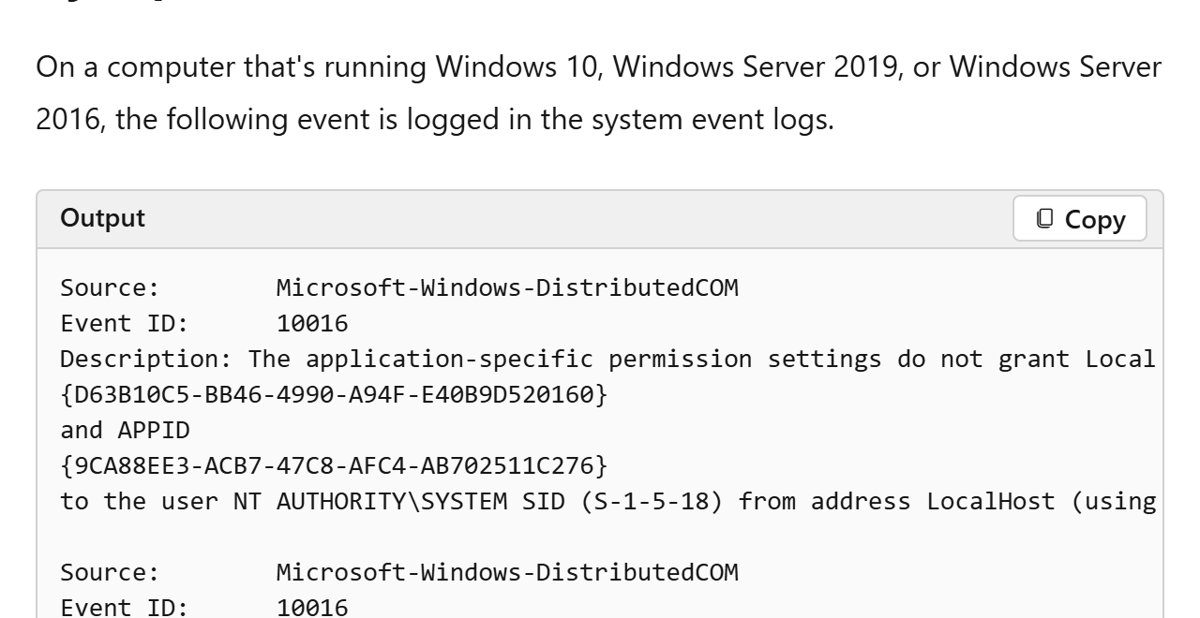
Microsoft's recommended action for Event ID 10016 is to leave it alone. The events do not affect how Windows works, so the practical fix is to confirm what you are looking at and stop chasing it.
- Select Start, type Event Viewer and open it.
- Expand Windows Logs and select System.
- Open the event and check that Source reads DistributedCOM and Event ID reads 10016.
- Read the description: it says permission settings do not grant Local Activation permission for a COM Server application.
- Confirm that Windows, your apps and your devices work normally.
- Leave the event in place, or hide it with a custom view as shown below.
What is DistributedCOM error 10016?
DCOM (Distributed Component Object Model) lets Windows components talk to each other. Event 10016 records one of those components being refused on a first attempt.
| Field in the event | What it shows | What it means |
|---|---|---|
| Source | Microsoft-Windows-DistributedCOM | The DCOM subsystem wrote the entry |
| Event ID | 10016 | A permission check for local activation failed |
| CLSID | A GUID such as {D63B10C5-BB46-4990-A94F-E40B9D520160} | The COM server application that was asked to start |
| APPID | A second GUID | The application identity that owns the permission settings |
| User / SID | Often NT AUTHORITY\SYSTEM (S-1-5-18) or LOCAL SERVICE (S-1-5-19) | The account that made the request |
| Last sentence | This security permission can be modified using the Component Services administrative tool | Standard text, not an instruction you need to follow |
Microsoft explains the cause: Windows components first try DCOM access with one set of parameters, and retry with another set if that fails. The first attempt is kept because it succeeds in some scenarios, so the failed try is logged as 10016.
How to hide Event ID 10016 in Event Viewer
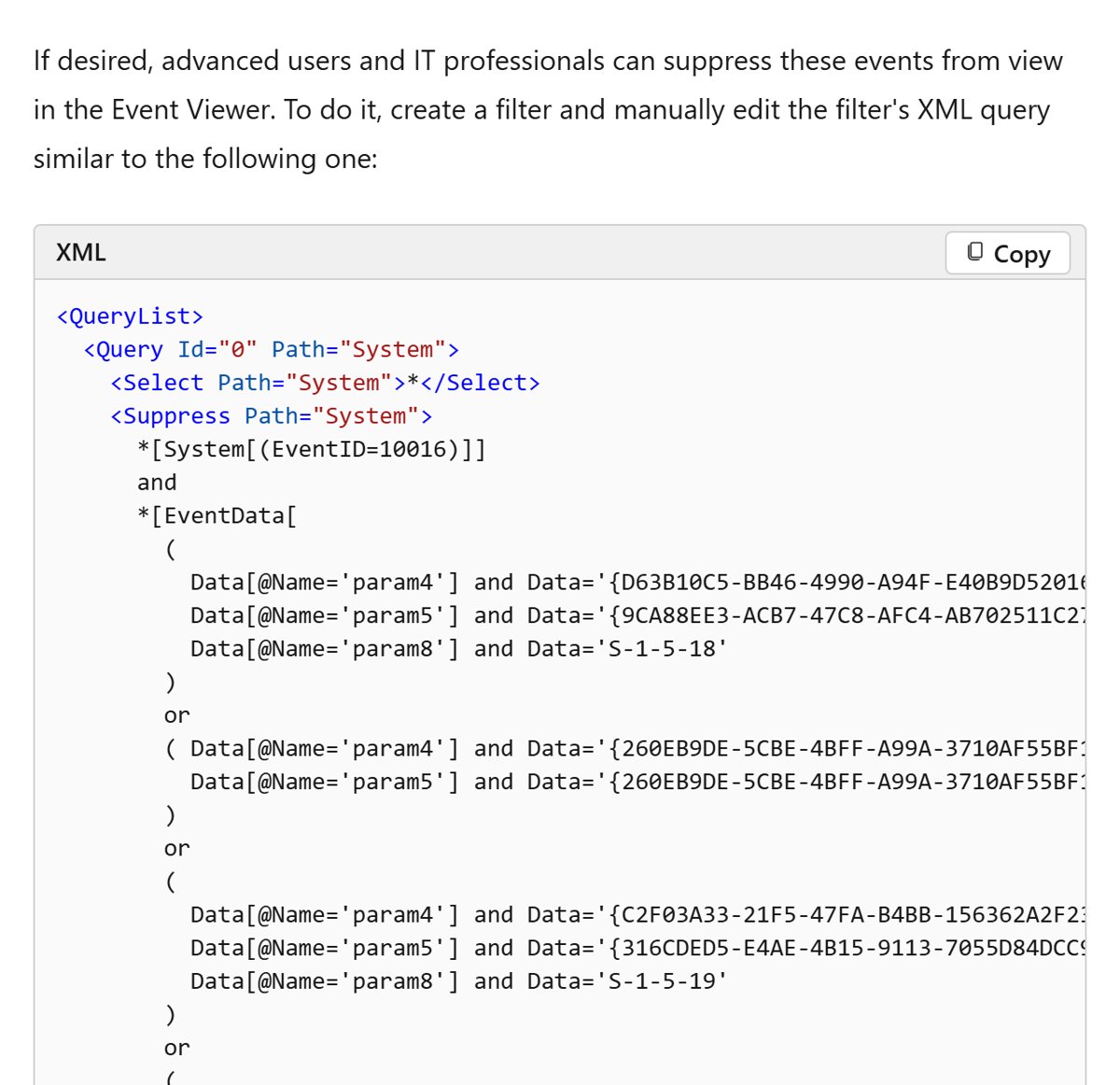
Advanced users who want a clean System log can suppress these events from view. This changes only what Event Viewer shows; the events are still written to the log.
- Open Event Viewer.
- Select Action > Create Custom View.
- Open the XML tab.
- Edit the query on the XML tab and replace it with the query shown below this list.
- Select OK, give the view a name such as System without DCOM 10016, then select OK again.
- Open the new view under Custom Views instead of the plain System log.
Microsoft's example suppresses 10016 events only for specific CLSID, APPID and SID combinations. The simplified query below hides every DistributedCOM 10016 entry from the System log:
<QueryList><Query Id="0" Path="System"><Select Path="System">*</Select><Suppress Path="System">*[System[(EventID=10016)]]</Suppress></Query></QueryList>
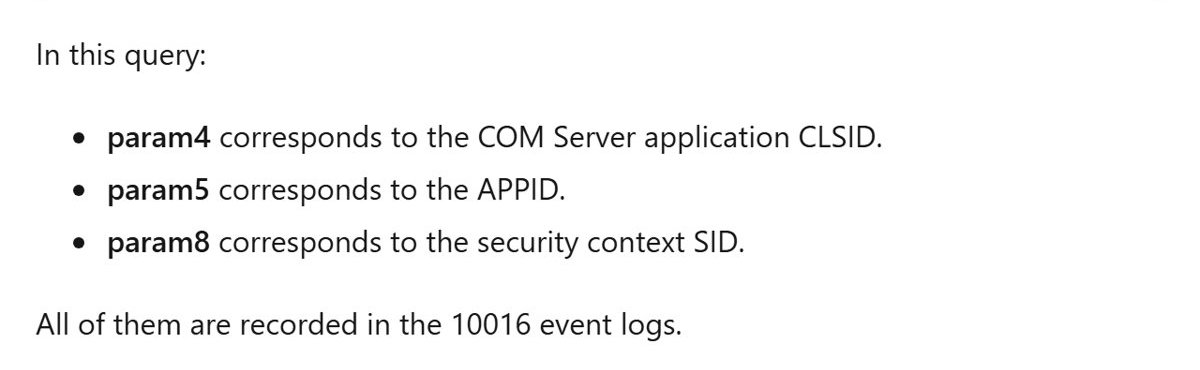
In Microsoft's fuller version, param4 is the CLSID, param5 is the APPID and param8 is the security context SID, all copied from the event itself.
Check DistributedCOM 10016 events with PowerShell
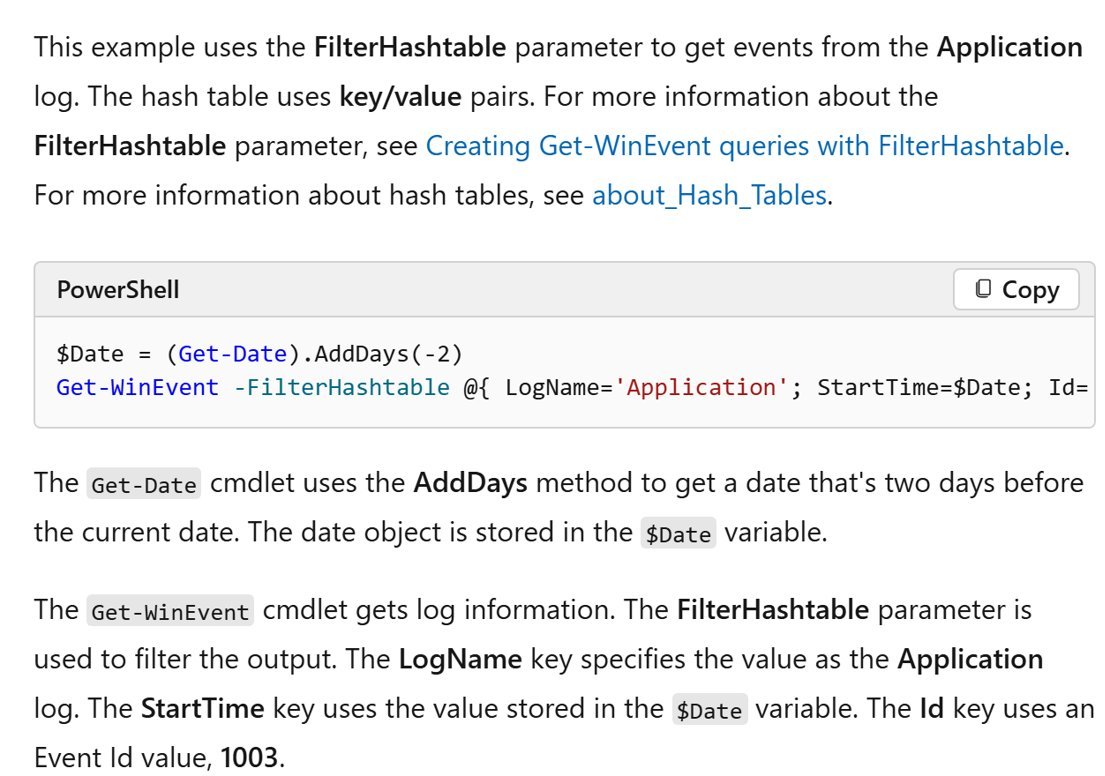
Get-WinEvent -FilterHashtable @{ LogName='System'; ProviderName='Microsoft-Windows-DistributedCOM'; Id=10016 } -MaxEvents 20Lists the 20 newest DCOM 10016 events from the System log, newest first. LogName picks the log, ProviderName matches the event source and Id matches the event number.
You should see: A table of TimeCreated, Id, LevelDisplayName and Message rows. Repeating CLSIDs from Windows accounts such as SYSTEM or LOCAL SERVICE match the by-design pattern Microsoft describes.
How to confirm DCOM 10016 is harmless on your PC
- Open the 10016 event and note the time it was logged.
- Check whether anything failed at that moment: an app that would not open, a device that dropped, or a crash.
- Look at the other Error and Critical entries around that time in System and Application.
- Treat 10016 as noise when nothing failed and no other errors sit beside it.
- Open your custom view and confirm that the 10016 entries no longer appear.
Should you change DCOM permissions in Component Services?
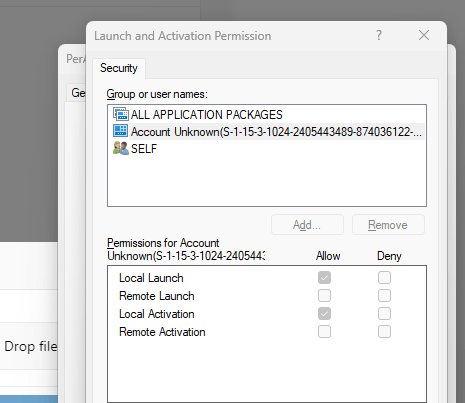
Many older guides fix 10016 by taking ownership of registry keys and granting Local Activation in Component Services. Microsoft names this as a possible workaround but does not recommend it.
Do not change DCOM permissions or registry ownership to silence Event ID 10016. Microsoft states that the errors do not affect functionality and that modifying the permissions can have unintended side effects. A custom view hides the noise with no change to system security.
DistributedCOM error 10016 Windows 11 fix: common situations
Event 10016 DistributedCOM error appears after every restart
Windows components retry DCOM access on every start, so the same entries repeat by design.
- Compare the CLSID and APPID across the repeated entries.
- Confirm the account is SYSTEM, LOCAL SERVICE or your own user.
- Leave the entries alone, or open the custom view that hides them.
DCOM error 10010 appears instead of 10016
Event 10010 is a different DCOM event, not the permission event Microsoft documents for 10016.
- Open the 10010 event and note the GUID or app name in the description.
- Check whether that app or feature actually fails to work.
- Install pending updates from Settings > Windows Update and update the app named in the event.
- Leave the entry alone if nothing is failing.
Your PC crashes and the log shows DCOM 10016
10016 does not affect functionality, so the crash comes from something else in the log.
- Filter the System log by Critical and Error levels.
- Look for the entry logged at the crash time, such as a bugcheck or hardware error.
- Troubleshoot that event; for example, a WHEA uncorrectable error points at hardware.
DCOM Event ID 10016 FAQ
What is DistributedCOM error 10016?
It is an Event Viewer entry logged when a Windows component tries to start a DCOM server without Local Activation permission. Microsoft says the behavior is expected and by design, because the component retries with other parameters.
How do I fix DCOM error 10016?
Microsoft's recommended action is to ignore it, because the event does not affect functionality. If the entries bother you, create an Event Viewer custom view whose XML query suppresses Event ID 10016.
What does DistributedCOM error 10016 mean?
It means a COM server, named by its CLSID and APPID, refused a local activation request from an account such as SYSTEM or LOCAL SERVICE. Windows then retried another way, so nothing broke.
Is DistributedCOM warning event ID 10016 dangerous?
No. Microsoft states that these events can be safely ignored and do not adversely affect functionality. They are not a sign of malware or a failing drive on their own.
Is there a DistributedCOM error 10016 Windows 10 fix that differs from Windows 11?
No. The same Microsoft guidance applies to Windows 10, Windows 11 and Windows Server: ignore the event or hide it with a custom view in Event Viewer.
How do I fix DCOM error 10010?
Event 10010 is a separate DCOM event and is not covered by Microsoft's 10016 guidance. Note the app named in the event, check whether it actually fails, and install Windows and app updates.
Can I stop Windows from logging Event ID 10016?
Only by changing DCOM permissions, which Microsoft does not recommend because it can have unintended side effects. Hiding the events with a custom view is the safer option.
Why does Event ID 10016 mention Component Services?
The sentence is standard text in every 10016 event. It names the tool that can edit DCOM permissions, but Microsoft advises against using it to silence these entries.