Cast media to device is on by default in Microsoft Edge, and you turn it off or back on with the Enable Google Cast policy (registry value EnableMediaRouter) on Windows 11.
This guide covers enabling and disabling it through Group Policy and the registry, showing or hiding the Cast toolbar icon, confirming the change, and fixing casting that fails.
Enable Cast Media to device in Microsoft Edge
Edge enables Google Cast out of the box, so on a home PC nothing needs switching on. You launch it from the app menu, a page's right-click menu, the media controls on Cast-enabled sites, or the Cast toolbar icon.
If the option is missing, a policy has turned it off. Remove that policy or set it back to enabled.
- Press Win + R, type
regeditand press Enter, then select Yes at the User Account Control prompt. - Go to
HKEY_LOCAL_MACHINE\SOFTWARE\Policies\Microsoft\Edge. - Double-click EnableMediaRouter if it exists, set Value data to
1and select OK. Deleting the value also restores the default, which is enabled. - Close every Edge window and reopen Edge, because this policy only applies after a browser restart.
- Open the Settings and more (three dots) menu and pick Cast media to device, then choose your Chromecast or Cast-enabled TV.
Group Policy users can do the same by setting Enable Google Cast to Enabled or Not Configured in the section below.
Disable Cast Media to device in Microsoft Edge
Setting EnableMediaRouter to 0 removes Google Cast from the menu, the context menu, site media controls and the toolbar for every profile on the PC. It works on Windows 11 Home, which ships without the Local Group Policy Editor.
- Press Win + R, type
regeditand press Enter. - Go to
HKEY_LOCAL_MACHINE\SOFTWARE\Policies\Microsoft. If there is no Edge key, right-click Microsoft, choose New > Key and name itEdge. - Right-click the Edge key, choose New > DWORD (32-bit) Value and name it
EnableMediaRouter. - Leave Value data at
0and select OK. - Close and reopen Edge. Cast media to device no longer appears.
Turn off cast to device in Edge with Group Policy
On Windows 11 Pro, Enterprise and Education, the same switch sits in the Group Policy Editor once the Microsoft Edge administrative templates (MSEdge.admx) are installed.
- Press Win + R, type
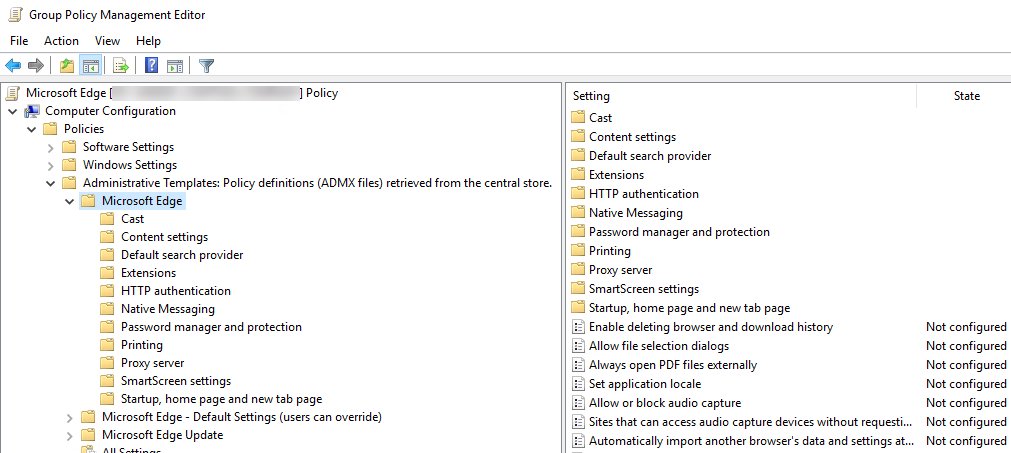
gpedit.mscand press Enter. - Open Computer Configuration > Administrative Templates > Microsoft Edge > Cast.
- Double-click Enable Google Cast.
- Select Disabled to turn casting off, or Enabled to force it on, then select OK.
- Restart Edge to apply the policy.
Show or hide the Cast icon in the Edge toolbar
The Cast icon and the casting feature are separate settings. Without a policy, you pin or remove the icon from its own right-click menu.
| Policy (Edge > Cast) | Registry value | Setting | Result |
|---|---|---|---|
| Enable Google Cast | EnableMediaRouter | 0 / Disabled | Casting is off everywhere in Edge |
| Enable Google Cast | EnableMediaRouter | 1 / Enabled or not set | Casting is on (the default) |
| Show the cast icon in the toolbar | ShowCastIconInToolbar | 1 / Enabled | Cast icon always shown; users cannot remove it |
| Show the cast icon in the toolbar | ShowCastIconInToolbar | 0 / Disabled or not set | Users pin or remove the icon themselves |
| Disable DIAL protocol for cast device discovery | EdgeDisableDialProtocolForCastDiscovery | 1 / Enabled | Edge stops using DIAL to find cast devices |
If Enable Google Cast is disabled, the toolbar and DIAL policies are ignored. All three values are REG_DWORD entries under HKEY_LOCAL_MACHINE\SOFTWARE\Policies\Microsoft\Edge and need an Edge restart.
Check whether cast media to device is enabled in Edge
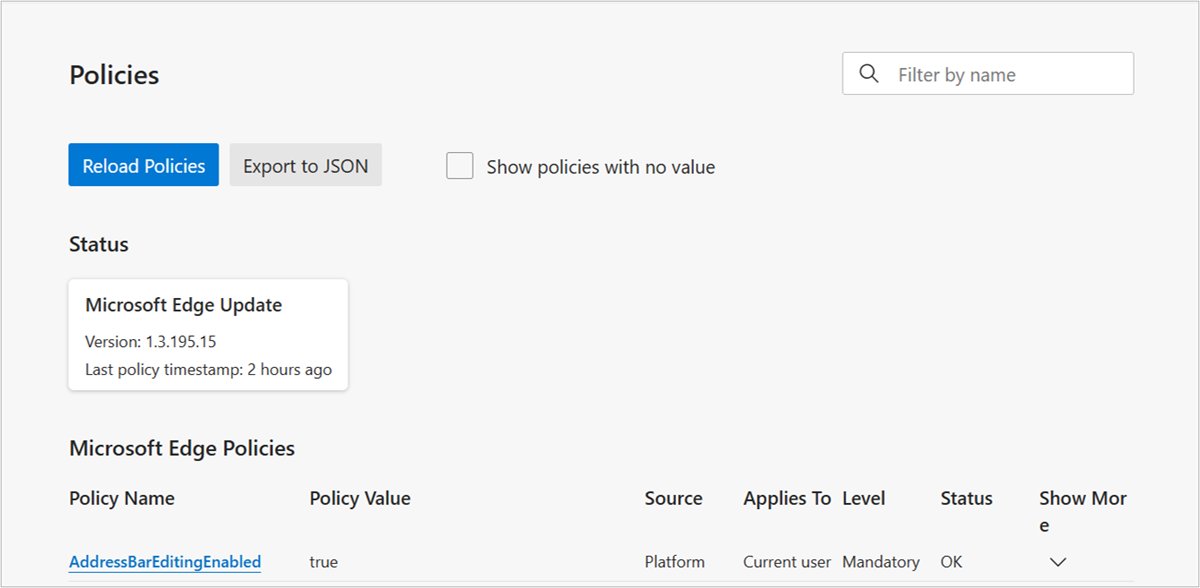
- Type
edge://policyin the Edge address bar and press Enter. - Select Reload policies.
- Find EnableMediaRouter in the list. false means casting is disabled; true or no entry means it is enabled.
- Open the Settings and more menu and confirm Cast media to device is present or gone to match.
Why is cast not working in Edge on Windows 11?
Unable to cast to TV: no devices appear
Edge casts with Google Cast, so the TV must be Chromecast or Cast-enabled and on the same network.
- Turn on the TV or Chromecast and connect it to the same Wi-Fi network as the PC.
- Make sure Wi-Fi is on from the network icon on the taskbar.
- If the TV supports Miracast instead of Google Cast, press Win + K and pick it from the Windows list.
Cast media to device is missing from the Edge menu
The Enable Google Cast policy is set to disabled by you or by your organisation.
- Check
edge://policyfor EnableMediaRouter. - On a personal PC, set the registry value to
1or delete it, then restart Edge. - On a work PC, ask your IT administrator; the setting is managed centrally.
No display to cast to in Windows
Win + K only lists Miracast displays, and the PC or display may not support Miracast.
- Press Win + K. A message asking for a cable means the PC lacks Miracast support.
- Plug a Miracast adapter into the TV's HDMI port if the display has no Miracast.
- Update the adapter's firmware and your PC drivers from the manufacturer's site.
- Open Settings > Bluetooth & devices > Devices, select the display under Wireless displays & docks, choose Remove device and reconnect.
Casting starts but drops or stalls
A browser add-on or a stale connection interferes with the session.
- Restart the PC and the TV or Chromecast.
- Turn off Edge extensions one at a time and cast again.
- Restart Edge after any policy change, since cast policies do not refresh while it runs.
Microsoft Edge stops playing video or music when minimized
Sleeping tabs puts idle background tabs to sleep to save CPU, battery and memory. Edge tries to skip tabs that play sound or stream video, but a site can still be paused, including one you are casting from.
Video, music or a cast session stops after Edge is minimized
Sleeping tabs, energy saver or tab discard has paused the background tab.
- Press Win + R, type
regeditand press Enter. - Go to
HKEY_LOCAL_MACHINE\SOFTWARE\Policies\Microsoft\Edgeand create a key namedSleepingTabsBlockedForUrls. - Inside it, create a String Value named
1and set its data to the site, for examplehttps://www.youtube.com. - Restart Edge. Listed sites are excluded from sleeping tabs, energy saver and tab discard.
Edge cast media to device FAQ
How do I enable cast in Windows 11?
Press Win + K and choose a Miracast display to cast the whole screen. To cast one tab or video, use Cast media to device in Edge, which is enabled by default and only needs fixing when the Enable Google Cast policy is turned off.
How do I disable casting on Windows 11 in Edge?
Create the REG_DWORD value EnableMediaRouter set to 0 under HKEY_LOCAL_MACHINE\SOFTWARE\Policies\Microsoft\Edge, or set the Enable Google Cast policy to Disabled. Restart Edge and the Cast option disappears from every menu.
How do I turn off cast to device without the registry?
On Windows 11 Pro or higher, open gpedit.msc, go to Administrative Templates > Microsoft Edge > Cast and set Enable Google Cast to Disabled. To hide only the toolbar button, right-click the Cast icon and remove it.
What does cast media to device mean?
It sends the current tab or a playing video from Edge to a Google Cast receiver such as a Chromecast or Cast-enabled TV. The PC keeps running the browser while the TV shows the content.
What is a cast enabled device?
A cast-enabled device is a TV, speaker or streaming stick with Google Cast built in, such as a Chromecast. Edge finds these receivers on the local network and can send media straight to them.
How do I disable cast to TV for all users?
Use the computer-wide policy: EnableMediaRouter set to 0 in HKEY_LOCAL_MACHINE applies to every Edge profile on the PC. Businesses push the same Enable Google Cast policy through Group Policy or device management.
Why is cast not working?
Most failures come from the TV being on a different Wi-Fi network, a TV that supports Miracast rather than Google Cast, or a policy that has disabled casting. Check edge://policy, match networks and restart both devices.
Does disabling cast in Edge stop Win + K?
No. The Edge policy only affects Google Cast inside the browser. Windows screen casting with Win + K uses Miracast and keeps working.