You can download Ubuntu for free from the official Ubuntu website. Choose the Intel or AMD 64-bit ISO for most Windows PCs and Intel Macs, or the ARM64 ISO for ARM-based computers and virtual machines running on Apple silicon Macs.
Windows 11 and Windows 10 users can install the complete Ubuntu Desktop operating system from a bootable USB, run Ubuntu alongside Windows in a dual-boot setup, use it inside a virtual machine, or install the command-line environment through Windows Subsystem for Linux. Mac users can run Ubuntu in a compatible virtual machine, while direct installation depends on the Mac processor and available hardware support.
Official Ubuntu download: Download Ubuntu Desktop
| Download or installation method | Best for | Keeps the current operating system? |
|---|---|---|
| Ubuntu Desktop ISO | Installing the complete Ubuntu desktop on a PC | Optional, depending on disk setup |
| Windows Subsystem for Linux | Linux commands and development tools inside Windows | Yes |
| Virtual machine | Trying Ubuntu without changing the physical disk | Yes |
| Bootable live USB | Testing hardware before installation | Yes |
| Dual boot | Choosing between Ubuntu and Windows at startup | Yes |
| Erase disk and install Ubuntu | Using Ubuntu as the only operating system | No |
Download Ubuntu for PC, Windows and Mac
The standard Ubuntu Desktop download is an ISO image. An ISO contains the operating system files needed to create a bootable USB drive or configure a virtual machine.
The latest long-term support release is Ubuntu 26.04 LTS. LTS stands for Long-Term Support, and Canonical provides 5 years of standard security and maintenance updates for an LTS release. Extended maintenance is available through Ubuntu Pro.
Choose the Correct Ubuntu Download
| Your computer | Ubuntu download |
|---|---|
| Windows PC with an Intel processor | Intel or AMD 64-bit ISO |
| Windows PC with an AMD processor | Intel or AMD 64-bit ISO |
| Windows on an ARM-based PC | ARM64 image, provided the chosen installation method supports it |
| Intel Mac | Intel or AMD 64-bit ISO |
| Mac with an M1, M2, M3, M4 or newer Apple chip | ARM64 image for a compatible virtual machine |
The name AMD64 does not mean the file works only with AMD processors. AMD64 refers to the 64-bit architecture used by modern AMD and Intel desktop processors.
Ubuntu Desktop System Requirements
Canonical lists the following requirements for the current Ubuntu Desktop release:
- A 2 GHz dual-core processor or better
- 6 GB of system memory
- 25 GB of available storage
- A USB port or other supported installation-media option
- Internet access for updates and additional software
A virtual machine needs extra memory and storage because the host operating system continues running at the same time. A computer with at least 8 GB RAM works better for a small Ubuntu virtual machine, while 16 GB provides more room for desktop applications and development tools.
How to Download Ubuntu Desktop ISO
- Open the official Ubuntu Desktop download page.
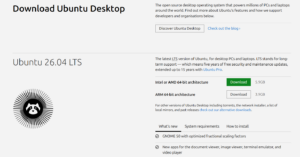
- Find the latest Ubuntu LTS release.
- Select Intel or AMD 64-bit architecture for a standard Windows PC or Intel Mac.
- Select ARM 64-bit architecture for an ARM virtual machine or supported ARM computer.
- Save the ISO file in the Downloads folder or another location with enough space.
- Wait until the browser finishes downloading the complete file before creating installation media.
Do not copy the ISO file directly onto a USB drive. You must write the image with a bootable USB creation tool so the computer can start from it.
Download Older Ubuntu Versions or Torrents
Ubuntu also provides official BitTorrent downloads, regional mirrors, previous LTS releases and images for other processor architectures.
Open the Ubuntu alternative downloads page when you need:
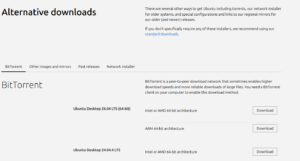
- An official Ubuntu torrent
- A regional download mirror
- Ubuntu 24.04 LTS or another previous release
- An image for a different processor architecture
- Ubuntu Server instead of Ubuntu Desktop
Use the standard LTS Desktop download unless your hardware, software or organisation requires a specific release.
How to Install Ubuntu on Windows 11 or Windows 10
Windows users have several ways to run Ubuntu. Choose WSL for Linux commands and development, a virtual machine for a contained Ubuntu installation, or a bootable USB for the complete desktop operating system.
Method 1: Install Ubuntu on Windows with WSL
Windows Subsystem for Linux runs Ubuntu tools and applications alongside Windows. It does not replace Windows or require a traditional dual-boot setup.
The current installation command requires Windows 11 or Windows 10 version 2004, build 19041, or later. Canonical recommends a newer supported Windows 10 release when installing current Ubuntu WSL packages.
- Right-click the Start button.
- Select Terminal (Admin), Windows PowerShell (Admin) or Command Prompt (Admin).
- Enter the following command:
wsl --install- Allow Windows to enable WSL and Virtual Machine Platform.
- Restart the computer when requested.
- Open Ubuntu from the Start menu.
- Wait while Ubuntu completes its first-time setup.
- Create a Linux username and password.
The default command installs Ubuntu automatically. To see the Ubuntu versions currently offered through WSL, run:
wsl --list --onlineTo install a specific listed release, use its exact distribution name. For example:
wsl --install Ubuntu-24.04Use the version displayed by wsl --list --online because the available distribution names can change.
Update Ubuntu After Installing WSL
Open Ubuntu and run:
sudo apt update
sudo apt upgrade
Enter the Linux password you created during setup. Ubuntu does not display characters or dots while you type a password in the terminal.
Is WSL the Complete Ubuntu Desktop?
WSL provides a real Ubuntu Linux environment with Bash, package management and support for many Linux graphical applications. Its default setup focuses on the terminal and development tools rather than the complete Ubuntu Desktop interface.
Install Ubuntu from an ISO in a virtual machine or on the physical computer when you want the normal GNOME desktop, login screen and complete desktop experience.
Method 2: Install Ubuntu from a Bootable USB
A bootable USB lets you test Ubuntu, install it beside Windows or replace Windows completely.
Step 1: Prepare the USB Drive
You need an empty USB flash drive with at least 8 GB of storage. Creating installation media erases every file on that drive, so move important data elsewhere first.
Step 2: Write the Ubuntu ISO to USB
- Connect the USB drive to the Windows PC.
- Open a trusted bootable-image writing application.
- Select the downloaded Ubuntu ISO as the source image.
- Select the correct USB drive as the destination.
- Start the writing process.
- Wait until the program confirms that the USB is ready.
Step 3: Boot the PC from USB
- Leave the USB drive connected.
- Restart the computer.
- Press the boot-menu key as the PC starts. Common keys include F12, F9, Esc and F11.
- Select the USB drive from the boot menu.
- Choose Try or Install Ubuntu.
The exact boot key depends on the computer manufacturer. Check the startup screen or the manufacturer’s support documentation when the boot menu does not appear.
Step 4: Try Ubuntu Before Installing
Select Try Ubuntu to load the desktop from the USB without changing the internal disk. Test Wi-Fi, Bluetooth, sound, touchpad, keyboard, display brightness and external monitors before beginning the installation.
Files and settings created during a standard live session usually disappear after restarting unless the USB was specifically created with persistent storage.
Step 5: Install Ubuntu
- Open Install Ubuntu from the live desktop.
- Select your language and keyboard layout.
- Connect to the internet when available.
- Choose the standard interactive installation.
- Select the default or extended application selection.
- Enable third-party software when you need supported media formats or proprietary hardware drivers.
- Choose the disk-installation method carefully.
- Create your Ubuntu username and password.
- Select the time zone.
- Review the installation summary and select Install.
- Restart the computer after installation finishes.
- Remove the USB drive when instructed.
Method 3: Dual Boot Ubuntu and Windows 11/10
A dual-boot installation keeps Windows and Ubuntu on the computer. A startup menu lets you select an operating system whenever the PC turns on.
- Back up important Windows files.
- Save the BitLocker recovery key if device encryption or BitLocker is active.
- Use Windows Disk Management to create unallocated space for Ubuntu when needed.
- Create and start from the Ubuntu USB drive.
- Begin the Ubuntu installation.
- Select Install Ubuntu alongside Windows when the installer displays that option.
- Choose how much disk space Ubuntu can use.
- Review the selected disks and partitions carefully.
- Complete the installation and restart.
Do not select Erase disk and install Ubuntu when you want to keep Windows. That option removes the selected disk’s existing operating systems, applications and personal files.
Some encrypted Windows installations require additional preparation before Ubuntu can safely resize or use the disk. Back up the recovery key and follow the installer’s BitLocker guidance rather than disabling security features without a recovery plan.
Method 4: Run Ubuntu in a Virtual Machine on Windows
A virtual machine runs Ubuntu in a window without repartitioning the physical disk.
- Enable hardware virtualization in UEFI or BIOS when it is disabled.
- Install a trusted virtualization application.
- Create a new Linux or Ubuntu virtual machine.
- Select the downloaded Ubuntu ISO as its startup image.
- Assign processor cores, memory and virtual-disk space.
- Start the virtual machine.
- Follow the normal Ubuntu installer.
- Install the virtualization software’s guest tools after setup when available.
Choose a virtual machine when you need the full Ubuntu Desktop for learning, testing or occasional use without changing Windows partitions.
How to Download and Install Ubuntu on Mac
The correct method depends on whether the Mac has an Intel processor or an Apple silicon chip.
Check Whether the Mac Uses Intel or Apple Silicon
- Open the Apple menu.
- Select About This Mac.
- Check the Chip or Processor entry.
An entry such as Apple M1, M2, M3, M4 or a later Apple chip means the Mac uses Apple silicon. An Intel Core entry means it is an Intel Mac.
Install Ubuntu in a Virtual Machine on an Apple Silicon Mac
Virtualization provides the simplest way to run Ubuntu on an M-series Mac while keeping macOS intact.
- Download the Ubuntu ARM64 image.
- Install virtualization software that supports Apple silicon and ARM64 Linux guests.
- Create a new ARM Linux virtual machine.
- Select the Ubuntu ARM64 image.
- Assign memory, processor cores and virtual storage.
- Start the virtual machine.
- Follow the Ubuntu installation screens.
An Intel or AMD 64-bit Ubuntu ISO is built for x86-64 processors and is not the correct native image for an Apple silicon virtual machine. Choose ARM64 unless the virtualization application explicitly provides x86 emulation.
Run Ubuntu on Mac with Multipass
Canonical Multipass creates lightweight Ubuntu virtual machines on supported Intel and Apple silicon Macs. It is useful for terminals, development, testing and isolated Linux environments.
- Download the macOS Multipass installer from the official Multipass download page.
- Open the downloaded package.
- Complete the installation with an administrator account.
- Open Terminal.
- Run the following command:
multipass launchTo list the created Ubuntu instances, run:
multipass listTo open a shell inside the default instance, run:
multipass shellMultipass focuses on lightweight Ubuntu instances and command-line workloads. Use a full ARM64 Ubuntu Desktop virtual machine when you need the complete graphical desktop.
Install Ubuntu Directly on an Intel Mac
Some Intel Macs can start a compatible x86-64 Ubuntu installer from USB, although support varies by model.
- Download the Intel or AMD 64-bit Ubuntu ISO.
- Create a bootable Ubuntu USB drive from macOS.
- Back up the Mac and important files.
- Restart the Mac while holding the Option key.
- Select the USB or EFI boot entry.
- Choose Try Ubuntu.
- Test Wi-Fi, sound, keyboard, trackpad and graphics.
- Start the installer only after confirming that the required hardware works.
Boot Camp supports Windows installation and does not provide official Ubuntu installation assistance. Recent Intel Mac security settings can also block startup from external media until the setting is changed in macOS Recovery.
Can You Install Ubuntu Directly on an M1, M2, M3 or M4 Mac?
Canonical recommends using a virtual machine for Apple silicon Macs. Direct installation projects exist for some Apple silicon models, but Canonical does not officially support the Ubuntu Asahi community project, and hardware support depends on the chip and Mac model.
Use an ARM64 virtual machine when you need a reliable Ubuntu environment without changing the Mac’s boot configuration.
Ubuntu Desktop vs Ubuntu Server vs Ubuntu WSL
| Edition | Interface | Best use |
|---|---|---|
| Ubuntu Desktop | Complete graphical desktop | Personal computers, applications, browsing and development |
| Ubuntu Server | Command line by default | Servers, containers, cloud systems and network services |
| Ubuntu on WSL | Terminal with support for compatible Linux GUI apps | Running Linux development tools inside Windows |
| Ubuntu through Multipass | Lightweight virtual-machine environment | Disposable development and testing instances |
Download Ubuntu Desktop when you want a normal graphical Linux operating system. Choose Ubuntu Server for a server installation, and use WSL when you mainly need Bash, Linux packages and development tools within Windows.
How to Verify an Ubuntu ISO Download
Verifying the download confirms that the ISO matches the checksum published by Ubuntu and was not corrupted during transfer.
Verify Ubuntu ISO on Windows
- Download the official SHA256 checksum file for the selected Ubuntu release.
- Open PowerShell in the folder containing the ISO.
- Run:
Get-FileHash .\ubuntu-file-name.iso -Algorithm SHA256Compare the displayed hash with the official SHA256 value. The two values must match exactly.
Verify Ubuntu ISO on macOS
- Open Terminal.
- Change to the folder containing the ISO.
- Run:
shasum -a 256 ubuntu-file-name.isoReplace ubuntu-file-name.iso with the actual filename, then compare the result with Ubuntu’s published checksum.
Fix Ubuntu Download or Installation Problems
Ubuntu ISO Download Stops or Fails
Check the available disk space, restart the browser download or use an official regional mirror or BitTorrent file from Ubuntu’s alternative-download page. Delete an incomplete ISO before downloading it again.
The PC Does Not Boot from the Ubuntu USB
Open the firmware boot menu and select the USB drive manually. Recreate the installation media when the USB does not appear, and confirm that the image-writing process completed successfully. Try another USB port when the firmware does not detect the drive.
WSL Install Shows Help Instead of Installing Ubuntu
WSL may already be installed. List the available distributions:
wsl --list --onlineThen install Ubuntu using the exact name shown:
wsl --install -d UbuntuWSL Download Remains at 0 Percent
Use Microsoft’s web-download option:
wsl --install --web-download -d UbuntuUbuntu Shows a Black Screen After Installation
Restart the computer, open the advanced Ubuntu boot options and try a recovery or older kernel entry. Graphics problems often require an updated kernel, firmware or manufacturer-compatible graphics driver. The live USB test helps identify display problems before installation.
Wi-Fi or Sound Does Not Work in Ubuntu
Connect through Ethernet or phone tethering when possible, install all available Ubuntu updates and open Software & Updates > Additional Drivers. Some computers require proprietary wireless or graphics drivers, while unsupported hardware needs a newer kernel or a manufacturer-specific fix.
FAQs
Is Ubuntu free to download?
Yes. Ubuntu Desktop, Ubuntu Server and Ubuntu images for WSL are free to download and use. Canonical also offers optional paid support and management services.
Is Ubuntu a Linux operating system?
Yes. Ubuntu is a Linux distribution based on the Linux kernel and open-source software packages.
What is the latest Ubuntu version for PC?
Ubuntu 26.04 LTS is the current long-term support desktop release. Previous LTS versions remain available when an application or device requires them.
Should I download Ubuntu 64-bit or ARM64?
Download the Intel or AMD 64-bit ISO for most Windows PCs and Intel Macs. Download ARM64 for compatible ARM computers and virtual machines running natively on Apple silicon.
Can I install Ubuntu on Windows 11?
Yes. You can install Ubuntu through WSL, run it in a virtual machine, dual boot it with Windows 11 or replace Windows with Ubuntu.
Can I install Ubuntu on Windows 10?
Yes. The ISO installation and virtual-machine methods work on compatible hardware. The simplified WSL command requires Windows 10 version 2004, build 19041, or later, while Canonical recommends a newer supported Windows 10 release for current WSL guidance.
Does installing Ubuntu delete Windows?
Installing through WSL or a virtual machine leaves Windows in place. A dual-boot setup also keeps Windows. Selecting Erase disk and install Ubuntu removes data and operating systems from the selected disk.
Can I try Ubuntu without installing it?
Yes. Start the computer from a bootable Ubuntu USB and choose Try Ubuntu. This loads a temporary desktop without installing Ubuntu on the internal drive.
Can Ubuntu run on a Mac?
Yes. Intel Macs can run the x86-64 edition when their hardware supports it. Apple silicon Macs can run the ARM64 edition in a compatible virtual machine or through Multipass.
Which Ubuntu version is best for beginners?
The latest Ubuntu LTS Desktop release is the best choice for most beginners because it receives long-term updates and uses the standard graphical installer.
How large is the Ubuntu download?
The ISO size varies by release and processor architecture. The current download page shows the exact size before downloading, and you need additional storage to create the USB and install the operating system.
How much space should I give Ubuntu?
Ubuntu lists 25 GB as the minimum desktop storage requirement. Allocate more space when you plan to install games, development environments, virtual machines or large application packages.
Can I install Windows programs on Ubuntu?
Windows executable files do not run natively as Linux applications. Look for a Linux version, use a web version, run Windows in a virtual machine or use a compatibility tool when the application supports it.
Do I need a USB drive to install Ubuntu?
You need a USB drive for a normal physical installation or live session. WSL and virtual-machine installations do not require a bootable USB.
Is WSL the same as dual booting Ubuntu?
No. WSL runs Ubuntu within Windows, while dual boot installs Ubuntu on the physical disk and lets you select Windows or Ubuntu when the computer starts.