The Streamlabs download for Windows 11 and Windows 10 is Streamlabs Desktop, a free live streaming and recording app from streamlabs.com. Mac owners get the same app as a separate installer for Intel or Apple silicon.
Streamlabs Desktop puts scenes, alerts, overlays, chat and Dual Output in one window. It streams to Twitch, YouTube, TikTok, Kick, Facebook, X, Instagram and custom RTMP servers.
Below you will find the right file for your computer, install steps for Windows and Mac, what the paid Ultra plan adds, and fixes for crashes.
Which Streamlabs Desktop download do you need?
Streamlabs publishes one Windows installer and two Mac installers. Match your computer to the row below.
| Your computer | File to download | Note |
|---|---|---|
| Windows 11 or Windows 10 PC | Streamlabs Desktop Setup 1.21.9.exe | Full setup file for Windows |
| Mac with an Intel processor | Streamlabs Desktop-1.21.6.dmg | macOS 12 or later |
| Mac with an Apple M-series chip | Streamlabs Desktop-1.21.6-arm64.dmg | Native build for Apple silicon |
| You already use OBS Studio | Streamlabs Plugin for OBS | Streamlabs tools inside OBS |
Not sure which Mac you have? Open the Apple menu > About This Mac and read the Chip or Processor line.
Check the Streamlabs Desktop system requirements
The minimum spec runs a basic stream. Game streaming with animated overlays needs the recommended hardware.
| Field | Value |
|---|---|
| Software | Streamlabs Desktop |
| Developer | Streamlabs (Logitech) |
| Latest version | 1.21.9 on Windows, 1.21.6 on Mac |
| Licence | Free, with an optional Ultra subscription |
| Supported Windows | Windows 11 and Windows 10 |
| Supported macOS | macOS 12 or later, macOS 13+ advised |
| Mac builds | Intel and Apple silicon (M-series) |
| Memory | 8 GB minimum, 16 GB or more recommended |
| Graphics | Integrated minimum; Nvidia RTX 20/30 or AMD RX 5000/6000 recommended |
| Processor (recommended) | Intel Core i5 11th or 12th gen, or AMD Ryzen 5 5600X and higher |
| Storage | 10 GB minimum, 512 GB SSD recommended |
| Upload speed | 3.6 Mbps or better for 720p at 30 fps |
| Official download source | streamlabs.com |
| Last verified | 2026-09-19 |
The download menu on streamlabs.com lists Windows 10 or later. Streamlabs’ setup guide gives Windows 11 as the minimum, so a Windows 11 PC is the safer target.
Download Streamlabs Desktop from the official site
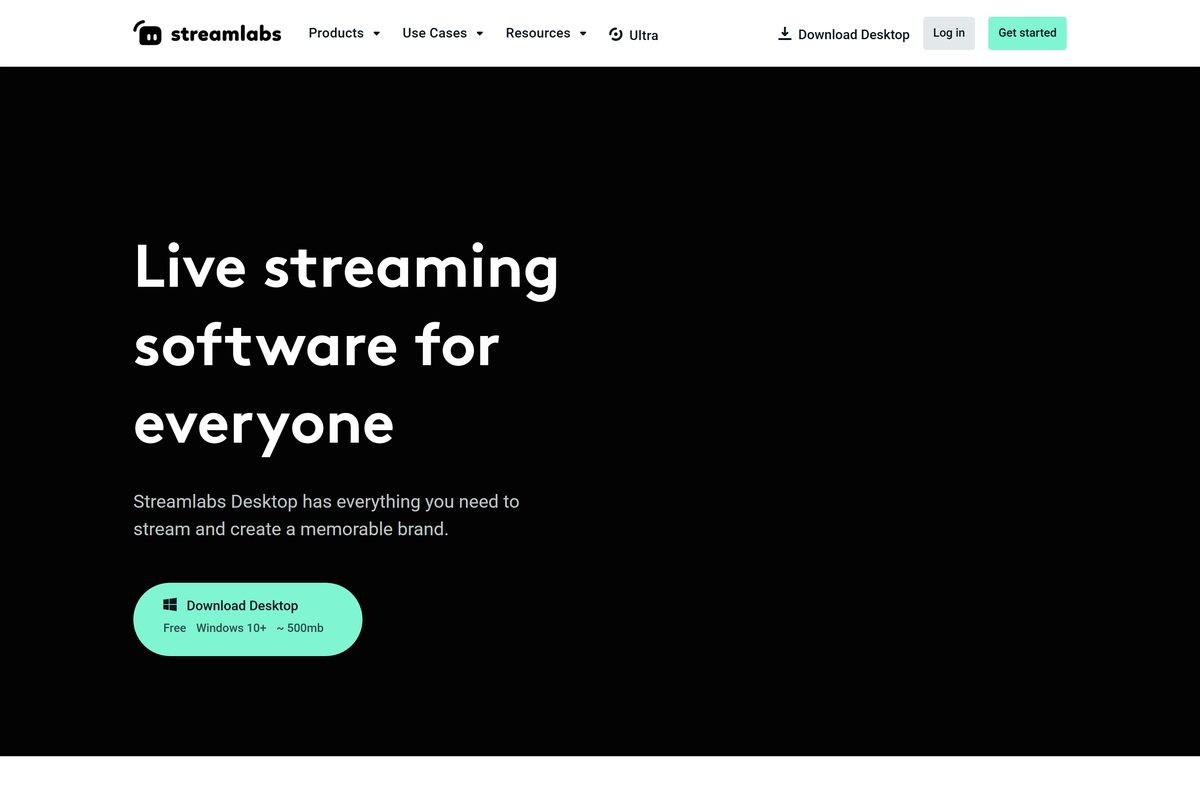
The Download for Windows button on the Streamlabs Desktop page serves the Windows file. On a Mac, the page asks which processor you have.
- Streamlabs Desktop product page — Download buttons for Windows and Mac
- Streamlabs Desktop for Windows 11 and 10 — Streamlabs Desktop Setup 1.21.9.exe
- Streamlabs Desktop for Mac with Intel — Streamlabs Desktop-1.21.6.dmg
- Streamlabs Desktop for Mac with Apple silicon — Streamlabs Desktop-1.21.6-arm64.dmg
Streamlabs Desktop does not run on Chromebooks, phones or tablets. For phones, Streamlabs offers a separate mobile app for Android and iOS.
How to install Streamlabs Desktop on Windows 11 and 10
Connect your webcam and microphone first, so the setup wizard can list them.
- Open the Streamlabs Desktop page and click Download for Windows.
- Double-click Streamlabs Desktop Setup 1.21.9.exe in your Downloads folder and select Yes at the User Account Control prompt.
- Follow the setup prompts. The installer adds missing Windows redistributables on its own.
- Launch Streamlabs and allow access to your webcam and microphone if Windows asks.
- Click Live Streaming, then Continue.
- Click Create a Streamlabs ID, or click Login to use an existing account.
- Choose Import Settings to bring scenes from another streaming app, or click Start Fresh.
- Select your camera and microphone, pick an overlay or press Skip, then choose the Free or Ultra plan.
To add another platform later, open Settings in the bottom-left corner, click Stream and click Connect next to the platform.
Which Streamlabs Desktop download do you need for your Mac?
Open the Apple menu > About This Mac. The Chip or Processor line decides the file.
| Your Mac says | Download | Result |
|---|---|---|
| Apple M1, M2, M3, M4 or later | Streamlabs Desktop-1.21.6-arm64.dmg | Native Apple silicon build |
| Intel Core processor | Streamlabs Desktop-1.21.6.dmg | Intel build |
| macOS 11 or earlier | Streamlabs system requirements | Update to macOS 12 or later first |
Open the downloaded .dmg file and follow the prompts, then grant camera and microphone access when macOS asks.
On a Mac, Streamlabs Desktop captures desktop audio only through a routing tool. Install audio routing software such as BlackHole and add it as a Mic/Aux source.
Is Streamlabs Desktop free?
Streamlabs lists its Starter plan as “Free, always”. Streaming, local recording and Dual Output need no payment.
Yes. Install the free plan first, and pay for Ultra only when you need multistreaming or the full overlay library. The free plan streams to one horizontal and one vertical output, records locally without a watermark or time limit, and includes Cloudbot. Ultra costs $27 per month or $179 per year.
Ignore any site that sells a “cracked” or “premium” Streamlabs Desktop. The app is free from streamlabs.com, and Ultra is a subscription tied to your Streamlabs account.
How to choose between the Free and Ultra plans in Streamlabs Desktop
Both plans use the same installer. Signing in with an Ultra account unlocks the extra features.
| Feature | Free | Ultra |
|---|---|---|
| Destinations | One vertical and one horizontal output with Dual Output | Multistream to several destinations |
| Overlays and widget themes | Hundreds of free themes | Thousands, including Reactive Overlays |
| Desktop App Store | Limited free apps | Full access |
| Stream automations | Up to 5 | Up to 10 |
| Collab Cam | One guest or camera | Up to 11 guests or cameras |
| Cloud storage | 1 GB | 10 GB |
| Stream Shift | No | Switch devices mid-stream |
| Streamlabs Console for Xbox | No | Yes |
An Ultra+ tier adds dedicated support, up to 30 automations and 30 GB of storage.
Should you install Streamlabs Desktop or the Streamlabs Plugin for OBS?
Streamlabs ships two Windows products. The download pages list them side by side.
Install Streamlabs Desktop if you are starting from scratch. Pick the Streamlabs Plugin for OBS if you already stream with OBS Studio. Streamlabs Desktop is a complete app with a setup wizard, overlays and widgets built in. The plugin adds Streamlabs tools inside OBS Studio, so you keep your existing scenes.
Switching later is painless. The Streamlabs Desktop setup wizard offers Import Settings to bring over scenes from another streaming program.
How to check your Streamlabs Desktop version and update it
Streamlabs Desktop checks for updates every time it opens and prompts you when one is ready.
- Open Streamlabs Desktop and install the update if a prompt appears.
- If no prompt appears, compare the version shown in the app with the latest release: 1.21.9 on Windows, 1.21.6 on Mac.
- To update by hand, open Settings > Scene Collections and export your overlays and scene collections as a backup.
- Download the latest installer from streamlabs.com.
- Close Streamlabs Desktop, run the new installer and follow the prompts.
- Re-import your saved scene collections if any assets are missing.
Updating over the top keeps your scenes, overlays and saved assets.
Fix Streamlabs Desktop crashing or not opening on Windows
Match the symptom, then work through its fix in order.
Streamlabs Desktop crashes on launch or mid-stream
Outdated Windows, graphics drivers or Visual C++ runtimes.
- Search update in the Start menu, open Check for updates and install everything offered.
- Install the Microsoft Visual C++ 2022 redistributable in both x64 and x86 versions.
- Update your Nvidia or AMD graphics driver, or do a clean driver install.
- Restart the PC and open Streamlabs Desktop again.
Setup fails or the app will not start
A damaged install or missing permissions.
- Download a fresh installer from streamlabs.com.
- Right-click the installer and select Run as administrator.
- Right-click the Streamlabs Desktop shortcut and select Run as administrator.
- Allow Streamlabs Desktop through Windows Firewall and your antivirus.
Visual C++ setup reports an error
A broken Visual C++ runtime already on the PC.
- Open Settings > Apps > Installed apps.
- Find the newest Microsoft Visual C++ entries and select Modify.
- Click Repair on each entry, then restart the PC.
If crashes continue, open Settings > Get Support and tick Enable reporting additional information on a crash before you contact Streamlabs support.
How to uninstall Streamlabs Desktop
Export your scene collections first from Settings > Scene Collections, so you can restore them after a reinstall.
- Close Streamlabs Desktop.
- Open Settings > Apps > Installed apps in Windows 11, or Settings > Apps > Apps & features in Windows 10.
- Find Streamlabs Desktop in the list.
- Click the three dots next to it, or the entry itself on Windows 10, and select Uninstall.
- Confirm the prompts and wait for removal to finish.
On a Mac, quit Streamlabs Desktop, open Finder > Applications and drag the app to the Trash, then empty it.
Frequently asked questions
Is Streamlabs Desktop free?
Yes. Streamlabs lists the Starter plan as free, always. It covers streaming, local recording without a watermark or time limit, Dual Output and Cloudbot. Streamlabs Ultra is optional and costs $27 per month or $179 per year.
Where is the official Streamlabs download?
The official page is streamlabs.com/streamlabs-live-streaming-software. Its Download for Windows button serves the Windows installer, and Mac users pick between an Intel and an Apple silicon build. Other sites offering Streamlabs Desktop are third-party copies.
Does Streamlabs Desktop work on Windows 11 and Windows 10?
Yes. The same installer covers both. The download menu lists Windows 10 or later, while the Streamlabs setup guide gives Windows 11 as the minimum.
Is there a Streamlabs Desktop version for Mac?
Yes. Streamlabs Desktop 1.21.6 is available for Mac as two files, one for Intel processors and one for Apple M-series chips. It needs macOS 12 or later, and Streamlabs advises macOS 13 or later.
Why can Streamlabs not capture desktop audio on my Mac?
macOS needs audio routing software for that. Install a tool such as BlackHole, then add it in Streamlabs Desktop as a Mic/Aux source in the Audio Mixer.
What is the latest version of Streamlabs Desktop?
The Windows download is Streamlabs Desktop 1.21.9, and the Mac downloads are 1.21.6. The app checks for updates when it opens and prompts you to install them.
How much RAM does Streamlabs Desktop need?
Streamlabs lists 8 GB of RAM as the minimum and 16 GB or more as recommended. The recommended setup also includes an Nvidia RTX 20 or 30 series or AMD RX 5000 or 6000 series graphics card.
What does Streamlabs Ultra add?
Ultra adds multistreaming to several destinations, thousands of overlays including Reactive Overlays, full Desktop App Store access, Stream Shift, Collab Cam for up to 11 guests and 10 GB of cloud storage.
Is Streamlabs Desktop safe to download?
Yes, when it comes from streamlabs.com. Use the Download buttons on the official Streamlabs Desktop page, and avoid portals that repackage the installer or charge for it.
Why does Streamlabs Desktop keep crashing?
Outdated Windows updates, graphics drivers or Visual C++ runtimes are the usual causes Streamlabs names. Install the Visual C++ 2022 redistributables, update your GPU driver, then reinstall and run the app as administrator.
Can I use Streamlabs Desktop on a Chromebook?
No. Streamlabs Desktop is built for Windows and macOS only. On a phone or tablet, use the separate Streamlabs mobile app for Android and iOS instead.