The SoapUI download for Windows 11 and Windows 10 is a free 64-bit installer from soapui.org, the official SmartBear site. Install it and you can build and run REST, SOAP and GraphQL API tests in a few minutes.
SoapUI Open Source also installs on Apple silicon Macs and 64-bit Linux, and costs nothing for personal or commercial work.
Below: which file to pick, Windows, Mac and Linux installs, ZIP archives, the free versus ReadyAPI decision, fixes and a clean uninstall.
Which SoapUI download do you need?
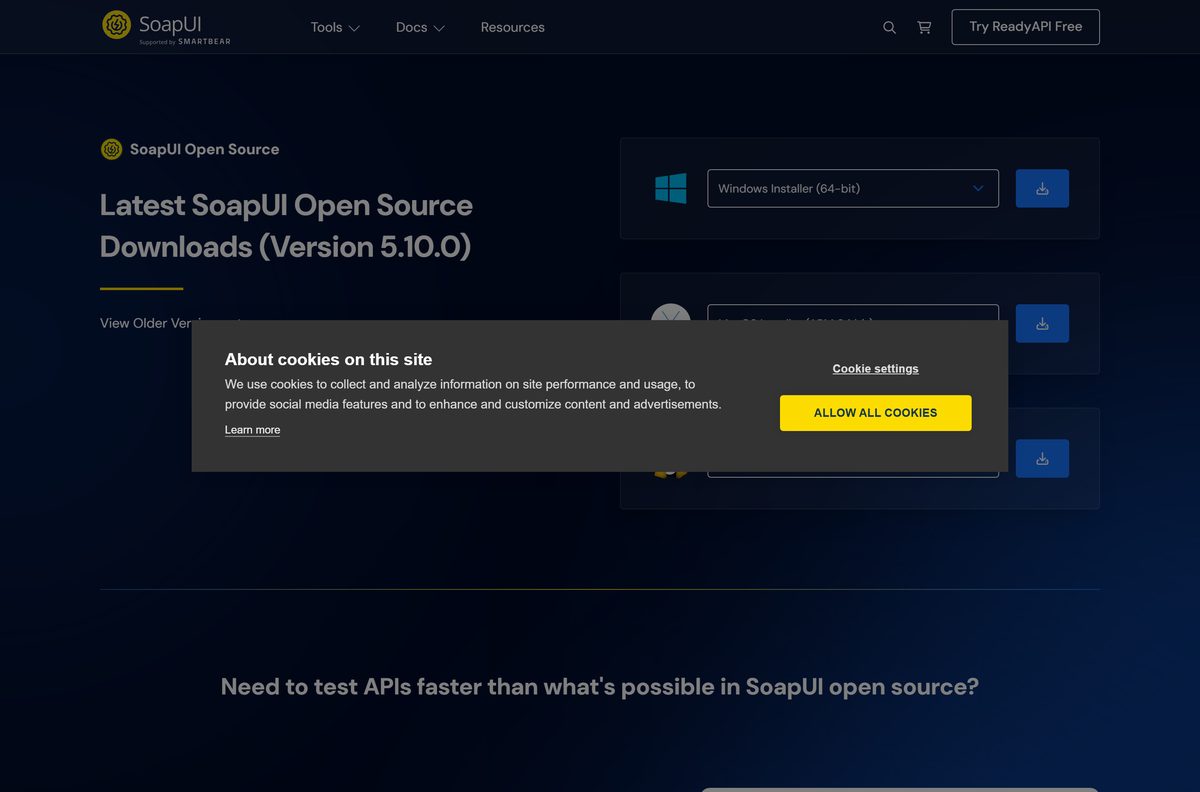
SmartBear publishes one installer per system on the Latest Releases page. Match your computer to a row, then click the button with the same label on that page.
| Your computer | Button on the download page | File you get |
|---|---|---|
| Windows 11 or Windows 10, 64-bit | Windows Installer (64-bit) | SoapUI-x64-5.10.0.exe |
| Mac with an Apple M-series chip | MacOS Installer (ARM 64 bit) | SoapUI-arm64-5.10.0.dmg |
| 64-bit Linux desktop | Linux Installer (64-bit) | SoapUI-x64-5.10.0.sh |
| Intel Mac, or you need a ZIP archive | View Older Versions | SoapUI-5.7.2.dmg or a -bin archive |
There is no 32-bit build. SmartBear dropped 32-bit Windows installers after SoapUI 5.5.0.
Download SoapUI Open Source from the official site
Get SoapUI only from soapui.org. The download buttons there point straight at SmartBear’s own file server, with no sign-up form in front of the open-source build.
- SoapUI Open Source Latest Releases — Windows, macOS and Linux installers for the current release
- SoapUI release notes — changes and security fixes in each version
- SoapUI older versions — 5.7.2 and earlier, with ZIP and tar.gz archives
- SoapUI source code on GitHub — the official SmartBear repository
How to install SoapUI on Windows 11 and 10
- Open the SoapUI Latest Releases page and click Windows Installer (64-bit).
- Double-click SoapUI-x64-5.10.0.exe in your Downloads folder and click Yes at the User Account Control prompt.
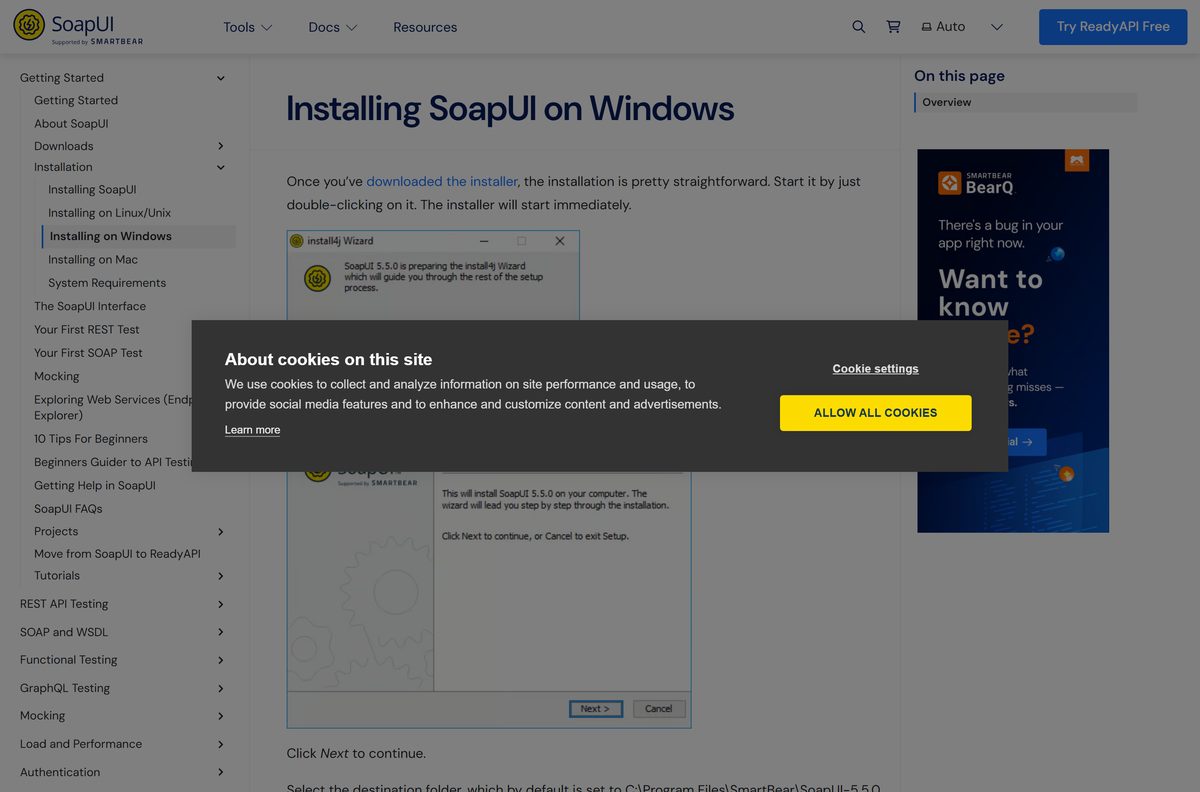
- Click Next on the Setup Wizard welcome screen.
- Keep the default folder under C:\Program Files\SmartBear\ or pick another, then click Next.
- Under Select components, tick the source files, HermesJMS or tutorials only if you need them.
- Choose a folder for the tutorials if you selected them, then pick a Start Menu folder.
- Decide whether to create a desktop icon and click Next to start extracting files.
- Click Finish, then open SoapUI from the Start menu.
Selecting HermesJMS adds a separate license agreement you must accept. Skip it unless you test JMS messaging.
Which SoapUI download do you need for your Mac?
Click the Apple menu and choose About This Mac. The Chip or Processor line tells you which row applies.
| Your Mac says | What to install | Where |
|---|---|---|
| Chip: Apple M1, M2, M3 or later | The current ARM 64-bit installer | MacOS Installer (ARM 64 bit) |
| Processor: Intel | SoapUI 5.7.2, the last release before the ARM-only Mac installer | SoapUI older versions |
Open the .dmg file and follow the wizard. It installs to /Applications by default and offers the same optional components as Windows.
If SoapUI refuses to start, SmartBear points to Gatekeeper as a known conflict. The troubleshooting section below covers it.
Install SoapUI on Linux
The Linux build is a self-contained .sh installer for 64-bit systems. Run it from a terminal in the folder where you saved it.
- Click Linux Installer (64-bit) on the Latest Releases page.
- Open a terminal in your Downloads folder.
- Make the file executable: chmod +x SoapUI-x64-5.10.0.sh
- Start the installer: ./SoapUI-x64-5.10.0.sh
- Follow the wizard and note the install folder it proposes.
- Start SoapUI with bin/soapui.sh from inside that folder.
Run SoapUI from a ZIP archive without installing it
The current release ships as installers only. The older-versions page still carries archive builds up to 5.7.2, which unpack and run from any folder you own.
- Open SoapUI Open Source Older Versions.
- Download SoapUI-5.7.2-windows-bin.zip , SoapUI-5.7.2-mac-bin.zip or SoapUI-5.7.2-linux-bin.tar.gz for your system.
- Extract the archive to a folder in your home directory or on a USB drive.
- Install a Java runtime first; SmartBear’s Linux guide lists it as a prerequisite for archive builds.
- Open the bin folder and run soapui.sh on Mac and Linux, or soapui.bat on Windows.
An archive build misses the security fixes in later releases. Use it only where you cannot run an installer.
Is SoapUI free?
The free build covers functional testing of REST, SOAP and GraphQL APIs with Groovy scripting. There is no license key, trial timer or account.
Install SoapUI Open Source for free, and move to ReadyAPI only if your team needs load testing, service virtualization or AI test generation. SoapUI Open Source is licensed under the EUPL, which allows commercial use at no cost. ReadyAPI is SmartBear’s separate paid product.
Any site selling a SoapUI Open Source key, or offering a cracked SoapUI Pro, is not SmartBear. ReadyAPI is the successor to SoapUI Pro, and existing SoapUI Pro licenses work in ReadyAPI.
Choose between SoapUI Open Source and ReadyAPI
ReadyAPI Test Essentials starts at $6,599 per license, billed annually, with a 14-day free trial that needs no credit card. Test Advanced adds load testing and service virtualization at custom pricing.
Install SoapUI Open Source for functional REST, SOAP and GraphQL tests on your own machine. Trial ReadyAPI only when you need Kafka, gRPC or JMS, load tests or virtual services. ReadyAPI covers more protocols, data-driven runs and CI reporting, but its cheapest plan costs thousands of dollars a year.
Start with SoapUI Open Source. Buy ReadyAPI only once a missing protocol or load test blocks real work.
Check the SoapUI system requirements before you install
| Field | Value |
|---|---|
| Software | SoapUI Open Source |
| Developer | SmartBear Software |
| Latest version | 5.10.0 |
| Released | 2 June 2026 |
| License | Free and open source, EUPL 1.1 |
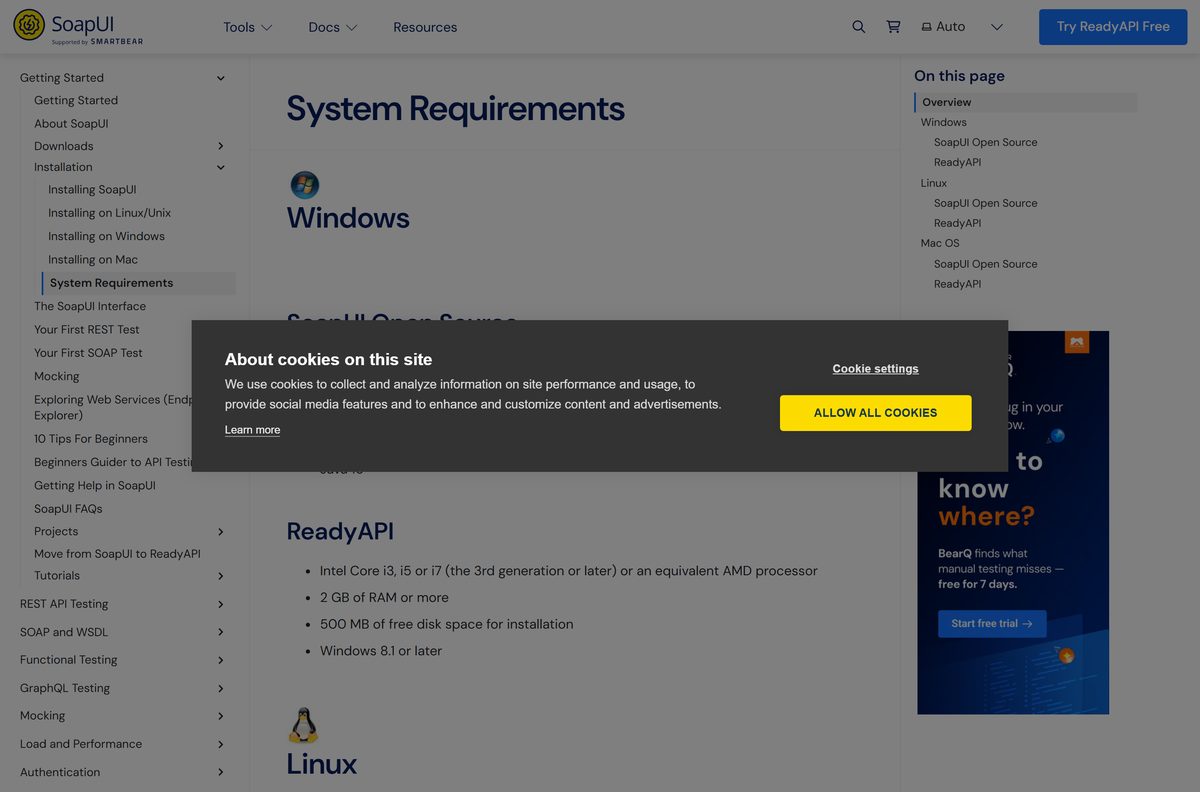
| Windows | Windows 8.1 or later, including Windows 10 and 11 |
| Mac | 64-bit Intel or Apple silicon; current installer is ARM 64-bit |
| Linux | 64-bit distributions |
| Processor | 64-bit |
| Memory | 1 GB of RAM |
| Disk space | 300 MB for installation |
| Java | Java 16 listed; the app moved to Java 17.0.12 in 5.8.0 |
| Official download source | soapui.org |
| Last verified | 2026-09-25 |
To check your Windows edition, open Settings > System > About and read System type. It must say 64-bit.
Fix SoapUI not installing or starting
The installer will not run on your PC
SoapUI needs a 64-bit processor and Windows 8.1 or later.
- Open Settings > System > About and check that System type reads 64-bit.
- On a 32-bit PC, SoapUI 5.5.0 was the last release with an x32 installer on the older-versions page.
SoapUI will not start on a Mac
SmartBear has seen installs conflict with Gatekeeper.
- Open System Settings > Privacy & Security and click Open Anyway if SoapUI is listed as blocked.
- If it still fails, confirm the chip: Intel Macs need the 5.7.2 .dmg, not the ARM installer.
SoapUI freezes or stops responding
The built-in browser component can hang the interface.
- Close SoapUI and open its soapui-settings.xml file in a text editor.
- Add
- Or start SoapUI with the parameter -Dsoapui.jxbrowser.disable=true .
Setup stops at the HermesJMS step
HermesJMS carries its own license agreement.
- Accept the HermesJMS license, or click Back and untick HermesJMS under Select components.
- Click Next to continue without it.
How to uninstall SoapUI from Windows
- Close SoapUI.
- Open Settings > Apps > Installed apps.
- Find SoapUI in the list, click the three-dot menu and select Uninstall.
- Confirm with Uninstall and follow the uninstaller.
- Restart the PC if the Start menu still shows a SoapUI shortcut.
On a Mac, drag SoapUI from Applications to the Trash. On Linux, delete the install folder the wizard created.
Choose another API tool if SoapUI is not the right fit
| Option | Best for | Link |
|---|---|---|
| SoapUI Open Source | Free SOAP, REST and GraphQL functional tests with Groovy scripts | soapui.org |
| ReadyAPI | Team API testing with load tests, virtualization and CI reporting | ReadyAPI pricing |
| Postman | Sending REST requests and sharing collections with a team | Download Postman |
Pick SoapUI for SOAP services and scripted test suites. Pick Postman when your work is mostly REST requests shared with a team.
Other developer tools for Windows include MySQL Workbench and JetBrains Rider.
Frequently asked questions
Is SoapUI free?
Yes. SoapUI Open Source is free to download and use, including for commercial work, under the EUPL license. SmartBear’s paid product is ReadyAPI, which adds load testing, service virtualization and more protocols, starting at $6,599 per license a year.
What is the official SoapUI download page?
The official page is soapui.org/downloads/latest-release. It lists the Windows 64-bit installer, the macOS ARM 64-bit installer and the Linux 64-bit installer, plus links to release notes and older versions.
Does SoapUI work on Windows 11?
Yes. SmartBear lists Windows 8.1 or later with a 64-bit processor as the requirement, so SoapUI Open Source installs and runs on 64-bit Windows 11 and Windows 10.
How big is the SoapUI download?
SmartBear does not list a file size on the download page. Plan for 300 MB of free disk space for the installation, plus 1 GB of RAM, which are the official minimums for SoapUI Open Source.
Is there a SoapUI offline installer?
Yes. The Windows setup file extracts the program from itself during installation, so it works on a PC without internet access. Copy the installer to that machine and run it as usual.
Is there a SoapUI version for Mac?
Yes. The current Mac installer is built for Apple silicon (ARM 64-bit). Intel Mac owners can use the SoapUI 5.7.2 .dmg, which is still listed on the official older-versions page.
Is SoapUI available in 32-bit or for ARM?
SoapUI is 64-bit only on Windows and Linux. SmartBear stopped shipping 32-bit Windows builds after version 5.5.0. On Mac, the current installer is ARM 64-bit for Apple silicon.
Is SoapUI safe to download?
Yes, when you download it from soapui.org. SmartBear publishes the installers and source code itself, and each release fixes known library vulnerabilities. Avoid portal copies and anything sold as a SoapUI key or crack.
What is the latest version of SoapUI?
SoapUI Open Source 5.10.0, released on 2 June 2026, is the current version. It refreshed the Help menu, patched several library vulnerabilities and moved the macOS installer to a single bundle archive.
Is there a portable SoapUI ZIP?
Not for the current release. The older-versions page offers ZIP and tar.gz archives up to SoapUI 5.7.2 that you extract and run from the bin folder, but they miss later security fixes.
Can I download an old version of SoapUI?
Yes. SmartBear keeps an older-versions page on soapui.org with installers and archives going back to version 1.0. Use an old build only when a project depends on it.
Why won’t SoapUI install?
The usual causes are a 32-bit PC, Windows older than 8.1, or Gatekeeper blocking the app on a Mac. Check that your system is 64-bit, then allow SoapUI in Privacy & Security on macOS.