The official JetBrains Rider download for Windows 11 and 10 is a 1.79 GB installer from jetbrains.com. Mac users get a disk image for Apple silicon or Intel, and Linux has its own archive.
Rider is free for non-commercial use, such as learning, hobby projects, open source and content creation. Work you get paid for needs a commercial subscription, and a 30-day trial lets you try it first.
Below you will find the right file for your machine, install steps for Windows and macOS, the licence choice on first launch, updates, requirements and fixes.
Which JetBrains Rider download do you need?
JetBrains ships one file per operating system and processor. Match your machine to a row and click the file name.
| Your machine | File to download | Size |
|---|---|---|
| Windows 11 or 10, Intel or AMD 64-bit | JetBrains.Rider-2026.2.2.exe | 1.79 GB |
| Windows on Arm (Snapdragon) | JetBrains.Rider-2026.2.2-aarch64.exe | 1.85 GB |
| Windows, no administrator rights | JetBrains.Rider-2026.2.2.win.zip | 2.56 GB |
| Mac with Apple silicon (M1 or later) | JetBrains.Rider-2026.2.2-aarch64.dmg | 2.05 GB |
| Mac with an Intel processor | JetBrains.Rider-2026.2.2.dmg | 2.06 GB |
| Linux x64 | JetBrains.Rider-2026.2.2.tar.gz | 2.22 GB |
| Linux ARM64 | JetBrains.Rider-2026.2.2-aarch64.tar.gz | 2.24 GB |
| 32-bit Windows | No build. Rider needs a 64-bit x86_64 or arm64 processor | None |
Press Windows + I, open System > About and read System type to see whether your PC is x64 or ARM64.
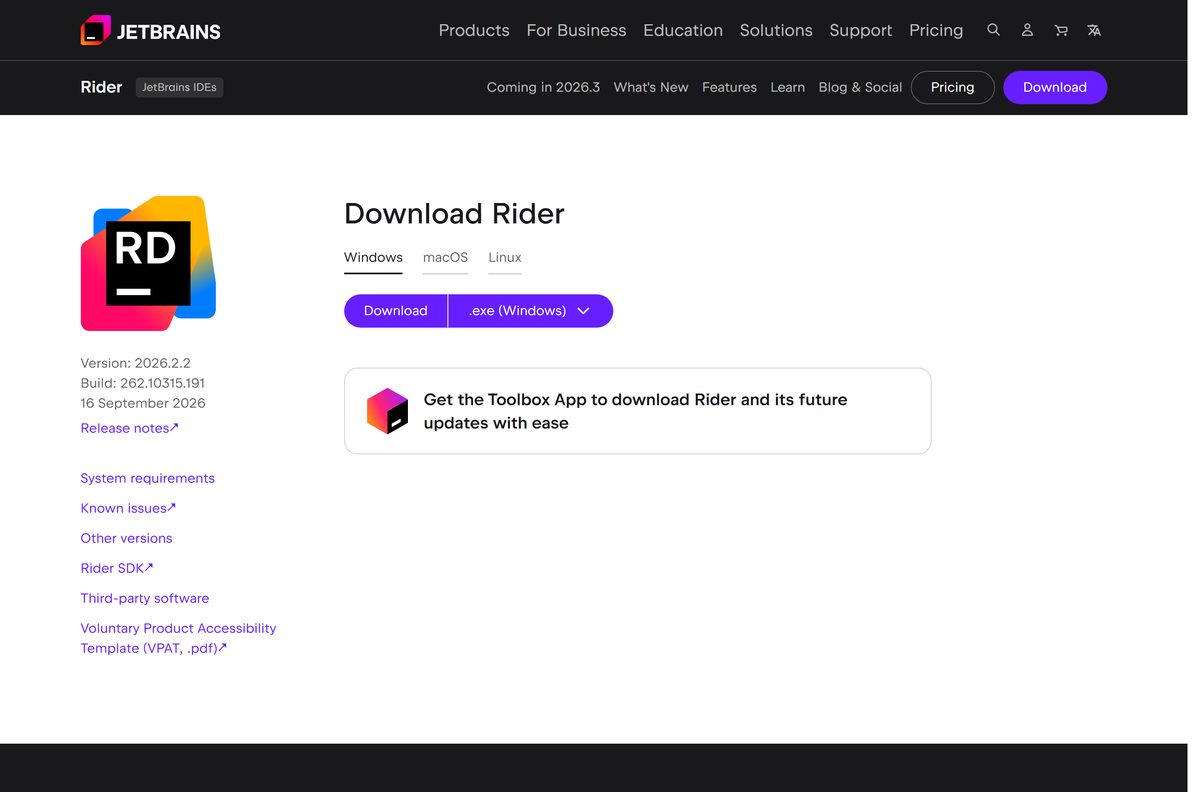
Download JetBrains Rider from the official JetBrains pages
JetBrains distributes Rider from these pages only. A copy on any other site was repackaged by someone else.
- JetBrains Rider download page — Windows, macOS and Linux tabs with the current release
- JetBrains Toolbox App — free manager that installs Rider and keeps it updated
- Other Rider versions — older releases for projects pinned to an earlier IDE
- Rider installation guide — requirements, silent install and snap package
The standalone installers are full offline setups. Download once and install on a PC with no connection.
How to install JetBrains Rider on Windows 11 and 10
The setup wizard needs administrator rights.
- Open the Rider download page and select Download on the Windows tab.
- Take the ARM64 installer from the table above instead if your PC runs on an Arm chip.
- Double-click the downloaded .exe file and select Yes at the User Account Control prompt.
- Keep the default install folder or choose another one, then select Next.
- On Installation Options, tick a desktop shortcut, Add launchers dir to the PATH, Open Folder as Project and the file associations you want.
- Leave JetBrains ETW Service ticked if you plan to profile .NET code, and allow the Windows Defender exclusions for faster startup.
- Select Install, then Finish, and open JetBrains Rider from the Start menu.
- Pick Non-commercial use, the 30-day trial or a paid licence in the licence dialog.
The first-run wizard then asks for a theme and a keymap. Pick the Visual Studio keymap if you are moving from Visual Studio.
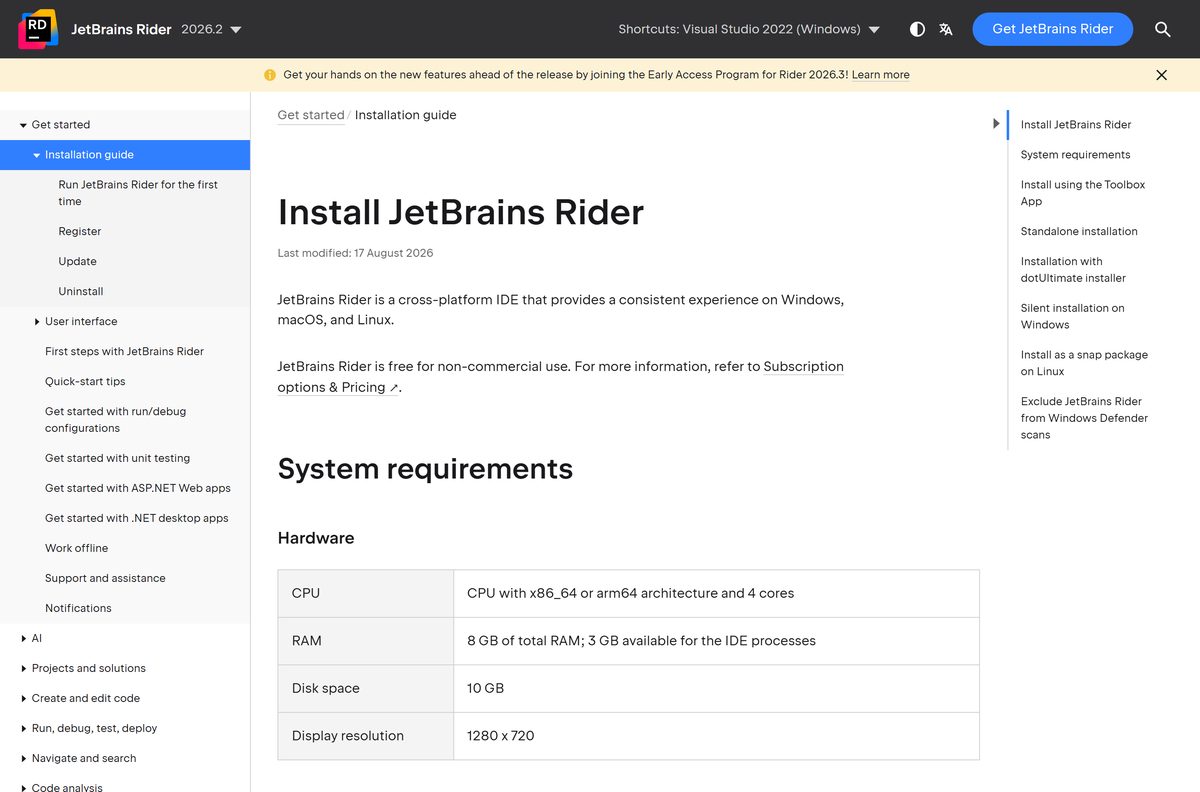
Install JetBrains Rider silently on several PCs
JetBrains ships an .exe , not an MSI, and the same installer accepts silent switches. JetBrains publishes a sample silent.config file to start from.
JetBrains.Rider-2026.2.2.exe /S /CONFIG=C:\Deploy\silent.config /D=C:\Program Files\JetBrains\Rider /S runs without the wizard, /CONFIG points to the file that sets shortcuts and associations, and /D sets the install folder and must come last, without quotes. The switches are documented in the installation guide.
Set the JETBRAINS_LICENSE_SERVER environment variable on each PC to point Rider at your Floating License Server or License Vault.
How to verify the JetBrains Rider installer
Every file on download.jetbrains.com has a matching .sha256 file. A match proves the 1.79 GB file arrived intact and unaltered.
- Open the checksum file for the Windows installer in your browser.
- Open Command Prompt in your Downloads folder.
- Run certutil -hashfile JetBrains.Rider-2026.2.2.exe SHA256 .
- Compare the result with c32ffb3fd36291012f87b514095b5de988caf03a13b5ebdc3168cf99619cb782 .
- Delete the file and download it again from jetbrains.com if the two strings differ.
Run JetBrains Rider from a zip without installing it
The Windows zip holds the full IDE with no setup wizard. Use it on a work PC where you lack administrator rights.
- Download JetBrains.Rider-2026.2.2.win.zip, 2.56 GB, or the ARM64 zip, 2.66 GB.
- Right-click the zip and select Extract All.
- Choose a folder you own, such as one inside your user profile, and select Extract.
- Open the extracted folder, then the bin folder.
- Double-click rider64.exe to start the IDE.
- Right-click the running icon on the taskbar and select Pin to taskbar.
Download a fresh zip for each new release, or switch to the Toolbox App to get updates handled for you.
Which JetBrains Rider download do you need for your Mac?
Open the Apple menu and select About This Mac. The Chip or Processor line tells you which disk image to take.
| About This Mac says | Download | Size |
|---|---|---|
| Chip: Apple M1 or later | JetBrains.Rider-2026.2.2-aarch64.dmg | 2.05 GB |
| Processor: Intel | JetBrains.Rider-2026.2.2.dmg | 2.06 GB |
Open the .dmg , drag JetBrains Rider into Applications, then launch it from Launchpad or Spotlight. Current releases support macOS 15 and macOS 26.
Is JetBrains Rider free?
The download is free, and so is the IDE for non-commercial work. The licence you pick on first launch decides what you owe.
Yes for non-commercial use; commercial work needs a paid subscription after a 30-day trial. The non-commercial licence unlocks the same full IDE and covers learning, hobby development, open source and content creation, even content that earns money. It lasts one year and renews automatically if you used it in the last six months. It needs a JetBrains Account, an internet connection to activate and Rider 2024.2.7 or later, and it sends anonymized usage statistics. If you build software you sell or are paid to write, buy a subscription on the Rider pricing page. A licence key sold anywhere outside jetbrains.com or an authorised reseller is not one to trust.
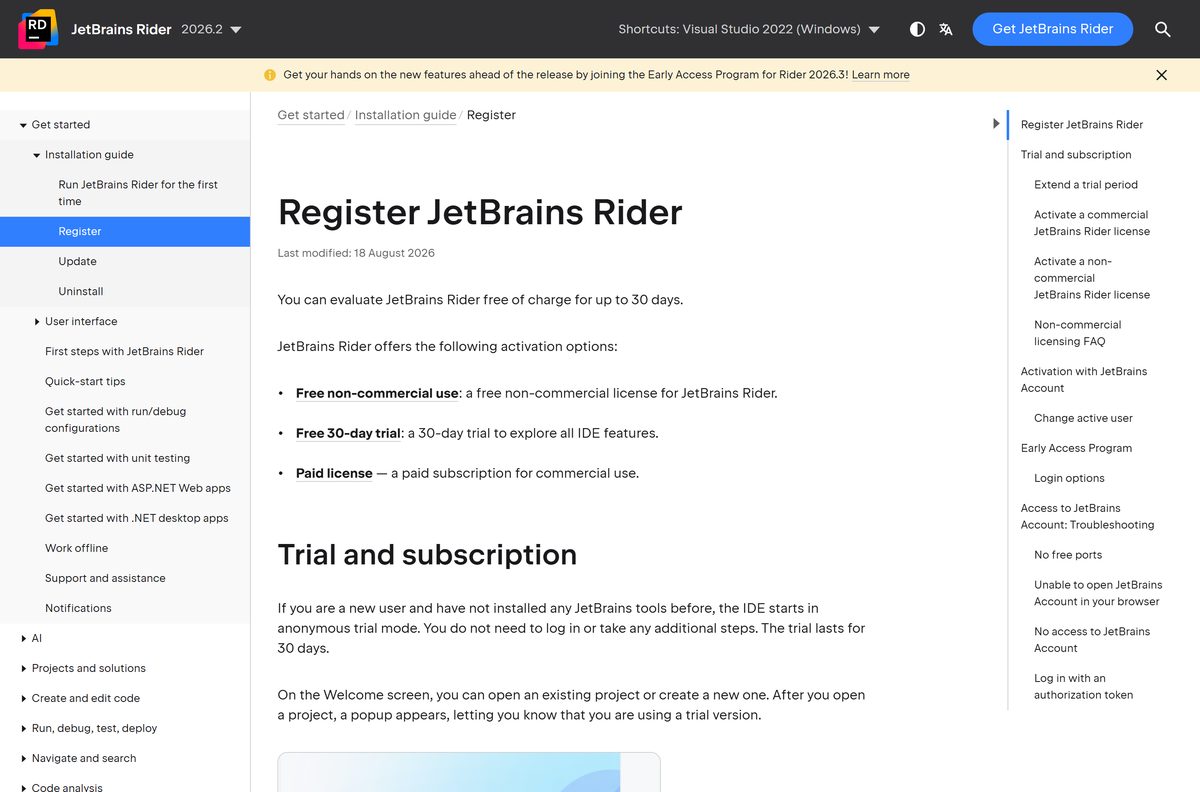
Choose between the non-commercial licence and the 30-day trial
New users start in trial mode automatically. You can switch any time under Help | Manage Licenses.
Activate the non-commercial licence for personal projects, and the trial only when you are evaluating Rider for paid work. The trial ends after 30 days, and a new one only arrives with the next major version. The non-commercial licence has no end date as long as you keep using it. To switch, open Help | Manage Licenses, select Non-commercial use, agree to the terms, sign in and click Start Non-Commercial Use. If the option is missing, update Rider first.
How to check your JetBrains Rider version and update it
Updates are usually patches applied to the existing install, so you only restart the IDE.
- Open Help | About on Windows, or JetBrains Rider | About JetBrains Rider on a Mac, and read the version and build.
- Select Help | Check for Updates on Windows or Linux, or JetBrains Rider | Check for Updates on a Mac.
- Accept the offered update and let Rider restart.
- Choose the update channel under Settings | Appearance & Behavior | System Settings | Updates.
- In the Toolbox App, open Settings, expand Tools and turn on Update all tools automatically instead.
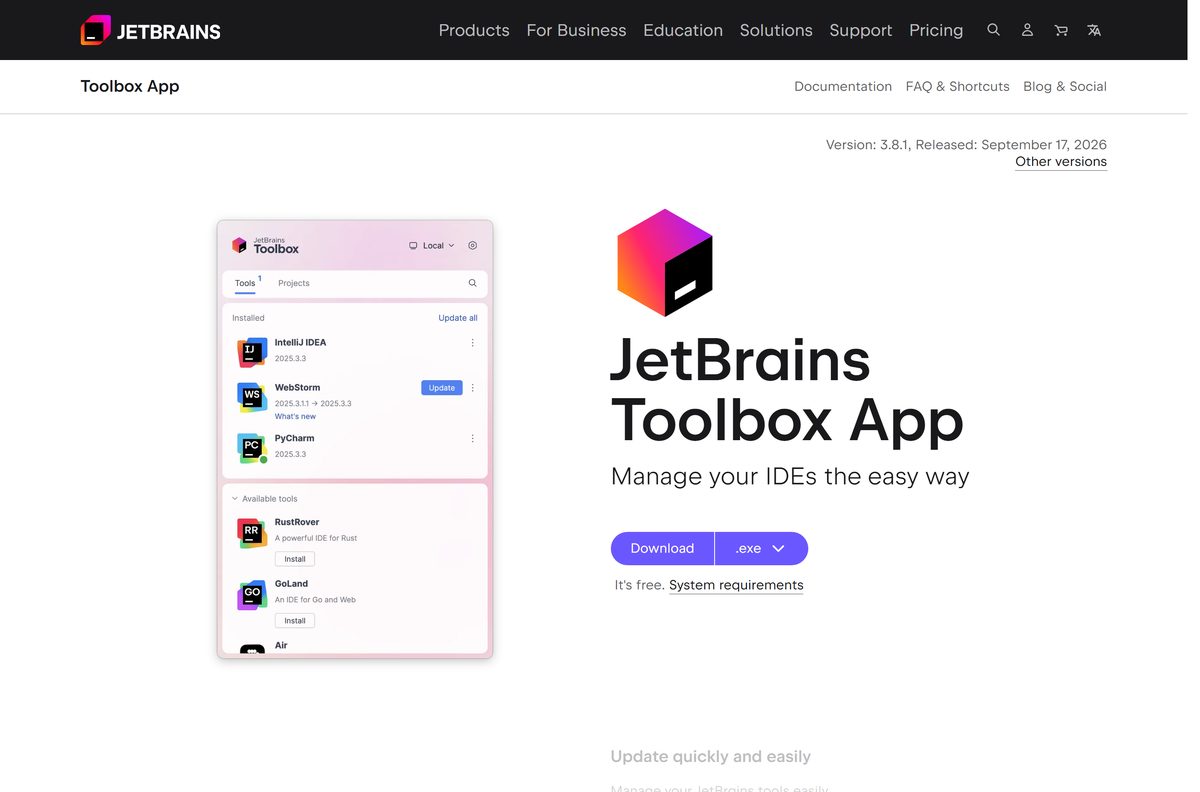
Check JetBrains Rider system requirements against your PC
Rider bundles its own Java runtime, based on JBR 21, so you do not install Java separately.
| Field | Value |
|---|---|
| Software | JetBrains Rider |
| Developer | JetBrains |
| Latest version | 2026.2.2 (build 262.10315.191), released 16 September 2026 |
| License | Free for non-commercial use; paid subscription for commercial use, 30-day trial |
| Windows | Windows 10 and 11, 64-bit, x64 or ARM64 |
| macOS | macOS 15 and 26, Apple silicon or Intel |
| Linux | Ubuntu 24.04/26.04 LTS, Fedora 43/44, Debian 13, Amazon Linux 2023; glibc 2.28 or later |
| Processor | x86_64 or arm64 with 4 cores |
| Memory | 8 GB total, 3 GB available for the IDE |
| Disk space | 10 GB |
| Screen | 1280 x 720 minimum |
| Windows installer size | 1.79 GB x64, 1.85 GB ARM64 |
| Offline installer | Yes |
| Official download source | jetbrains.com |
| Last verified | 2026-09-24 |
Fix JetBrains Rider not installing or activating
Find the symptom that matches what you see, then work through its steps in order.
The installer does not start or stops part way
The installer needs administrator rights and about 10 GB of free space, and a partial 1.79 GB download fails late.
- Right-click the .exe and select Run as administrator.
- Free up space on the system drive until at least 10 GB is available.
- Check the SHA-256 hash against the .sha256 file on download.jetbrains.com.
- Use the Windows zip instead, which needs no setup wizard and no administrator rights.
Windows says the app cannot run on your PC
The file does not match the processor, such as the ARM64 build on an Intel PC.
- Open Settings > System > About and read System type.
- Download the x64 installer for Intel or AMD, or the ARM64 installer for Snapdragon.
- Delete the wrong file and run the correct one.
The Non-commercial use option is missing
Rider versions before 2024.2.7 do not offer the non-commercial licence.
- Open Help | About and read the version number.
- Install the current release from the table at the top of this page.
- Open Help | Manage Licenses and select Non-commercial use.
The trial or licence will not activate
Trial start and non-commercial activation both need an internet connection, and non-commercial licences have no offline activation code.
- Connect the PC to the internet and restart Rider.
- Click Free 30-Day Trial in the dialog if the trial did not start by itself.
- Sign in to your JetBrains Account under Help | Manage Licenses to activate a non-commercial or paid licence.
- Use the offline activation code from your JetBrains Account for a paid licence on a machine with no connection.
How to uninstall JetBrains Rider completely
The uninstaller removes the program. Settings and caches stay behind until you delete them.
- Open Settings > Apps > Installed apps on Windows 11, or Apps & Features on Windows 10.
- Find JetBrains Rider, select it and choose Uninstall.
- Delete %APPDATA%\JetBrains\Rider2026.2 to remove your settings.
- Delete %LOCALAPPDATA%\JetBrains\Rider2026.2 to remove caches and logs.
- On a Mac, drag JetBrains Rider from Applications to the Trash.
- Then delete ~/Library/Application Support/JetBrains/Rider2026.2 and ~/Library/Caches/JetBrains/Rider2026.2 .
- If you installed through the Toolbox App, open it, click the settings icon next to Rider and select Uninstall instead.
For a silent removal, run bin\uninstall.exe /S from an elevated Command Prompt inside the Rider install folder.
Choose a JetBrains Rider alternative for .NET
Rider is a 1.79 GB IDE aimed at .NET and game development. These options suit different budgets and machines.
| Tool | Price | Best for |
|---|---|---|
| JetBrains Rider | Free non-commercial, paid for commercial work | C# and .NET on Windows, macOS and Linux in one IDE |
| Visual Studio Community | Free for individuals and small teams | Windows desktop, ASP.NET and .NET MAUI apps on Windows |
| Visual Studio Code | Free | A lighter editor on Windows, macOS and Linux |
Stay with Rider if you want the same .NET IDE on every operating system. Visual Studio Community limits use in larger organizations, so check its licence terms first.
Working in other languages? JetBrains makes IntelliJ IDEA for Java and Kotlin, and PyCharm for Python.
Frequently asked questions
Is JetBrains Rider free to download?
Yes. The download from jetbrains.com is free, and Rider is free to use for non-commercial projects. Commercial work needs a paid subscription after the 30-day trial.
Is JetBrains Rider free for commercial use?
No. If you sell the software or are paid to write it, you need a commercial Rider subscription from the Rider pricing page. The 30-day trial lets you evaluate it first.
What counts as non-commercial use of Rider?
Learning and self-education, hobby development, open source work without commercial benefit, and content creation, even when the content earns money. If you plan to sell what you build, choose a commercial licence.
What is the JetBrains Rider download size?
The Windows x64 installer is 1.79 GB and the ARM64 installer is 1.85 GB. The Windows zip is 2.56 GB, the Mac disk images are about 2.05 GB each, and the Linux archive is 2.22 GB.
Is there a JetBrains Rider offline installer?
Yes. The standalone .exe, .dmg and .tar.gz files hold the whole IDE, so they install with no connection once downloaded. Licence activation still needs the internet unless you use a paid offline activation code.
Is there a JetBrains Rider download for Mac?
Yes. JetBrains ships one disk image for Apple silicon Macs and one for Intel Macs, both about 2.05 GB. Current releases support macOS 15 and macOS 26.
Which JetBrains Rider version is the latest?
Rider 2026.2.2, build 262.10315.191, released on 16 September 2026. Existing installs pick it up through Help | Check for Updates, and the Toolbox App offers it automatically.
Is JetBrains Rider safe to download?
Yes, from jetbrains.com. Each installer on download.jetbrains.com has a matching SHA-256 file, so you can confirm the file is unaltered. Portal copies are repackaged and often out of date.