The pgAdmin 4 download is free for Windows 11, Windows 10 and Mac from pgadmin.org, with a 64-bit Windows installer and separate macOS builds for Apple silicon and Intel. The same free tool also runs on Linux, in a container, or from a Python wheel.
This guide covers which file to pick, installing on Windows, Mac and Linux, checking the installer signature, connecting your first server, updating, and fixing common install problems.
Check the pgAdmin 4 system requirements
pgAdmin 4 needs 64-bit Windows 10 or later, a recent macOS, or a supported Linux distribution. The table covers what each download needs.
| Field | Value |
|---|---|
| Software | pgAdmin 4 |
| Developer | pgAdmin Development Team |
| Latest version | 9.18, released 2026-09-17 |
| Licence | Free and open source (PostgreSQL licence) |
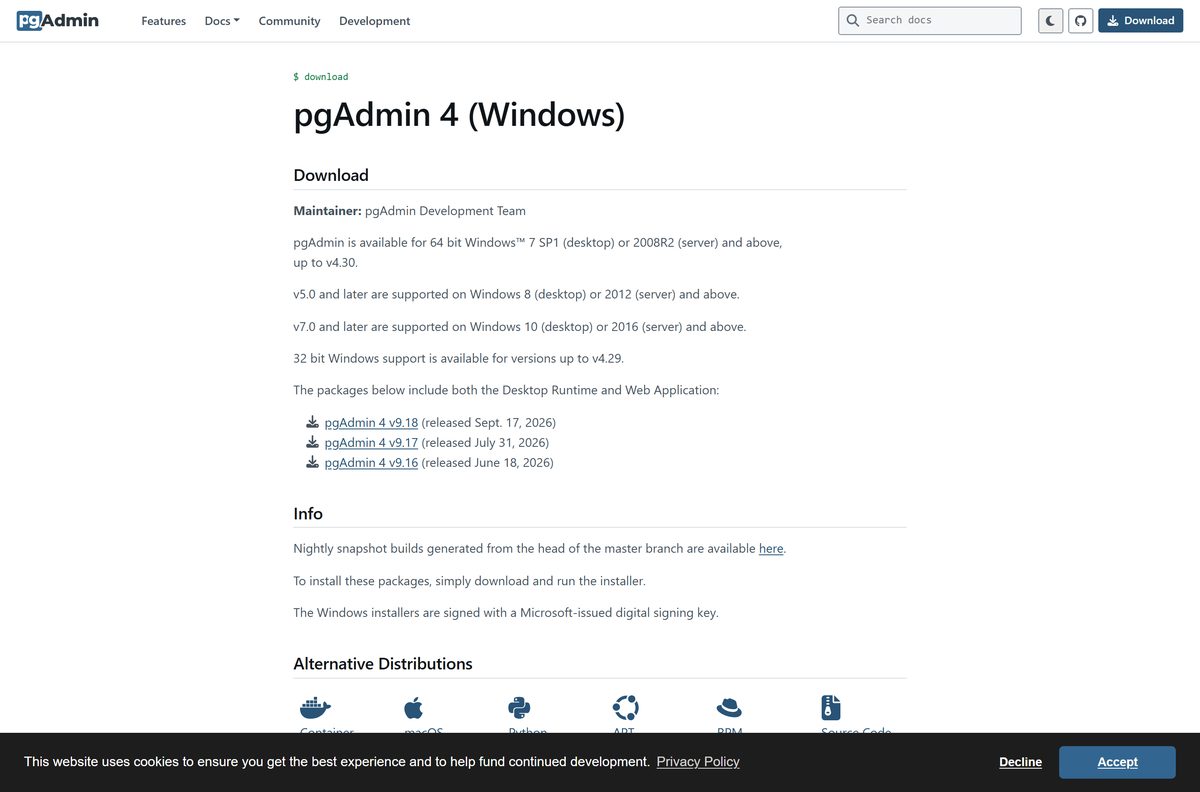
| Windows | Windows 10 or Server 2016 and above, 64-bit (x64) |
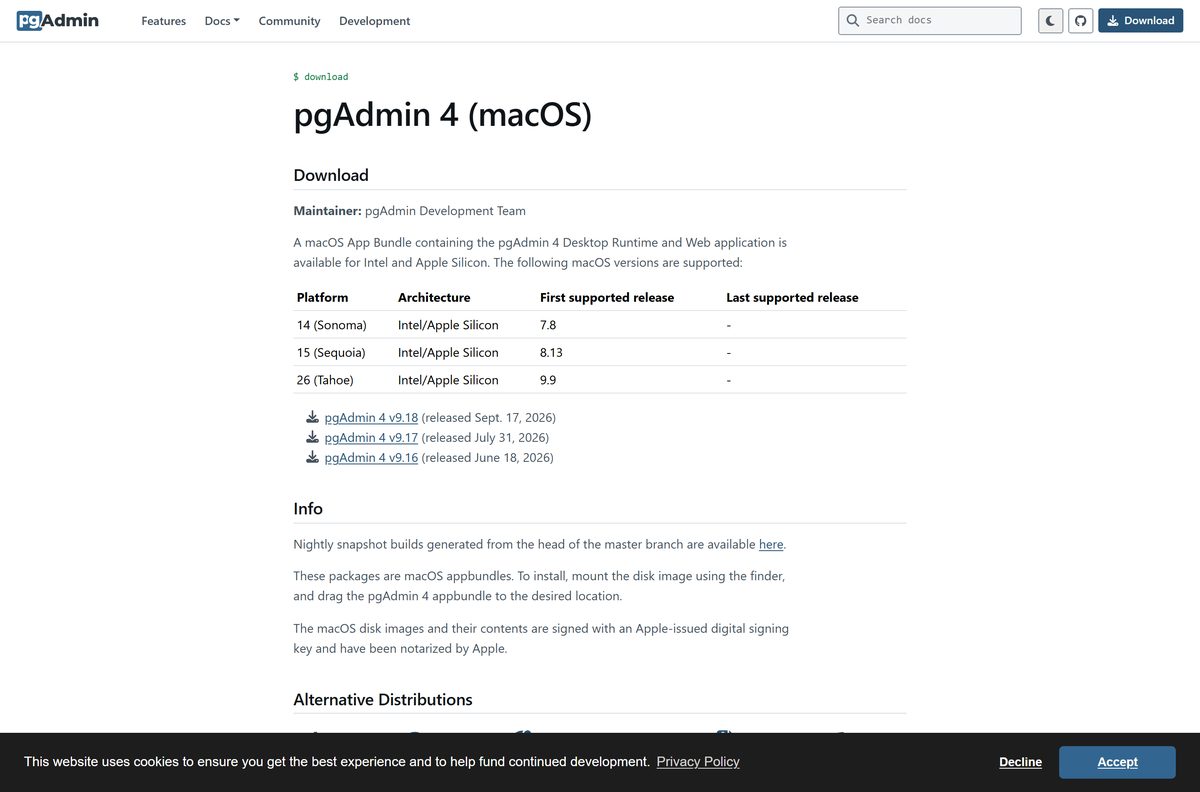
| macOS | macOS 14 Sonoma, 15 Sequoia and 26 Tahoe; Apple silicon and Intel |
| Linux | Debian 12 and 13, Ubuntu 22.04, 24.04 and 26.04 (x86_64); RPM distributions |
| File size | 229.4 MB (Windows EXE), 223.8 MB and 227.6 MB (macOS DMGs) |
| Offline installer | Yes, the full EXE and DMG |
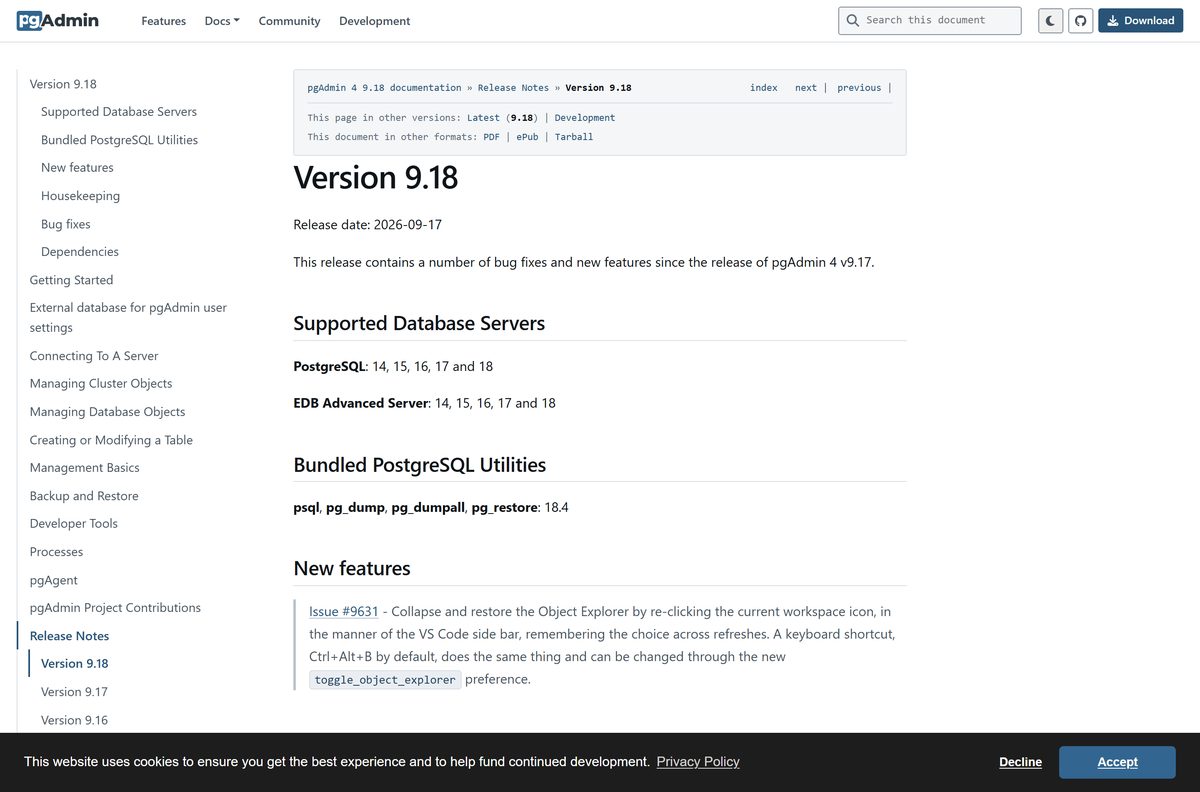
| Database servers | PostgreSQL 14 to 18, EDB Advanced Server 14 to 18 |
| Official download source | pgadmin.org/download |
| Last verified | 2026-09-25 |
Open Settings > System > About and check that System type reads 64-bit operating system before you download the Windows installer.
Which pgAdmin 4 download do you need?
Every build contains the same pgAdmin 4. Match your system to one row and use that file or page.
| Your system | Download | Size |
|---|---|---|
| Windows 11 or 10, 64-bit | pgadmin4-9.18-x64.exe | 229.4 MB |
| Mac with Apple silicon (M1 to M4) | pgadmin4-9.18-arm64.dmg | 223.8 MB |
| Mac with an Intel processor | pgadmin4-9.18-x64.dmg | 227.6 MB |
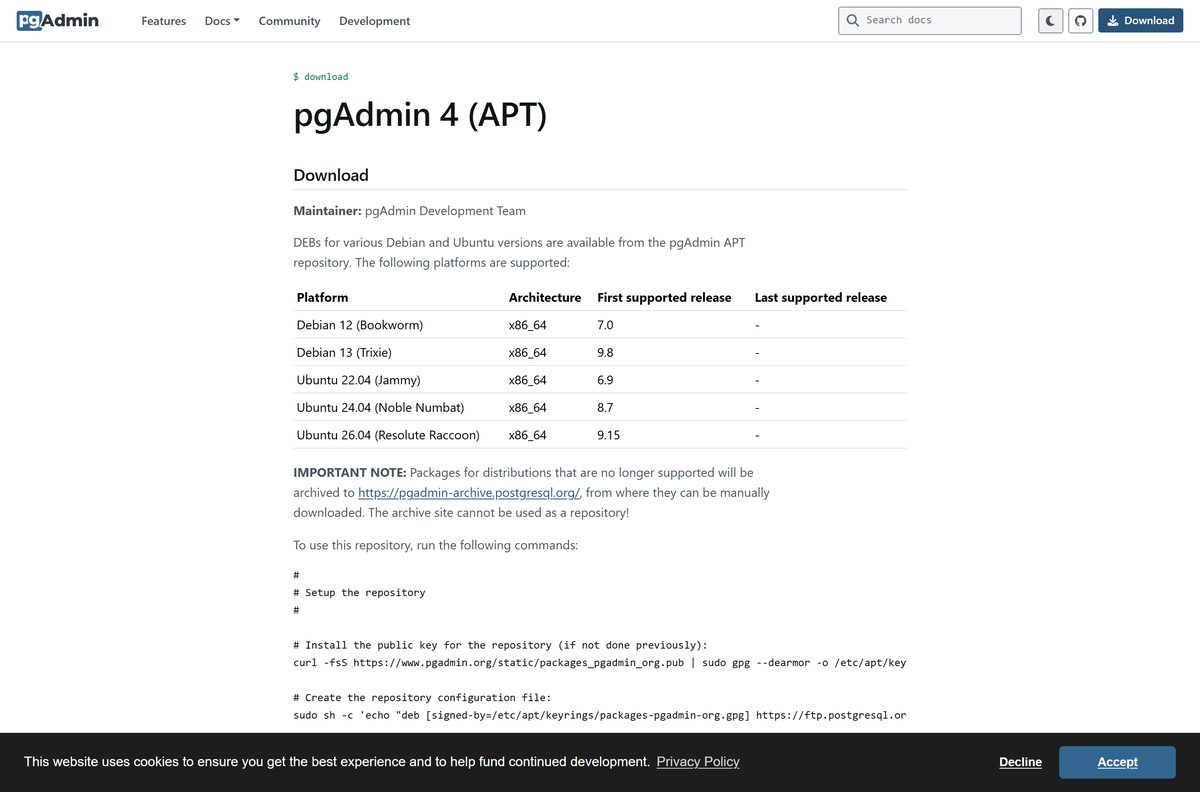
| Ubuntu or Debian | pgAdmin 4 APT repository | Package manager |
| RPM-based Linux | pgAdmin 4 RPM repository | Package manager |
| Shared server for a team | pgAdmin 4 container | Docker image |
| Any system with Python 3 | pgAdmin 4 Python wheel | pip package |
Each desktop package includes both the desktop runtime and the web application, so one file covers both uses.
Download pgAdmin 4 from the official site
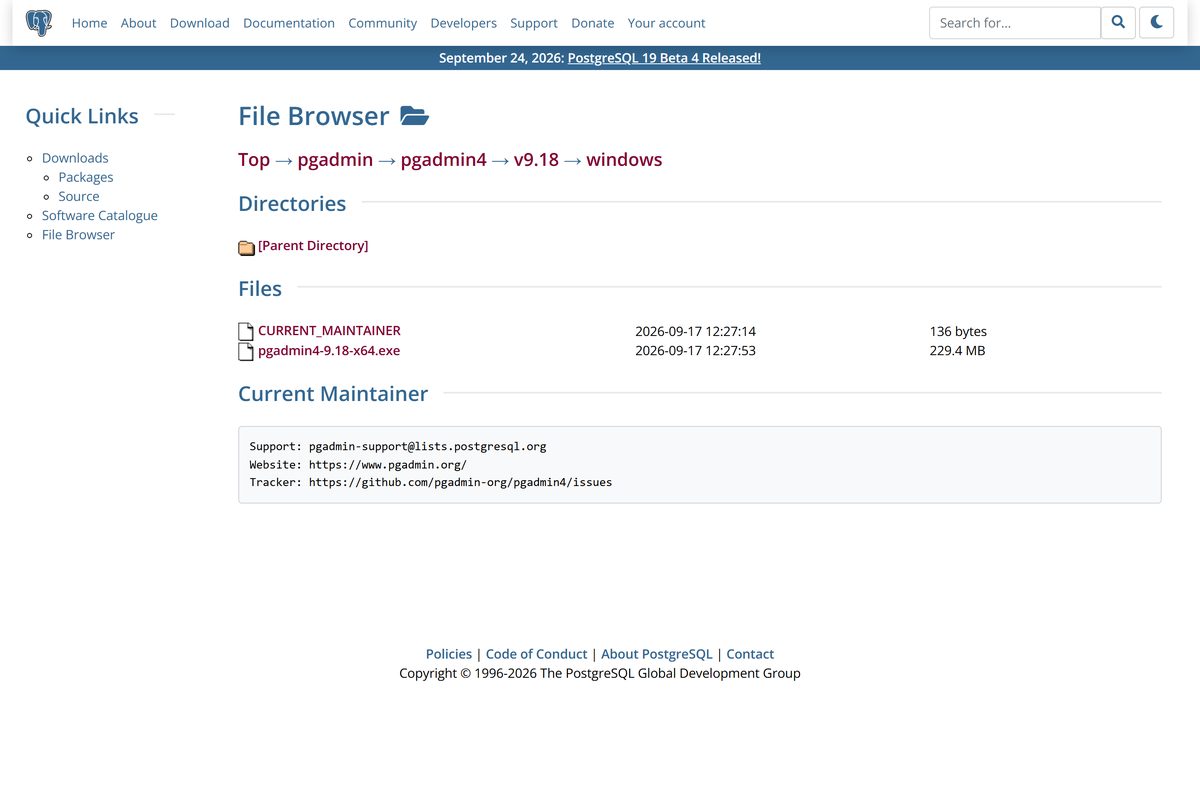
Every official build starts on pgadmin.org. The per-platform pages link to the file directory on the PostgreSQL mirror network, where the installers live.
- pgAdmin 4 download page — every platform, plus source code
- pgAdmin 4 for Windows — current and previous Windows installers
- pgAdmin 4 for macOS — Apple silicon and Intel disk images
- Windows installer, v9.18 — 229.4 MB · 64-bit EXE
- Release notes for v9.18 — new features and bug fixes
The Windows page also lists the two previous releases, which helps when you need to match a version already in use on other machines.
How to install pgAdmin 4 on Windows 11 and 10
The Windows installer is a single EXE that needs administrator rights.
- Open the pgAdmin 4 Windows page and select the newest version.
- Select pgadmin4-9.18-x64.exe in the file list to download it.
- Double-click the downloaded file and select Yes at the User Account Control prompt.
- Accept the licence agreement and keep the default install folder.
- Select Install, wait for the files to copy, then select Finish.
- Open pgAdmin 4 from the Start menu.
- Right-click Servers in the Object Explorer and select Register > Server.
- Type a Name on the General tab, then fill in Host name/address, Port (default 5432), Username and Password on the Connection tab.
- Select Save to connect and see your databases.
pgAdmin 4 does not include a PostgreSQL server. Install the database separately, or connect to one that is already running.
Install pgAdmin 4 on Linux, in Docker or with pip
Linux users install pgAdmin 4 from the project’s own package repositories. The container and Python wheel run pgAdmin in server mode, which you open in a browser.
Ubuntu or Debian (APT)
- Import the signing key: curl -fsS https://www.pgadmin.org/static/packages_pgadmin_org.pub | sudo gpg –dearmor -o /etc/apt/keyrings/packages-pgadmin-org.gpg
- Add the repository with the sudo sh -c command from the APT page.
- Run sudo apt install pgadmin4-desktop for desktop mode, sudo apt install pgadmin4-web for web mode, or sudo apt install pgadmin4 for both.
- For web mode, run sudo /usr/pgadmin4/bin/setup-web.sh to finish setup.
Docker container
- Run docker pull dpage/pgadmin4 .
- Start it with docker run -p 80:80 -e ‘[email protected]’ -e ‘PGADMIN_DEFAULT_PASSWORD=SuperSecret’ -d dpage/pgadmin4 , using your own email and password.
- Open http://localhost in a browser and sign in with those details.
Python wheel
- Create a virtual environment with python3 -m venv pgadmin4 and activate it.
- Run pip install pgadmin4 .
- Run pgadmin4 , enter an email and password when asked, then open http://127.0.0.1:5050 .
Users of RPM-based distributions follow the setup steps on the RPM page.
How to verify the pgAdmin 4 installer
pgAdmin signs its Windows installers with a Microsoft-issued signing key. A broken or missing signature means the file is damaged or did not come from the project.
- Right-click pgadmin4-9.18-x64.exe and select Properties.
- Open the Digital Signatures tab.
- Select the signature in the list and select Details.
- Check that the dialog reads This digital signature is OK.
- Delete the file and download it again from pgadmin.org if the tab is missing or the signature fails.
In PowerShell, Get-AuthenticodeSignature .\pgadmin4-9.18-x64.exe shows Valid in the Status column for a good file. On a Mac, the disk images are signed and notarized, so Gatekeeper opens them without a warning.
Which pgAdmin 4 download do you need for your Mac?
pgAdmin 4 ships one disk image per processor type. Open the Apple menu and select About This Mac to see whether yours has an Apple chip or an Intel processor.
| About This Mac shows | Download | Size |
|---|---|---|
| Chip: Apple M1, M2, M3 or M4 | pgadmin4-9.18-arm64.dmg | 223.8 MB |
| Processor: Intel | pgadmin4-9.18-x64.dmg | 227.6 MB |
Mount the disk image in Finder and drag the pgAdmin 4 app bundle to your Applications folder. The current releases support macOS 14 Sonoma, 15 Sequoia and 26 Tahoe.
Is pgAdmin 4 free?
pgAdmin has no paid tier, licence key or trial period.
Yes. pgAdmin 4 is free and open source for personal and commercial use, on every platform. pgAdmin is released under the PostgreSQL licence and distributed free through the PostgreSQL mirror network. A site that charges for a pgAdmin installer or asks for an activation key is reselling or repackaging a free program.
Should you install pgAdmin 4 in desktop mode or server mode?
pgAdmin 4 runs in two ways. Desktop mode opens it in its own window for one user. Server mode runs it as a web application that several people reach from a browser.
Install the desktop build on your own PC or Mac; choose server mode only when a team needs one shared pgAdmin. The Windows and macOS installers run desktop mode with no extra setup. Server mode needs a web server or container, user accounts and its own security setup, which only pays off for shared use.
On Ubuntu and Debian, the pgadmin4-desktop and pgadmin4-web packages split the two modes, and pgadmin4 installs both.
How to check your pgAdmin 4 version and update it
On a Mac, pgAdmin 4 checks for updates at start-up and installs them for you. On Windows and Linux, you install each new release yourself.
- Open pgAdmin 4 and select Help > About pgAdmin 4 to see the installed version.
- Compare it with the version on the pgAdmin download page.
- On a Mac, open the pgAdmin 4 menu and select Check for Updates, then select Install & Restart when the update is ready.
- On Windows, download the newest installer and run it over the existing install.
- On Ubuntu or Debian, run sudo apt update && sudo apt upgrade .
- Read the release notes for any change that affects your servers.
To test upcoming fixes, nightly snapshot builds are available. Keep them off production machines.
Check which PostgreSQL versions pgAdmin 4 can manage
Each pgAdmin 4 release states which database servers it supports. Check your server version before you upgrade either side.
| Database server | Supported versions |
|---|---|
| PostgreSQL | 14, 15, 16, 17 and 18 |
| EDB Postgres Advanced Server | 14, 15, 16, 17 and 18 |
Run SELECT version(); in the Query Tool to read the exact server version.
Fix pgAdmin 4 not installing or connecting on Windows 11 or 10
Most pgAdmin 4 problems come from an unsupported system, a damaged download, or a server that is not reachable.
The installer will not run on an older PC
Current releases need Windows 10 or Server 2016 and above, and 64-bit Windows.
- Open Settings > System > About and check System type and the Windows edition.
- On Windows 8 or Server 2012, install a v6.x release or older from the Windows page.
- On Windows 7 SP1, install v4.30 or older; on 32-bit Windows, install v4.29 or older.
The installer reports a damaged file or an invalid signature
The download stopped early or the file is not the official one.
- Delete the file.
- Download it again from pgadmin.org.
- Check the Digital Signatures tab before you run it.
A Mac refuses to open the app
The wrong disk image for the processor, or a copy from an unofficial site.
- Check About This Mac for Apple silicon or Intel.
- Download the matching arm64 or x64 DMG from the macOS page.
- Drag the new app to Applications and replace the old one.
pgAdmin 4 cannot connect to the server
The host, port or credentials in the server dialog do not match the database.
- Right-click the server and select Properties.
- Check Host name/address, Port and Username on the Connection tab.
- Confirm the PostgreSQL service is running and accepts connections on that port.
- Re-enter the password and select Save.
How to uninstall pgAdmin 4
Removing pgAdmin 4 does not touch your PostgreSQL server or its databases.
- On Windows, open Settings > Apps > Installed apps.
- Find pgAdmin 4, select the … button, then select Uninstall.
- Confirm, and follow the uninstaller to the end.
- Delete the %APPDATA%\pgadmin folder to remove saved settings.
- On a Mac, drag pgAdmin 4 from Applications to the Trash, then delete ~/Library/Preferences/pgadmin .
- On Ubuntu or Debian, run sudo apt remove pgadmin4-desktop or the package you installed.
Microsoft’s uninstall guide covers the same steps on Windows 10.
Frequently asked questions
Is the pgAdmin 4 download free?
Yes. pgAdmin 4 is free and open source, released under the PostgreSQL licence. The Windows installer, the macOS disk images, the Linux packages and the container image all cost nothing, and there is no paid edition or trial.
Where is the official pgAdmin 4 download page?
The official page is pgadmin.org/download. It links to separate pages for Windows, macOS, APT, RPM, Python and the container. The installer files themselves are served from the PostgreSQL mirror network on ftp.postgresql.org.
Does pgAdmin 4 work on Windows 11?
Yes. Current pgAdmin 4 releases support Windows 10 and Windows Server 2016 and above, which includes Windows 11. The installer is a 64-bit EXE, and the same file installs on both Windows 11 and Windows 10.
How big is the pgAdmin 4 download?
The pgAdmin 4 v9.18 Windows installer is 229.4 MB. The macOS disk images are 223.8 MB for Apple silicon and 227.6 MB for Intel Macs. The installed app takes more space than the download.
Is there a pgAdmin 4 offline installer?
Yes. The Windows EXE and the macOS DMG are full installers that contain the desktop runtime and the web application. Once the file is downloaded, no internet connection is needed to finish the install.
Is pgAdmin 4 available for Mac?
Yes. pgAdmin publishes two macOS disk images for each release: an arm64 build for Apple silicon Macs and an x64 build for Intel Macs. Both are signed and notarized by Apple and support macOS 14, 15 and 26.
Is there a 32-bit or ARM64 build of pgAdmin 4 for Windows?
No. Current Windows releases ship as a single x64 installer. 32-bit Windows support ended after pgAdmin 4 v4.29, and the download page lists no separate ARM64 Windows build.
Is pgAdmin 4 safe to download?
Yes, when it comes from pgadmin.org or ftp.postgresql.org. The Windows installers are signed with a Microsoft-issued signing key, and the macOS disk images are signed and notarized by Apple. Avoid copies from download portals.
What is the latest version of pgAdmin 4?
pgAdmin 4 v9.18, released on September 17, 2026, is the latest version. It supports PostgreSQL 14 to 18 and EDB Advanced Server 14 to 18. New releases arrive regularly, so check the download page before installing.
Why won’t pgAdmin 4 install on my PC?
The most common cause is an unsupported Windows version. Current releases need Windows 10 or Server 2016 and above, and 64-bit Windows. On Windows 8 use v6.x or older, and on Windows 7 SP1 use v4.30 or older.
Can pgAdmin 4 run in a web browser?
Yes. pgAdmin 4 can run in server mode, where you open it in a browser. Install the pgadmin4-web package on Linux, run the dpage/pgadmin4 container, or install the Python wheel and browse to http://127.0.0.1:5050.