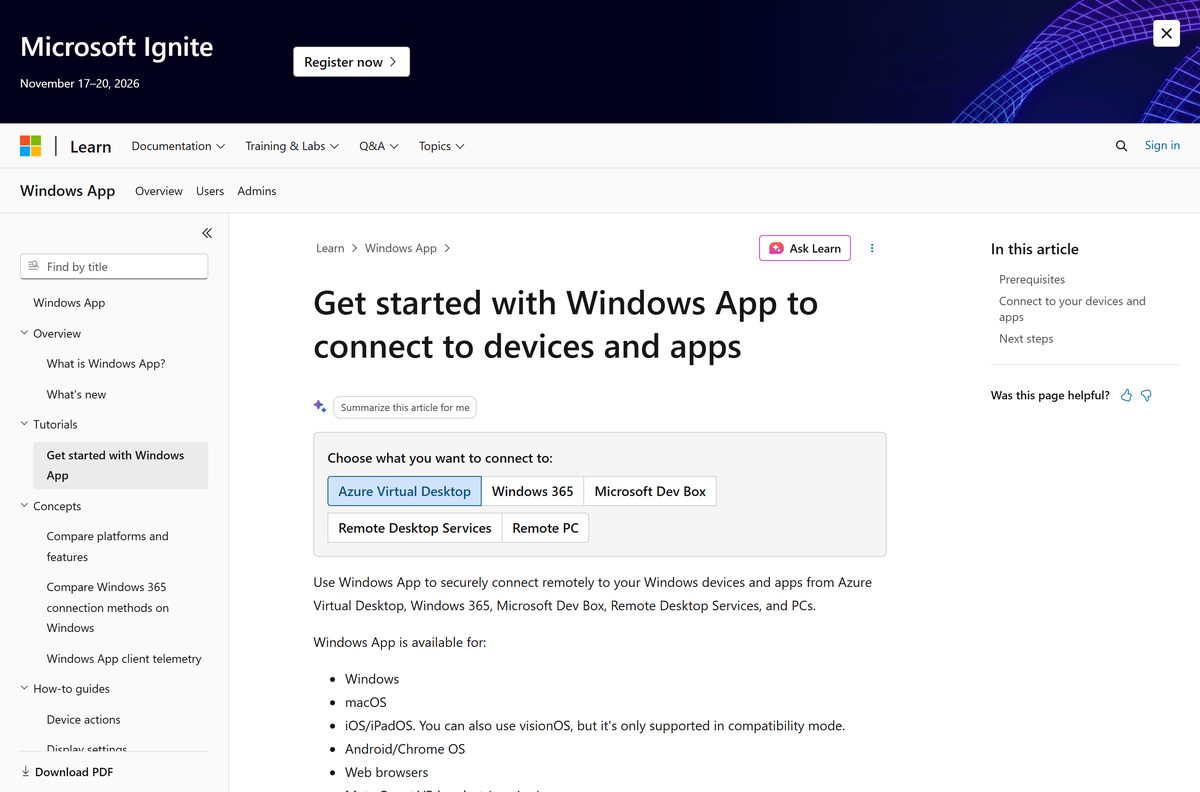
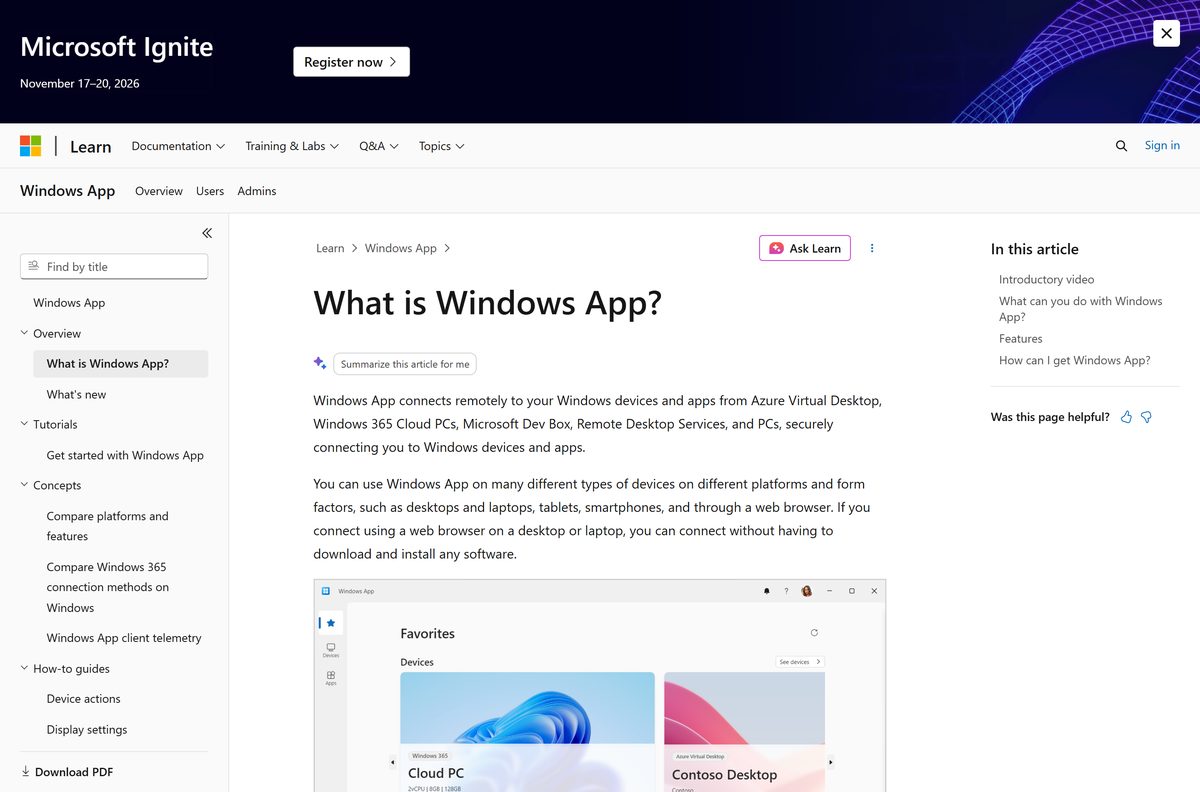
You can download Windows App free from Microsoft for Windows 11, Windows 10 and Mac, then open your Windows 365 Cloud PC, Azure Virtual Desktop or Dev Box in a few minutes. The same app runs on iPhone, iPad, Android and Chromebooks, and in any modern web browser with nothing to install.
This guide covers the right download for each device, the Microsoft Store and offline installs, the browser version, sign-in rules, updates, fixes for failed installs and a clean uninstall.
Which Windows App download do you need?
| Your device | Download | Size |
|---|---|---|
| Windows 11 or 10 PC with the Microsoft Store | Windows App in the Microsoft Store | Picked for your PC |
| Intel or AMD PC, no Store access | 64-bit .msix | 247.0 MB |
| Windows 11 on Arm, such as Snapdragon laptops | Arm64 .msix | 245.3 MB |
| 32-bit Windows 10 | 32-bit .msix | 206.6 MB |
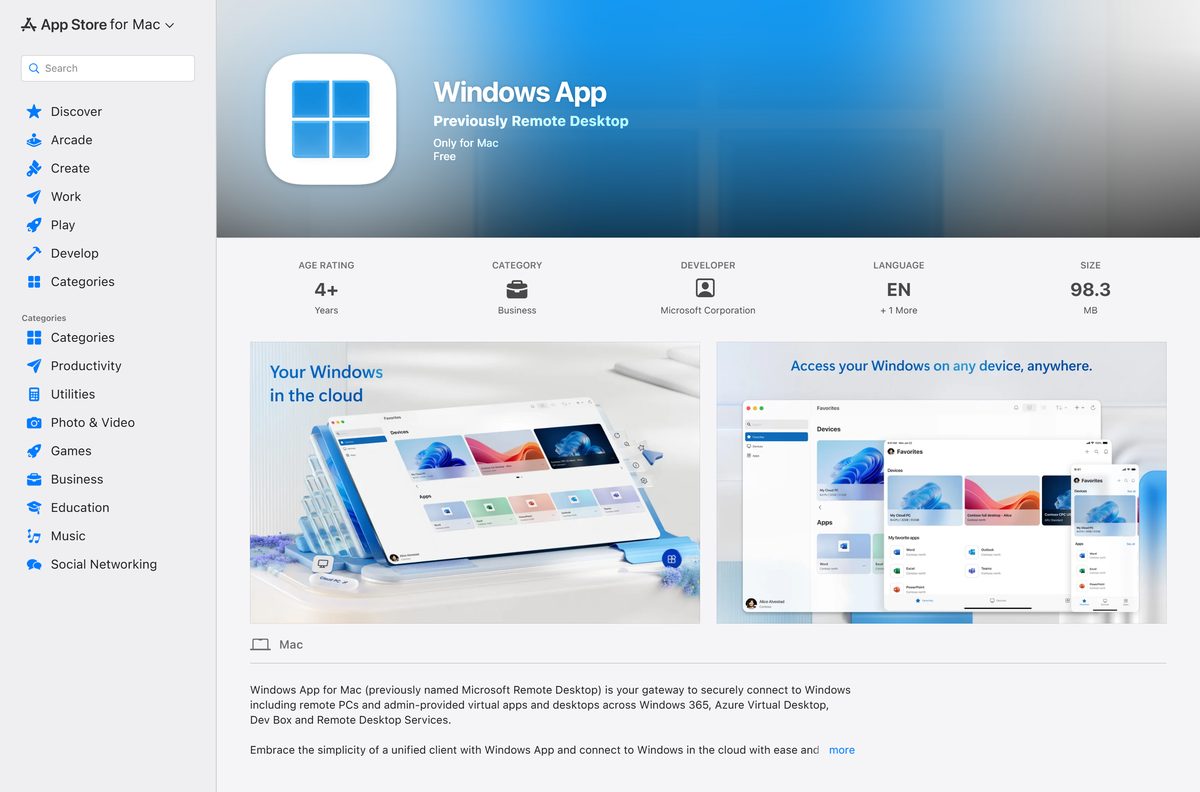
| Mac on macOS 14 or later | Mac App Store | 98.3 MB |
| iPhone or iPad | Windows App Mobile in the App Store | 208.3 MB |
| Android phone, tablet or Chromebook | Google Play | Google Play |
| Any computer with a current browser | Web browser setup on Microsoft Learn | No download |
Check your PC type under Settings > System > About. The System type line says x64-based or ARM-based processor.
Download Windows App from Microsoft’s official links
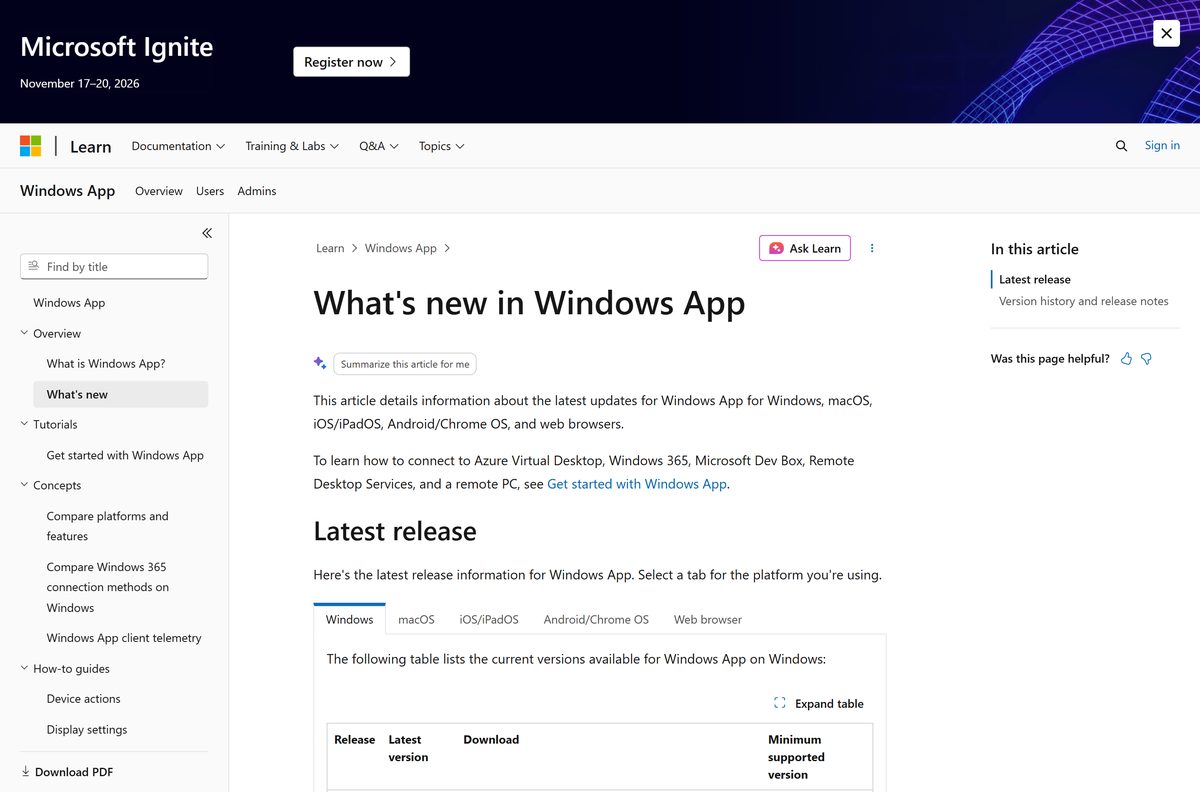
Microsoft lists every current installer on the Windows App release notes page on Microsoft Learn.
- Windows App in the Microsoft Store — product ID 9N1F85V9T8BN
- Windows App for Windows, 64-bit .msix — 247.0 MB
- Windows App for Windows, Arm64 .msix — 245.3 MB
- Windows App for Windows, 32-bit .msix — 206.6 MB
- Windows App in the Mac App Store — macOS 14.0 or later
- Windows App for Mac, standalone .pkg — 101.4 MB
- Windows App Mobile for iPhone and iPad
- Windows App for Android and Chromebook — Android 11 or later
- Release notes and all download links — Microsoft Learn
Downloading the app means accepting Microsoft’s Windows App license and privacy terms, linked on the release notes page.
How to install Windows App and sign in to your Cloud PC
The Microsoft Store version keeps itself updated. It installs on Windows 11, Windows 10 version 1809 or later and Windows Server 2019 or later.
- Open the Windows App listing in the Microsoft Store.
- Select Get and wait for the install to finish.
- Select Open to start the app.
- Select Sign in and enter the work or school account your administrator gave you.
- Go through the tour, or select Skip to close it.
- Find your Cloud PC, virtual desktop or Dev Box on the home screen.
- Pin the ones you use most so they stay at the top.
A personal Microsoft account cannot sign in. Only Azure Virtual Desktop, Windows 365, Dev Box and Remote Desktop Services need a sign-in at all.
Install Windows App offline or without the Microsoft Store
An offline .msix install fails when its framework packages are missing. Windows App needs Microsoft.VCLibs.140.00 and Microsoft.VCLibs.140.00.UWPDesktop 14.0.30035.0 or later, plus Microsoft.WindowsAppRuntime.2 2.1.3.0 or later.
Microsoft’s own route uses winget on a second PC to collect everything in one folder.
- On a PC with internet access, open Terminal and run winget download –id 9N1F85V9T8BN .
- Copy the downloaded folder to the offline PC.
- On the offline PC, open PowerShell and go to the Dependencies folder inside it.
- Install the two VCLibs packages that match your architecture with Add-AppxPackage .
- Install Microsoft.WindowsAppRuntime.2 for your architecture the same way.
- Go back to the root folder and install the Windows App .msix with Add-AppxPackage .
- Open Windows App from the Start menu.
On a PC that already has the runtime, double-click the standalone .msix and select Install instead.
Run Windows App in a web browser without installing it
The browser version opens Windows 365, Azure Virtual Desktop and Dev Box on any desktop or laptop, including a locked-down or shared machine. It does not connect to remote PCs or Remote Desktop Services.
- Open Microsoft Edge, Google Chrome, Safari or Firefox.
- Go to windows.cloud.microsoft .
- Sign in with your work or school account.
- Go through the tour, or select Skip.
- Select the Cloud PC or desktop you want to open.
- Read the web browser steps on Microsoft Learn for tenant-specific links.
Use Edge 131, Chrome 130, Safari 18 or Firefox 128 or newer. The browser must be under 12 months old, support the AVC codec and have WebGL turned on.
Which Windows App download do you need for your Mac?
| Your Mac | Download | Size |
|---|---|---|
| Personal or small-office Mac on macOS 14 Sonoma or later | Mac App Store | 98.3 MB |
| Managed Mac without an Apple Account, or one deployed by IT | Standalone .pkg from Microsoft | 101.4 MB |
| Mac on macOS 13 or older | Update macOS through Apple | Update first |
The Mac App Store listing is free and notes that the app was previously named Remote Desktop. Use the .pkg when the App Store is blocked by policy.
Is Windows App free?
Yes. Windows App is free on every platform, with no paid tier inside the app. The Microsoft Store, Mac App Store, App Store and Google Play all list it at no cost. The paid part is the service behind it: a Windows 365 Cloud PC, Azure Virtual Desktop or Dev Box licence that your organization buys. Connecting to your own PC costs nothing extra.
Should you use Windows App or Remote Desktop Connection?
On Windows, Windows App cannot connect to Remote Desktop Services yet, and remote PC connections there are still in preview. The Mac, iPhone, iPad and Android versions handle both.
Use Windows App for Windows 365, Azure Virtual Desktop and Dev Box on any device. On a Windows PC, keep Remote Desktop Connection for plain PC-to-PC sessions. Remote Desktop Connection ( mstsc ) ships with Windows and is generally available for remote PCs. For the older Remote Desktop MSI client and PC-to-PC setup, see Microsoft Remote Desktop download and setup.
How to check your Windows App version and update it
Windows App updates itself. A background task checks every 8 hours and installs the update only while the app is closed. Store installs update from the Microsoft Store, while standalone .msix installs update from Microsoft’s CDN.
- Open Settings > Apps > Installed apps and find Windows App.
- Select … and then Advanced options to see the version.
- Compare it with the latest version on the Windows App release notes.
- To update now, close Windows App, open the Microsoft Store, select Library and then Get updates.
- On a Mac, open the App Store, select Updates and update Windows App if it appears.
Microsoft phases each release over two weeks, so another PC can get it a few days earlier. Admins control updates with the DisableAutomaticUpdates DWORD under HKEY_LOCAL_MACHINE\SOFTWARE\Microsoft\WindowsApp .
Check the Windows App system requirements before you download
| Field | Value |
|---|---|
| Software | Windows App |
| Developer | Microsoft Corporation |
| Latest version | 2.0.1375.0 on Windows; 11.4.2 on Mac; 11.3.7 on iPhone and iPad; 11.0.0.120 on Android |
| Price | Free |
| Windows | Windows 11, Windows 10 version 1809 or later, Windows Server 2019 or later |
| macOS | macOS 14.0 or later (Mac App Store) |
| Android | Android 11 or later, plus Chromebooks with Google Play |
| Other | iPhone, iPad, Meta Quest 3 and 3S, web browsers |
| Architecture | Windows x64, Arm64 and 32-bit x86 |
| File size | 247.0 MB (64-bit .msix); 98.3 MB in the Mac App Store |
| Offline installer | Yes: .msix for Windows, .pkg for Mac |
| Account | Work or school account for cloud services; none for remote PCs |
| Official source | Microsoft Store, Mac App Store, App Store, Google Play, Microsoft Learn |
| Last verified | 2026-09-24 |
Run winver to see your Windows version before you install. Windows 10 PCs past mainstream support need the Extended Security Updates program.
Check what Windows App can connect to on each device
| Connect to | Windows | Mac, iPhone, iPad, Android | Web browser |
|---|---|---|---|
| Windows 365 Cloud PC | Yes | Yes | Yes |
| Azure Virtual Desktop | Yes | Yes | Yes |
| Microsoft Dev Box | Yes | Yes | Yes |
| Remote Desktop Services | No | Yes | No |
| Remote PC | Preview | Yes | No |
Inside a session you get multiple monitors, dynamic resolution, Teams optimizations and redirection of webcams, audio, storage and printers.
Fix Windows App not installing or not signing in
The offline .msix install fails
The VCLibs or Windows App Runtime framework packages are missing.
- Run winget download –id 9N1F85V9T8BN on a PC with internet access.
- Install the packages in the Dependencies folder with Add-AppxPackage , then install Windows App.
Windows App crashes as soon as it opens
Event Viewer shows an error in urlmon.dll on an out-of-date PC.
- Open Settings > Windows Update and select Check for updates.
- Install every update, restart, then open Windows App again.
Sign-in rejects your account
Windows App accepts only work or school accounts, not personal Microsoft accounts.
- Sign in with the account your administrator issued.
- Skip sign-in entirely if you only connect to a remote PC.
The app says no resources are configured for you
Your administrator has not assigned a Cloud PC or desktop to your account.
- Confirm you signed in with the right account.
- Ask your administrator to assign a Cloud PC, desktop or Dev Box.
Windows App will not open or behaves oddly
The app installation is damaged.
- Open Settings > Apps > Installed apps, select … next to Windows App, then Advanced options.
- Select Repair, and if that fails, select Reset.
- Try the same Cloud PC from windows.cloud.microsoft to rule out the app.
How to uninstall Windows App
- On Windows, open Settings > Apps > Installed apps.
- Find Windows App, select … and then Uninstall.
- Select Uninstall again to confirm.
- On a Mac, open Finder > Applications and drag Windows App to the Trash.
- On iPhone or iPad, touch and hold the app icon, then tap Remove App.
- On Android, open the Play Store listing and tap Uninstall.
Which Windows App alternative should you use instead?
| Tool | Best for | Where to get it |
|---|---|---|
| Remote Desktop Connection (mstsc) | PC-to-PC sessions from Windows | Built into Windows |
| Remote Desktop client (MSI) | Remote Desktop Services from Windows | Microsoft Remote Desktop guide |
| Chrome Remote Desktop | Reaching a home PC without a work account | Chrome Remote Desktop guide |
Frequently asked questions
Is Windows App free?
Yes. Windows App is free in the Microsoft Store, the Mac App Store, the App Store and Google Play, with no paid tier. You pay only for the service you connect to, such as a Windows 365 Cloud PC or Azure Virtual Desktop, which your organization licenses.
Where is the official Windows App download page?
Microsoft lists every Windows App download on its release notes page on Microsoft Learn. The Windows version is in the Microsoft Store under product ID 9N1F85V9T8BN, and the Mac, iPhone and Android versions are in Apple’s stores and Google Play, published by Microsoft.
Does Windows App work on Windows 11?
Yes. Windows App runs on Windows 11, Windows 10 version 1809 or later and Windows Server 2019 or later. It installs from the Microsoft Store or from a standalone .msix file on Microsoft Learn.
How big is the Windows App download?
The 64-bit Windows .msix file is 247.0 MB, the Arm64 file is 245.3 MB and the 32-bit file is 206.6 MB. The Mac App Store lists the Mac version at 98.3 MB, and the iPhone and iPad app is 208.3 MB.
Is there a Windows App offline installer?
Yes. Microsoft publishes standalone .msix files for Windows and a .pkg file for Mac. An offline Windows install also needs the VCLibs and Windows App Runtime framework packages, which the command winget download –id 9N1F85V9T8BN collects for you.
Can I download Windows App on a Mac?
Yes. Download Windows App free from the Mac App Store or as a standalone .pkg file from Microsoft. The current Mac App Store version needs macOS 14.0 or later and connects to Cloud PCs, virtual desktops, Remote Desktop Services and remote PCs.
Is there a 64-bit or Arm64 version of Windows App?
Yes. Microsoft publishes separate 64-bit, Arm64 and 32-bit .msix files, and the Microsoft Store installs the right one automatically. Windows 11 on Arm PCs, such as Snapdragon laptops, should use the Arm64 file.
Is Windows App safe to download?
Yes, when it comes from Microsoft. Use the Microsoft Store, Apple’s App Store, Google Play or the go.microsoft.com links on Microsoft Learn. Copies on download portals can be outdated, and Microsoft can block outdated clients from connecting.
What is the latest version of Windows App?
Windows App 2.0.1375.0 is the latest public release for Windows, released on September 8, 2026. The Mac version is 11.4.2 and the iPhone and iPad version is 11.3.7. Microsoft phases each release over two weeks.
Why won’t Windows App install?
An offline .msix install usually fails because the VCLibs or Windows App Runtime 2.1.3.0 packages are missing. Install from the Microsoft Store, which adds them automatically, or install the dependencies with winget download and Add-AppxPackage first.
Is Windows App the same as Microsoft Remote Desktop?
Windows App is Microsoft’s replacement for its Remote Desktop apps. The Mac and iPhone listings say they were previously named Remote Desktop. On Windows, Remote Desktop Connection still ships with the system for PC-to-PC sessions.