To get Windows 10 Extended Security Updates for free, sign in with a Microsoft account, back up your PC settings with Windows Backup, then select Enroll now under Settings > Update & Security > Windows Update.
This guide covers the free and paid enrollment options, the eligibility rules, the EEA differences, how to add more PCs and how to confirm that a PC is enrolled.
How to enroll in Windows 10 ESU for free
The free route needs a PC running Windows 10, version 22H2 and a Microsoft account that is an administrator on the PC. Enrollment stays open until the program ends on October 12, 2027.
- Select Start > Settings > Update & Security > Windows Update.
- Select Check for updates and install everything offered, including the ESU Licensing Preparation Package (KB5126256). The PC restarts on its own after that package installs.
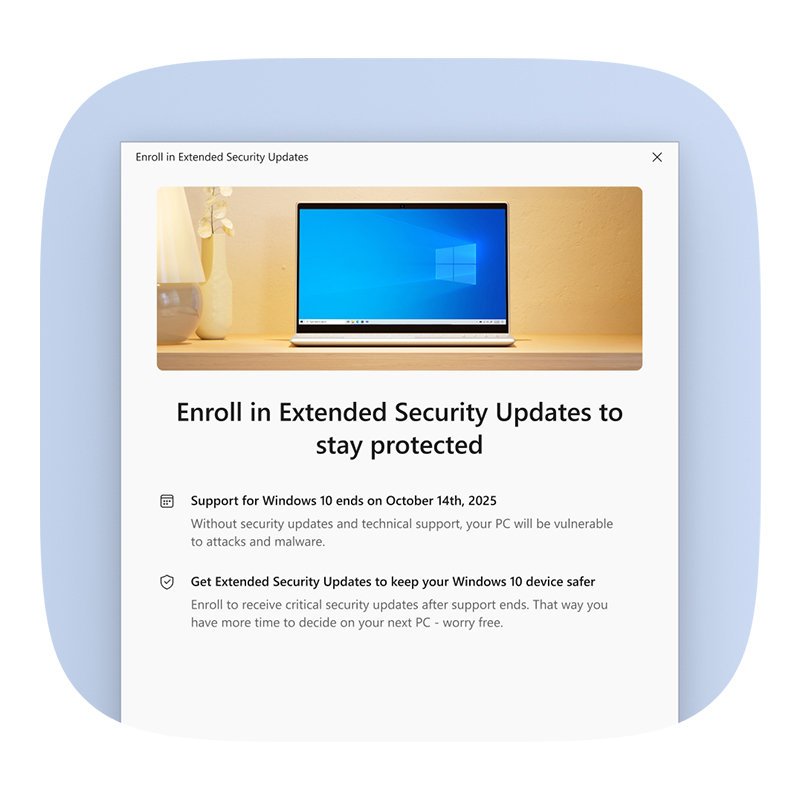
- Return to Windows Update and select Enroll now under the ESU message.
- If you use a local account, sign in with your Microsoft account when prompted.
- If you already back up your PC settings, confirm the enrollment prompt. Otherwise choose the option to back up your settings, which is the no-cost option.
- Finish the prompts and wait for Windows Update to confirm the PC is enrolled.
Enrolled PCs then receive monthly critical and important security updates through Windows Update like any other update.
Windows 10 ESU enrollment options: free, Rewards points or $30
| Your situation | Choose this option | Cost |
|---|---|---|
| You have, or can create, a Microsoft account and are happy to back up settings to it | Sync your PC settings with Windows Backup | Free |
| You have 1,000 or more Microsoft Rewards points | Redeem Rewards points | 1,000 points, and the redemption is final |
| You prefer not to back up settings | One-time purchase | $30 USD or local currency equivalent, plus tax |
| You live in the European Economic Area and stay signed in with a Microsoft account | Remain signed in with that account | Free |
| You live in the EEA and use a local account | One-time purchase | $30 USD or local currency equivalent, plus tax |
Every option covers the PC through October 12, 2027, and one ESU license works on up to 10 PCs signed in with the same Microsoft account.
Windows 10 ESU requirements and eligibility
The device prerequisites and account prerequisites below must all be met before Enroll now appears in Windows Update.
| Requirement | What it means | How to check |
|---|---|---|
| Windows 10, version 22H2 | Home, Pro, Pro Education or Pro for Workstations edition | Settings > System > About, or run winver |
| Latest Windows update | A security update from October 14, 2025 or later must be installed first | Settings > Update & Security > Windows Update > View update history |
| KB5126256 Licensing Preparation Package | Prepares the PC for ESU licensing; it does not enroll the PC by itself | Listed in update history as Extended Security Updates (ESU) Licensing Preparation Package for Windows 10 (KB5126256) |
| Microsoft account with administrator rights | The ESU license is tied to the account used to enroll | Settings > Accounts > Your info shows the signed-in account and its account type |
| Not a child account | A parent enrolls a child's PC as an administrator user on it | Family settings for the account |
| Personal device | No kiosk mode, Active Directory or Microsoft Entra join, or MDM enrollment; Entra registered devices are allowed | Ask your IT team if a work or school manages the PC |
The consumer ESU program can't be used in commercial scenarios, so enrollment is not offered on kiosk PCs, Active Directory or Microsoft Entra joined PCs, or MDM-enrolled PCs. Organizations buy commercial ESU through Microsoft Volume Licensing at $61 USD per device for Year One, and the price doubles each year for up to three years.
Check that your PC runs Windows 10 version 22H2
Windows 10, version 22H2 is the final Windows 10 release, and only it gets the ESU enrollment offer.
- Press Windows key + R, type
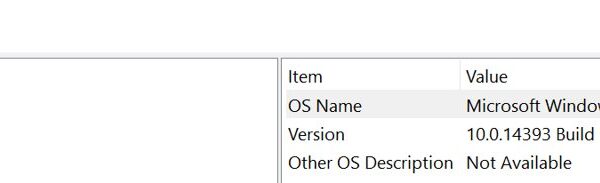
winverand press Enter. - Read the version line. It must show Version 22H2 with an OS build starting 19045.
- Select Start > Settings > System > About and check that Edition shows Home, Pro, Pro Education or Pro for Workstations.
- If the version is older, open Windows Update, select Check for updates and install the 22H2 feature update offered there.
- Restart the PC and run
winveragain to confirm.
Turn on Windows Backup to get ESU at no cost
The free option depends on backing up your PC settings to your Microsoft account. A free Microsoft account includes 5 GB of OneDrive storage.
- Select Start, type
backupand select Windows Backup. - Sign in with your Microsoft account if asked.
- Expand the settings items and toggle each one you want backed up to On.
- Select Back up and wait for the backup to finish.
- Return to Settings > Update & Security > Windows Update and select Enroll now.
You can change what is backed up later under Settings > Accounts > Windows backup > Remember my preferences.
Enroll more Windows 10 PCs with the same ESU license
One enrollment covers up to 10 PCs that use the same Microsoft account. Each extra PC must meet the same requirements.
- On the next PC, open Settings > Update & Security > Windows Update.
- Install all updates so KB5126256 is present.
- Select Enroll now.
- If the PC is signed in with the same Microsoft account, select Add device.
- If it is not, sign in with the Microsoft account that enrolled the first PC when prompted.
Other user accounts on an enrolled PC do not need to enroll. Once one user enrolls, every user on that PC is protected.
Install and activate the Windows 10 ESU MAK key for businesses
Organizations that buy commercial ESU activate each Windows 10, version 22H2 PC with a Multiple Activation Key (MAK) instead of the Enroll now button. The PC needs KB5066791 or a later update, the commercial ESU Licensing Preparation Package KB5072653, and administrator rights.
To locate the MAK, an account with the Product Key Reader or VL Administrator role opens the Microsoft 365 admin center, goes to Billing > Your Products > Volume licensing, selects View contracts, then View product keys on the ESU contract.
- Open an elevated Command Prompt on the PC.
- Install the key with
slmgr.vbs /ipk <ESU MAK>and wait for the message that the product key installed successfully. - Activate it with
slmgr.vbs /ato <Activation ID>, usingf520e45e-7413-4a34-a497-d2765967d094for Win10 ESU Year1,1043add5-23b1-4afb-9a0f-64343c8f3f8dfor Year2 or83d49986-add3-41d7-ba33-87c7bfb5c0fbfor Year3. - Run
slmgr.vbs /dlvand confirm the ESU program name shows License Status: Licensed.
To activate ESU keys by phone on a PC without internet access, install the key, run slmgr.vbs /dti <Activation ID> to get the Installation ID, get a Confirmation ID from the Microsoft Product Activation portal on another computer, then run slmgr.vbs /atp <Confirmation ID> <Activation ID> with no spaces in the Confirmation ID.
To activate large numbers of devices that don't have internet access, use the Volume Activation Management Tool (VAMT) proxy activation with the latest ADK and the VAMT update for Windows 10 ESU MAK keys. Adding activations to Windows 10 ESU keys, for example after reimaging, needs a request to raise the MAK activation limit.
How to check Windows 10 ESU enrollment status
- Select Start > Settings > Update & Security > Windows Update.
- Read the ESU status message on the page. It states whether the PC is enrolled.
- Select View update history and confirm monthly security updates released after enrollment are installed.
- If you paid, check your Microsoft account Order history for the ESU purchase.
What is Windows 10 Extended Security Updates (ESU)?
ESU is Microsoft's program that keeps delivering security fixes to Windows 10, version 22H2 PCs after Windows 10 support ended on October 14, 2025. It is a bridge while you move to Windows 11, not a return of full support.
| Question | Answer |
|---|---|
| What it includes | Critical and important security updates, as rated by the Microsoft Security Response Center, delivered monthly through Windows Update |
| What it does not include | Feature updates, non-security fixes, design changes or technical support |
| End date | October 12, 2027; existing enrollments continue automatically to that date |
| Why the extension to 2027 | Personal-use ESU first covered one year after support ended; on June 25, 2026 Microsoft added an additional year to give people more time to move to a new Windows 11 PC |
| Enrollment deadline | Any time until October 12, 2027, though the PC is more exposed before you enroll |
| Upgrading later | Enrolling does not block a Windows 11 upgrade on eligible hardware |
| Who it is for | Personal PCs; organizations use the commercial ESU program instead |
Limitations: ESU adds no new features, no customer-requested non-security updates and no design changes. For organizations, Microsoft support covers only ESU license activation, installation and regressions caused by ESU itself.
Windows 10 ESU security updates released every month since launch
Microsoft has delivered a Windows 10, version 22H2 security update in every month since ESU launched after the October 14, 2025 end of support. Enrolled PCs get them through Windows Update; the out-of-band fixes arrived between the regular releases.
| Month | Monthly security update | Extra out-of-band updates |
|---|---|---|
| October 2025 | KB5066791 (October 14, the last update before ESU) | None |
| November 2025 | KB5068781 (November 11) | KB5071959 (November 11) |
| December 2025 | KB5071546 (December 9) | KB5074976 (December 18) |
| January 2026 | KB5073724 (January 13) | KB5077796 (January 17), KB5078129 (January 24) |
| February 2026 | KB5075912 (February 10) | None |
| March 2026 | KB5078885 (March 10) | None |
| April 2026 | KB5082200 (April 14) | None |
| May 2026 | KB5087544 (May 12) | None |
| June 2026 | KB5094127 (June 9) | None |
| July 2026 | KB5099539 (July 14) | None |
| August 2026 | KB5120249 (August 11) | None |
| September 2026 | KB5122878 (September 8) | KB5129236 (September 14) |
| October 2026 | KB5126657 (October 13) | None |
A Windows 10 PC that is not enrolled stopped receiving these updates after October 2025, so every month without ESU adds unpatched vulnerabilities.
Does Windows 10 ESU get Secure Boot certificate updates?
Yes. Secure Boot certificates used by most Windows devices started to expire in June 2026, and Microsoft installs the newer certificates through Windows updates. Microsoft states that only supported Windows versions get the certificates, which is another reason ESU-enrolled PCs are better off.
| Windows 10 PC | Secure Boot certificate updates | What to do |
|---|---|---|
| Enrolled in ESU | Delivered with the monthly ESU updates; the August 11, 2026 update KB5120249 widened the devices eligible to receive the new certificates automatically | Keep installing ESU updates from Windows Update |
| Not enrolled in ESU | No longer a supported version, so it does not get the certificates | Enroll in ESU or upgrade to Windows 11 |
| Not yet updated | Still starts, and standard Windows updates continue to install | Leave Windows Update on so the certificates arrive in the coming months |
Why the Enroll now link does not appear in Windows Update
Windows Update only shows the ESU link when the PC meets every prerequisite. Match what you see to a row below.
| Likely reason | What to do |
|---|---|
| Windows 10 is older than 22H2 | Install the 22H2 feature update from Windows Update |
| Updates are not current or KB5126256 is missing | Select Check for updates, install everything, and restart |
| The PC is joined to a domain or Microsoft Entra, managed by MDM, or in kiosk mode | Consumer ESU is not offered; your organization must use commercial ESU |
| The account is a child account | Have a parent or other adult with an administrator account on the PC enroll it |
| The PC already has an ESU license | No action needed; check the status message on Windows Update |
| You are on Windows 10 Enterprise or Education | These editions are not in the consumer program |
Windows 10 ESU in the EEA: what changes
In the European Economic Area, stay signed in to the PC with the Microsoft account you enrolled with to keep ESU free; local-account users pay the one-time $30 fee instead. Microsoft states that if you stop signing in with that Microsoft account, ESU updates stop for the device after a period of up to 60 days. The updates themselves are the same in every region.
Windows 10 ESU FAQ
Is Windows 10 Extended Security Updates free?
Yes, for most home users. ESU is free if you back up your PC settings to a Microsoft account with Windows Backup, or if you redeem 1,000 Microsoft Rewards points. Otherwise it is a one-time $30 USD purchase plus tax.
How do I extend Windows 10 security updates?
Enroll the PC in the consumer ESU program. Open Settings > Update & Security > Windows Update, install all updates, select Enroll now and choose the free settings-backup option, Rewards points, or the one-time purchase.
What is Windows 10 Extended Security Updates?
It is a Microsoft program that provides critical and important security updates for Windows 10, version 22H2 after support ended on October 14, 2025. It adds no new features or technical support and runs until October 12, 2027.
When does Windows 10 ESU end?
The consumer ESU program ends on October 12, 2027. PCs already enrolled keep receiving security updates until that date with no further action, and new PCs can still enroll at any point before it.
How much does Windows 10 ESU cost?
There are three options: free when syncing PC settings, 1,000 Microsoft Rewards points, or a one-time purchase of $30 USD or the local currency equivalent plus tax. All three cover up to 10 PCs on the same account.
Can I upgrade to Windows 11 after enrolling in ESU?
Yes. Enrolling in ESU does not stop you from upgrading to Windows 11, provided the PC hardware meets the Windows 11 requirements, which the PC Health Check app can confirm.
Do all users on my PC need to enroll in ESU?
No. Once any user on a Windows 10 PC enrolls, every other user on that PC is protected too. Each separate Windows 10 PC still needs its own enrollment, which can share one license on up to 10 devices.
Do I need to download Windows 10 ESU updates manually?
No. The KB5126256 preparation package and the monthly ESU security updates install through Windows Update. You only need to keep Windows Update running and complete the Enroll now step once.
Can I get a refund for Windows 10 ESU?
Purchases follow Microsoft's refund policy for digital purchases in your country. Enrollment through settings backup costs nothing, so there is nothing to refund, and Microsoft Rewards redemptions are final.
Bottom line: is free Windows 10 ESU worth it?
Enroll every Windows 10 PC you still use through the free Windows Backup option now, and plan the move to Windows 11 before October 12, 2027. Without ESU the PC gets no security fixes at all, enrollment takes a few minutes, and the free option costs nothing beyond backing up settings to an account most users already have.