The Apex Legends download for PC is free on Windows 11 and Windows 10 through the EA app, Steam or the Epic Games Store. Pick one launcher, add the game to your library, and the full battle royale installs at no cost.
Respawn Entertainment develops Apex Legends and Electronic Arts publishes it. The same free game runs on PlayStation 4, PlayStation 5, Xbox One, Xbox Series X|S and Nintendo Switch, with cross-platform play turned on by default.
This guide covers which launcher to use, the official links, install steps, PC requirements, Mac options and fixes for failed installs.
Which Apex Legends download do you need?
Every platform gets the game from its own store. Match your device to a row and use that link.
| Your device | Where to get it | Space it needs |
|---|---|---|
| Windows 11 or Windows 10 PC, 64-bit, no launcher yet | Apex Legends on the EA app | 75 GB |
| Windows PC that already runs Steam | Apex Legends on Steam | 75 GB, plus about 3.8 GB per extra language |
| Windows PC that already runs the Epic Games Launcher | Apex Legends on the Epic Games Store | 75 GB |
| PlayStation 4, PlayStation 5 or Xbox | Search the console store for Apex Legends, then select Download or Install | Shown on the console |
| Nintendo Switch 2 | Search the Nintendo eShop for Apex Legends, then select Download | At least 80 GB |
| Mac | Steam platform list (Windows only) | No macOS build |
The 75 GB figure is the storage EA lists for Windows. Each launcher downloads the game itself, so there is no standalone installer.

Download Apex Legends from the official stores
Respawn and Electronic Arts appear as developer and publisher on every official listing.
- Apex Legends download page on ea.com — Free, pick EA app, Steam or Epic for PC
- Get Apex Legends in the EA app — Adds the free game to your EA Account
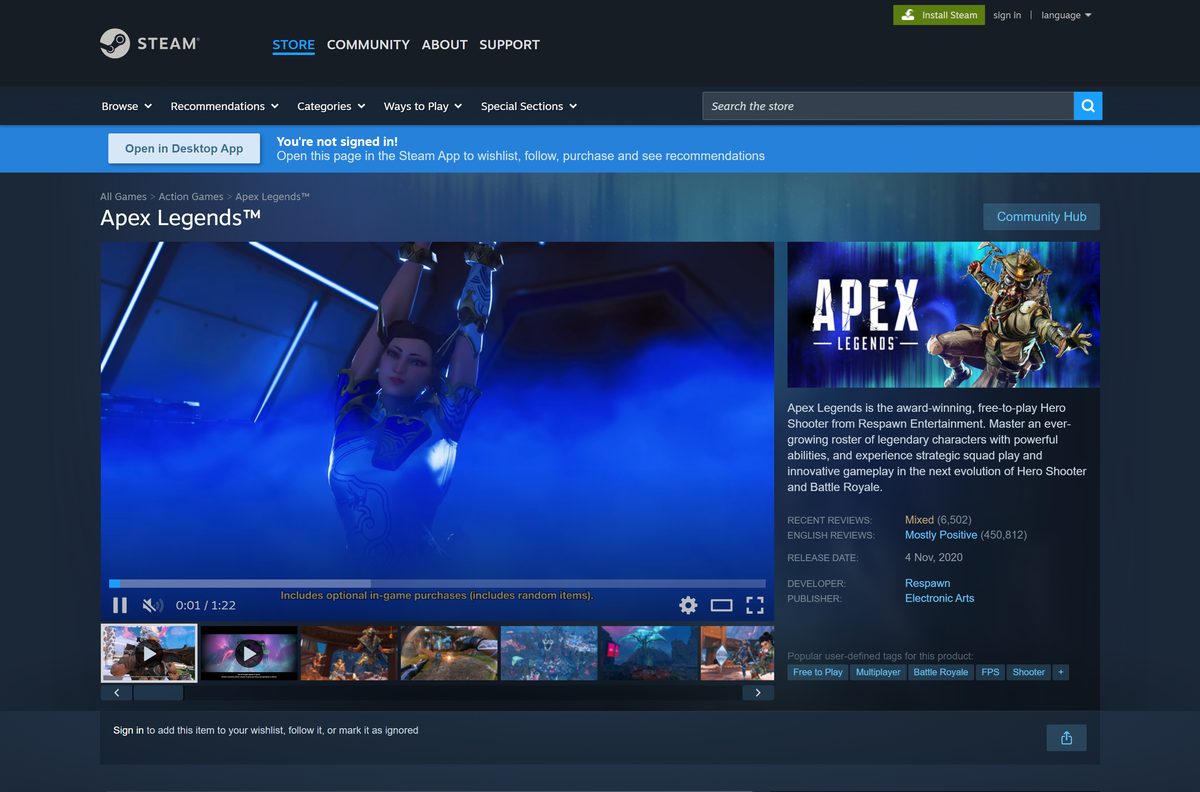
- Apex Legends on Steam — Windows only, free-to-play with in-app purchases
- Apex Legends on the Epic Games Store — Linked from ea.com, free
- How to download Apex Legends (EA Help) — Official steps for PC, PlayStation, Xbox and Switch 2
- Apex Legends official site — Season news, patch notes and store links
Every route needs an EA Account. Your game progress is tied to that account and cannot be moved to another one, so sign in with the account you plan to keep.
How to install Apex Legends on Windows 11 and 10 with the EA app
The EA app is Electronic Arts’ own PC launcher. Install it first from ea.com, then follow these steps.
- Download and install the EA app if it is not already on your PC.
- Open the EA app and log in to your EA Account.
- Add Apex Legends to your account from the ea.com download page.
- Go to your Library.
- Find Apex Legends, then select the arrow in the bottom-right corner of its tile.
- Confirm your Install location and Language preferences, then select Next.
- Read and accept the terms of play.
- Select Download and wait for the 75 GB install to finish.
- Select Play to launch the game and finish setting up your EA Account.
Pick a drive formatted as NTFS. A drive formatted as FAT32 cannot hold files larger than 4 GB, and EA notes that downloads stall at 4 GB on those drives.
Install Apex Legends from Steam or the Epic Games Store
Steam and Epic install the same free game. Use whichever launcher you already have, and link your EA Account when the game asks for it.
Install with Steam
Steam lists Apex Legends as free-to-play for Windows, with in-app purchases.
- Launch Steam and sign in.
- Search for Apex Legends in the Store.
- Select Play Game on the store page.
- Select Install, choose a drive with at least 75 GB free, and confirm.
- Launch the game from your Library and link your EA Account when prompted.
Install with the Epic Games Store
Epic lists the game at no cost, and ea.com links to the listing directly.
- Open the Epic Games Launcher and sign in.
- Search for Apex Legends.
- Select Get to add the free game to your library.
- Open your Library, select Apex Legends and choose an install location.
- Launch the game when the download completes and link your EA Account.
Should you use the EA app, Steam or Epic for Apex Legends?
All three PC launchers install the same game with the same system requirements. Progress lives on your EA Account, not in the launcher.
Install through the launcher you already use; pick the EA app only if you have neither Steam nor Epic. EA’s FAQ confirms that account progression and unlocks carry over when a player moves between the EA app and Steam. Running a second launcher adds nothing except another background program and another set of updates.
Which way can you play Apex Legends on a Mac?
Apex Legends has no macOS version. Steam lists Windows as its only platform, and EA’s download page offers no Mac build in any launcher.
The EA app itself runs on macOS, but Apex Legends does not appear as a Mac download inside it.
| Your situation | What to do | Link |
|---|---|---|
| Mac, plus a Windows 10 or 11 PC in the house | Install the free game on the PC through any of the three launchers | ea.com download page |
| Mac, plus a PlayStation, Xbox or Nintendo Switch 2 | Download the free console version from that console’s store | EA console download steps |
| Mac only | There is no native way to play; check the platform list before buying hardware | Steam platform list |
Is Apex Legends free to download and play?
The base game costs nothing on PC, PlayStation, Xbox and Nintendo Switch. Money only changes hands for optional in-game items.
Yes. Apex Legends is free-to-play, and nobody legitimate charges for the base game. EA’s FAQ states the game is free on PlayStation 4, PlayStation 5, Xbox One, Xbox Series X|S, Nintendo Switch, the EA app and Steam. Steam lists it as free with in-app purchases. Consoles can require a platform subscription for online play, which is sold separately by the console maker.
Treat any site selling an Apex Legends setup file or a paid full-version download as a scam.
How to check the Apex Legends season and install the latest update
Apex Legends is a live-service game. The current season is Season 30: Marked, and its midseason update, 30.1, arrived on September 14, 2026.
- Open the Apex Legends site and read the newest patch notes under News.
- Close Apex Legends completely.
- Restart the EA app, Steam or the Epic Games Launcher so it checks for the new build.
- Open your Library and select Apex Legends.
- Let the pending update finish before you select Play.
- Run Repair in the EA app or Verify integrity of game files in Steam if the game still reports it is out of date.
Check the Apex Legends PC system requirements before you download
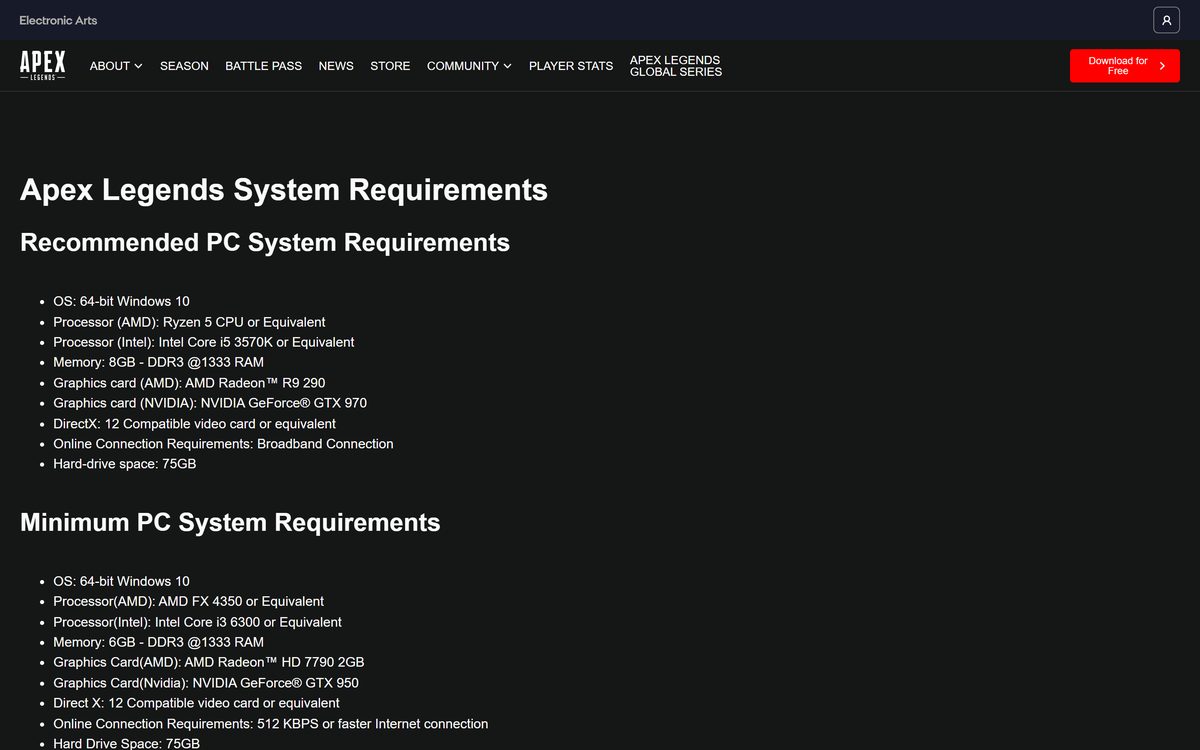
EA and Steam list the same Windows requirements. Meet the recommended column for steadier frame rates in online matches.
| Field | Value |
|---|---|
| Game | Apex Legends |
| Developer | Respawn Entertainment |
| Publisher | Electronic Arts |
| Latest version | Season 30: Marked (30.1 midseason update) |
| Price | Free-to-play, optional in-game purchases |
| Supported OS | 64-bit Windows 10 or later; no macOS or Linux version |
| Architecture | 64-bit (x64) only |
| Processor | AMD FX 4350 or Intel Core i3 6300 minimum; Ryzen 5 or Intel Core i5 3570K recommended |
| Memory | 6 GB RAM minimum, 8 GB recommended |
| Graphics | AMD Radeon HD 7790 (2 GB) or NVIDIA GeForce GTX 950 minimum; AMD Radeon R9 290 or NVIDIA GeForce GTX 970 recommended |
| DirectX | DirectX 12 compatible video card |
| Network | 512 Kbps or faster minimum, broadband recommended; always online |
| Storage | 75 GB available space |
| Offline installer | No, the EA app, Steam or Epic downloads the game |
| Official sources | EA app, Steam, Epic Games Store |
| Last verified | 2026-09-19 |
To check your own PC, open Settings, select System, then About. The Installed RAM and System type lines show your memory and whether Windows is 64-bit.
How to verify and repair the Apex Legends game files
There is no setup file to checksum, because each launcher downloads the game itself. Instead, both launchers can check every installed file and replace damaged ones without touching your progress.
Repair in the EA app
EA recommends this first for crashes, r5apex.exe errors and anti-cheat integrity errors.
- Open the EA app and go to your Library.
- Find Apex Legends and select the Manage icon, the three dots in the upper-right corner of the tile.
- Choose Repair.
- Launch the game again once the repair finishes.
Verify in Steam
Steam compares the installed files with the current build and redownloads anything that does not match.
- Restart your computer and launch Steam.
- Right-click Apex Legends in your Library.
- Select Properties.
- Open the Installed Files tab and select Verify integrity of game files.
- Wait for the check to finish, then launch the game.
Fix Apex Legends not downloading, installing or launching on Windows 11 or 10
Find the symptom that matches your screen and follow the fix under it.
The download stops at 4 GB
The target drive is formatted as FAT32, which cannot store a file larger than 4 GB.
- Open File Explorer and right-click the drive you picked.
- Select Properties and read the File system line.
- Choose a drive formatted as NTFS as the install location instead.
- Restart the download in the launcher.
The install fails with a Create Folder Error
Windows permissions block the launcher from writing to the game folder.
- Open File Explorer and right-click the game folder.
- On the Security tab, select Advanced.
- Confirm that the SYSTEM account has full control.
- If it does not, go back to Security, select Edit, choose SYSTEM, check Allow next to Full control and select Apply.
- Right-click the EA app and select Run as administrator, then start the install again.
Error code 30005 or the anti-cheat fails to launch
Easy Anti-Cheat did not start, usually because of a damaged anti-cheat file.
- Repair the game in the EA app or verify the files in Steam.
- Open C:\Program Files (x86)\EasyAntiCheat in File Explorer.
- Delete the .sys file in that folder.
- Restart your PC and launch the game.
The game will not launch or the EA app is stuck on preparing
A stale launcher cache, the in-game overlay or a background program is blocking the start.
- In the EA app, go to Help, choose App Recovery, then select Clear Cache.
- Select your profile picture, open Settings, choose Application and turn off In-game overlay.
- Close background programs, then install pending Windows and graphics driver updates.
- Clean boot Windows and launch the game again.
How to uninstall Apex Legends on PC
Uninstalling removes the 75 GB of game files but not your progress, which stays on your EA Account. Use the launcher you installed from.
- Open the EA app and log in.
- Choose Apex Legends in your library.
- Select Manage.
- Choose Uninstall from the dropdown.
- Select Yes if asked to confirm.
- If the EA app cannot remove it, open Control Panel, select Uninstall a program, right-click Apex Legends and choose Uninstall.
Frequently asked questions
Is Apex Legends free to download on PC?
Yes. Apex Legends is free-to-play on Windows through the EA app, Steam and the Epic Games Store. Optional purchases such as cosmetics and the battle pass are extras, not a price for the game.
Where is the official Apex Legends download for PC?
Start at the Apex Legends page on ea.com, which links to the EA app, Steam and the Epic Games Store. Respawn Entertainment develops the game and Electronic Arts publishes it on every official listing.
Does Apex Legends work on Windows 11?
EA lists 64-bit Windows 10 as the minimum operating system, and Windows 11 is a 64-bit release that exceeds that minimum. Your graphics card still needs DirectX 12 support and at least a GeForce GTX 950 or Radeon HD 7790.
How big is the Apex Legends download on PC?
Plan for 75 GB. EA and Steam both list 75 GB of available storage for Windows, and Steam adds about 3.8 GB for each extra localized language. The Nintendo Switch 2 version needs at least 80 GB.
Is there an Apex Legends offline installer?
No. The EA app, Steam or the Epic Games Launcher downloads the game over the internet, and EA offers no standalone setup file. A site offering a full offline setup is not an official source.
Can you play Apex Legends offline?
No. EA states that a persistent internet connection and an EA Account are required to play. Without a connection, the game cannot sign in to its servers.
Can you download Apex Legends on a Mac?
No. Steam lists Windows as the only supported platform, and EA offers no macOS build in any launcher. Mac owners can play the free console version on PlayStation, Xbox or Nintendo Switch 2 instead.
Is Apex Legends 64-bit only?
Yes. EA lists 64-bit Windows 10, and Steam states the game requires a 64-bit processor and operating system. Check System type under Settings, System, About to confirm your PC is 64-bit.
Is it safe to download Apex Legends?
Yes, from the official stores. The EA app, Steam and the Epic Games Store all list Electronic Arts as publisher. Avoid download sites offering a setup file and any page asking for your EA Account password.
What is the latest version of Apex Legends?
Apex Legends is in Season 30: Marked, and the 30.1 midseason update arrived on September 14, 2026. Restart your launcher to pull the newest build before you play.
Why won’t Apex Legends install on my PC?
The usual causes are a FAT32 drive that stops downloads at 4 GB, less than 75 GB of free space, or folder permissions. Pick an NTFS drive, free up space and run the EA app as administrator.