Google Chrome has no classic File, Edit, View menu bar on Windows, Linux or ChromeOS; its main menu is the three-dot More button at the top right of the window.
On a Mac, Chrome also uses the macOS menu bar at the top of the screen. This guide shows where each Chrome menu lives, how to open it from the keyboard, and how to bring back bars that have disappeared.
Where is Chrome’s menu on Windows and Linux?
The Chrome menu is the vertical three-dot icon labelled More, at the right end of the address bar row. Google’s own help pages call it More in every desktop instruction.
- Open Chrome on your computer.
- Look at the top right of the window, to the right of the address bar and your profile picture.
- Select More (the three vertical dots) to open the Chrome menu.
- Pick an item such as Settings, Bookmarks and lists, Delete browsing data or Help.
- Press Esc or click anywhere on the page to close the menu without choosing anything.
Linux builds of Chrome use the same More button and the same layout as Windows.
Which Chrome control should you use?
| What you want to do | Use this Chrome control | Where it is |
|---|---|---|
| Open Settings, History, Downloads or Help | Chrome menu | More (three dots) at the top right |
| Open a saved site in one click | Bookmarks bar | Below the address bar; toggle with Ctrl + Shift + B |
| Pin Downloads, History or other buttons beside the address bar | Toolbar | More > More tools > Customize Chrome > Toolbar |
| Use File, Edit or Window menus | macOS menu bar (Mac only) | Top edge of the Mac screen while Chrome is active |
| Reach the menu with no mouse | Keyboard shortcut | Alt + F, Alt + E or F10 on Windows and Linux |
| Change an installed web app | App window menu | More at the top right of the app window |
What does “menu bar” mean in Chrome?
People use “menu bar” for three different things in Chrome. The table matches each meaning to what Chrome actually has.
| What people mean | Does Chrome have it? | What to use instead |
|---|---|---|
| A row of File, Edit, View, Help menus inside the browser window | No, not on Windows, Linux or ChromeOS | The More menu at the top right |
| The menu strip at the top of a Mac screen | Yes, on macOS | Click the menus while Chrome is the active app |
| The strip of saved sites under the address bar | Yes, called the bookmarks bar | More > Bookmarks and lists > Show bookmarks bar |
| The row with Back, Forward, Reload and the address bar | Yes, called the toolbar | Customise it from More > More tools > Customize Chrome |
Does Chrome have a menu bar on ChromeOS?
No. A Chromebook has no menu bar at the top of the screen; it has a shelf with a launcher and a status area at the bottom. Inside the Chrome browser window, the More button at the top right is the menu, the same as on Windows.
| What you need on a Chromebook | Where or how |
|---|---|
| Chrome browser menu | More (three dots) at the top right of the Chrome window |
| Show or hide the bookmarks bar | Ctrl + Shift + B |
| Show the toolbar or highlight the address bar row | Alt + Shift + T |
| Open the status area (where the time appears) | Shift + Alt + S |
| Highlight the launcher button on the shelf | Shift + Alt + L |
| Maximise the Chrome window | Alt + = |
| Check the Chrome version | More > Help > About Google Chrome |
Does Chrome have a menu bar on a Mac?
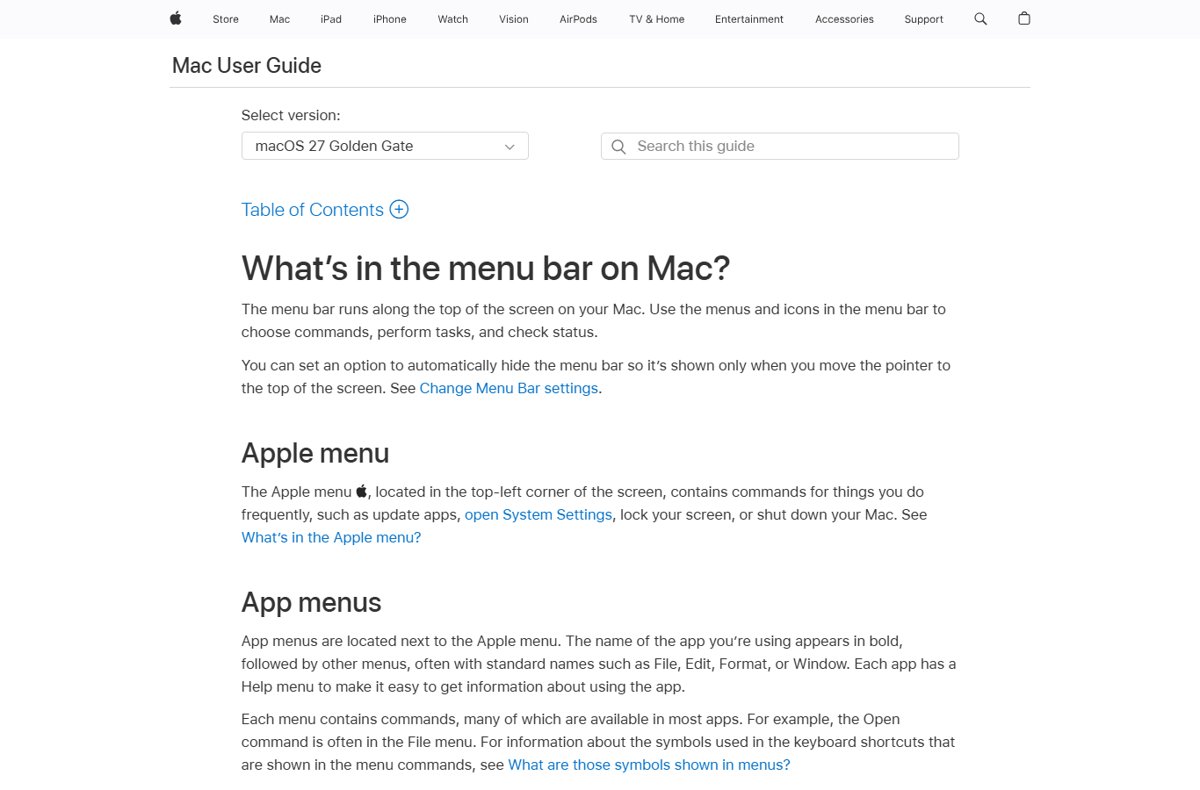
Yes. On a Mac, the menu bar runs along the top of the screen, not inside the Chrome window. When Chrome is the active app, its name appears in bold next to the Apple menu, followed by menus such as File, Edit and Window, plus a Help menu.
The three-dot More button still sits at the top right of the Chrome window, so both menus are available on a Mac.
| Task on a Mac | Shortcut or location |
|---|---|
| See Chrome’s menu bar | Click any Chrome window, then look at the top edge of the screen |
| Open Chrome Settings | ⌘ + , (Command + comma) |
| Jump to the main menu bar from the keyboard | Control + F2 |
| Show or hide the bookmarks bar | ⌘ + Shift + B |
| Open History | ⌘ + Y |
| Open Downloads | ⌘ + Shift + J |
| Open the Bookmark Manager | ⌘ + Option + B |
| Turn full-screen mode on or off | Fn + F, or press and hold Esc to exit |
Some keyboard navigation on a Mac needs Full Keyboard Access turned on in macOS, according to Google’s shortcut list.
What is the difference between Chrome’s menu, menu bar, bookmarks bar, and toolbar?
| Element | What it looks like | What it holds | Platforms |
|---|---|---|---|
| Chrome menu | Three vertical dots labelled More | Settings, bookmarks, history, downloads, delete browsing data, help, install page as app | Windows, Mac, Linux, ChromeOS |
| Menu bar | Text menus at the top of the screen | App menu plus File, Edit, Window, Help and others | Mac only |
| Bookmarks bar | Strip of site names and folders under the address bar | Saved sites and bookmark folders | All desktop platforms |
| Toolbar | Row with Back, Forward, Reload, address bar and pinned buttons | Navigation buttons, extensions and buttons you pin | All desktop platforms |
Google has trimmed and reorganised the More menu several times, including when it simplified the Chrome menu in 2015, so older screenshots may show different item names.
How do you open Chrome’s menu without a mouse?
On Windows and Linux, Google lists two keyboard routes into the Chrome menu. Google lists no direct shortcut for the menu on a Mac or a Chromebook.
- Click once inside the Chrome window so it has keyboard focus.
- Press Alt + F or Alt + E to open the Chrome menu directly.
- Alternatively, press F10 to focus the rightmost toolbar item, which is the More button, then press Enter.
- Use the Up and Down arrow keys to move through the menu items.
- Press Enter to choose the highlighted item, or Esc to close the menu.
To start at the other end of the toolbar, press Shift + Alt + T, which focuses the first toolbar item.
How do you show the bookmarks bar?
The bookmarks bar is the closest thing Chrome has to a row of menus inside the window. It gives one-click access to saved sites and bookmark folders.
- Open Chrome on your computer.
- Select More at the top right.
- Select Bookmarks and lists.
- Select Show bookmarks bar so a tick appears next to it.
- To add a folder to the bar, right-click the bookmarks bar and select Add Folder.
The bookmarks bar shortcut Ctrl + Shift + B (or ⌘ + Shift + B on a Mac) toggles the same setting in one step.
Where is the Chrome settings menu?
Chrome Settings opens as a page in a new tab, reached from the Chrome menu rather than a separate settings bar.
- Open Chrome on your computer.
- Select More (three dots) at the top right.
- Select Settings.
- Use the left-hand list, for example Privacy and security or Reset settings, to find the section you need.
- On a Mac, press ⌘ + , to open the same Settings page from the keyboard.
How to customize the Chrome toolbar
If you want common commands visible all the time instead of hidden in the menu, pin them to the toolbar. Extensions also have their own toolbar menu, a change Chrome first trialled as a separate menu for extensions.
- Select More at the top right of Chrome.
- Select More tools > Customize Chrome.
- In the Customize Chrome side panel, select Toolbar.
- Turn on each button you want in the toolbar; the first one you choose shows first.
- Drag a pinned button in the toolbar to change its position.
- To remove a button, right-click it and select Unpin, or select Reset to default to start over.
How to check Chrome’s menu and bars are back
- Confirm the three-dot More button is visible at the top right of the window.
- Select More > Help > About Google Chrome to prove the menu opens and to see your Chrome version.
- Check that the bookmarks bar shows under the address bar, if you turned it on.
- On a Mac, click the Chrome window and confirm the menu bar shows Chrome, File, Edit and Help at the top of the screen.
What should you do if all of Chrome’s browser bars have disappeared?
Start with full screen, because it hides every bar at once and is the most common cause.
No tabs, address bar or menu button anywhere
Chrome is in full-screen mode, which hides the toolbar and tab strip.
- Press F11 on Windows or Linux, or Fn + F on a Mac.
- If that does nothing, press and hold Esc until the bars return.
- On a Mac, you can also hold the pointer over the green window button and choose Exit Full Screen.
Only the bookmarks bar is missing
The bookmarks bar setting is turned off.
- Press Ctrl + Shift + B (or ⌘ + Shift + B on a Mac).
- If you prefer the menu, select More > Bookmarks and lists > Show bookmarks bar.
The window has no tabs or address bar, only a title and a three-dot button
You are in an installed web app window, not a normal Chrome window.
- Select More at the top right of the app window to see the app’s own menu, including App info > Settings.
- Open Chrome itself from the taskbar, Start menu, Dock or shelf to get a full browser window with tabs and the toolbar.
The Mac menu bar at the very top of the screen is missing
macOS hides the menu bar in full screen, or the menu bar is set to hide automatically.
- Move the pointer to the top edge of the screen to reveal the menu bar.
- To keep it visible, open System Settings and change Automatically hide and show the menu bar to Never.
The Settings menu is missing or will not open
Chrome has a problem, or an installed program is changing Chrome’s settings.
- Select More > Settings > Reset settings > Restore settings to their original defaults > Reset settings. Bookmarks and passwords are kept.
- If Settings still will not open, uninstall Chrome, then download it again from google.com/chrome and reinstall it.
- Remove any recently installed program that you did not intend to change your browser.
Can Chrome restore a classic File/Edit/View menu bar?
No. Chrome has no setting, flag or menu option that adds a File, Edit, View menu bar to the browser window on Windows, Linux or ChromeOS. Google built Chrome around the single More menu. On a Mac, the macOS menu bar already supplies File, Edit and Window menus. Everywhere else, the closest equivalents are the bookmarks bar and buttons pinned through Customize Chrome > Toolbar.
Chrome menu bar frequently asked questions
Where is the Chrome menu?
The Chrome menu is the three-dot More button at the top right of the browser window, to the right of the address bar. It holds Settings, bookmarks, history, downloads and the Help submenu on Windows, Mac, Linux and ChromeOS.
Which is the Chrome menu icon?
The Chrome menu icon is three vertical dots, which Google’s help pages call More. It sits at the far right of the toolbar row, after the address bar, any pinned buttons and your profile picture, on Windows, Mac, Linux and ChromeOS.
Where is the Chrome settings menu?
Select More (three dots) at the top right, then select Settings. Settings opens as a page in a new tab. On a Mac, ⌘ + , opens the same page from the keyboard.
How do I get a menu bar in Chrome?
On Windows, Linux and ChromeOS you cannot add a classic menu bar to Chrome. Use the More menu instead, and turn on the bookmarks bar with Ctrl + Shift + B. On a Mac, Chrome’s menu bar is the strip at the top of the screen.
Where is the Google Chrome menu bar on a Mac?
On a Mac, Chrome’s menu bar sits along the top of the screen, not inside the browser window. Click a Chrome window first; the bold Chrome name then appears next to the Apple menu, followed by File, Edit, Window and Help.
Where is the File menu in Chrome?
Only Mac Chrome has a File menu, in the macOS menu bar at the top of the screen. On Windows, Linux and ChromeOS, the commands a File menu would hold are collected in the More menu at the top right of the Chrome window.
How do I open Chrome’s menu with the keyboard?
On Windows and Linux, press Alt + F or Alt + E to open the Chrome menu. F10 focuses the rightmost toolbar item, the More button, so you can open it with Enter. Google lists no equivalent shortcut for Mac or ChromeOS.
Why did my Chrome toolbar disappear?
The usual cause is full-screen mode, which hides the toolbar and tabs. Press F11 on Windows or Linux, or Fn + F on a Mac, or press and hold Esc. An installed web app window also shows no address bar.
Is the three-dot button Chrome’s menu bar?
The three-dot More button is Chrome’s main menu, not a menu bar. It replaces the File, Edit and View menus of older browsers by collecting their commands into one drop-down list at the top right of the window.
The bottom line on Chrome’s menu bar
Use the three-dot More button at the top right as Chrome’s menu on every platform, and add the bookmarks bar or pinned toolbar buttons if you want one-click access. Chrome has a true menu bar only on a Mac, where macOS supplies it. On Windows, Linux and ChromeOS, everything a menu bar would hold is inside More, and Alt + F opens it from the keyboard.