The CTRL commands you will use most on a Windows 11 computer are Ctrl+C to copy, Ctrl+V to paste, Ctrl+X to cut, Ctrl+Z to undo, Ctrl+A to select all and Ctrl+S to save.
Below are the full Ctrl shortcut lists for text editing, the desktop, File Explorer, dialog boxes, Command Prompt and Microsoft Edge, plus fixes when Ctrl+Shift+Arrow or the Windows key stops responding.
The ten Ctrl shortcuts that work almost everywhere
These combinations work in most Windows 11 apps, from Notepad and Word to browsers and File Explorer. Hold Ctrl, press the letter, then release both.
| Press | What it does |
|---|---|
| Ctrl+C | Copy the selected text or item |
| Ctrl+X | Cut the selected text or item |
| Ctrl+V | Paste the last item from the clipboard |
| Ctrl+Z | Undo the last action |
| Ctrl+Y | Redo an action undone with Ctrl+Z |
| Ctrl+A | Select all text or all items in a window |
| Ctrl+S | Save the current file in most apps |
| Ctrl+F | Find text |
| Ctrl+P | |
| Ctrl+N | Open a new document or window |
Apps can change what a shortcut does, so treat these as defaults rather than guarantees. Ctrl+S, Ctrl+P and Ctrl+N belong to the app you are using, not to Windows itself.
CTRL commands in Windows 11/10
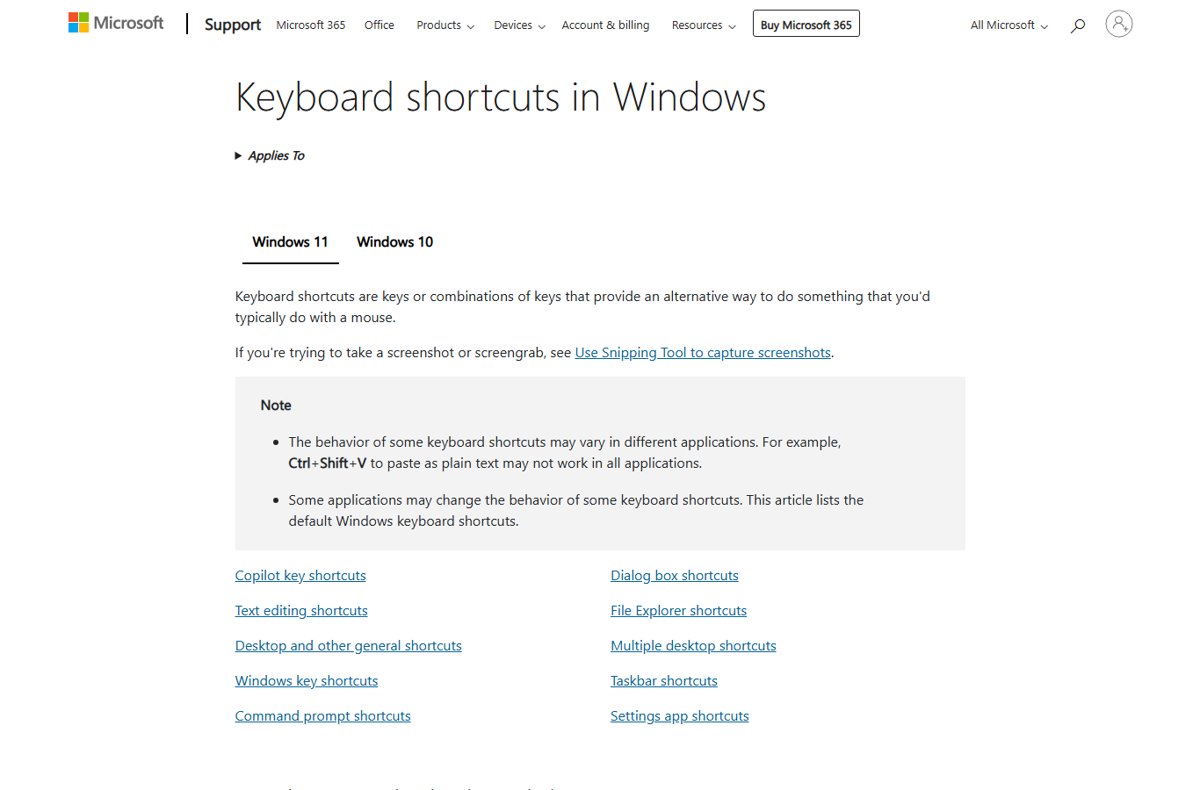
These are the text-editing Ctrl shortcuts Windows 11 and Windows 10 provide by default. They work in text boxes, Notepad, Word and most editors.
| Press | What it does |
|---|---|
| Ctrl+B | Apply bold to the selected text |
| Ctrl+I | Apply italic to the selected text |
| Ctrl+U | Apply underline to the selected text |
| Ctrl+H | Find and replace text |
| Ctrl+Shift+V | Paste as plain text (not every app supports it) |
| Ctrl+Insert | Copy the selected text |
| Ctrl+Backspace | Delete the word to the left of the cursor |
| Ctrl+Del | Delete the word to the right of the cursor |
| Ctrl+Left arrow / Ctrl+Right arrow | Jump to the start of the previous or next word |
| Ctrl+Up arrow / Ctrl+Down arrow | Jump to the start of the previous or next paragraph |
| Ctrl+Home / Ctrl+End | Jump to the start or end of the document |
| Ctrl+Shift+Left / Ctrl+Shift+Right | Select words backward or forward |
| Ctrl+Shift+Up / Ctrl+Shift+Down | Select paragraphs backward or forward |
| Ctrl+Shift+Home / Ctrl+Shift+End | Select everything to the start or end of the document |
For the clipboard side of this, including Windows + V history, copy and paste with keyboard shortcuts on any Windows PC.
Ctrl shortcuts for the Windows 11 desktop and system
These combinations act on Windows itself rather than on one app, so they work wherever you are, just like the Windows logo key shortcuts.
| Press | What it does |
|---|---|
| Ctrl+Shift+Esc | Open Task Manager directly |
| Ctrl+Alt+Del | Open the security screen to lock, switch user, sign out, change a password or open Task Manager |
| Ctrl+Esc | Open the Start menu |
| Ctrl+Alt+Tab | Show thumbnails of all open apps and switch with the arrow keys |
| Ctrl+F4 | Close the active document in apps that hold several documents |
| Ctrl+F5 or Ctrl+R | Refresh the current window |
| Ctrl+Shift | Switch keyboard layout when more than one is installed |
| Ctrl+Spacebar | Turn the Chinese input method editor (IME) on or off |
| Ctrl+Shift + select a taskbar icon | Open that app as an administrator |
| Ctrl + select a grouped taskbar icon | Cycle through the windows in that app group |
Ctrl+Shift+Esc is the fastest of the shortcuts to open Task Manager, because it skips the security screen.
Ctrl shortcuts in File Explorer
Press Windows + E to open File Explorer, then use these to manage files and File Explorer tabs without the mouse.
| Press | What it does |
|---|---|
| Ctrl+N | Open a new File Explorer window |
| Ctrl+T | Open a new tab and switch to it |
| Ctrl+W | Close the active tab, or the window if only one tab is open |
| Ctrl+Tab / Ctrl+Shift+Tab | Move to the next or previous tab |
| Ctrl+Shift+N | Create a new folder |
| Ctrl+D | Delete the selected item to the Recycle Bin |
| Ctrl+E or Ctrl+F | Select the search box |
| Ctrl+L | Focus the address bar |
| Ctrl+Shift+E | Expand all folders in the navigation pane |
| Ctrl+Shift+1 to 9 | Change the view style, for example 2 for Large icons and 6 for Details |
| Ctrl + mouse scroll wheel | Change icon size |
| Ctrl + drag a file | Drop a copy of the file in the new location |
Ctrl shortcuts in dialog boxes and Command Prompt
Dialog boxes and the Windows command prompt respond to their own short set of Ctrl keys.
| Where | Press | What it does |
|---|---|---|
| Dialog box | Ctrl+Tab / Ctrl+Shift+Tab | Move forward or back through tabs |
| Dialog box | Ctrl+1, 2, 3… | Jump to that tab number |
| Command Prompt | Ctrl+C or Ctrl+Insert | Copy the selected text |
| Command Prompt | Ctrl+V or Shift+Insert | Paste text |
| Command Prompt | Ctrl+M | Enter Mark mode to select text with the keyboard |
| Command Prompt | Ctrl+Up arrow / Ctrl+Down arrow | Move up or down one line in the output history |
| Command Prompt | Ctrl+Home / Ctrl+End | Move to the top or bottom of the buffer, or delete text left or right of the cursor on a filled command line |
Ctrl shortcuts in Microsoft Edge and Word
Browsers and Office apps add their own Ctrl commands on top of the Windows defaults. These are the ones in Microsoft Edge and Word for Windows.
| App | Press | What it does |
|---|---|---|
| Edge | Ctrl+T | Open a new tab and switch to it |
| Edge | Ctrl+W | Close the current tab |
| Edge | Ctrl+Shift+T | Reopen the last closed tab |
| Edge | Ctrl+Shift+N | Open a new InPrivate window |
| Edge | Ctrl+L | Select the address bar URL to edit |
| Edge | Ctrl+D | Save the current tab as a favorite |
| Edge | Ctrl+H / Ctrl+J | Open History or Downloads |
| Edge | Ctrl+Plus / Ctrl+Minus / Ctrl+0 | Zoom in, zoom out, reset zoom |
| Edge | Ctrl+Shift+Delete | Open clear browsing data options |
| Word | Ctrl+S / Ctrl+O / Ctrl+W | Save, open or close the document |
| Word | Ctrl+K | Insert a hyperlink |
| Word | Ctrl+E / Ctrl+L / Ctrl+R / Ctrl+J | Center, left-align, right-align or justify the paragraph |
| Word | Ctrl+] / Ctrl+[ | Increase or decrease font size by 1 point |
| Word | Ctrl+G | Open the Go To dialog box |
| Word | Ctrl+D | Open the Font dialog box |
Ctrl+H and Ctrl+D show how one combination changes meaning between apps: History and Favorite in Edge, Replace and Font in Word.
How to test a Ctrl shortcut on Windows 11
Notepad is the cleanest place to test, because no add-ins or custom bindings change the defaults.
- Press Windows + S, type
Notepadand open it. - Type a short line of text and press Ctrl+A; the whole line should highlight.
- Press Ctrl+C, move to a new line and press Ctrl+V; the text should appear twice.
- Press Ctrl+Z; the pasted copy should disappear.
- Press Ctrl+Shift+Esc; Task Manager should open, which confirms the system-level Ctrl keys work too.
If a shortcut works in Notepad but not in another app, that app has changed or dropped the binding.
Ctrl Shift Arrow Keys not working in Excel [Fix]
In Excel, Ctrl+Shift+Arrow selects to the start or end of each data range in a row or column. When the arrow keys stop working in Excel and scroll the sheet instead, Scroll Lock is the usual cause.
Arrow keys scroll the sheet instead of moving or selecting cells
Scroll Lock is on, so arrow keys scroll one row or column instead of changing the selection.
- Look for Scroll Lock in the Excel status bar at the bottom of the window.
- Press the Scroll Lock key (often labelled ScrLk) to turn it off.
- Try Ctrl+Shift+Arrow again on a cell inside your data.
Your keyboard has no Scroll Lock key
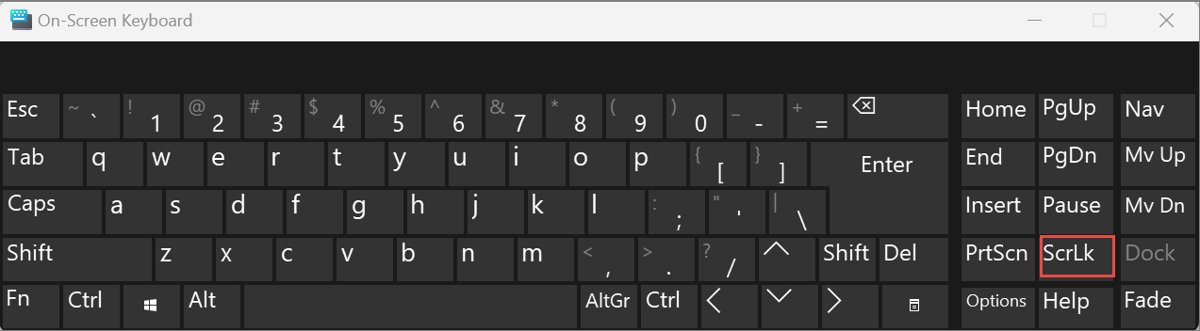
Many laptop keyboards drop the key, but Windows 11 still has it on the On-Screen Keyboard.
- Select Start > Settings > Accessibility > Keyboard.
- Turn on On-Screen Keyboard.
- Select the ScrLk key on the On-Screen Keyboard.
- Close the On-Screen Keyboard with the X in its upper-right corner.
Scroll Lock seems on but the status bar does not show it
The status bar can be customized to hide the Scroll Lock indicator.
- Right-click the Excel status bar.
- Tick Scroll Lock so the indicator shows.
- Turn Scroll Lock off with the key or the On-Screen Keyboard.
Windows key or WinKey not working on Windows 11
When the Windows key does nothing, Ctrl shortcuts can stand in while you fix it: Ctrl+Esc opens the Start menu without the Windows key.
The Windows key and other keys stop responding
A loose connection, a flat battery or a stuck USB driver.
- Unplug the USB keyboard, wait a moment and plug it back in.
- Try a different USB port, and plug directly into the PC instead of a hub.
- Charge or replace the batteries in a wireless keyboard and press the receiver's Reset button if it has one.
- Connect the keyboard to another PC; if it fails there too, the keyboard needs replacing.
Only the Windows key fails while other keys work
An outdated keyboard driver or a keyboard-specific lock setting.
- Press Ctrl+Esc to open Start, type
check for updatesand select Check for updates. - Install any driver updates offered and restart the PC.
- Type
device managerin search, open Device Manager and expand Keyboards. - Double-click your keyboard, select the Driver tab, select Update Driver and follow the prompts.
- Check the keyboard maker's manual for a Windows-key lock if the problem continues.
Windows 11 Ctrl key shortcuts FAQ
What are Ctrl key keyboard shortcuts?
Ctrl key shortcuts are combinations where you hold Ctrl and press another key to run a command without the mouse. The most common are Ctrl+C to copy, Ctrl+V to paste, Ctrl+X to cut, Ctrl+Z to undo, Ctrl+A to select all and Ctrl+S to save.
What does Ctrl+S do?
Ctrl+S saves the current file in most Windows apps, including Word. It belongs to the app rather than to Windows, so a few apps use it for something else. In Word, F12 opens the Save As dialog when you want a new name or folder.
What is the difference between Ctrl+Z and Ctrl+Y?
Ctrl+Z undoes your last action, such as typing or deleting. Ctrl+Y redoes an action you just undid with Ctrl+Z. Press Ctrl+Z repeatedly to step further back through your changes.
How do I paste without formatting on Windows 11?
Press Ctrl+Shift+V to paste as plain text. Windows lists it as a default shortcut, but Microsoft notes that it does not work in every application, so some apps paste with formatting or ignore the combination.
Is Ctrl+Alt+Del the same as Ctrl+Shift+Esc?
No. Ctrl+Shift+Esc opens Task Manager directly. Ctrl+Alt+Del opens the security screen, where you can lock the PC, switch user, sign out, change a password or then choose Task Manager.
How do I reopen a closed tab with a Ctrl shortcut?
Press Ctrl+Shift+T in Microsoft Edge to reopen the last closed tab and switch to it. Ctrl+T opens a new blank tab, Ctrl+W closes the current one, and Ctrl+Tab moves to the next tab.
Do Ctrl shortcuts work the same in every app?
No. Windows defines defaults such as Ctrl+C and Ctrl+V, but apps can change or add their own. Ctrl+D, for example, deletes a file in File Explorer, adds a favorite in Edge and opens the Font dialog in Word.
How do I open the Start menu with Ctrl?
Press Ctrl+Esc to open the Start menu. It does the same job as the Windows key, which makes it useful when the Windows key is broken, missing or locked on your keyboard.