Select what you want, press Ctrl + C to copy it, click where it should go, and press Ctrl + V to paste it on any Windows 11 or Windows 10 PC or laptop.
This guide puts every core shortcut in one table, then covers clipboard history, pasting without formatting, Command Prompt and Windows Terminal, File Explorer, syncing between devices, and laptop keyboards.
The fastest way to copy and paste text with the keyboard
This works in Notepad, Word, browsers, email and almost any text field.
- Place the cursor at the start of the text you want.
- Hold Shift and press the arrow keys to select the text, or press Ctrl + A to select all of it.
- Press Ctrl + C to copy, or Ctrl + X to cut.
- Move the cursor to where the text should go.
- Press Ctrl + V to paste.
- Press Ctrl + Z if the paste landed in the wrong place.
Every essential copy, cut and paste shortcut in one table
Copy leaves the original where it is. Cut takes text out of the document and puts it wherever you paste next.
The clipboard holds one item, so each new copy replaces the last unless clipboard history is on.
On a Mac, copying and pasting uses the Command key instead of Ctrl for the same jobs.
| Shortcut | What it does | Works in |
|---|---|---|
| Ctrl + C or Ctrl + Insert | Copy the selection to the clipboard | Text, files, cells, images |
| Ctrl + X | Cut the selection to the clipboard | Text, files, cells |
| Ctrl + V or Shift + Insert | Paste the last item from the clipboard | Everywhere you can type or drop files |
| Ctrl + Shift + V | Paste as plain text | Word, Edge and many other apps; behaviour varies by app |
| Windows + V | Open clipboard history and pick an older item | Windows 11 and Windows 10, once turned on |
| Ctrl + A | Select all text, or all items in a window | Documents, text fields, File Explorer |
| Ctrl + Z | Undo the last typing or action, including a paste | Most apps and File Explorer |
| Ctrl + Y | Redo what Ctrl + Z undid | Most text editors |
How to select text quickly before copying
These keys work from the cursor, so click or arrow to the starting point first.
| What you want to select | Press | Result |
|---|---|---|
| One character or one line at a time | Shift + Left/Right or Shift + Up/Down | Grows the selection a character or a line |
| One word or paragraph at a time | Ctrl + Shift + Left/Right or Ctrl + Shift + Up/Down | Grows the selection by word or paragraph |
| From the cursor to the start or end of the line | Shift + Home or Shift + End | Selects the rest of the line |
| From the cursor to the start or end of the document | Ctrl + Shift + Home or Ctrl + Shift + End | Selects everything before or after the cursor |
How to copy or move files and folders in File Explorer without a mouse
In File Explorer, Ctrl + C copies the file itself, not its name. Ctrl + X followed by Ctrl + V moves the file to the new folder.
- Press Windows + E, press Alt + D, type the folder path, and press Enter.
- Press Tab until the file list has focus, then use the arrow keys to reach a file.
- Hold Shift and press the arrow keys to select neighbouring files, or press Ctrl + A for every item.
- To pick scattered files, hold Ctrl, move with the arrow keys, and press Spacebar on each one.
- Press Ctrl + C to copy or Ctrl + X to move.
- Open the destination folder the same way, or press Ctrl + Shift + N to create a new one.
- Press Ctrl + V to paste. Press Ctrl + Z straight away to undo a mistaken move.
Shift + F10 opens the right-click menu for the selected item when you need a command without a shortcut.
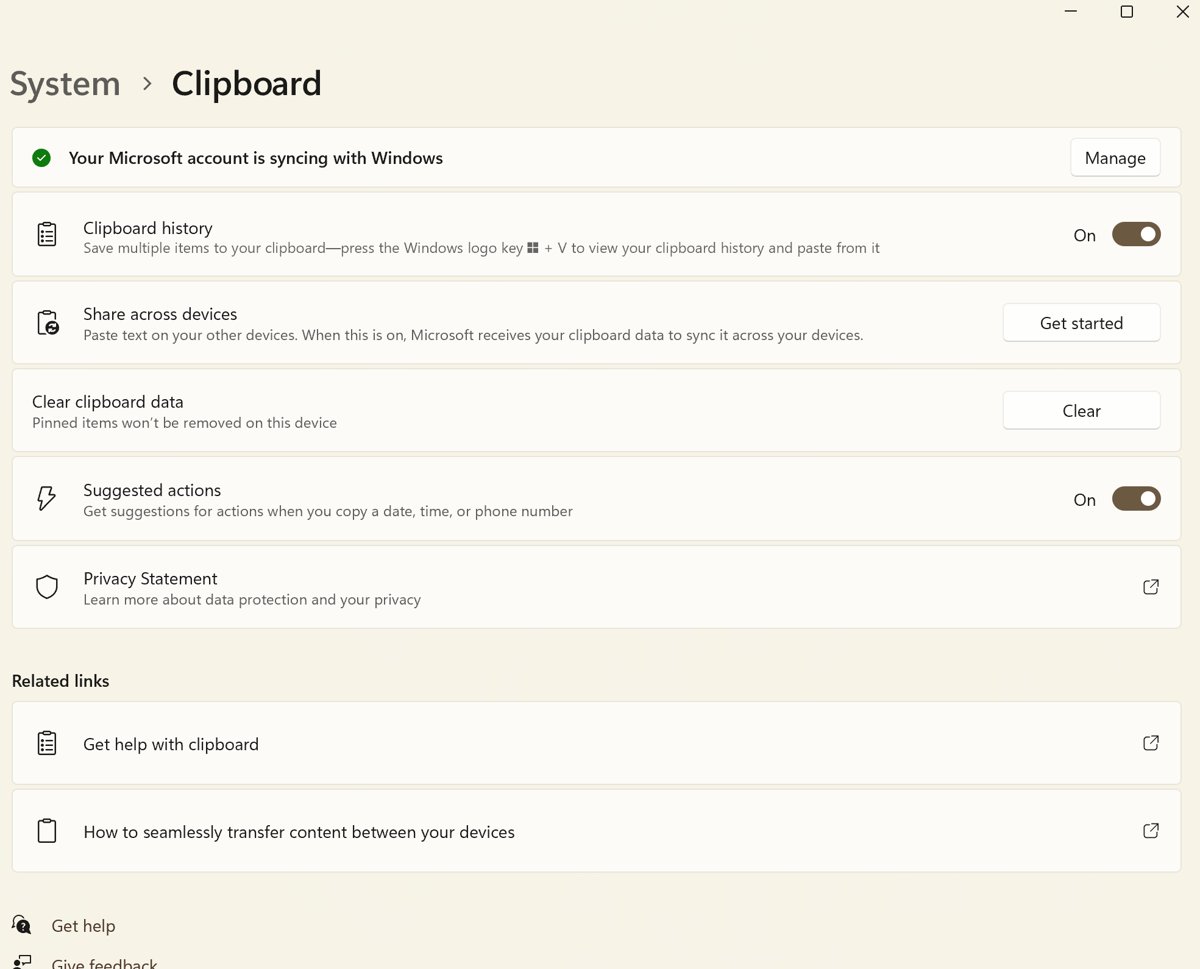
How to turn on Windows + V clipboard history and paste older items
While clipboard history is off, Windows + V only offers a Turn on button and Ctrl + V pastes just the last item.
- Press Windows + V.
- Select Turn on. Alternatively, go to Start > Settings > System > Clipboard and turn on Clipboard history.
- Click where you want to paste and press Windows + V.
- Use the arrow keys to choose an item and press Enter to paste it.
- To remove one entry, select See more (…) next to it, then Delete.
- To wipe the list, select Clear all in the panel, or Clear under Clear clipboard data in Settings.
History holds the last 25 entries, up to 4 MB each, in text, HTML or bitmap format. Restarting the PC clears it, except for items you pin.
How to paste without formatting in Word, Edge and other apps
Plain-text paste drops the fonts, colours and links of the source so the text matches where you paste it.
| Where you are pasting | Keyboard route | What you get |
|---|---|---|
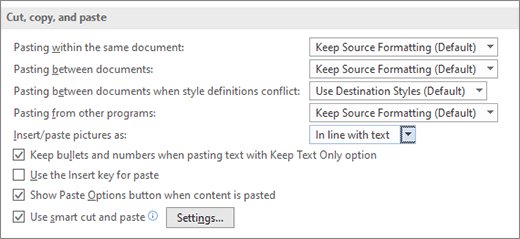
| Word for Windows | Ctrl + Shift + V | Paste text only |
| Word, after a normal Ctrl + V | Press Ctrl, then T for Keep Text Only, M for Merge Formatting or K for Keep Source Formatting | Changes the paste you just made |
| Word, every time | File > Options > Advanced > Cut, copy, and paste | Sets Keep Text Only as the default for pasting from other programs |
| Microsoft Edge | Ctrl + Shift + V | Paste without formatting |
How to copy and paste in Command Prompt, PowerShell and Windows Terminal
In a console, Ctrl + C copies when text is selected and stops the running command when nothing is. Ctrl + Insert is the safer copy key in Command Prompt and PowerShell windows.
| Task | Command Prompt and PowerShell console window | Windows Terminal |
|---|---|---|
| Start selecting with the keyboard | Ctrl + M for mark mode, then arrow keys | Ctrl + Shift + M for mark mode, then arrow keys |
| Extend the selection | Shift + arrow keys, Shift + Home/End | Shift + arrow keys, Ctrl + Shift + Left/Right |
| Select all | Ctrl + A | Assign the selectAll action in settings |
| Copy | Ctrl + Insert, or Ctrl + C with text selected | Ctrl + C with text selected, Ctrl + Shift + C, Ctrl + Insert or Enter |
| Paste | Ctrl + V or Shift + Insert | Ctrl + V, Ctrl + Shift + V or Shift + Insert |
| Mouse shortcut | Drag to select, then Ctrl + C | Right-click copies a selection; right-click again pastes |
How to copy and paste in Excel, Word and Edge
Spreadsheets add one choice plain text does not have: paste the formula, the value it shows, or only the formatting.
| App and job | Press | Result |
|---|---|---|
| Excel: paste the value, not the formula | Ctrl + C, then Ctrl + Alt + V, V, Enter | Numbers stay fixed when source cells change |
| Excel: paste the formulas | Ctrl + Alt + V, F, Enter | Formulas as typed in the formula bar |
| Excel: skip hidden rows or filtered-out rows | Select the range, press Alt + ;, then Ctrl + C | Only visible cells are copied |
| Excel: repeat a cell down or across | Ctrl + D or Ctrl + R | Fills from the top cell or the left cell |
| Word: collect several pieces and paste them together | Ctrl + F3 on each piece, then Ctrl + Shift + F3 | The Spike cuts each selection and pastes them all at once |
| Word and other Microsoft 365 apps: see recent copies | Alt, H, F, O | Opens the Office Clipboard task pane |
| Edge: copy a page link | Ctrl + L or Alt + D, then Ctrl + C | The full URL is on the clipboard |
How to copy and paste images, screenshots and links
Shortcuts that copy a screenshot to the clipboard skip the save step, so you can paste it straight away.
| What you want to paste | Press | Then |
|---|---|---|
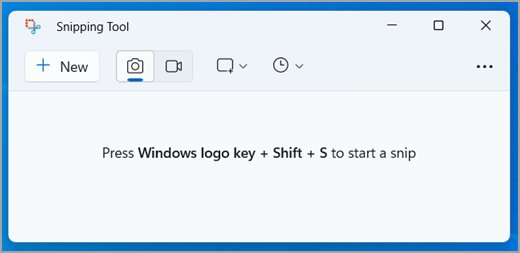
| Part of the screen | Windows + Shift + S and drag a region | Press Ctrl + V in the destination |
| The active window only | Alt + Print Screen | Press Ctrl + V in the destination |
| A saved full-screen image | Windows + Print Screen | Windows saves the capture as an image file |
| An image file | Select it in File Explorer and press Ctrl + C | Paste into a folder or an app that accepts files |
| A snip you edited in Snipping Tool | Ctrl + C inside Snipping Tool | Press Ctrl + V in the destination |
On Windows 11, Print Screen opens the screen capture overlay by default. The switch is Use the Print screen key to open screen capture in Settings > Accessibility > Keyboard.
Windows laptop keyboard tips: when Fn, Insert or Print Screen get in the way
Ctrl + C, Ctrl + X and Ctrl + V never need Fn. The keys that move are the extras on the top row and the navigation cluster. An external USB or Bluetooth keyboard uses the same shortcuts.
| Your laptop keyboard | What to do | Why |
|---|---|---|
| Has an Fn key and the key you need is a secondary label | Hold Fn and press that key | Fn unlocks the alternate commands printed on shared keys |
| Has an F Lock key | Turn the F Lock light on for F1–F12, off for media commands | F Lock toggles standard and alternate functions |
| Surface keyboard or Type Cover | Press Fn once to lock function keys; a light shows it is locked | Press Fn again to unlock |
| No separate Insert key | Use Ctrl + C and Ctrl + V instead of Ctrl + Insert and Shift + Insert | Both pairs do the same job |
| No Print Screen key | Use Windows + Shift + S | Region capture to the clipboard without PrtScn |
How to copy and paste between devices: PC to PC and PC to phone
Every option here moves content through your Microsoft account or a linked phone, so sign in with the same account on each device.
| Between | Where to turn it on | Limits |
|---|---|---|
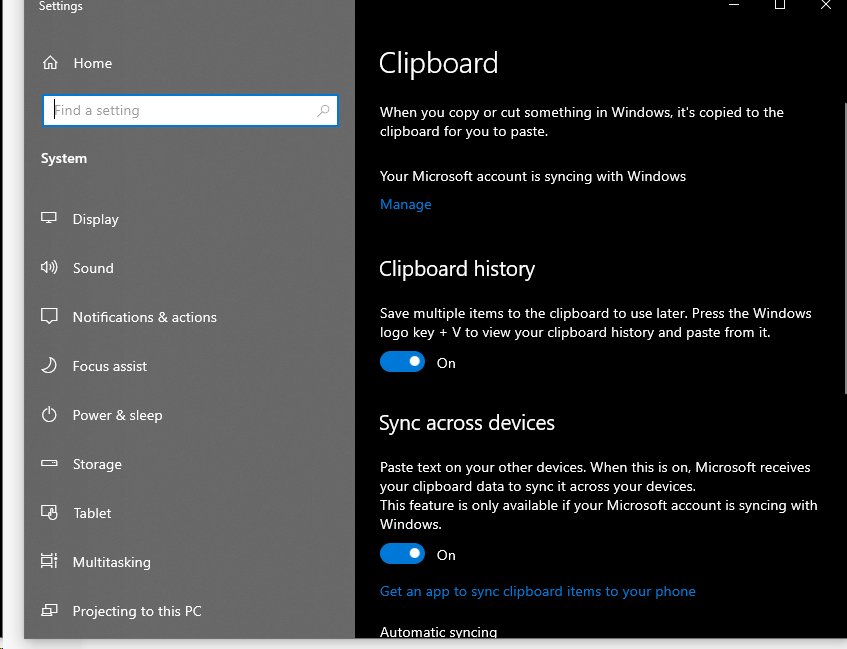
| Two Windows 11 PCs | Settings > System > Clipboard > Clipboard history across your devices, then Automatically sync text that I copy | Choose Manually sync text that I copy to send items one at a time from Windows + V |
| Two Windows 10 PCs | Settings > System > Clipboard > Sync across devices | Clipboard history must be on; Microsoft or work account |
| Windows 11 PC and Android phone | Phone Link: Settings > Features > Cross-device copy and paste, turn on the toggle | Android 10 or later on supported Samsung, HONOR, OPPO, ASUS, vivo, Xiaomi and Surface Duo models; text and images only; images over 1 MB are resized |
| Windows PC and an Android phone with Microsoft SwiftKey | SwiftKey app: Rich input > Clipboard > Sync clipboard history to the cloud | Personal Microsoft account only; text only; the latest clip, kept for an hour |
Quick practice: check each copy and paste shortcut works
A one-minute Notepad test shows which shortcut is failing.
- Press Windows, type
notepad, and press Enter. - Type two short lines of text.
- Press Ctrl + A, then Ctrl + C, then Ctrl + End, then Ctrl + V. The two lines should appear twice.
- Press Shift + Home on the last line and Ctrl + X. That line should disappear.
- Press Ctrl + V. The line should come back.
- Press Windows + V. With history on, you should see both copies listed.
What to do when copy and paste shortcuts do not work
Copy and paste is not working anywhere
A key is not registering, or the clipboard holds data an app cannot read.
- Try the alternate pair: Ctrl + Insert to copy and Shift + Insert to paste.
- Go to Start > Settings > Accessibility > Keyboard and turn on On-Screen Keyboard (Ease of Access > Keyboard on Windows 10). Click its Ctrl and C keys to test whether a physical key has failed.
- Go to Start > Settings > System > Clipboard and select Clear under Clear clipboard data.
- Restart the PC to reset the clipboard.
Windows + V shows only a Turn on button, or old items are gone
Clipboard history is off, or the PC restarted and cleared unpinned items.
- Press Windows + V and select Turn on.
- Copy the items again; history only records copies made after it is on.
- Pin anything you need to survive a restart.
Ctrl + C stops a command in Command Prompt instead of copying
Nothing was selected, so the console sent a break signal.
- Press Ctrl + M to enter mark mode.
- Select the text with Shift + arrow keys.
- Press Ctrl + Insert to copy without any risk of a break.
- If no shortcut works in the window, right-click the title bar, select Properties > Options, and clear Use legacy console.
- Close and reopen the window so the setting applies.
Clipboard does not sync to your other PC or phone
Sync is off, set to manual, or the devices use different accounts.
- On each PC, open Settings > System > Clipboard and confirm history and sync are on, with Automatically sync text that I copy selected on Windows 11.
- Sign in with the same Microsoft or work account on every device.
- For Phone Link, close Phone Link on the PC and Link to Windows on the phone, then reopen both.
Copy and paste safety tips and best practices
Every app shares the clipboard, and sync can send it to other devices.
| Practice | Why it matters |
|---|---|
| Clear clipboard history after copying a password or card number | History keeps 25 items until restart, and pinned items stay after that |
| Use Manually sync text that I copy if you copy sensitive text | Automatic sync sends every text copy to your other devices |
| Paste a command into Notepad and read it before pasting it into Command Prompt or Terminal | Text copied from a web page can differ from what the page displays |
| Copy important files with Ctrl + C, then delete the originals after checking the copies | The originals stay untouched until you know the copy opened correctly |
Frequently asked questions
How do you copy and paste with the keyboard?
Select the text with Shift and the arrow keys, or Ctrl + A for everything. Press Ctrl + C to copy, move the cursor to the destination, and press Ctrl + V to paste. Ctrl + X cuts instead of copying.
How do you copy and paste without a mouse?
Use the keyboard for every step. Shift + arrow keys select text, Ctrl + A selects everything, and Ctrl + C and Ctrl + V copy and paste. In File Explorer, Shift + F10 opens the right-click menu.
How do you copy and paste without formatting?
Press Ctrl + Shift + V instead of Ctrl + V. It pastes plain text in Word, Microsoft Edge and many Windows 11 apps. In Word you can also press Ctrl after a normal paste and then T for Keep Text Only.
How do you copy and paste without changing the format?
In Word, paste with Ctrl + V, press Ctrl, then press K for Keep Source Formatting. To make it the default, open File > Options > Advanced and change the settings under Cut, copy, and paste.
How do you copy and paste without hidden rows in Excel?
Select the range, press Alt + ; to select only visible cells, then press Ctrl + C and paste as usual. Rows hidden by a filter or by Hide are left out of the copy.
How do you copy and paste without formulas in Excel?
Copy the cells with Ctrl + C, select the destination, and press Ctrl + Alt + V to open Paste Special. Press V for Values, then Enter. The results stay fixed even if the original cells change.
Why is my copy and paste not working?
Usually a stuck clipboard or a key that is not registering. Try Ctrl + Insert and Shift + Insert, clear clipboard data in Settings > System > Clipboard, and test the keys with the On-Screen Keyboard in Settings > Accessibility > Keyboard. A restart resets the clipboard.
How does copy and paste work in Windows?
Copying places the selection on the clipboard, a temporary store every app shares, and pasting inserts it. Each new copy replaces the last unless clipboard history is on, which keeps the 25 most recent items.





How to copy and paste on Chromebook [text & image shortcut] - Techdows
[…] uses the same pair of keys, so the habits from copying and pasting on a Windows PC carry straight […]
How to make a copy of a Word document: a step-by-step guide - Techdows
[…] file manager can duplicate a .docx file like any other file, using the usual copy and paste keyboard shortcuts. This is the fastest way to copy several documents at […]
All keyboard shortcuts in Windows (category wise) - Techdows
[…] general shortcuts open, close and move around the Windows desktop. The most used pair lets you copy and paste with keyboard shortcuts in almost any […]