The opposite of Ctrl + Z is Redo, and on Windows you trigger it with Ctrl + Y, which brings back the change you just undid.
Some apps use Ctrl + Shift + Z instead, and a Mac uses Shift + Command + Z, so this guide lists the right keys per app, the Redo buttons, version history for bigger rollbacks, and fixes when Redo is greyed out.
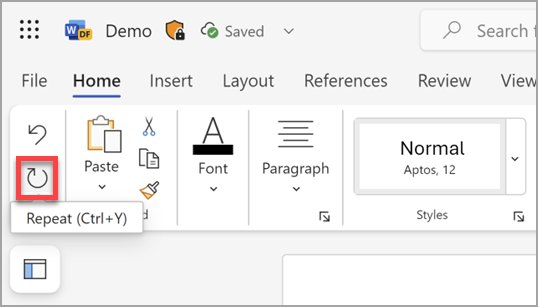
How to do the opposite of Ctrl + Z with Ctrl + Y
Microsoft lists Ctrl + Y as the Windows shortcut that redoes an action you previously undid with Ctrl + Z.
- Press Ctrl + Z to undo the last change, as usual.
- Press Ctrl + Y to bring that change back.
- Press Ctrl + Y again for each further step you undid, newest first.
- If nothing happens, press Ctrl + Shift + Z, which is the redo shortcut in Google Docs and Blender.
- On a Mac, press Shift + Command + Z instead, or Command + Y inside Word, Excel and PowerPoint.
Redo only exists while the undone steps are still in the app's history. Make a new edit after undoing and that history is gone.
The purpose of Ctrl + Z and its limitations
Undo on a keyboard steps backward through a list of recent actions. Redo walks forward through the same list, so it can only restore what Undo removed.
| Limitation | What it means in practice | Where it is documented |
|---|---|---|
| Fixed number of steps | Word, Excel and PowerPoint keep a default of 100 undo and redo actions | Microsoft Support: Undo, redo, or repeat an action |
| Some commands cannot be undone | Commands on the File tab and saving a file turn the Undo label into Can't Undo | Microsoft Support |
| Macros wipe the history in Excel | Running a macro clears the undo list, so earlier steps cannot be undone or redone | Microsoft Support |
| A new edit cuts the redo list | After you undo and then change something, the steps you undid are dropped | Blender Manual: Undo History |
| History ends when the app closes | Blender loses its full action list on quit, even if you save the file first | Blender Manual |
Exploring the opposite action: redo and beyond
Redo is the direct opposite of Undo, but Office also has Repeat, and most apps have a history list that can jump several steps at once.
| Your situation | Use this | Why |
|---|---|---|
| You just undid one step too many | Redo: Ctrl + Y (Windows) or Shift + Command + Z (Mac) | Restores exactly what Undo removed |
| You want to apply the same action to another spot in Office | Repeat: Ctrl + Y or F4 | Runs the last action again, for example a paste |
| You need to go back many steps at once | The arrow beside Undo, or Blender's Edit > Undo History | Pick the exact point instead of pressing keys repeatedly |
| The change happened before you closed or saved | Version history in OneDrive, SharePoint or Google Docs | Undo history does not survive closing the app |
| You typed something new after undoing | Redo the work by hand or restore a version | The redo list was cleared by the new edit |
Using the redo command
In Word, Excel and PowerPoint on Windows, the Redo button sits on the Quick Access Toolbar and appears only after you undo something.
- Undo the change with Ctrl + Z or the Undo button on the Quick Access Toolbar.
- Select Redo on the Quick Access Toolbar, or press Ctrl + Y.
- Press F4 as an alternative to Ctrl + Y if your keyboard sends F1 to F12 function keys.
- In Word, Excel or PowerPoint for the web, select the Redo button in the ribbon.
- On a Mac, select Redo in the upper-left corner of the ribbon, or press Command + Y.
Manual methods to reverse an undo action
When the redo list is gone, the only way back is to reapply the change yourself. The undo list can still help you see what changed.
- Stop editing as soon as you notice the lost change, because every new edit pushes older steps out of the history.
- In Office, select the arrow beside Undo to read the list of recent actions and note the one you need.
- Retype or reapply that change by hand at the same spot.
- If the content still exists elsewhere, copy it with Ctrl + C and paste it back with Ctrl + V.
- Save the file once the change is back so a later accident has a fresh restore point.
Using software features to 'redo' or reinstate changes
Several apps offer more than a single Redo key. These features reinstate or reapply work without retyping it.
- In Office on Windows, select the arrow beside Undo, choose the run of actions to reverse, and confirm, then use Redo to step forward again one action at a time.
- In Office, press Ctrl + Y or F4 to Repeat a simple action such as a paste. In Excel, add Repeat to the Quick Access Toolbar first, because it is not there by default.
- In Blender, press Shift + R or choose Edit > Repeat Last to run the last action again.
- In Blender, choose Edit > Repeat History to pick one of the last repeated actions from a list.
- In Blender, press F9 or choose Edit > Adjust Last Operation to change the values of the last operation instead of undoing it.
Using the history or version features
Version history reaches further back than Redo. In Office it only works for files stored in OneDrive or SharePoint in Microsoft 365.
- In Word, Excel or PowerPoint for Microsoft 365, select the file name in the title bar.
- Select Version history.
- Select a version to open it in a separate window, then select Restore to make it the current version.
- In Google Docs, select Last edit at the top right, choose the earlier version in the right panel, then select Restore this version and Restore.
- To keep the current Google Doc as well, select More next to the older version and choose Make a copy instead.
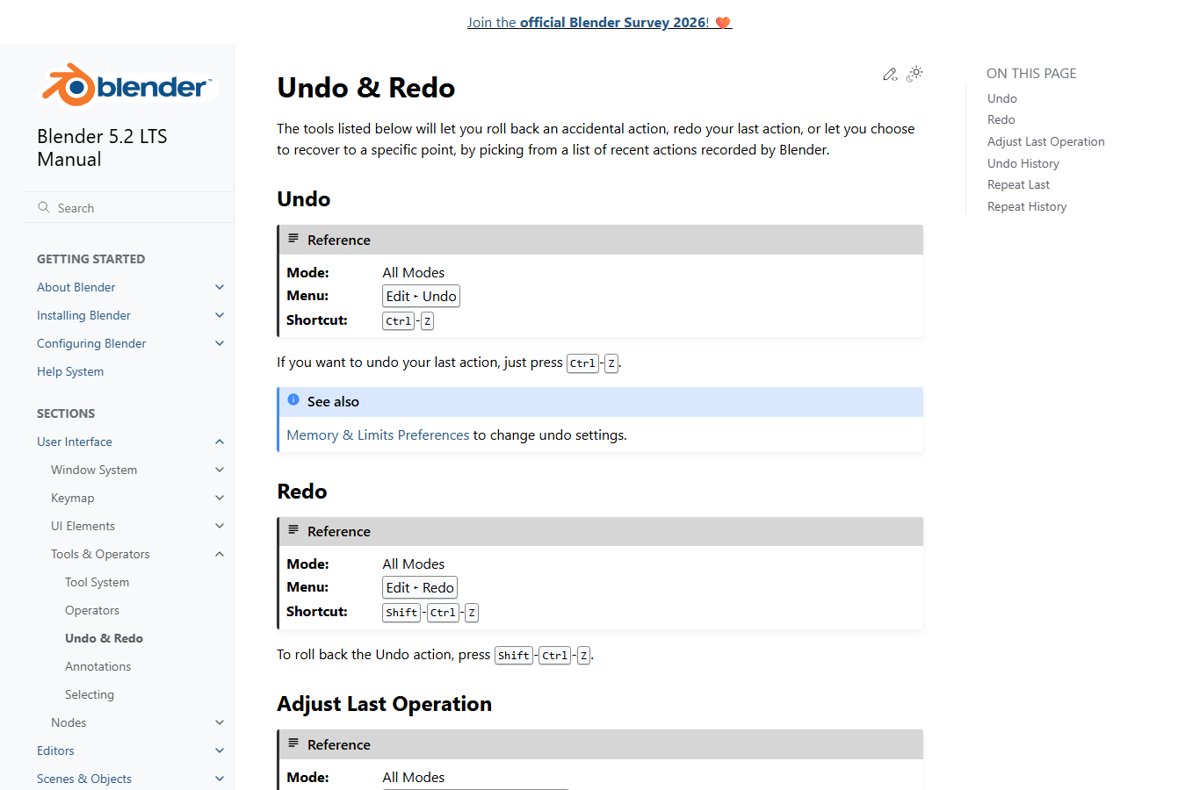
- In Blender, choose Edit > Undo History and select the entry to jump to; the dot marks where you are now.
Personal Microsoft accounts keep the last 25 versions of a file. Work and school libraries keep as many as the library is set to keep.
Inversion techniques for specific applications
The undo key is almost universal, but the redo key is not. Match your app to its row.
| App or platform | Undo | Redo | Menu or button |
|---|---|---|---|
| Windows (apps that follow system shortcuts) | Ctrl + Z | Ctrl + Y | Depends on the app |
| Word, Excel, PowerPoint on Windows | Ctrl + Z | Ctrl + Y or F4 | Redo on the Quick Access Toolbar |
| Word, Excel, PowerPoint for the web | Ctrl + Z | Ctrl + Y | Redo in the ribbon |
| Word, Excel, PowerPoint on Mac | Command + Z | Command + Y | Redo at the upper left of the ribbon |
| macOS apps in general | Command + Z | Shift + Command + Z | Edit menu |
| Google Docs on Windows and ChromeOS | Ctrl + Z | Ctrl + Shift + Z | Last edit opens version history |
| Google Docs on Mac | Command + Z | Command + Shift + Z | Last edit opens version history |
| Blender | Ctrl + Z | Shift + Ctrl + Z | Edit > Redo |
Redo in text editors like Word and Google Docs
Text editors split into two camps: Microsoft's apps use Ctrl + Y, and Google Docs uses Ctrl + Shift + Z.
| Text editor | Redo typing you undid | Notes |
|---|---|---|
| Microsoft Word on Windows | Ctrl + Y, F4 or Redo on the Quick Access Toolbar | Ctrl + Y also repeats the last action when there is nothing to redo |
| Microsoft Word on Mac | Command + Y | Differs from the macOS-wide Shift + Command + Z |
| Word for the web | Ctrl + Y or Redo in the ribbon | Only basic undo and redo; advanced options need the desktop app |
| Google Docs on Windows or ChromeOS | Ctrl + Shift + Z | Use Last edit for older versions |
| Google Docs on Mac | Command + Shift + Z | Same version history as on Windows |
| Windows 11 text editing | Ctrl + Y | Microsoft lists it as redoing typing undone with Ctrl + Z |
Redo in graphic software like Blender
3D and graphic software keeps a long, visual history, so you can step forward, jump to a point, or tweak the last operation.
- Press Ctrl + Z in Blender to undo, or choose Edit > Undo.
- Press Shift + Ctrl + Z to redo, or choose Edit > Redo.
- Choose Edit > Undo History to jump straight to any recent state, backward or forward.
- Press F9 to reopen the last operation's settings and change a value instead of undoing it.
- Avoid making a new change while you hop around the list, because Blender truncates the history at that point.
Beyond redo: advanced techniques to raise the Office undo limit
Office keeps 100 undo and redo steps by default. Microsoft documents a registry value that raises or lowers that number, and warns that a higher limit uses more RAM and can slow Excel down.
- Close every Office program.
- Right-click Start, select Run, type
regeditand press Enter. - Go to
HKEY_CURRENT_USER\Software\Microsoft\Office\16.0\Excel\Options. - Create a new DWORD value named
UndoHistory. - Right-click
UndoHistory, select Modify, choose Decimal, type the number of steps and select OK. - Close Registry Editor and restart Excel.
Microsoft states the same method works for Word and PowerPoint. The Mac versions of Office have no documented way to change the limit.
Advanced strategies: scripting and automation to reverse undo
Automation is where Undo and Redo are weakest. Plan for that before you run a script, not after.
| Situation | What happens to undo and redo | What to do instead |
|---|---|---|
| Running an Excel macro | Excel clears the undo list, so no earlier step can be undone or redone | Save or copy the workbook before you run the macro |
| Bulk edits on a file in OneDrive or SharePoint | Undo still applies until you close the app | Use Version history to roll back the whole file afterwards |
| Repeating a step many times in Blender | Each repeat is its own undo step | Use Shift + R to repeat and Edit > Undo History to go back |
| Splitting or joining text with Excel formulas | Formulas do not change the source cells | Delete the formula column to reverse the result |
Tips for effective redoing
| Tip | Why it helps |
|---|---|
| Redo before you type anything else | A new edit erases the steps waiting to be redone |
| Press the redo key once per step | Each press restores one action, in the order you undid them |
| Watch the Redo button state | In Office, Redo appears only after an undo; no button means nothing to redo |
| Use the Undo list for big jumps | The arrow beside Undo shows every recent action by name |
| Learn the second redo key | Ctrl + Shift + Z covers Google Docs and Blender where Ctrl + Y does not |
Additional tips for undo, redo and repeat keys
| Key | What it does | Where |
|---|---|---|
| F4 | Redo or repeat the last action | Word, Excel and PowerPoint on Windows |
| Fn or F-Lock then F4 | Makes F4 work when the top row runs media keys | Keyboards with an Fn or F-Lock key |
| Shift + Tab | Moves back through options, the opposite of Tab | Windows dialog boxes |
| Shift + R | Repeats the last action | Blender |
| F9 | Adjusts the last operation | Blender |
How to check redo worked
- Look at the spot you changed and confirm the text, formatting or object is back.
- In Office, open the arrow beside Undo and check that the restored action is listed at the top again.
- Check that Redo is greyed out or gone once every undone step is back.
- In Blender, open Edit > Undo History and confirm the dot sits on the newest entry.
- Save the file so the restored state is kept.
Fix redo not working in Word, Excel and Google Docs
Ctrl + Y does nothing in Google Docs
Google lists Ctrl + Shift + Z as the redo shortcut in Docs.
- Press Ctrl + Shift + Z on Windows or ChromeOS.
- Press Command + Shift + Z on a Mac.
Redo is greyed out or missing in Word or Excel
Redo appears only after an undo, and a new edit removes it.
- Confirm you pressed Ctrl + Z first.
- If you typed after undoing, reapply the change by hand.
- For larger losses on a OneDrive or SharePoint file, select the file name in the title bar, then Version history.
F4 does not redo in Office
The top row is sending media or hardware functions instead of F-keys.
- Press F-Lock or hold Fn, then press F4.
- Use Ctrl + Y instead.
Undo shows Can't Undo in Excel or Word
The last action was a File tab command, a save, or a macro in Excel.
- Accept that the action cannot be reversed with keys.
- Restore an earlier copy with Version history if the file is stored in OneDrive or SharePoint.
- Save a copy before running macros next time.
Command + Shift + Z does nothing in Word on a Mac
Office for Mac lists Command + Y for Redo.
- Press Command + Y.
- Or select Redo at the upper left of the ribbon.
Precautions and best practices when reversing undo actions
| Precaution | Reason |
|---|---|
| Do not rely on undo history across sessions | Closing the app ends the history; Blender drops it on quit even after a save |
| Keep important files in OneDrive or SharePoint | Office version history only works for files stored there |
| Copy the workbook before macros | Running an Excel macro clears the undo list |
| Raise the undo limit only as far as you need | Microsoft warns a higher limit uses more RAM and can slow Excel |
| Use Make a copy for old Google Doc versions | Keeps the current version while you compare |
Case studies: when and why to do the opposite of Ctrl + Z
| Scenario | Best move | Result |
|---|---|---|
| You pressed Ctrl + Z twice in Word and lost a paragraph you wanted | Press Ctrl + Y once | The paragraph returns and the earlier undo stays |
| You deleted rows in Excel, undid it, then decided the delete was right | Press Ctrl + Y | The rows are deleted again |
| You undid a heading style in Google Docs | Press Ctrl + Shift + Z | The style comes back |
| You undid a scale in Blender, then typed a new value | Use Edit > Undo History before editing, or reapply by hand | A new change truncates history, so act before editing |
| A shared Excel file was overwritten yesterday | Use Version history | Redo cannot reach changes from an earlier session |
Opposite of Ctrl + Z FAQ
How do you do the opposite of Ctrl + Z?
Press Ctrl + Y on Windows to redo the action you undid with Ctrl + Z. In Google Docs and Blender the redo shortcut is Ctrl + Shift + Z, and on a Mac most apps use Shift + Command + Z.
What is the opposite of Control Z?
The opposite of Control Z is Redo. On Windows press Ctrl + Y; Word, Excel and PowerPoint also accept F4 and show a Redo button on the Quick Access Toolbar after you undo something.
How do you do the opposite of undo?
Use Redo. Press Ctrl + Y on Windows, Shift + Command + Z on a Mac, or select the Redo button in the app. Redo only works until you make a new edit after undoing.
How do you do the opposite of undo in Word?
Press Ctrl + Y or F4 in Word on Windows, or select Redo on the Quick Access Toolbar. In Word for Mac press Command + Y, and in Word for the web select Redo in the ribbon.
How do you do the opposite of undo in Excel?
Press Ctrl + Y or F4 in Excel on Windows, or Command + Y on a Mac. Redo is not possible after a macro runs, because Excel clears the undo list when a macro executes.
What is the redo shortcut on a Mac?
Apple lists Shift + Command + Z as Redo in macOS apps. Microsoft Word, Excel and PowerPoint for Mac use Command + Y, and Google Docs on a Mac uses Command + Shift + Z.
How do you do the opposite of Tab?
Press Shift + Tab. In Windows dialog boxes, Tab moves forward through options and Shift + Tab moves back through them, so it reverses the direction of the Tab key.
How do you do the opposite of concatenate in Excel?
Use the TEXTSPLIT function, which splits text by column and row delimiters. For example, =TEXTSPLIT(A2, " ") splits a full name at each space. It is available in Excel for Microsoft 365 and Excel 2024.
How do you do the opposite of Text to Columns in Excel?
Join the columns back together with TEXTJOIN. Microsoft describes TEXTSPLIT as the formula version of the Text to Columns wizard and the inverse of TEXTJOIN, so TEXTJOIN rebuilds the original text from split cells.
Why is Redo greyed out?
Redo is greyed out when there is nothing to redo. Either you have not undone anything yet, or you made a new edit after undoing, which removes the steps that were waiting to be redone.
Bottom line: which redo shortcut should you use?
Press Ctrl + Y first on Windows, and switch to Ctrl + Shift + Z if the app ignores it; on a Mac start with Shift + Command + Z, except Command + Y in Office. Those two key pairs cover Windows, Office, Google Docs and Blender, and version history covers anything Redo can no longer reach.