To clear the cache in Microsoft Edge, open Settings and more > Settings > Privacy, search, and services > Clear browsing data, tick only Cached images and files and select Clear now.
This guide covers Edge on Windows, macOS, Android and iPhone, the keyboard shortcut, clearing the cache automatically on exit, the same job in Google Chrome, and why a stale cache breaks pages.
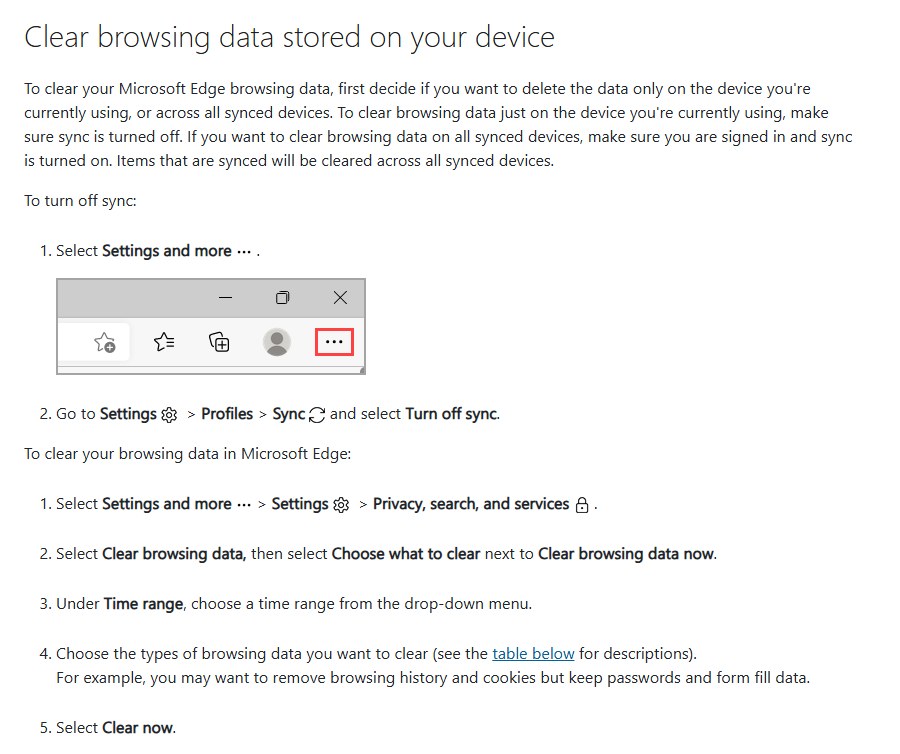
How to clear the Microsoft Edge cache in Windows
These steps work in the current Edge on Windows 11 and Windows 10. Ticking only the cache keeps you signed in to your sites.
- Open Microsoft Edge and select Settings and more (the three dots at the top right).
- Select Settings, then Privacy, search, and services.
- Under Clear browsing data, select Choose what to clear next to Clear browsing data now.
- Open the Time range drop-down and pick a range. Choose the longest range to empty the whole cache.
- Tick Cached images and files and untick everything else you want to keep, such as Cookies and other site data and Passwords.
- Select Clear now.
Edge reloads pages from the web on your next visit, so the first load of each site is slower than usual.
Why you should clear the cache in Microsoft Edge
Edge stores copies of pages and media so they load faster next time. Those copies help until a site changes and Edge keeps showing the old version, which a hard refresh in Edge also fixes for a single page.
| Reason to clear the cache | What you notice |
|---|---|
| A site was updated but Edge shows the old page | Old images, layout or prices after the site changed |
| A page loads broken or half styled | Missing buttons, broken layout, scripts that fail |
| You want to free some disk space | The cache holds copies of pages and media you visited |
| A web app misbehaves after an update | Sign-in loops or pages that will not finish loading, alongside clearing cookies |
| You share the PC | Cached copies of pages you visited stay on the device until cleared |
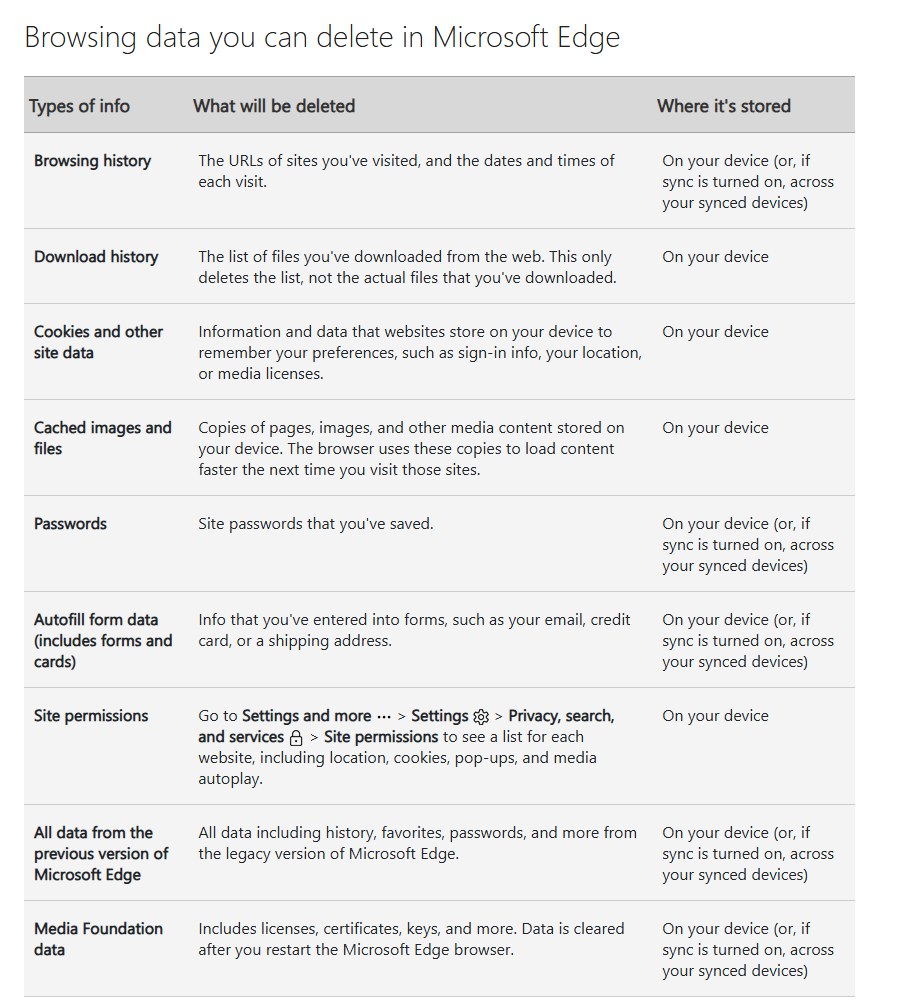
What each Edge clear browsing data option deletes
Microsoft lists these data types in the Clear browsing data dialog. Clearing the cache alone does not touch the others.
| Option | What it removes | Side effect |
|---|---|---|
| Cached images and files | Stored copies of pages and media that speed up later loading | Sites load slower the first time |
| Cookies and other site data | Preferences, sign-in info, location and media licenses | Signs you out of most sites |
| Browsing history | URLs you visited with dates and times | Address bar suggestions reset |
| Download history | The list of downloads, not the files | Files stay on disk |
| Passwords | Saved site passwords | You must type passwords again |
| Autofill form data | Saved form entries, including cards | Forms stop filling themselves |
| Media Foundation data | Licenses, certificates and keys | Cleared after you restart Edge |
Steps to clear cache in Microsoft Edge
The keyboard shortcut skips the Settings pages and opens the same dialog on Windows.
- With Edge open, press Ctrl + Shift + Delete together.
- Pick a range in Time range.
- Tick Cached images and files and untick anything you want to keep.
- Select Clear now.
Clear the Microsoft Edge browser cache on macOS
Edge for Mac uses the same settings layout as Windows, so the menu route is identical. Browser data is separate from the rest of macOS, so you can clear the system cache on Mac on its own.
- Open Microsoft Edge on your Mac and select Settings and more (the three dots).
- Select Settings > Privacy, search, and services.
- Under Clear browsing data, select Choose what to clear.
- Pick a Time range, tick Cached images and files and untick the rest.
- Select Clear now.
Clear the Microsoft Edge cache on Android
- Open the Edge app and tap the menu … at the bottom.
- Tap Settings, then Privacy and security (named Privacy in older versions).
- Tap Clear browsing data.
- Tick the cache entry and untick the data types you want to keep.
- Tap Clear.
Clear the Microsoft Edge cache on your iPhone
- Open the Edge app and tap the menu ….
- Tap Settings > Privacy.
- Tap Clear browsing data.
- Select the cache entry, leave the rest unticked and confirm.
Clearing the cache inside the Edge app does not affect Safari or other browsers on the iPhone.
Always clear the cache when you exit Edge
Edge does not clear data on close by default. You turn it on per data type.
- Open Settings and more > Settings > Privacy, search, and services.
- Under Clear browsing data, select Choose what to clear every time you close the browser.
- Turn on the Cached images and files toggle.
- Leave Cookies and other site data off unless you want to be signed out of sites every time Edge closes.
- Close every Edge window. The cache is emptied when the browser shuts down.
- On Android, turn on Clear browsing data upon exit under Privacy and security and pick the data types.
If your work or school manages Edge, an administrator policy such as ClearCachedImagesAndFilesOnExit can control this setting for you.
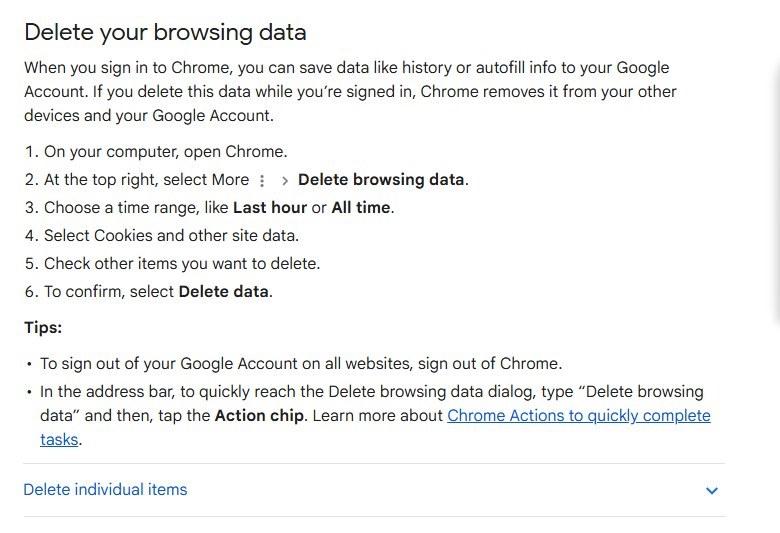
Steps to clear cache in Google Chrome
Chrome uses the same shortcut, Ctrl + Shift + Delete, and a near identical dialog for clearing the Chrome cache.
- Open Chrome on your computer.
- At the top right, select More (three dots) > Delete browsing data.
- Choose a time range, such as Last hour or All time.
- Tick Cached images and files and untick items you want to keep.
- Select Delete data.
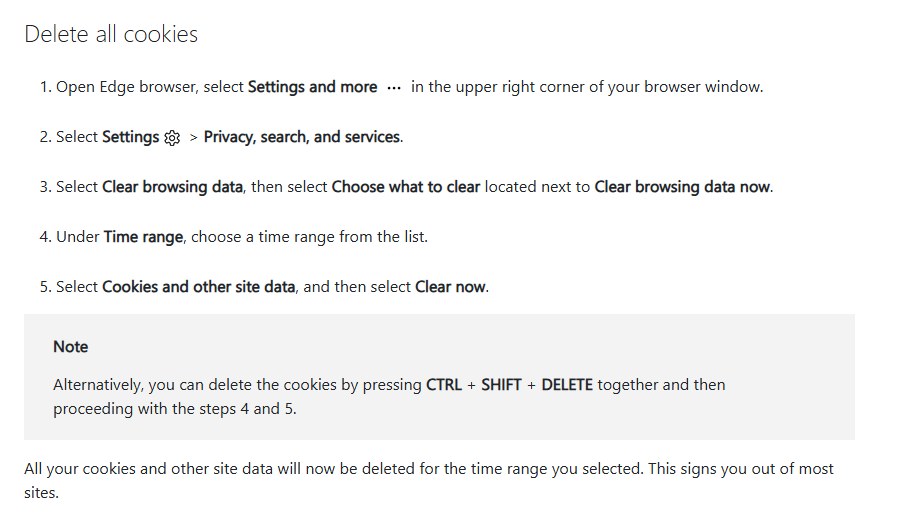
Clear cache or clear cookies in Edge
| Your problem | Clear this | Why |
|---|---|---|
| Page shows an old version or broken layout | Cached images and files only | Fixes stale copies and keeps you signed in |
| Sign-in loop or a site remembers wrong settings | Cookies and other site data | The fault sits in stored site data, not the cache |
| Shared or public computer | Cache, cookies and history | Removes what the next user could see |
| Only one device should be cleared | Turn off sync first | Synced items are cleared on every synced device |
Confirm the Microsoft Edge cache cleared
- Open the site that was showing old content and let it load.
- Expect the first load to take a little longer, because Edge fetches every file again.
- Check that the page now shows the current version of the site.
- Confirm you are still signed in. If you are, only the cache was cleared and your cookies survived.
Microsoft Edge clear cache FAQ
What is the shortcut to clear cache in Microsoft Edge?
Press Ctrl + Shift + Delete in Edge on Windows. It opens the Clear browsing data dialog, where you tick Cached images and files, choose a time range and select Clear now.
Does clearing the cache in Edge sign me out of websites?
No. Clearing only Cached images and files keeps your sign-ins. You are signed out when you also clear Cookies and other site data, because that is where sign-in info is stored.
Will clearing Edge cache delete my passwords or favorites?
No. Passwords are a separate option in the Clear browsing data dialog and stay saved unless you tick them. Favorites are not on the list at all.
Does clearing Edge cache on one device clear it on my other devices?
Synced items are cleared on every synced device when you are signed in with sync on. To clear only the current device, turn off sync under Settings > Profiles > Sync first.
Can Edge clear the cache automatically?
Yes. Under Privacy, search, and services, select Choose what to clear every time you close the browser and turn on Cached images and files. Edge then empties the cache each time it closes.
Is it safe to clear cache in Microsoft Edge?
Yes. The cache only holds copies of pages and media, and Edge downloads them again when needed. The only cost is slower first loads of the sites you visit next.
How do I clear cache in Edge and Chrome at the same time?
You cannot clear both from one place. Each browser keeps its own cache, so press Ctrl + Shift + Delete in Edge, clear it, then repeat in Chrome with Delete data.