Windows 11 has no setting that puts a password on an ordinary folder, so you set one by placing the folder inside a password-protected container: a 7-Zip encrypted archive, a BitLocker-locked virtual drive, or OneDrive Personal Vault.
This guide gives the steps for each on Windows 11 Home and Pro, how to test the password, how to remove it, and what to do when an option is missing.
How to set password to folder in Windows 11
A 7-Zip archive is the fastest route and works on every Windows 11 edition, including Home. 7-Zip is free for home and business use and encrypts 7z and ZIP archives with AES-256.
The built-in Compressed (zipped) folder command cannot add a password. Microsoft states that Windows 11 does not support encrypted archives and points to 7-Zip or WinRAR for them.
- Create a new folder in File Explorer and move the files you want to protect into it.
- Install 7-Zip from its official site, 7-zip.org. Pick the 64-bit x64 build for most PCs, or the ARM64 build for a Snapdragon PC.
- Right-click the folder, select Show more options, point to 7-Zip and select Add to archive.
- In the Add to archive window, choose 7z as the archive format, which always uses AES-256 encryption.
- Type a password into both password boxes in the encryption area, and keep the encryption method on AES-256.
- Select OK. 7-Zip writes a new .7z file next to the original folder.
- Double-click the new archive and open a file inside it. 7-Zip should ask for the password before it shows any content.
- Delete the original, unprotected folder once the archive opens correctly, then empty the Recycle Bin.
The archive is the protected copy, so keep working files inside it rather than in a loose folder beside it. To share the folder with someone on a Mac or phone, a ZIP archive with AES-256 is the more compatible choice, and you can password protect a ZIP file the same way.
How to password protect a folder in Windows 11 Home and Pro
Each method locks the folder with a different kind of secret. Match your edition and what you need the folder for to a row.
| Your situation | Use this | Why |
|---|---|---|
| Windows 11 Home, files you open now and then | 7-Zip encrypted archive | Works on every edition; one password opens the archive |
| Windows 11 Pro, folder you open every day | BitLocker-locked VHDX | Behaves like a normal drive letter once unlocked; locks again at restart |
| A few very private files you want on every device | OneDrive Personal Vault | Opens only after a second identity check; free accounts hold up to three files |
| Stop other accounts on a shared Pro PC reading a folder | EFS (Encrypt contents to secure data) | Tied to your Windows sign-in, so no extra password to remember |
| Sending the folder to someone else | 7-Zip archive in ZIP or 7z format | The recipient needs only the file and the password |
Does Windows 11 have built-in folder encryption?
Windows 11 has two built-in encryption features, but neither asks for a password when someone opens a single folder. Here is what each built-in tool does and does not do.
| Built-in feature | Editions | Asks for a password on the folder? | What it protects against |
|---|---|---|---|
| Compressed (zipped) folder | All | No – Windows 11 cannot create encrypted archives | Nothing; it only saves space |
| Encrypting File System (EFS) | Pro, Enterprise, Education | No – files open for your account without a prompt | Other Windows accounts and a drive removed from the PC |
| BitLocker on a data drive or VHDX | Pro, Enterprise, Education | Yes – a locked data drive asks for its password | Anyone without the password or recovery key |
| OneDrive Personal Vault | All (personal Microsoft account) | Asks for identity verification, not a folder password | Someone using your unlocked PC or signed-in account |
The BitLocker route is the closest Windows 11 gets to a true password-protected folder without extra software. EFS does a different job: it lets you encrypt individual files on Windows 11 so only your account can open them.
How to create a password-protected VHDX folder in Windows 11
A VHDX is a single file that Windows mounts as its own drive. Create it first, then add a BitLocker password in the next section. You need an administrator account.
- Right-click the Start button and select Disk Management.
- Open the Action menu and select Create VHD.
- Next to Location, select Browse, pick a folder outside the Windows folder, type a File name, set Save as type to Virtual Disk files (*.vhdx) and select Save.
- Enter the Virtual hard disk size, choose Dynamically expanding so the file grows only as you add data, and select OK.
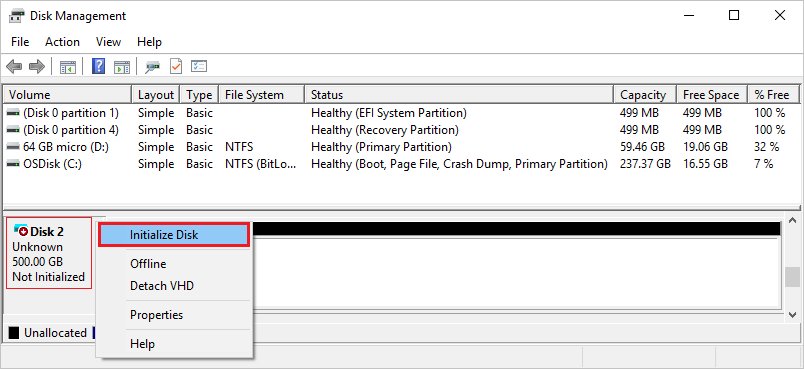
- Right-click the new disk in the lower pane, select Initialize Disk, keep GUID Partition Table (GPT) and select OK.
- Right-click the unallocated space on that disk and select New Simple Volume.
- Select Next, keep the maximum size, pick a drive letter, keep the default format settings and select Finish.
The new drive appears in File Explorer under This PC. Move the folder you want to protect onto it before you turn on BitLocker.
How to turn on BitLocker password for a VHDX in Windows 11
BitLocker is on Windows 11 Pro, Enterprise and Education, not Home. Microsoft supports it on virtual hard disks with a password protector, so no TPM is needed for this drive.
- Select Start, type BitLocker and open Manage BitLocker.
- Find the VHDX drive letter under Fixed data drives and select Turn on BitLocker.
- Choose the password unlock option, type a strong password twice and select Next.
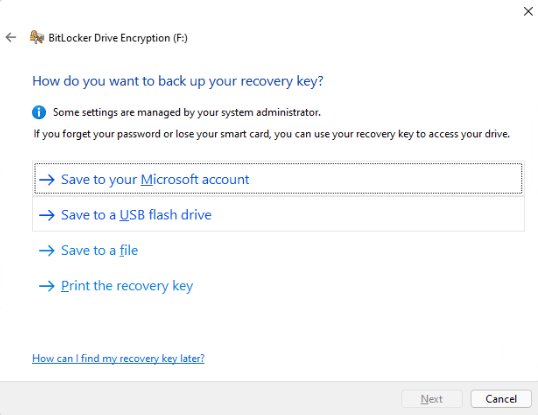
- Back up the recovery key to your Microsoft account, a file on another drive, or a printout, then select Next.
- Choose to encrypt used disk space only, which is faster on a new, empty drive, and select Next.
- Start encryption and wait for it to finish. You can keep using the PC while it runs.
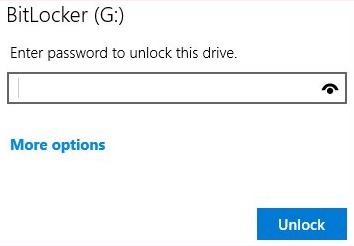
The drive locks again at every shutdown and restart. To open it, go to Manage BitLocker, select Unlock drive next to the VHDX and type the password. The same wizard also works on a USB stick or any other BitLocker-encrypted data drive.
How to lock a BitLocker drive in Windows 11 without restarting
There is no lock button for an unlocked data drive in File Explorer, but the built-in manage-bde tool locks it on demand. Save and close every open file on the drive first.
manage-bde.exe E: -lockRun it in Command Prompt opened as administrator. Replace E: with the drive letter of your VHDX. The -lock switch dismounts the BitLocker drive and keeps its data encrypted until the password is entered again.
You should see: The drive becomes inaccessible until someone unlocks it with the password or recovery key.
You can also detach the VHDX: right-click its disk in Disk Management and select Detach VHD. Detaching does not delete the file or anything stored in it. To bring it back, select Action > Attach VHD, browse to the .vhdx file and select OK.
How to lock a folder in OneDrive Personal Vault on Windows 11
Personal Vault is a protected folder inside OneDrive that opens only after a second identity check. It works on Windows 11 Home and Pro with a personal Microsoft account.
- Open File Explorer and select your OneDrive folder in the left pane.
- Open the Personal Vault folder and select Get started.
- Verify your identity with a code sent by email or text, the Microsoft Authenticator app, or Windows Hello face, fingerprint or PIN.
- Move the files you want to protect into Personal Vault.
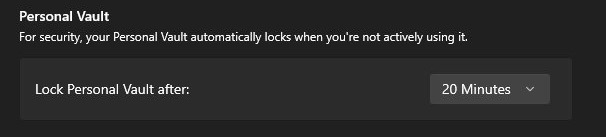
- Select Lock inside the vault when you finish. It also locks by itself after a period of inactivity.
- Change the inactivity timer in OneDrive settings on the Account tab.
Without a Microsoft 365 Personal or Family subscription, the vault holds only three files. Put several files in one 7-Zip archive first if you need more on a free account. Files in the vault cannot be shared until you move them out, and they do not show up in search.
How to encrypt a folder in Windows 11 with EFS
EFS ties the folder to your Windows account. You will not see a password prompt, but other accounts on the PC cannot open the files. It is not available on Windows 11 Home.
- Right-click the folder and select Properties.
- On the General tab, select Advanced.
- Select the Encrypt contents to secure data check box and select OK.
- Select Apply, choose whether to encrypt the folder only or the folder with its subfolders and files, and select OK.
Anyone who can sign in to your account can still open an EFS folder, so pair it with a strong Windows password or PIN. EFS files lose their encryption when you put them in a zipped folder, so do not zip an EFS folder to share it.
How to test a password-protected folder in Windows 11
Test the lock before you delete any unprotected copy. Each method has its own test.
- For a 7-Zip archive, open it in the 7-Zip File Manager and select Test. Type the password: a clean result means the contents are intact, while a Data Error or CRC Error means the archive is damaged.
- For a BitLocker VHDX, restart the PC, attach the VHDX if it is not listed, and try to open the drive. It should stay locked until you unlock it with the password.
- For Personal Vault, select Lock, then open the vault again. OneDrive should ask you to verify your identity.
- For EFS, sign in with a different Windows account and try to open a file in the folder. Windows should refuse access.
Tips for setting a password to a folder in Windows 11
These habits decide whether the password actually keeps the folder private.
| Tip | Why it matters |
|---|---|
| Use a long passphrase of 14 or more characters | Short passwords on an archive can be guessed offline, with no lockout |
| Store the password in a password manager | No vendor can reset a forgotten 7-Zip or BitLocker drive password |
| Save the BitLocker recovery key away from the VHDX | It is the only way in if the password is lost |
| Delete the unprotected original after testing | A plain copy beside the archive defeats the password |
| Keep a backup of the archive or VHDX file | A single damaged file can take every protected item with it |
| Lock your PC with Windows + L when you step away | An unlocked vault, drive or EFS folder is open to anyone at the keyboard |
A password manager is the simplest place to keep both the folder password and the recovery key reference.
How to remove password from folder in Windows 11
Removing the password means taking the files back out of the container.
- 7-Zip archive: open it in 7-Zip, select Extract, choose a destination and type the password. Delete the archive once the plain folder is back.
- BitLocker VHDX: unlock the drive, copy the folder to a normal drive, then right-click the disk in Disk Management and select Detach VHD. Delete the .vhdx file when you no longer need it.
- Personal Vault: unlock the vault and move the files to another OneDrive or local folder.
- EFS: open the folder's Properties, select Advanced, clear Encrypt contents to secure data, then select OK and Apply.
Set password for folder in Windows 11 not working
These are the problems people hit most with each method, with the cause and the fix.
Encrypt contents to secure data is greyed out
File encryption is not available on Windows 11 Home.
- Open Settings > System > About and read the Windows edition listed there.
- On Home, use a 7-Zip archive or Personal Vault instead.
Manage BitLocker does not appear in Start search
The Windows edition does not include BitLocker.
- Check the edition in Settings > System > About.
- Use a 7-Zip archive on Home, or upgrade to Windows 11 Pro to get BitLocker.
Forgot the password to a BitLocker folder drive
The password is lost, but the recovery key still unlocks a data drive.
- Open the locked drive and choose the recovery key option instead of the password.
- Enter the 48-digit key you saved, or find a BitLocker recovery key in your Microsoft account.
- Copy the files out and set a new password on a fresh VHDX.
Forgot the password to a 7-Zip archive
AES-256 archives have no reset or recovery option.
- Try the passwords stored in your password manager or browser.
- Restore the files from a backup made before you created the archive.
Personal Vault will not accept more files
Free and standalone OneDrive plans allow three files in the vault.
- Combine the files into one 7-Zip archive and move that single file into the vault.
- Or move to a Microsoft 365 Personal or Family plan, which removes the file limit up to your storage.
Create VHD is missing or fails in Disk Management
Disk Management was not opened with administrator rights, or the location is inside the Windows folder.
- Close Disk Management, then right-click Start and open Disk Management from an administrator account.
- Choose a location such as a folder in Documents or on a second drive, not under C:\Windows.
Folder password in Windows 11 FAQ
Can I set a password on a folder without software?
Yes, on Windows 11 Pro. Store the folder on a VHDX drive created in Disk Management and protect that drive with a BitLocker password. On Home, OneDrive Personal Vault is the only built-in option, and it uses identity verification rather than a password.
How do I set a password to a folder in Windows 10?
The same methods work in Windows 10. A 7-Zip archive works on every edition, while BitLocker on a VHDX and EFS need Windows 10 Pro, Enterprise or Education. OneDrive Personal Vault also runs on Windows 10.
How do I set a password to a folder on a laptop or PC?
The steps are identical on a laptop and a desktop PC. Put the folder in a 7-Zip archive with an AES-256 password, or on Windows 11 Pro, move it to a BitLocker-protected VHDX drive that asks for a password every time it is opened.
What if I forget the password?
A 7-Zip archive cannot be reopened without its password, so only a backup brings the files back. A BitLocker drive can still be unlocked with its 48-digit recovery key. Personal Vault uses your Microsoft account verification, so there is no separate password to forget.
Does Windows 11 have built-in folder encryption?
Yes, but not with a folder password. Windows 11 Pro has EFS, which encrypts a folder for your account, and BitLocker, which encrypts whole drives. Windows 11 Home has neither EFS nor BitLocker management, though most Home PCs have device encryption for the system drive.
Are there risks to encrypting folders?
The main risk is losing access. A forgotten 7-Zip password, a lost BitLocker recovery key or a deleted EFS certificate can make the data unrecoverable. Keep a backup and store the password and recovery key somewhere other than the PC.
Can I use third-party software to lock a folder?
Yes. 7-Zip is free, open source and encrypts archives with AES-256, which makes it the usual choice. Avoid tools that only hide a folder, because a hidden folder is not encrypted and opens normally once found.
How do I use a password-protected folder every day?
Use a BitLocker VHDX on Windows 11 Pro. Unlock the drive once with its password and it behaves like a normal drive until you lock it with manage-bde or restart the PC. An archive suits files you open less often.
How do I put a password on a folder to share it?
Create a 7-Zip archive of the folder with a password, send the archive file, and share the password by a different channel such as a phone call. Choose ZIP format with AES-256 if the recipient does not use 7-Zip.